How to Expose HTTP/HTTPS Ports
How and Why to Expose HTTP/HTTPS Ports
You can expose HTTP and HTTPS applications running in a playground VM to the public internet. An exposed application becomes accessible via a unique URL that can be used either by you (from a browser or another device) or shared with others.
Typical use cases are:
- Experimenting with
Kubernetes DashboardHeadlamp, Grafana, or any other web application deployed in a playground - Sharing a web application you're working on with friends or colleagues
- Exposing an API service running in a playground to the public internet
- Running a (graphical) remote desktop in a playground VM (example)
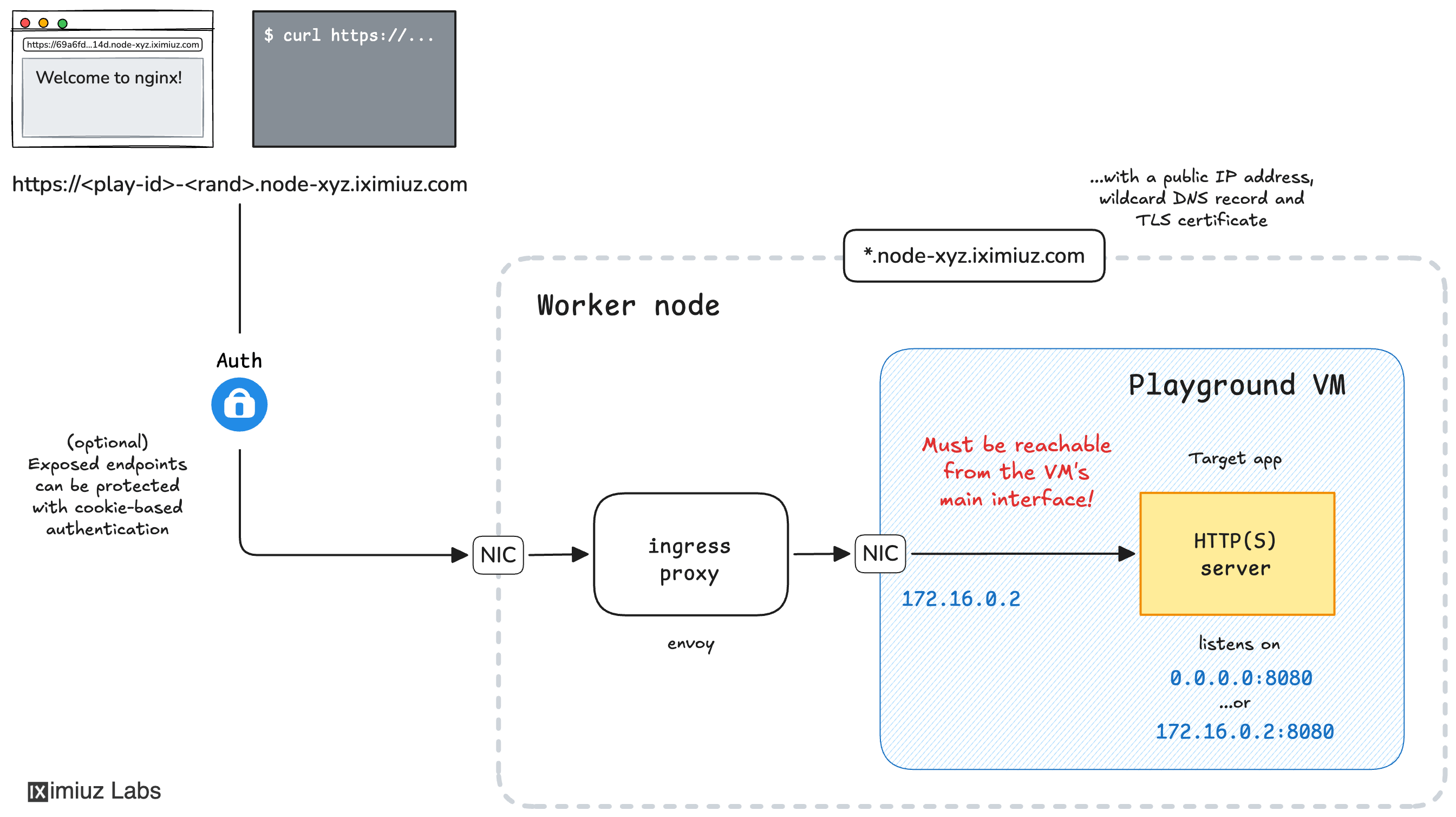
The labctl expose port command generates a unique URL that can be used to access the application from anywhere in the world.
What ports can be exposed?
⚠️ Only applications listening on the machine's main network interface (usually eth1 with an IP address in the 172.16.0.0/24 subnet) or all interfaces (0.0.0.0) can be exposed.
Applications listening on the VM's localhost or internal interfaces (e.g., created by a Kubernetes networking plugin) cannot be exposed directly. As a workaround, you can forward such ports from a local to the main interface using socat or a similar tool and then expose the forwarded port instead.
Private vs. public exposed ports
Exposed HTTP(S) ports are private by default, meaning only the playground owner can access them. If you want to share an exposed port with others, you need to set the access control to public before exposing the port. Note that public exposed ports are visible to everyone, including anonymous users, so be mindful and avoid exposing sensitive ports to the public.
HTTP vs. HTTPS ports
Generated URLs always use the HTTPS protocol. However, the exposed application can be either HTTP or HTTPS (defaults to HTTP). If the target application serves traffic over HTTPS, you need to set the HTTPS option to Yes in the Expose HTTP(S) Ports dialog. This will inform the ingress proxy to access the application using the HTTPS protocol. The target application MAY use a self-signed certificate or a certificate from a private CA.
How to Expose HTTP/HTTPS Ports using the Web UI
To expose a port, simply click the Expose Port button in the top right corner of a running playground and select the VM and the port to expose:
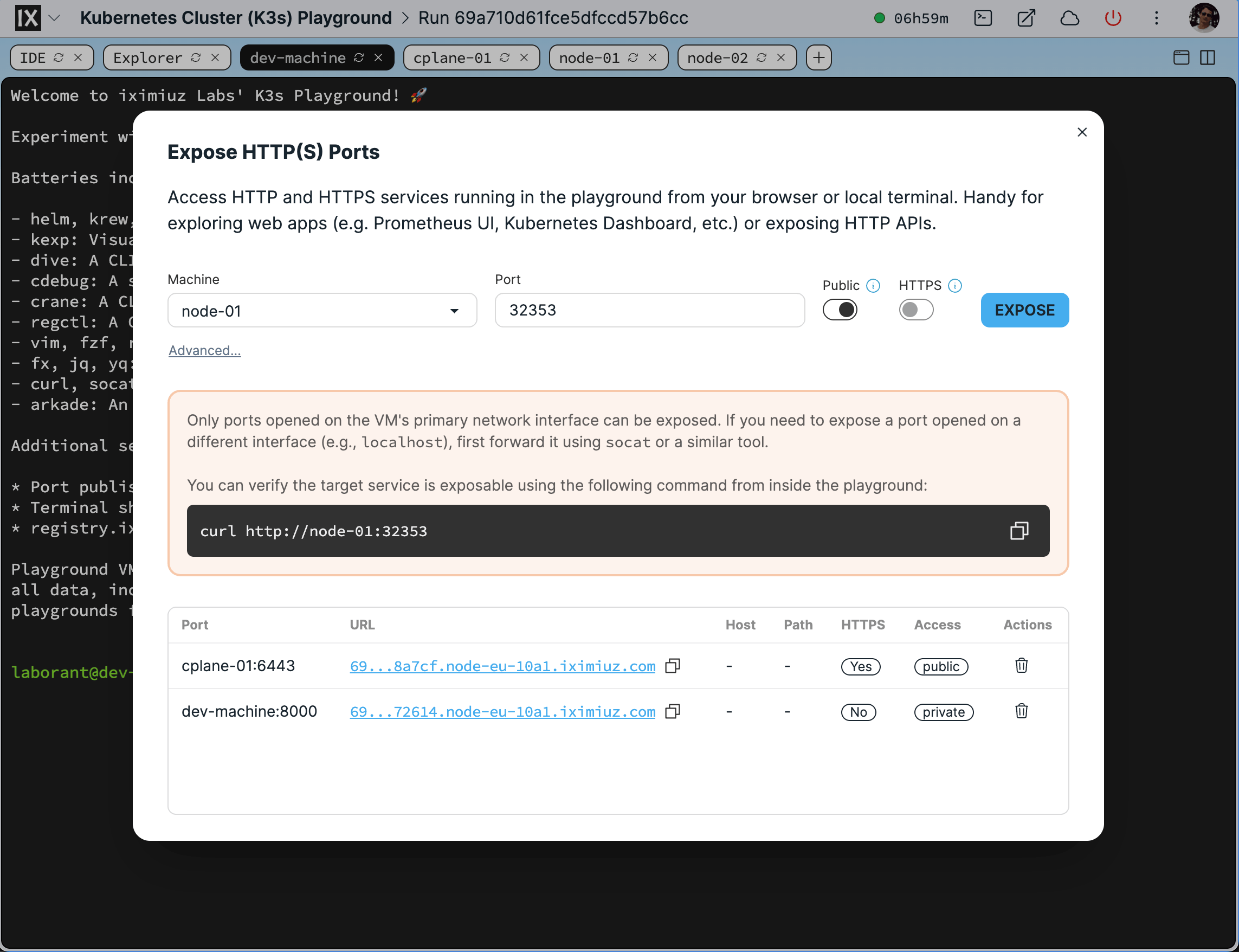
The Expose HTTP(S) Ports dialog.
The Expose HTTP(S) Ports dialog provides a test curl command to verify the port is accessible on machine's main interface. Run it from your playground VM to verify the port can be reached by the ingress proxy. Example:
curl http://node-01:8080
How to Expose HTTP/HTTPS Ports using the CLI
You can also expose a port using labctl:
labctl expose port --help
Expose an HTTP(s) service running in the playground

Usage:
  labctl expose port <playground> <port> [flags]

Flags:
  -h, --help                  help for port
      --host-rewrite string   Rewrite the host header passed to the target service
  -s, --https                 Enable if the target service uses HTTPS (including self-signed certificates)
  -m, --machine string        Target machine (default: the first machine in the playground)
  -o, --open                  Open the exposed service in browser
      --path-rewrite string   Rewrite the path part of the URL passed to the target service
  -p, --public                Make the exposed service publicly accessible
Below are a few practical examples of how to use the labctl expose port command.
Exposing a Docker container's published port
- Start a new Docker playground:
PLAY_ID=$(labctl playground start docker)
- Start a new Nginx container making it available on the playground VM's
0.0.0.0:8080address:
labctl ssh $PLAY_ID -- docker run -d -p 8080:80 nginx:alpine
- Expose the published port 8080 with a public URL:
labctl expose port $PLAY_ID 8080 --public
HTTP port docker-01:8080 exposed as https://69a724cd1fce5dfccd59988d-b605c8.node-eu-d241.iximiuz.com
https://69a724cd1fce5dfccd59988d-b605c8.node-eu-d241.iximiuz.com
- Verify that the Nginx server is accessible from the public URL:
curl https://69a724cd1fce5dfccd59988d-b605c8.node-eu-d241.iximiuz.com
The output should be the Nginx welcome page.
Exposing a Kubernetes application via a NodePort service
- Start a new Kubernetes playground:
PLAY_ID=$(labctl playground start k3s)
- Deploy a sample Kubernetes application (a single Pod would do the trick):
labctl ssh $PLAY_ID -- kubectl run nginx-01 --image=nginx:alpine
- Expose the application with a NodePort service:
labctl ssh $PLAY_ID -- kubectl expose pod nginx-01 --port=80 --type=NodePort
- Find the application's NodePort:
labctl ssh $PLAY_ID -- kubectl get svc nginx-01
NAME       TYPE       CLUSTER-IP     EXTERNAL-IP   PORT(S)        AGE
nginx-01   NodePort   10.43.195.70   <none>        80:30762/TCP   42s
- Expose the NodePort service using the right port number and one of the cluster's nodes:
labctl expose port $PLAY_ID 30762 --machine node-01 --public
HTTP port node-01:30762 exposed as https://69a725671fce5dfccd59a92f-026f01.node-eu-d241.iximiuz.com
https://69a725671fce5dfccd59a92f-026f01.node-eu-d241.iximiuz.com
- Verify that the Nginx server is accessible by opening the generated URL in a browser.
Exposing a Kubernetes application via kubectl port-forward
- Start a new Kubernetes playground:
PLAY_ID=$(labctl playground start k3s)
- Deploy a sample Kubernetes application (a single Pod would do the trick):
labctl ssh $PLAY_ID -- kubectl run nginx-01 --image=nginx:alpine
- Forward the application's port 80 to the
dev-machineVM of the playground using thekubectl port-forwardcommand:
labctl ssh -m dev-machine $PLAY_ID -- \
    kubectl port-forward --address 0.0.0.0 pod/nginx-01 8080:80
Forwarding from 0.0.0.0:8080 -> 80
Note that the kubectl port-forward command must use the --address 0.0.0.0 flag to forward the port to all interfaces on the dev-machine VM. Otherwise, the forwarded port will only be accessible on the VM's localhost, which will make it impossible to expose with a generated URL.
- Expose the forwarded port with a generated URL:
labctl expose port $PLAY_ID 8080 --machine dev-machine --public
HTTP port dev-machine:8080 exposed as https://69a726071fce5dfccd59b97f-026f01.node-eu-d241.iximiuz.com
https://69a726071fce5dfccd59b97f-026f01.node-eu-d241.iximiuz.com
- Verify that the Nginx server is accessible by opening the generated URL in a browser.
Exposing Kubernetes API via direct access
The Kubernetes API server usually runs on port 6443 and uses a self-signed certificate. To expose it, you can use the --https flag (or the HTTPS option in the Expose HTTP(S) Ports dialog) to set the target protocol to HTTPS.
- Start a new Kubernetes playground:
PLAY_ID=$(labctl playground start k3s)
- Expose the Kubernetes API server with a generated URL on the control plane node:
labctl expose port $PLAY_ID 6443 --https --machine cplane-01 --public
HTTP port cplane-01:6443 exposed as https://69a726071fce5dfccd59b97f-026f01.node-eu-d241.iximiuz.com
https://69a726071fce5dfccd59b97f-026f01.node-eu-d241.iximiuz.com
- Verify that the Kubernetes API server is accessible by opening the generated URL in a browser.
Exposing Kubernetes API via kubectl proxy
If you want to bypass the API server's authentication, you can use the kubectl proxy command to forward the API server's port to the dev-machine VM of the playground combined with the --host-rewrite localhost flag of the labctl expose port command.
- Start a new Kubernetes playground:
PLAY_ID=$(labctl playground start k3s)
- Forward the API server's port 6443 to the
dev-machineVM of the playground using thekubectl proxycommand:
labctl ssh -m dev-machine $PLAY_ID -- \
    kubectl proxy --address 0.0.0.0 --port 8080
Starting to serve on [::]:8080
- Expose the forwarded port with a generated URL:
labctl expose port $PLAY_ID 8080 --public \
    --machine dev-machine --host-rewrite localhost
HTTP port dev-machine:8080 exposed as https://69a726071fce5dfccd59b97f-026f01.node-eu-d241.iximiuz.com
https://69a726071fce5dfccd59b97f-026f01.node-eu-d241.iximiuz.com
- Verify that the Kubernetes API server is accessible:
curl https://69a726071fce5dfccd59b97f-026f01.node-eu-d241.iximiuz.com/version
{
  "major": "1",
  "minor": "35",
  ...
}
Troubleshooting
If the generated URL is not working, check the following:
- Is the target application up and running?
- Do you use the correct machine and port in the Expose HTTP(S) Ports dialog (or the CLI command)?
- Does the target application serves traffic over HTTP or HTTPS? If the latter, did you set the HTTPS option to Yes in the Expose HTTP(S) Ports dialog?
- Does the target port appear in the
ss -lntpoutput when run from the playground VM? - Is the target port open on the machine's main interface (or
0.0.0.0)? - Does the test
curlcommand from the Expose HTTP(S) Ports dialog show the expected response?
- Previous
- How to Share a Terminal Session