How to Forward Local Ports
You can securely expose TCP & UDP services running in the playground VM to your local machine using the labctl port-forward command -
a simplified equivalent of the standard ssh -L command:
labctl port-forward PLAYGROUND_ID -L [[LOCAL_HOST:]LOCAL_PORT:][REMOTE_HOST:]REMOTE_PORT
This capability comes in handy when you need to make a service running in the playground VM accessible for services running on your local machine. For example, you can use it to connect a local development server to its upstream dependencies running in the playground, or when you want to connect to a remote database using a local GUI client.
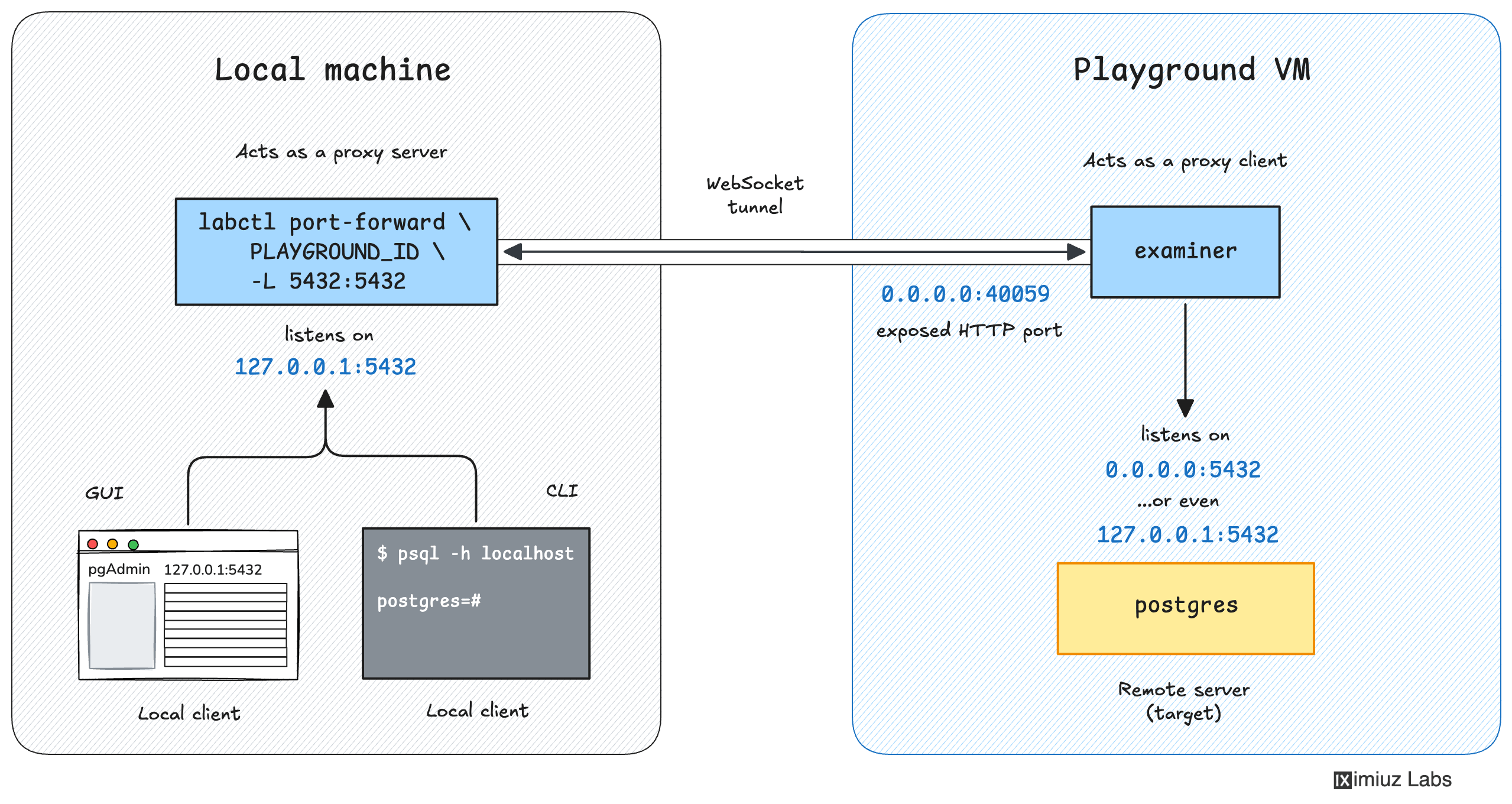
The labctl port-forward command starts a foreground process on your machine that forwards all connections to a local port to the corresponding remote address.
Below are a few practical examples of how to use the labctl port-forward -L command.
Exposing a service listening on the external interface
- Start a new playground:
PLAY_ID=$(labctl playground start docker)
- Start a new Nginx container making it available on the playground VM's
0.0.0.0:8080address:
labctl ssh $PLAY_ID -- docker run -d -p 8080:80 nginx:alpine
- Forward the published port 8080 to the local machine's
127.0.0.1:8080address with a simple-L 8080:8080flag:
labctl port-forward $PLAY_ID -L 8080:8080
Forwarding 127.0.0.1:8080 -> :8080
- Verify that the Nginx server is running on the local machine:
curl http://localhost:8080
The output should be the Nginx welcome page.
Exposing a service listening on an internal address
- Start a new playground:
PLAY_ID=$(labctl playground start docker)
- Start a new Nginx container but do not publish its port 80 to the external interface:
labctl ssh $PLAY_ID -- docker run -d --name nginx-1 nginx:alpine
- Find the container's IP address using the following command:
labctl ssh $PLAY_ID -- docker inspect \
    -f '{{range.NetworkSettings.Networks}}{{.IPAddress}}{{end}}' nginx-1
172.17.0.2
- Forward the container's port 80 to the local machine's
127.0.0.1:8080address using the complete local and remote addresses:
labctl port-forward $PLAY_ID -L 127.0.0.1:8080:172.17.0.2:80
- Verify that the Nginx server is running on the local machine:
curl http://localhost:8080
The output should be the Nginx welcome page.
Restoring previously forwarded ports with ease
The labctl port-forward command starts a foreground process that forwards all connections to the local port to the remote port.
If such a foreground process is terminated, the port forwarding will be interrupted,
which is especially annoying if you're forwarding several ports at once.
Luckily, the labctl port-forward command keeps track of the previously forwarded ports.
If you (accidentally or on purpose) terminate the forwarding process(es), you can easily restore port forwarding with:
labctl port-forward PLAYGROUND_ID --restore
This capability is particularly useful when combined with Persistent Playgrounds - you can restore all previously forwarded ports on a playground restart automatically with:
labctl playground restart --with-port-forwards PLAYGROUND_ID
You can also list all previously forwarded ports with:
labctl port-forward PLAYGROUND_ID --list
And remove a previously forwarded port with:
labctl port-forward PLAYGROUND_ID --remove POSITION_IN_LIST
- Previous
- How to Expose HTTP/HTTPS Ports