How to SSH into Playgrounds
There are several ways to access a playground VM via SSH:
- From the browser (default) - using the web terminal
- From the command line - using the
labctl sshcommand - From the command line - using the standard
sshcommand
For the first two options, refer to the respective documentation pages.
Below, we'll focus on the third option - using the standard ssh command.
Why use the standard ssh command to access a playground VM
While the labctl ssh command works perfectly for running interactive SSH sessions or executing one-off playground commands from your local terminal,
being able to use the standard ssh command becomes a necessity when you need to integrate SSH access to a playground VM into third-party tools or scripts. Two most prominent use cases are:
- Developing in a playground VM using your local IDE (VS Code, Cursor, etc)
- Using a playground VM as a remote Docker context (e.g. for building container images)
How to use the standard ssh command to access a playground VM
To access a playground VM using the standard ssh command, you need to:
- Generate a local SSH key pair
- Add its public key to the playground VM's
authorized_keysfile(s) - Forward an arbitrary local port to the VM's SSHD port (22)
Luckily, you don't need to do any of the above manually -
the labctl ssh-proxy command will do all of the above for you.
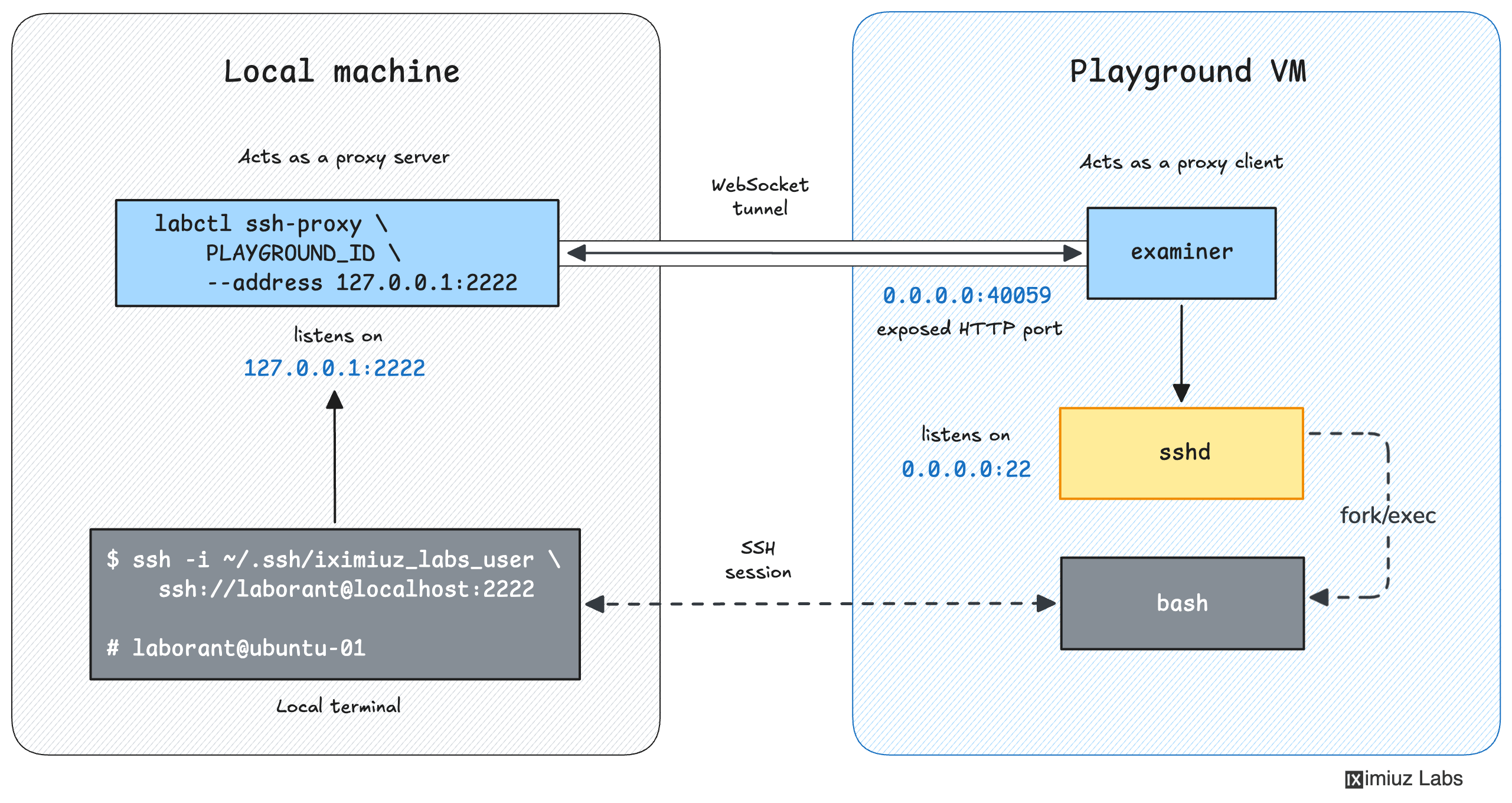
The labctl ssh-proxy command starts a foreground process on your local machine that forwards all connections to the selected local port to the playground VM's SSHD port (22).
Here is a quick example of how to set up SSH access to a freshly started Docker playground:
labctl playground start docker
New docker playground started with ID 69973550ab88efd18f6458bc
69973550ab88efd18f6458bc
Once the above playground is ready, run:
labctl ssh-proxy 69973550ab88efd18f6458bc --address localhost:2222
The --address flag is optional - if not provided, the SSH proxy will listen on a random port.
The above command will start a foreground process that will forward all connections to the local port 2222 to the playground VM's SSHD port (22).
From this moment on and until the SSH proxy is stopped or the playground VM is gone, you can access the playground VM via SSH using the following command:
ssh -i ~/.ssh/iximiuz_labs_user ssh://laborant@localhost:2222
The ~/.ssh/iximiuz_labs_user file is the private key of the laborant user on the playground VM.
It is automatically generated by the labctl CLI tool and stored in your home directory.
Improving the user experience by adding SSH config
To improve the user experience, you can add the following to your ~/.ssh/config:
Host localhost 127.0.0.1 ::1
  IdentityFile ~/.ssh/iximiuz_labs_user
  AddKeysToAgent yes
  # UseKeychain yes  # <--- macOS-only option
  StrictHostKeyChecking no
  UserKnownHostsFile /dev/null
This will allow you to access the playground VM via SSH using the slightly shorter command:
ssh ssh://laborant@localhost:2222
You can also take it one step further and add a custom alias for the playground VM:
Host remote-docker
  HostName localhost
  Port 2222
  User laborant
  IdentityFile ~/.ssh/iximiuz_labs_user
This will allow you to access the playground VM via SSH using the following command:
ssh remote-docker
Unlocking advanced use cases
More importantly, the above alias will unlock much more advanced use cases, such as:
- Previous
- How to Use Playgrounds