Remote Docker Host
Using a Playground VM as a Remote Docker Context
Motivation
Sometimes, you may want to run containers on a remote VM without having to SSH into it. It may be useful when your local machine lacks sufficient resources to run the containers, sits in a slow network, or you just want to keep your local machine clean and free of Docker-related clutter.
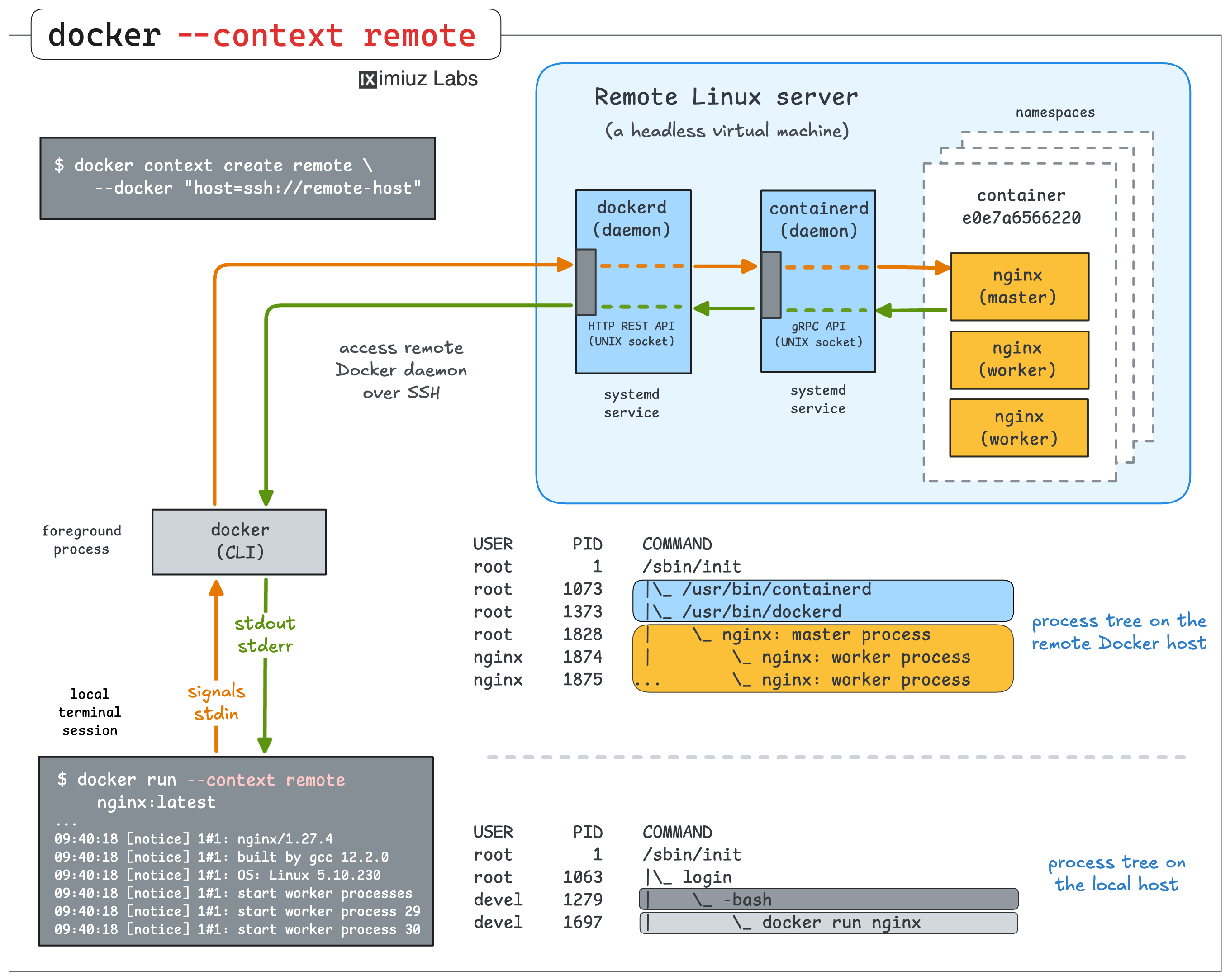
Using an iximiuz Labs playground as a remote Docker context is a great way to run containers on a separate VM without having to SSH into it and keeping your local machine clean.
Prerequisites
dockerCLI (via Docker Desktop, Docker Engine, or standalone installation)- SSH access to the Docker playground via an
ssh some-aliascommand
Adding a remote Docker context
- Start a new Docker playground:
PLAY_ID=$(labctl playground start docker)
- Start an SSH proxy:
labctl ssh-proxy $PLAY_ID --address localhost:2222
- Configure an SSH alias for the playground VM by adding the following to your
~/.ssh/config:
Host localhost 127.0.0.1 ::1
  IdentityFile ~/.ssh/iximiuz_labs_user
  AddKeysToAgent yes
  # UseKeychain yes  # <--- macOS-only option
  StrictHostKeyChecking no
  UserKnownHostsFile /dev/null

Host remote-docker
  HostName localhost
  Port 2222
  User laborant
  IdentityFile ~/.ssh/iximiuz_labs_user
Verify that the SSH alias works by running the following command:
ssh remote-docker
- Add a remote Docker context by running the following command:
docker context create remote-docker --docker "host=ssh://remote-docker"
- Verify that the remote Docker context works:
docker --context remote-docker \
    run -d --restart always -p 8080:80 nginx:alpine
The above command uses a local docker CLI to access the remote Docker engine running on the playground VM
(i.e., the playground VM acts as a Docker host).
Since the container is running on the playground VM, its port will be published only remotely. To access it from your local machine, you need to additionally forward it using the following command:
labctl port-forward $PLAY_ID -L 8080:8080
Finally, you can access the container from your local machine using the following command:
curl http://localhost:8080
Additionally, you can verify that there is no nginx process running on your local machine:
pgrep nginx
The output of the above command should be empty, because the container is running on the playground VM.
Making the setup permanent
By default, playgrounds started with labctl playground start are ephemeral (destroyed on termination).
To preserve the remote Docker host, you can either explicitly stop the playground (while it's still running) with:
labctl playground stop $PLAY_ID
...or make the running playground persistent (meaning its state will be preserved on termination):
labctl playground persist $PLAY_ID
After that, you can restart the playground with the same port forwards as before using its stable ID:
labctl playground restart --with-port-forwards $PLAY_ID
Restarting playground 6999c1a5099b162ab1290861...
Waiting for playground to restart... Done.
Playground has been restarted.
Restoring 2 port forward(s)...
6999c1a5099b162ab1290861
Forwarding 127.0.0.1:8080 -> :8080 (machine: docker-01)
Forwarding localhost:2222 -> :22 (machine: docker-01)
All containers started with the a restart policy will be automatically restarted on playground restart.
Using a Playground VM as a Remote Docker Builder
You can also use a remote Docker context from the previous unit as a remote Docker builder:
docker buildx create --name remote-builder --driver docker-container remote-docker
To build a container image using such a remote builder and load it into your local Docker daemon, run:
cat > Dockerfile <<EOF
FROM alpine:3

RUN echo "Hello, World!" > /hello.txt
EOF
docker buildx build --builder remote-builder --load -t my-image:latest .
The above command uses a local docker CLI to trigger a Docker build on the playground VM
(i.e., the playground VM acts as an image builder).
Alternatively, you can push the image to the playground's private registry using the following command:
docker buildx build --builder remote-builder \
    --push -t registry.iximiuz.com/my-image:latest .
To verify that the image is available in the playground VM's private registry, run:
ssh remote-docker regctl tag ls registry.iximiuz.com/my-image
latest
- Previous
- Coding Agent with Browser Access