Custom Playgrounds
Getting started
iximiuz Labs supports creating custom playgrounds by:
- Reconfiguring a base playground and/or modifying its filesystem with user-defined init scripts
- Creating a completely new rootfs image (either from scratch or based on an existing image)
- Saving a running playground with all its rootfs modifications as a new custom playground
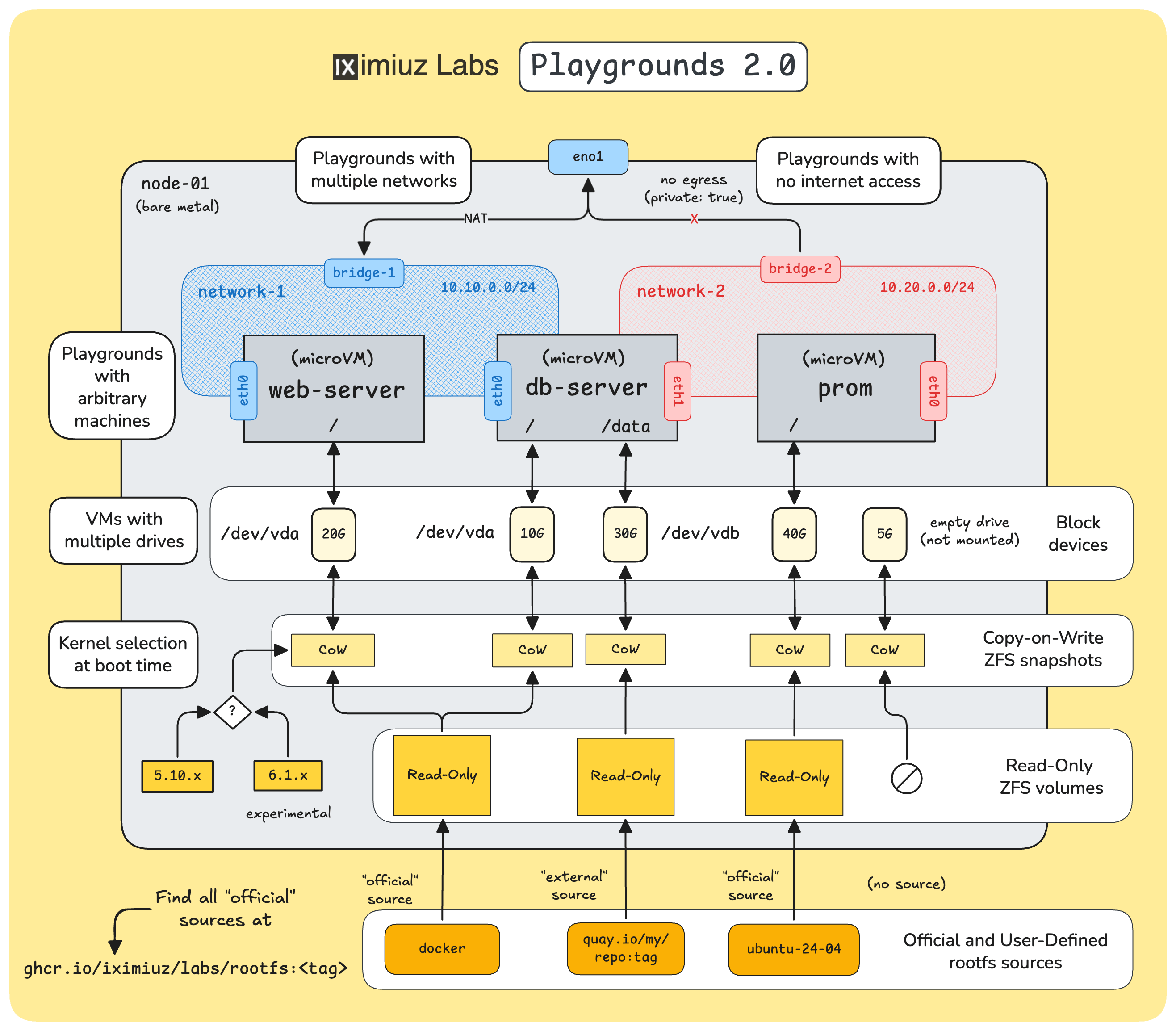
iximiuz Labs Playgrounds: multi-network, multi-VM, multi-disk setups with a rich collection of base rootfs images and the ability to bring your own rootfs.
To get started, navigate to the /new/playground page and follow the wizard instructions.
For more advanced use cases, you can use the labctl CLI tool to create and manage custom playgrounds using Kubernetes-style YAML manifests:
labctl playground create- create a new custom playgroundlabctl playground manifest- to view the YAML manifest of a custom playgroundlabctl playground update- to update a custom playground from a YAML manifest
Additional Resources
Using custom rootfs images
It's possible to create a playground with a custom root filesystem, and there are various reasons you might want to do this:
- You want something that's not available from one of the existing base images.
- You want to add additional dependencies on top of one of those existing base images.
- You have a custom playground that's based on an existing base image but it installs a bunch of things and the init tasks make the user wait a long time before the playground is ready.
Depending on which approach you want to take, the process is some variant of the following:
- Create a Dockerfile locally that has all the things you want in it
- Test that it builds okay
- Push the built image to a container registry (preferably ghcr.io; note that Docker Hub is not supported due to its strict rate limiting)
- Use that image as the drive for a custom playground via a manifest.yaml file and push via
labctl.
kind: playground
name: <playground-name>
playground:
  machines:
    - name: <machine-name>
      drives:
        - source: oci://ghcr.io/lpmi-13/amazing-demo-image:v1
          mount: /
          size: 30GiB
- Use that image as the drive for a custom playground via the web UI
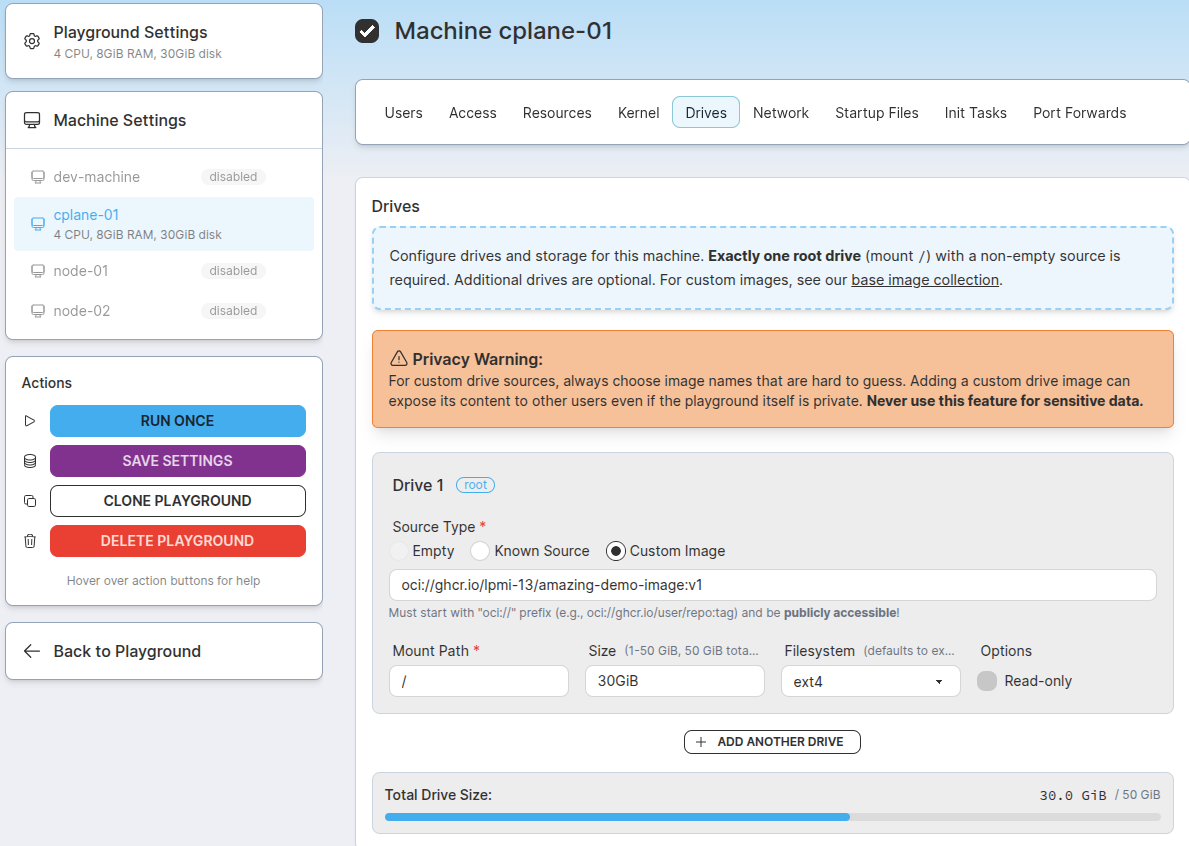
Setting a custom OCI image as a VM drive rootfs source using the Playground Constructor UI.
Additional Resources
- Previous
- Persistent Playgrounds