Coding Agent with Browser Access
Motivation
Running a coding agent like Claude Code directly on your laptop is convenient, but it also means giving it access to your filesystem, your shell, and - if you wire up a browser MCP - your primary Google Chrome profile with all its logged-in sessions. That's a lot of blast radius for an autonomous process.
A safer setup is to run the agent in a disposable playground VM and let it reach back to a separate, throwaway Chrome instance on your local machine over a forwarded port. The agent gets to iterate on code and see the rendered result in a real browser, while your primary browser profile stays untouched.
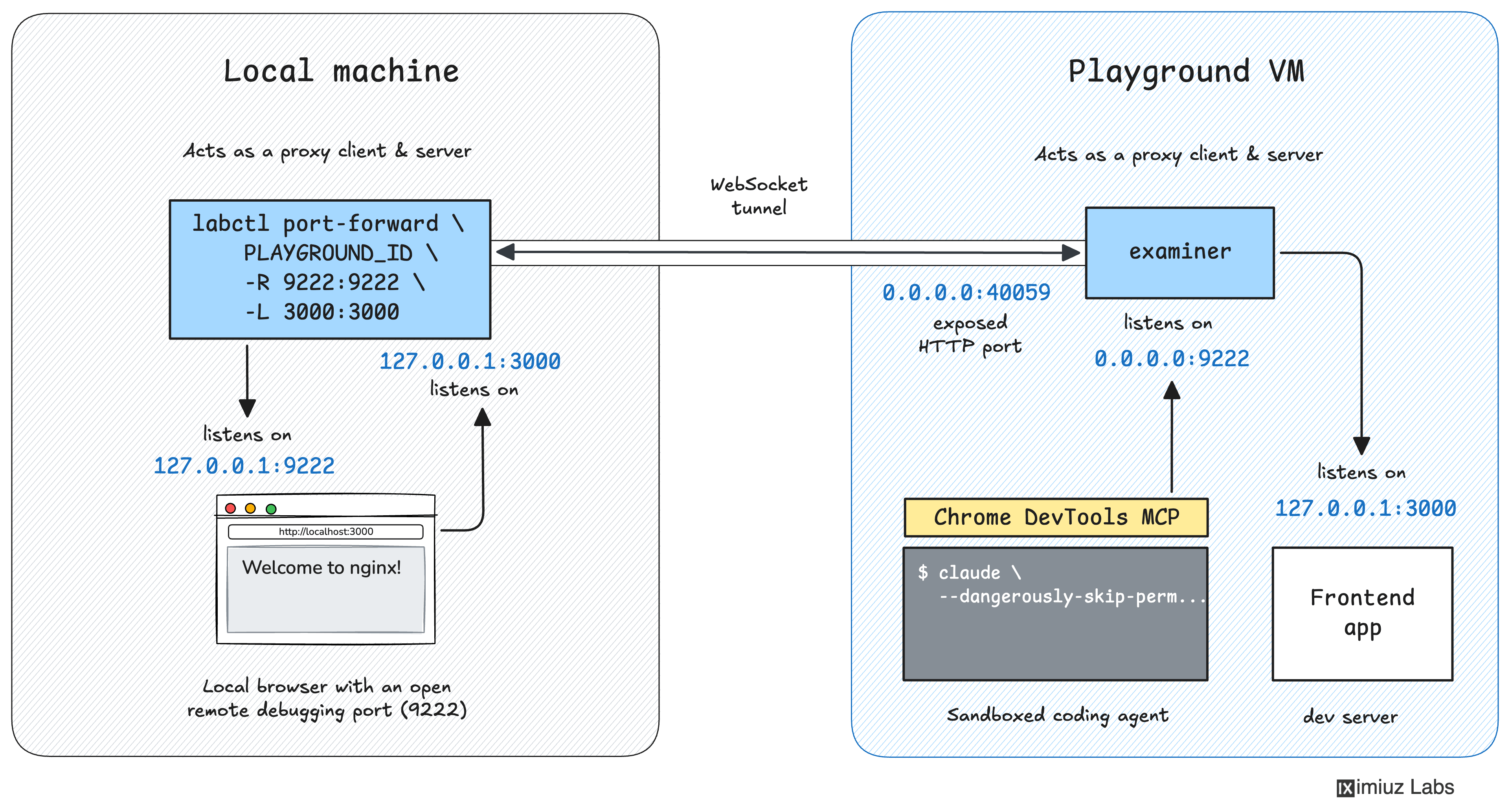
The coding agent running in a playground VM can drive your local Chrome via the Chrome DevTools MCP.
Prerequisites
labctlCLI- Google Chrome installed locally
- A local IDE (optional, for step 6)
Setting up the environment
- Start a new development playground and capture its ID:
PLAY_ID=$(labctl playground start nodejs) # or golang, python, etc.
- SSH into the playground and install Claude Code:
labctl ssh $PLAY_ID
Once inside the VM:
curl -fsSL https://claude.ai/install.sh | bash
- Install the Chrome DevTools MCP using the
claude mcp addcommand:
claude mcp add chrome-devtools -- \
    npx chrome-devtools-mcp@latest --browser-url http://localhost:9222
Note that the recommended "plugin way" of installing the Chrome DevTools MCP works,
but it requires you to manually adjust the MCP server command to add the --browser-url argument
pointing to the forwarded remote debugging port inside the playground VM after the installation:
claude plugin marketplace add ChromeDevTools/chrome-devtools-mcp
claude plugin install chrome-devtools-mcp
The problem is that there is no easy way to find the right MCP settings file to edit, but you can always ask Claude Code to adjust its own configuration.
- On your local machine, start a separate Google Chrome instance with a dedicated profile and remote debugging enabled.
On macOS:
/Applications/Google\ Chrome.app/Contents/MacOS/Google\ Chrome \
    --remote-debugging-port=9222 \
    --user-data-dir=/tmp/chrome-profile-stable
On Linux:
/usr/bin/google-chrome \
    --remote-debugging-port=9222 \
    --user-data-dir=/tmp/chrome-profile-stable
On Windows:
"C:\Program Files\Google\Chrome\Application\chrome.exe" ^
    --remote-debugging-port=9222 ^
    --user-data-dir="%TEMP%\chrome-profile-stable"
Do not point --user-data-dir at your primary Chrome profile unless you fully understand the risks of giving a coding agent uncontrolled access to a browser with active sessions on sensitive sites (email, banking, cloud consoles, etc.).
- Forward the local port
9222into the playground so that the remote Claude Code can drive your local browser:
labctl port-forward $PLAY_ID -R 9222:9222
- Back in the SSH session, launch Claude Code and ask it to do some web development. The Chrome DevTools MCP will connect to
localhost:9222inside the playground, which is transparently forwarded to the Chrome instance running on your laptop.
claude --dangerously-skip-permissions
- Make the remote application accessible in the local browser by either exposing it as a public URL with
labctl expose localor forwarding it withlabctl port-forward -L:
labctl expose port $PLAY_ID 3000 --public
or:
labctl port-forward $PLAY_ID -L 3000:3000
Then tell Claude Code to open the application in the local browser using the generated URL or the forwarded port (e.g., http://localhost:3000).
Editing the remote codebase locally
If you prefer to browse and edit the project in your local IDE rather than over SSH, open the playground's workspace with labctl ide:
labctl ide code $PLAY_ID --workdir path/to/source
This opens VS Code attached to the playground VM, while Claude Code keeps running remotely and continues to drive the Chrome instance on your laptop through the forwarded port.
- Previous
- labctl playground machine Reference
- Next
- Remote Docker Host