Real-Time Communication with WebSockets
WebSockets — Live, Two-Way Connections Without the Request Overhead
HTTP is a request–response protocol: the client sends a request, the server replies, and the connection closes. That works well for loading pages and calling APIs, but it is the wrong tool for anything that must push data from the server to the client without being asked — live chat messages, real-time notifications, live dashboards.
WebSockets solve this by upgrading an HTTP connection to a persistent, full-duplex channel. Once the handshake completes, both sides can send frames at any time without the overhead of a new HTTP request for every message.
Why does this matter for ColdFusion developers?
- ColdFusion 2025 ships with a built-in WebSocket server — no extra daemon, no third-party proxy
- The HTTP server runs on port 8500 in the lab, and in this lab the WebSocket server also runs on port 8500 — because
startListenerOnNormalPortis enabled in the CF config - The server side is a plain CFC that extends
CFIDE.websocket.ChannelListener— the same CFC model you already know - You can push a message to every connected client from any CFML page with a single function call:
wsPublish - The browser connects using a
new WebSocket()call pointed at the same host and port as the HTTP page
💡 WebSocket port — 8585 by default, but 8500 in this lab
ColdFusion's WebSocket server defaults to port 8585, separate from the HTTP port 8500. However this lab image has startListenerOnNormalPort=true in neo-websocket.xml, which tells CF to also accept WebSocket upgrade requests on the same port as HTTP — 8500. You can confirm this at any time:
cat /opt/coldfusion2025/cfusion/lib/neo-websocket.xml | grep -A2 "startListenerOnNormalPort"
Expected output:
<var name='startListenerOnNormalPort'>
    <boolean value='true'/>
This means the browser WebSocket URL is ws://<host>:8500/cfusion/WS/<channel> — the same port the page was served from, which is already proxied correctly by the lab platform.
![[object Object]](/content/files/courses/ColdFusion-2025-Foundations-5151cba6/module-3/5.lesson-websockets/__static__/cf-websocket-architecture-v1.png?v=1791349307475)
ColdFusion's built-in WebSocket server: register channels in Application.cfc, implement a handler CFC, connect from the browser — all on the same port.
1. The WebSocket handler CFC
The server side of a WebSocket channel is a CFC with three lifecycle methods. ColdFusion calls them automatically as connections open, receive messages, and close.
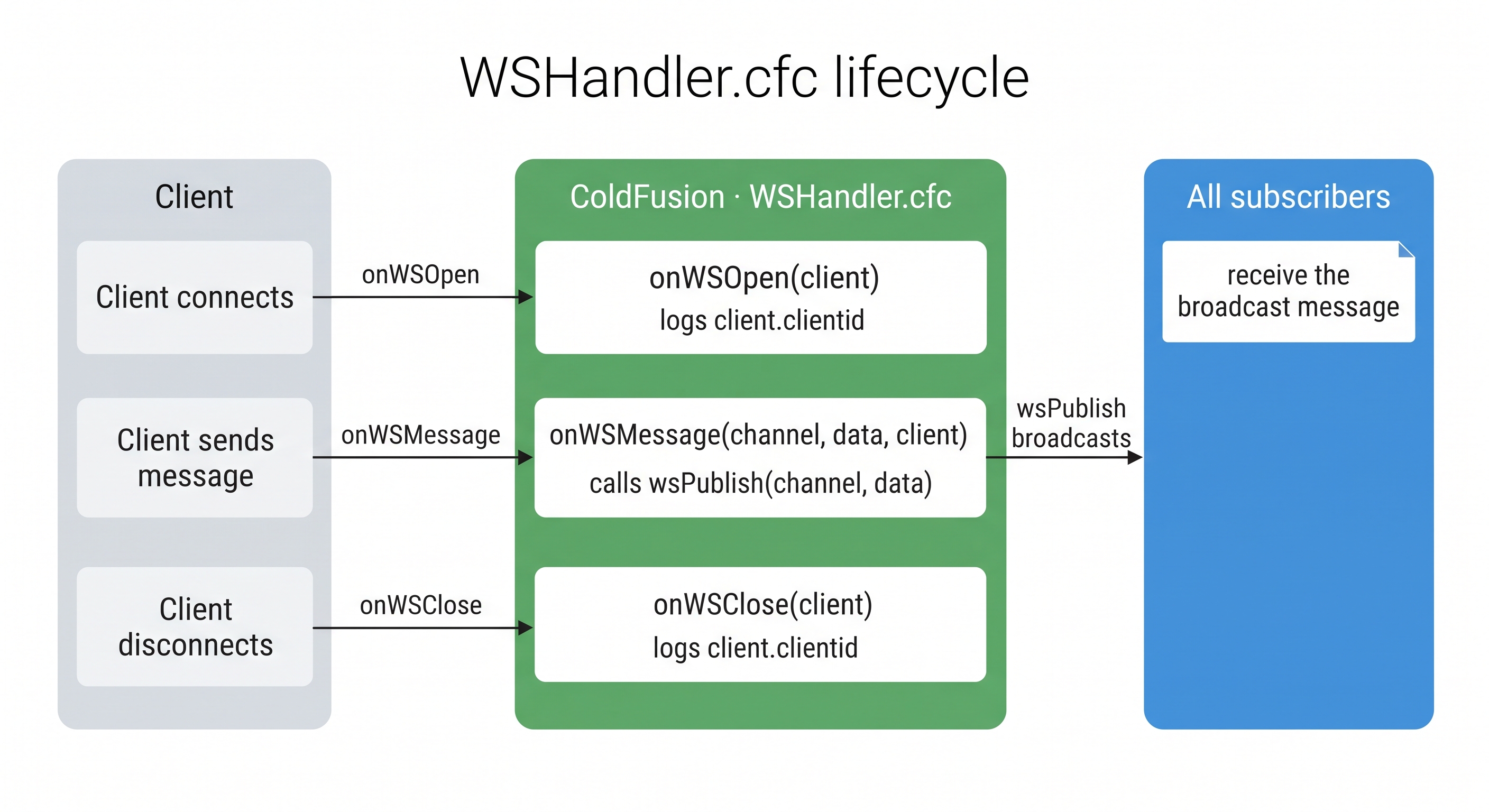
Three lifecycle methods: onWSOpen when a client connects, onWSMessage when a frame arrives, onWSClose when the connection drops.
Every handler CFC must start with this declaration — the extends is not optional:
component extends="CFIDE.websocket.ChannelListener" {
    // your three lifecycle methods go here
}
ColdFusion calls isInstanceOf("CFIDE.websocket.ChannelListener") on your CFC at startup. If the extends is missing, every request to the application returns 500.
onWSMessage — a message arrived
Called every time a client sends a frame to the channel. This is where you decide what to do with the message — in the simplest case, echo it back to everyone.
| Argument | Type | What it contains |
|---|---|---|
channel | string | The channel the message was sent to — "chat", "notifications", etc. |
data | any | The raw message payload — a string, or a JSON string you can deserialize |
client | struct | Metadata about the sender — at minimum client.clientid |
public void function onWSMessage(
    required string channel,
    required any    data,
    required struct client
) {
    // Echo the message back to every subscriber on the same channel
    wsPublish(channel, data);
}
wsPublish(channel, data) broadcasts data to every client currently subscribed to that channel — including the sender.
onWSOpen — a client just connected
Called once per connection when a new client subscribes to any channel this CFC handles. Use it to log connections or send a welcome message.
| Argument | Type | What it contains |
|---|---|---|
client | struct | The connecting client — client.clientid is the unique connection ID |
public void function onWSOpen(required struct client) {
    writeLog(
        file = "websocket",
        text = "WS connection opened: #client.clientid#"
    );
}
onWSClose — a client disconnected
Called when a connection drops — tab closed, network lost, or the client called .close() in JavaScript. Use it to clean up any per-client state you are tracking.
| Argument | Type | What it contains |
|---|---|---|
client | struct | The disconnecting client — same clientid that was passed to onWSOpen |
public void function onWSClose(required struct client) {
    writeLog(
        file = "websocket",
        text = "WS connection closed: #client.clientid#"
    );
}
The complete handler CFC
Put it all together — this is the file you will create in Activity 1:
// WSHandler.cfc — place in the CF wwwroot
component extends="CFIDE.websocket.ChannelListener" {

    public void function onWSMessage(
        required string channel,
        required any    data,
        required struct client
    ) {
        wsPublish(channel, data);
    }

    public void function onWSOpen(required struct client) {
        writeLog(file="websocket", text="WS opened: #client.clientid#");
    }

    public void function onWSClose(required struct client) {
        writeLog(file="websocket", text="WS closed: #client.clientid#");
    }

}
The client struct is provided by ColdFusion and contains at minimum clientid — a unique identifier for that connection. You can use it to send targeted messages or track online users.
⚠️ Your handler CFC must extend CFIDE.websocket.ChannelListener
This is non-negotiable and not obvious from the ColdFusion documentation. ColdFusion validates the handler CFC at startup by calling isInstanceOf("CFIDE.websocket.ChannelListener") on it. If the component does not extend that base, the entire application throws a 500 error on every request.
The base CFC already exists at /opt/coldfusion2025/cfusion/wwwroot/CFIDE/websocket/ChannelListener.cfc and provides default pass-through implementations of all six listener methods (allowSubscribe, allowPublish, beforePublish, canSendMessage, beforeSendMessage, afterUnsubscribe). Your handler only needs to override the ones it cares about.
// ✗ Wrong — CF throws InvalidListenerException at startup
component {
    public void function onWSMessage(...) { ... }
}

// ✓ Correct
component extends="CFIDE.websocket.ChannelListener" {
    public void function onWSMessage(...) { ... }
}
If you edit WSHandler.cfc and the error persists after restarting CF, delete the compiled class cache — CF may be loading a stale compiled version:
rm -f /opt/coldfusion2025/cfusion/wwwroot/WEB-INF/cfclasses/cfWSHandler* && \
sudo /opt/coldfusion2025/cfusion/bin/coldfusion restart
📖 What else is in the client struct?
ColdFusion populates the client struct with metadata about the WebSocket connection. The most useful keys:
| Key | Type | Description |
|---|---|---|
clientid | string | Unique ID for this connection — generated by CF |
subscriptions | array | List of channel names this client is subscribed to |
cfid | string | ColdFusion session ID, if the user has an active session |
cftoken | string | ColdFusion session token, if applicable |
You can use clientid with wsSendMessage(clientid, data) to push a message to one specific client instead of broadcasting to everyone. This is useful for targeted notifications (e.g., "Your export is ready") where you do not want to broadcast to every connected user.
2. Register channels in Application.cfc
Channels must be declared in Application.cfc before the WebSocket server will accept connections to them. Use the this.wschannels array — each entry is a struct with a name and a cfclistener:
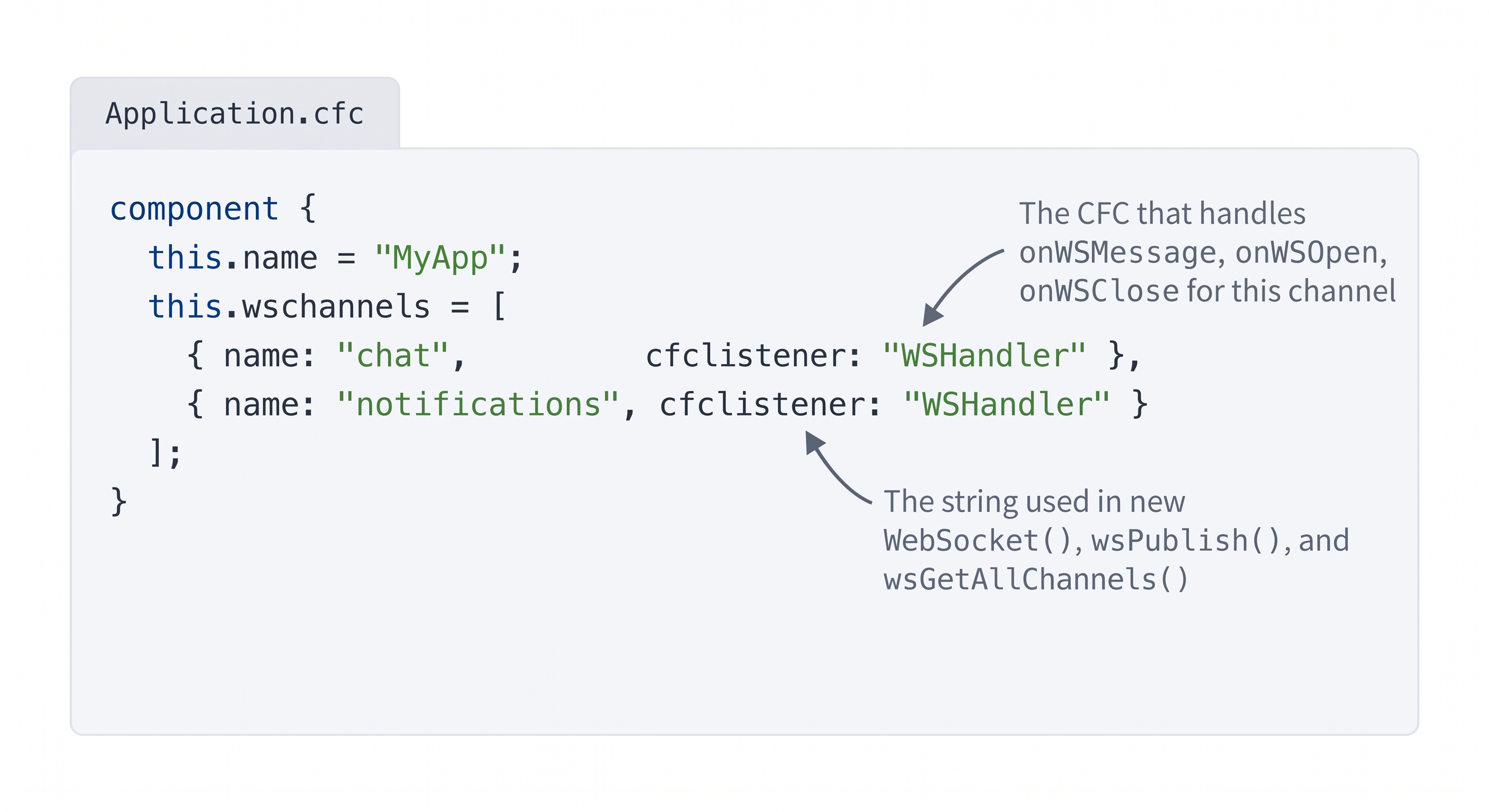
Both channels point to the same handler CFC. Multiple channels can share a handler — they are distinguished by the channel argument in onWSMessage.
// Application.cfc
component {

    this.name = "MyApp";

    // Declare WebSocket channels.
    // Each channel needs: name (string) and cfclistener (CFC name).
    this.wschannels = [
        { name="chat",          cfclistener="WSHandler" },
        { name="notifications", cfclistener="WSHandler" }
    ];

}
A few rules:
- The
cfclistenervalue is the CFC name without.cfc, resolved relative to the webroot (or via the component path) - The handler CFC must be in the same directory or a subdirectory of the application — CF will not find it otherwise
- Channel names must be unique across the application
- Use
name="channelName"syntax (equals sign, not colon) — the JSON colon syntax{"name": "chat"}is not supported inthis.wschannels - You must restart the CF application (or touch
Application.cfc) after changingthis.wschannels - If no
cfclisteneris specified, ColdFusion uses the defaultCFIDE/websocket/ChannelListener.cfcwhich allows everything through
⚠️ Use name= syntax, not JSON colon syntax
ColdFusion struct literals in this.wschannels must use the equals sign syntax, not quoted JSON-style keys:
// ✓ Correct
this.wschannels = [{ name="chat", cfclistener="WSHandler" }];

// ✗ Wrong — CF silently misreads this
this.wschannels = [{ "name": "chat", "cfclistener": "WSHandler" }];
3. The browser client
ColdFusion provides the <cfwebsocket> tag to create WebSocket connections from a CFM page. The tag handles the subscription handshake automatically and wraps the connection in a named JavaScript object.
<cfwebsocket>vsnew WebSocket()— which to use in this lab
<cfwebsocket>is the standard CF approach — it handles the subscription handshake automatically. However, it hardcodeslocalhostin the JavaScript it emits, which only works when the browser and server are on the same machine. In this lab the browser connects through the iximiuz platform proxy with a generated hostname —localhostresolves to the student's own laptop rather than the VM.For this reason the activity uses a raw
new WebSocket()call built fromwindow.location.host, which the browser already knows correctly regardless of the proxy. The WebSocket connects on port 8500 — the same port as HTTP, becausestartListenerOnNormalPort=truein the lab's CF config.<cfwebsocket>remains the right choice for any deployment where the browser hits the server directly.
Step 1 — The <cfwebsocket> tag
This single CFML tag replaces several lines of JavaScript boilerplate. Drop it anywhere in your CFM page — ColdFusion emits the connection script automatically.
| Attribute | Required | What it does |
|---|---|---|
name | Yes | The JavaScript variable name for this connection — use it to call .publish() later |
onMessage | Yes | Your JS function that runs every time the server sends a frame |
onOpen | No | Your JS function that runs when the connection is established |
onClose | No | Your JS function that runs when the connection drops |
subscribeTo | No | Channel(s) to join immediately on connect — comma-separated |
<cfwebsocket
    name        = "chatWS"
    onMessage   = "handleMessage"
    onOpen      = "handleOpen"
    onClose     = "handleClose"
    subscribeTo = "chat"
>
name="chatWS" means you will call chatWS.publish(...) from JavaScript — it is the handle for this connection.
Step 2 — handleOpen and handleClose
These two functions mirror onWSOpen / onWSClose on the server — they fire when the connection state changes on the browser side.
function handleOpen() {
    // Connection is live — safe to publish now
    document.getElementById("status").textContent = "Connected";
}

function handleClose() {
    // Connection dropped — warn the user
    document.getElementById("status").textContent = "Disconnected";
}
Step 3 — handleMessage
Every frame the server sends — including system responses like subscribe confirmations — arrives here. Check msg.type === "data" to filter out system messages and only render real chat payloads.
msg field | What it contains |
|---|---|
msg.type | "data" for real messages; "response" for system acknowledgements |
msg.data | The payload — present when type is "data" |
msg.publisherID | Client ID of the sender; 0 means it came from a server-side wsPublish call |
function handleMessage(msg) {
    if (msg.type === "data") {
        document.getElementById("chat-log").insertAdjacentHTML(
            "beforeend",
            `<p><strong>${msg.publisherID}</strong>: ${msg.data}</p>`
        );
    }
}
Step 4 — sending a message
The JavaScript object created by <cfwebsocket name="chatWS"> exposes a .publish() method. Call it from any JS function to send a message to a channel:
function sendMessage(text) {
    chatWS.publish("chat", text);
}
The object also exposes .subscribe(channel), .unsubscribe(channel), .getSubscriberCount(channel), and .isConnectionOpen() — useful for more advanced interactions.
The complete browser client
All four pieces together — this is what goes in ws_demo.cfm:
<cfwebsocket
    name        = "chatWS"
    onMessage   = "handleMessage"
    onOpen      = "handleOpen"
    onClose     = "handleClose"
    subscribeTo = "chat"
>

<script>
function handleOpen() {
    document.getElementById("status").textContent = "Connected";
}

function handleMessage(msg) {
    if (msg.type === "data") {
        document.getElementById("chat-log").insertAdjacentHTML(
            "beforeend",
            `<p><strong>${msg.publisherID}</strong>: ${msg.data}</p>`
        );
    }
}

function handleClose() {
    document.getElementById("status").textContent = "Disconnected";
}

function sendMessage(text) {
    chatWS.publish("chat", text);
}
</script>
📖 cfwebsocket tag attributes
| Attribute | Required | Description |
|---|---|---|
name | Yes | Name of the JavaScript object created in the page. Use it to call .publish(), .subscribe(), .unsubscribe(), etc. |
onMessage | Yes | JavaScript function called every time the server sends a frame |
onOpen | No | JavaScript function called when the connection is established |
onClose | No | JavaScript function called when the connection drops |
onError | No | JavaScript function called on error — receives codes -1 (channel error) and 4001 (application error) |
subscribeTo | No | Comma-separated list of channels to subscribe to automatically on connect |
useCFAuth | No | If true (default), uses the ColdFusion session for authentication — no separate login needed |
The JavaScript object created by name exposes these methods: .publish(channel, message), .subscribe(channel), .unsubscribe(channel), .getSubscriberCount(channel), .isConnectionOpen().
📖 What does the message object look like in onMessage?
Every message your onMessage function receives is a JavaScript object with these keys:
| Key | Description |
|---|---|
type | "data" for real messages, "response" for system acknowledgements (subscribe, unsubscribe, etc.) |
code | 0 = success, -1 = channel error, 4001 = application error |
reqType | The request type: "subscribe", "publish", "data", etc. |
data | The message payload — present when type is "data" |
clientid | Unique ID of the connected client |
publisherID | Client ID of who published. 0 means it came from a server-side wsPublish call |
channelname | The channel the message arrived on |
msg | Human-readable status — "ok" on success, error description on failure |
Always check msg.type === "data" before rendering — system responses (type: "response") will also arrive in your onMessage handler.
⚠️ Always use wss:// when the page is served over HTTPS
ws:// and wss:// mirror http:// and https:// exactly — wss:// is the TLS-encrypted WebSocket protocol. Browsers enforce a hard rule: a page loaded over HTTPS may not open an unencrypted ws:// connection. Attempting it produces a Mixed Content error in the browser console and the connection is blocked before it reaches the server:
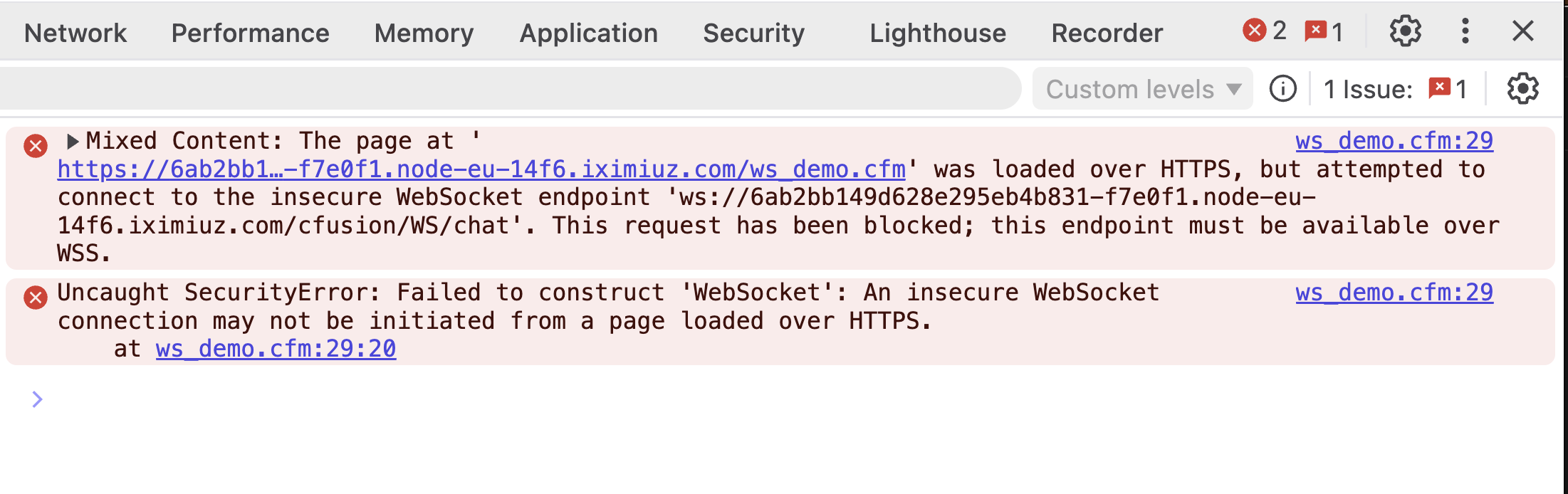
Mixed Content error — the browser blocks ws:// from an HTTPS page. Switch to wss:// to fix it.
The lab is served over HTTPS, so wss:// is required. Rather than hardcoding either protocol, derive it from the page:
const wsProto = window.location.protocol === "https:" ? "wss://" : "ws://";
const ws = new WebSocket(wsProto + window.location.host + "/cfusion/WS/chat");
This works in the lab (HTTPS → wss://), in local development (HTTP → ws://), and in any production deployment — no changes needed when moving between environments.
4. Push messages from server-side CFML
wsPublish broadcasts a message to every client currently subscribed to a channel. You can call it from any CFML page, scheduled task, or CFC — not just from inside the handler:
<cfscript>
    // Broadcast a notification to all connected users
    wsPublish("notifications", serializeJSON({
        type:      "alert",
        message:   "New ticket assigned to you",
        timestamp: dateTimeFormat(now(), "yyyy-mm-dd HH:nn:ss")
    }));
</cfscript>
This is the pattern for server-initiated pushes: a background job detects an event (new ticket, completed export, price change) and calls wsPublish — all connected clients receive the update without polling.
| Function | Signature | What it does |
|---|---|---|
wsPublish | wsPublish(channel, message) | Broadcast to all subscribers on a channel |
wsSendMessage | wsSendMessage(clientid, message) | Send to one specific connected client |
wsGetAllChannels | wsGetAllChannels() | Returns array of all registered channel names |
wsGetSubscribers | wsGetSubscribers(channel) | Returns array of client structs subscribed to a channel |
5. Common use cases
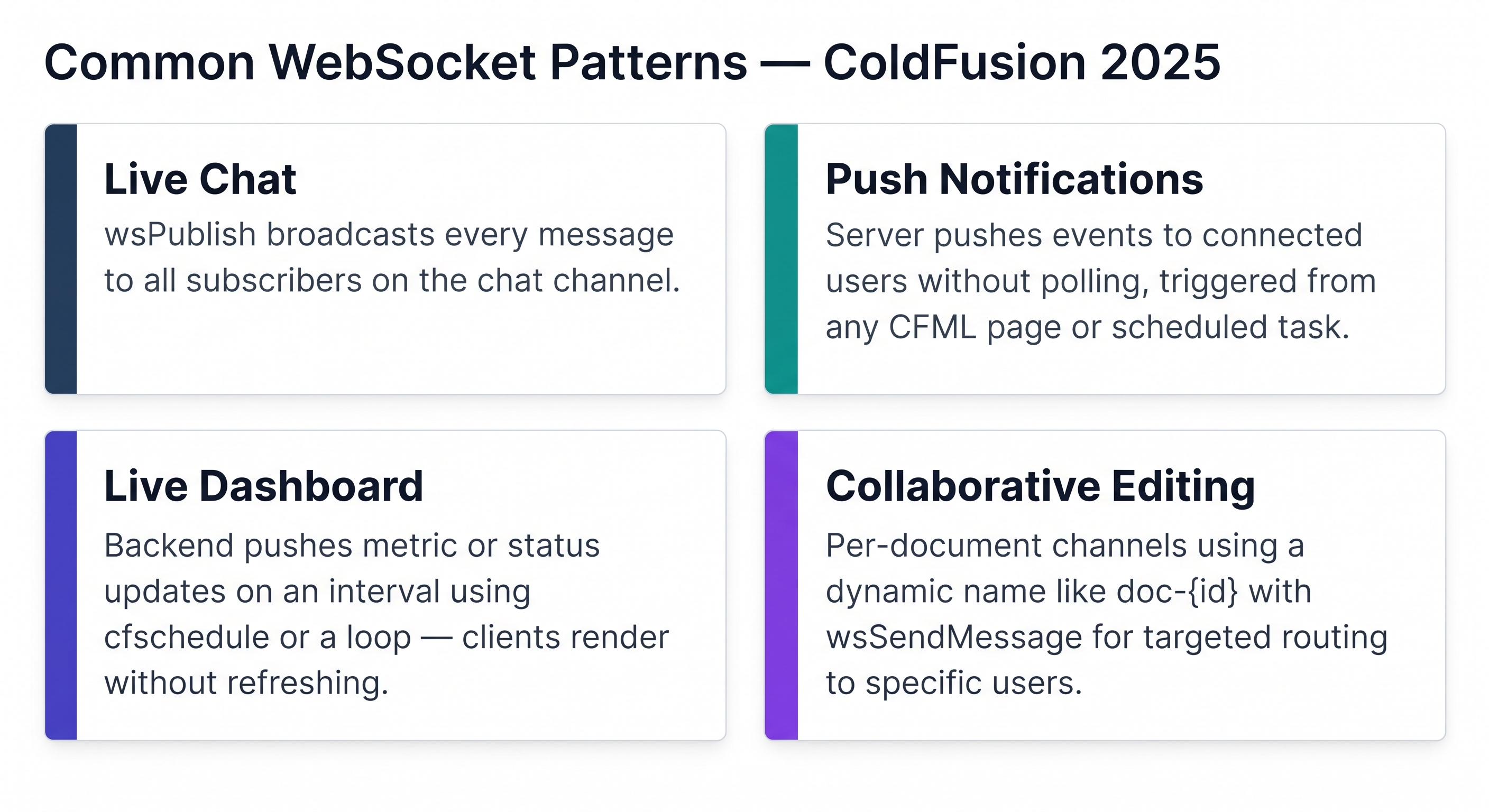
Four common WebSocket patterns — all supported natively with ColdFusion's built-in WS server and wsPublish.
| Use case | Channel strategy | Pattern |
|---|---|---|
| Live chat | Single chat channel | onWSMessage calls wsPublish(channel, data) — every subscriber gets every message |
| Push notifications | Single notifications channel | Server-side CFML calls wsPublish when an event fires |
| Live dashboard | dashboard channel | Scheduled task or loop calls wsPublish every N seconds with fresh metrics |
| Collaborative editing | doc-{id} per document | Dynamic channel per resource; use wsSendMessage for targeted routing |
Activity 1 — Create the WebSocket handler CFC
Step 1 — Open a Terminal tab
Click the Terminal tab in the lab panel. You should see a prompt like:
laborant@dev-machine:~$
Step 2 — Create WSHandler.cfc in the ColdFusion webroot
The ColdFusion webroot is /opt/coldfusion2025/cfusion/wwwroot/. Run the following command — it creates the file and writes the full handler CFC in one step:
cat > /opt/coldfusion2025/cfusion/wwwroot/WSHandler.cfc << 'EOF'
component extends="CFIDE.websocket.ChannelListener" {

    public void function onWSMessage(
        required string channel,
        required any    data,
        required struct client
    ) {
        wsPublish(channel, data);
    }

    public void function onWSOpen(required struct client) {
        writeLog(file="websocket", text="WS opened: #client.clientid#");
    }

    public void function onWSClose(required struct client) {
        writeLog(file="websocket", text="WS closed: #client.clientid#");
    }

}
EOF
The command returns silently with no output — that means it succeeded.
Step 3 — Verify the file was created correctly
grep -l "wsPublish\|onWSMessage" /opt/coldfusion2025/cfusion/wwwroot/*.cfc
Expected output:
/opt/coldfusion2025/cfusion/wwwroot/WSHandler.cfc
If you see that path, the file is in place and contains both required methods. If nothing is returned, the file is missing or the command in Step 2 did not run fully — try Step 2 again.
Activity 2 — Create ws_demo.cfm and register the channel
Step 1 — Create Application.cfc in the ColdFusion webroot
Application.cfc is ColdFusion's application configuration file — it sits in the webroot and is loaded automatically on the first request. This is where you register WebSocket channels: without a this.wschannels entry here, ColdFusion has no record of the chat channel and any browser that tries to subscribe will be rejected before WSHandler.cfc is ever called.
Still in your Terminal tab — run the following command to create Application.cfc in the ColdFusion webroot:
cat > /opt/coldfusion2025/cfusion/wwwroot/Application.cfc << 'EOF'
component {

    this.name = "MyApp";

    this.wschannels = [
        { name="chat", cfclistener="WSHandler" }
    ];

}
EOF
The command returns silently — that means it succeeded.
Verify Application.cfc was created with the channel registered:
grep -A3 "wschannels" /opt/coldfusion2025/cfusion/wwwroot/Application.cfc
Expected output:
    this.wschannels = [
        { name="chat", cfclistener="WSHandler" }
    ];
If you see those three lines, the channel is registered. If nothing is returned, the file is missing or the cat command did not complete — run it again.
Force ColdFusion to reload Application.cfc now:
touch /opt/coldfusion2025/cfusion/wwwroot/Application.cfc && \
curl -s -o /dev/null http://localhost:8500/index.cfm
The touch updates the file's timestamp — CF detects the change and reinitialises the application on the very next request. The curl triggers that request immediately so the channel is live before you open the browser. Without this step, CF may still be running an older cached application with no channels registered.
💡 Open CF Admin in a new window — don't lose your workspace
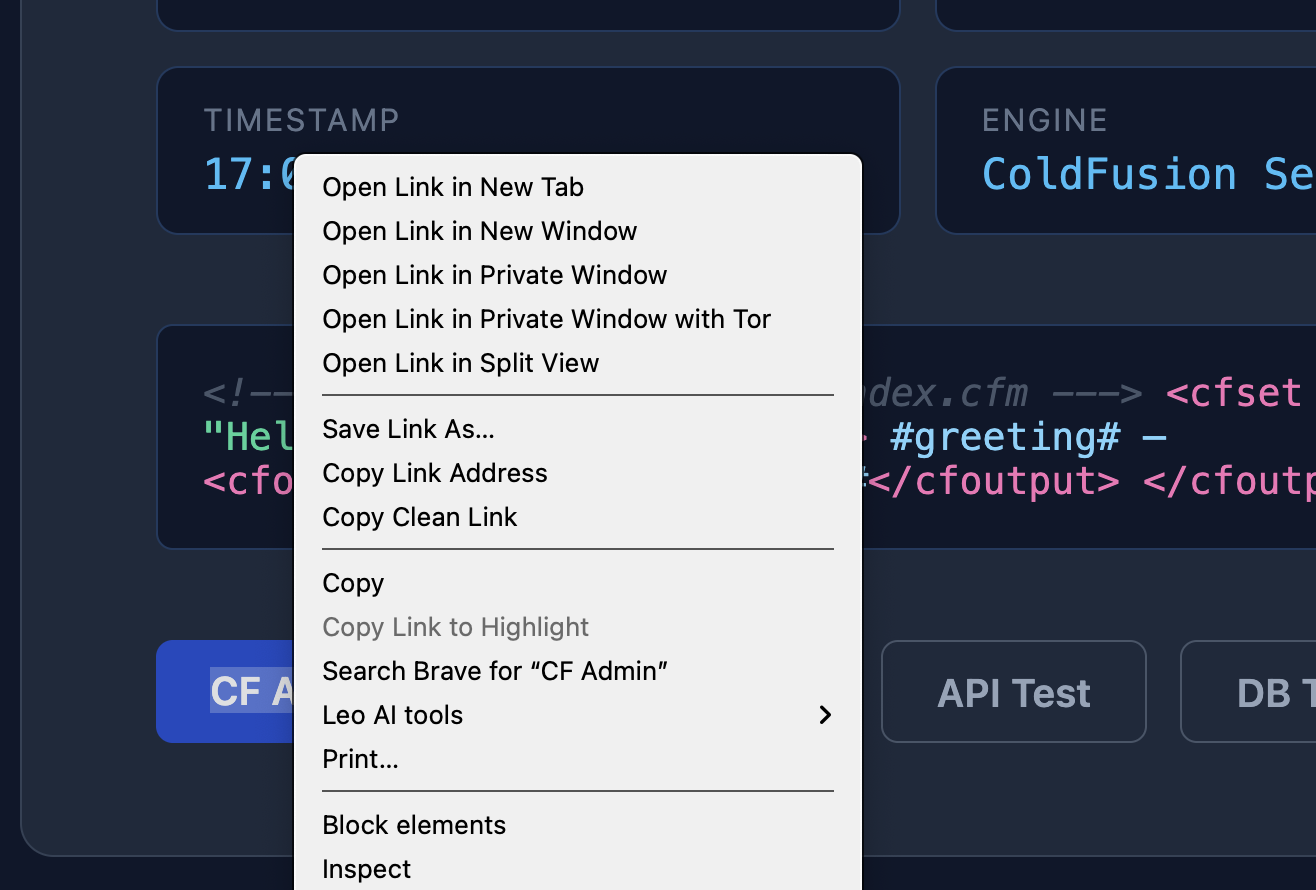
When you need to check something in the CF Admin panel, right-click the link and choose Open in new window (or new tab). Opening it in the same window will navigate away from your current workspace and you will lose your place in the lab.
Step 2 — Create ws_demo.cfm with a chat UI:
cat > /opt/coldfusion2025/cfusion/wwwroot/ws_demo.cfm << 'EOF'
<!DOCTYPE html>
<html lang="en">
<head>
    <meta charset="UTF-8">
    <title>CF WebSocket Demo</title>
    <style>
        body { font-family: sans-serif; max-width: 600px; margin: 2rem auto; }
        #chat-log { border: 1px solid #ccc; height: 200px; overflow-y: auto; padding: 0.5rem; margin-bottom: 0.5rem; }
        #msg-input { width: 75%; padding: 0.4rem; }
        button { padding: 0.4rem 1rem; }
    </style>
</head>
<body>
    <h2>WebSocket Chat Demo</h2>
    <div id="chat-log"></div>
    <input id="msg-input" type="text" placeholder="Type a message…">
    <button onclick="sendMsg()">Send</button>
    <p id="status">Connecting…</p>

    <script>
        const log    = document.getElementById("chat-log");
        const status = document.getElementById("status");

        // Derive the WebSocket protocol from the page protocol:
        //   https → wss://  (required — browsers block ws:// from HTTPS pages)
        //   http  → ws://
        // Using window.location.host (hostname + port) ensures the connection
        // routes correctly through the lab proxy without hardcoding any address.
        const wsProto = window.location.protocol === "https:" ? "wss://" : "ws://";
        const ws = new WebSocket(wsProto + window.location.host + "/cfusion/WS/chat");

        ws.onopen = function() {
            status.textContent = "Connected";
        };

        ws.onmessage = function(event) {
            const msg = JSON.parse(event.data);
            if (msg.type === "data") {
                log.insertAdjacentHTML("beforeend",
                    `<p><strong>user</strong>: ${msg.data}</p>`);
                log.scrollTop = log.scrollHeight;
            }
        };

        ws.onclose = function() {
            status.textContent = "Disconnected";
        };

        function sendMsg() {
            const input = document.getElementById("msg-input");
            if (!input.value.trim()) return;
            ws.send(JSON.stringify({ type: "publish", channel: "chat", data: input.value }));
            input.value = "";
        }
    </script>
</body>
</html>
EOF
Step 3 — Verify the page loads and the WebSocket port is open
Back in your Terminal tab — run both checks below. Do not run these in the browser address bar.
First confirm the page itself returns HTTP 200:
curl -s -o /dev/null -w "%{http_code}" http://localhost:8500/ws_demo.cfm
Expected output: 200
Then confirm ColdFusion's WebSocket service is running. In this lab WebSocket connections are handled on port 8500 (same as HTTP) because startListenerOnNormalPort=true. Confirm the WebSocket service is active:
cat /opt/coldfusion2025/cfusion/lib/neo-websocket.xml | grep -A2 "startWebSocketService"
Expected output:
<var name='startWebSocketService'>
    <boolean value='true'/>
If the value is false, the WebSocket service is disabled and the browser will show "Connecting…" forever — like this:
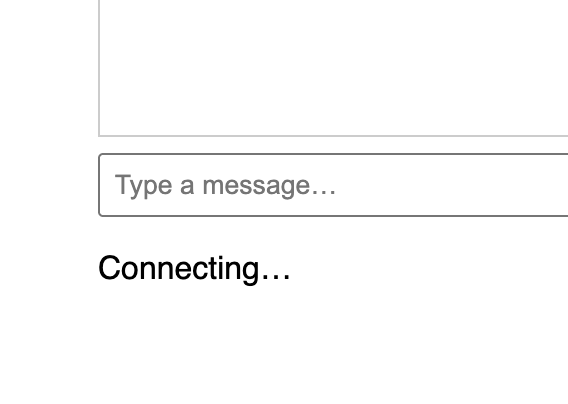
Status stuck on "Connecting…" — the WebSocket port is not reachable. Fix it with the restart command below before opening the browser.
In that case restart ColdFusion:
sudo /opt/coldfusion2025/cfusion/bin/coldfusion restart
Wait ~20 seconds, then repeat both checks before opening the browser.
Once both ports respond, open http://localhost:8500/ws_demo.cfm in the lab browser:
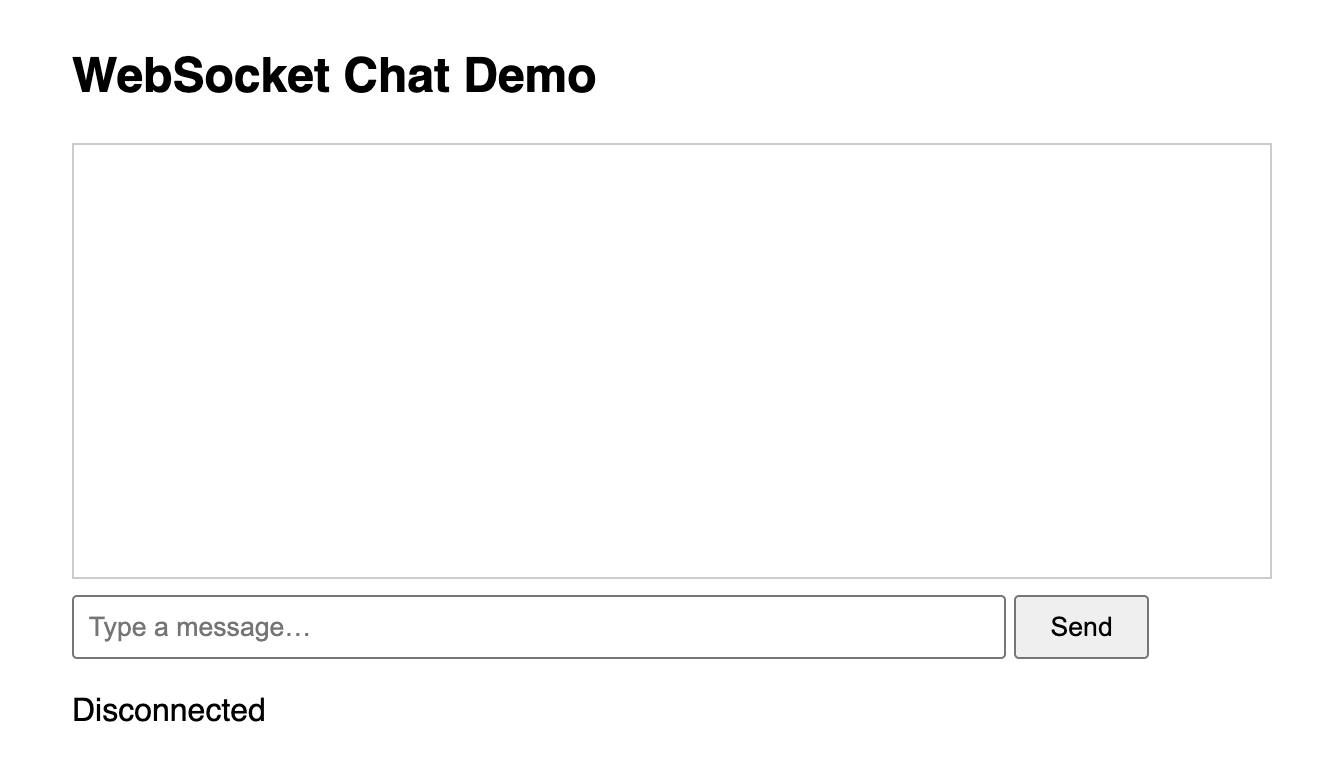
The chat demo page — once the WebSocket handshake completes the status line changes from "Connecting…" to "Connected".
⚠️ Page returns 500 or blank?
The most common cause is a syntax error in Application.cfc. Check that the this.wschannels line is inside the component { } block and that all curly braces are balanced.
You cannot open Application.cfc directly in the browser — ColdFusion will always block it with an "Invalid request" error because it is a reserved framework file. To check for syntax errors, trigger any normal request (e.g. curl http://localhost:8500/index.cfm) and CF will surface the parse error in the response, or check the CF error log:
tail -20 /opt/coldfusion2025/cfusion/logs/exception.log
⚠️ Still showing "Connecting…" after restarting ColdFusion?
A CF restart confirms the server is up but does not by itself fix a broken channel. Work through these checks in order — each one is a separate root cause.
Check 1 — Confirm the channel name matches exactly
The channel name passed to new WebSocket(...) path (/cfusion/WS/chat) must match the name= in this.wschannels. A mismatch means CF never registers the subscription:
grep -i "cfusion/WS\|wschannels" \
  /opt/coldfusion2025/cfusion/wwwroot/ws_demo.cfm \
  /opt/coldfusion2025/cfusion/wwwroot/Application.cfc
Both lines must show the same channel name — chat. If they differ, edit the file that is wrong and reload the page.
Check 2 — Confirm Application.cfc was loaded after it was created
CF caches the application on the first request. If Application.cfc was created after a request already hit the app, the old channelless application is still in memory. Force a reload:
touch /opt/coldfusion2025/cfusion/wwwroot/Application.cfc
Then refresh ws_demo.cfm in the browser. If the status changes to Connected, this was the cause.
Check 3 — Confirm WSHandler.cfc has the required extends
head -2 /opt/coldfusion2025/cfusion/wwwroot/WSHandler.cfc
The second line must read:
component extends="CFIDE.websocket.ChannelListener" {
If it does not, recreate the file:
cat > /opt/coldfusion2025/cfusion/wwwroot/WSHandler.cfc << 'EOF'
component extends="CFIDE.websocket.ChannelListener" {

    public void function onWSMessage(
        required string channel,
        required any    data,
        required struct client
    ) {
        wsPublish(channel, data);
    }

    public void function onWSOpen(required struct client) {
        writeLog(file="websocket", text="WS opened: #client.clientid#");
    }

    public void function onWSClose(required struct client) {
        writeLog(file="websocket", text="WS closed: #client.clientid#");
    }

}
EOF
Check 4 — Clear the compiled class cache and restart
CF caches compiled CFC classes in WEB-INF/cfclasses/. Even with the correct WSHandler.cfc on disk, CF may load a stale cached version. Clear it and do a full restart:
rm -f /opt/coldfusion2025/cfusion/wwwroot/WEB-INF/cfclasses/cfWSHandler* && \
sudo /opt/coldfusion2025/cfusion/bin/coldfusion restart
Wait ~20 seconds for CF to come back up, then refresh ws_demo.cfm. The status should change to Connected.
Activity 3 — Test end-to-end with a server push
ColdFusion's WebSocket subscription protocol requires a specific handshake message that only the <cfwebsocket> tag sends automatically. Command-line tools like websocat open a raw TCP connection but never send this handshake, so CF never registers them as subscribers. The correct end-to-end test uses the browser and a server-side push.
This activity needs two terminal tabs open at the same time. Click the + button at the top of the terminal panel to open a second tab:
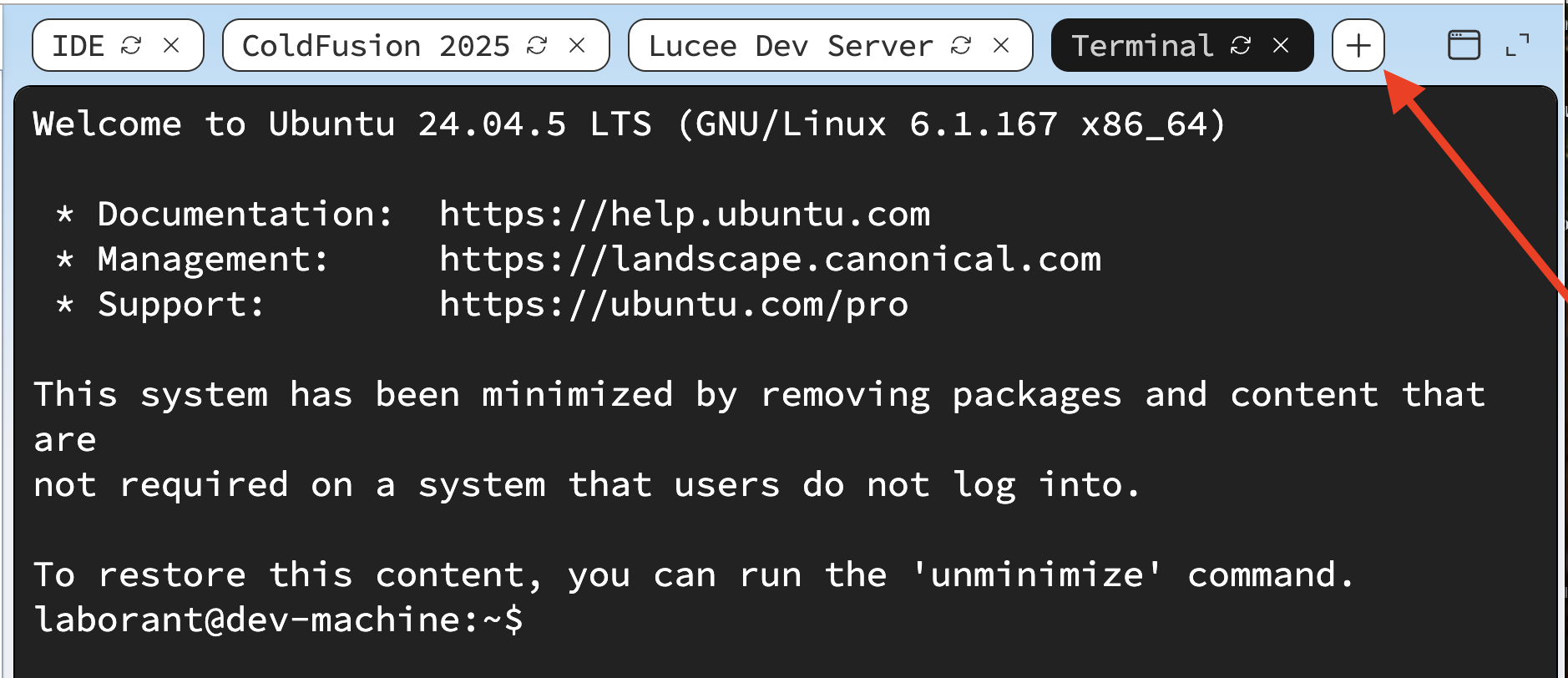
Click + to open a second terminal tab. Click each tab to switch between them.
Step 1 — In Terminal 1, create the server-side push script:
cat > /opt/coldfusion2025/cfusion/wwwroot/ws_push_test.cfm << 'EOF'
<cfscript>
    wsPublish("chat", "Hello from wsPublish — " & timeFormat(now(), "HH:mm:ss"));
    writeOutput("Published");
</cfscript>
EOF
Step 2 — Open http://localhost:8500/ws_demo.cfm in the lab browser. Wait until the status line shows Connected.
Step 3 — In Terminal 2, trigger the server-side push:
curl -s http://localhost:8500/ws_push_test.cfm
You should see Published in Terminal 2 and the message appear in the chat log in the browser instantly.
⚠️ Browser shows "Connected" but no message appears after the push?
Check that ws_push_test.cfm returned Published (not a CF error). If it did but the message still didn't appear, open the browser DevTools console — look for WebSocket errors or a Mixed Content block (ws:// on an HTTPS page), and confirm ws.onmessage is defined in ws_demo.cfm.
Key takeaways
| Concept | ColdFusion approach |
|---|---|
| Declare a channel | this.wschannels = [{name="chat", cfclistener="WSHandler"}] in Application.cfc |
| Handler CFC | Must extends="CFIDE.websocket.ChannelListener" — bare component {} is rejected |
| Channel struct syntax | Use name="chat" (equals), not "name": "chat" (colon) |
| Browser client | Derive protocol + host from the page: wss:// on HTTPS, ws:// on HTTP — never hardcode |
| Handle incoming messages | onWSMessage(channel, data, client) in the handler CFC |
| Broadcast to all subscribers | wsPublish(channelName, message) |
| Send to one client | wsSendMessage(client.clientid, message) |
| WebSocket port | 8500 in this lab (startListenerOnNormalPort=true) — defaults to 8585 in standard CF installs |
| Server-initiated push | Call wsPublish from any CFML page, scheduled task, or CFC |
| Stale class cache | Delete WEB-INF/cfclasses/cfWSHandler* and restart CF if edits don't take effect |
When all the checks above are green, this lesson is complete. Your progress is saved automatically — move straight on to the next lesson.
Found a bug or an issue with this lesson? Please reach out — your feedback helps improve the course for everyone.
📧 Alex — mercadoalexatgmail.com
Further reading
- Previous lesson
- Testing & Debugging CFML
- Next lesson
- Integration via Web Services (SOAP)