CommandBox CLI & Server Management
What is CommandBox?
CommandBox is the package manager, CLI, and embedded server for the CFML ecosystem. Think of it as npm + node for ColdFusion — one tool that installs ForgeBox packages, manages Lucee/Adobe CF server instances, runs test suites, and provides a CFML REPL, all from the terminal.
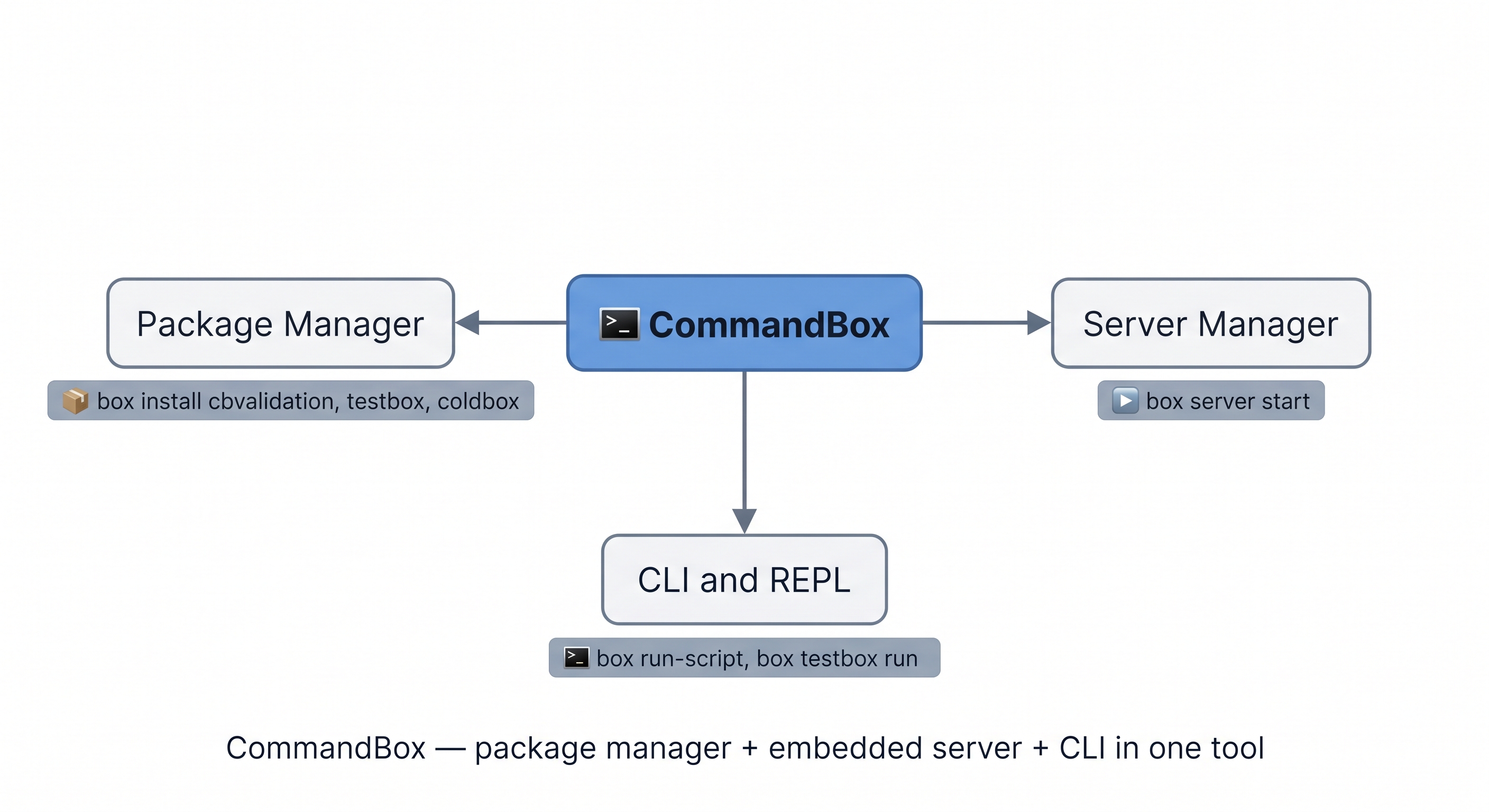
CommandBox is package manager + embedded server + CLI in one tool — the npm + node of the CFML world.
In this lab environment, box is already on the PATH and a Lucee 7 server is running on port 8888 via a systemd service. You do not need to install or start anything — CommandBox is ready to use.
Is CommandBox widely used in the ColdFusion world?
Yes — but mainly for development tooling, not production servers.
If you are doing modern CFML development — new projects, frameworks, testing, open source — CommandBox is effectively mandatory. The Ortus ecosystem (CommandBox + ColdBox + TestBox + ForgeBox) has become the standard developer toolchain for the language.
If you are maintaining a legacy Adobe ColdFusion enterprise application from 10+ years ago, you might never touch CommandBox at all — those shops typically use Adobe's own installer and admin tools directly.
This course teaches it because it represents where the language is going — not just where it has been.
The box command
Everything in CommandBox goes through the box command. You can run single commands inline or drop into the interactive shell:
# Run a single command inline
box version
box server list

# Drop into the interactive CommandBox shell (exit with 'exit')
box
Running box commands — inline vs interactive shell
Inline (box <command>) — runs one command and returns to the system shell. Best for scripting and quick lookups.
Interactive shell (box with no arguments) — drops you into a persistent CommandBox prompt with tab-completion, command history, and coloured output. Type exit or press Ctrl+D to leave.
In this lesson all commands are shown in inline form so they work directly in the terminal without entering and exiting the shell.
Server management
# Check the status of running servers
box server list

# Start a server (picks up server.json if present)
box server start

# Start with explicit options — engine, port, no browser
box server start cfengine=lucee@7.0.4.34 port=8888 openbrowser=false

# Stop a named server
box server stop name=hungry-minds-training

# Get detailed info about a running server
box server info
server.json — server configuration file
Persist server settings in a server.json file at the project root so any developer starts an identical server with just box server start:
{
  "name": "hungry-minds-training",
  "web": {
    "http": { "port": 8888 }
  },
  "app": {
    "cfengine": "lucee@7.0.4.34",
    "webroot": "/home/laborant/app"
  }
}
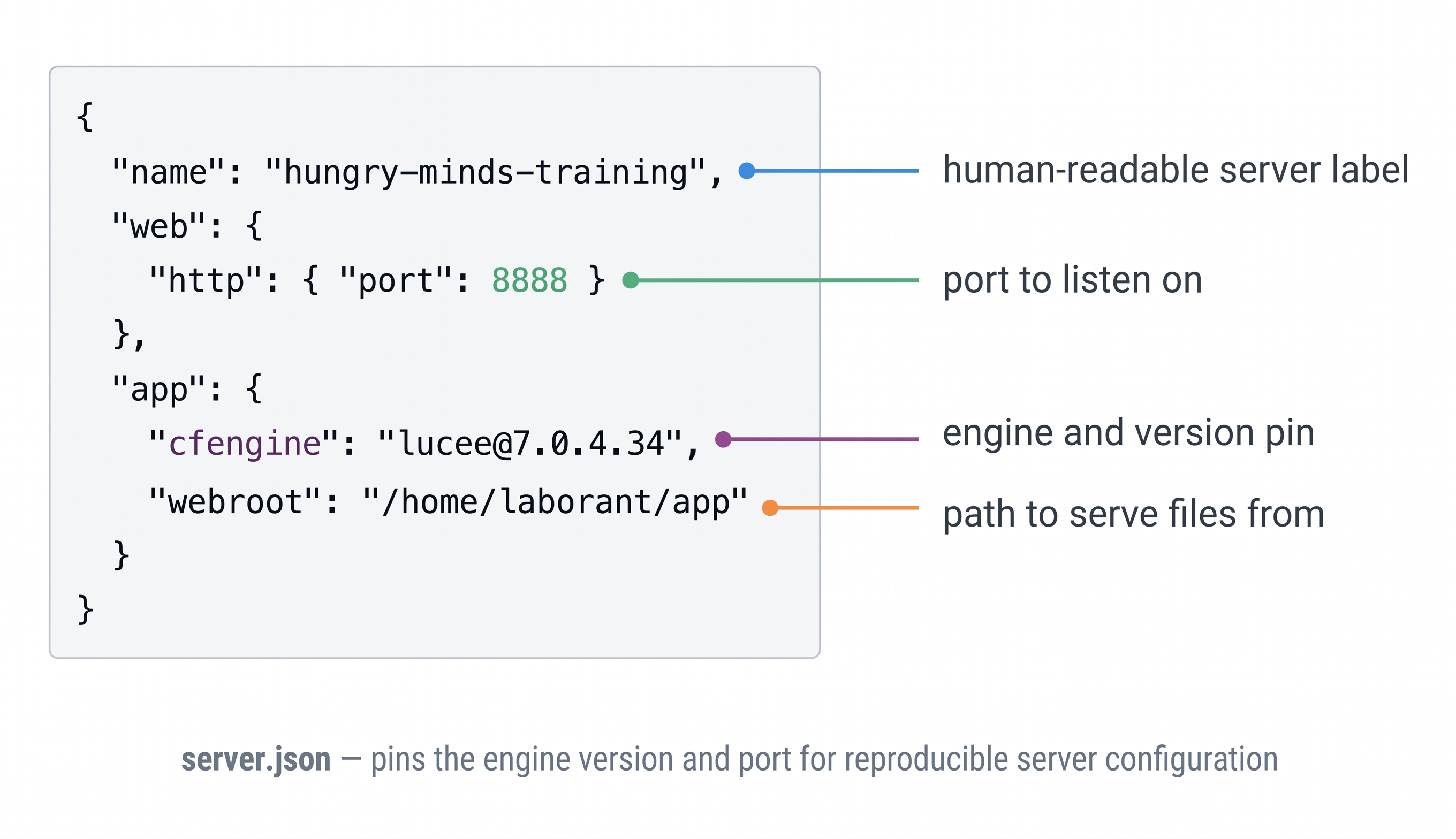
server.json pins the engine version and port — reproducible server config checked into source control.
box.json — project package descriptor
box.json is CommandBox's equivalent of package.json for Node or composer.json for PHP. It sits at the root of your project and answers three questions:
- What is this project? — name, version, author, description
- What does it depend on? — ForgeBox packages and their version constraints
- How is it built/tested? — custom scripts you can run with
box run-script
One box.json per project — you have exactly one at the project root. If you have multiple CFML applications in subdirectories, each gets its own box.json.
{
  "name": "helpdesk-app",
  "version": "1.0.0",
  "author": "Hungry Minds Training",
  "description": "ColdFusion 2025 Help Desk application",
  "dependencies": {
    "cbvalidation": "^4.0.0",
    "hyper": "^4.0.0"
  },
  "devDependencies": {
    "testbox": "^5.0.0",
    "mockbox": "^3.0.0"
  },
  "scripts": {
    "test": "testbox run"
  }
}
dependencies vs devDependencies — just like npm:
| Key | When installed | Examples |
|---|---|---|
dependencies | Always — production and development | cbvalidation, Hyper, cbsecurity |
devDependencies | Development only — skipped with box install --production | TestBox, MockBox |
The box install workflow:
# Install everything in box.json (first checkout or after pulling from git)
box install

# Add a package and save it to box.json dependencies
box install cbvalidation --save

# Add a dev-only package
box install testbox --saveDev

# Install production dependencies only
box install --production
All packages land in {webroot}/modules/ — never commit that folder to git, just like node_modules. Add modules/ to your .gitignore and let box install recreate it from box.json.
Version constraints follow semantic versioning:
| Constraint | Meaning |
|---|---|
^4.0.0 | Any 4.x.x — minor and patch updates allowed |
~4.1.0 | Any 4.1.x — patch updates only |
4.0.0 | Exact version only |
>=4.0.0 | 4.0.0 or higher |
Run box install to install all declared dependencies into {webroot}/modules/.
ForgeBox — the CFML package registry
ForgeBox (forgebox.io) is the public package registry for the CFML ecosystem — the equivalent of npm for JavaScript or Packagist for PHP. CommandBox is the client that installs packages from ForgeBox.
What lives on ForgeBox:
| Category | Examples |
|---|---|
| Testing | TestBox, MockBox |
| Validation | cbvalidation |
| MVC frameworks | ColdBox, FW/1 |
| ORM / data | cborm, Quick ORM |
| Security | cbsecurity, BCrypt |
| Utilities | cfcollection, Hyper (HTTP client) |
Installing packages:
# Install latest version
box install testbox

# Install specific version
box install coldbox@6.9.0

# Install and save to box.json dependencies
box install cbvalidation --saveDev

# List installed packages
box list
Packages install into {webroot}/modules/ by default. The box.json file tracks what is installed so teammates can run box install to reproduce the same environment.
ForgeBox vs Maven/npm:
ForgeBox is smaller than npm (thousands of packages vs millions) but covers the CFML ecosystem well. Adobe ColdFusion does not use ForgeBox directly — it is primarily the Lucee/ColdBox community ecosystem. However, CommandBox can also manage Adobe CF server installs using the adobe engine identifier (cfengine=adobe@2025).
Most commonly used ForgeBox packages — what they do
| Package | What it does |
|---|---|
| TestBox | BDD/TDD testing framework — the standard way to write unit and integration tests in CFML |
| MockBox | Mocking library — creates mock objects and stubs for testing |
| ColdBox | The most popular MVC framework for ColdFusion/Lucee — routing, interceptors, DI container |
| cbvalidation | Validates structs, forms, and model objects with declarative rules |
| cbsecurity | Authentication and authorisation framework |
| cborm | Enhanced ORM layer on top of ColdFusion's built-in Hibernate ORM |
| Quick ORM | ActiveRecord-style ORM — simpler alternative to native CF ORM |
| Hyper | HTTP client — makes REST API calls cleanly from CFML |
| BCrypt | Password hashing — industry-standard bcrypt implementation for CFML |
| cfcollection | Functional collection helpers — map, filter, reduce for queries and arrays |
They install into {webroot}/modules/ and your app loads them via Application.cfc or the ColdBox module system. All are one box install <name> away.
Activity 1 — Verify CommandBox is installed and check the version
What you are doing: Confirm box is on the PATH and check its version. In the Terminal tab, run:
box version
You should see output like CommandBox CLI v6.x.x — the exact version installed in this environment.
Getting exec java not found? Run this fix in the Terminal.
CommandBox requires Java to run. This playground uses the JRE bundled with ColdFusion 2025, but it may not be on the PATH for your shell session yet. Fix it with one command:
export JAVA_HOME="/opt/coldfusion2025/jre" && export PATH="$JAVA_HOME/bin:$PATH"
Then run box version again — it will work. This is a one-time fix for the current session. The next playground rebuild will have Java pre-configured on the PATH permanently.
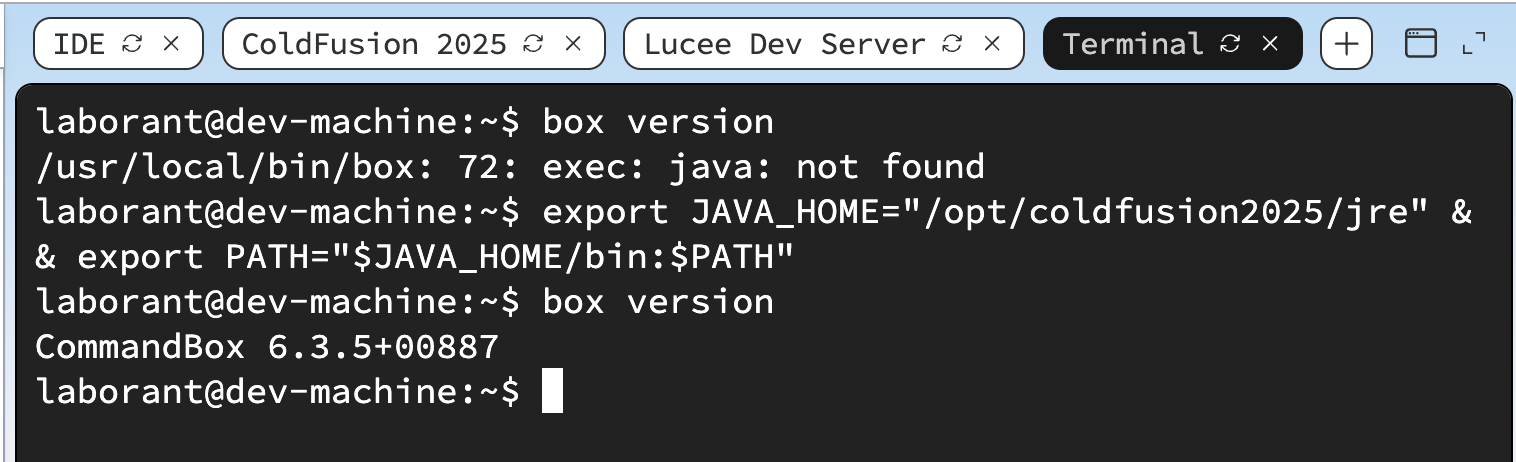
box version confirms CommandBox is installed and operational.
Activity 2 — Confirm the Lucee server is running on port 8888
What you are doing: The Lucee 7 server is already running on port 8888 via a systemd service — it was started automatically when the playground launched, not by box server start. Confirm it is responding correctly with a direct HTTP check.
In the Terminal tab, run:
curl -s -o /dev/null -w "HTTP %{http_code}\n" http://localhost:8888/index.cfm
You should see HTTP 200. Then open the Lucee Dev Server browser tab to see the running application.
Once you can see the Lucee Dev Server page, click the Lucee Admin Console ↗ button on that page — it opens the Lucee Server Administrator in a new browser tab. The default password is training.
You can also navigate directly to:
http://localhost:8888/lucee/admin/server.cfm
Lucee Dev Server tab shows a blank page or error?
The service may still be starting — it can take up to 60 seconds on first boot while it unpacks the engine. Check the current status:
systemctl status lucee-server.service
If the status shows failed or inactive, check the logs and restart:
sudo journalctl -u lucee-server.service --no-pager -n 50
sudo systemctl restart lucee-server.service
Wait 30–60 seconds, then re-run the curl check. Common causes:
- Java not found — the JRE at
/opt/coldfusion2025/jre/binmust be on PATH (the service sets this automatically) - Engine download — if the local engine cache was not pre-baked, CommandBox downloads Lucee on first start (~30 MB, needs internet)
- Port conflict — run
ss -tlnp | grep 8888to confirm nothing else is on port 8888
Why does box server list show nothing?
box server list only shows servers that CommandBox itself started with box server start. The Lucee server in this playground is managed by systemd (lucee-server.service) — it started before you logged in and runs independently of CommandBox's server registry. That is why box server list returns empty — the server is running, CommandBox just did not start it.
To check the systemd service status directly:
systemctl status lucee-server.service
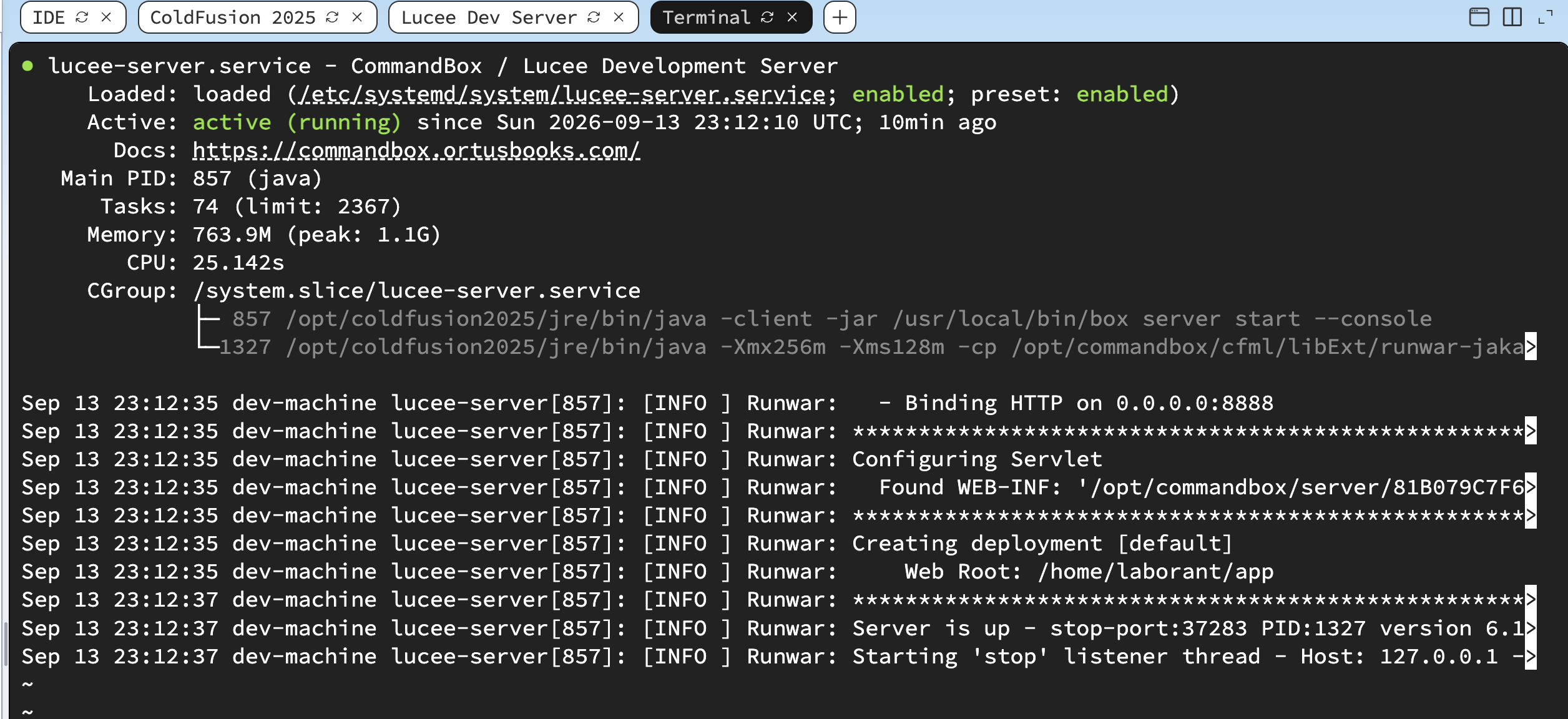
HTTP 200 on port 8888 confirms the Lucee server is up and serving requests.
Activity 3 — Initialise the project with box.json
What you are doing: Create a box.json file in the app directory to register it as a CommandBox project. This is the equivalent of npm init — it records the project name, version, and any dependencies.
File to create: /home/laborant/app/box.json
In the Terminal tab, run:
sudo tee /home/laborant/app/box.json << 'EOF'
{
  "name": "helpdesk-app",
  "version": "1.0.0",
  "author": "Hungry Minds Training",
  "description": "ColdFusion 2025 Foundations — Help Desk training application",
  "dependencies": {}
}
EOF
Verify the file was created:
cat /home/laborant/app/box.json
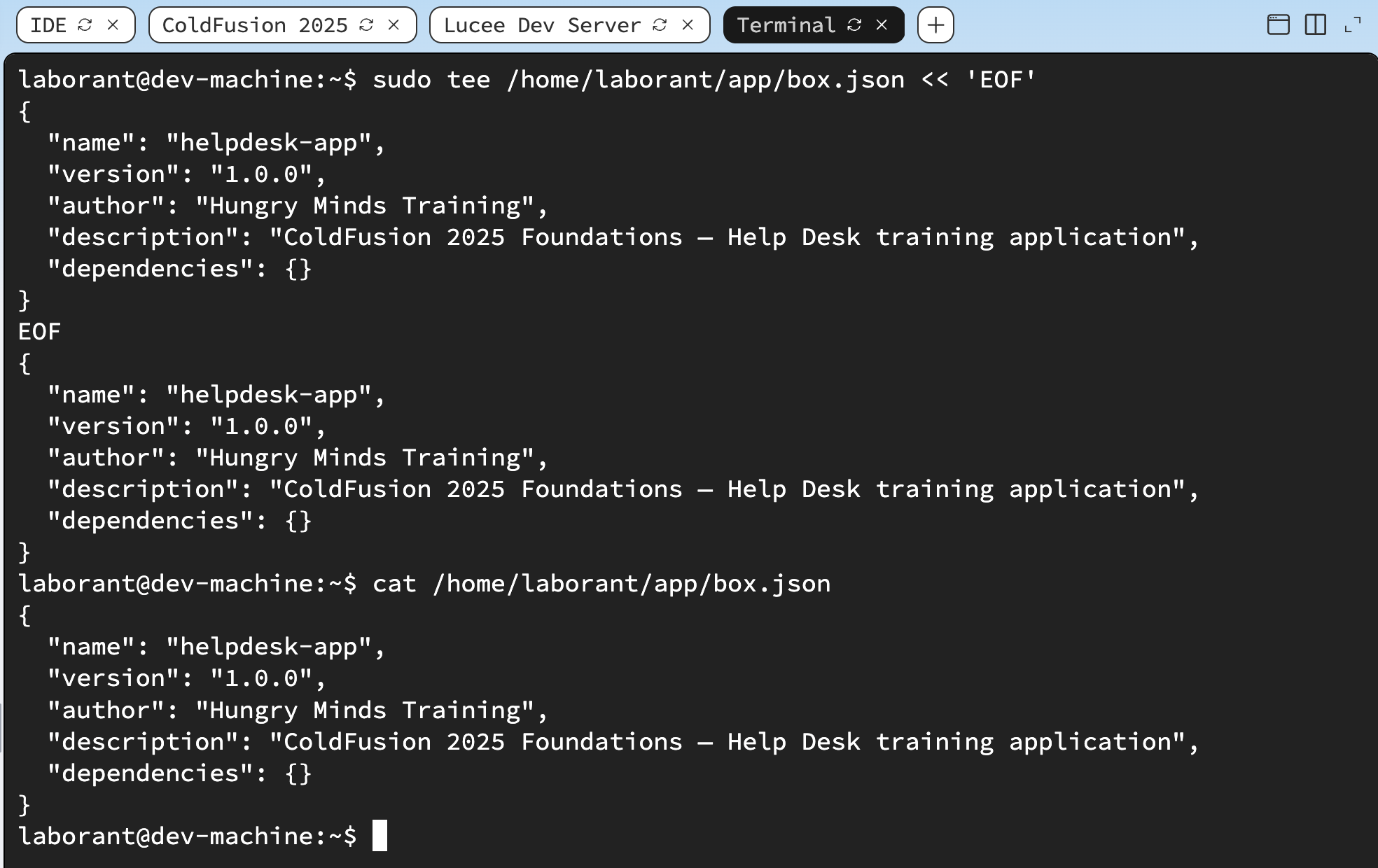
box.json initialised — the project is now a CommandBox-managed package with a name, version, and dependency manifest.
When all the checks above are green, this lesson is complete. Your progress is saved automatically — move straight on to the next lesson.
- Previous lesson
- Caching Challenge — Review & Annotated Solution
- Next lesson
- Lucee Server — Configuration & Administration