Datasource Configuration
Datasources in the lab
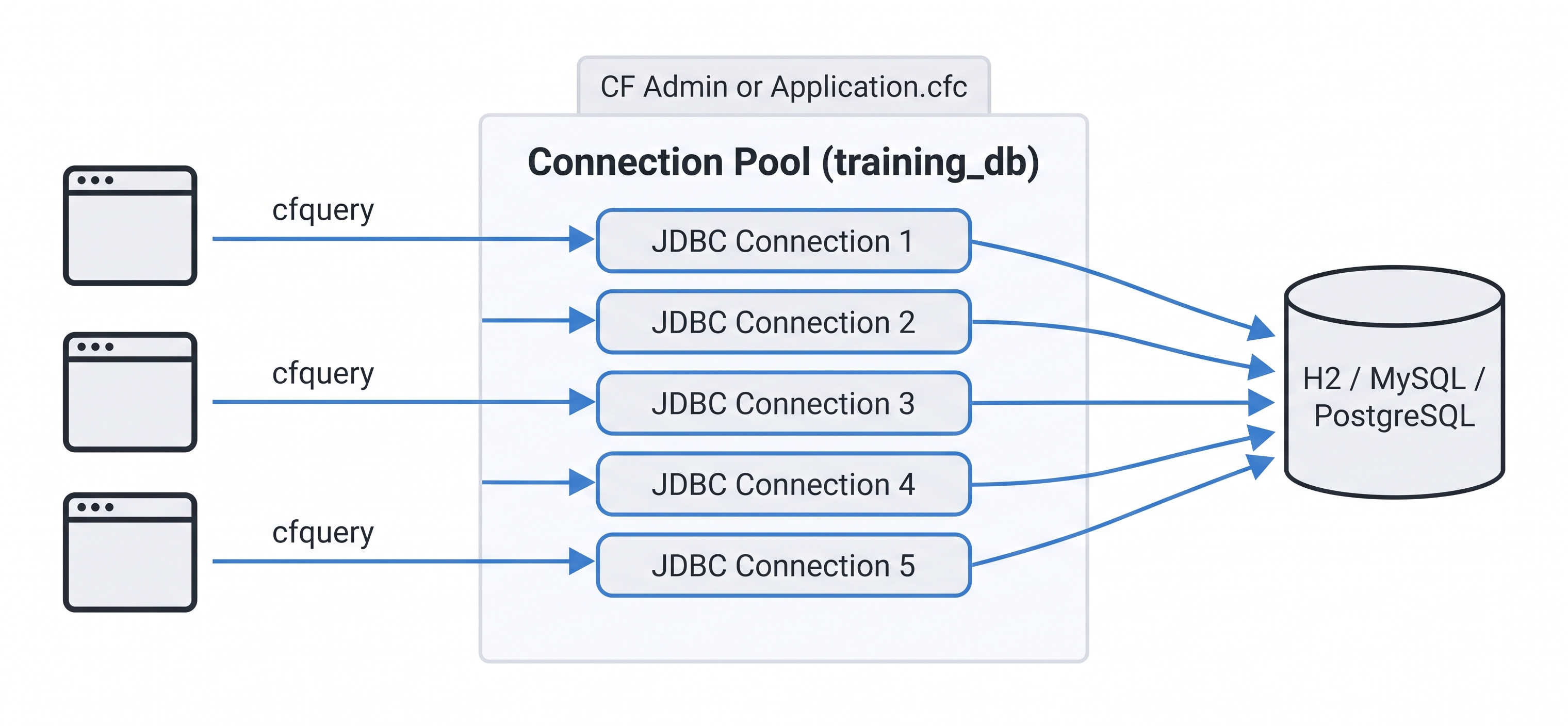
A datasource is a named JDBC connection pool — pages reference it by name, the engine manages the connections.
The training_db datasource is pre-configured in CF Admin on first boot. It is an embedded H2 database pre-seeded with a Help Desk schema.
What is an embedded H2 database?
H2 is a relational database engine written entirely in Java. "Embedded" means it runs inside the same JVM process as ColdFusion — there is no separate database server to install, start, or connect to over a network. The database file lives on disk alongside the application.
Why H2 for training?
| Property | H2 (embedded) | MySQL / PostgreSQL (external) |
|---|---|---|
| Setup | Zero — ships with ColdFusion | Requires a separate install and service |
| Network | None — in-process | TCP connection to a server |
| Performance | Fast for small datasets | Optimised for production workloads |
| Persistence | File on disk | Dedicated server storage |
| Use case | Development, testing, training | Production applications |
H2 supports a large subset of standard SQL — SELECT, INSERT, UPDATE, DELETE, joins, indexes, transactions — so everything you learn querying training_db transfers directly to MySQL or PostgreSQL.
How ColdFusion connects to it:
ColdFusion uses a JDBC driver (h2-*.jar, bundled in the CF installation) to open the embedded database file. The datasource definition in CF Admin points to that file path. When CF starts, H2 opens the file and keeps it ready for queries — no separate service start command needed.
In production you would use an external database. H2 is not recommended for production because it does not support the same level of concurrent write throughput, replication, or operational tooling as MySQL, PostgreSQL, or Microsoft SQL Server. But for learning CFML and SQL, it is ideal — it is always on, always fast, and requires zero administration.
| Name | Type | Purpose |
|---|---|---|
training_db | H2 embedded | All lab exercises |
Help Desk schema
| Table | Rows | Contents |
|---|---|---|
hd_departments | 4 | IT, Dev, HR, Finance |
hd_users | 6 | Admin, agents, end users |
hd_tickets | 10 | Mixed status, priority, category |
hd_comments | 9 | Thread replies and internal notes |
Useful URLs in your environment:
http://localhost:8500/seed-db.cfm   ← re-seed the schema
http://localhost:8500/db-test.cfm   ← view raw table data
What is a datasource?
A ColdFusion datasource is a named JDBC connection pool. Pages and components reference it by name — not by connection string. The pool is configured once (in CF Admin or Application.cfc) and shared across all requests.
SQL in ColdFusion
ColdFusion passes SQL directly to the underlying database engine — it does not invent its own query language. This means the full power of SQL is available inside cfquery and queryExecute().
Access the H2 database directly from the terminal (H2 Shell)
You can query training_db directly using the H2 command-line shell — useful for exploring the schema or testing SQL without writing a .cfm file.
Why ColdFusion must be stopped first:
H2 in embedded mode uses a file-based lock — when ColdFusion starts, it opens the database file and holds an exclusive lock on it for as long as the server is running. This is the same model used by SQLite. If you try to connect a second process (the H2 shell) while CF is running, H2 detects the lock and refuses the connection with an AccessDeniedException. Stopping CF releases the lock, allowing the shell to open the file exclusively. This is a fundamental characteristic of embedded databases — they trade multi-process access for simplicity and zero administration. In production you would use a server-mode database (MySQL, PostgreSQL) which allows unlimited concurrent connections from any process.
Step 1 — Stop ColdFusion:
sudo /opt/coldfusion2025/cfusion/bin/coldfusion stop
Step 2 — Open the H2 shell:
sudo /opt/coldfusion2025/jre/bin/java \
  -cp /opt/coldfusion2025/cfusion/lib/h2-2.2.224.jar \
  org.h2.tools.Shell \
  -url "jdbc:h2:/opt/coldfusion2025/cfusion/db/training_db" \
  -user sa \
  -password ""
Step 3 — Run SQL at the prompt:
SHOW TABLES;
SELECT id, full_name, role FROM hd_users;
SELECT id, title, status, priority FROM hd_tickets ORDER BY id;
exit
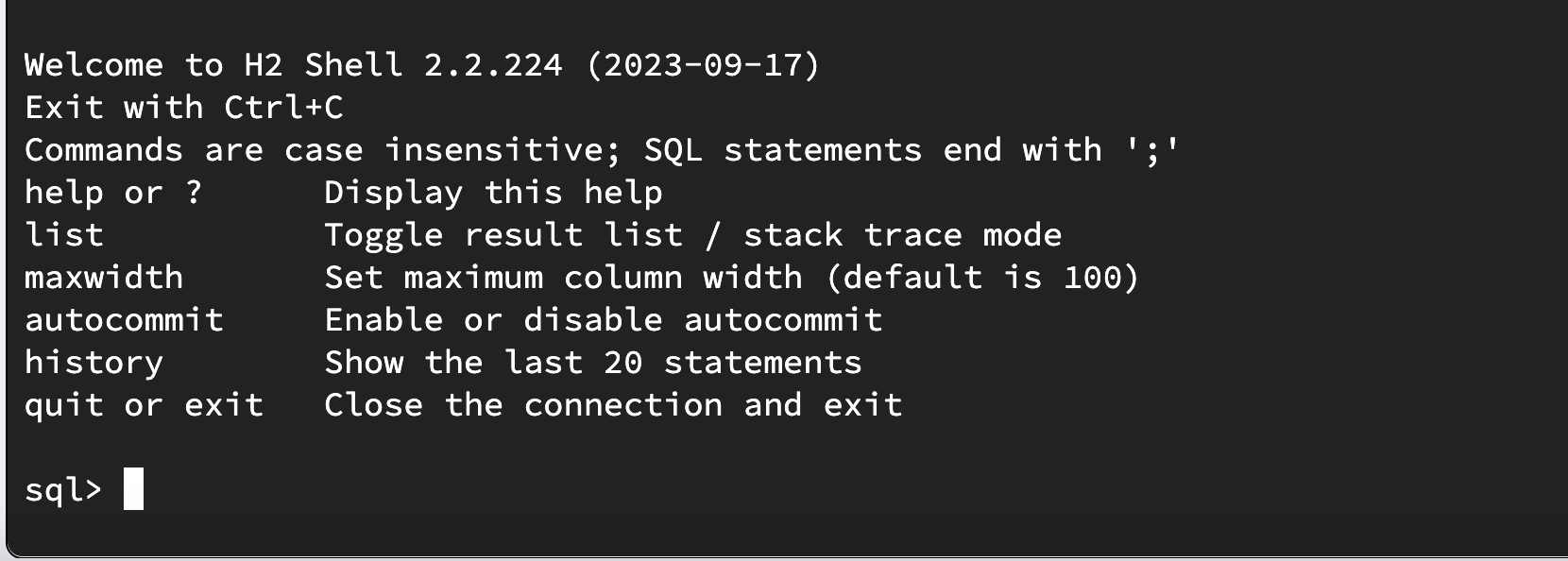
H2 Shell connected to training_db — full SQL access from the terminal.
Step 4 — Restart ColdFusion when done:
sudo /opt/coldfusion2025/cfusion/bin/coldfusion start
Alternative — no restart needed: use the CF Admin query tool at http://localhost:8500/CFIDE/administrator → Data & Services → Data Sources → click training_db → Actions → Query. This runs SQL against the live database while ColdFusion stays running.
ANSI SQL compliance: ColdFusion is ANSI SQL-92 compliant through the JDBC driver of the target database. H2, MySQL, PostgreSQL, and SQL Server all support the ANSI standard with their own extensions. Write standard SQL and it works across all of them; use vendor-specific syntax (e.g. TOP for MSSQL, LIMIT for MySQL/PostgreSQL) when you need database-specific features.
How complex can a query be? As complex as the database engine supports — ColdFusion simply passes the SQL string to JDBC. All of the following work inside cfquery:
<cfquery name="dashboard" datasource="training_db">
  SELECT
    d.name                          AS department,
    COUNT(t.id)                     AS total_tickets,
    SUM(CASE WHEN t.status = 'open'     THEN 1 ELSE 0 END) AS open_count,
    SUM(CASE WHEN t.status = 'closed'   THEN 1 ELSE 0 END) AS closed_count,
    AVG(DATEDIFF('HOUR', t.created_at, COALESCE(t.closed_at, NOW()))) AS avg_hours
  FROM       hd_departments d
  LEFT JOIN  hd_tickets     t ON t.department_id = d.id
  LEFT JOIN  hd_users       u ON t.assigned_to   = u.id
  WHERE      t.created_at >= DATEADD('DAY', -30, NOW())
  GROUP BY   d.id, d.name
  HAVING     COUNT(t.id) > 0
  ORDER BY   open_count DESC
</cfquery>
This single query uses LEFT JOIN, CASE WHEN, AVG, DATEDIFF, COALESCE, GROUP BY, HAVING, and ORDER BY — all standard SQL, all work in H2 and transfer directly to MySQL or PostgreSQL.
Joins, subqueries, CTEs, nested queries — what's supported?
JOINs — all standard join types work:
<cfquery name="tickets" datasource="training_db">
  SELECT t.title, u.name AS assigned_to, d.name AS department
  FROM   hd_tickets     t
  JOIN   hd_users       u ON t.assigned_to   = u.id
  JOIN   hd_departments d ON t.department_id = d.id
  WHERE  t.status = 'open'
</cfquery>
Subqueries — a SELECT inside a WHERE or FROM clause:
<cfquery name="highPriority" datasource="training_db">
  SELECT title, priority
  FROM   hd_tickets
  WHERE  id IN (
    SELECT ticket_id
    FROM   hd_comments
    WHERE  is_internal = 1
  )
</cfquery>
CTEs (Common Table Expressions) — supported in H2, MySQL 8+, PostgreSQL, MSSQL:
<cfquery name="summary" datasource="training_db">
  WITH open_tickets AS (
    SELECT department_id, COUNT(*) AS cnt
    FROM   hd_tickets
    WHERE  status = 'open'
    GROUP  BY department_id
  )
  SELECT d.name, ot.cnt
  FROM   hd_departments d
  JOIN   open_tickets   ot ON d.id = ot.department_id
  ORDER  BY ot.cnt DESC
</cfquery>
Nested cfquery (query of queries): ColdFusion has a feature called Query of Queries (QoQ) — you can run SQL against the result of a previous cfquery entirely in memory, without hitting the database again:
<!--- First query hits the database --->
<cfquery name="allTickets" datasource="training_db">
  SELECT id, title, priority, status FROM hd_tickets
</cfquery>

<!--- Second query runs against the in-memory result — no DB hit --->
<cfquery name="criticalOnly" dbtype="query">
  SELECT * FROM allTickets
  WHERE priority = 'critical'
  ORDER BY id DESC
</cfquery>

<cfoutput query="criticalOnly">
  #title# (#status#)<br>
</cfoutput>
The key is dbtype="query" instead of datasource="..." — this tells ColdFusion to treat the named query result as a table.
Dynamic SQL with cfqueryparam: always use cfqueryparam for any variable in a query — it prevents SQL injection and enables prepared statement caching:
<cfquery name="byStatus" datasource="training_db">
  SELECT id, title FROM hd_tickets
  WHERE status    = <cfqueryparam value="#status#"    cfsqltype="cf_sql_varchar">
  AND   priority  = <cfqueryparam value="#priority#"  cfsqltype="cf_sql_varchar">
</cfquery>
Never interpolate variables directly into SQL strings — WHERE status = '#status#' is a SQL injection vulnerability.
Configure in CF Admin
The training_db datasource is already set up — no manual steps needed. To inspect it:
- Browse to
http://localhost:8500/CFIDE/administrator - Log in with password:
admin - Go to Data & Services → Data Sources
- Click Verify next to
training_db
You should see a green checkmark and "OK" status.
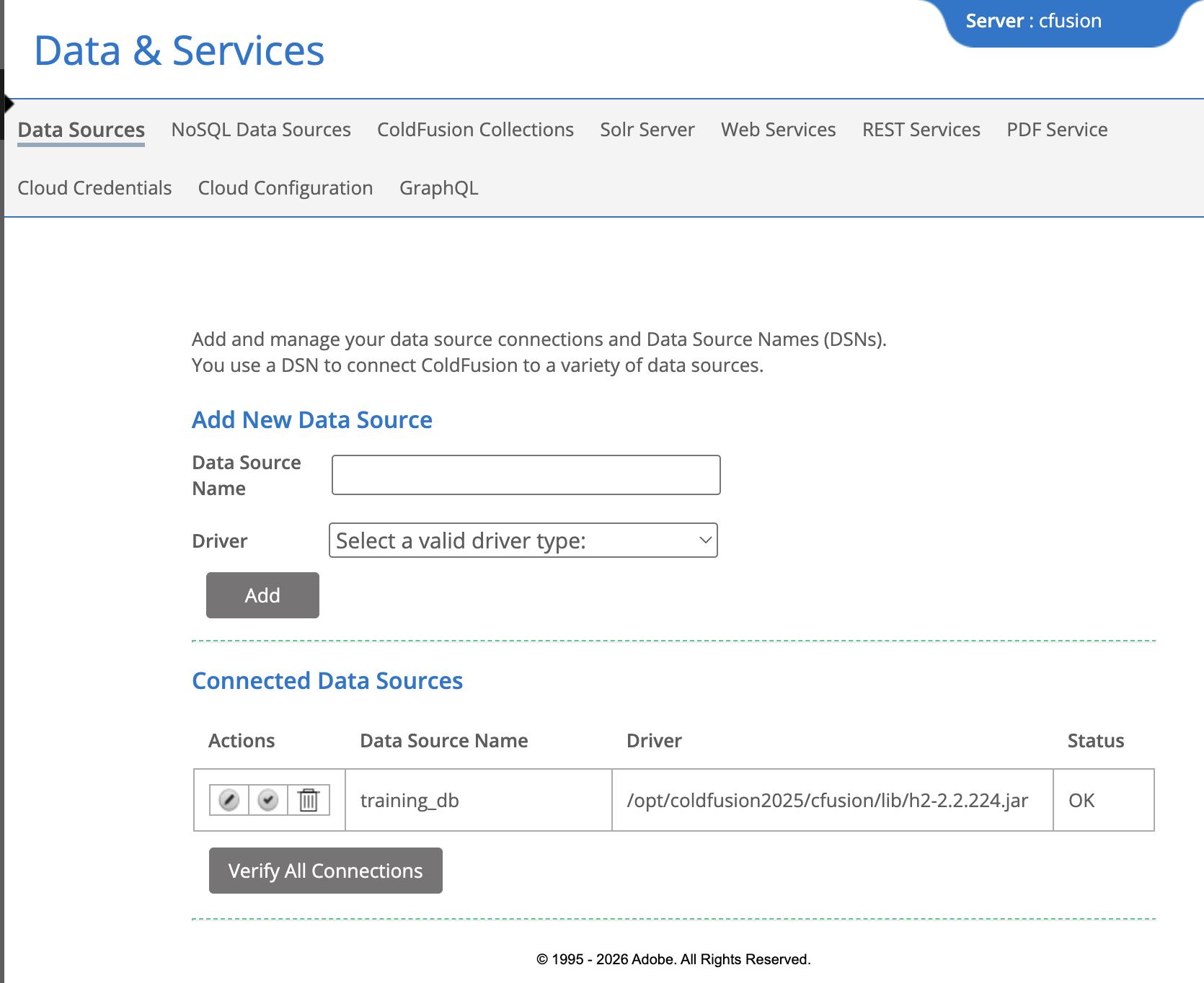
CF Admin confirming training_db is connected and healthy.
What else is under Data & Services in CF Admin?
The Data & Services section of CF Admin is the central hub for configuring every type of external data connection and service integration ColdFusion supports. This course focuses on Data Sources — the others are covered in depth in the Advanced ColdFusion courses.
| Option | What it configures | Used with |
|---|---|---|
| Data Sources | Named JDBC connection pools to relational databases (H2, MySQL, PostgreSQL, MSSQL, Oracle) | cfquery, queryExecute(), ORM |
| NoSQL Sources | Connections to MongoDB document stores | cfmongodb, custom Java integration |
| ColdFusion Collections | Verity full-text search indexes — collections of documents indexed for keyword search | cfindex, cfsearch |
| Solr Server | Connection to an Apache Solr search server for enterprise full-text search | cfindex, cfsearch with Solr engine |
| Web Services | Registered WSDL endpoints for SOAP web service consumption | cfinvoke, cfobject |
| REST Services | Registered ColdFusion REST applications — maps URL paths to CFC-based REST endpoints | cfrestregistry, REST CFCs with restpath |
| PDF Service | Connection to a remote ColdFusion PDF generation service for offloading heavy PDF rendering | cfdocument, cfpdf with remote engine |
| Cloud Credentials | Stored credentials for AWS, Azure, and Google Cloud services (S3, SES, Rekognition, etc.) | cffile S3 storage, cfmail SES, AI/ML tags |
| Cloud Configuration | Named cloud storage and service configurations that reference a Cloud Credential | cffile action="copy" to S3, cloud functions |
| GraphQL | Schema registration and endpoint configuration for ColdFusion's built-in GraphQL support | GraphQL query execution via ColdFusion endpoints |
A note on scope: this lesson covers Data Sources only, because relational databases are the backbone of almost every ColdFusion application. The other integrations — Solr, SOAP, REST, PDF, cloud services, and GraphQL — each have their own dedicated lessons in the Advanced ColdFusion course track where they are explored hands-on with real examples.
Seed the Help Desk database
Before running any queries, make sure the Help Desk schema is populated. Open the ColdFusion 2025 browser tab and click the DB Test button.
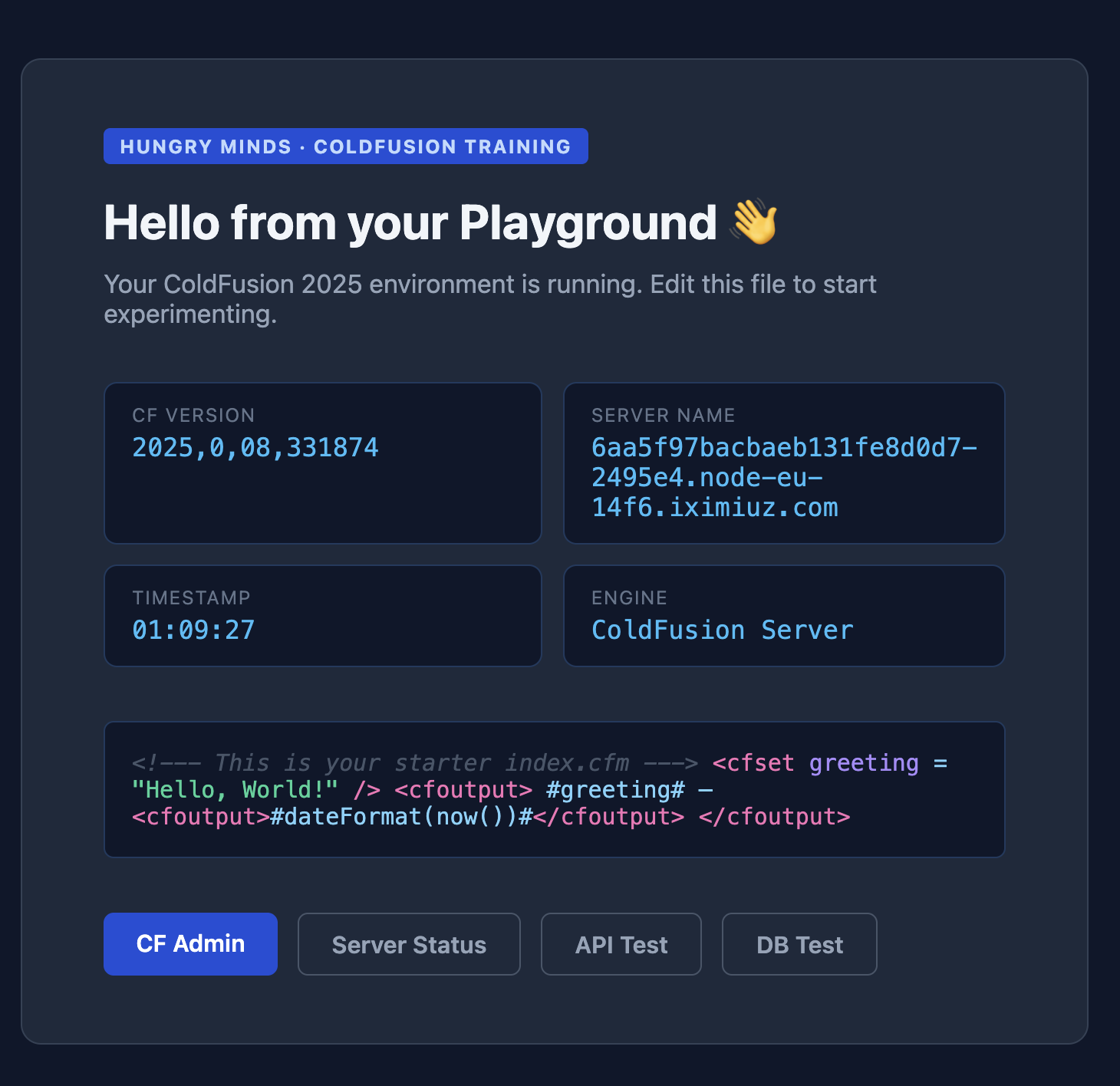
Click the DB Test button in the ColdFusion 2025 browser tab to access the seed utility.
- Click Run Seed Script
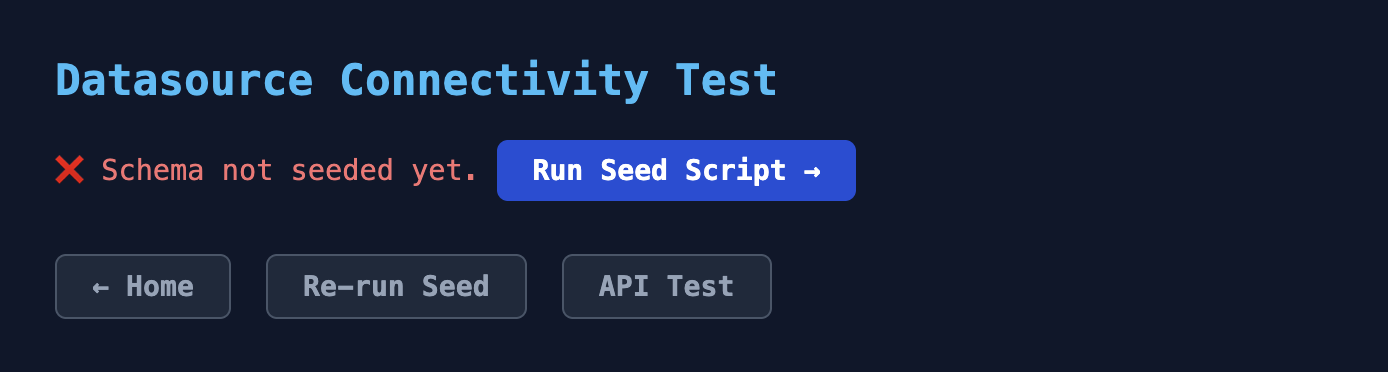
DB Test page — click Run Seed Script to create and populate the Help Desk schema.
- A confirmation screen confirms the seed completed successfully
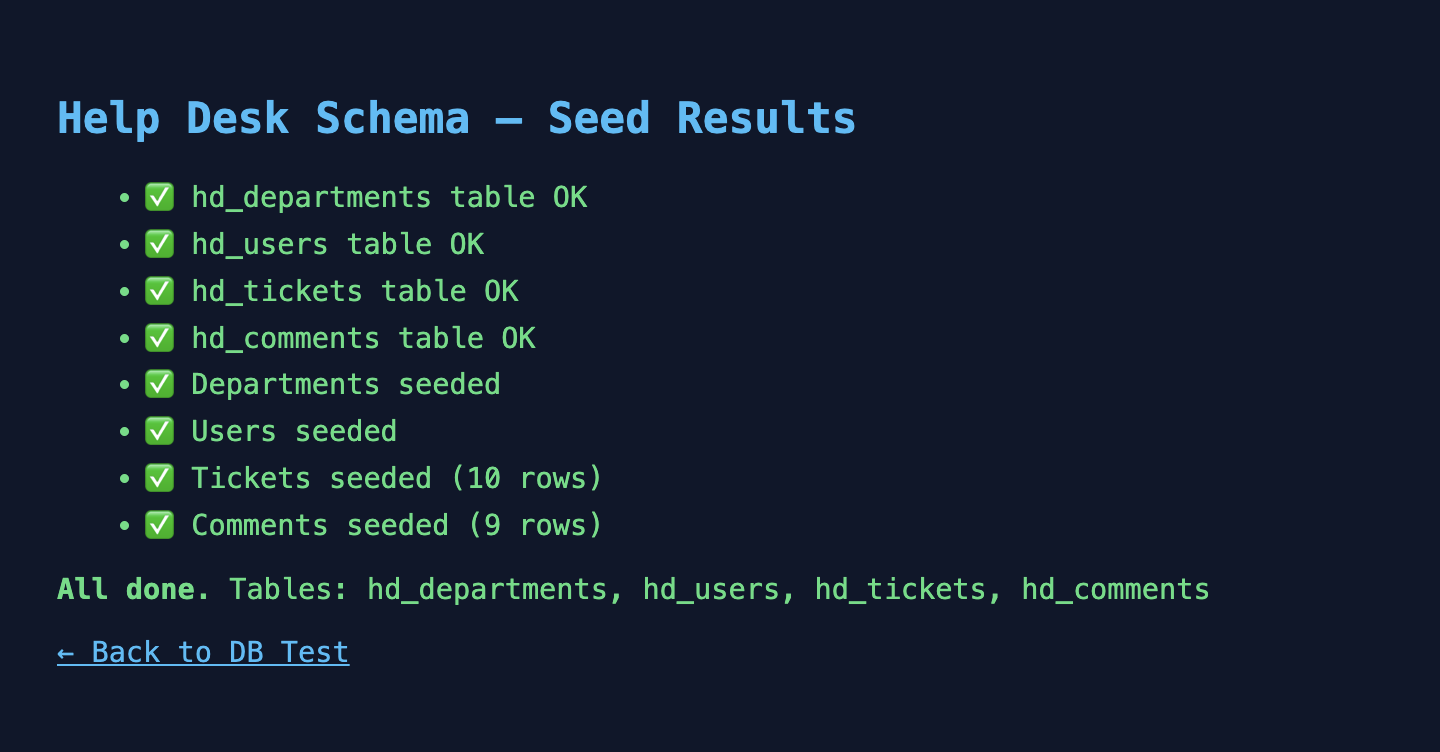
Seed confirmation — all four tables created and sample rows inserted.
- Click ← Back to DB Test to see all the records
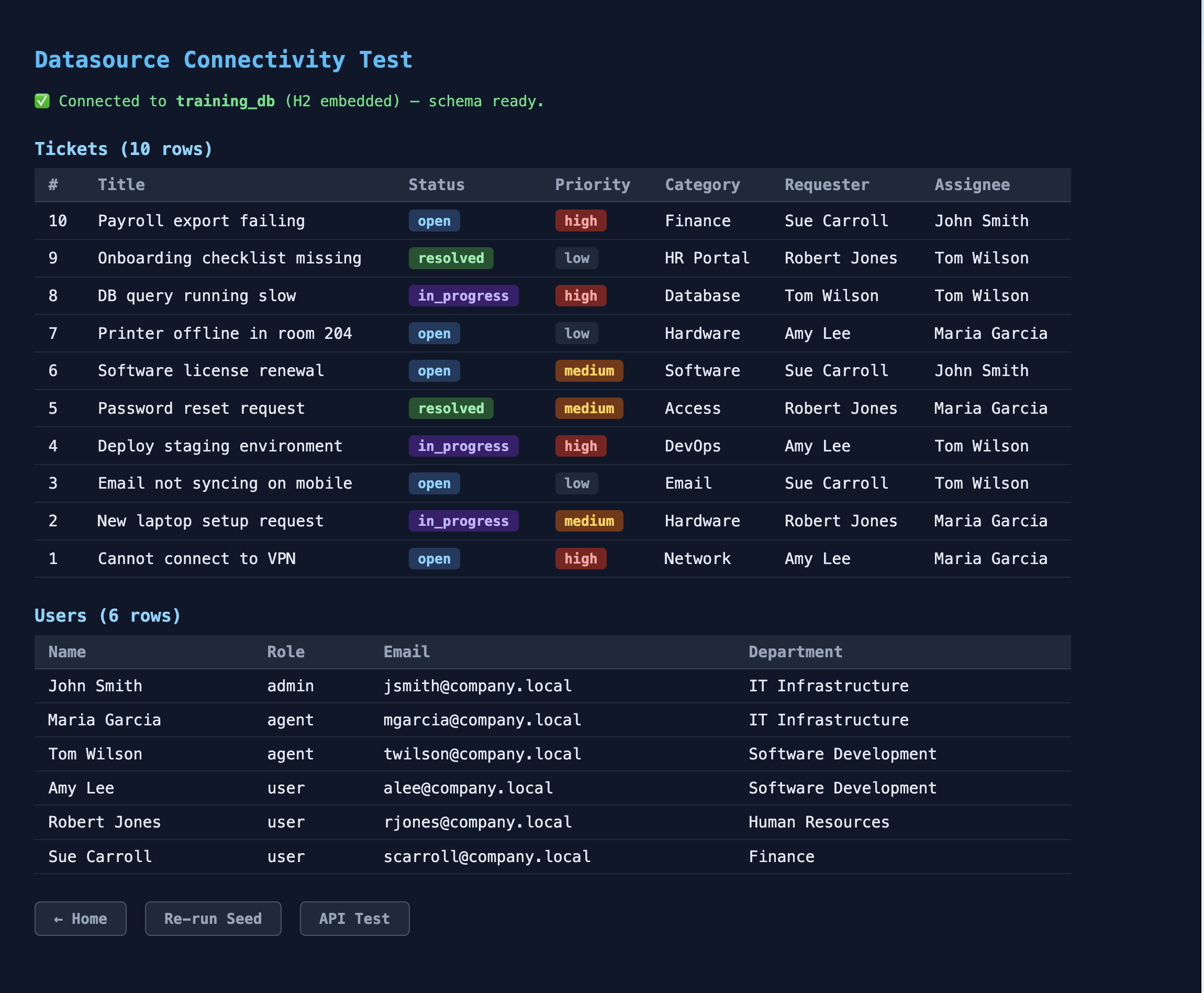
DB Test showing all Help Desk records — the database is seeded and ready.
Alternatively, seed from the terminal:
curl -s http://localhost:8500/seed-db.cfm
Activity 1 — Verify the datasource with CFML
Activity: Click the Terminal tab in your lab. Copy and paste the script below to create verify_ds.cfm — a page that queries training_db and outputs a connection confirmation:
sudo tee /opt/coldfusion2025/cfusion/wwwroot/student/verify_ds.cfm << 'EOF'
<cfquery name="test" datasource="training_db">
  SELECT COUNT(*) AS total FROM hd_tickets
</cfquery>
<cfoutput>Connection OK — #test.total# tickets found</cfoutput>
EOF
✏️ Using the IDE tab instead? Create the file here
In the IDE tab, click File → Open Folder…, type /opt/coldfusion2025/cfusion/wwwroot/student and press Enter. If VS Code asks "The folder does not exist. Would you like to create it?" — click Yes. Then right-click in the Explorer panel → New File → name it verify_ds.cfm, paste the content below, and save with Ctrl+S:
<cfquery name="test" datasource="training_db">
  SELECT COUNT(*) AS total FROM hd_tickets
</cfquery>
<cfoutput>Connection OK — #test.total# tickets found</cfoutput>
Verify the page responds correctly:
curl -s http://localhost:8500/student/verify_ds.cfm
# Expected: Connection OK — 10 tickets found

verify_ds.cfm confirms the training_db datasource is reachable and returns a row count.
Troubleshooting — "Table HD_TICKETS not found (this database is empty)"
If you forgot to seed first, you will see this error:
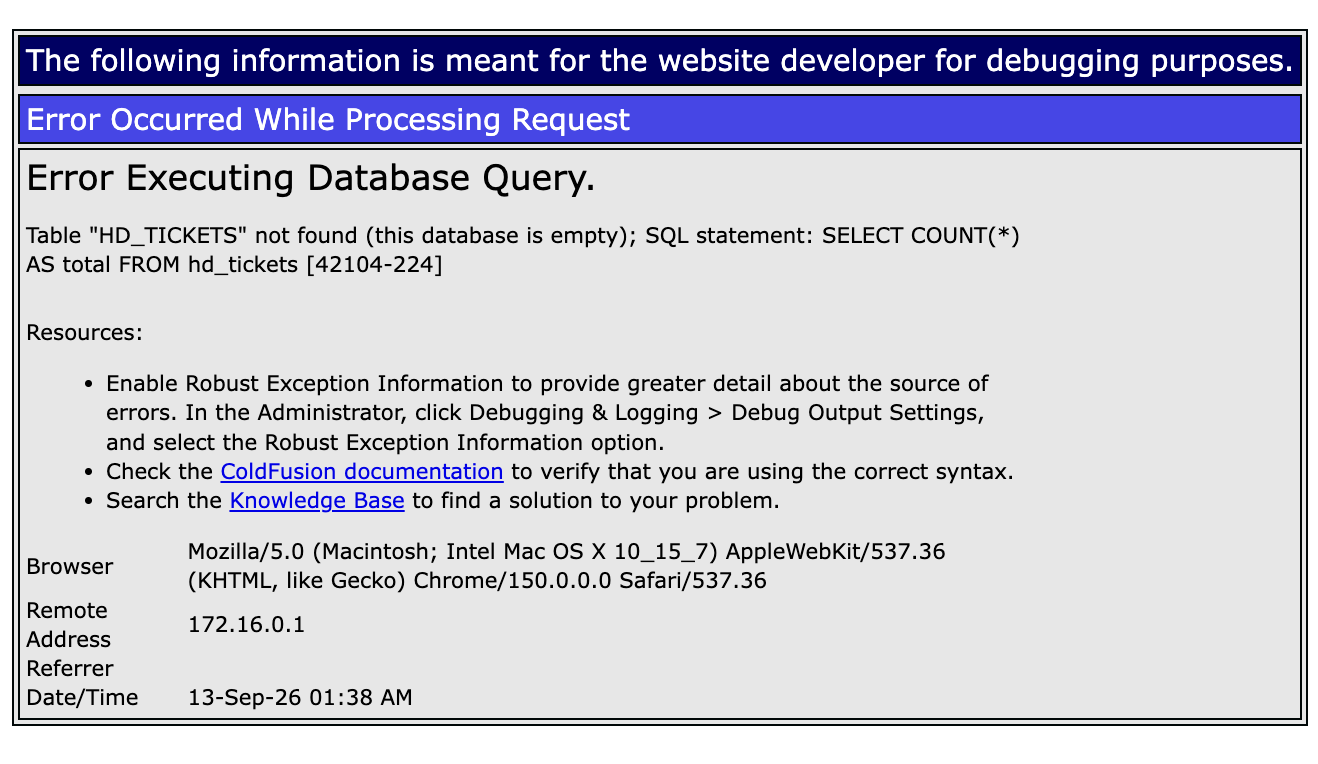
H2 error 42104 — the Help Desk schema has not been seeded yet.
Go back to the DB Test page, click Run Seed Script, then reload verify_ds.cfm.
Activity 2 — Inspect the datasource in CF Admin
Activity: Open the ColdFusion 2025 browser tab and navigate to the CF Administrator to inspect training_db:
- Browse to
http://localhost:8500/CFIDE/administrator - Log in with password:
admin - Go to Data & Services → Data Sources
- Locate the
training_dbrow and click Verify - Confirm the status column shows a green checkmark and OK
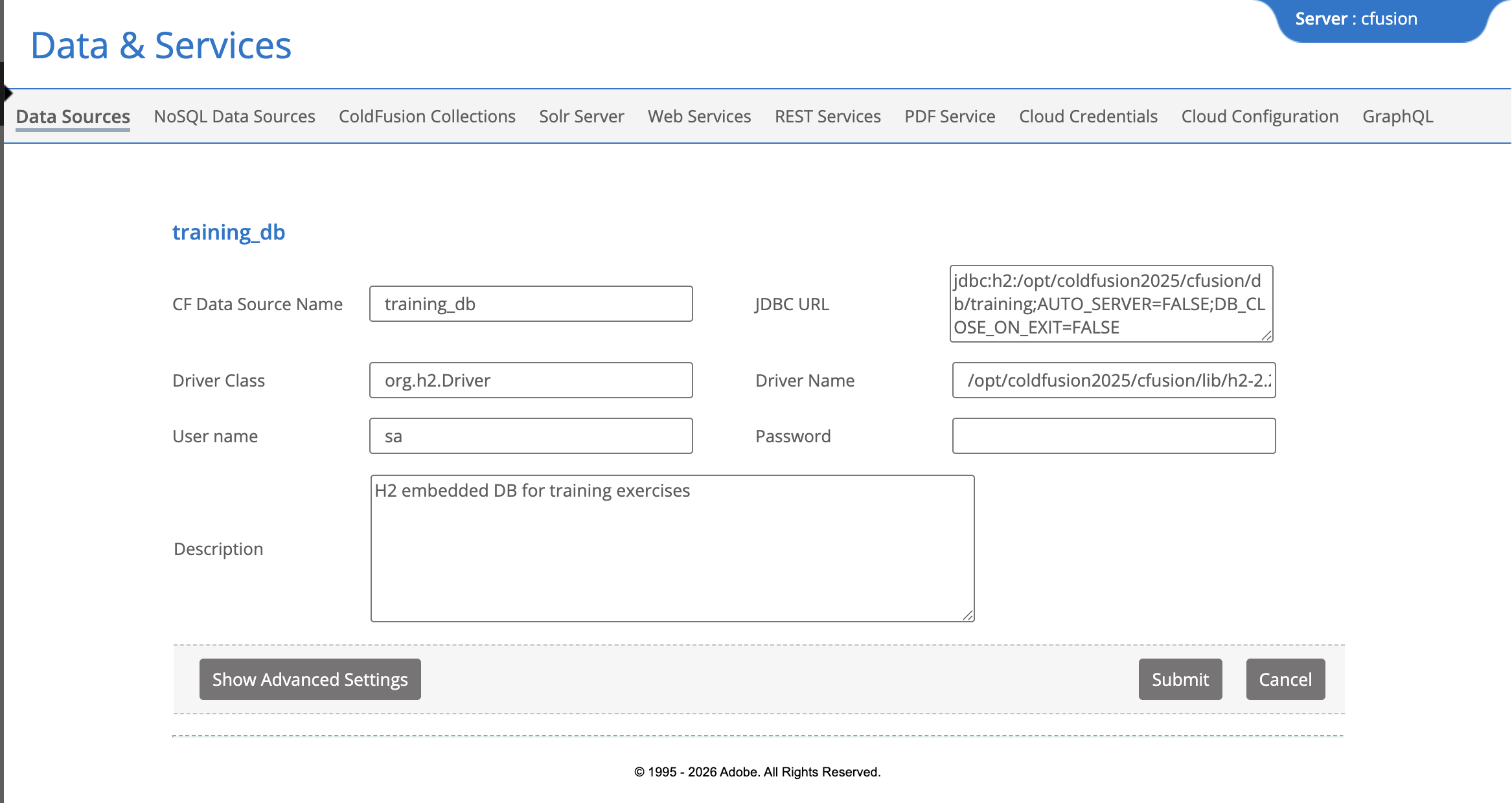
CF Admin confirms training_db is healthy — no CFML required to check pool status.
Activity 3 — Define the datasource in Application.cfc
Activity: Setting this.datasource in Application.cfc makes training_db the default for every cfquery call in your application — no need to repeat the datasource attribute on each tag.
In the Terminal tab, create Application.cfc in the web root:
sudo tee /opt/coldfusion2025/cfusion/wwwroot/Application.cfc << 'EOF'
component {

  this.name       = "HelpdeskApp";
  this.datasource = "training_db";

}
EOF
✏️ Using the IDE tab instead? Create the file here
In the IDE tab, click File → Open Folder…, type /opt/coldfusion2025/cfusion/wwwroot and press Enter. Right-click in the Explorer panel → New File → name it Application.cfc, paste the content below, and save with Ctrl+S:
component {

  this.name       = "HelpdeskApp";
  this.datasource = "training_db";

}
Verify the file was written correctly:
grep "this.datasource" /opt/coldfusion2025/cfusion/wwwroot/Application.cfc
# Expected: this.datasource = "training_db";
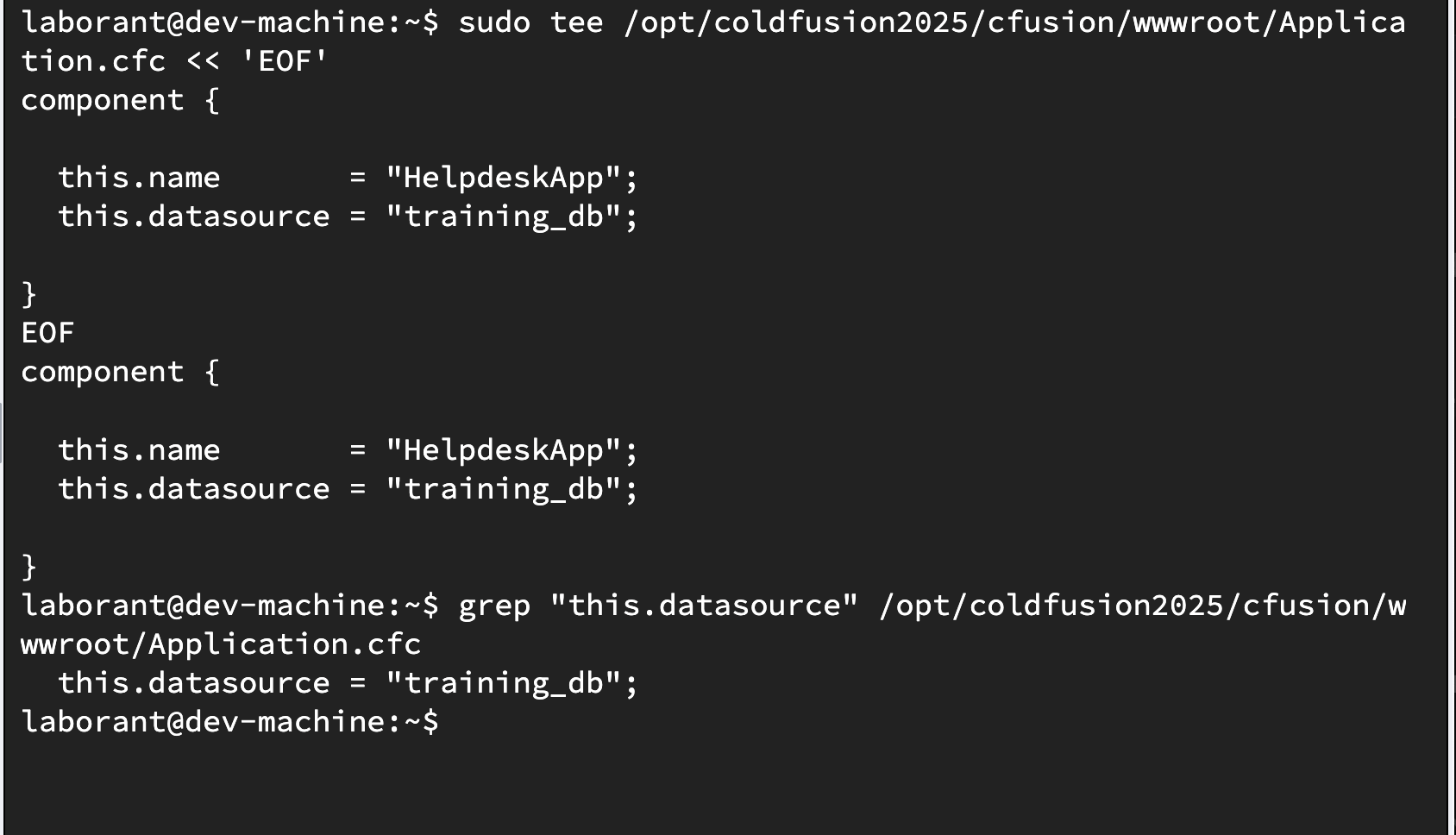
Application.cfc with this.datasource set — all cfquery calls in this application now default to training_db.
Activity 4 — Query of Queries (QoQ)
Activity: Create qoq_demo.cfm — a page that fetches all tickets from the database in one query, then uses ColdFusion's Query of Queries feature to filter and sort the results in memory without a second database hit:
sudo tee /opt/coldfusion2025/cfusion/wwwroot/student/qoq_demo.cfm << 'EOF'
<!DOCTYPE html>
<html lang="en">
<head>
  <meta charset="UTF-8">
  <title>Query of Queries Demo</title>
  <style>
    body { font-family: sans-serif; max-width: 820px; margin: 2rem auto; }
    table { width: 100%; border-collapse: collapse; margin-top: 1rem; }
    th { background: #3b82d4; color: #fff; padding: .5rem .75rem; text-align: left; }
    td { padding: .45rem .75rem; border-bottom: 1px solid #e5e7eb; }
    tr:hover td { background: #f7f8fa; }
    .badge-high     { color: #c0392b; font-weight: bold; }
    .badge-medium   { color: #d97706; font-weight: bold; }
    .badge-low      { color: #16a34a; font-weight: bold; }
  </style>
</head>
<body>
  <h1>Query of Queries — Help Desk Demo</h1>

  <cfscript>
    // ── Step 1: ONE database query — fetch everything ──────────────────────
    allTickets = queryExecute(
      "SELECT t.id, t.title, t.status, t.priority, t.category,
              (SELECT full_name FROM hd_users WHERE id = t.requester_id) AS requester,
              (SELECT full_name FROM hd_users WHERE id = t.assignee_id)  AS assignee
       FROM   hd_tickets t
       ORDER  BY t.id DESC",
      {},
      { datasource: "training_db" }
    );

    // ── Step 2: QoQ — filter open + high priority (NO database hit) ────────
    openHighPriority = queryExecute(
      "SELECT id, title, priority, category, assignee
       FROM   allTickets
       WHERE  status   = 'open'
       AND    priority = 'high'
       ORDER  BY id DESC",
      {},
      { dbtype: "query" }
    );

    // ── Step 3: QoQ — group count by status (NO database hit) ──────────────
    statusSummary = queryExecute(
      "SELECT status, COUNT(id) AS total
       FROM   allTickets
       GROUP  BY status
       ORDER  BY total DESC",
      {},
      { dbtype: "query" }
    );
  </cfscript>

  <h2>All Tickets — <cfoutput>#allTickets.recordCount#</cfoutput> rows (from DB)</h2>
  <table>
    <tr><th>ID</th><th>Title</th><th>Status</th><th>Priority</th><th>Assignee</th></tr>
    <cfoutput query="allTickets">
      <tr>
        <td>#id#</td>
        <td>#encodeForHTML(title)#</td>
        <td>#encodeForHTML(status)#</td>
        <td class="badge-#encodeForHTMLAttribute(priority)#">#encodeForHTML(priority)#</td>
        <td>#encodeForHTML(assignee)#</td>
      </tr>
    </cfoutput>
  </table>

  <h2>Open + High Priority — <cfoutput>#openHighPriority.recordCount#</cfoutput> rows (QoQ — no DB hit)</h2>
  <table>
    <tr><th>ID</th><th>Title</th><th>Category</th><th>Assignee</th></tr>
    <cfoutput query="openHighPriority">
      <tr>
        <td>#id#</td>
        <td>#encodeForHTML(title)#</td>
        <td>#encodeForHTML(category)#</td>
        <td>#encodeForHTML(assignee)#</td>
      </tr>
    </cfoutput>
  </table>

  <h2>Tickets by Status — (QoQ — no DB hit)</h2>
  <table>
    <tr><th>Status</th><th>Count</th></tr>
    <cfoutput query="statusSummary">
      <tr><td>#encodeForHTML(status)#</td><td>#total#</td></tr>
    </cfoutput>
  </table>

</body>
</html>
EOF
✏️ Using the IDE tab instead? Create the file here
In the IDE tab, right-click in the Explorer panel → New File → name it qoq_demo.cfm, paste the content below, and save with Ctrl+S:
<!DOCTYPE html>
<html lang="en">
<head>
  <meta charset="UTF-8">
  <title>Query of Queries Demo</title>
  <style>
    body { font-family: sans-serif; max-width: 820px; margin: 2rem auto; }
    table { width: 100%; border-collapse: collapse; margin-top: 1rem; }
    th { background: #3b82d4; color: #fff; padding: .5rem .75rem; text-align: left; }
    td { padding: .45rem .75rem; border-bottom: 1px solid #e5e7eb; }
    tr:hover td { background: #f7f8fa; }
    .badge-high     { color: #c0392b; font-weight: bold; }
    .badge-medium   { color: #d97706; font-weight: bold; }
    .badge-low      { color: #16a34a; font-weight: bold; }
  </style>
</head>
<body>
  <h1>Query of Queries — Help Desk Demo</h1>

  <cfscript>
    // ── Step 1: ONE database query — fetch everything ──────────────────────
    allTickets = queryExecute(
      "SELECT t.id, t.title, t.status, t.priority, t.category,
              (SELECT full_name FROM hd_users WHERE id = t.requester_id) AS requester,
              (SELECT full_name FROM hd_users WHERE id = t.assignee_id)  AS assignee
       FROM   hd_tickets t
       ORDER  BY t.id DESC",
      {},
      { datasource: "training_db" }
    );

    // ── Step 2: QoQ — filter open + high priority (NO database hit) ────────
    openHighPriority = queryExecute(
      "SELECT id, title, priority, category, assignee
       FROM   allTickets
       WHERE  status   = 'open'
       AND    priority = 'high'
       ORDER  BY id DESC",
      {},
      { dbtype: "query" }
    );

    // ── Step 3: QoQ — group count by status (NO database hit) ──────────────
    statusSummary = queryExecute(
      "SELECT status, COUNT(id) AS total
       FROM   allTickets
       GROUP  BY status
       ORDER  BY total DESC",
      {},
      { dbtype: "query" }
    );
  </cfscript>

  <h2>All Tickets — <cfoutput>#allTickets.recordCount#</cfoutput> rows (from DB)</h2>
  <table>
    <tr><th>ID</th><th>Title</th><th>Status</th><th>Priority</th><th>Assignee</th></tr>
    <cfoutput query="allTickets">
      <tr>
        <td>#id#</td>
        <td>#encodeForHTML(title)#</td>
        <td>#encodeForHTML(status)#</td>
        <td class="badge-#encodeForHTMLAttribute(priority)#">#encodeForHTML(priority)#</td>
        <td>#encodeForHTML(assignee)#</td>
      </tr>
    </cfoutput>
  </table>

  <h2>Open + High Priority — <cfoutput>#openHighPriority.recordCount#</cfoutput> rows (QoQ — no DB hit)</h2>
  <table>
    <tr><th>ID</th><th>Title</th><th>Category</th><th>Assignee</th></tr>
    <cfoutput query="openHighPriority">
      <tr>
        <td>#id#</td>
        <td>#encodeForHTML(title)#</td>
        <td>#encodeForHTML(category)#</td>
        <td>#encodeForHTML(assignee)#</td>
      </tr>
    </cfoutput>
  </table>

  <h2>Tickets by Status — (QoQ — no DB hit)</h2>
  <table>
    <tr><th>Status</th><th>Count</th></tr>
    <cfoutput query="statusSummary">
      <tr><td>#encodeForHTML(status)#</td><td>#total#</td></tr>
    </cfoutput>
  </table>

</body>
</html>
Open /student/qoq_demo.cfm in the ColdFusion 2025 browser tab. You should see:
- All 10 tickets from the database
- A filtered list of open + high priority tickets — expect 2 rows: Cannot connect to VPN and Payroll export failing
- A status summary grouped by status (open, in_progress, resolved) — all derived from the same in-memory result set
curl -s -o /dev/null -w "%{http_code}" http://localhost:8500/student/qoq_demo.cfm
# Expected: 200
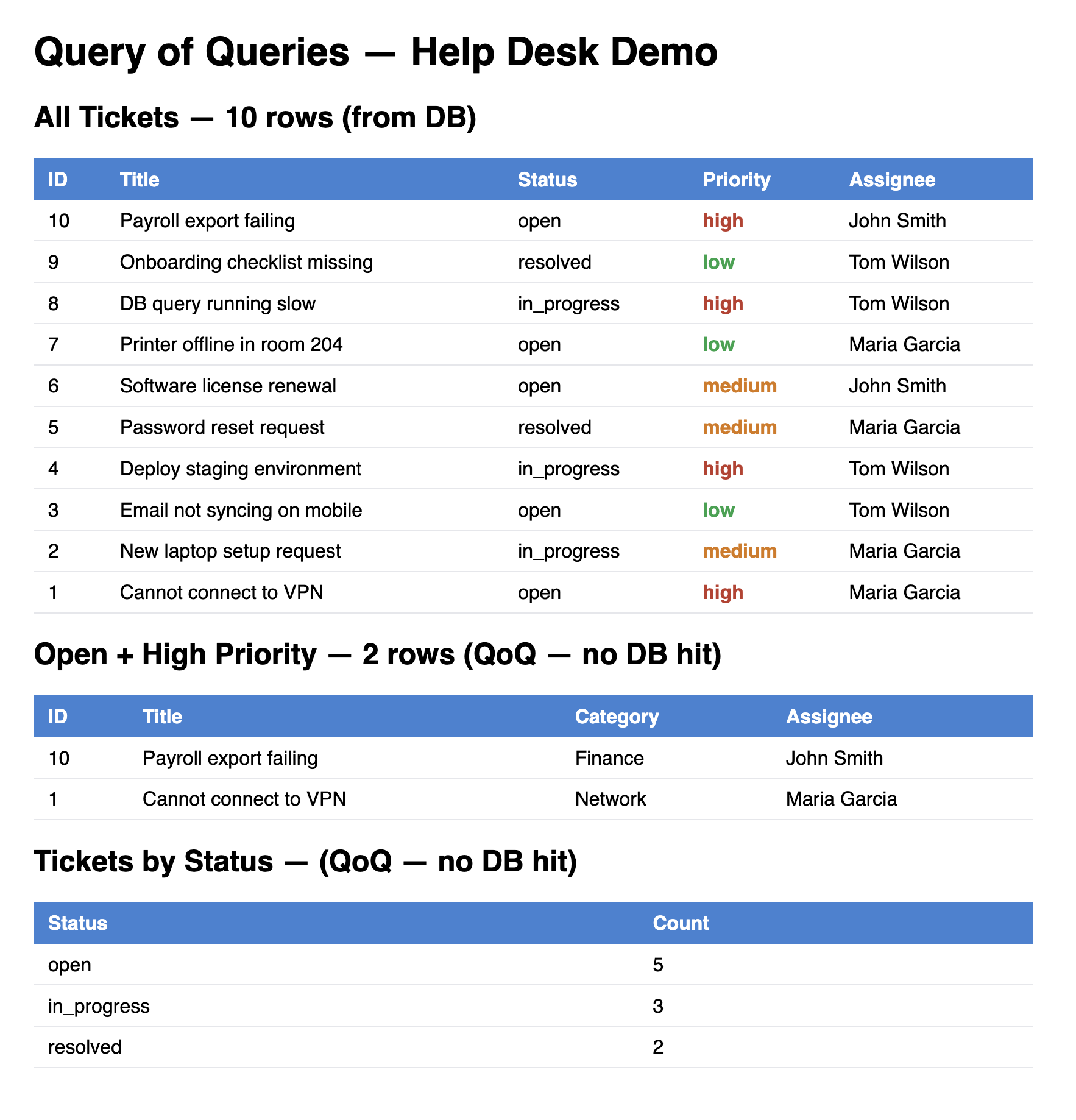
One database query, three views — QoQ filters and aggregates the in-memory result without touching the database again.
When all the checks above are green, this lesson is complete. Your progress is saved automatically — move straight on to the next lesson.
- Previous lesson
- Unit 1 Challenge — Solution Review