Move a Multi-Container Application Off the Host Network

Starting the containers with --network host is a quick way to move an application from a VM to Docker.
The components keep talking to each other over localhost, but the containers lose the network isolation that Docker gives them.
In this challenge, you'll fix such a deployment with a combination of Docker networking features: published ports, user-defined and internal networks, and name resolution.
The app-01 server runs a small issue tracker that was moved to Docker in a hurry.
The tracker consists of three containers:
tracker-proxy(imagetracker-proxy:1.0) - an Nginx reverse proxytracker-app(imagetracker:1.0) - the tracker apptracker-db(imagepostgres:18-alpine) - its database
The app writes short AI summaries of the issues with Ollama, which runs on the server itself, outside of Docker. A monitoring server collects the tracker's metrics over the private network.
The Tracker works, but nothing in this setup is isolated. The admin panel, the metrics, and the database are open to anyone who can reach the server. To see it, run the following command on the outside machine, which plays a host on the internet:
nc -zv 203.0.113.20 9000
Connection to 203.0.113.20 9000 port [tcp/*] succeeded!
The containers can also connect anywhere they like. If an attacker ever takes over the proxy, they can connect straight to the database, and a compromised database can send the tracker's data to any server on the internet.
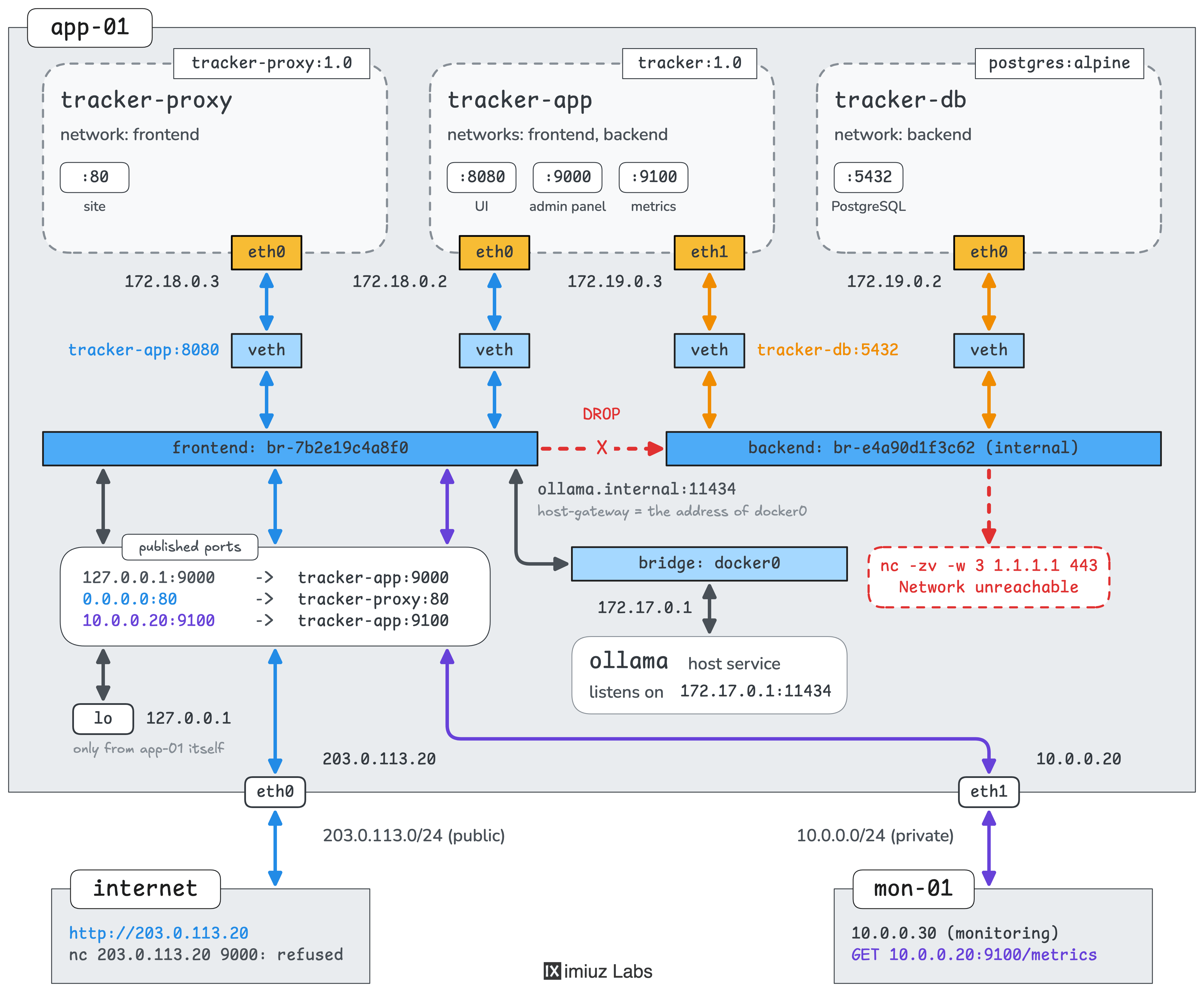
Your task is to recreate the containers so that the tracker keeps working and every container gets only the access it needs:
- Users can open the tracker at
http://203.0.113.20. - The monitoring server can scrape the metrics at
http://10.0.0.20:9100/metrics, and port 9100 is closed on the public address. - The admin panel is available only from the server itself, at
http://127.0.0.1:9000. - No other ports of the containers are published on the server.
- The proxy cannot connect to the database, even by its IP address.
- The database cannot connect to anything outside the Docker host.
- The containers find each other and Ollama by name. The same commands will be used on other servers, where the addresses differ, so the proxy and the app must not connect to IP addresses.
Keep the container names and images from the table above, and leave Ollama as it is. The tracker keeps no data worth saving, so you can recreate any of the containers.
Hint 1
Find out how the containers were started before changing anything.
The docker inspect command shows the network mode, the published ports, and the environment variables of a container.
The new containers need the same environment variables, although the addresses in them may have to change.
Some of the variables come from the image, and docker image inspect shows which ones.
Then look at what listens where.
The ss -lntp command shows which ports the services listen on and on which addresses.
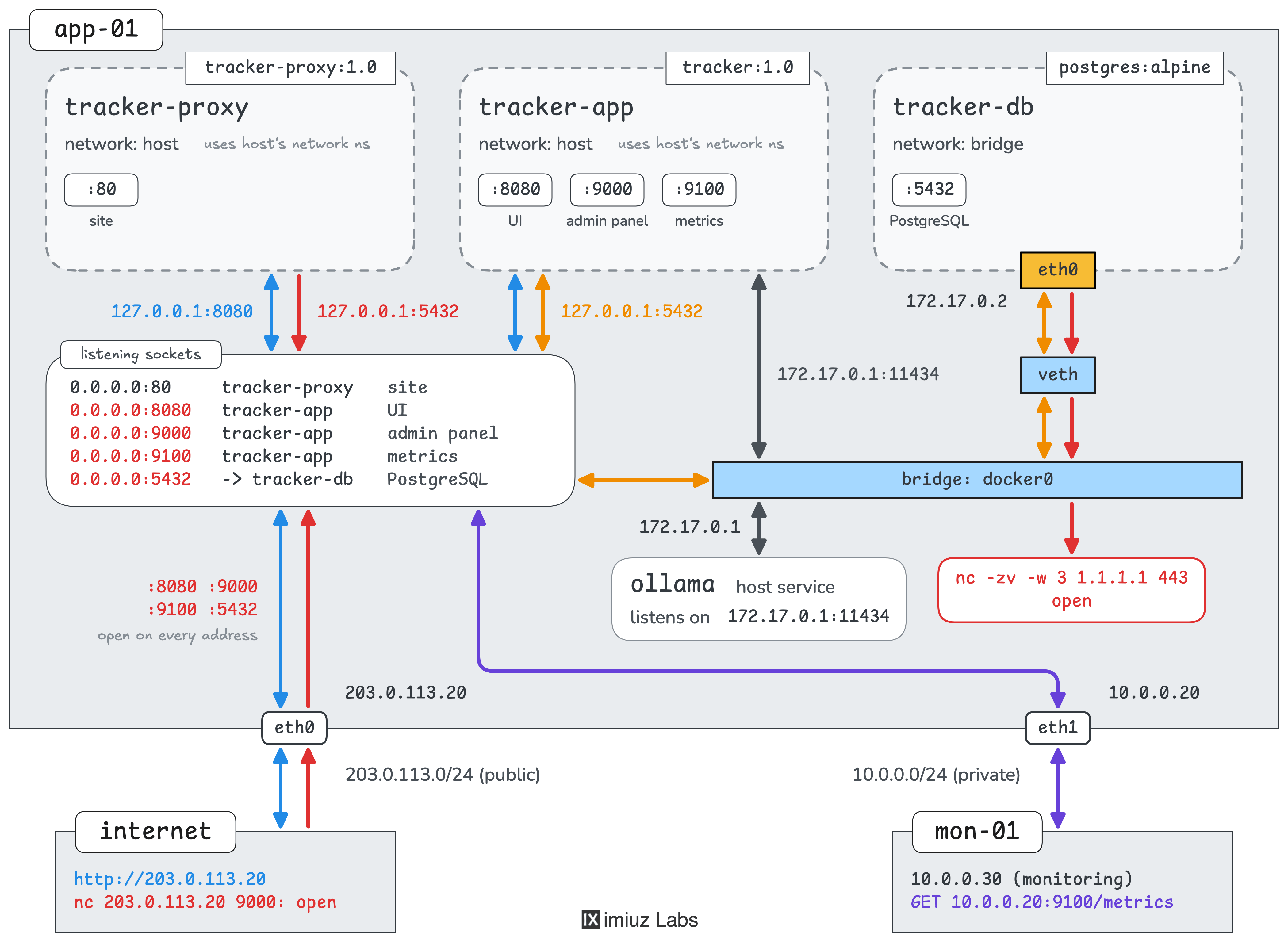
The current setup of the tracker on app-01.
Hint 2
Docker gives every container on a bridge network an IP address of its own,
and every bridge network has a virtual interface on the host.
The docker network inspect command shows the settings of a network.
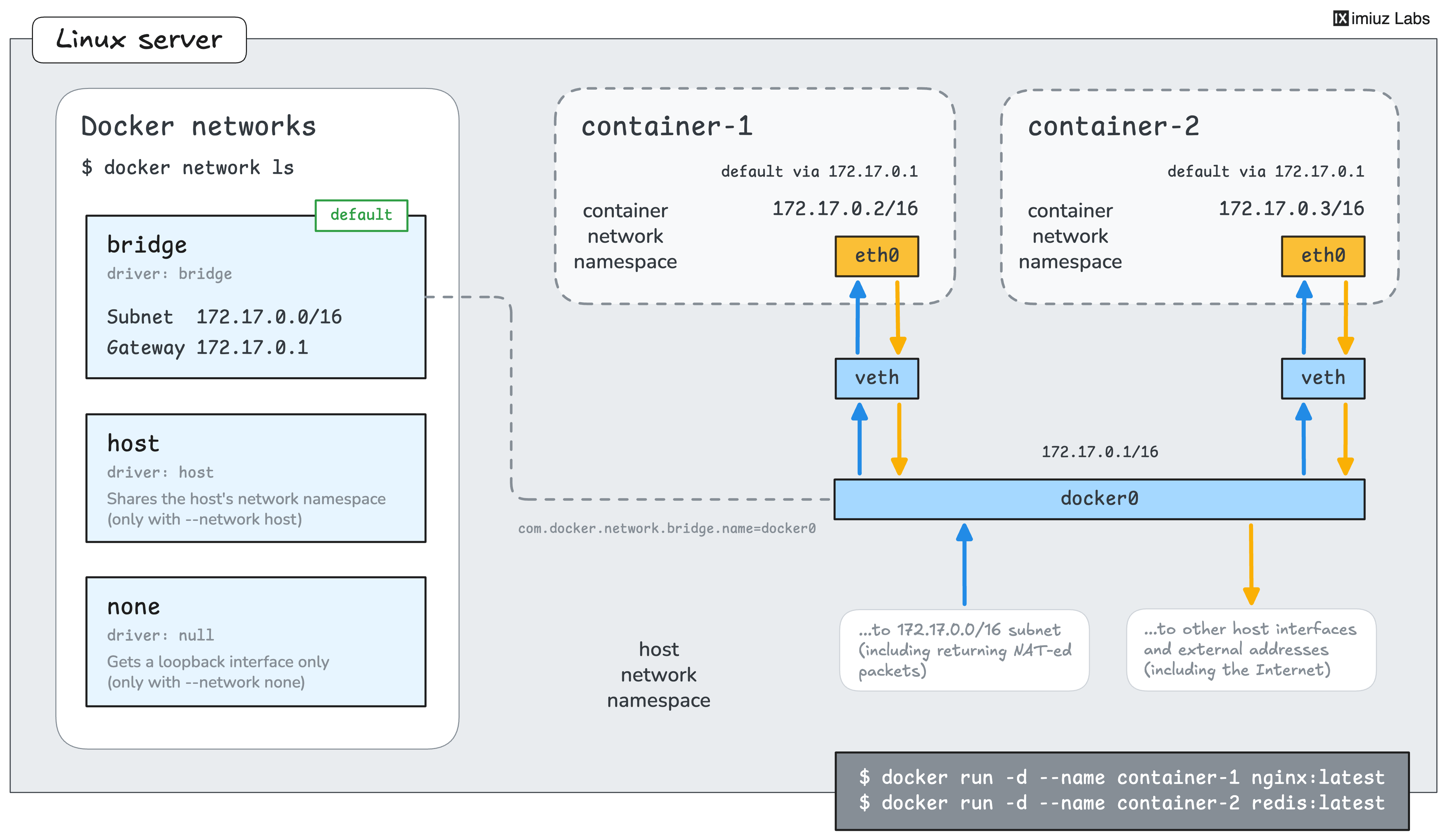
For comparison, a freshly installed Docker host with two containers on the default bridge network.
Hint 3
Without the host network, the proxy listens on port 80 of its own container. Publish the port to make it reachable through the server's addresses.
Publish only the ports from the requirements.
The -P flag is handy for avoiding port conflicts,
but it publishes every port that the image exposes, on all addresses of the server.
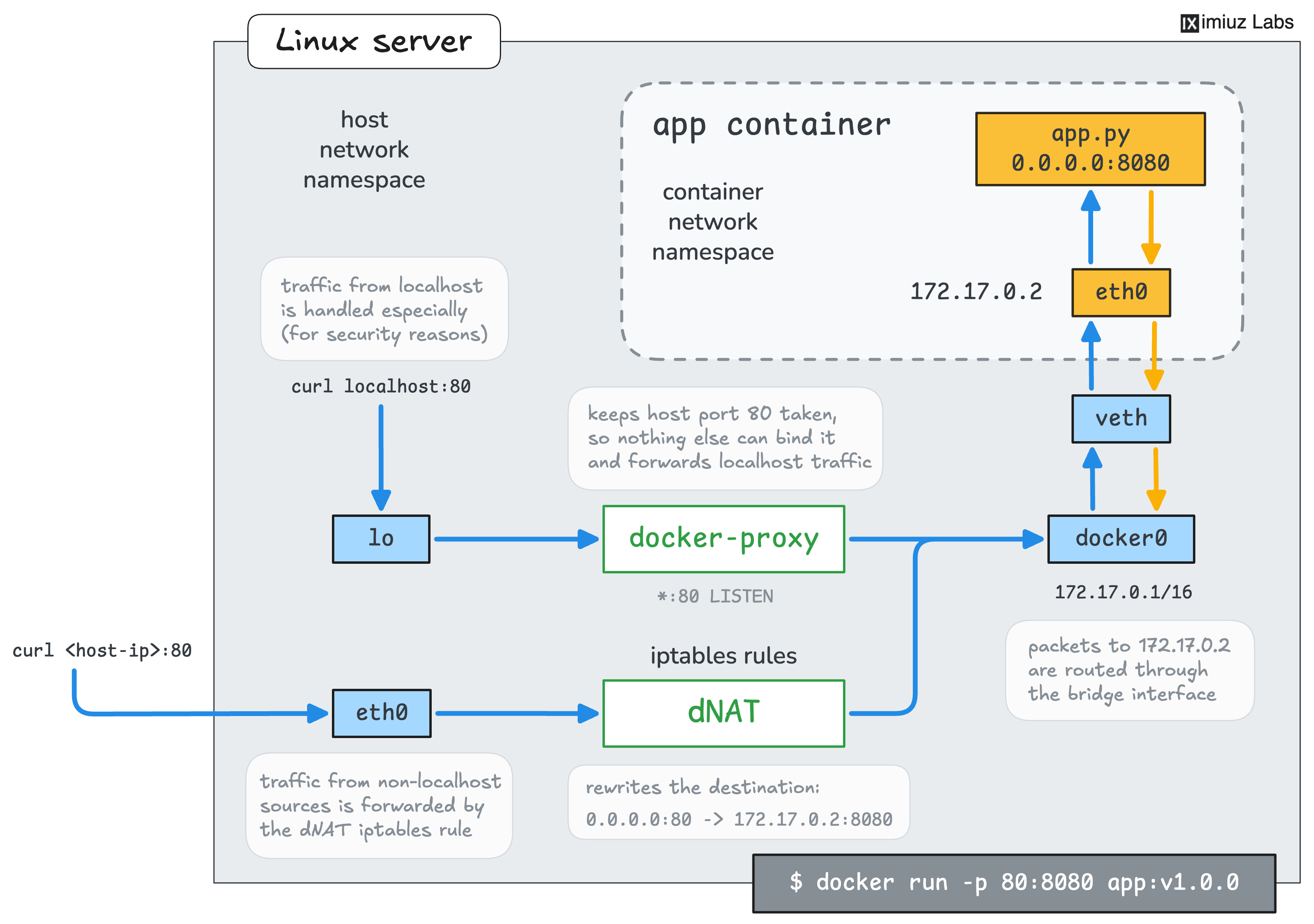
A simpler case with a single web app container published on port 80 of its Docker host.
Hint 4
The --publish flag accepts an optional host address in front of the host port.
With 127.0.0.1 there, the port is reachable only from the Docker host itself.
The server's operators can still open the admin panel through an SSH tunnel.
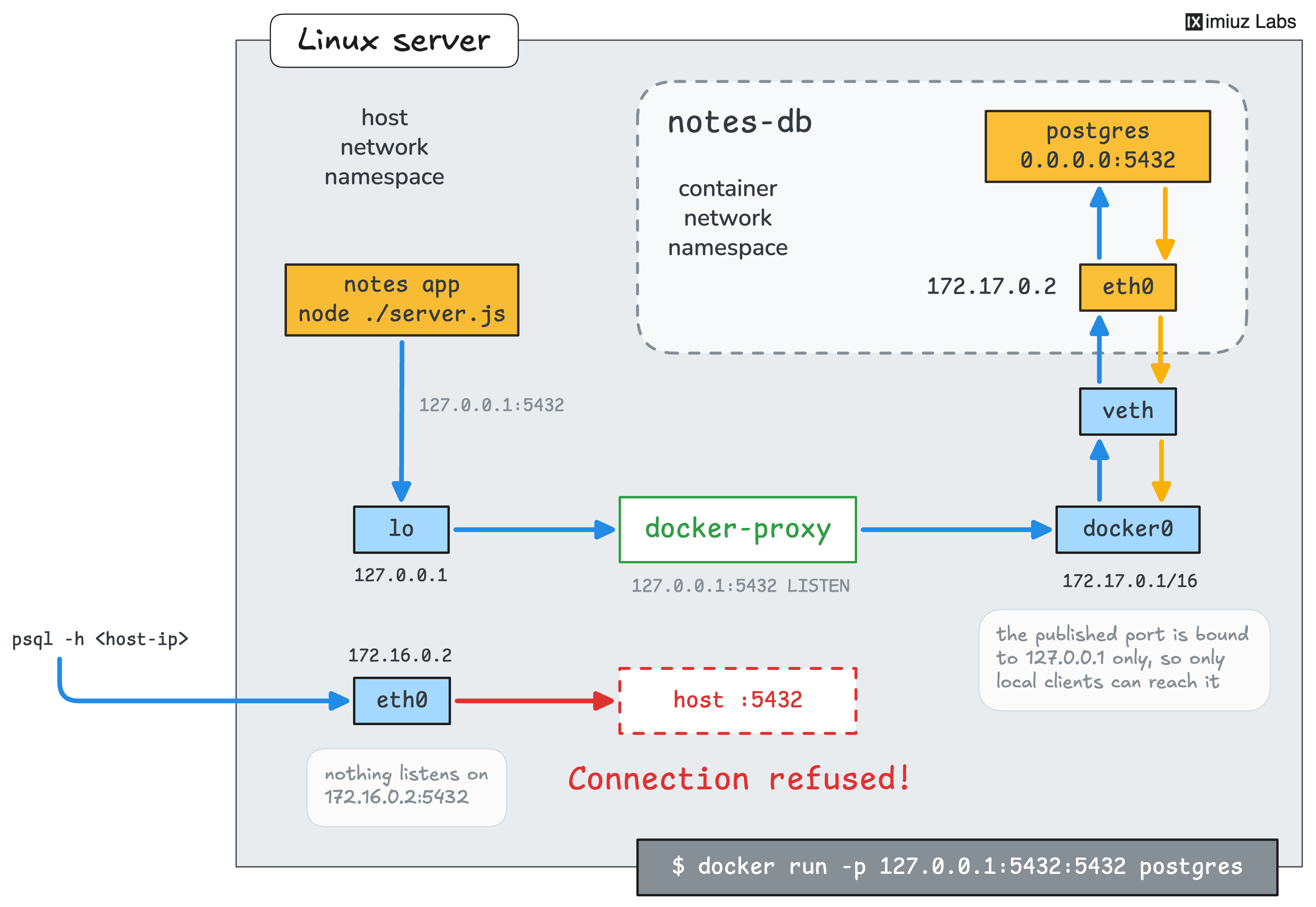
A different app with the same need: PostgreSQL published only on the loopback address of a workstation.
Hint 5
A port can also be published on one of the server's network addresses, such as the private one. A container can publish several ports, each on its own address.
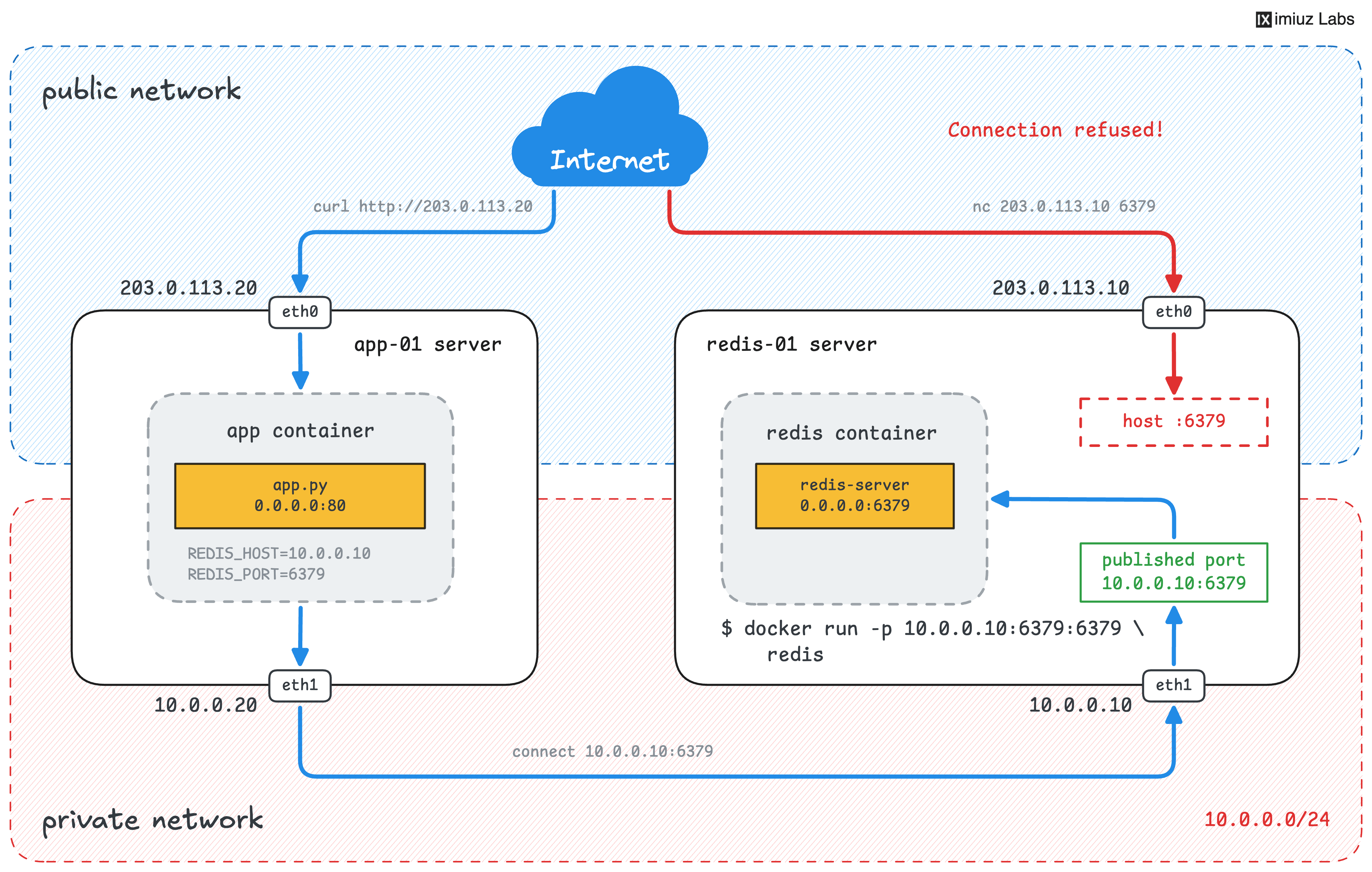
Another server with the same need: Redis published only on its private address.
Even with port 9100 closed on the public address, servers next to app-01 on the public network can reach 10.0.0.20:9100 by routing their packets through its public interface.
In this challenge, you can leave this gap open.
If you want to practice closing access to published ports, check the Restrict Access to a Docker-Published Port with Firewall Rules challenge.
Hint 6
Container addresses change when containers are replaced,
so the proxy and the app should find their peers by name.
Docker's embedded DNS server resolves container names on user-defined bridge networks.
The default bridge network has no such name resolution.
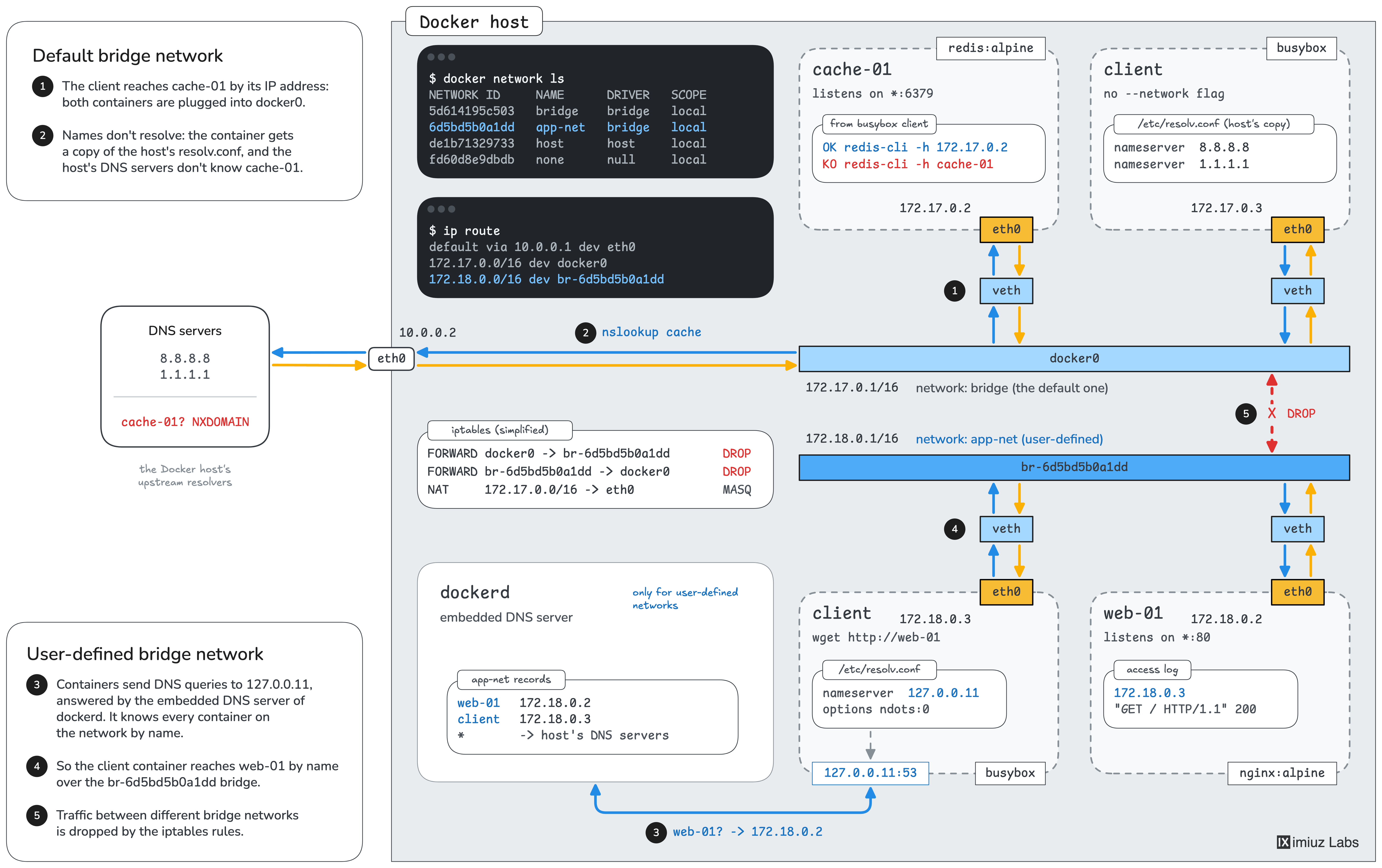
How container names resolve on a user-defined network and on the default bridge, shown on another Docker host.
Hint 7
Containers on different bridge networks cannot connect to each other, even by IP address. A container can be attached to several networks, so the app can share one network with the proxy and another one with the database.
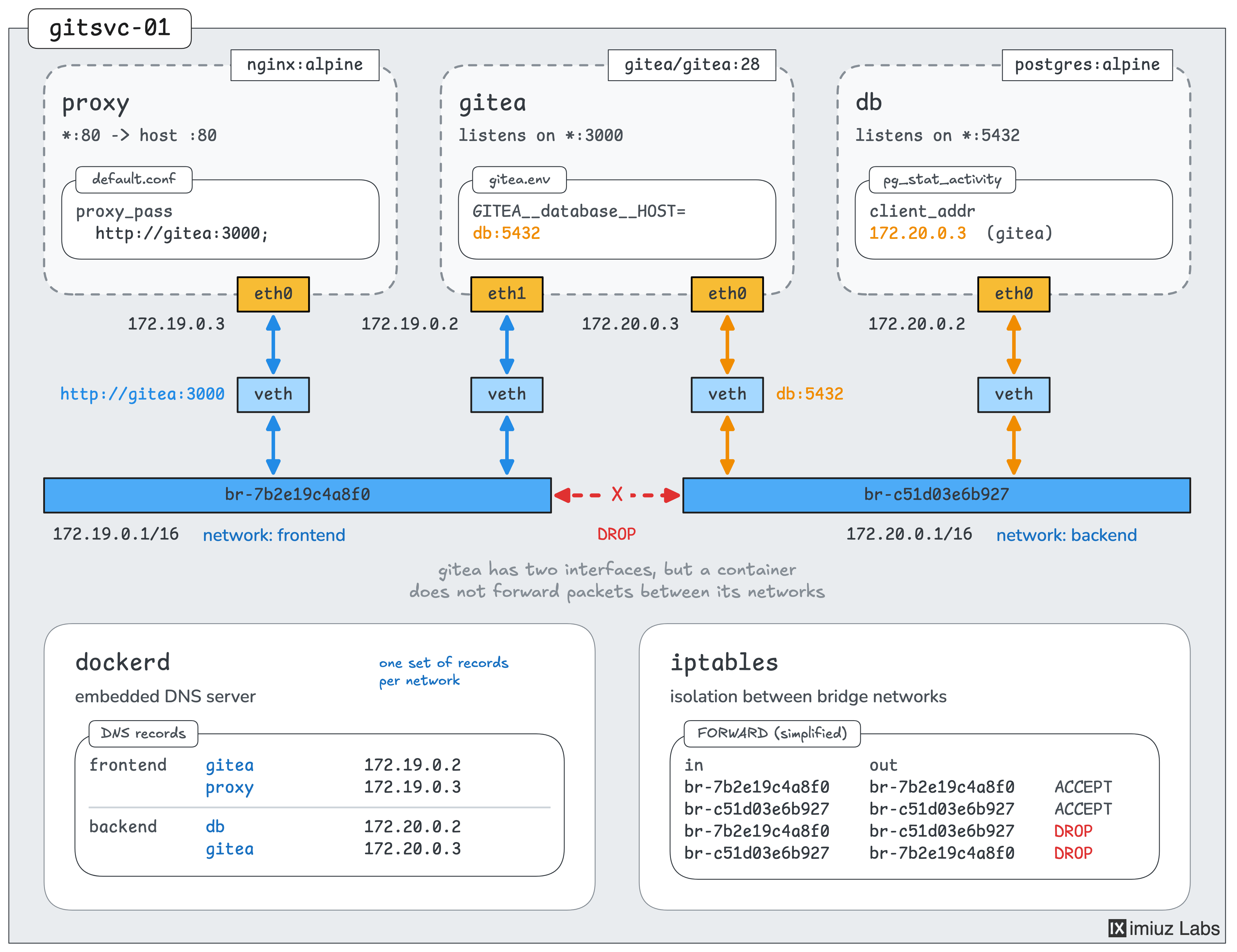
The same split in a different app: Gitea shares one network with Nginx and another one with PostgreSQL.
Hint 8
An internal network has no access to anything outside the Docker host.
Docker doesn't publish the ports of a container that is attached only to internal networks, and such a container cannot reach the services of the host either. So the app needs a regular network next to the internal one.
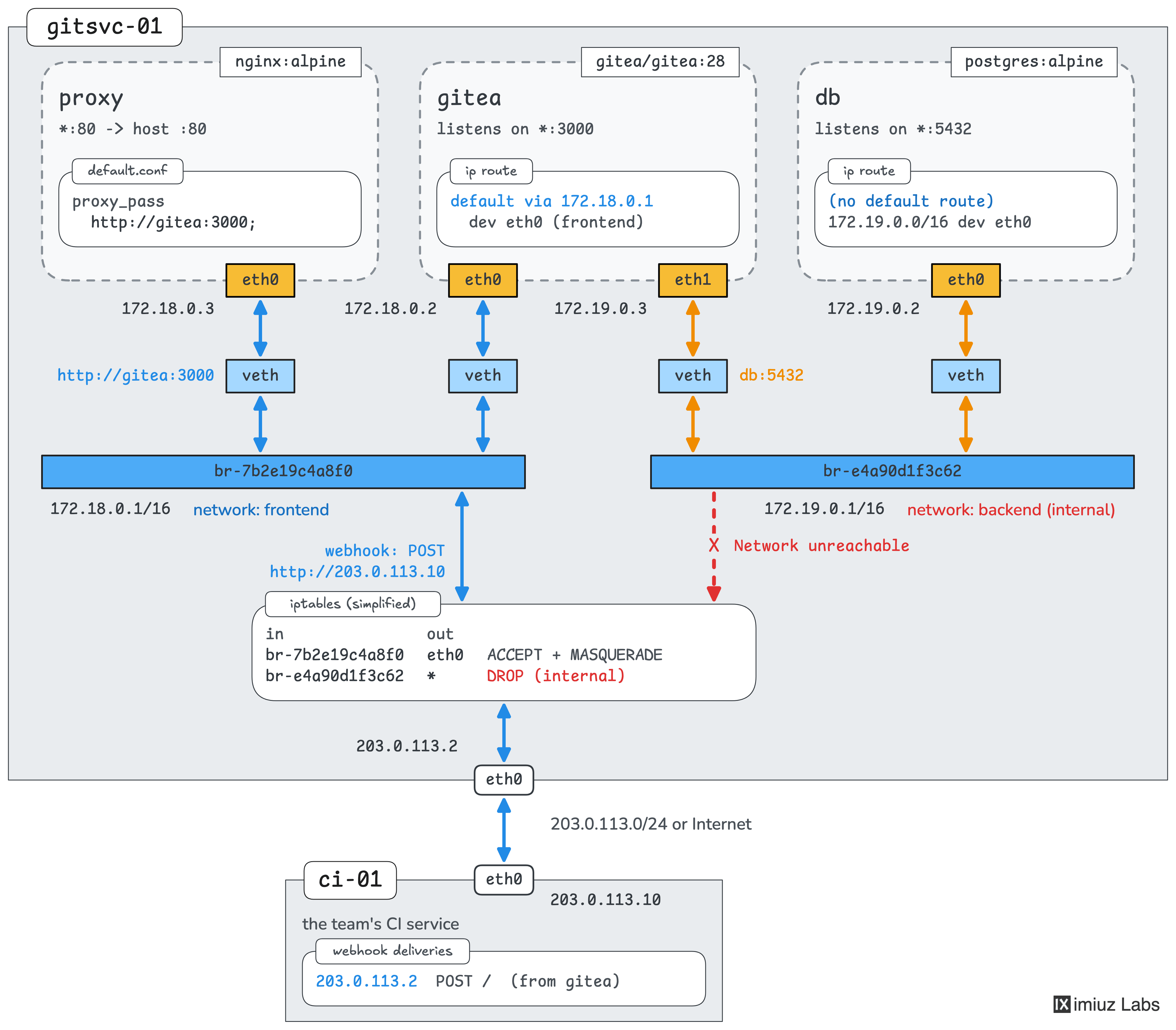
The same fix in a different app: PostgreSQL on an internal backend network has no outbound access.
Hint 9
Inside a container on a bridge network, 127.0.0.1 points to the container itself.
The 172.17.0.1 address works on this server, but Docker on other servers may use a different subnet for the default bridge.
The --add-host flag of docker run adds an entry to the container's /etc/hosts file,
and its special host-gateway value turns into the address of the docker0 bridge on every server.
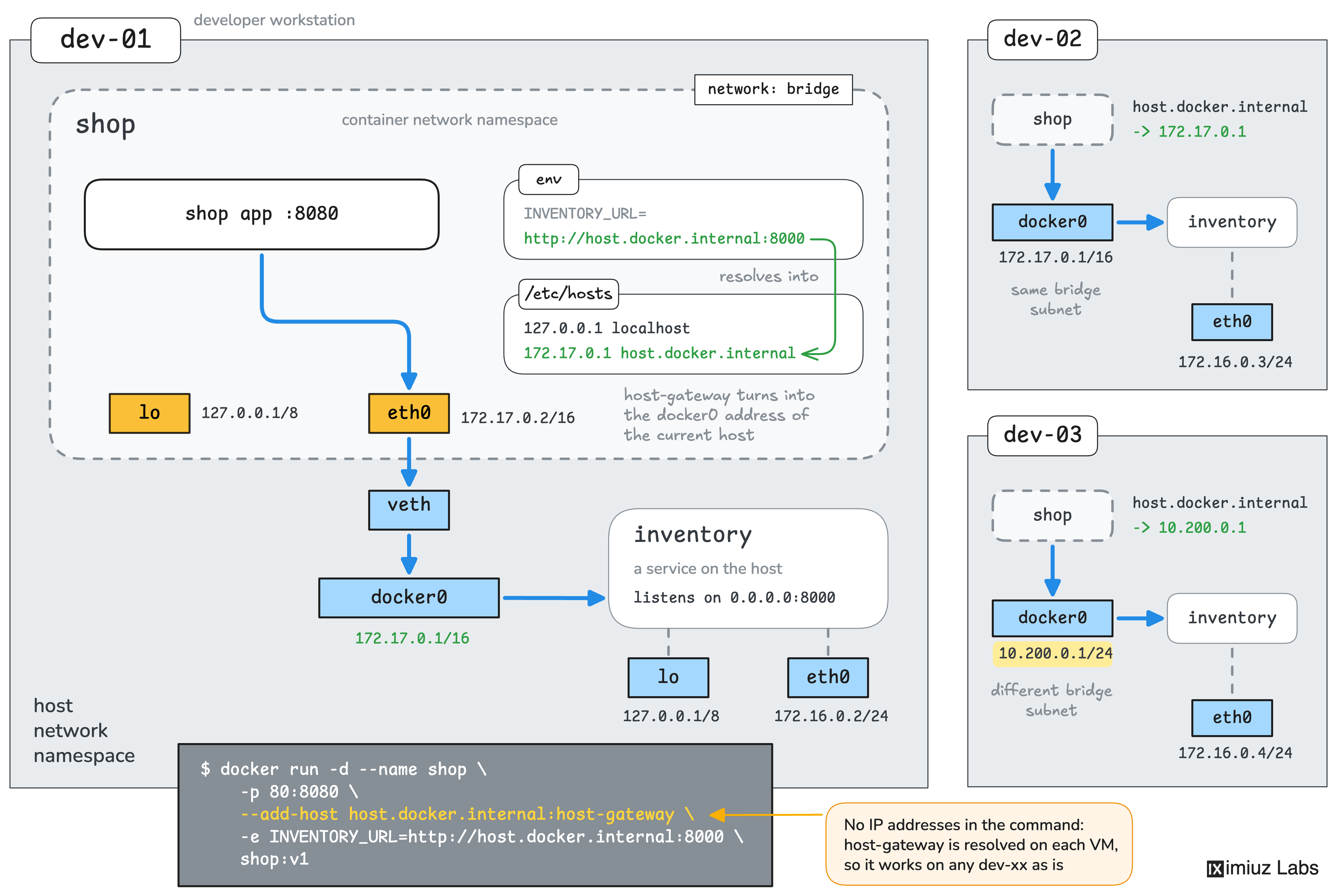
Another app reaching a service on its Docker host through host-gateway.
Hint 10
Nginx resolves the name of its upstream only when it starts.
It refuses to start if the name doesn't resolve, and it keeps using the old address after the app is recreated.
Start the proxy after the app, and check docker logs tracker-proxy when the site shows an error.
Hint 11
To check the published ports, repeat the nc -zv command from the challenge description on the outside machine.
Only port 80 should stay open on the public address.
To check the isolation, find the IP address of the database with docker inspect tracker-db,
and try to connect to it from the proxy container:
docker exec tracker-proxy nc -zv -w 3 IP_ADDRESS 5432
The database shouldn't be able to reach servers outside the Docker host either, such as one on the internet:
docker exec tracker-db nc -zv -w 3 1.1.1.1 443
The open or succeeded word in the output means that the connection works.
A timeout or an error means that the packets don't get through.