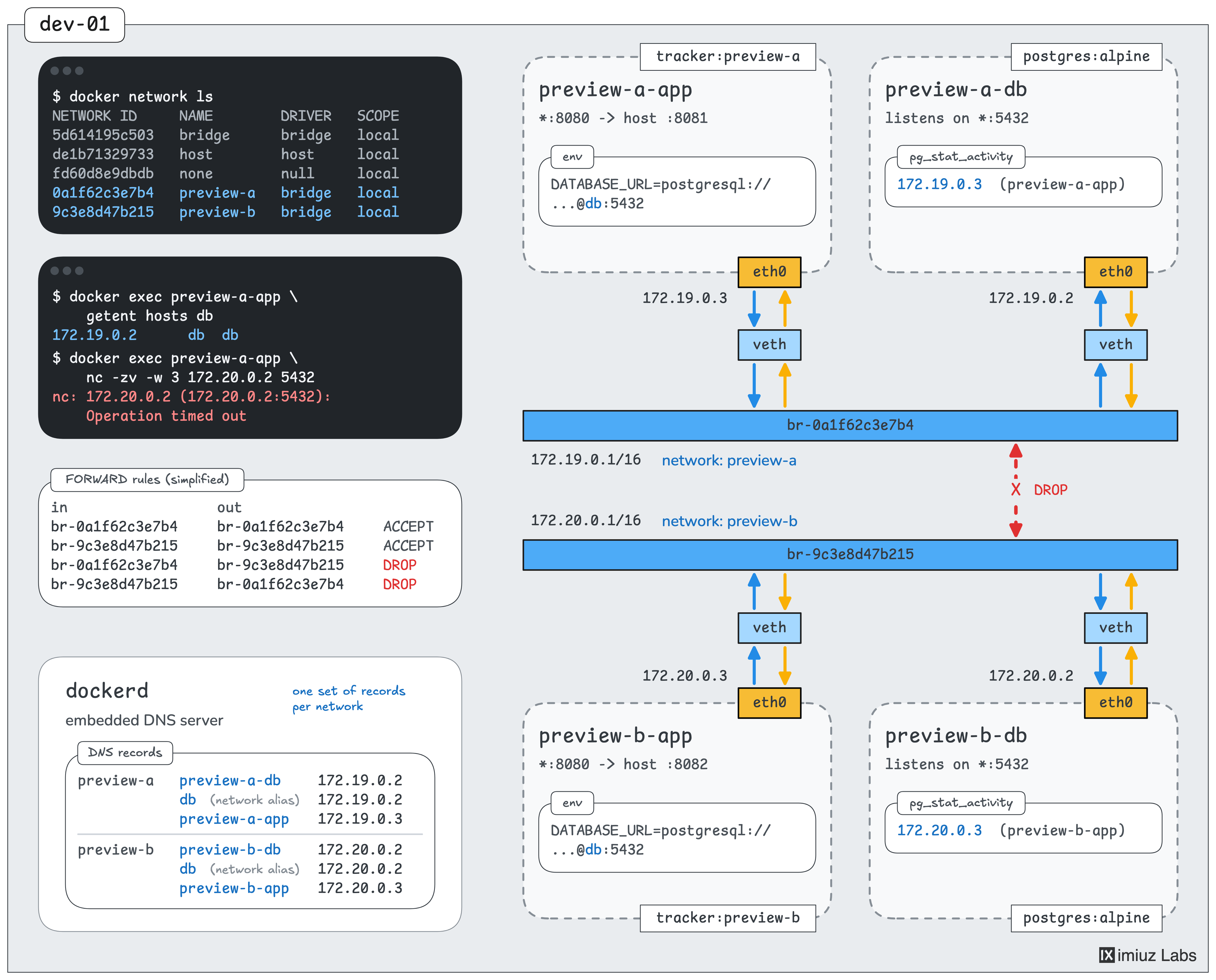
Isolate Two Preview Deployments on One Docker Host

In real projects, Docker Compose is often a handier way to solve this problem. Under the hood, Compose uses the same bridge networks and network aliases as the commands in this challenge, so it's worth setting them up by hand a few times before you rely on Compose - to understand how it really works.
Isolating several copies of the same application from each other is a common task on a shared Docker host. For example, preview deployments of different branches often run side by side on one server, and a bug or a wrong setting in one of them shouldn't be able to read or damage the data of another one.
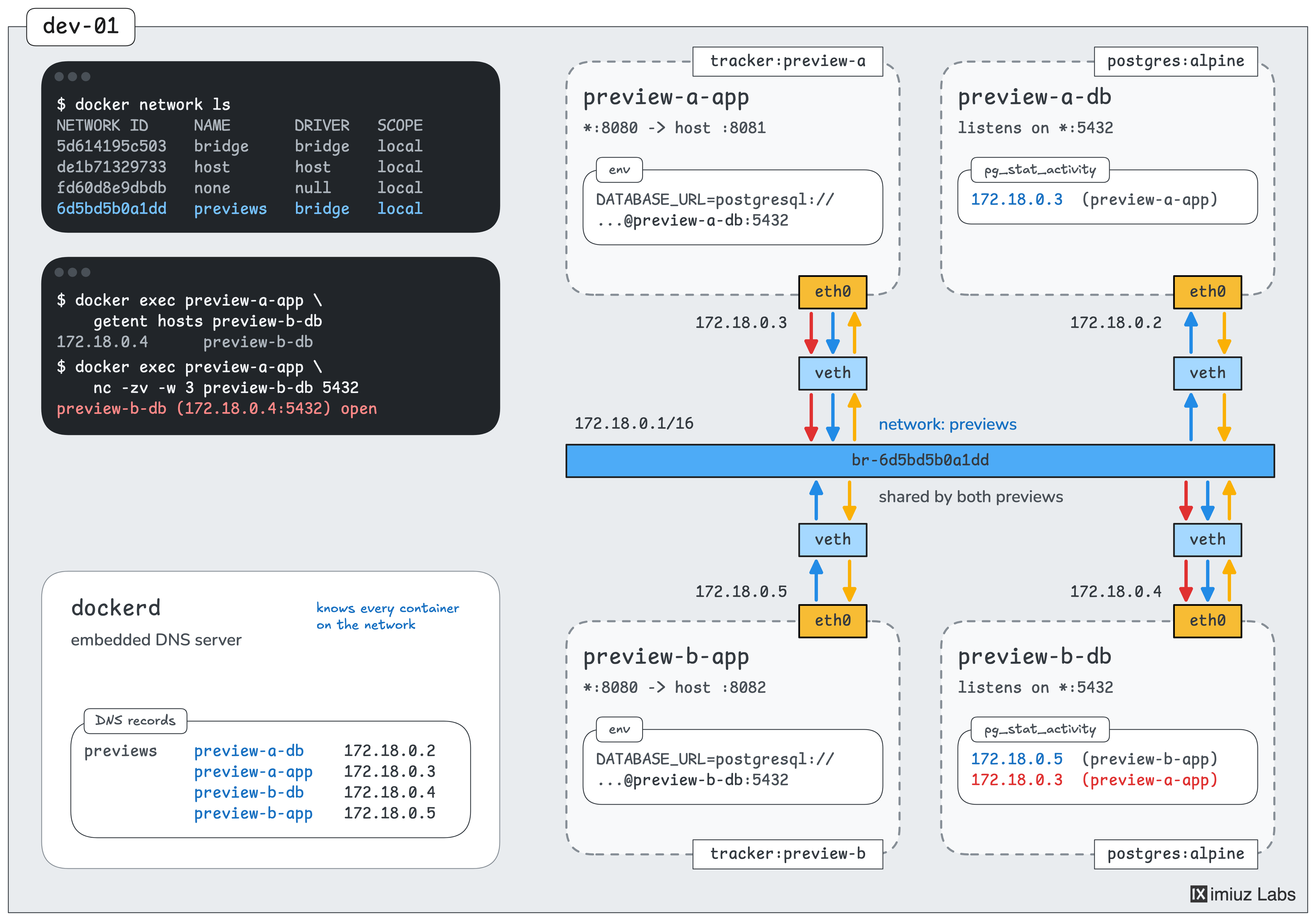
In this challenge, the dev-01 server runs two preview deployments of a small issue tracker, A and B.
Each preview consists of an application container and a PostgreSQL container,
and all four containers share one user-defined bridge network called previews.
Preview A was started with the following commands:
docker network create previews

docker run -d --name preview-a-db --network previews \
    -e POSTGRES_PASSWORD=s3cr3t \
    postgres:18-alpine

docker run -d --name preview-a-app --network previews \
    -p 8081:8080 \
    -e DATABASE_URL=postgresql://postgres:s3cr3t@preview-a-db:5432/postgres \
    tracker:preview-a
Preview B was started the same way from the tracker:preview-b image,
with b in place of a in the container names, and with the application published on port 8082.
Both Preview A and Preview B work, but the previews aren't isolated. Either application can connect to the database of the other preview:
docker exec preview-a-app nc -zv preview-b-db 5432
preview-b-db (172.18.0.4:5432) open
Your task is to give each preview its own bridge network, so that each application can use its own database but cannot connect to the database of the other preview, even by its IP address.
- Network preview-a: containers
preview-a-appandpreview-a-db - Network preview-b: containers
preview-b-appandpreview-b-db
The two previews should also end up with the same configuration.
On its own network, each database should have the alias db, and both applications should connect to their databases as db.
Keep the container names, the images, and the published application ports 8081 and 8082. Leave the database ports unpublished. The previews hold no data worth keeping, so you can recreate any of the containers.
Isolate preview A
Run both containers of preview A on the preview-a network, and make the application connect to its database as db.
Hint 1
With Docker's default configuration, containers on different bridge networks cannot connect to each other directly, even by IP address.
As long as a container of preview A stays on the previews network, it can reach the containers of preview B there.
Hint 2
The docker network create command creates a new network,
and the --network flag of docker run attaches a new container to it.
The --network-alias flag gives the container an extra name on that network:
docker run --network NETWORK --network-alias ALIAS ...
These flags apply when a container is created. The previews hold no data worth keeping, so the simplest way is to remove the old containers of preview A and start new ones with the same names.
Hint 3
The application reads the database address from the DATABASE_URL variable.
A container's environment variables are set when the container is created,
so the application needs a new container with db as the host name in this variable.
Don't forget to publish the application's port again.
Hint 4
To check the isolation yourself, find the IP address of the other preview's database with docker inspect preview-b-db,
and try to connect to it from the application container:
docker exec preview-a-app nc -zv -w 3 IP_ADDRESS 5432
The open word in the output means that the connection works.
A timeout means that the packets don't reach the database.
Isolate preview B
Do the same for preview B using the preview-b network.
In the end, both applications should connect to db, and each of them should get the data of its own preview.
Hint 5
A network alias exists only on the network where it was set. Two containers on different networks can have the same alias, and Docker's embedded DNS server answers each application with the address of the container on the application's own network.
Use docker exec preview-b-app getent hosts db to see which address the db name resolves to.
Clean up
Both previews have their own networks now, and the shared one is no longer needed.
Remove the previews network.
Hint 6
The docker network rm command removes a network.
Docker refuses to remove a network while containers are still attached to it,
so make sure to stop and remove the original preivew-a-* and preview-b-* containers first.