Docker 101: Publish a Redis Container Port on the Private Network Only

You rent two dedicated servers from a hosting provider.
Each server has a public IP address and is also attached to a private network (10.0.0.0/24) -
a common setup for small deployments on VMs or bare-metal servers.
The app-01 server runs a small web app that counts page visits.
Its port is published on all addresses of app-01,
so users can access the app.
The counter itself lives in Redis, and the app expects it at 10.0.0.10:6379, which is the private address of the redis-01 server.
Redis is not running yet, so every request to the app fails.
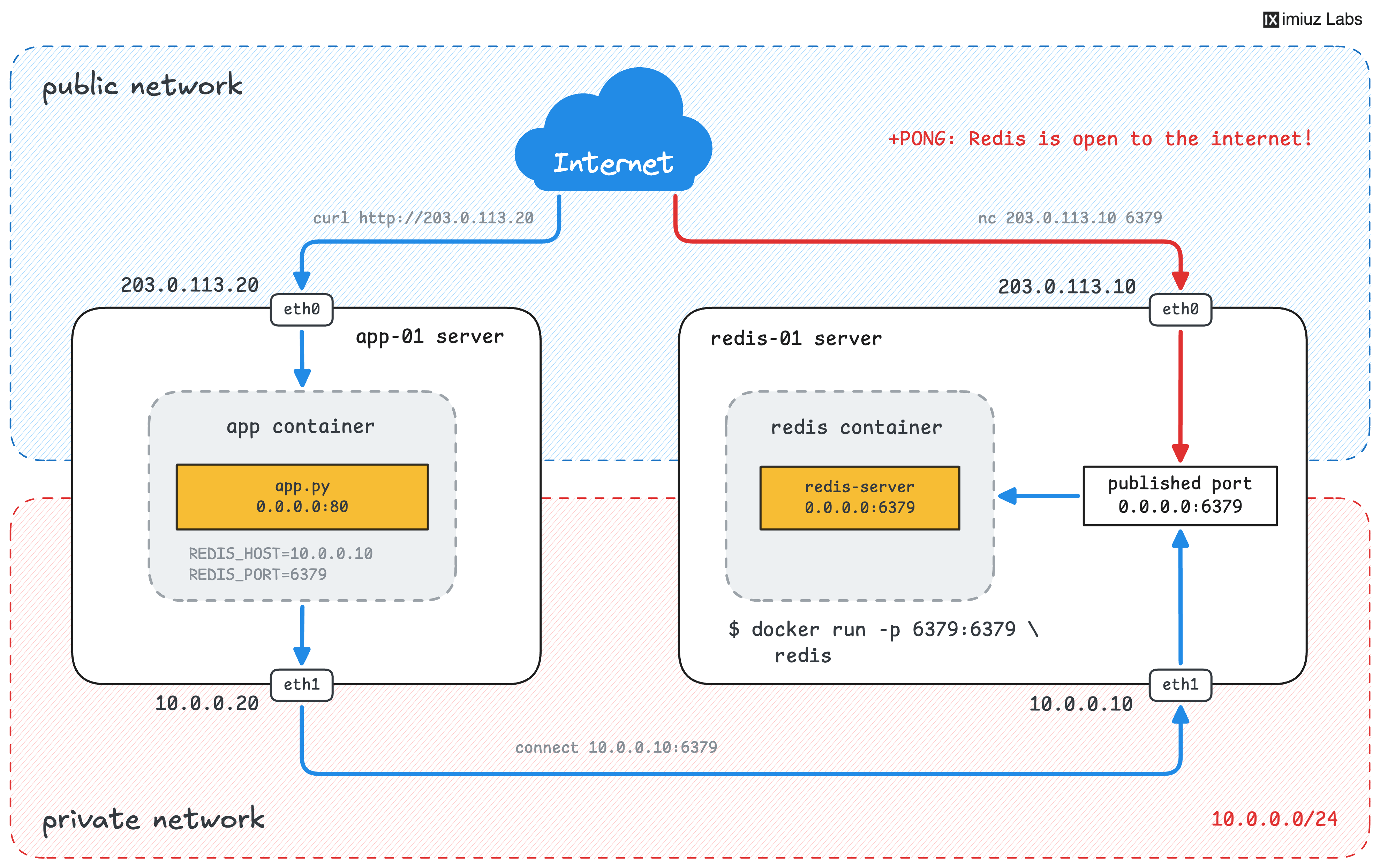
Start a Redis container on redis-01 (any Redis image will do) and publish its port 6379
so that the app on app-01 can reach Redis at 10.0.0.10:6379.
The port must not be reachable through the public address 203.0.113.10.
A Redis server reachable from the internet is one of the most common security holes in self-hosted setups.
Automated scanners look for open Redis ports all the time,
while most Redis images, including the official redis, turn the protected mode off.
A container started without a password accepts commands from anyone who can connect to its published port.
Note that a password alone is also a weak protection.
At the time of writing this, Redis 8 still does not slow down or limit failed AUTH attempts,
and it can handle tens of thousands of attempts per second even on a small server,
so a short or dictionary password can be brute-forced within minutes.
Always keep Redis off public addresses and treat the password as a second line of defense only.
Hint: Telling the addresses apart
The ip addr command on redis-01 lists two network interfaces:
eth0 with the public address and eth1 with the private one.
The environment variables of the app container on app-01 show which address and port the app connects to.
Hint: Publishing a port on a specific address
The --publish (or -p) flag accepts an optional host IP address in front of the host port.
The Publish a PostgreSQL Container Port on Localhost Only challenge
uses this form to bind a port to 127.0.0.1, and a private network address works the same way.
Hint: Checking the result
To check what other machines see, run a connectivity check from app-01 against both addresses of redis-01.
For example:
nc -zv 203.0.113.10 6379
nc -zv 10.0.0.10 6379
Once Redis is reachable, the app starts working:
open the Visit Counter tab
or send a request to port 80 of app-01 from the terminal and watch the counter grow.