Docker 101: Publish a Container Port to Access the App from the Host

Premium Challenge
Upgrade your membership to unlock this and all other premium materials.
This challenge focuses on Docker Engine running directly on a Linux server, which is the setup most production Docker installations use. Docker Desktop runs Docker Engine inside an separate VM, so access to container IP addresses from your computer may require an extra hop.
Every container gets its own network stack, including its own IP address and port space. This is what allows multiple containerized applications listen on the same port (e.g., 8080) without conflicting with one another. But this also means that applications' ports are only available on container IPs.
On a Linux Docker host, you can usually reach a container IP address directly. But clients outside the Docker host (e.g., a browser on your laptop) normally have no route to that address. To make the app available through the host, you need to publish its port. Clients can then connect to a port on the Docker host, and Docker forwards the traffic to the container.
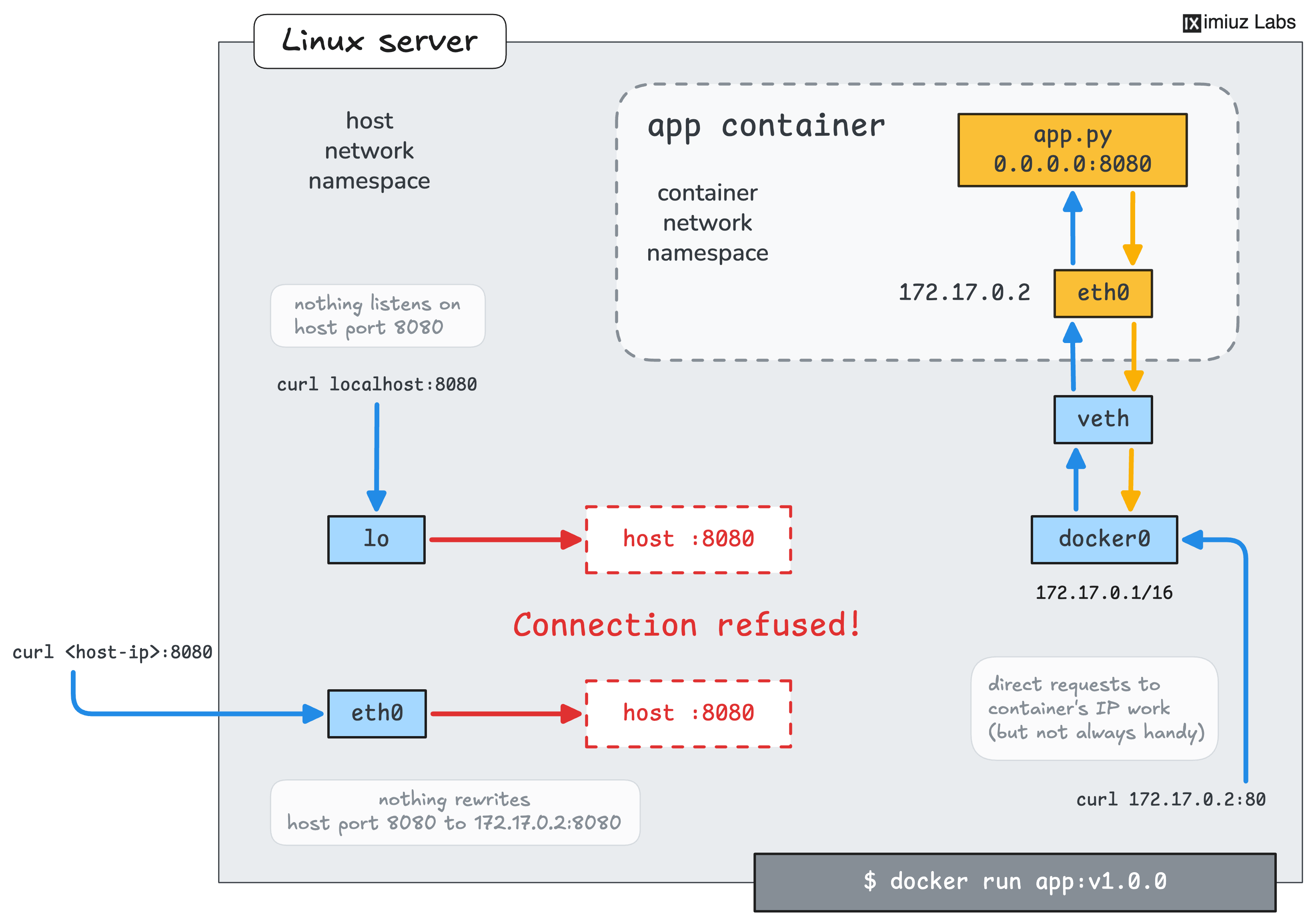
In this challenge, a small web app is running in the app-1 container. The container was started from the registry.iximiuz.com/app:v1.0.0 image, and the app listens on port 8080 inside it. You want to open it in the Web App tab
and reach it with curl <host-ip>:80 on the Docker host.
Replace app-1 with a new container that has the same name and image, and publish its port 8080 on host port 80:
Hint: Replacing a running container
Ports are published when a container is created, so a running container cannot start publishing a port later.
Stop and remove the original app-1 container first,
then start a new one from the same image and under the same name.
The app keeps no data, so nothing is lost in the process.
Hint: Publishing a port
Look for the --publish (or -p) flag in the docker run --help output.
Its simple form is HOST_PORT:CONTAINER_PORT, so the host side comes first.
Once the port is published, send a request to port 80 of the host.
You can use curl in the terminal or open the Web App tab, which points at port 80 of the Docker host: