Docker 101: Publish a PostgreSQL Container Port on Localhost Only

Premium Challenge
Upgrade your membership to unlock this and all other premium materials.
You're working on a small Notes app written in Node.js.
Its development server runs directly on your Linux workstation.
To launch it, run the following command from the ~/app directory:
npm start
The application requires a PostgreSQL database to be available on 127.0.0.1:5432.
A postgres container named notes-db was started with the following command:
docker run -d --name notes-db \
    -e POSTGRES_USER=notes \
    -e POSTGRES_PASSWORD=notes-dev-password \
    -e POSTGRES_DB=notes \
    -p 5432:5432 \
    postgres:18-alpine
The setup works, but it's significantly flawed:
the PostgreSQL container was started with -p 5432:5432,
which makes Docker publish the port on every network interface of the host.
A machine that can reach the workstation's IP address can attempt to connect to your development database,
even though only the local dev server needs it.
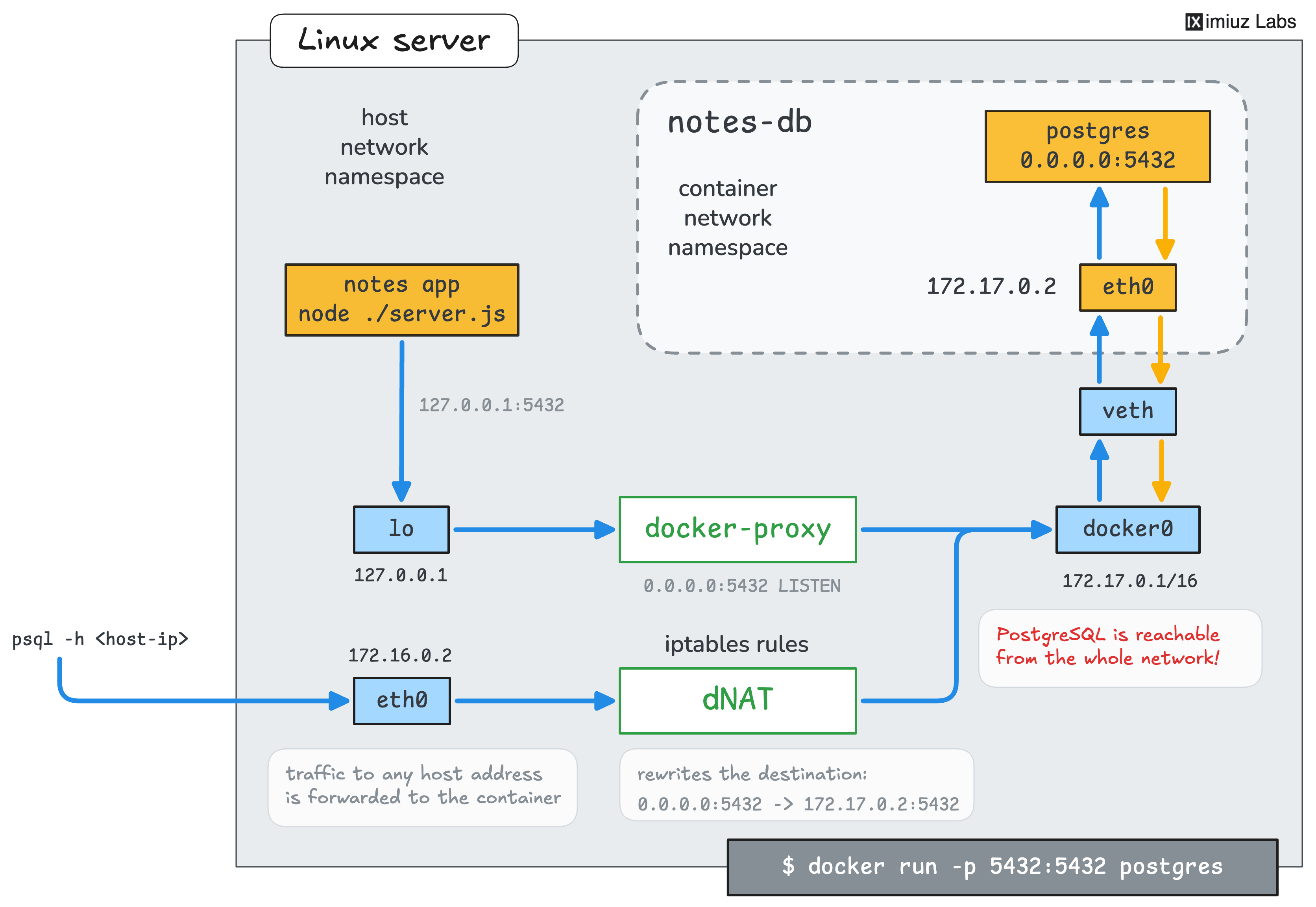
Your task is to publish the port on 127.0.0.1 instead.
The app should keep using the same database connection string,
but other machines in the network should no longer be able to reach PostgreSQL through the published host port.
Stop and remove notes-db, then start a new container with the same name, image, and credentials. Publish its port 5432 on 127.0.0.1:5432 only.
The database holds no important data.
When you start the app, it creates its notes table and a sample note if they are missing,
so you can replace the container without preserving its contents.
Hint: Replacing a running container
Ports are published when a container is created, so the port settings of a running container cannot be changed.
Stop and remove the original notes-db container first,
then start a new one using the command from the beginning of this challenge but with the correct -p option.
Hint: Publishing a port on a specific address
The --publish (or -p) flag accepts an optional host IP address in front of the host port.
Check the docker run --help output and the
Publishing ports page of the Docker documentation for the exact format.
Hint: Checking the port publishing configuration
The docker port command shows the host address and port of each published container port.
You can also find this information in the docker ps output (see the PORTS column).
Now start the app from the ~/app directory with npm start and keep it running.
Open the Notes App tab or send a request to localhost:3000 from another terminal to see the sample note: