Harden Access to OpenClaw with Pomerium
About This Tutorial
This tutorial uses Pomerium Core to put OpenClaw (formerly Clawdbot/Moltbot), a self-hosted AI assistant with persistent memory, file and shell access, and browser automation, behind two Pomerium routes: a web route to its gateway UI and an SSH route straight into its container. Both routes authenticate against the same identity provider (IdP) and are governed by Pomerium's own policy, evaluated continuously rather than just at login.
This fits a single host running OpenClaw for an individual, a small team, or a department, the same scope the upstream guide targets. It is not the right starting point if you need OpenClaw across multiple nodes or in Kubernetes, or if you need multi-tenant isolation between unrelated users sharing one deployment: OpenClaw itself is still maturing enough that the sweet spot stays single-team use rather than large-scale multi-tenant production.
Security scope. This tutorial hardens access to OpenClaw (its web gateway and SSH shell): who can reach it, via Pomerium's dynamic, context-aware authorization, re-evaluated continuously rather than only at login (see Step 8 for exactly what that means on each route). It does not harden OpenClaw's own internal security model: what an authenticated user, or OpenClaw itself acting as an agent, can do once inside. OpenClaw has an active history of disclosed authorization and permission-bypass advisories; see its GitHub Security Advisories and the OpenClaw Gateway Security documentation for that half of the picture. Treat the identity you authorize here as a privileged credential.
This tutorial uses Pomerium's native SSH proxy for the SSH route, the same mechanism covered in depth in Native SSH Access with Pomerium. If you want the "SSH into a host through Pomerium" story on its own first, start there; this tutorial assumes no prior exposure to it and stands on its own.
By the end, you'll have:
- Pomerium and OpenClaw running together in Docker
- An identity-aware web route with WebSocket support, and the
operator.adminOpenClaw scope injected for the authorized user - An SSH route into the OpenClaw container, secured by Pomerium
- OpenClaw running in trusted-proxy auth mode, trusting signed identity headers from Pomerium instead of other auth modes like token auth or password auth
- A live demonstration of policy changes taking effect on both routes without redeploying anything, including an active SSH session getting torn down mid-connection
Prerequisites
- Comfortable with
docker composeon the command line - Basic familiarity with OAuth or OpenID Connect (OIDC). You don't need to be an expert: Pomerium handles the sign-in flow itself, and you sign in with a GitHub account, a Google account, or an email and password
- No prior exposure to Pomerium's SSH proxy is assumed; if you want that story in more depth first, see the cross-link above
The playground on the right provides the VM, Docker, and network. No local installs are required.
How It Works
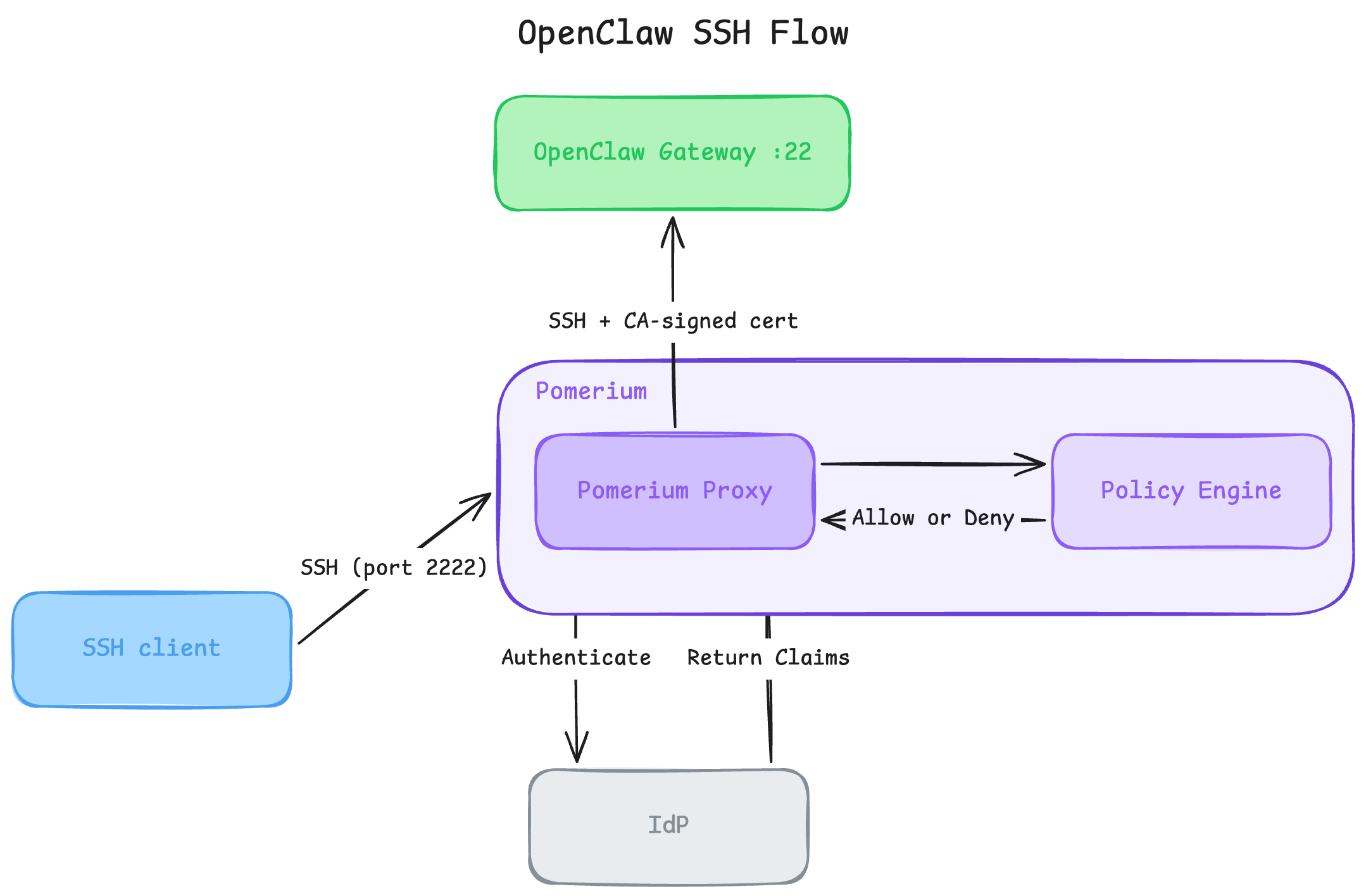
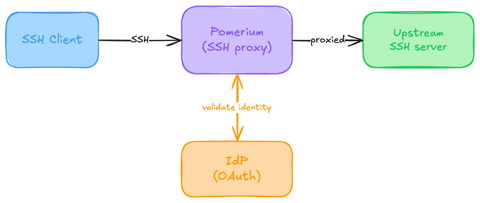
The web route and the SSH route authenticate the same user against the same identity provider, but they hand off to OpenClaw in very different ways. On both routes, every request also passes through Pomerium's Policy Engine, which returns an Allow or Deny before the Proxy forwards anything on; Step 8 revisits this decision in action, including what happens when a policy change revokes access mid-session.
Pomerium authenticates the browser user against the identity provider, signs a JSON Web Token (JWT), and forwards it to OpenClaw as three things: a signed X-Pomerium-Jwt-Assertion header proving the request came through Pomerium, an x-pomerium-claim-email header carrying the authenticated user's email (via jwt_claims_headers), and a static x-openclaw-scopes: operator.admin header injected by the route itself. OpenClaw runs in trusted-proxy auth mode: it trusts requests from Pomerium's container IP and treats the email header as the authenticated user, without running its own login.
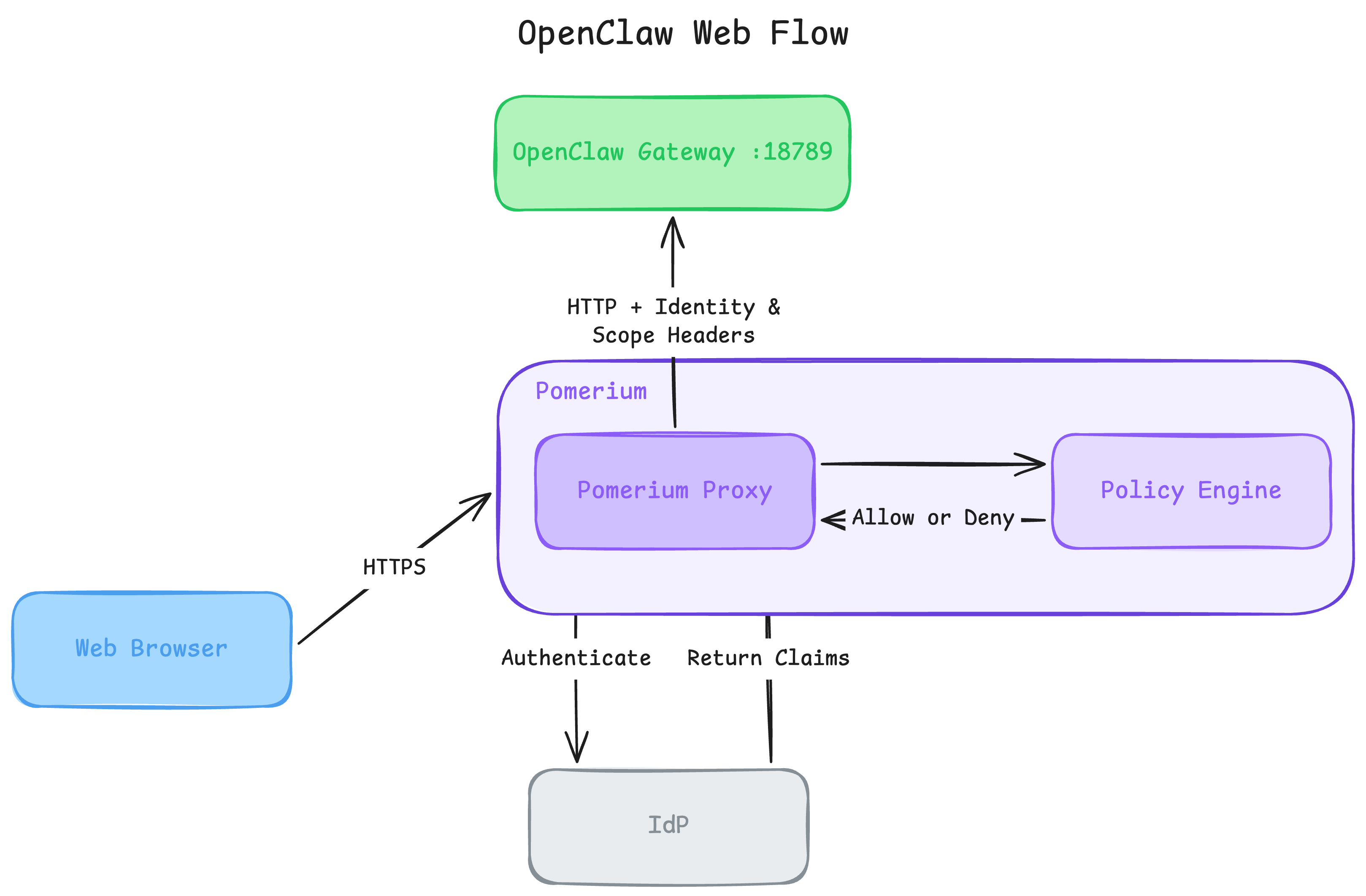
Pomerium's native SSH listener terminates the SSH session directly (no tunnel, no target-side agent) and, on first connection, prompts the user to authenticate via browser against the same identity provider. Once authorized, Pomerium opens a fresh SSH connection to the OpenClaw container and authenticates with a short-lived certificate signed by Pomerium's own User CA key, whose public half is trusted by the container's sshd. The user lands in the container as the claw Linux user. No JWT or HTTP headers are involved on this path at all; the trust is entirely certificate-based.
Step 1: Set Up the Project
This playground gives you two terminal tabs on docker-01, named for the job each holds: shell for setup, config, and policy edits, openclaw-ssh for the SSH session you'll open in Step 7. Stay on the shell terminal through Step 6; the openclaw-ssh tab stays idle until then.
The playground has scaffolded the working directory and pre-generated the SSH keys Pomerium's SSH proxy needs: a User CA key pair and three host key pairs, the same shapes used in Native SSH Access with Pomerium. It has also written OpenClaw's own Dockerfile and entrypoint.sh, carried over from the upstream guide with comments adjusted for this setup and one substantive change: instead of assembling its allowed web origin from a subdomain, entrypoint.sh here reads the full origin directly from an OPENCLAW_ALLOWED_ORIGIN environment variable, since the playground gives you one flat URL rather than a subdomain.
On the shell terminal tab, move into the project directory:
cd ~/pomclaw
You now have:
pomclaw/
├── keys/              # User CA + three SSH host key pairs
├── openclaw/          # Dockerfile + entrypoint.sh for the OpenClaw image
├── openclaw-data/      # persistent config/ and workspace/ volumes
├── pomerium-config/    # empty for now; you write config.yaml in Step 2
└── .env                # OPENCLAW_VERSION pinned, OPENCLAW_ALLOWED_ORIGIN pending
Kick off OpenClaw's local model now, before anything else. Pulling the ollama image and a model is a few hundred megabytes to a couple gigabytes depending on what you choose; running it in the background here means it's ready by the time you reach Step 6 instead of stalling mid-tutorial:
cat > setup-ollama.sh << 'EOF'
#!/bin/sh
set -e
docker pull ollama/ollama:0.32.1-rocm
docker rm -f ollama-warmup >/dev/null 2>&1 || true
docker run -d --name ollama-warmup \
  -v /home/laborant/pomclaw/openclaw-data/ollama:/root/.ollama \
  --entrypoint /bin/sh \
  ollama/ollama:0.32.1-rocm \
  -c 'flock /root/.ollama/.startup.lock -c "exec ollama serve"'
for i in $(seq 1 60); do
  docker exec ollama-warmup ollama list >/dev/null 2>&1 && break
  sleep 1
done
docker exec ollama-warmup ollama pull granite3.1-dense:2b
docker stop ollama-warmup >/dev/null
docker rm ollama-warmup >/dev/null
EOF
chmod +x setup-ollama.sh

nohup ./setup-ollama.sh > /tmp/ollama-setup.log 2>&1 &
disown
This pulls the pinned ollama/ollama:0.32.1-rocm image and the granite3.1-dense:2b model into openclaw-data/ollama/, then exits. Step 4's compose file mounts that same directory, so the ollama service there starts from an already-warm cache instead of downloading anything itself. Check on it anytime with cat /tmp/ollama-setup.log; if OpenClaw's replies are slow or empty once you're signed in at Step 6, this is probably still running.
Building this tutorial's bespoke OpenClaw image doesn't touch that directory and doesn't depend on anything from Steps 2 through 4, so kick it off in the background too, right now, instead of waiting for it at Step 4:
OPENCLAW_VERSION=$(sed -n 's/^OPENCLAW_VERSION=//p' .env)
nohup docker build -t openclaw:${OPENCLAW_VERSION} \
  --build-arg OPENCLAW_VERSION=${OPENCLAW_VERSION} \
  ./openclaw > /tmp/openclaw-build.log 2>&1 &
disown
This builds the exact image tag and build arg Step 4's compose file uses, so by the time you get there the build is either already done or far enough along that compose's build step lands on a warm cache instead of starting from scratch. Check on it with cat /tmp/openclaw-build.log.
Step 2: Configure Pomerium
This tutorial uses Pomerium's hosted authenticate service for quick setup and testing: no identity provider to deploy, no OAuth client to register. In production, configure Pomerium to use your production identity provider instead; see Security Considerations at the end for what that involves.
The shared_secret and cookie_secret are generated inline. Unquoted heredoc means $(head -c32 /dev/urandom | base64) runs once when the file is written, so this deployment gets its own fresh secrets.
cat > pomerium-config/config.yaml << EOF
# Secrets: generated fresh for this deployment
shared_secret: $(head -c32 /dev/urandom | base64)
cookie_secret: $(head -c32 /dev/urandom | base64)

address: :443
authenticate_service_url: REPLACE_WITH_ADDRESS

# Delegate sign-in to Pomerium's hosted authenticate service.
idp_provider: hosted

# Forward the authenticated user's email to upstreams as a header.
# OpenClaw's trusted-proxy auth mode reads this exact header name
# (see gateway.auth.trustedProxy.userHeader in entrypoint.sh).
jwt_claims_headers:
  x-pomerium-claim-email: email

# SSH proxy settings
ssh_address: 0.0.0.0:2222

ssh_user_ca_key_file: /etc/pomerium/keys/pomerium_user_ca_key
ssh_host_key_files:
  - /etc/pomerium/keys/pomerium_ssh_host_ed25519_key
  - /etc/pomerium/keys/pomerium_ssh_host_rsa_key
  - /etc/pomerium/keys/pomerium_ssh_host_ecdsa_key

# Persist databroker state across restarts (single-node only)
databroker_storage_type: file
databroker_storage_connection_string: file:///var/pomerium/databroker

routes:
  - from: REPLACE_WITH_ROUTE
    to: http://openclaw-gateway:18789
    allow_websockets: true
    pass_identity_headers: true
    set_request_headers:
      x-openclaw-scopes: operator.admin
    policy:
      - allow:
          and:
            - email:
                is: REPLACE_WITH_EMAIL

  - from: ssh://openclaw
    to: ssh://openclaw-gateway:22
    policy:
      - allow:
          and:
            - email:
                is: REPLACE_WITH_EMAIL
EOF
A few things to notice:
jwt_claims_headersis what actually gets OpenClaw its identity. It's a global setting, a map of header name to JWT claim name.pass_identity_headers: trueon the web route is what turns this (and the signedX-Pomerium-Jwt-Assertionheader) on for that route; without it, OpenClaw's gateway would reject every request withtrusted_proxy_user_missing, because the header it's waiting for never arrives.set_request_headerson the web route injects the staticx-openclaw-scopes: operator.adminheader. This is the OpenClaw scope that grants the authorized user admin privileges once inside; it's a route-level constant, not something tied to the visitor's identity.- The SSH route has no header configuration at all. It doesn't need any: the SSH route authenticates with a signed certificate, not HTTP headers, which is why
jwt_claims_headersandpass_identity_headersonly appear on the web route above. REPLACE_WITH_ADDRESS,REPLACE_WITH_ROUTE, andREPLACE_WITH_EMAILare placeholders. Step 3 replaces them with your playground's exposed URLs and your email address.
Step 3: Get Your Playground URLs and Email
Pomerium needs two public URLs before it can start. The authenticate URL is where Pomerium handles sign-in callbacks. The route URL is the address you'll use to reach OpenClaw's gateway. Both come off the same exposed port, since Pomerium terminates both hostnames on the same :443 listener.
Now enter the email address the policy should allow. Use an address you can sign in as through the hosted authenticate service, either with GitHub, Google, or an email and password:
The route URL you just pasted lands in two places: pomerium-config/config.yaml's from: on the web route, and .env's OPENCLAW_ALLOWED_ORIGIN, which OpenClaw's entrypoint.sh reads to allow that origin in its own WebSocket handshake. Same value, two files, because Pomerium needs it to know which hostname to terminate, and OpenClaw needs it to know which origin to trust.
Step 4: Create the Docker Compose Stack
cat > docker-compose.yml << 'EOF'
services:
  pomerium:
    image: pomerium/pomerium:v0.32.8
    restart: unless-stopped
    depends_on:
      openclaw-gateway:
        condition: service_healthy
    volumes:
      - ./pomerium-config:/pomerium:ro
      - ./keys:/etc/pomerium/keys:ro
      - pomerium-data:/var/pomerium
    ports:
      - "443:443"
      - "127.0.0.1:2222:2222"
    networks:
      pomclaw-net:
        ipv4_address: 172.30.0.10

  openclaw-gateway:
    image: openclaw:${OPENCLAW_VERSION:-2026.7.1-2}
    pull_policy: build
    build:
      context: ./openclaw
      dockerfile: Dockerfile
      args:
        - OPENCLAW_VERSION=${OPENCLAW_VERSION:-2026.7.1-2}
    environment:
      OPENCLAW_ALLOWED_ORIGIN: ${OPENCLAW_ALLOWED_ORIGIN}
    volumes:
      - ./openclaw-data/config:/claw
      - ./openclaw-data/workspace:/claw/workspace
      - ./keys/pomerium_user_ca_key.pub:/var/lib/pomerium/pomerium_user_ca_key.pub:ro
    init: true
    restart: unless-stopped
    networks:
      - pomclaw-net
    healthcheck:
      test: ["CMD", "curl", "-s", "-o", "/dev/null", "http://localhost:18789/"]
      interval: 3s
      timeout: 3s
      retries: 30
      start_period: 5s

  ollama:
    image: ollama/ollama:0.32.1-rocm
    restart: unless-stopped
    entrypoint: ["/bin/sh", "-c"]
    command:
      - flock /root/.ollama/.startup.lock -c "exec ollama serve"
    volumes:
      - ./openclaw-data/ollama:/root/.ollama
    networks:
      - pomclaw-net

networks:
  pomclaw-net:
    ipam:
      config:
        - subnet: 172.30.0.0/16

volumes:
  pomerium-data:
EOF
A few things to notice:
- Pomerium
depends_onthe OpenClaw gateway beingservice_healthy, and the healthcheck curls the gateway's own port.entrypoint.shruns a chain ofopenclaw config get/setcalls (trusted-proxy defaults, allowed origins, the local Ollama model) before it execs the actual gateway process, which takes a few seconds. Without this gate, Pomerium starts routing toopenclaw-gateway:18789immediately, and a sign-in landing during that window gets a 503 (no healthy upstream) from Envoy. A barepgrep -f openclawwould false-positive on those setup commands themselves, since their process arguments contain the wordopenclaw; curling the actual port only succeeds once something is really listening on it. openclaw-gatewaysetspull_policy: build. It has both animage:tag and abuild:block, since Step 5 needs a stable image name to reference. Withoutpull_policy: build,docker compose upstill tries to resolveopenclaw:2026.7.1-2against a registry first and only builds locally after that lookup fails, an attempt that never succeeds since the tag only exists locally.pull_policy: buildskips the registry lookup entirely and always builds from./openclaw/Dockerfile.- Pomerium's volume mounts the
pomerium-config/directory, notconfig.yamldirectly. Editors save atomically (write a temp file, then rename it over the original), which swaps the file's inode. Bind-mounting a single file pins the original inode and silently misses your edits; directory mounts re-resolve by name on each access, so the container sees your changes. This matters in Step 8, where you edit policy live. - Pomerium gets a static IP,
172.30.0.10. OpenClaw's trusted-proxy mode needs to know exactly which IP to trust as its identity-header source. Pinning it in the compose network means Step 5 can set that trust once, with no dynamic IP lookup required. - The SSH port binds to
127.0.0.1:2222, not0.0.0.0:2222. This is deliberate, and the same reasoning as Native SSH Access with Pomerium: the playground only exposes the HTTPS listener on:443, so SSH is reachable only from inside the VM. Outside the playground, bind to0.0.0.0if you need remote SSH access. ollamahas noports:entry at all. It only needs to be reachable fromopenclaw-gatewayoverpomclaw-net; nothing outside the Docker network, and nothing outside this VM, can reach it. Ollama's API has no authentication of its own, so not publishing the port is what keeps it from being an open door.
Bring the stack up. It pulls Pomerium's image and builds OpenClaw's (the openclaw:2026.7.1-2 tag isn't on Docker Hub, so compose builds it locally from ./openclaw/Dockerfile); the background build from Step 1 already did most of this work, so pull_policy: build here should land on a warm cache rather than building from scratch, unless that background build is still running too. There's no need to wait for Step 1's Ollama warm-up here either, so this goes straight to docker compose up:
docker compose up -d
docker compose logs -f
You'll see something like this, image pull followed by the local build, openclaw-gateway starting, then a pause while it finishes its first-boot config and the healthcheck picks that up, and only then Pomerium starting:
laborant@docker-01:~/pomclaw$ docker compose up -d
docker compose logs -f
[+] Running 19/19
 ✔ Image pomerium/pomerium:v0.32.8      Pulled                           9.1s
 ✔ Image openclaw:2026.7.1-2              Built                            0.6s
 ✔ Network pomclaw_pomclaw-net          Created                          0.0s
 ✔ Volume pomclaw_pomerium-data         Created                          0.0s
 ✔ Container pomclaw-ollama-1           Started                          1.0s
 ✔ Container pomclaw-openclaw-gateway-1 Started                         11.4s
 ✔ Container pomclaw-pomerium-1         Started                         11.5s
pomerium-1  | {"level":"info","service":"all","config":"local","checksum":"98a3cd8af870f927","time":"2026-07-17T23:21:09Z","message":"config: updated config"}
pomerium-1  | {"level":"info","envoy-version":"1.36.5-p1","version":"0.32.8+593eb81c7","built":"2026-06-04T22:01:33Z","time":"2026-07-17T23:21:09Z","message":"cmd/pomerium"}
The gap before openclaw-gateway reports Started is expected: Pomerium won't start until the gateway's healthcheck passes, which is exactly what keeps you from hitting a 503 the moment you sign in at Step 6. Wait until you see Pomerium log "starting SSH listener", then press Ctrl+C to exit the log follow and return to the shell prompt before proceeding.
Step 5: Configure OpenClaw for Trusted-Proxy Auth
entrypoint.sh already pre-wrote most of OpenClaw's trusted-proxy configuration on first boot: which header carries the user's identity (userHeader: x-pomerium-claim-email) and which header must be present on every request (requiredHeaders: [X-Pomerium-Jwt-Assertion]). Two pieces are still missing: which IP address is allowed to assert that identity, and the switch to actually turn trusted-proxy mode on.
docker compose exec -T openclaw-gateway \
  su - claw -c "openclaw config set gateway.trustedProxies --strict-json '[\"172.30.0.10\"]'"

docker compose exec -T openclaw-gateway \
  su - claw -c "openclaw config set gateway.auth.mode trusted-proxy"
The IP is Pomerium's static address from the compose network in Step 4.
If a request to the web route later fails with trusted_proxy_user_missing in OpenClaw's logs (docker compose logs openclaw-gateway), Pomerium isn't sending the x-pomerium-claim-email header. Double-check jwt_claims_headers and pass_identity_headers: true on the web route in pomerium-config/config.yaml from Step 2.
Confirm the mode switched:
docker compose exec -T openclaw-gateway \
  su - claw -c "openclaw config get gateway.auth.mode"
"trusted-proxy"
Step 6: Sign In Through the Web Route
Open the route URL from Step 3 in a browser. If you don't have it handy, print it back on the shell terminal tab instead of scrolling back:
cat /tmp/pomclaw.route-address; echo
Pomerium redirects you to its hosted authenticate sign-in page:
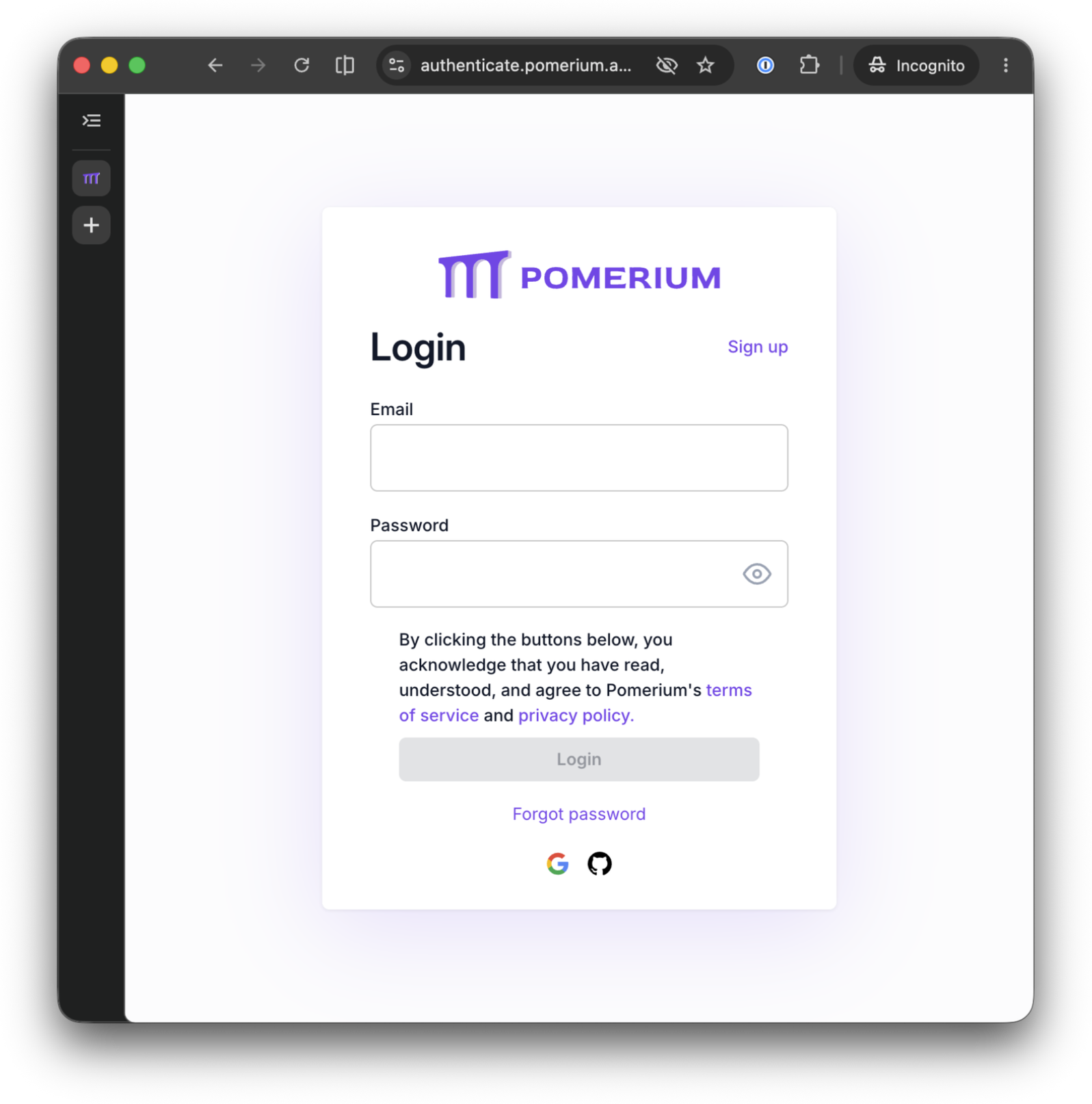
Sign in with the email you entered in Step 3. Pomerium authorizes the request against the web route's policy, attaches the identity headers, and forwards you to OpenClaw's gateway, which lands you on its UI:
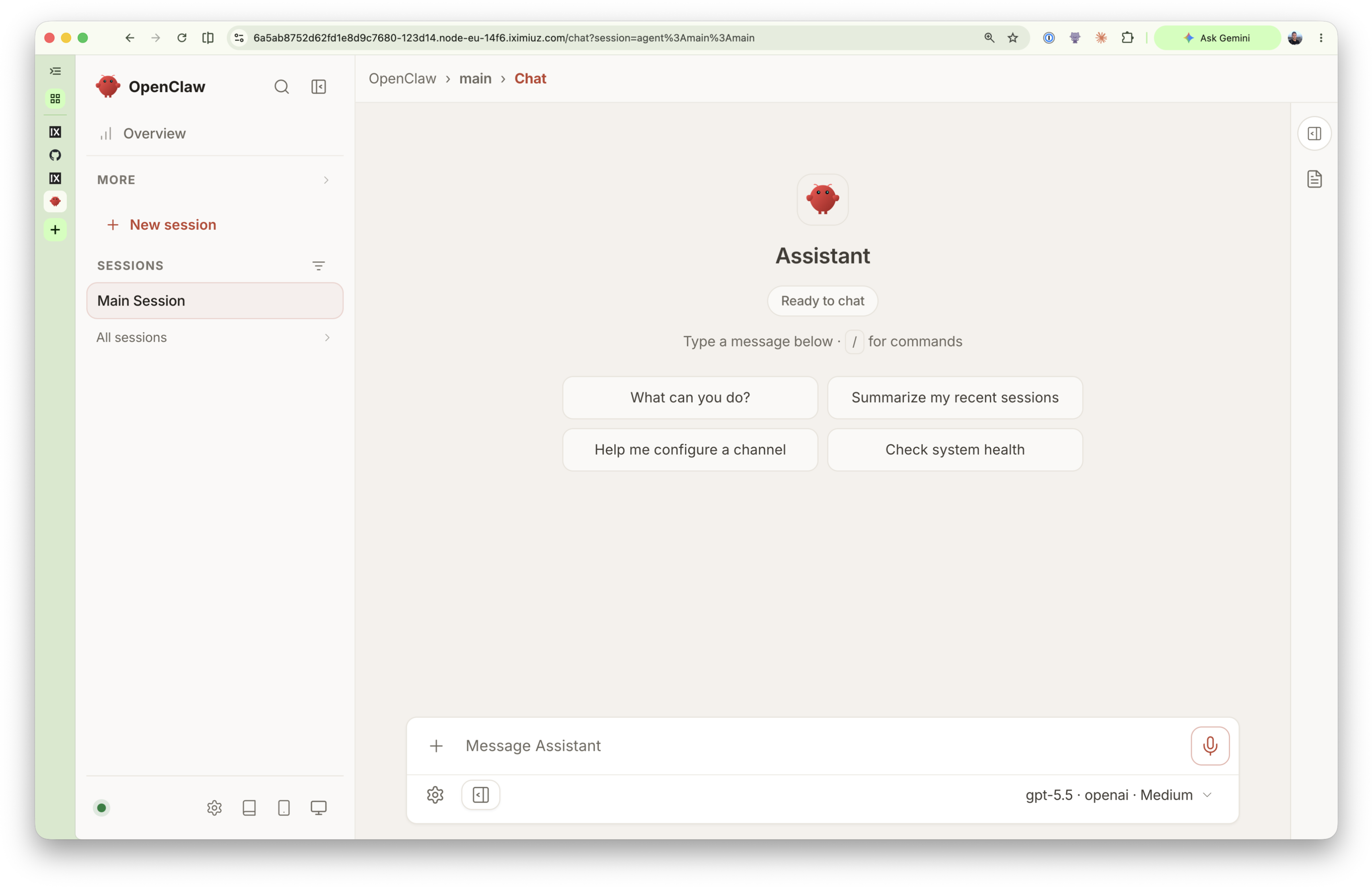
OpenClaw already has a working model, the granite3.1-dense:2b Step 1 pulled into the local ollama service, so it can respond right now with no API key of your own. The playground VM has no GPU, so ollama is running this on CPU; expect the reply to take twenty to thirty seconds rather than the near-instant response you'd get from a hosted API. Try asking it something simple, like "what is a linked list?", then whatever else you'd like:
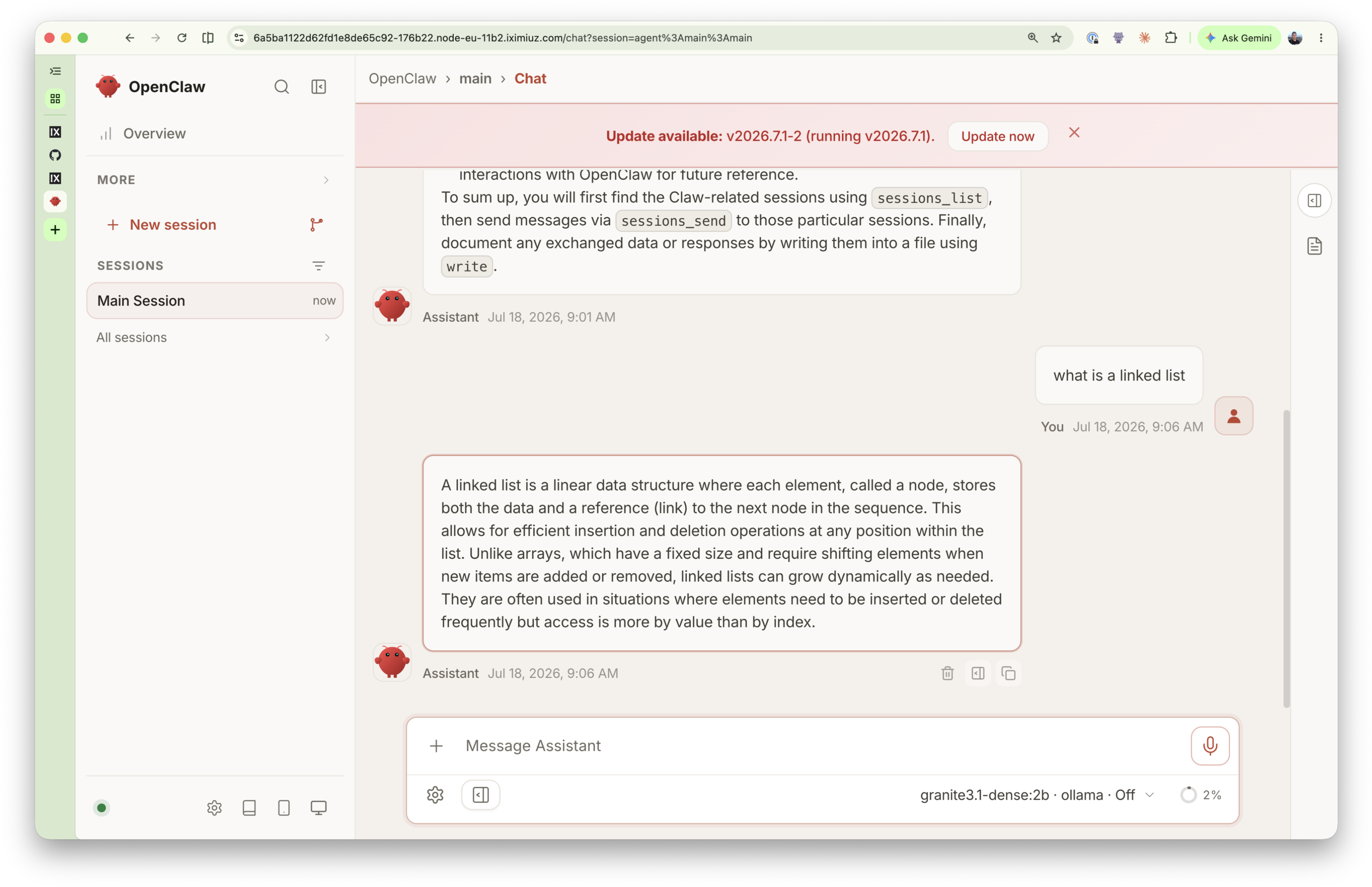
granite3.1-dense:2b is a small model running on CPU, so it can occasionally reply with "The agent run failed before producing a reply." instead of an answer. If you see that, just try asking again.
If you land on a 403 instead, Pomerium authenticated you, but the route policy doesn't include your email. Check that OPERATOR_EMAIL-equivalent value: the is: line under the web route's policy in pomerium-config/config.yaml matches the address your IdP returned exactly.
If the page loads but never finishes connecting (a spinner that never resolves, or a browser console full of WebSocket errors), confirm allow_websockets: true is still set on the web route. OpenClaw's control UI is WebSocket-driven; without it, the initial HTTP request succeeds but the UI can't do anything useful.
Step 7: Connect via SSH
The connection string format is the same double-@ syntax as Native SSH Access with Pomerium: ssh <linux-user>@<route-name>@<pomerium-host> -p <port>. Here, claw is the Linux user inside the OpenClaw container (the one its Dockerfile creates), and openclaw is the route name from Step 2's from: ssh://openclaw.
We use port 2222 (not the SSH default 22) for the same reason as that tutorial: the playground VM runs its own sshd on port 22, so Pomerium's SSH listener binds to 2222 instead. Connect from the openclaw-ssh terminal tab:
ssh claw@openclaw@localhost.pomerium.io -p 2222
On the first connection you'll see the standard SSH host-key prompt (Pomerium's host key being added to your known_hosts). Answer yes, and Pomerium prints a sign-in URL:
laborant@docker-01:~$ ssh claw@openclaw@localhost.pomerium.io -p 2222
The authenticity of host '[localhost.pomerium.io]:2222 ([127.0.0.1]:2222)' can't be established.
ED25519 key fingerprint is SHA256:xJCya3vcM+pVkwvTkbQOng4ZTUwmWbM1onaBnZXxdkE.
This key is not known by any other names.
Are you sure you want to continue connecting (yes/no/[fingerprint])? yes
Warning: Permanently added '[localhost.pomerium.io]:2222' (ED25519) to the list of known hosts.
Please sign in with oidc to continue
https://YYYY.node-eu-YYYY.iximiuz.com/.pomerium/sign_in?user_code=HbjyQg22HEiRtIc2V9z57Q
Open that URL in a browser and sign in with the same email you've been using. Pomerium shows a Verify Sign In page with the pending SSH session details; click Authorize.
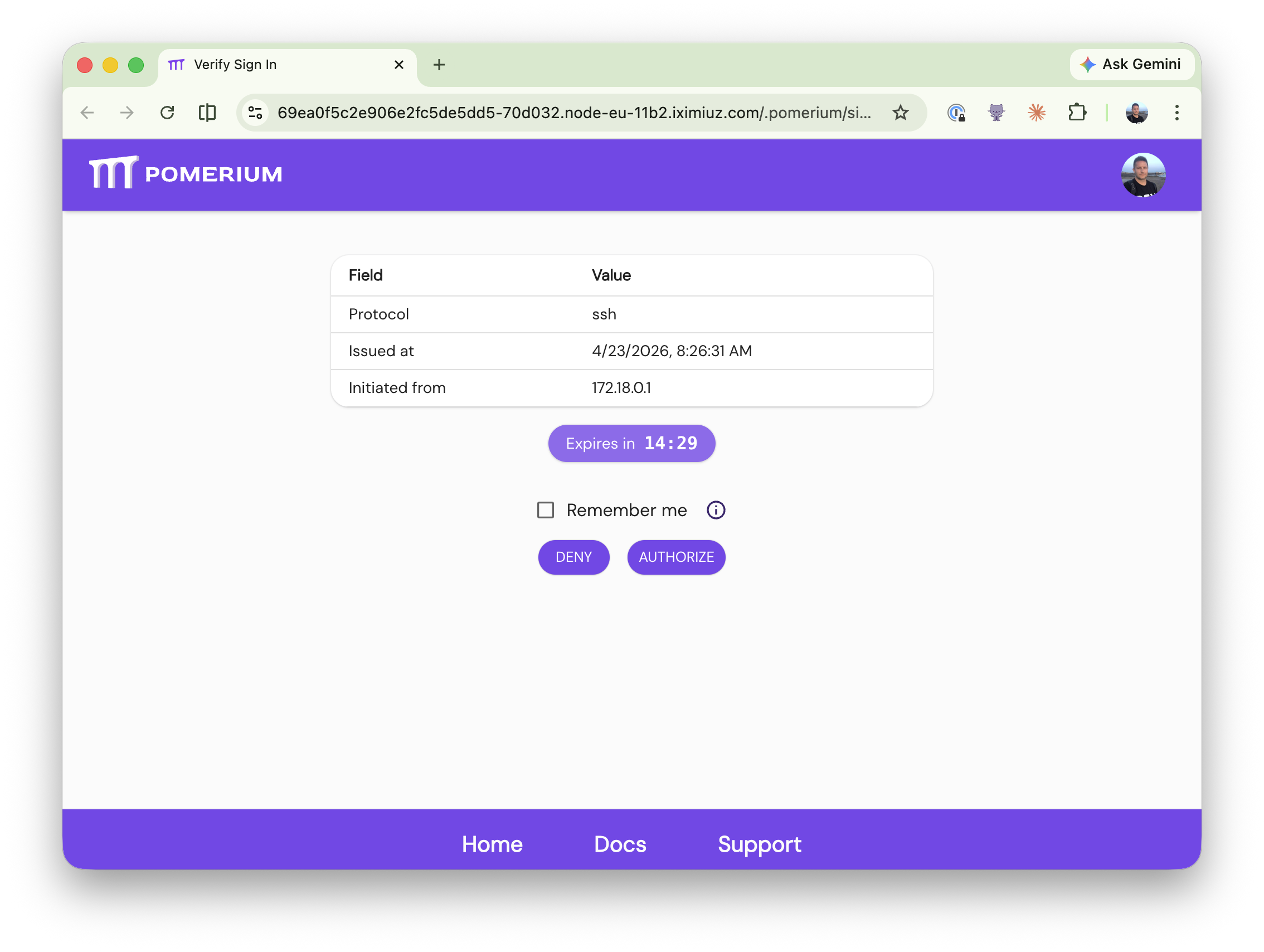
Pomerium then shows a Sign in successful confirmation, and you can close the browser tab. Back in your terminal, the ssh invocation completes and drops you into a shell inside the OpenClaw container as claw.
If the connection hangs with no sign-in URL printed, confirm port 2222 is bound: docker compose ps. If it fails immediately after authorizing, check that the User CA public key made it into the container: docker compose exec openclaw-gateway cat /var/lib/pomerium/pomerium_user_ca_key.pub.
A quick whoami confirms the landing user:
claw@a1b2c3d4e5f6:~$ whoami
claw
claw@a1b2c3d4e5f6:~$
Step 8: See Continuous Authorization in Action
Every SSH connection Pomerium proxies gets a fresh authorization decision from its Policy Engine, not just a one-time check at first connect. The same diagram from the overview, focused on that decision: the Pomerium Proxy asks the Policy Engine for an Allow or Deny on each request, using the identity claims the IdP returned during authentication:
Policy changes apply immediately, to live sessions and not just new ones. Leave the SSH session from Step 7 connected. On the shell terminal tab, introduce a typo into the SSH route's email only. The address range in this sed invocation restricts the substitution to the ssh://openclaw route's block, so the web route's policy is untouched:
cd ~/pomclaw
sed -i -E '/from: ssh:\/\/openclaw/,$ s/(is: .*)/\1.typo/' pomerium-config/config.yaml
Pomerium re-evaluates policy continuously, not just at connection time, so an already-open SSH session is torn down the moment its authorization stops matching, the same behavior covered in Native SSH Access with Pomerium. Back in the openclaw-ssh terminal tab, you'll see something similar to this:
Received disconnect from 127.0.0.1 port 2222:2: Permission Denied: access denied{via_upstream}
Disconnected from 127.0.0.1 port 2222
laborant@docker-01:~$
You can see the eviction in Pomerium's logs. Run this on the shell terminal tab:
docker compose logs pomerium | grep -E 'ssh \[server\].*closing with error: access denied'
Restore the SSH route's email:
sed -i -E '/from: ssh:\/\/openclaw/,$ s/(is: .*)\.typo/\1/' pomerium-config/config.yaml
The SSH session was closed outright, not just blocked, so reconnect from the openclaw-ssh terminal tab to get back in:
ssh claw@openclaw@localhost.pomerium.io -p 2222
The web route is untouched so far; refresh the OpenClaw UI tab in your browser to confirm it's still working, then introduce a typo into the web route's email too. This sed invocation only touches the first is: line it finds, which is the web route's:
sed -i -E '0,/is: .*/{s/(is: .*)/\1.typo/}' pomerium-config/config.yaml
Refresh the OpenClaw UI tab again:
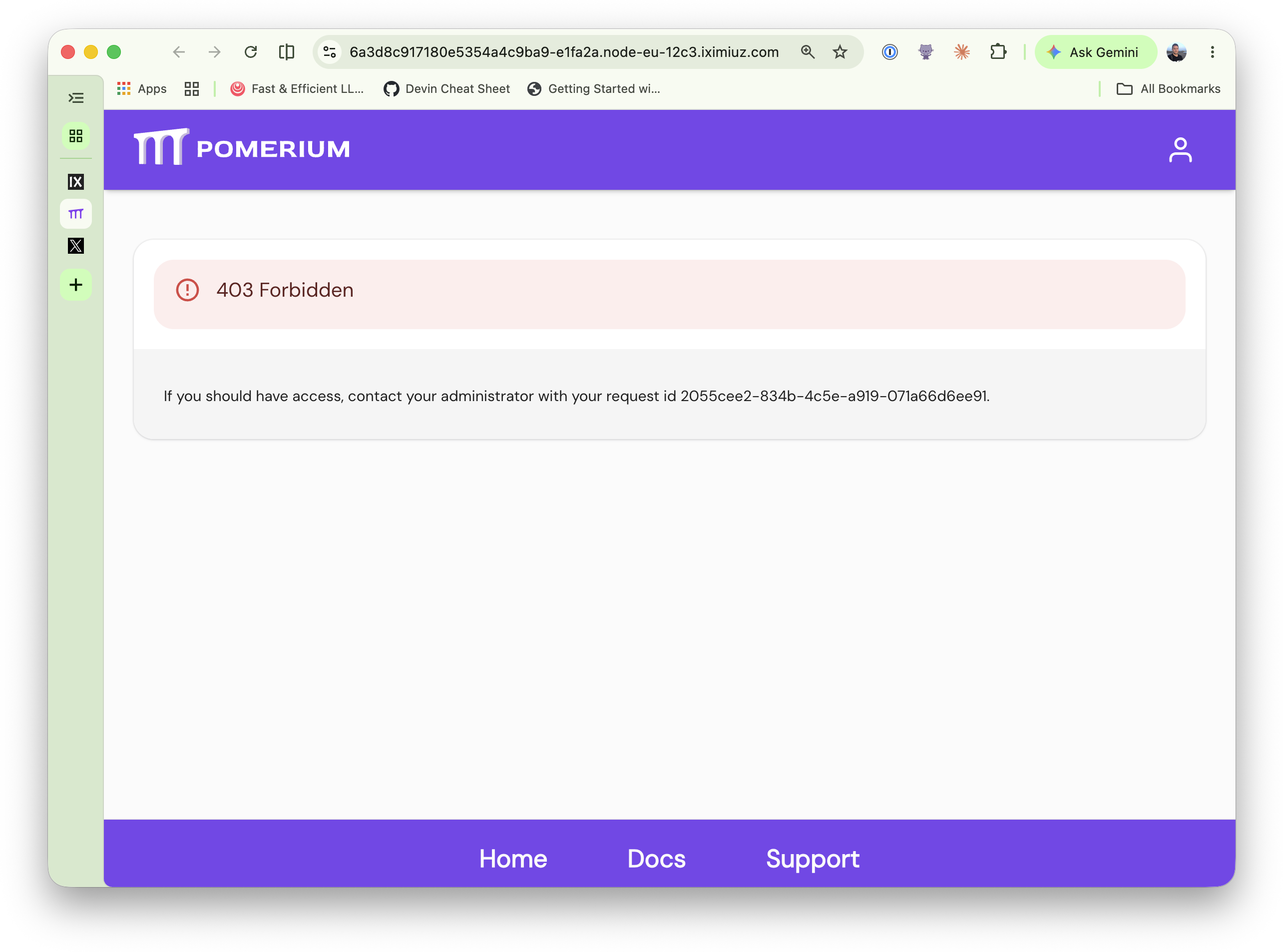
You're locked out there too, mid-session, with no redeploy: each route's policy was denied independently, one edit at a time.
Restore the web route's email:
sed -i -E '0,/is: .*\.typo/{s/(is: .*)\.typo/\1/}' pomerium-config/config.yaml
Refresh the OpenClaw UI tab again:
Access resumes on both routes without you having to sign in again: the policy change, not your session, was ever the thing standing in the way.
Security Considerations
A few things worth knowing before adapting this tutorial to a production deployment:
- Trusted-proxy auth keys on the container's IP address. OpenClaw trusts Pomerium's container IP to inject identity headers. Don't attach untrusted containers to
pomclaw-net; any container on that network with the same IP could otherwise forge identity. This is defended twice over: forging still requires minting a Pomerium-signedX-Pomerium-Jwt-Assertion, and the web route's own policy gates which authenticated identity can reach OpenClaw at all. - The User CA private key is your SSH trust root. Anyone with
keys/pomerium_user_ca_keycan mint certificates the OpenClaw container'ssshdaccepts. In production, protect it like any CA signing key (restricted filesystem permissions, a dedicated host, ideally a hardware security module), not in a working directory next to the compose file. - The loopback-only binding of
:2222is a playground artifact, not production guidance. Outside the playground, bind Pomerium's SSH listener to0.0.0.0if you need SSH reachable from outside the host, and make sure inbound SSH reaches Pomerium rather than a host-level sshd on the same box. - OpenClaw runs commands on behalf of authorized users. Pomerium controls who can reach OpenClaw; it has no opinion on what OpenClaw does once someone's authorized. Treat the operator email in your policy as a privileged credential, and see the OpenClaw Gateway Security documentation for what's still on you to secure.
- Use a real domain with a valid certificate in production.
authenticate_service_urlabove points at the playground's ephemeral HTTPS URL. In production, set it to a domain you control and terminate TLS with a certificate from a trusted CA. - The hosted authenticate service is for getting started, not for long-term production use. Sign-in options are fixed, sessions last about an hour, and it carries no uptime commitment. In production, point
idp_providerat your own identity provider (Okta, Entra ID, Google Workspace, or a self-hosted provider); the rest of the config, includingjwt_claims_headers, stays the same. openclaw/Dockerfile's base image,node:24-slim, is a floating tag, inherited unchanged from the upstream guide.openclaw:${OPENCLAW_VERSION}itself is pinned, but a rebuild on a different day can pick up a differentnode:24-slimpoint release. A breaking change here would surface as a faileddocker compose build, not a silent behavior change, so it's a low-risk floating tag rather than one to pin immediately; pin it to a digest if you need full build reproducibility.
Cleanup
The playground VM is disposable, so containers, volumes, and generated keys disappear when you close this tab. The hosted authenticate service needed no external app to register.
If you're following this outside the playground, tear the stack down with docker compose down -v. The -v flag also removes the databroker volume, clearing Pomerium's cached session state along with the containers.
Next Steps
Steps 2 through 5 set up routes, policy, the header mapping, and trusted-proxy wiring by hand-editing a config file. If you'd rather run an install script against Pomerium Zero, Pomerium's managed control plane, to do the same (minus adding a local model), the original Pomerium Zero guide covers it.
- Put identity-aware access in front of an existing SSH server, from first principles, with Native SSH Access with Pomerium
- Check out the rest of Pomerium's tutorials and courses on iximiuz Labs: go.pomerium.com/interactive
- Explore Pomerium's policy language reference for conditions beyond a single email address (groups, domains, device posture, time of day)
- A local model (
granite3.1-dense:2b, via theollamaservice from Step 4) is already wired up as OpenClaw's default, so it can respond to prompts out of the box. Try other local models withdocker compose exec ollama ollama pull <model>, or point OpenClaw at a hosted provider instead (OpenAI, Anthropic, OpenRouter, and others). See the OpenClaw model providers documentation and the Models CLI reference - Connect chat channels like Discord or WhatsApp: the OpenClaw channels documentation
- Read more on OpenClaw's trusted-proxy auth mode and the OpenClaw scope model, of which this tutorial only used one scope (
operator.admin) - Pomerium is open source. If this tutorial was useful, give it a star on GitHub; contributions are welcome too
About the Author

Nick Taylor
Nick is a GitHub Star, AAIF Ambassador, Microsoft MVP, AWS Community Builder, Software Developer, and Developer Advocate. With over two decades in technology and a decade of open source contributions, plus six years of professional open source work at companies like OpenSauced, dev.to, Netlify and now Pomerium, he brings deep community knowledge to his work. You'll often find him live streaming tech content, either solo or with friends from the community.
Writes about
Frequently covers
More tutorials you might like
Native SSH Access with Pomerium
Pomerium can be used as a native SSH reverse proxy, adding OAuth authentication and flexible Pomerium policy enforcement to standard SSH connections, without the need for tunnels, or custom clients or servers.
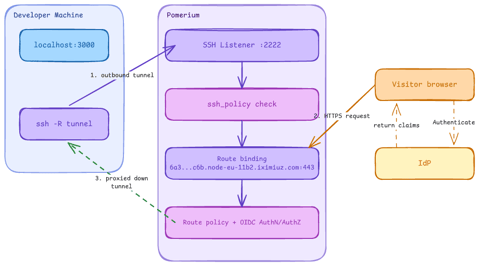
Native SSH Reverse Tunneling with Pomerium
Use Pomerium's native SSH support to publish a local service through a standard reverse SSH tunnel, with OpenID Connect (OIDC) authentication and continuous authorization on every request. Reach services behind Network Address Translation (NAT) without firewall holes or custom agents, and control both who can use the service and who can open the tunnel. Application traffic stays on infrastructure you control.
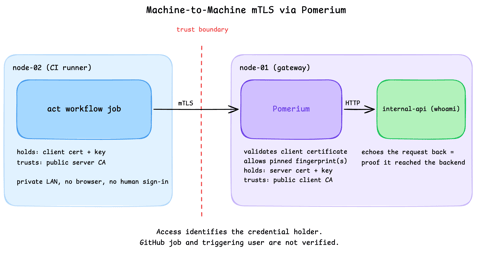
Secure Machine-to-Machine Access with mTLS and Pomerium
Run a GitHub Actions-compatible continuous integration (CI) job on a private runner and protect its internal API call with mutual TLS (mTLS) and Pomerium. Build separate server and client trust chains, authorize one machine certificate by fingerprint, then revoke, restore, and rotate its credentials through live policy changes.
OpenBao 2.6: Discovering secrets with AppRole and least-priviledge policies.
In this tutorial we will learn how to use the new scan feature in OpenBao 2.6. It enables apps to dynamically discover secrets scoped to their namespace.

Learn by doing, not just by reading or watching
Sign up for a free account to start a VM playground right on this page, track your progress, and get notified about new learning materials.