Native SSH Reverse Tunneling with Pomerium
About This Tutorial
Pomerium is an open source identity- and context-aware access proxy. You may already know the "tunnel a local service to the public internet" pattern from Cloudflare Tunnel or ngrok. This tutorial does the same thing, but with identity-aware access in front: Pomerium's native SSH access lets you publish a service through a standard reverse SSH tunnel (ssh -R). Authentication is delegated to Pomerium's hosted authenticate service, so there is no identity provider (IdP) to deploy or OAuth client to register, and Pomerium's context-aware, continuous authorization is enforced on every request to the resulting route.
One difference matters before you start: your service traffic does not traverse a tunnel vendor's infrastructure. ngrok, Cloudflare Tunnel, and similar services route your traffic through infrastructure the vendor owns. Pomerium is open source and self-hosted, so you (or your org) run the proxy yourself and the tunnel terminates on hardware you control. The hosted authenticate service participates in sign-in, but it is not in the application data path. For teams under compliance, data-residency, or regulatory obligations, keeping that data path under your control is often the reason to reach for this pattern instead of a hosted tunnel. The flip side is that securing that path is now your responsibility, which is what the Security Considerations at the end cover.
The key is that Pomerium itself is the SSH server you point ssh -R at: it accepts the reverse tunnel on its SSH listener, then proxies incoming requests on the matching route back through that tunnel to your local service. The tunnel's bind hostname is simply an HTTP route Pomerium already knows about. No custom client, no agent, and no public IP or inbound firewall rule on the machine running the service.
What makes this more than a fancier ngrok is that you get two independent controls on the same route:
- Who can use the service (standard Pomerium route policy): governs which identities can reach the published HTTPS URL.
- Who can open the tunnel (
upstream_tunnel.ssh_policy): governs which identities can open the reverse tunnel that backs the route in the first place.
Reach for this when Pomerium can't open a connection to your service, but your service can open one out to Pomerium: a dev box behind Network Address Translation (NAT), a continuous integration (CI) runner, an on-call laptop, anything without a stable public address.
This is a standalone tutorial, but it builds on the same native SSH machinery as Native SSH Access with Pomerium. If you want the "SSH into a host through Pomerium" story first, start there. Otherwise, this tutorial stands on its own.
By the end, you'll have:
- A local HTTP service published through Pomerium with no inbound exposure
- A standard
ssh -Rreverse tunnel terminating at Pomerium - OIDC authentication required on the published route
- Two separate policies: one for who can reach the service, one for who can open the tunnel
- A live demonstration of each working on its own: opening the route to the public to pull the page through the tunnel, then cutting that page off by revoking the tunnel policy, all without dropping the SSH connection
Prerequisites
- Comfortable with
sshon the command line - Familiar with SSH port forwarding, or at least the idea of it. We explain
-Rversus-Lbelow - Basic familiarity with OAuth or OIDC. You don't need to be an expert; Pomerium handles the sign-in flow, and you use a GitHub account, a Google account, or an email and password
The playground on the right provides the VM, Docker, and network. No local installs are required.
How It Works
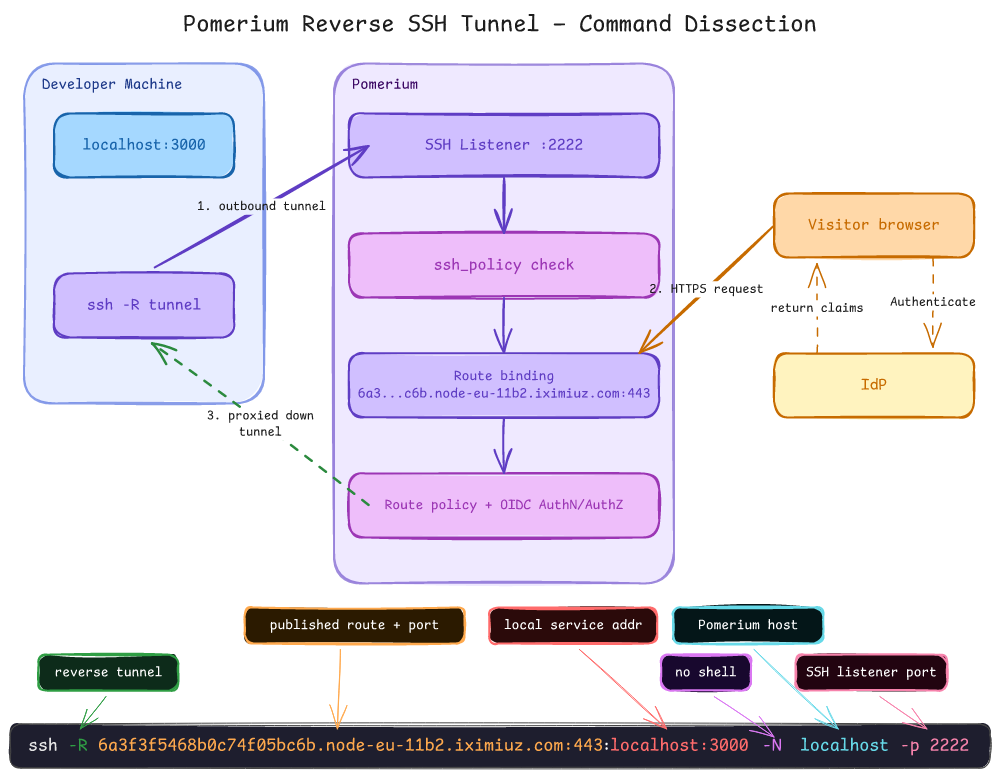
In a normal reverse SSH tunnel, you run ssh -R <remote-port>:<local-host>:<local-port> and the SSH server starts listening on <remote-port>, forwarding anything that arrives there back down the tunnel to your local service. Pomerium plays the role of that SSH server, with one twist: instead of opening a raw listener, it binds the tunnel to an HTTP route you've defined.
So the flow looks like this:
- A service runs locally, say a Go HTTP server on
localhost:3000. Pomerium has no way to connect to it. - You open a reverse tunnel to Pomerium's SSH listener, asking it to back the route with your
localhost:3000. - Pomerium checks
upstream_tunnel.ssh_policyfor that route. If your identity is allowed to open the tunnel, it wires it up to the route. - A visitor browses to the published URL. Pomerium authenticates them via OIDC, checks the route
policy, and if they're allowed, proxies the request down your tunnel tolocalhost:3000.
The service is never directly reachable. Every request rides the outbound tunnel, and every request is authenticated and authorized by Pomerium first.
A note on -R versus -L
This tutorial uses -R (a remote, or reverse, forward) because that's the case Pomerium can't otherwise solve: reaching a service that lives somewhere Pomerium can't connect inbound. The service dials out to Pomerium, so NAT, dynamic IPs, and locked-down firewalls stop mattering.
The other direction, -L (a local forward), reaches a service on a private subnet through a bastion, for example a database or admin UI you can only get to from inside a virtual private cloud (VPC). Pomerium supports that too (enable the ssh_allow_direct_tcpip runtime flag for ssh -L and ssh -J/ProxyJump), but in a Pomerium deployment it's often redundant: Pomerium is already a reverse proxy, so you'd usually just define a route to that internal service directly. The reverse tunnel is the one that gives you something you genuinely can't get another way.
Step 1: Set Up the Project
This playground gives you two terminal tabs on docker-01, named for the job each holds: shell for setup and policy edits, tunnel for the reverse tunnel session you'll open in Step 6. Stay on the shell terminal through Step 5; the tunnel tab stays idle until then.
The playground has scaffolded the working directory, provisioned a TLS certificate for Pomerium, and pre-generated the SSH keys Pomerium's SSH proxy needs. Move into it:
cd ~/pomerium-tunnel
The keys/ directory already contains a User Certificate Authority (CA) key pair and three SSH host key pairs. Pomerium uses the CA key to sign a short-lived certificate for you after you authenticate via OIDC, and presents the host keys to your ssh client so it can verify it's talking to the right server. The Native SSH Access with Pomerium tutorial walks through generating and understanding these keys by hand; here they're ready to go.
Step 2: Run the Local Service
This is the service we'll publish, standing in for whatever you'd run on a laptop or CI box that Pomerium can't reach. It's a tiny Go HTTP server that returns a one-line greeting.
cat > main.go << 'EOF'
package main

import (
    "fmt"
    "log"
    "net/http"
)

func main() {
    http.HandleFunc("/", func(w http.ResponseWriter, r *http.Request) {
        fmt.Fprintln(w, "Hello world!")
    })
    log.Println("listening on :3000")
    log.Fatal(http.ListenAndServe(":3000", nil))
}
EOF
Run it in a throwaway Go container, detached with -d and published only on loopback so nothing but the tunnel can reach it. Detached keeps it off your terminal, so you don't need a second one. The first run compiles main.go before serving, so the host port will be published before the Go process is listening:
docker run -d --rm --name local-service -v "$PWD":/app -w /app -p 127.0.0.1:3000:3000 golang:1.26.4 go run main.go
To stop the service later, run docker rm -f local-service.
Keeping the service on 127.0.0.1:3000 and off Pomerium's Docker network is deliberate. Pomerium runs in a container on its own Docker network; the Go server publishes only to the VM host's loopback. A container can't reach the host's 127.0.0.1, and the service never joins Pomerium's network, so Pomerium has no route to :3000 at all. Both happen to sit on this one playground VM, but Pomerium can reach the service only through the reverse tunnel, exactly as if it were running on a laptop behind NAT. That asymmetry (the service can dial out to Pomerium, Pomerium can't dial in) is exactly what a reverse tunnel is for.
Confirm it's up:
curl http://localhost:3000/
You're after Hello world!. While the container is still compiling main.go, the published port is already bound but nothing is listening behind it, so the first few attempts return curl: (56) Recv failure: Connection reset by peer. Give it a few seconds and retry until the greeting comes back.
Step 3: Configure Pomerium
Pomerium delegates sign-in to its hosted authenticate service. You do not need to deploy an identity provider or register an OAuth client. The only identity input is the email address that both policies will allow, which you provide in the next step.
The Pomerium config has shared_secret and cookie_secret generated inline. The unquoted heredoc means $(head -c32 /dev/urandom | base64) runs once when the file is written, so each deployment gets its own fresh secrets.
cat > pomerium-config/config.yaml << EOF
# Secrets: generated fresh for this deployment
shared_secret: $(head -c32 /dev/urandom | base64)
cookie_secret: $(head -c32 /dev/urandom | base64)

address: :443
authenticate_service_url: REPLACE_WITH_ADDRESS

# Delegate sign-in to Pomerium's hosted authenticate service.
idp_provider: hosted

# SSH proxy settings
ssh_address: 0.0.0.0:2222

ssh_user_ca_key_file: /etc/pomerium/keys/pomerium_user_ca_key
ssh_host_key_files:
  - /etc/pomerium/keys/pomerium_ssh_host_ed25519_key
  - /etc/pomerium/keys/pomerium_ssh_host_rsa_key
  - /etc/pomerium/keys/pomerium_ssh_host_ecdsa_key

# Enable reverse (upstream) SSH tunnels
runtime_flags:
  ssh_upstream_tunnel: true

# Persist databroker state across restarts (single-node only)
databroker_storage_type: file
databroker_storage_connection_string: file:///var/pomerium/databroker

routes:
  - from: REPLACE_WITH_ROUTE
    to: http://non-existent-route
    policy:
      # Who can VISIT the published service
      - allow:
          and:
            - email:
                is: REPLACE_WITH_EMAIL
    upstream_tunnel:
      ssh_policy:
        # Who can OPEN the reverse tunnel that backs this route
        - allow:
            and:
              - email:
                  is: REPLACE_WITH_EMAIL
EOF
A few things to notice:
idp_provider: hosteddelegates sign-in to Pomerium's hosted authenticate service. There is no IdP deployment, issuer URL, client ID, or client secret to configure.REPLACE_WITH_ADDRESS,REPLACE_WITH_ROUTE, andREPLACE_WITH_EMAILare placeholders. The next step replaces them with your playground's exposed URLs and your email address.- The
ssh_upstream_tunnel: trueruntime flag is what enables Pomerium to accept reverse tunnels at all. Without it, thessh -Rconnection will authenticate but the tunnel won't open. - The
to:value is a deliberate placeholder. The real upstream isn't known until the tunnel connects, so this value is overridden by whatever thessh -Rtunnel supplies at connect time. It only needs to be present and syntactically valid.
Step 4: Get Your Playground URLs and Email
Pomerium needs two public URLs before it can start. The authenticate URL is where Pomerium handles sign-in callbacks. The route URL is the address visitors use to reach the tunneled service. Use the controls below to copy each URL and paste it into the matching input. You'll also provide the email address that both access policies allow.
copy the auth URLNow enter the email address both policies should allow. Use an address you can sign in as through the hosted authenticate service, either with GitHub, Google, or an email and password:
Three fields in the config you just wrote get filled in: the authenticate URL replaces the top-level authenticate_service_url, the route URL replaces from: on the one route under routes, and your email replaces both is: lines, the one nested under that route's policy and the one nested under its upstream_tunnel.ssh_policy. Same email, two separate is: lines: one controls who can visit the route, the other controls who can open the tunnel behind it. We'll pull those two apart in Step 7 to show the controls working independently.
Step 5: Create the Docker Compose Stack
The stack has one service, Pomerium.
cat > docker-compose.yml << 'EOF'
services:
  pomerium:
    image: pomerium/pomerium:v0.32.8
    restart: unless-stopped
    environment:
      # TLS certificate provisioned at playground startup
      CERTIFICATE_FILE: /etc/pomerium/certs/cert.pem
      CERTIFICATE_KEY_FILE: /etc/pomerium/certs/key.pem
    volumes:
      - ./pomerium-config:/pomerium:ro
      - ./keys:/etc/pomerium/keys:ro
      - ./certs:/etc/pomerium/certs:ro
      - pomerium-data:/var/pomerium
    ports:
      - "443:443"
      - "127.0.0.1:2222:2222"
    networks:
      - pomerium-net

volumes:
  pomerium-data:

networks:
  pomerium-net:
EOF
Pomerium's published port maps to :443 inside the container, where it terminates TLS directly using the certificate provisioned in setup. Both exposed subdomains share that host port, and Pomerium distinguishes them by hostname.
The Pomerium volume mounts the pomerium-config/ directory rather than the config.yaml file directly. Editors save atomically (write a temp file, then rename it over the original), which swaps the file's inode. Bind-mounting a single file pins the original inode and silently misses your edits; directory mounts re-resolve by name on each access, so the container sees your changes. This matters in Step 7, where we edit policy live.
Start the stack. If a previous run left containers behind, up -d will fail with a name conflict. Tear down first:
docker compose down -v 2>/dev/null; docker compose up -d
docker compose logs -f
Wait until you see Pomerium log "starting SSH listener", then press Ctrl+C to exit the log follow and return to the shell prompt before proceeding.
Step 6: Open the Reverse Tunnel
Open the reverse tunnel that publishes the local service. In the tunnel terminal on docker-01 (the one you haven't touched yet), run this plain ssh -R, the same command you'd use against any SSH server:
URL=$(cat /tmp/pomerium-tunnel.route-address 2>/dev/null | tr -d '[:space:]' | sed 's|https://||')
ssh -R "${URL}:443:localhost:3000" -N localhost -p 2222
Reading the command:
-R <URL>:443:localhost:3000asks the server to forward traffic for the route URL on port 443 back tolocalhost:3000on this machine. Pomerium reads the bind hostname as the route to attach the tunnel to, rather than opening a raw socket.-Nmeans "no remote command." You're not opening a shell, you're only setting up forwarding, so the connection just sits there holding the tunnel open.localhost -p 2222is Pomerium's SSH listener. We use 2222 (not the SSH default 22) because the playground VM already runs its own sshd on port 22, so Pomerium's listener binds to 2222 to avoid the conflict. On a host where Pomerium owns port 22, you can drop the-p.
Notice there's no user@route@host in front, unlike logging into a host through Pomerium. You're not asking for a shell on a target, you're opening a reverse tunnel to Pomerium, and the route is named by the -R bind host.
On the first connection you'll see the standard SSH host-key prompt (Pomerium's host key being added to your known_hosts). Answer yes, and Pomerium prints a sign-in URL:
laborant@docker-01:pomerium-tunnel$ ssh -R 6a1dfc1c220709168d22b045-e20d33.node-eu-11b2.iximiuz.com:443:localhost:3000 -N localhost -p 2222
The authenticity of host '[localhost]:2222 ([127.0.0.1]:2222)' can't be established.
ED25519 key fingerprint is SHA256:dxPrU19l2x2uAUrCF+3MnWLvizTQPHQJSCQfM1CDl4o.
This key is not known by any other names.
Are you sure you want to continue connecting (yes/no/[fingerprint])? yes
Warning: Permanently added '[localhost]:2222' (ED25519) to the list of known hosts.
Please sign in with oidc to continue
https://6a1dfc1c220709168d22b045-e20d33.node-eu-11b2.iximiuz.com/.pomerium/sign_in?user_code=DvCD0DfivWVzO_K7XqMl5g
Open that URL in a browser. It lands on Pomerium's hosted authenticate sign-in page. Sign in as the account whose email you entered in Step 4, using GitHub, Google, or email and password. Pomerium then shows a Verify Sign In page with the pending session details; click Authorize. This is the identity that upstream_tunnel.ssh_policy is checked against.
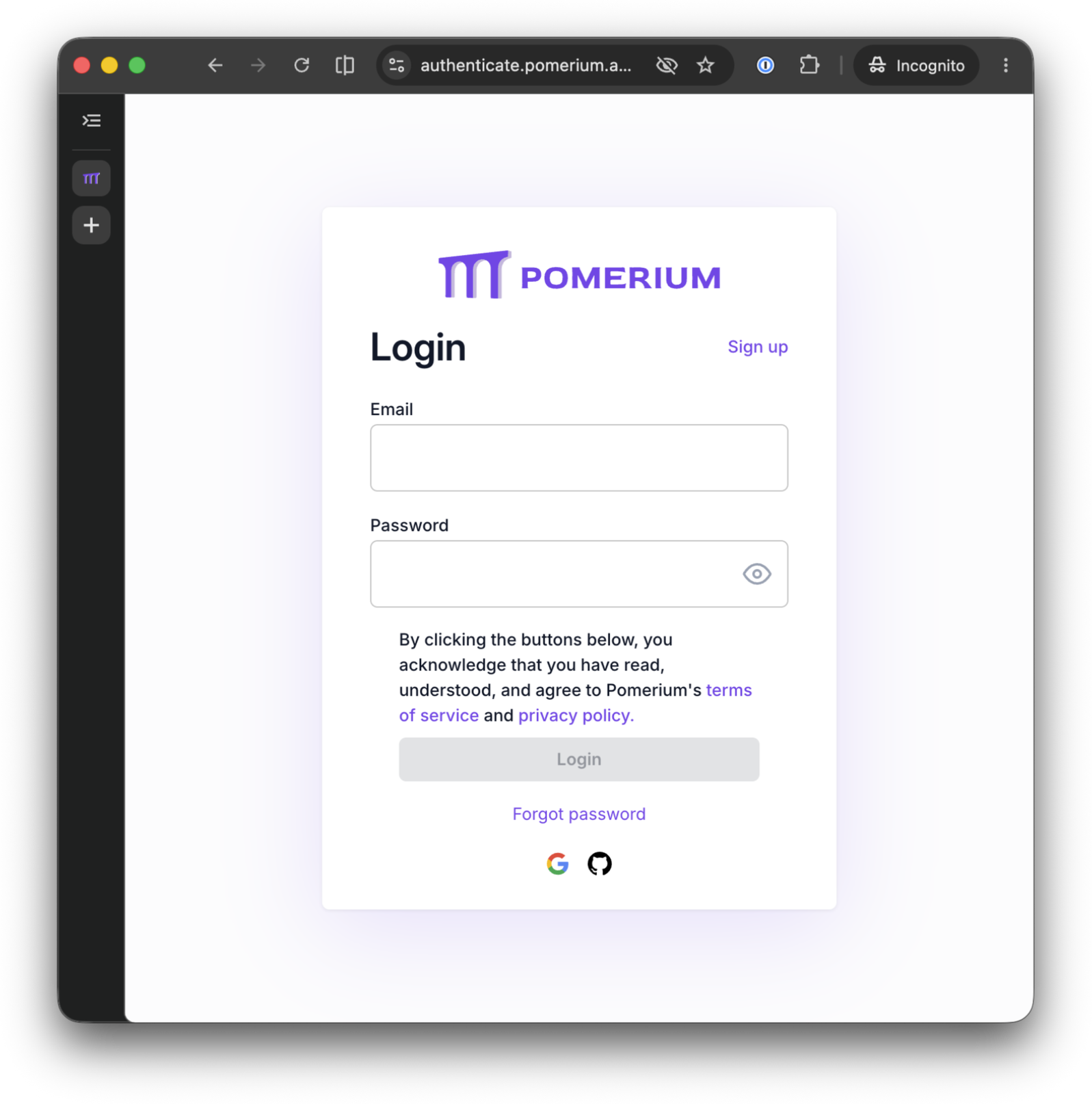
Once authorized, the tunnel terminal goes quiet and stays connected. That's the tunnel holding open. Leave it alone for the rest of the tutorial.
Hosted authenticate sessions expire after about an hour. If a connection that worked earlier starts failing, reconnect and sign in again.
If ssh fails immediately with Permission denied (publickey) and you never see a sign-in URL, the client has no SSH identity key to offer (common on a fresh laptop, Windows Subsystem for Linux (WSL), or CI runner with an empty ~/.ssh/). Pomerium needs the client to attempt publickey auth so it can add the keyboard-interactive method that initiates the browser sign-in flow. Create a key with ssh-keygen -t ed25519 -N '' and retry. The playground VM already ships one for laborant, so this won't bite you here.
Step 7: Reach the Service, Then Tune the Two Policies
The route is live, the tunnel is up, and access is gated by your email address in the policy. You'll confirm that in a browser, then pull the access policy and the tunnel policy apart to see each one work on its own.
Because the published URL is a real HTTPS endpoint (terminated by the playground ingress with a valid certificate), you test it directly in your own browser.
Access the gated route
Open the route URL you pasted in Step 4 in a new browser tab. You can return to the route link in Step 4 or copy the saved value by running this in the shell terminal:
cat /tmp/pomerium-tunnel.route-address; echo
You should see Hello world! if your session from Step 6 is still active. If Pomerium asks you to sign in again, use the same hosted authenticate account you used for the SSH tunnel. After authentication, Pomerium checks the route policy and, since your email matches, proxies the request down the tunnel to your local service, rendering "Hello world!" in the browser.
If you see a Pomerium user details page instead, you have the authenticate URL open, not the route URL. Close that tab and use the route URL from Step 4.
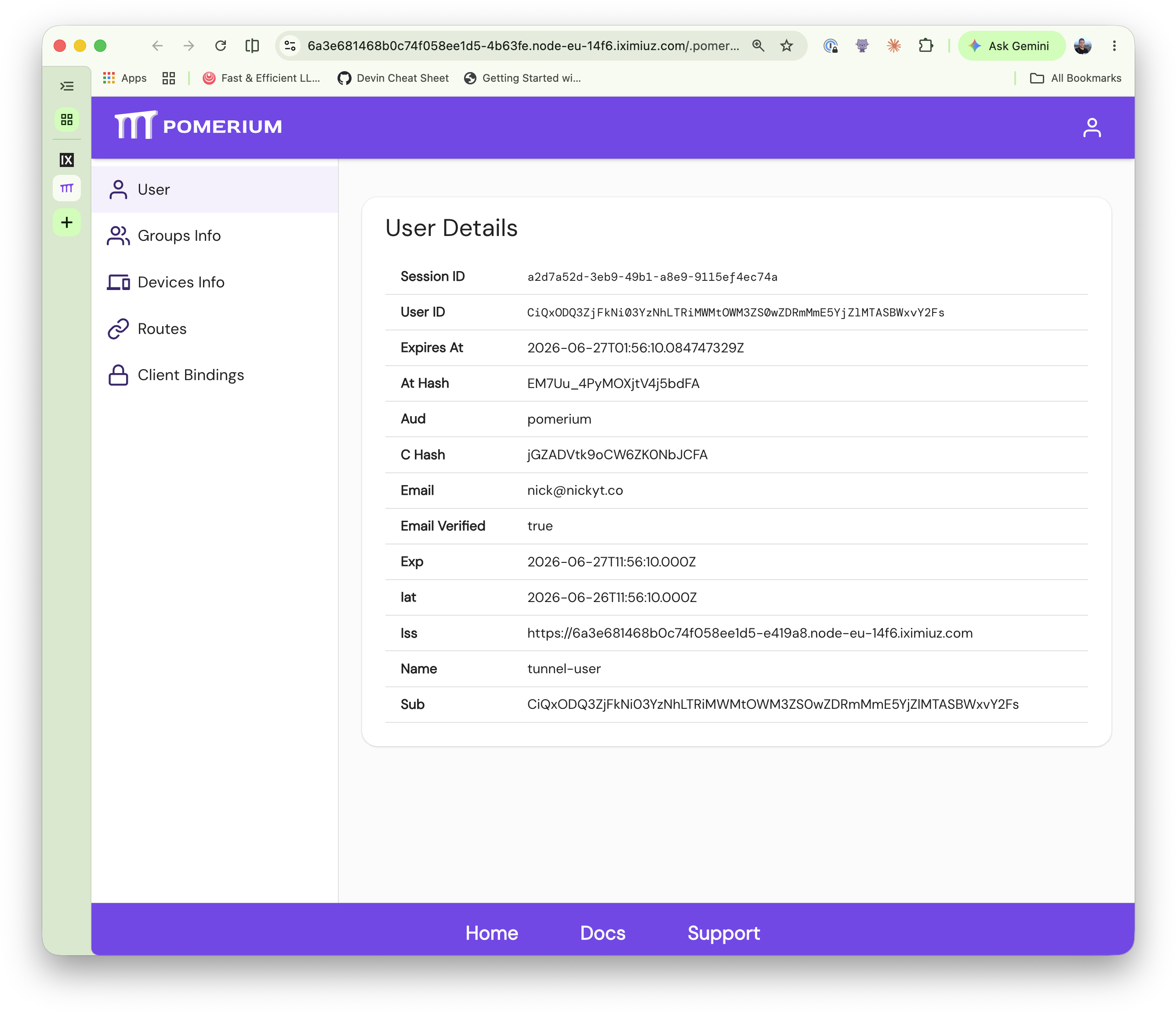
The request path was: your browser → the playground ingress → Pomerium's HTTPS listener (:443) → down the reverse tunnel → localhost:3000 on the side that opened the tunnel → back. Pomerium checked that your authenticated identity matches the route policy and proxied the request through. Both the tunnel and the route policy are working.
Revoke the route access policy
The tunnel terminal from Step 6 is still holding your connection open, so switch back to the shell terminal you used in Steps 1 through 5, then move into the project directory:
cd ~/pomerium-tunnel
Introduce a typo into the email on the route policy's is: line. This sed invocation appends .typo to that email and only that one, leaving the tunnel policy untouched, so you can revert it without retyping anything:
sed -i -E 's/^( {16}is: .*)/\1.typo/' pomerium-config/config.yaml
The tunnel is still open and your browser session is still valid, but the route policy no longer matches. Refresh the browser tab:
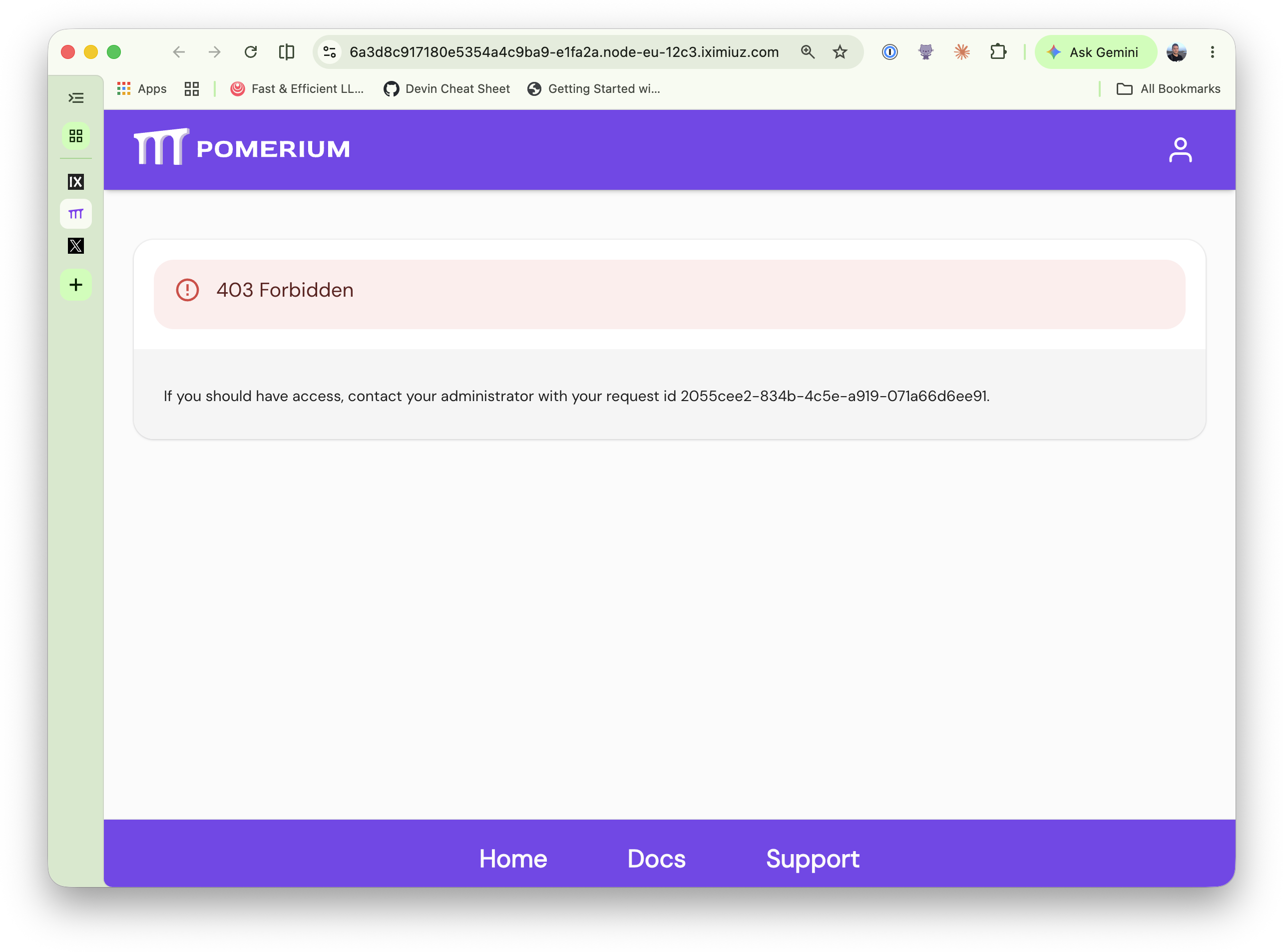
Pomerium returns a 403 Forbidden. The tunnel works, your session is good, but the route says "no." That's the first control.
Restore the route policy
Strip the typo back off the route policy's is: line:
sed -i -E 's/^( {16}is: .*)\.typo$/\1/' pomerium-config/config.yaml
Refresh the browser tab. Hello world! is back. The route policy governs who can reach the service, and flipping it on and off works in real time.
Revoke the tunnel policy and watch the page go dark
Now cut the other control. Back in the shell terminal, append .typo to the email under upstream_tunnel: ssh_policy:. This sed invocation anchors on the tunnel policy's deeper indentation, so it touches only that line and leaves the route policy's email unchanged:
sed -i -E 's/^( {18}is: .*)/\1.typo/' pomerium-config/config.yaml
Policy changes take effect immediately. First, glance at the tunnel terminal: it's still connected and quiet. Revoking the tunnel policy does not drop your ssh -R session, because that session is gated only by your identity provider login, which is still valid. What the tunnel policy controls is whether your tunnel is allowed to back this route, so revoking it detaches the tunnel from the route and leaves the route with no upstream to serve.
Refresh the browser tab:
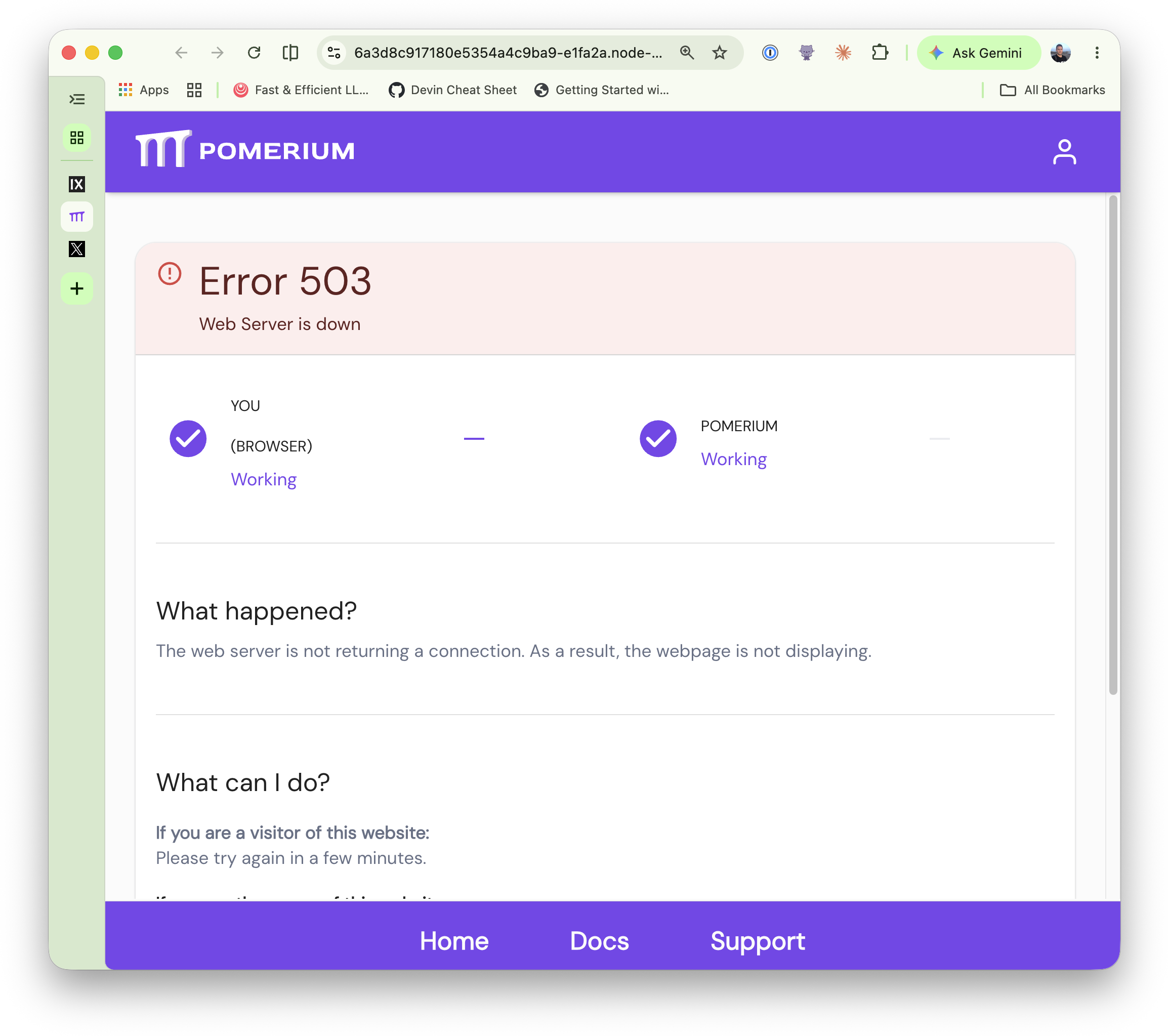
Hello world! never comes back. Your session is still good and the route policy still matches, but with no authorized tunnel behind the route, Pomerium has no upstream to proxy to, so it returns a 503 (no healthy upstream).
Those are the two controls pulled fully apart. The route policy still says "this user may visit," yet the page is dark, because upstream_tunnel.ssh_policy cut off who may publish it. Visitor access governs demand; the tunnel policy governs supply. Revoke supply and an open door just leads to an empty room.
Restore the tunnel policy and watch it come back
Strip the typo back off the upstream_tunnel: ssh_policy: line:
sed -i -E 's/^( {18}is: .*)\.typo$/\1/' pomerium-config/config.yaml
Pomerium re-evaluates the tunnel policy on save and re-attaches your still-open tunnel to the route. You didn't touch the tunnel terminal and you didn't reopen anything: the same connection that sat there the whole time is serving the route again. Refresh the browser tab:
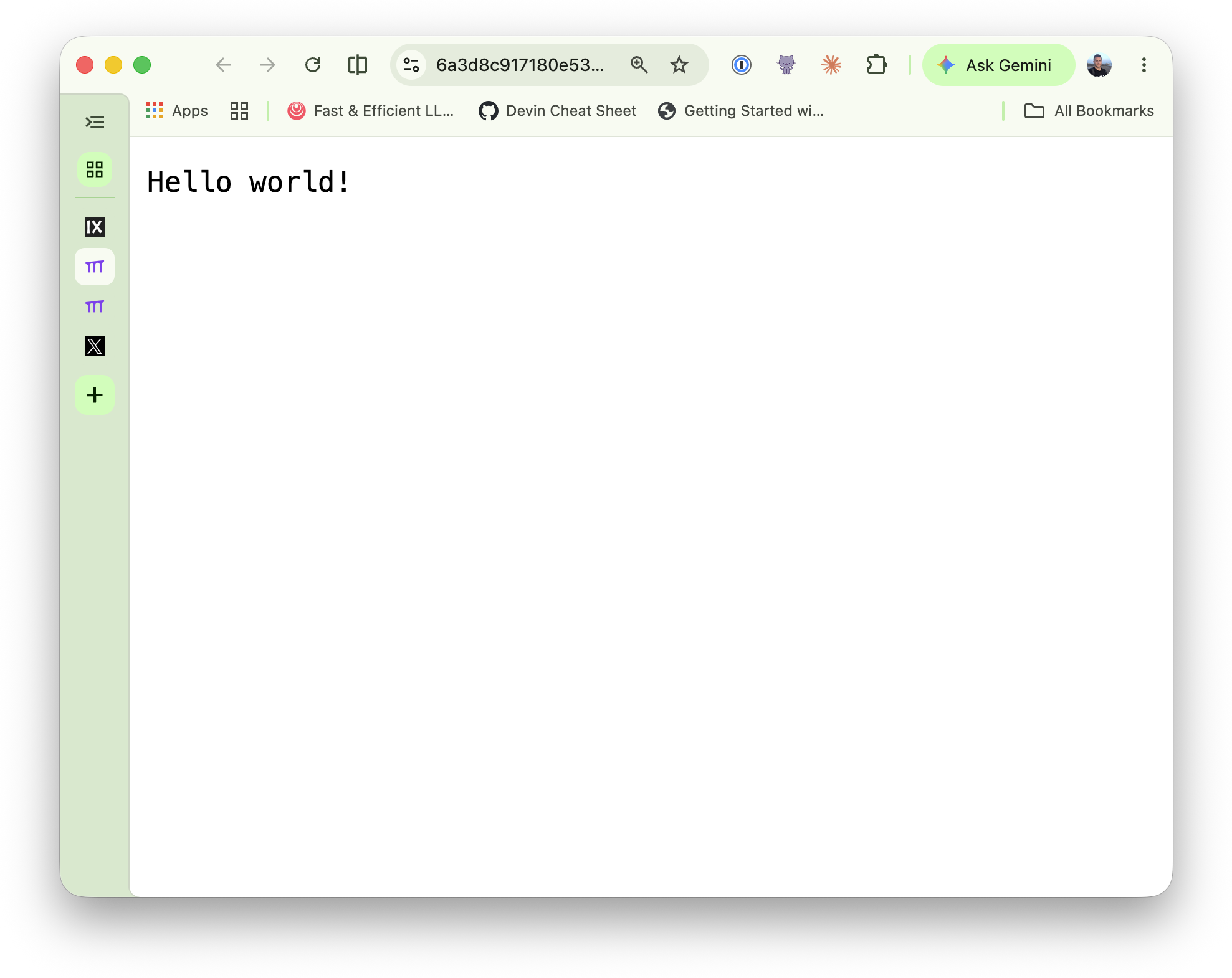
Hello world! is back. (If it doesn't return within a few seconds, check the tunnel terminal; if that connection dropped for any reason, reopen it with the same ssh -R command and refresh again.)
You've now exercised both controls independently: the route policy governs who can reach the service (allowed, then revoked, then restored), and upstream_tunnel.ssh_policy governs who can open the tunnel that backs it (cut off on a live, still-connected session, then restored, all without ever touching the tunnel terminal).
Security Considerations
A few things worth knowing before adapting this to a production deployment:
- Application traffic stays on infrastructure you control. Unlike hosted tunnel services, both the tunnel endpoint and the proxy run on hardware you control, so there is no third-party tunnel provider in the application data path. The hosted authenticate service still participates in sign-in, so include that dependency in your identity threat model and compliance review.
upstream_tunnel.ssh_policyis your control over who can expose what. Anyone allowed to open a tunnel can forward arbitrary local ports out through Pomerium. Scope this policy as tightly as the access policy, and prefer per-route tunnel policies over a blanket allow.- Bring your own identity provider for production. Pomerium's hosted authenticate service is built for getting started: sign-in options are fixed, sessions last about an hour, and it carries no uptime commitment. For production, point
idp_providerat your own IdP (such as Okta, Entra ID, Google Workspace, or a self-hosted provider) and keep the rest of the architecture unchanged. - Replace the self-signed certificate for production. The playground provisions a self-signed cert at startup; the
CERTIFICATE_FILEandCERTIFICATE_KEY_FILEenvironment variables in the compose file point to it. In production, provision a cert from a trusted Certificate Authority (CA) for the domain Pomerium serves, and set those same variables (or thecertificate_file/certificate_key_fileconfig-file keys). Pomerium also supports automatic Let's Encrypt management via Autocert. See the Certificates reference for all options. - The User CA private key is your SSH trust root. Anyone with
keys/pomerium_user_ca_keycan mint certificates Pomerium's SSH proxy trusts. Protect it like any CA signing key (restricted permissions, a dedicated host, ideally a hardware security module), not in a working directory next to the compose file. - The loopback-only binding of
:2222is deliberate. The compose file binds Pomerium's SSH listener to127.0.0.1:2222because the playground only exposes:443. If you replicate this outside the playground and the tunnel is opened from elsewhere, bind to0.0.0.0and make sure inbound SSH reaches Pomerium rather than a host-level sshd on the same box.
Next Steps
You published a local service through a standard reverse SSH tunnel, then proved that Pomerium can control service access and tunnel creation independently. You can apply the same pattern to a development server, continuous integration runner, or on-call workstation that can reach Pomerium but cannot accept inbound connections.
Choose the next step that matches what you want to protect:
- To secure shell access to an existing server instead of publishing a local service, follow Native SSH Access with Pomerium.
- To apply this tunnel pattern to Model Context Protocol (MCP) servers, start the Securing MCP Servers and MCP Apps with Pomerium course.
- Check out the rest of Pomerium's tutorials and courses on iximiuz Labs: go.pomerium.com/interactive
- Pomerium is open source. If this tutorial was useful, give it a star on GitHub; contributions are welcome too.
About the Author

Nick Taylor
Nick is a GitHub Star, AAIF Ambassador, Microsoft MVP, AWS Community Builder, Software Developer, and Developer Advocate. With over two decades in technology and a decade of open source contributions, plus six years of professional open source work at companies like OpenSauced, dev.to, Netlify and now Pomerium, he brings deep community knowledge to his work. You'll often find him live streaming tech content, either solo or with friends from the community.
Writes about
Frequently covers
More tutorials you might like
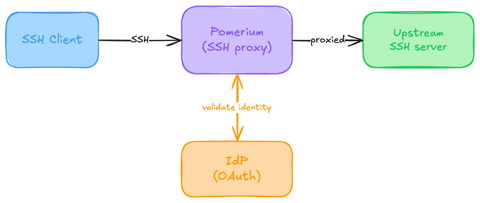
Native SSH Access with Pomerium
Pomerium can be used as a native SSH reverse proxy, adding OAuth authentication and flexible Pomerium policy enforcement to standard SSH connections, without the need for tunnels, or custom clients or servers.
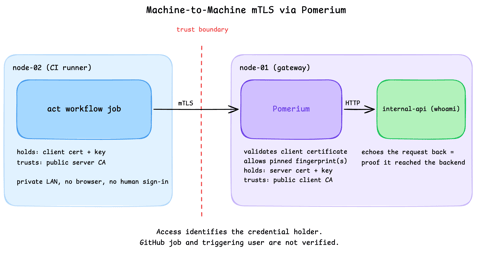
Secure Machine-to-Machine Access with mTLS and Pomerium
Run a GitHub Actions-compatible continuous integration (CI) job on a private runner and protect its internal API call with mutual TLS (mTLS) and Pomerium. Build separate server and client trust chains, authorize one machine certificate by fingerprint, then revoke, restore, and rotate its credentials through live policy changes.
Harden Access to OpenClaw with Pomerium
Put OpenClaw, a self-hosted AI assistant with shell and file access, behind a web route and an SSH route, both gated by the same identity and Pomerium's context-aware policy. OpenClaw runs in trusted-proxy mode, trusting signed identity headers instead of its own login, while Pomerium's native SSH proxy signs short-lived certificates for shell access.
OpenBao 2.6: Discovering secrets with AppRole and least-priviledge policies.
In this tutorial we will learn how to use the new scan feature in OpenBao 2.6. It enables apps to dynamically discover secrets scoped to their namespace.

Learn by doing, not just by reading or watching
Sign up for a free account to start a VM playground right on this page, track your progress, and get notified about new learning materials.