Native SSH Access with Pomerium
About This Tutorial
This tutorial is for developers and platform engineers who want identity-aware access in front of existing SSH servers without distributing per-user keys or requiring a custom SSH client.
Pomerium is an open source identity-aware access proxy, and this tutorial uses Pomerium Core. Pomerium's native SSH access adds identity-aware policy enforcement to standard SSH connections, with no tunnels and no changes to how developers connect. You will build a complete setup with a self-hosted authenticate service and a GitHub OAuth app as the identity provider, all running in Docker.
Use this when you want continuous, context-aware authorization in front of existing SSH servers without rolling out a custom client, agent, or bastion. Reach for it too when instant revocation matters: removing a user from policy terminates their active SSH sessions, not just future logins, which is the behavior you want for offboarding or incident response.
The hands-on flow focuses on interactive developer access and uses a browser-based OAuth flow. Native SSH service-account support is in progress for automation and continuous integration (CI) use cases, so check the native SSH documentation for the current headless-access workflow when adapting this pattern.
By the end, you'll have:
- Pomerium acting as an SSH reverse proxy
- OAuth-based authentication enforced on every connection
- A policy that allows access by email address
- A live demonstration of policy changes revoking an active SSH session
Prerequisites
- Comfortable with
ssh,docker, anddocker composeon the command line - Basic familiarity with OAuth or OpenID Connect. You don't need to be an expert; this tutorial walks through the GitHub OAuth setup end-to-end
- A GitHub account, used to create the OAuth App in Step 4
The playground on the right provides the VM, Docker, and network. No local installs are required.
How It Works
When a user connects, the SSH client speaks directly to Pomerium, not to the target server. Pomerium intercepts the connection, validates the user's identity via OAuth, and if the policy allows it, proxies the session to the upstream SSH server.

On first connection, Pomerium issues the user a signed SSH certificate, signed with a User Certificate Authority (User CA) key you control. Subsequent connections within the session timeout use the cached credential, so there are no repeated browser prompts.
There are two trust boundaries in this flow. Pomerium trusts GitHub to establish the user's identity, while the target SSH server trusts certificates signed by Pomerium's User CA. The target does not need a separate authorized_keys entry for each developer.
Step 1: Set Up the Project
This playground gives you two terminal tabs on docker-01, named for the job each holds: shell for setup, config, and policy edits, ssh for the SSH session you'll open in Step 6. Stay on the shell terminal tab through Step 5; the ssh tab stays idle until then.
Create the working directory structure:
mkdir -p ~/pomerium-ssh/{keys,pomerium-config}
cd ~/pomerium-ssh
Step 2: Generate SSH Keys
Pomerium's SSH proxy requires two sets of keys:
- User CA key: Pomerium signs user certificates with this. The target sshd trusts certificates issued by this CA instead of maintaining an
authorized_keysfile. - Host keys: Presented to SSH clients so they can verify they're talking to the right server (replacing the target's own host keys).
Generate the User CA Key Pair
ssh-keygen -N "" -f keys/pomerium_user_ca_key -C "Pomerium User CA"
Generate SSH Host Keys
ssh-keygen -N "" -t ed25519 -f keys/pomerium_ssh_host_ed25519_key
ssh-keygen -N "" -t rsa    -f keys/pomerium_ssh_host_rsa_key
ssh-keygen -N "" -t ecdsa  -f keys/pomerium_ssh_host_ecdsa_key
Step 3: Configure the Target SSH Server
The target sshd needs to trust certificates signed by Pomerium's User CA. The linuxserver/openssh-server image generates its own sshd_config at startup, so instead of replacing that file we'll drop a small init hook into /custom-cont-init.d/ that appends the one directive we need before sshd starts:
mkdir -p sshd-init
cat > sshd-init/trusted-ca.sh << 'EOF'
#!/usr/bin/with-contenv bash
set -e
LINE='TrustedUserCAKeys /etc/ssh/pomerium_user_ca_key.pub'
for CONFIG in /etc/ssh/sshd_config /config/sshd/sshd_config; do
  if [[ -f "$CONFIG" ]] && ! grep -q '^TrustedUserCAKeys' "$CONFIG"; then
    echo "$LINE" >> "$CONFIG"
  fi
done
EOF
chmod +x sshd-init/trusted-ca.sh
The key line is TrustedUserCAKeys. Any certificate signed by Pomerium's CA will be accepted, so no per-user authorized_keys management is needed.
Step 4: Configure Pomerium
The SSH flow uses browser-based OAuth, so you'll need an identity provider. This tutorial uses GitHub OAuth.
Start With a Barebones Pomerium Configuration
The shared_secret and cookie_secret are generated inline. Unquoted heredoc means $(head -c32 /dev/urandom | base64) runs once when the file is written, so each deployment gets its own fresh secrets.
cat > pomerium-config/config.yaml << EOF
# Secrets: generated fresh for this deployment
shared_secret: $(head -c32 /dev/urandom | base64)
cookie_secret: $(head -c32 /dev/urandom | base64)

# The public URL for this Pomerium instance
address: :443
authenticate_service_url: REPLACE_WITH_ADDRESS

# GitHub OAuth
idp_provider: github
idp_client_id: REPLACE_WITH_GITHUB_CLIENT_ID
idp_client_secret: REPLACE_WITH_GITHUB_CLIENT_SECRET

# SSH proxy settings
ssh_address: 0.0.0.0:2222

ssh_user_ca_key_file: /etc/pomerium/keys/pomerium_user_ca_key
ssh_host_key_files:
  - /etc/pomerium/keys/pomerium_ssh_host_ed25519_key
  - /etc/pomerium/keys/pomerium_ssh_host_rsa_key
  - /etc/pomerium/keys/pomerium_ssh_host_ecdsa_key

# Persist databroker state across restarts (single-node only)
databroker_storage_type: file
databroker_storage_connection_string: file:///var/pomerium/databroker
EOF
Get Your Playground URL
You'll need this URL for both Pomerium's config and the GitHub OAuth app callback. It must be public: if it stays private, GitHub's OAuth redirect can't reach the callback and you'll be bounced to the iximiuz login page mid-flow instead of completing authentication.
copy the playground URLCreate a GitHub OAuth App
Follow GitHub's instructions to create a new OAuth App. Use these values:
- Application name: anything you like (e.g.
SSH Tutorial) - Homepage URL: required by GitHub, typically your product's website. For this tutorial, reuse your playground URL from above.
- Authorization callback URL: your playground URL with
/oauth2/callbackappended (e.g.https://69ea0f5c2e906e2fc5de5dd5-70d032.node-eu-11b2.iximiuz.com/oauth2/callback)
After registering the app, generate a client secret. Copy the client ID and client secret immediately; GitHub only shows the client secret once. Paste them below to inject them into pomerium-config/config.yaml:
Add an SSH Route
A route tells Pomerium which upstream server to proxy to, and which identities are allowed to reach it via a policy. Append the following to pomerium-config/config.yaml:
cat >> pomerium-config/config.yaml << 'EOF'

routes:
  - from: ssh://ssh-target
    to: ssh://sshd:2222
    policy:
      - allow:
          and:
            - email:
                is: REPLACE_WITH_EMAIL
EOF
The from: ssh://ssh-target names this route ssh-target. This becomes part of the SSH connection string. The to: ssh://sshd:2222 points at the Docker service name of the target container on the port its sshd is listening on.
Now enter the email address of the GitHub account you'll authenticate with, the one the policy should allow:
Step 5: Create the Docker Compose Stack
cat > docker-compose.yml << 'EOF'
services:
  pomerium:
    image: pomerium/pomerium:v0.32.8
    restart: unless-stopped
    volumes:
      - ./pomerium-config:/pomerium:ro
      - ./keys:/etc/pomerium/keys:ro
      - pomerium-data:/var/pomerium
    ports:
      - "443:443"
      - "127.0.0.1:2222:2222"
    networks:
      - pomerium-net

  sshd:
    image: lscr.io/linuxserver/openssh-server:10.2_p1-r0-ls223
    restart: unless-stopped
    environment:
      - PUID=1000
      - PGID=1000
      - USER_NAME=developer
      - PASSWORD_ACCESS=false
    volumes:
      - ./sshd-init:/custom-cont-init.d:ro
      - ./keys/pomerium_user_ca_key.pub:/etc/ssh/pomerium_user_ca_key.pub:ro
    networks:
      - pomerium-net

volumes:
  pomerium-data:

networks:
  pomerium-net:
EOF
The Pomerium volume mounts the pomerium-config/ directory rather than the config.yaml file directly. Editors save atomically (write a temp file, then rename it over the original), which swaps the file's inode. Bind-mounting a single file pins the original inode and silently misses your edits; directory mounts re-resolve by name on each access, so the container sees your changes.
Start the stack:
docker compose up -d
docker compose logs -f
Wait until you see Pomerium log "starting SSH listener", then press Ctrl+C to exit the log follow and return to the shell prompt before proceeding.
Step 6: Connect via SSH
The connection string format for Pomerium native SSH is:
ssh <linux-user>@<route-name>@<pomerium-host> -p <port>
The double-@ is valid, not a typo: SSH doesn't reserve @ as a delimiter, and OpenSSH splits on the last @ to separate user from host. So developer@ssh-target is the username OpenSSH forwards, and Pomerium splits that into the Linux user (developer) and the route (ssh-target). If you "simplify" it to ssh developer@ssh-target.localhost.pomerium.io, Pomerium sees developer with no route, reads that as a request for its built-in management shell, and drops you into a prompt that only knows whoami and logout.
We use port 2222 (not the SSH default 22) because the playground VM already runs its own sshd on port 22, so Pomerium's SSH listener binds to 2222 on the host to avoid the conflict. In a real deployment where Pomerium runs on its own host, you can bind to 22 if it's available and drop the -p flag.
Connect to your target server from the ssh terminal tab:
ssh developer@ssh-target@localhost.pomerium.io -p 2222
On the very first connection you'll see the standard SSH host-key prompt (this is Pomerium's host key being added to your known_hosts). Answer yes, and Pomerium will print a sign-in URL pointing at your playground address:
laborant@docker-01:~$ ssh developer@ssh-target@localhost.pomerium.io -p 2222
The authenticity of host '[localhost.pomerium.io]:2222 ([127.0.0.1]:2222)' can't be established.
ED25519 key fingerprint is SHA256:bPkd6WtClvUDbzknEnmbiTP+Idq2SsHwZsn2Sbq1oPc.
This key is not known by any other names.
Are you sure you want to continue connecting (yes/no/[fingerprint])? yes
Warning: Permanently added '[localhost.pomerium.io]:2222' (ED25519) to the list of known hosts.
Please sign in with github to continue
https://69ea0f5c2e906e2fc5de5dd5-70d032.node-eu-11b2.iximiuz.com/.pomerium/sign_in?user_code=HbjyQg22HEiRtIc2V9z57Q
Open that URL in a browser and complete the GitHub OAuth flow with the email address in your policy. GitHub hands you back to Pomerium, which shows a Verify Sign In page with the pending SSH session details (protocol, issue time, originating IP) and a countdown before the request expires. Click Authorize to approve the connection.

Pomerium then shows a Sign in successful confirmation page, and you can close the browser tab.

Back in your terminal, the ssh invocation that's been waiting since it printed the sign-in URL completes the handshake and drops you into a shell on the target container. Run a quick ls to confirm you're on the upstream sshd host (note the container hostname in the prompt), not the playground VM:
Welcome to OpenSSH Server
d37d9bee7cef:~$ ls
logs  ssh_host_keys  sshd  sshd.pid
d37d9bee7cef:~$
Pomerium will have issued your SSH client a short-lived certificate, so subsequent connections within the session window won't require re-authentication.
Step 7: See Continuous Authorization in Action
Earlier we promised that instant revocation is one of the reasons to put Pomerium in front of SSH: removing a user from policy terminates their active session, not just future logins.
Leave the SSH session from Step 6 connected on the ssh terminal tab. On the shell terminal tab, introduce a typo into the email on your route's is: line. This sed invocation appends .typo to whatever email is there, so you can revert it without retyping anything:
sed -i -E 's/(is: .*)/\1.typo/' pomerium-config/config.yaml
Policy changes take effect immediately. Look back at the ssh terminal tab: the session has been closed.
You can see the eviction in Pomerium's logs. Run this on the shell terminal tab:
docker compose logs pomerium | grep -E 'ssh \[server\].*closing with error: access denied'
You'll see something like:
ssh [server]: stream 86563881559315860 closing with error: access denied{via_upstream}
Now restore your real email so access resumes:
sed -i -E 's/(is: .*)\.typo/\1/' pomerium-config/config.yaml
Reconnect from the ssh terminal tab:
ssh developer@ssh-target@localhost.pomerium.io -p 2222
You're back in. That's continuous authorization in action: policy changes apply to live sessions, not just new ones, which is exactly the behavior you want for offboarding or incident response.
Security Considerations
A few things worth knowing before adapting this tutorial to a production deployment:
- Treat the GitHub Client Secret like any other credential. Don't commit
pomerium-config/config.yamlto a public repo with the secret inside, and regenerate it if it leaks. - Use a real domain with a valid certificate in production. The
authenticate_service_urlinpomerium-config/config.yamlpoints at the playground's ephemeral HTTPS URL. In production, set it to a domain you control and terminate TLS with a certificate from a trusted CA. - The User CA private key is your SSH trust root. Anyone with
keys/pomerium_user_ca_keycan mint certificates accepted by every upstream that trusts this CA. In production, protect it like any CA signing key (restricted filesystem permissions, a dedicated host, ideally a hardware security module), not in a working directory next to the compose file. - The loopback-only binding of
:2222is deliberate. The compose file binds Pomerium's SSH listener to127.0.0.1:2222, not0.0.0.0:2222, because the playground only exposes the HTTPS listener on:443. If you replicate this outside the playground and need remote SSH access, bind to0.0.0.0and make sure inbound SSH reaches Pomerium rather than a host-level sshd on the same box.
Troubleshooting
SSH connection refused on port 2222
Check Pomerium is running: docker compose ps. Check that ssh_address: 0.0.0.0:2222 is in pomerium-config/config.yaml.
Permission denied (publickey) with no OAuth URL prompt
This won't happen on the tutorial VM (it ships with an SSH key for laborant), but is worth knowing if you follow this guide outside the playground. If ssh fails immediately with Permission denied (publickey) and you never see the "visit this URL" message, the client has no SSH identity key to offer. Pomerium needs the client to attempt publickey auth first so it can return partial-success and add the keyboard-interactive method that drives the OAuth flow. On a fresh laptop, a Windows Subsystem for Linux (WSL) install, or a CI runner where ~/.ssh/ is empty, create a key and retry:
ssh-keygen -t ed25519 -N ''
Permission denied after authenticating Verify the User CA public key is mounted correctly in the sshd container:
docker compose exec sshd cat /etc/ssh/pomerium_user_ca_key.pub
Policy denies access Confirm the email in your policy matches the account you authenticated with. Check Pomerium's logs:
docker compose logs pomerium | grep -i "deny\|allow\|policy"
GitHub OAuth redirect fails or shows redirect_uri_mismatch
The callback URL registered in your GitHub OAuth App must exactly match your playground URL with /oauth2/callback appended (e.g. https://69ea0f5c2e906e2fc5de5dd5-70d032.node-eu-11b2.iximiuz.com/oauth2/callback), including the scheme. Double-check the Authorization callback URL in the app settings.
Not sure what's failing?
Add -vvv to the ssh command for verbose output showing the handshake, certificate exchange, and any server-side reject reasons.
Before You Leave
The playground VM is disposable, but the GitHub OAuth App you created in Step 4 is not. If you do not plan to reuse it, delete it from your GitHub developer settings so it does not leave an unused client secret attached to your account.
Next Steps
You put identity-aware access in front of an SSH server with standard OpenSSH, then verified that a policy change terminates an active session. The next step is to transfer that model from the tutorial containers to a service or policy you operate.
Choose the path that matches your use case:
- To protect an existing SSH server, install the User CA public key as its
TrustedUserCAKeys, change the route'sto:value to that server, and follow the production guidance in the Pomerium Native SSH Access documentation. - To publish a service that Pomerium cannot reach directly, continue with Native SSH Reverse Tunneling with Pomerium.
- Check out the rest of Pomerium's tutorials and courses on iximiuz Labs: go.pomerium.com/interactive
- Pomerium is open source. If this tutorial was useful, give it a star on GitHub; contributions are welcome too.
About the Author

Nick Taylor
Nick is a GitHub Star, AAIF Ambassador, Microsoft MVP, AWS Community Builder, Software Developer, and Developer Advocate. With over two decades in technology and a decade of open source contributions, plus six years of professional open source work at companies like OpenSauced, dev.to, Netlify and now Pomerium, he brings deep community knowledge to his work. You'll often find him live streaming tech content, either solo or with friends from the community.
Writes about
Frequently covers
More tutorials you might like
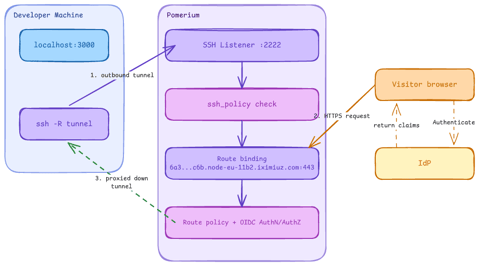
Native SSH Reverse Tunneling with Pomerium
Use Pomerium's native SSH support to publish a local service through a standard reverse SSH tunnel, with OpenID Connect (OIDC) authentication and continuous authorization on every request. Reach services behind Network Address Translation (NAT) without firewall holes or custom agents, and control both who can use the service and who can open the tunnel. Application traffic stays on infrastructure you control.
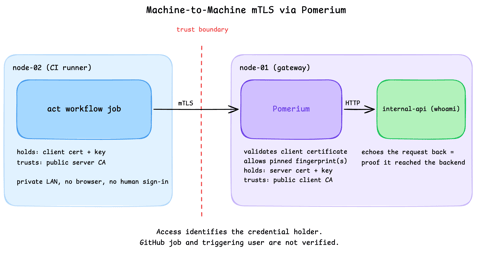
Secure Machine-to-Machine Access with mTLS and Pomerium
Run a GitHub Actions-compatible continuous integration (CI) job on a private runner and protect its internal API call with mutual TLS (mTLS) and Pomerium. Build separate server and client trust chains, authorize one machine certificate by fingerprint, then revoke, restore, and rotate its credentials through live policy changes.
Harden Access to OpenClaw with Pomerium
Put OpenClaw, a self-hosted AI assistant with shell and file access, behind a web route and an SSH route, both gated by the same identity and Pomerium's context-aware policy. OpenClaw runs in trusted-proxy mode, trusting signed identity headers instead of its own login, while Pomerium's native SSH proxy signs short-lived certificates for shell access.
OpenBao 2.6: Discovering secrets with AppRole and least-priviledge policies.
In this tutorial we will learn how to use the new scan feature in OpenBao 2.6. It enables apps to dynamically discover secrets scoped to their namespace.

Learn by doing, not just by reading or watching
Sign up for a free account to start a VM playground right on this page, track your progress, and get notified about new learning materials.