Control an MCP Server You Don't Host
Bridging a Hosted MCP Server
Every server in this course so far has been one you operate: you cloned it, ran it, and edited its code. This lesson's server is not that. GitHub runs its own hosted Model Context Protocol (MCP) server, at a public endpoint, and you will never see its process, its deployment, or a single line of its code. You only ever get to be a caller against it, exactly like any other MCP client.
That's common, not an edge case: most of the MCP servers a team ends up depending on, GitHub's and others like it, are operated by someone else. The question this lesson answers is what you can still control when you don't run the server: quite a lot, it turns out, as long as every call to it passes through a route you do control.
Why bridge instead of connecting directly
GitHub's hosted MCP server requires the same thing every authenticated GitHub API call does: an OAuth-derived bearer token. That's what makes a bridge possible here in the first place: Pomerium calls this pattern bridging specifically because it's managing an upstream OAuth relationship on the caller's behalf, the same upstream_oauth2 mechanism you configured for your own server two lessons ago, just pointed at an upstream you don't operate. A hosted server with no OAuth of its own wouldn't need bridging at all: it would be a plain fixed-upstream route, the same shape as an earlier lesson, with nothing for upstream_oauth2 to manage.
Most MCP clients, Claude.ai and ChatGPT among them, can already add a hosted MCP server directly, running that upstream OAuth dance themselves, whether an individual configures it for their own account or an org's admins configure it once for everyone in a workspace. Two edges don't move regardless of who configures it, though:
- The OAuth scope is the only lever, and it's the same for everyone. GitHub's consent screen grants a scope like
repo, and that scope is the ceiling on everything the client can do afterward. There is no scope that means "open pull requests but never merge them," or "read issues but never touch Actions." Narrowing that ceiling later means asking every user to reauthorize with a smaller scope, for every client they use. - Whatever a client supports is specific to that one client, and clients don't offer a uniform experience. Some let you toggle individual tools on and off, e.g. VS Code; some offer a per-tool allow / needs-approval / block control, e.g. Claude.ai; some only offer one risk tier for the whole connector, not individual tools, e.g. ChatGPT. Whatever any given client does or doesn't expose, restricting a tool there says nothing about any other client, and whichever restriction you want has to be configured again, client by client. None of them, whatever they do offer, support fine-grained dynamic tool authorization: each is a fixed setting for that account in that client, not a policy that can vary by caller or context.
Bridging through Pomerium moves the decision to a layer every client shares. One route, one policy, and every caller through it, regardless of which client they're using, is subject to the same rule. Pomerium's own docs describe exactly this shape: bridging to "third-party hosted MCP servers (GitHub, Linear, Notion, Google) that enforce their own OAuth," where "Pomerium handles the upstream auth flow transparently." The mcp_tool criterion you used in the previous lesson works underneath that OAuth scope, not instead of it: the upstream token can still carry the broad repo scope GitHub asked for, the same ceiling as before, but Pomerium decides, per call, which of those tools any given caller is actually allowed to invoke.
The other thing you get is an audit trail independent of the bridged MCP server's own, not a replacement for it. Pomerium's authorize log, the same one you read in the previous lesson, records every tool call that crosses this route: who called it, which tool, and whether policy let it through or blocked it. GitHub keeps its own audit log too; if you need to know exactly what changed inside a repository, that's still GitHub's record to pull. But Pomerium's log covers ground GitHub's doesn't: a call your policy denies never reaches GitHub at all, so GitHub has no record of the attempt, only Pomerium does. It exists even for a server you never operate and can't instrument yourself.
This lesson bridges GitHub's hosted server specifically because a GitHub account already threads the whole course. The same pattern, a route, upstream_oauth2, and mcp_tool policy, applies to any hosted MCP server that authenticates over OAuth: Linear, Notion, and Google are the other examples Pomerium's own docs name.
By the end of this lesson, you'll have:
- Bridged Pomerium in front of GitHub's own hosted MCP server, with no server of your own to run or edit
- Watched a caller open a pull request and, before any per-tool policy existed, merge it too: the risk this lesson opens with
- Written an
mcp_tooldeny rule that blocksmerge_pull_requestspecifically, hot-reloading with no restart - Replaced that single rule with an allow-list that denies every mutation except the read-only tools you've explicitly named
- Read the resulting audit log entries: which tool ran, for whom, and whether policy let it through or blocked it
What you should already know
- Everything from the previous lesson: the
mcp_toolpolicy criterion, deny-based per-tool rules, and Pomerium's config hot reload - Comfortable editing YAML by hand; you'll edit the gateway's policy directly, the same as last lesson
- A GitHub account with an OAuth App you can register or reuse. If you still have the previous lesson's app, you can reuse it here exactly as is: its
repoandread:userscopes already cover every tool this lesson calls, includingmerge_pull_request, so no re-consent is needed. You'll just update its callback URL to this lesson's route address.
Node.js and MCP Inspector are still preinstalled in the playground, since you'll use Inspector as the MCP client. Unlike every previous lesson, there's no server template to clone and nothing to install for one: this lesson has no MCP server of your own anywhere in it.
The setup
This lesson's playground is a single machine, docker-01, running Pomerium. There's no second machine, because there's no server of yours for a second machine to host: the only upstream this route ever talks to is GitHub's own, out on the public internet.
Four tabs, all on the same machine, one job each:
- gateway: the terminal for Pomerium's own logs and compose commands
- gateway-ide: an editor for
config.yaml, the same hand-edit pattern as the previous lesson - client: everything you run as a caller (the 401 check, reading pasted URLs)
- inspector: MCP Inspector, the MCP client you'll use to call GitHub's hosted server through the route
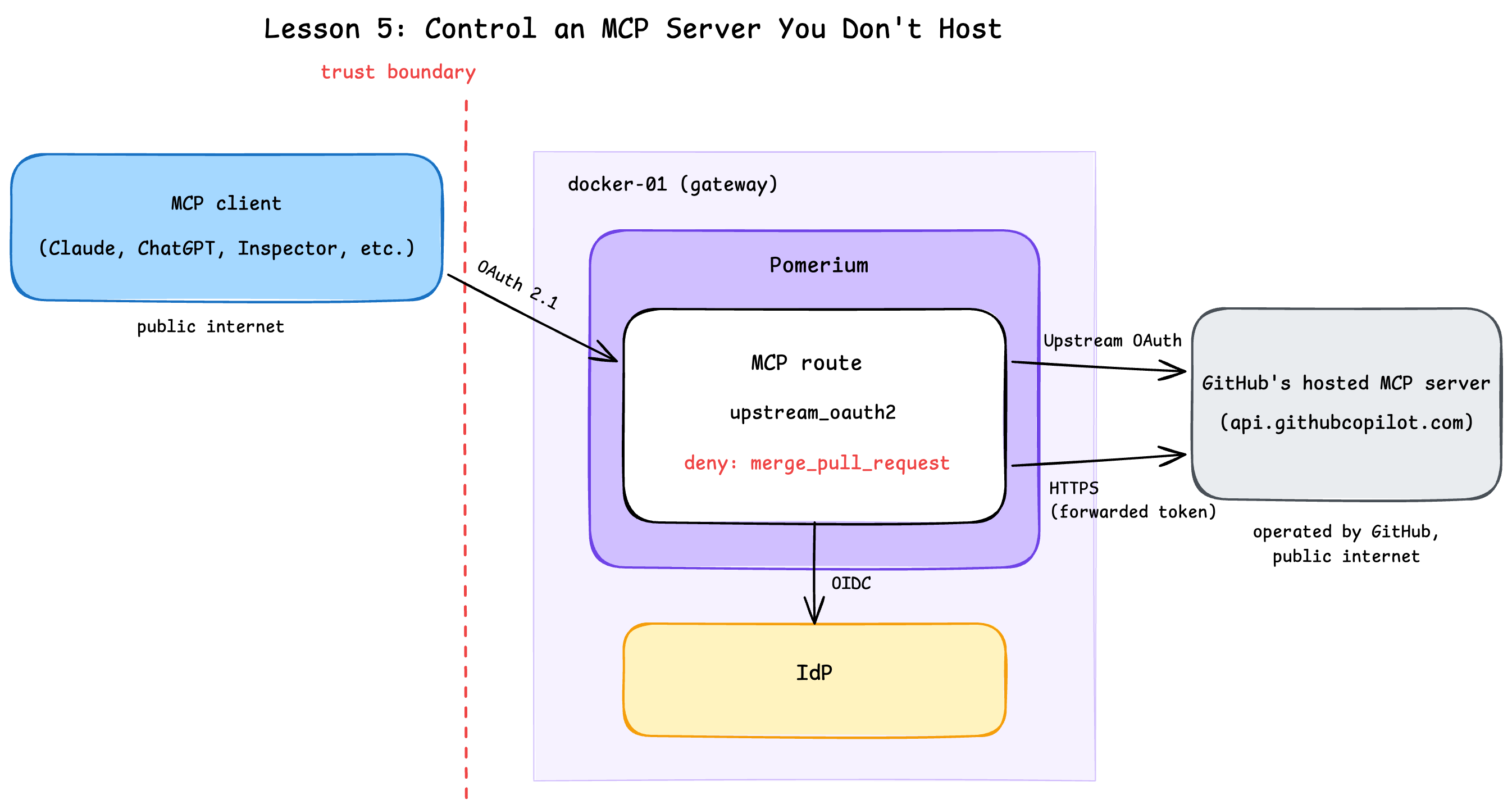
The next unit configures the route. Configuring it looks almost identical to the previous lesson's, with one field that matters more than it looks: to: no longer points at a machine on this playground's own network.
Configure the Bridging Route
The gateway machine (docker-01) already has everything generated for you in ~/pomerium-gateway. Take a look in the gateway terminal:
cat ~/pomerium-gateway/pomerium-config/config.yaml
Most of this is unchanged from the previous lesson:
idp_provider: hostedhandles downstream sign-in with Pomerium's hosted authenticate service, used here for quick setup and testing. In production, configure Pomerium to use your production identity provider.mcp.server.upstream_oauth2: the same shape as last lesson,client_id,client_secret,scopes: ["read:user", "repo"], and GitHub'sauth_url/token_url. Pomerium acquires and caches this token per user and attaches it to every proxied request as anAuthorization: Bearerheader, whether the upstream is a server you wrote or one GitHub operates.- The route's policy: one
allowblock checking one email, same as every previous lesson.mcp_toolpolicy joins it in unit 3. authorize_log_fields: already includesmcp-method,mcp-tool, andmcp-tool-parameters, so tool calls show up in the authorize log the same way they did last lesson.
Two things about this route are worth calling out:
to: https://api.githubcopilot.com. Every previous lesson'sto:pointed at a machine on this playground's own network. This one points at a real, public HTTPS endpoint that GitHub operates. There's nonode-02to resolve, no LAN hostname to teach the container: Pomerium proxies straight out to the internet, the same as it would to any other upstream.- There's no
X-MCP-Toolsetsheader here, on purpose. GitHub's hosted server has its own optional header for picking which tool categories it exposes, but it's a fixed, deploy-time switch: the same list for every caller, decided once, with no concept of who is calling. Setting it would only narrow GitHub's own fixed list; it wouldn't add anything Pomerium's own per-callermcp_toolpolicy, coming in unit 3, doesn't already do better. This route leaves GitHub's default toolsets in place and lets Pomerium's policy be the only gate that matters.
The config still contains REPLACE_WITH_... placeholders, including two for the GitHub OAuth App.
Expose the ports
First, the authenticate service URL, where downstream OAuth callbacks land:
copy the auth URLNext, the MCP route URL:
copy the MCP URLRegister or reuse a GitHub OAuth App
If you still have the OAuth App from the previous lesson, you can reuse it: open its settings on GitHub and update its Authorization callback URL to this lesson's route URL plus /.pomerium/mcp/client/oauth/callback (the exact command below prints it). Its repo scope already covers every tool this lesson calls, merge_pull_request included, so nothing else about it needs to change.
Otherwise, follow GitHub's instructions to create a new OAuth App with these values:
- Application name: anything you like (e.g.
MCP Hosted Bridge Lesson) - Homepage URL: required by GitHub. Reuse your MCP route URL from above.
- Authorization callback URL: your MCP route URL with
/.pomerium/mcp/client/oauth/callbackappended. Print the exact value, still in the gateway terminal:
ROUTE_URL=$(cat /tmp/mcp-lesson.route-address | tr -d '[:space:]' | sed 's|/$||')
echo "$ROUTE_URL/.pomerium/mcp/client/oauth/callback"
Copy the client ID and, if you registered a new app, generate and copy a client secret immediately; GitHub only shows it once. Paste them below:
If GitHub ever shows redirect_uri_mismatch later in this lesson, the callback URL registered on the app does not exactly match your route URL plus /.pomerium/mcp/client/oauth/callback, scheme included. If you reused a previous lesson's app, this is almost always a stale callback URL from that lesson's own route address.
Secure the route with your email
Same as every previous lesson:
If you're curious, cat the config again to confirm every placeholder is filled in, still in the gateway terminal:
cat ~/pomerium-gateway/pomerium-config/config.yaml
The checks below can only verify that no placeholder is left, not that each value landed in the right field. If a value ended up in the wrong spot, the placeholders are already consumed: fix it by editing ~/pomerium-gateway/pomerium-config/config.yaml directly before starting the stack. You'll be editing this file by hand again in unit 3 anyway.
Start the stack
With every placeholder filled in, bring up Pomerium, still in the gateway terminal:
cd ~/pomerium-gateway
docker compose up -d
docker compose logs -f
Wait for the startup burst of log lines to settle (a few seconds), then press Ctrl+C to stop following the logs.
If up -d fails with a name conflict from a previous attempt, run docker compose down -v first.
There is no server to start after this. The moment a caller's first tool call crosses this route, it goes straight to api.githubcopilot.com. The next unit makes that call, and the ones after it.
Open a Pull Request, Then Merge It With Nothing Stopping You
Prove the front door is still locked
Switch to the client terminal, and read the route URL you pasted in the previous unit into a variable:
URL=$(cat /tmp/mcp-lesson.route-address | tr -d '[:space:]' | sed 's|/$||')
echo $URL
Then knock without credentials:
curl -si "$URL/mcp" | head -n 5
HTTP/1.1 401 Unauthorized
strict-transport-security: max-age=31536000; includeSubDomains; preload
x-frame-options: SAMEORIGIN
x-xss-protection: 1; mode=block
access-control-allow-headers: Authorization, Content-Type, Accept, MCP-Protocol-Version, MCP-Session-Id, Last-Event-ID
Connect and see GitHub's own tool catalog
Expose MCP Inspector's two ports so your browser can reach it at a public URL, same as every previous lesson:
copy the MCP Inspector UI URLStart MCP Inspector in the MCP Inspector terminal:
~/mcp-inspector.sh
Wait for Proxy server listening on 0.0.0.0:6277 and MCP Inspector is up and running before opening the printed URL.
Click Connect. Same two consents as the previous lesson, back to back: sign in on Pomerium's hosted authenticate page, then authorize the GitHub OAuth App.
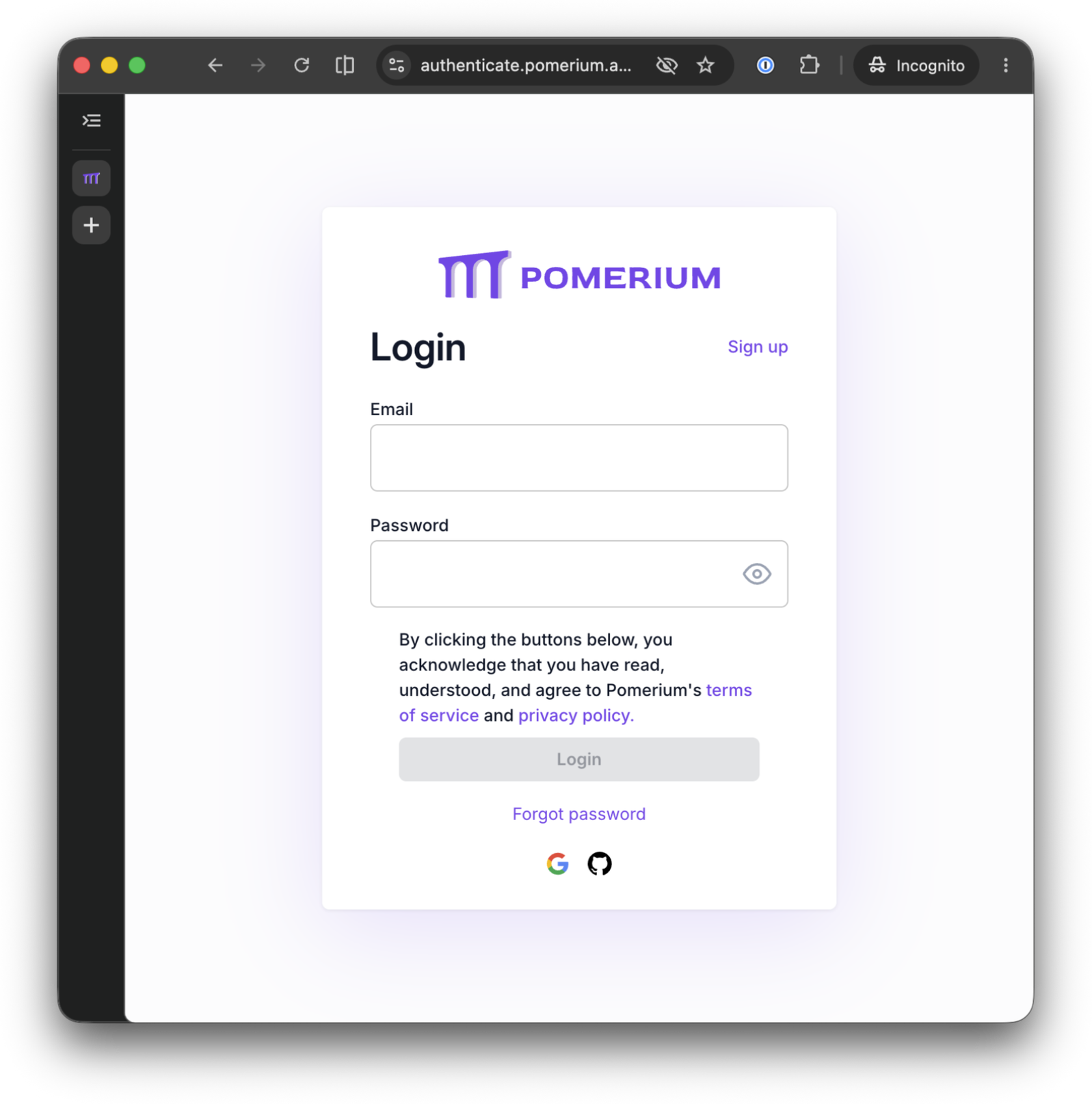
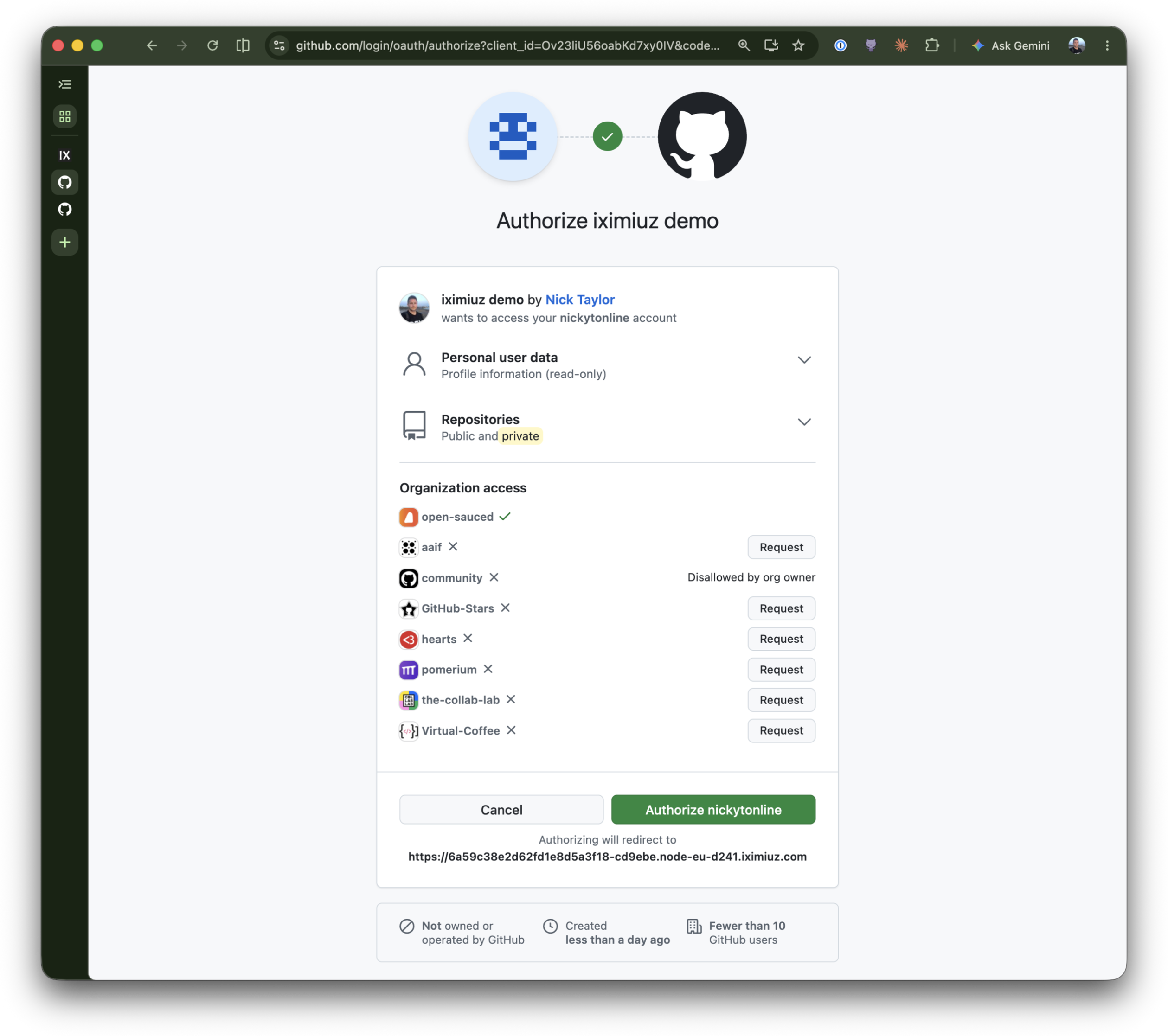
Open the Tools tab and click List Tools.
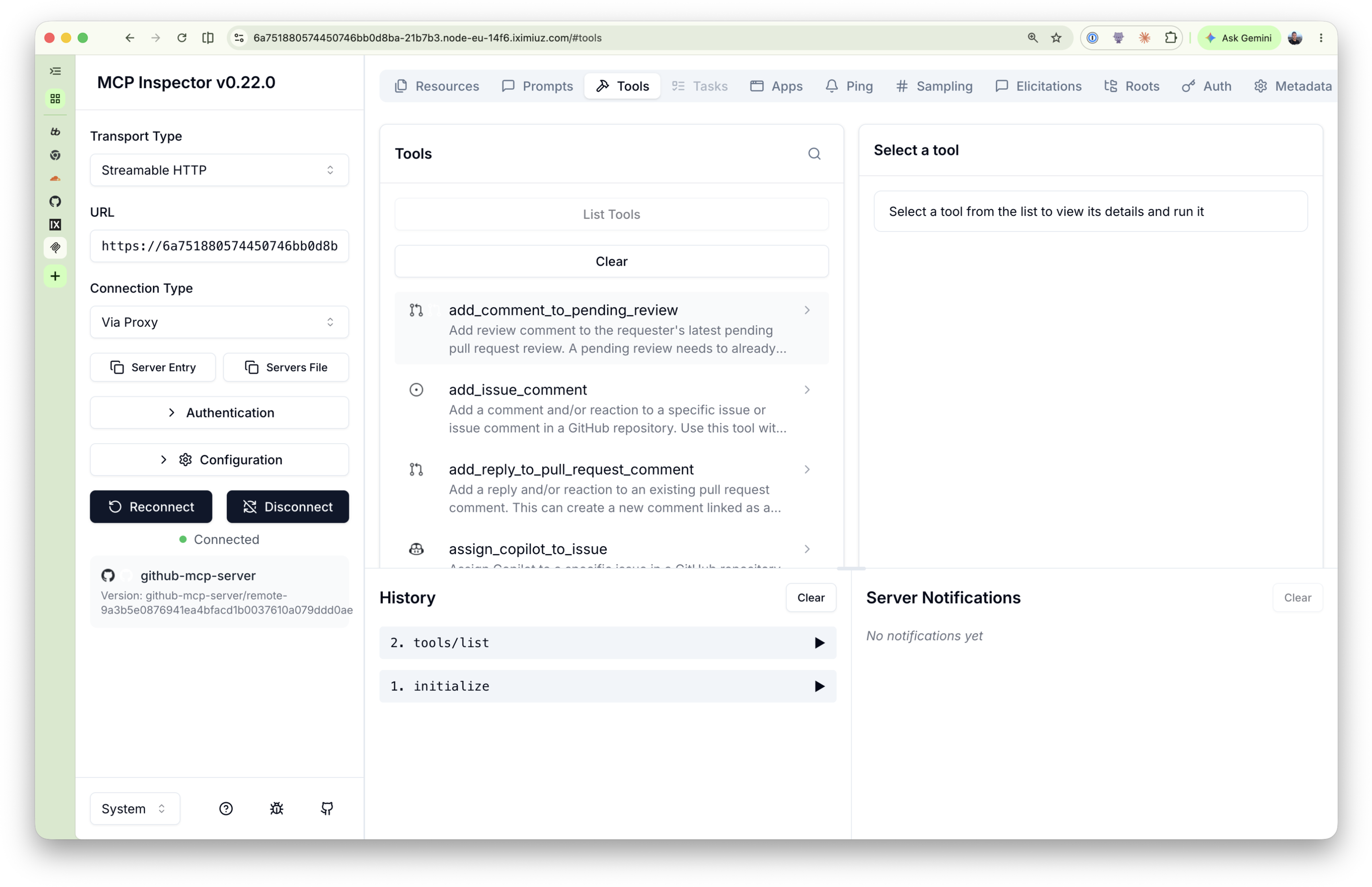
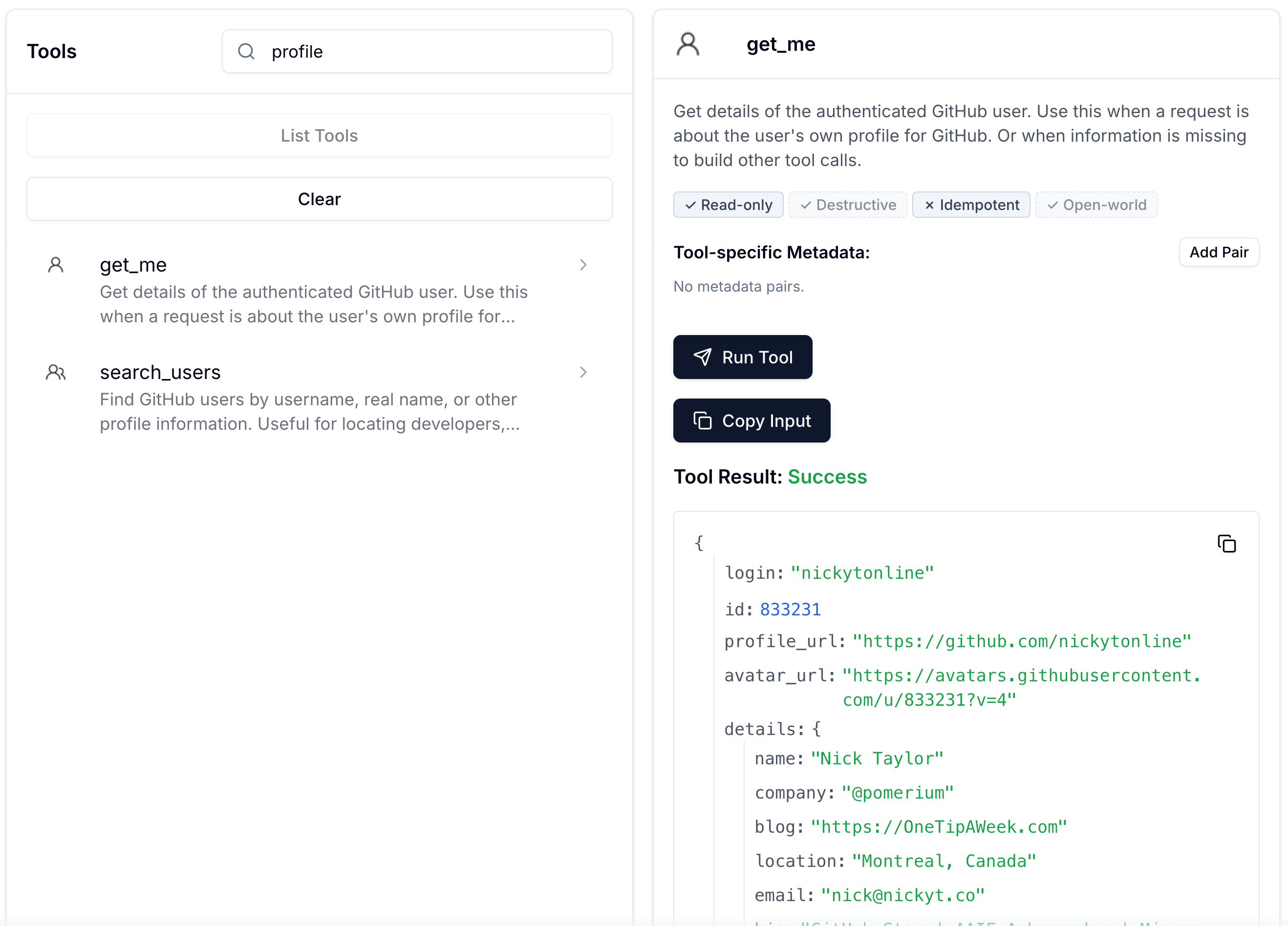
Call Get My User Profile (get_me). It takes no arguments and returns your authenticated GitHub user, including a login field. Note it; you'll use it as the owner argument in every call below.
The result comes back with your own GitHub profile:
Open a pull request
A pull request needs somewhere to live. Run these four tool calls in order, filling in the arguments shown. Use your own login from get_me as owner throughout, and pick any throwaway repository name you like (e.g. mcp-lesson-bridge).
Create Repository (create_repository):
name: your throwaway repo nameprivate:trueautoInit: check the Initialize with README box. Leave it unchecked and the repo comes back empty, with nomainbranch and nothing forcreate_branchto branch from.
Create Branch (create_branch):
branch:add-noticeowner: your loginrepo: your repo name
Create or Update File (create_or_update_file):
branch:add-noticecontent: any text, e.g.Added through GitHub's hosted MCP server, bridged through Pomerium.message:Add NOTICE.mdowner: your loginpath:NOTICE.mdrepo: your repo name
Open New Pull Request (create_pull_request):
base:mainhead:add-noticeowner: your loginrepo: your repo nametitle:Add NOTICE.md
The result includes a number. Note it; it's this pull request's identifier, and you'll need it to merge.
Merge it, with nothing stopping you
Run Merge Pull Request (merge_pull_request):
owner: your loginpullNumber: the number from the previous steprepo: your repo name
It succeeds. A real pull request, on a real repository under your account, just merged.
This is a real mutation against your real account. Feel free to delete the repository afterwards; nothing later in this lesson depends on it still existing.
That's the risk this lesson opened with, made concrete: nothing about the route's policy told opening a pull request apart from merging one. The same email that can propose a change can land it, and the same is true of any other MCP client that authenticates the same way, since the policy lives on the route, not in any one client's own settings.
Write a policy that blocks one tool
Open the gateway-ide terminal and edit ~/pomerium-gateway/pomerium-config/config.yaml. Add a second block to the route's policy list, alongside the existing email allow:
policy:
  - allow:
      and:
        - email:
            is: you@example.com
  - deny:
      and:
        - mcp_tool:
            is: merge_pull_request
The - deny: line must line up exactly with the - allow: line above it: both are items in the same policy: list. YAML is indentation-sensitive, so if - deny: ends up nested under allow instead of alongside it, or at any other indent level, the file either fails to parse or Pomerium loads a different policy structure than the one shown here, and the tool call is never actually denied.
Two independent blocks, not one combined rule, same as the previous lesson: Pomerium computes an overall allow and an overall deny across every policy block on the route, and a deny anywhere wins, so this new block only ever subtracts from what the first block grants. It never needs to repeat the email check, and it says nothing about create_repository, create_branch, create_or_update_file, or create_pull_request: only merging is denied.
Save the file. Do not restart anything: Pomerium watches its config file and reloads on save. Watch the gateway terminal (rerun docker compose logs -f pomerium if you already stopped following it):
pomerium-1  | {"level":"info","paths":["/pomerium/config.yaml"],"time":"2026-07-23T18:51:17Z","message":"fileutil/watcher: file change event"}
pomerium-1  | {"level":"info","time":"2026-07-23T18:51:17Z","message":"config: file updated, reconfiguring..."}
pomerium-1  | {"level":"info","config-change-id":"5ff49bac-1db8-4f50-a908-395fe08f77f5","time":"2026-07-23T18:51:17Z","message":"config: loaded configuration"}
These two config:-prefixed lines only ever appear as a result of a real file change; neither is logged when the container first starts. If you see them, Pomerium has already reloaded with your new policy, no docker compose restart required.
Open a second pull request, then watch the merge get blocked
create_pull_request is still wide open; only merge_pull_request is denied now. Repeat the branch, file, and pull-request calls against the same repository to prove it:
Create Branch (create_branch): branch: add-notice-2, owner (your login), repo (your repo name)
Create or Update File (create_or_update_file): branch: add-notice-2, any different content, message: Update NOTICE.md, same owner/repo, path: NOTICE.md
Open New Pull Request (create_pull_request): base: main, head: add-notice-2, same owner/repo, title: Update NOTICE.md
It opens exactly as cleanly as the first one did. Note this pull request's number too.
Now run Merge Pull Request (merge_pull_request) again, with this new pullNumber. It fails with a clean tool error, not a dropped connection:
TODO(nick): screenshot placeholder. MCP Inspector's Tool Result: Error after calling merge_pull_request with the mcp_tool deny rule in place, showing the "MCP error -32602: access denied, please see the authorization log for the request 
Unlike a GitHub API error (a bad pullNumber, a missing scope), this one comes from Pomerium itself: the request never reached GitHub at all. The error even hands you the exact request-id to look up if you want to see the policy decision that produced it, in the gateway log you're about to check.
Check the gateway's view of what just happened, on the gateway terminal (press Ctrl+C first if you still have the logs running):
docker compose -f ~/pomerium-gateway/docker-compose.yml logs pomerium --no-log-prefix \
  | grep '"mcp-tool":"merge_pull_request"' | tail -n 1 | jq
Your output will look similar to this (illustrative; capture your own during a live run):
{
  "level": "info",
  "server-name": "all",
  "service": "authorize",
  "request-id": "b3a1f9c2-7e44-4b0d-9a1c-8f2d6e5a3b71",
  "path": "/mcp",
  "host": "XXXX.node-eu-XXXX.iximiuz.com",
  "email": "you@example.com",
  "mcp-method": "tools/call",
  "mcp-tool": "merge_pull_request",
  "mcp-tool-parameters": {
    "owner": "you",
    "repo": "mcp-lesson-bridge",
    "pullNumber": 2
  },
  "allow": true,
  "allow-why-true": ["email-ok"],
  "deny": true,
  "deny-why-true": ["mcp-tool-match"],
  "time": "2026-07-23T13:36:29Z",
  "message": "authorize check"
}
Email allowed, tool denied: the email block still says allow: true, exactly as it did before this lesson, because it never learned anything about tools and does not need to. It's the mcp_tool block that decides the outcome here. Call Create Repository, Create Branch, Create or Update File, and Open New Pull Request again if you'd like to confirm they're all still unaffected; the new block only ever names merge_pull_request.
Pomerium's own guidance is to keep mcp_tool under deny, not allow: identity checks (email, domain, groups) belong in allow, tool restrictions in deny. Every policy in this lesson follows that split.
You've now seen an mcp_tool deny rule block one specific tool by name, on a server you don't operate, hot-reload with no restart, and leave every other tool untouched. The next unit turns that one rule into the shape you'd actually want in production: an allow-list.
From One Denied Tool to a Real Allow-List
is: merge_pull_request denies exactly that name and nothing else. GitHub's hosted server already exposes create_repository, create_branch, create_or_update_file, and create_pull_request, none of which that rule touches, and it can add more mutating tools to its own default toolsets at any time, entirely outside your control. A rule written to block today's one risky tool says nothing about tomorrow's.
The fix is the same shape you'd reach for with any allowlist: instead of naming what to block, name what to allow, and deny everything else. mcp_tool supports this directly with not_in: list the tools you've reviewed and trust, and deny any tool call whose name isn't on that list.
Replace the deny rule
Back in the gateway-ide terminal, edit ~/pomerium-gateway/pomerium-config/config.yaml once more. Replace the second policy block:
policy:
  - allow:
      and:
        - email:
            is: you@example.com
  - deny:
      and:
        - mcp_tool:
            not_in:
              - get_me
Only the tool named here is allowed to run. Everything else, create_repository, create_branch, create_or_update_file, create_pull_request, merge_pull_request, and any tool GitHub's server adds later that isn't on this list, is denied by default. Save the file; the same hot reload from the previous unit picks it up, no restart.
Prove it denies a tool that used to work
Back in MCP Inspector, run Create Branch (create_branch) again: same owner and repo, any new branch name (e.g. add-notice-3). This tool succeeded twice earlier in this lesson. It's not on the allow-list now, so it's denied, the same clean tool error as merge_pull_request got in the previous unit.
Prove the read-only tools still work
Run Get My User Profile (get_me) once more. It's on the allow-list, so nothing changed for it:
Check the gateway's view of both, on the gateway terminal:
docker compose -f ~/pomerium-gateway/docker-compose.yml logs pomerium --no-log-prefix \
  | grep -E '"mcp-tool":"(create_branch|get_me)"' | tail -n 5 | jq
Sample values below are illustrative; capture your own during a live run. The pattern to look for is the same one from the previous unit: create_branch now carries "deny":true, while get_me still carries "deny":false, both decided by the same mcp_tool block, on the same tool-name field, just on opposite sides of the not_in list.
Before you take this to production
Everything from the previous lesson's production notes still applies (OAuth App secret hygiene, minimal scopes, deciding whether mcp-tool-parameters belongs in authorize_log_fields for a tool whose arguments carry something sensitive). Two things are specific to bridging a server you don't operate:
X-MCP-Toolsetsis GitHub's own convenience switch, not a security boundary, which is why this route never sets it. Even configured, it only decides which tool categories a route requests from GitHub's server; it does nothing to stop a caller who reachesapi.githubcopilot.comsome other way, with their own token, from seeing whatever their account's scope actually allows. If you use it anyway, treat it as tidiness for your own route's tool list, not access control: the only enforcement this lesson's security story depends on is the route itself (every caller must come through it) and themcp_toolpolicy on it.- Pomerium's audit log covers what crossed this route, not what happened inside GitHub. You now have a record of every tool call, who made it, and whether policy allowed it, for a server you never instrumented yourself. That's real and independent, but it isn't a substitute for GitHub's own audit log: if you need to know exactly what changed inside a repository, or want to see activity that reached GitHub some other way entirely, that visibility still belongs to GitHub, not to this route.
What you built
- A route bridging Pomerium to GitHub's own hosted MCP server, with no server of your own anywhere in the picture
- A caller that opened a pull request and, before any per-tool policy existed, merged it too: the risk made concrete
- An
mcp_tooldeny rule that blocked one tool by name, hot-reloaded with no restart - An allow-list that replaced it, denying every mutation except the tools you explicitly named as safe, including ones GitHub might add later
- An audit trail naming the exact policy reason behind every allow and every deny, for a server you don't operate and can't otherwise instrument
- Optional: this route works from a real MCP client too (ChatGPT, Claude, VS Code, Goose), no extra config
If you want to try it, grab your route's MCP URL in the client terminal:
ROUTE_URL=$(cat /tmp/mcp-lesson.route-address | tr -d '[:space:]' | sed 's|/$||')
echo "$ROUTE_URL/mcp"
Every lesson in this course's governance arc has answered the same question at a different layer: who can reach this route at all, and now, given that they can, which of its tools are they actually allowed to call. This lesson showed that the second question doesn't need you to own the server either. The next lesson turns to a different half of the picture: building your own MCP app, from a local dev loop through to a production route, the same security model applied to something you write instead of something you bridge.
- Previous lesson
- Control MCP Tool Access with Fine-Grained Policies
- Next lesson
- Build and Test an MCP App with Pomerium