Configure Upstream OAuth for an MCP Server
One OAuth, Two Flows
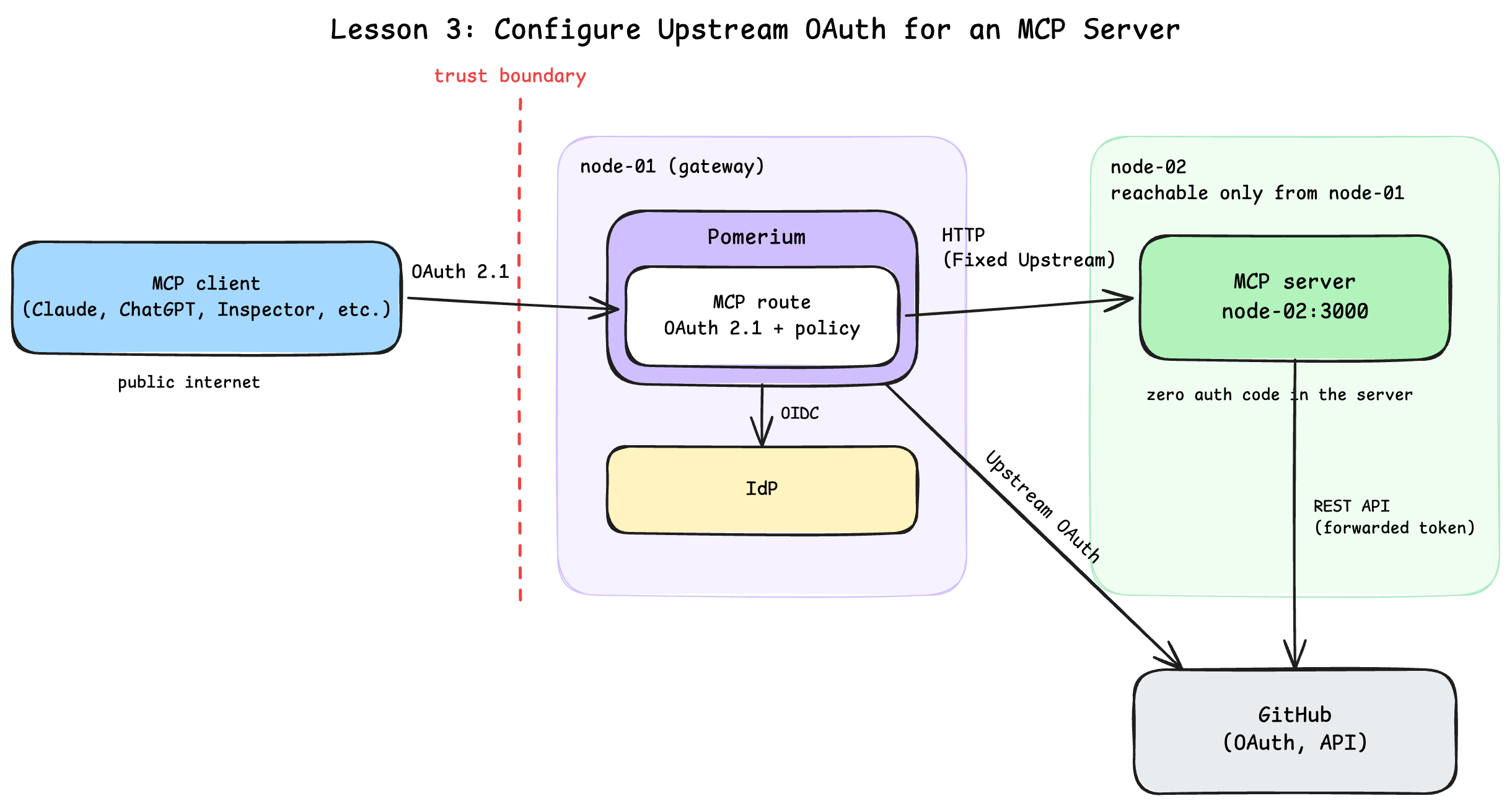
Every lesson so far has used one OAuth flow: you sign in, Pomerium checks your identity against a policy, and the request either reaches your server or it does not. That is downstream OAuth 2.1, between the Model Context Protocol (MCP) client (you, through MCP Inspector) and Pomerium. It answers "who is calling?"
This lesson adds a second, independent flow. Your Model Context Protocol (MCP) server ships with two tools that call the real GitHub API: whoami, which returns your GitHub username, and list_repos, which returns your ten most recently updated repositories. To call GitHub's API, something needs a GitHub access token scoped to you specifically, and your server should not be the thing that goes and gets one. That is upstream OAuth: Pomerium, not your server, runs a second OAuth exchange with GitHub, then acquires and caches a per-user access token and attaches it as an Authorization: Bearer header on every request it proxies to your server. Upstream OAuth is for exactly this case: the API requires the user themselves to authorize access, so Pomerium runs that authorization on their behalf and hands your server a token scoped to only that person and only the permissions they granted. Not every third-party API gives you that option. Plenty only ever issue a single static API key or service-account bearer token, with no per-user authorization step to delegate in the first place; against those, there's no upstream OAuth to configure, since the third party never offered one, and the credential itself is just something the server (or Pomerium, via a static header policy) holds directly, shared across every caller. Upstream OAuth is strictly better than a shared static credential when the API supports it: GitHub does, which is why it's this lesson's example. That token stays cached at the gateway and travels only as far as your server; the MCP client actually calling the tool (MCP Inspector, or whatever else connects to this route) never sees it and has no way to get at it. The tool code never touches an OAuth library; it just reads a header, and you'll read that code yourself in a moment to see exactly how little of it there is.
Two flows, two separate consent screens, one gateway running both:
- Downstream: you sign in to Pomerium (already familiar from the last two lessons).
- Upstream: Pomerium signs in to GitHub, on your behalf, the moment you connect to a route configured for it.
This lesson is about configuring that second flow, not about writing an MCP server, so the two GitHub tools are already part of the template you're given; nothing here has you typing TypeScript.
By the end of this lesson, you'll have:
- An MCP route configured with upstream OAuth against GitHub, so its tools can call the GitHub API
- Seen exactly how little tool code it takes to call
api.github.comwith a token the server never acquired or stored - A clear before-and-after view of downstream sign-in versus upstream, delegated API access, each with its own consent screen
- A look at Pomerium's per-user connection management: which upstream services you're connected to, and how to disconnect one
What you should already know
- Comfortable running commands in a terminal and reading TypeScript (you won't need to write any)
- What an MCP server is: a process exposing tools that AI agents can call
- Basic familiarity with OAuth or OIDC concepts, including the idea of a client requesting a token with a specific scope
- An account you can sign in with on Pomerium's hosted authenticate service (GitHub, Google, or an email you register a password for) for the downstream flow
- A GitHub account, separately, no matter which of the above you signed in with. This lesson's tools call the GitHub API on your behalf, so you'll register a small GitHub OAuth App and authorize it against your own account.
Everything else (Node.js, the MCP server template, Pomerium) is preinstalled in the playground; there is nothing to install locally. This lesson builds on the previous one's shape (an MCP route with a fixed upstream, no tunnel) but does not require you to have completed it.
The setup
The playground has two machines, the same shape as the previous lesson:
- node-02 (the server): runs the MCP server, reachable directly from the gateway over the playground's network. Its two terminal tabs are named for the job each holds: server for the MCP server and its logs, and client for everything you run as a caller. The IDE tab lets you look at files on this machine too, including the two GitHub tools you'll read through in a moment.
- node-01 (the gateway): runs Pomerium, fully preconfigured; its terminal is the gateway tab. This lesson uses Pomerium's hosted authenticate service for the downstream sign-in. In production, configure Pomerium to use your production identity provider.
Start the server
The MCP server is the same mcp-typescript-template from the previous lesson, already cloned to ~/mcp-server on node-02 with dependencies installed, plus two extra tools for this lesson: whoami and list_repos.
In the server terminal on node-02, start the MCP server in dev mode. Piping through tee also saves everything to a log file, so a later unit's checks can confirm what the log shows without changing what you see here:
cd ~/mcp-server
npm run dev | tee /tmp/mcp-server.log
You should see a log line ending with MCP TypeScript Template Server running on port 3000.
Switch to the client terminal and confirm the MCP endpoint answers locally. The server terminal stays dedicated to the logs; the client terminal is where you act as a caller, and this curl is its first job.
curl -s http://localhost:3000/health | jq
The command should output a simple health status:
{
  "status": "ok"
}
Read the GitHub tools
Open the IDE and inspect ~/mcp-server/src/tools.ts. Do not copy the following code. It is already in the file. The MCP server has two tools that call the GitHub API, whoami and list_repos, registered in registerTools() alongside echo:
server.registerTool(
  "whoami",
  {
    title: "Who Am I",
    description: "Return the authenticated GitHub user's username",
    // login is nullable and error is optional so the same schema covers
    // both the success and the failure shape createErrorResult returns;
    // MCP clients validate structuredContent against this schema even
    // when a result is flagged isError, so the two shapes must agree.
    outputSchema: z.object({
      login: z.string().nullable().describe("The GitHub username, or null on failure"),
      error: z.string().optional().describe("Error message, present only on failure"),
    }),
    annotations: {
      readOnlyHint: true,
      idempotentHint: true,
      openWorldHint: true,
    },
  },
  (ctx) => whoami(ctx),
);

server.registerTool(
  "list_repos",
  {
    title: "List Repos",
    description: "List the authenticated GitHub user's 10 most recently updated repositories",
    outputSchema: z.object({
      repos: z.array(z.string()).nullable().describe("Full names of up to 10 repositories, or null on failure"),
      error: z.string().optional().describe("Error message, present only on failure"),
    }),
    annotations: {
      readOnlyHint: true,
      idempotentHint: true,
      openWorldHint: true,
    },
  },
  (ctx) => listRepos(ctx),
);
Here are the handler functions:
/**
 * Pomerium will attach the upstream GitHub token to every proxied request as
 * a standard Authorization: Bearer header, once the route in the next unit
 * is configured. This is the only place either tool touches that token:
 * read it off the incoming request, forward it. No OAuth client, no refresh
 * logic, no token storage in this file at all. The presence log below never
 * logs the token value itself, only whether one arrived and how long it is.
 */
function bearerToken(ctx: ServerContext): string | undefined {
  const header = ctx.http?.req?.headers.get("authorization");
  const token = header?.startsWith("Bearer ") ? header.slice("Bearer ".length) : undefined;
  if (token) {
    logger.info({ tokenLength: token.length }, "Bearer token from upstream OAuth present");
  } else {
    logger.warn("No bearer token from upstream OAuth on this request");
  }
  return token;
}

async function whoami(ctx: ServerContext): Promise<CallToolResult> {
  const token = bearerToken(ctx);
  if (!token) {
    return createErrorResult({ login: null, error: "No upstream GitHub token on this request" });
  }
  const res = await fetch("https://api.github.com/user", {
    headers: {
      Authorization: `Bearer ${token}`,
      Accept: "application/vnd.github+json",
      "User-Agent": "mcp-typescript-template",
    },
  });
  if (!res.ok) {
    const body = await res.text();
    return createErrorResult({ login: null, error: `GitHub API returned ${res.status}: ${body.slice(0, 300)}` });
  }
  const user = (await res.json()) as { login: string };
  logger.info({ toolName: "whoami" }, "Tool executed");
  return createTextResult({ login: user.login });
}

async function listRepos(ctx: ServerContext): Promise<CallToolResult> {
  const token = bearerToken(ctx);
  if (!token) {
    return createErrorResult({ repos: null, error: "No upstream GitHub token on this request" });
  }
  const res = await fetch("https://api.github.com/user/repos?per_page=10&sort=updated", {
    headers: {
      Authorization: `Bearer ${token}`,
      Accept: "application/vnd.github+json",
      "User-Agent": "mcp-typescript-template",
    },
  });
  if (!res.ok) {
    const body = await res.text();
    return createErrorResult({ repos: null, error: `GitHub API returned ${res.status}: ${body.slice(0, 300)}` });
  }
  const repos = (await res.json()) as Array<{ full_name: string }>;
  logger.info({ toolName: "list_repos" }, "Tool executed");
  return createTextResult({ repos: repos.map((repo) => repo.full_name) });
}
per_page=10 on the GitHub API call is what caps list_repos at ten results, sort=updated puts the most recently active ones first. bearerToken() also logs whether a token showed up at all, at the point Pomerium's contribution to the whole flow ends and plain HTTP takes over: worth remembering once you reach the server terminal later in this lesson.
That's the entire GitHub-specific surface of this server: two tool registrations, one shared helper reading a header, two fetch calls. Nothing here imports an OAuth library, stores a token, or knows how to refresh one. verify_server_running above already confirmed both tools are live.
There is no way to call either tool yet: Pomerium is not even running, and nothing has told it about GitHub. Both would fail with "No upstream GitHub token on this request" if they could be called right now, since there would be no token to attach. Making that token show up is the whole job of the next unit.
Configure Upstream OAuth on the Route
The route itself is familiar from the previous lesson: from, to, a policy, and an mcp: server: {} block that turns on OAuth 2.1 for connecting clients. What is new here lives one level deeper, inside that block: an upstream_oauth2 section that tells Pomerium about a second OAuth client, one it uses on your behalf against GitHub, not against a connecting MCP client.
You still have to register a GitHub OAuth App below; that part is unavoidable, GitHub requires it of anyone who wants a token from them. But wiring it into Pomerium is nothing more than five lines of YAML, client_id, client_secret, scopes, and two endpoint URLs. No OAuth library, no callback route, no token cache to write, anywhere in your own stack. Pomerium is the OAuth client here, not your server.
The gateway machine (node-01) already has everything generated for you in ~/pomerium-gateway. Take a look in the gateway terminal:
cat ~/pomerium-gateway/pomerium-config/config.yaml
The parts that matter:
idp_provider: hostedstill handles downstream sign-in, exactly as in the previous lesson. Nothing about it changes here.mcp.server.upstream_oauth2:client_id,client_secret,scopes, and anendpointwith GitHub'sauth_urlandtoken_url. This is a full OAuth 2.0 client configuration, separate from the downstream one, that Pomerium uses to acquire a token from GitHub for whichever user is calling the route.scopes: ["read:user", "repo"]:read:useris whatwhoamineeds;repois whatlist_reposneeds to see your repositories. Pomerium requests exactly these scopes when it runs the upstream flow, nothing broader.- The route's policy is unchanged from the previous lesson: one email, checked at the gateway, controlling who may call the route at all. It says nothing about GitHub; GitHub only enters the picture once a request is already authenticated and authorized.
authorize_log_fields: already includesmcp-method,mcp-tool, andmcp-tool-parameters, alongsiderequest-id,path,host, andemail. That is what puts the tool name and caller in every authorize log entry you will read in unit 3,whoamiandlist_reposincluded.
The config still contains REPLACE_WITH_... placeholders, including two new ones for a GitHub OAuth App you have not created yet.
Expose the ports
First, the authenticate service URL, where downstream OAuth callbacks land:
copy the auth URLNext, the MCP route URL, the address MCP clients (and, in a moment, the GitHub OAuth App you're about to create) will use:
copy the MCP URLCreate a GitHub OAuth App
This app is for the route's upstream flow, not for signing in. Follow GitHub's instructions to create a new OAuth App. Use these values:
- Application name: anything you like (e.g.
MCP Upstream OAuth Lesson) - Homepage URL: required by GitHub. Reuse your MCP route URL from above.
- Authorization callback URL: your MCP route URL with
/.pomerium/mcp/client/oauth/callbackappended. This path is Pomerium's, not GitHub's; it is where Pomerium receives the upstream authorization code, separate from the/oauth2/callbacka downstream sign-in would use on the auth URL. Print the exact value to copy, still in the gateway terminal:
ROUTE_URL=$(cat /tmp/mcp-lesson.route-address | tr -d '[:space:]' | sed 's|/$||')
echo "$ROUTE_URL/.pomerium/mcp/client/oauth/callback"
After registering the app, generate a client secret. Copy the client ID and client secret immediately; GitHub only shows the client secret once. Paste them below to inject them into the route's upstream_oauth2 block:
If GitHub ever shows redirect_uri_mismatch later in this lesson, the callback URL registered on the app does not exactly match your route URL plus /.pomerium/mcp/client/oauth/callback, scheme included. Fix it in the app's settings on GitHub, not in Pomerium's config.
Reprint the exact value to compare against the app's settings, still in the gateway terminal:
cat /tmp/mcp-lesson.route-address | tr -d '[:space:]' \
  | sed 's|/$||;s|$|/.pomerium/mcp/client/oauth/callback|'
echo
Secure the route with your email
Same as the previous lesson: the route's policy checks this email against whoever signs in downstream. Use the email of the account you'll sign in with on the hosted authenticate service:
If you're curious, cat the config again to see all the substitutions in place, still in the gateway terminal. Every REPLACE_WITH_... placeholder, including the two GitHub ones, is now a real value:
cat ~/pomerium-gateway/pomerium-config/config.yaml
The checks below can only verify that no placeholder is left, not that each value landed in the right field. If the client ID and secret got swapped, or either GitHub value ended up in the wrong route field, the placeholders are already consumed: fix it by editing ~/pomerium-gateway/pomerium-config/config.yaml directly before starting the stack.
Start the stack
With every placeholder filled in, bring up Pomerium, still in the gateway terminal:
cd ~/pomerium-gateway
docker compose up -d
docker compose logs -f
Wait for the startup burst of log lines to settle (a few seconds), then press Ctrl+C to stop following the logs.
If up -d fails with a name conflict from a previous attempt, run docker compose down -v first.
The gateway now knows about two separate OAuth clients: the hosted authenticate service for sign-in, and your GitHub app for upstream access. Neither has actually run yet. Next, you'll trigger both, one at a time, and call the tools that make the second one worth having.
Connect, Consent Twice, and Call GitHub
Prove the front door is still locked
Switch to the client terminal (the one you curled localhost from), and read the route URL you pasted in the previous unit into a variable:
URL=$(cat /tmp/mcp-lesson.route-address | tr -d '[:space:]' | sed 's|/$||')
echo $URL
The echo should print the route URL, https:// and all. If it prints nothing, the MCP URL input in the previous unit was never completed; go back and paste the URL there first.
Then knock without credentials:
curl -si "$URL/mcp" | head -n 5
HTTP/1.1 401 Unauthorized
strict-transport-security: max-age=31536000; includeSubDomains; preload
x-frame-options: SAMEORIGIN
x-xss-protection: 1; mode=block
access-control-allow-headers: Authorization, Content-Type, Accept, MCP-Protocol-Version, MCP-Session-Id, Last-Event-ID
A 401, same as before. Upstream OAuth does not change how unauthenticated requests are treated; it only ever runs after the downstream check passes.
Connect MCP Inspector and complete both consents
Expose MCP Inspector's two ports, same as the previous lesson:
copy the MCP Inspector UI URLStart MCP Inspector in the MCP Inspector terminal:
~/mcp-inspector.sh
Wait for Proxy server listening on 0.0.0.0:6277 and MCP Inspector is up and running before opening the printed URL, in a regular browser tab.
In MCP Inspector, confirm the transport and URL are prefilled, then click Connect. Watch closely here: this route has an upstream OAuth client configured, so connecting runs two consent screens back to back, not one.
- First, the downstream sign-in, exactly like the previous lesson: Pomerium's hosted authenticate page.
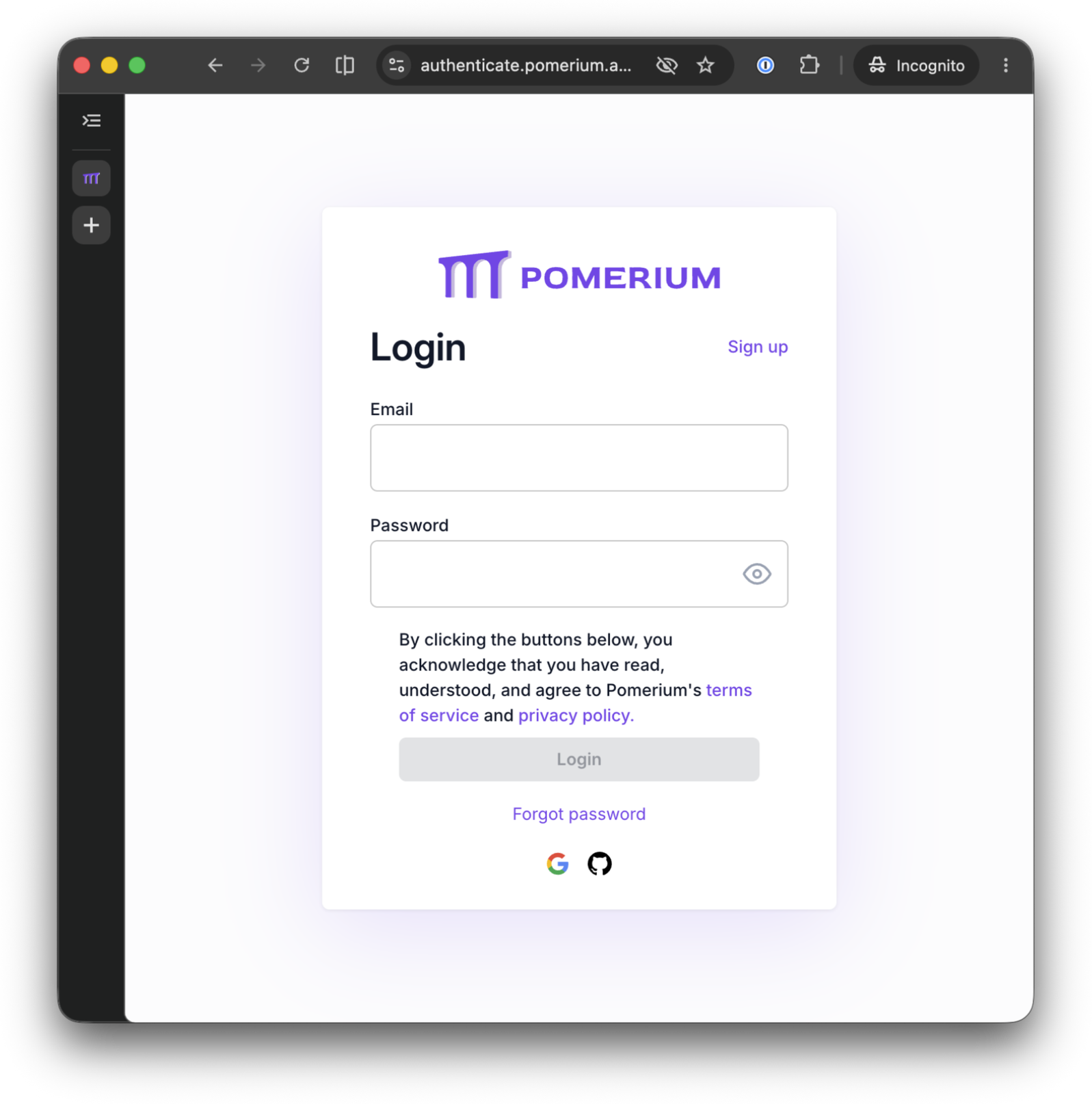
Sign in as the account whose email you entered in the previous unit.
- Immediately after, without you clicking anything else, GitHub's own authorization screen appears. This is the upstream flow: Pomerium is the one asking GitHub for a token now, using the OAuth App you registered, with exactly the two scopes the route declared.
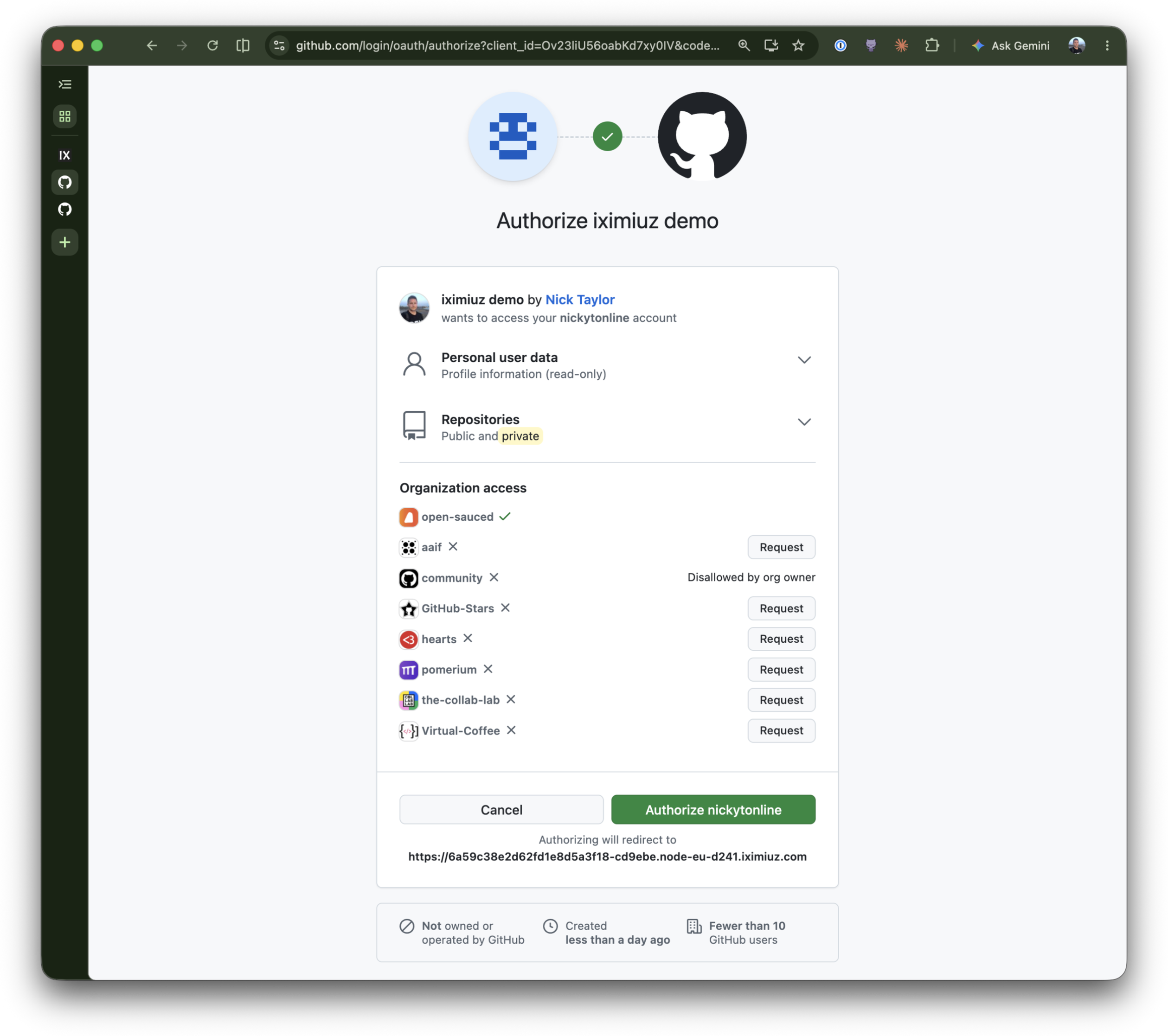
Click Authorize. MCP Inspector reports connected.
If you land back on the iximiuz sign-in page instead of GitHub's authorize screen, the MCP route URL you registered as the callback in the previous unit does not exactly match this session's URL (trailing slash, wrong port, or the auth/route URLs got swapped). Re-check the GitHub OAuth App's Authorization callback URL setting.
- In the Tools tab, click List Tools. All three tools appear:
Echo,Whoami, andList Repos, the last two the ones you read through in the IDE in the previous unit. Call Echo with any message to confirm the whole chain works end to end, same as the previous lesson.
Call the GitHub tools
Still connected from the previous step, run Whoami. Before looking at the result, switch to the server terminal. A line like this should have just appeared:
[05:32:23.377] INFO: Bearer token from upstream OAuth present
    service: "mcp-typescript-template"
    version: "1.0.0"
    environment: "development"
    tokenLength: 40
That line, logged by bearerToken() with pino (the same logger every other tool in the MCP server uses), is your proof that the whole upstream OAuth mechanism worked: Pomerium ran the GitHub consent, acquired a token, and attached it to this exact request, all before your tool code ever ran. Everything after this point, whether the call to api.github.com itself succeeds, is a separate concern between your server and GitHub.
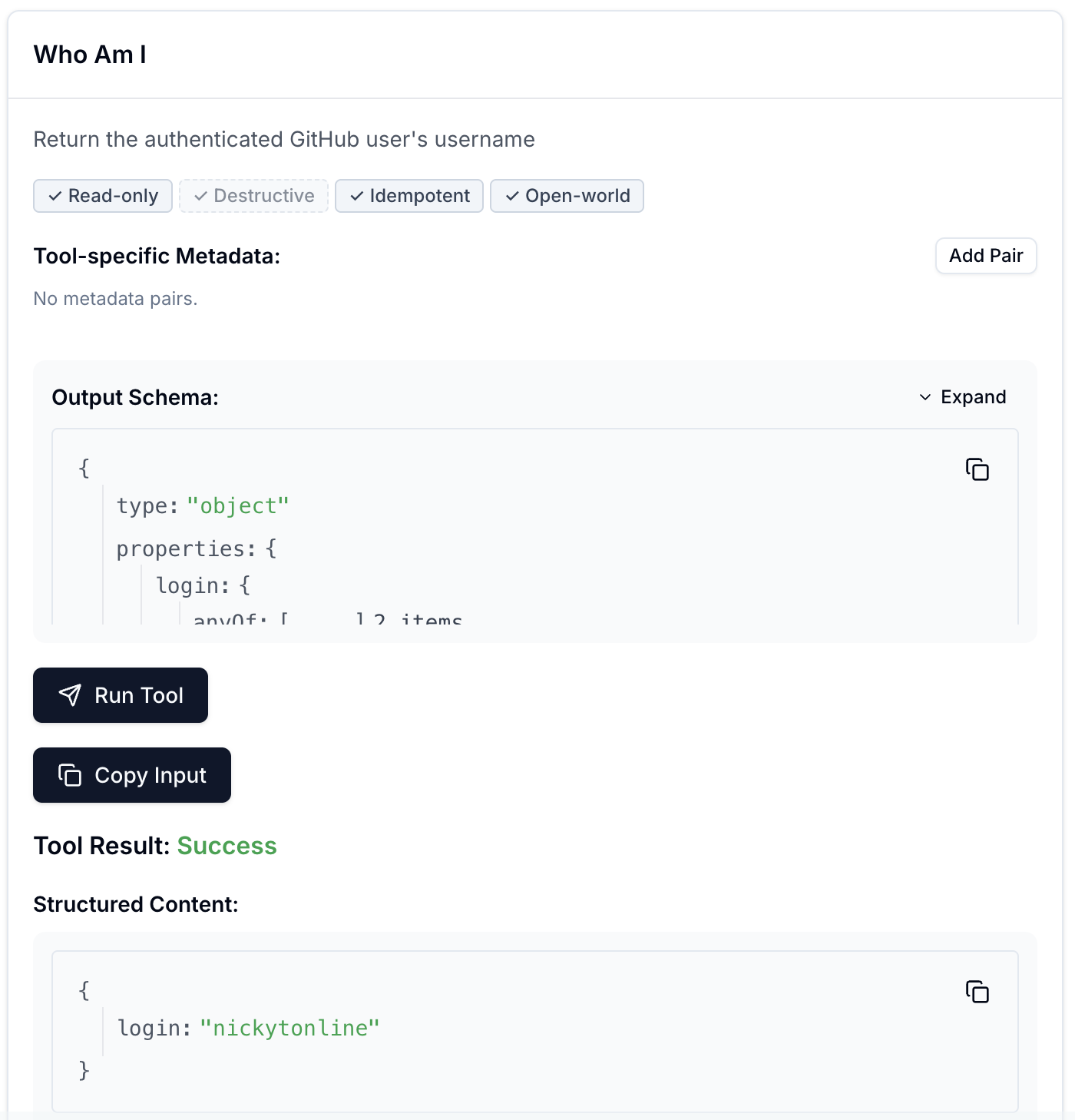
Back in MCP Inspector, the result comes back with your actual GitHub username:
Run List Repos. The result is an array of up to ten repository full names, most recently updated first:
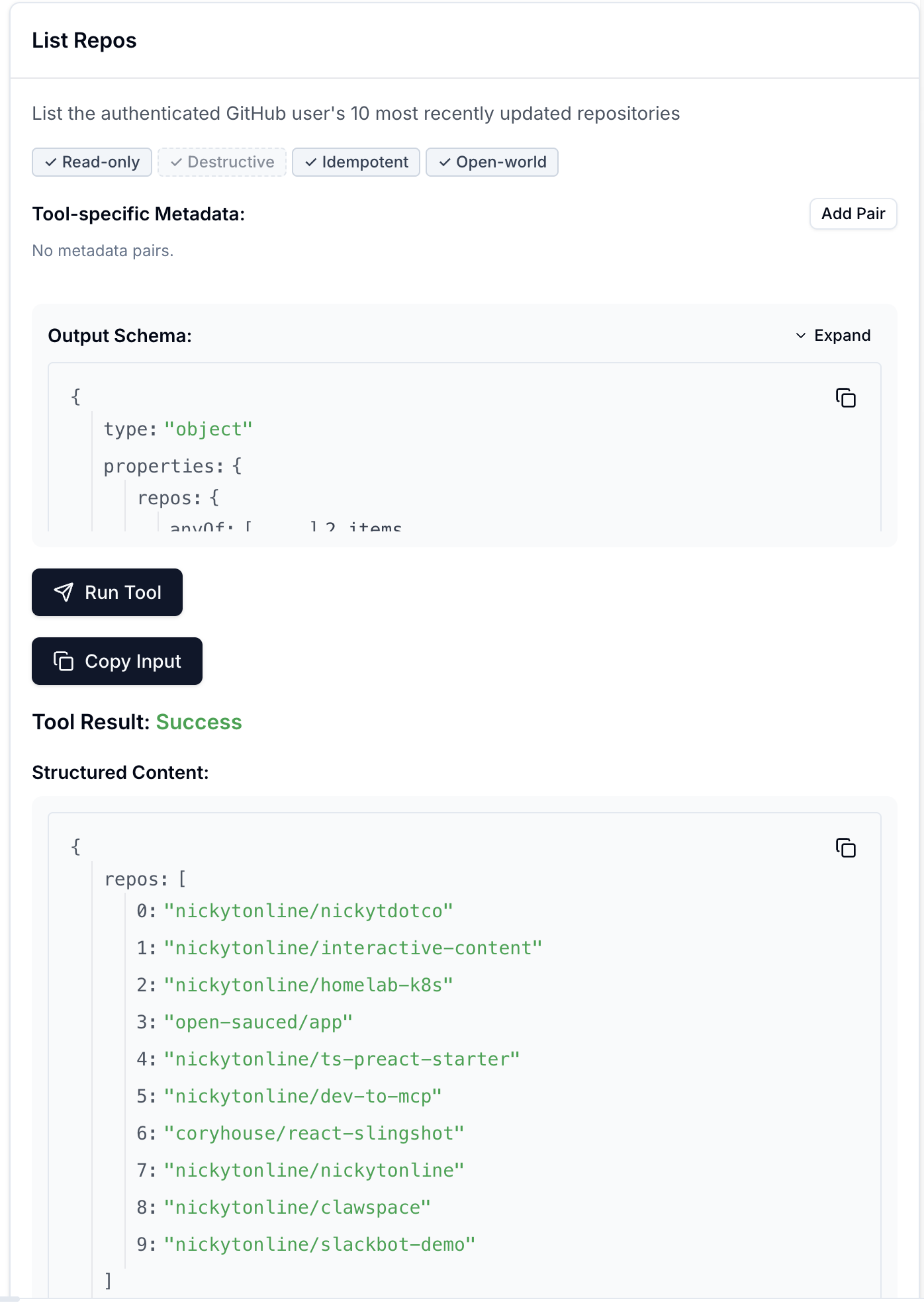
If either tool comes back with an error containing an HTML page titled "Unicorn! · GitHub", that is GitHub's own generic error page, and it surfaces here only because the error message includes GitHub's actual response body rather than swallowing it. It is not something wrong with your setup, your token, or this tool: the "Bearer token from upstream OAuth present" line you just saw already proves the OAuth exchange, the route, and the token forwarding all worked, before GitHub's API had any chance to answer badly. Check githubstatus.com to confirm; a "Degraded REST API Availability" incident there means GitHub is having a bad moment, not you. The tasks below only check that Pomerium authorized the call and your server executed it, not that GitHub's API answered successfully, so they still complete during an outage like this. Wait for GitHub to recover if you want to see the actual result, but you are not blocked either way.
Check the gateway's view of both calls, on the gateway terminal:
docker compose -f ~/pomerium-gateway/docker-compose.yml logs pomerium --no-log-prefix | grep -E 'mcp-tool":"(whoami|list_repos)"' | tail -n 2 | jq
Your output will look similar to this, with your own request-id, host, and time values:
{
  "level": "info",
  "server-name": "all",
  "service": "authorize",
  "request-id": "75228e47-fe47-4c56-8897-d2adc7a75617",
  "path": "/mcp",
  "host": "XXXX.node-eu-XXXX.iximiuz.com",
  "email": "you@example.com",
  "mcp-method": "tools/call",
  "mcp-tool": "whoami",
  "mcp-tool-parameters": {},
  "allow": true,
  "allow-why-true": [
    "email-ok"
  ],
  "deny": false,
  "deny-why-false": [],
  "time": "2026-07-17T05:00:20Z",
  "message": "authorize check"
}
{
  "level": "info",
  "server-name": "all",
  "service": "authorize",
  "request-id": "9edb9850-9585-4c6a-9fe4-90e238cd564c",
  "path": "/mcp",
  "host": "XXXX.node-eu-XXXX.iximiuz.com",
  "email": "you@example.com",
  "mcp-method": "tools/call",
  "mcp-tool": "list_repos",
  "mcp-tool-parameters": {},
  "allow": true,
  "allow-why-true": [
    "email-ok"
  ],
  "deny": false,
  "deny-why-false": [],
  "time": "2026-07-17T05:01:22Z",
  "message": "authorize check"
}
Same audit trail as every tool call in this course: your identity, the tool name, the arguments (empty for both of these), and the policy decision that allowed it.
That GitHub connection did not go away when MCP Inspector's session ends or the client changes. The next unit looks at where it actually lives, and how to view, disconnect, and reconnect it yourself.
Manage the Upstream Connection Yourself
You authorized GitHub once, inside the MCP Inspector connect flow. That authorization is not tied to the MCP Inspector, or to any one client: it is a per-user, per-route connection that Pomerium holds on your behalf, independent of which client you're using or whether it's currently open. Pomerium calls the page where you can see and manage that the routes portal.
Tour the routes portal
The MCP Inspector is still running, so in the client terminal, build your MCP route's URL with /.pomerium/routes appended, then open it in a regular browser tab where you're already signed in:
ROUTE_URL=$(cat /tmp/mcp-lesson.route-address | tr -d '[:space:]' | sed 's|/$||')
echo "$ROUTE_URL/.pomerium/routes"
The portal lists every route you have access to, personalized to your identity. For a route with upstream OAuth configured, like this one, it also shows your connection status to that upstream service and lets you connect or disconnect it, independent of whether an MCP client is currently connected.
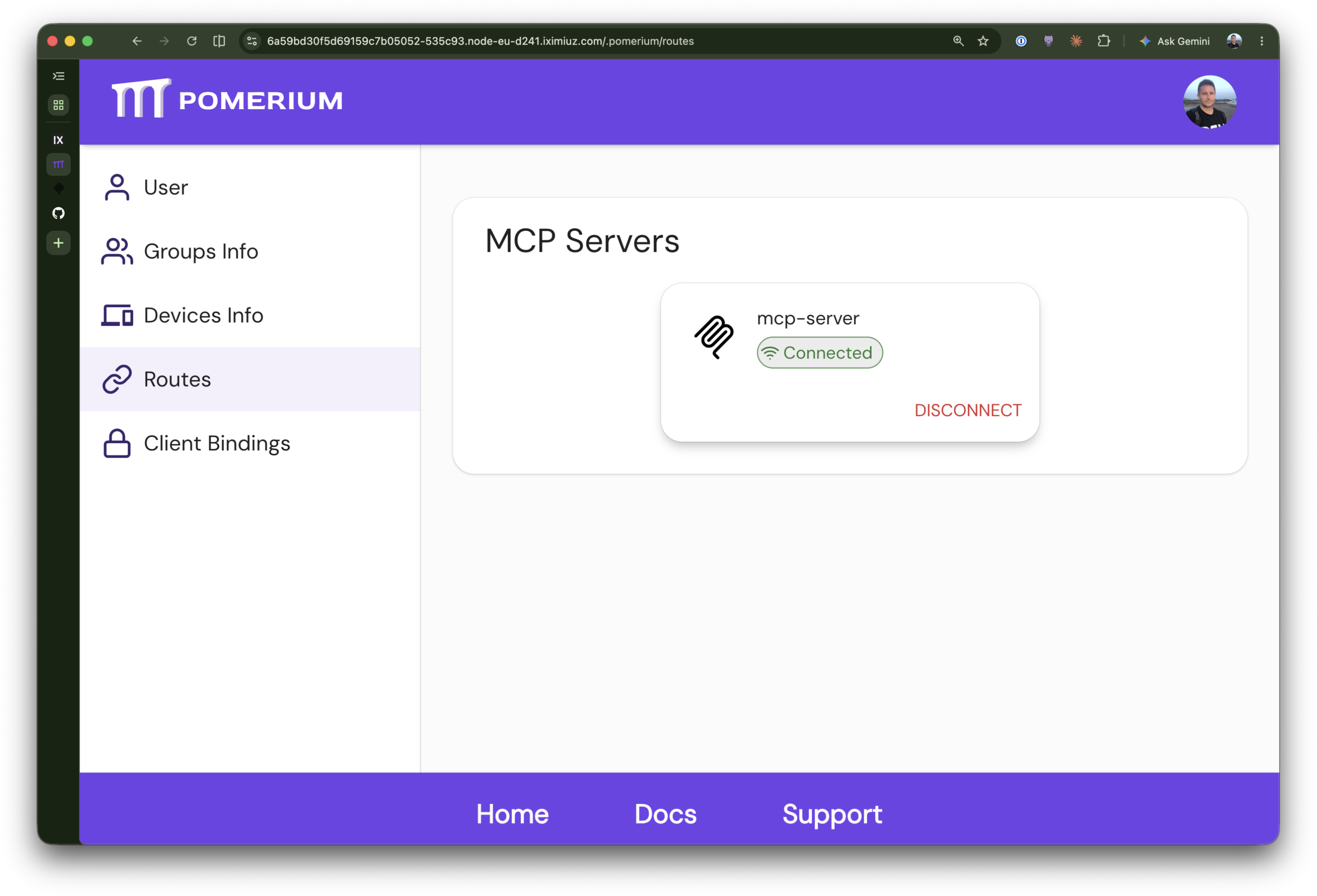
Disconnect and reconnect
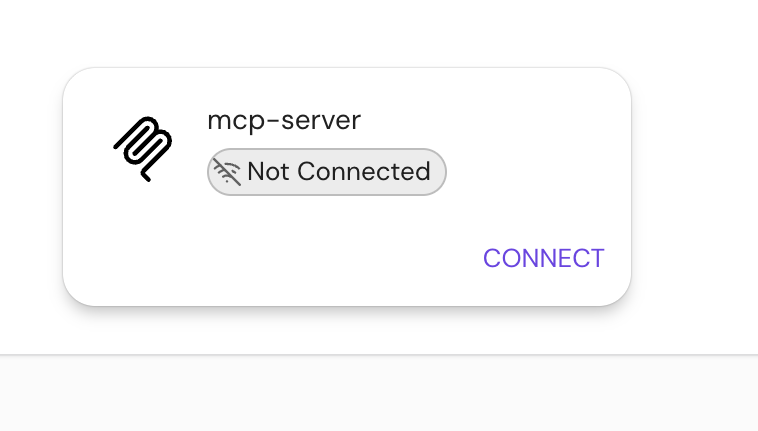
Click Disconnect on this route. Pomerium deletes the cached upstream token for your account on this route; it is a real revoke, not just a UI flag.
Go back to MCP Inspector, still connected from the previous unit, and run Whoami again. It fails cleanly:
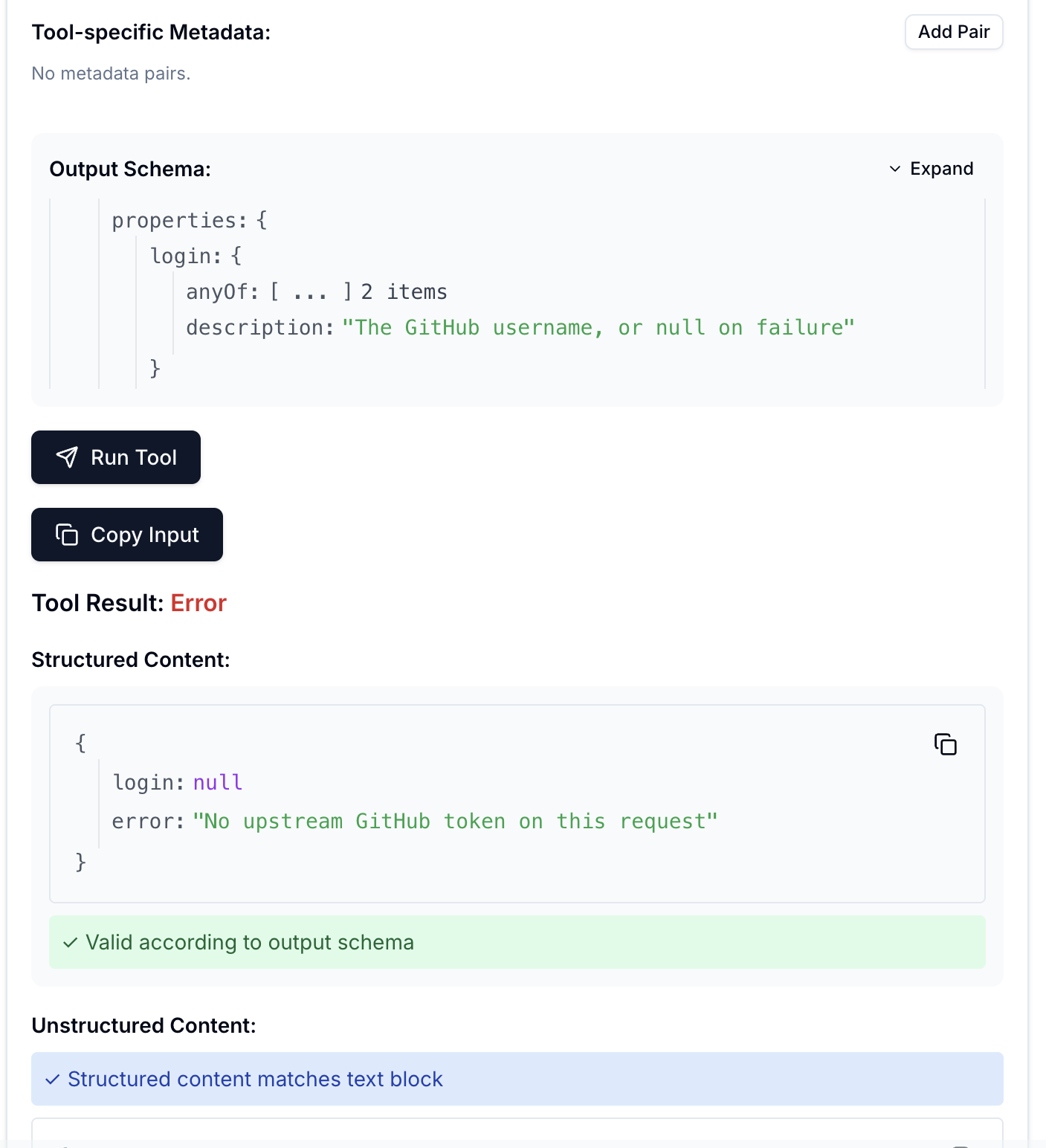
The failure shows up as a tool error, not a dropped MCP connection. Your downstream sign-in with Pomerium is untouched; only the upstream GitHub connection was revoked.
Go back to the routes portal and click CONNECT. With no cached token left, this sends a fresh authorization request to GitHub, the same handshake as the first consent. You likely won't see GitHub's authorize screen this time: GitHub already has this OAuth App on your authorized-apps list from the previous unit, so it skips the prompt and redirects straight back. The route flips back to Connected.
Run Whoami (or List Repos) again from MCP Inspector. It succeeds, using the token Pomerium just reacquired.
This is the same mechanism that makes multi-user deployments safe: your connection, your disconnect, your reconnect. A teammate hitting the same route under their own email holds an entirely separate GitHub connection; nothing you do here touches theirs.
Before you take this to production
Everything from the previous lesson's production notes still applies (the TLS certificate, the hosted identity provider, the single-email policy). Two more things change when this pattern goes to production:
- The GitHub OAuth App outlives this playground. Unlike everything else here, it is a real object registered against your actual GitHub account, so it is still there after this tab closes. Treat its client secret like any other real credential: do not commit it to a public repository, and regenerate it if it ever leaks. If you are moving straight into the next lesson, you can keep this app and just update its Authorization callback URL to that lesson's route address instead of registering a new one. Otherwise, simplest is to delete it from your GitHub developer settings once you are done here.
- Disconnecting in the routes portal removes Pomerium's cached token; it does not revoke the token at GitHub. If a token may have been compromised, revoke it from your GitHub authorized-apps settings too.
- Scopes should match the tools you actually ship. This lesson requested
read:userandrepobecause those are whatwhoamiandlist_reposneed. A production route should request the narrowest set of scopes its tools use, nothing broader "just in case."
What you built
- An MCP route with its own upstream OAuth client, separate from the downstream sign-in flow
- Two tools,
whoamiandlist_repos, that call the real GitHub API using a token they never acquired or stored themselves, and that you read through yourself to confirm it - A clear, observed distinction between downstream OAuth (who is calling) and upstream OAuth (what the server is allowed to do on that caller's behalf)
- Direct experience with per-user connection management: viewing, disconnecting, and reconnecting an upstream service through the routes portal
- Optional: this route works from a real MCP client too (ChatGPT, Claude, VS Code, Goose), no extra config
If you want to try it, grab your route's MCP URL in the client terminal:
ROUTE_URL=$(cat /tmp/mcp-lesson.route-address | tr -d '[:space:]' | sed 's|/$||')
echo "$ROUTE_URL/mcp"
Your server now talks to a real external API without a single OAuth library in its dependencies. The next lesson moves from "who can connect" to "who can call which tool": per-user, per-tool policy, so different people hitting the same route can be allowed different tools, not just an all-or-nothing connection.
- Previous lesson
- Secure an MCP Server with a Pomerium HTTP Route