Tunnel a Local MCP Server Through Pomerium
Start the MCP Server
You are building a Model Context Protocol (MCP) server. While you test with a client that can reach it directly over localhost or a private network, public reachability never comes up. The moment you want a remote client like ChatGPT or Claude to call a server that is still running only on your development machine, you need a public URL. Simply opening a port would expose the server with no authentication or policy in front of its tools.
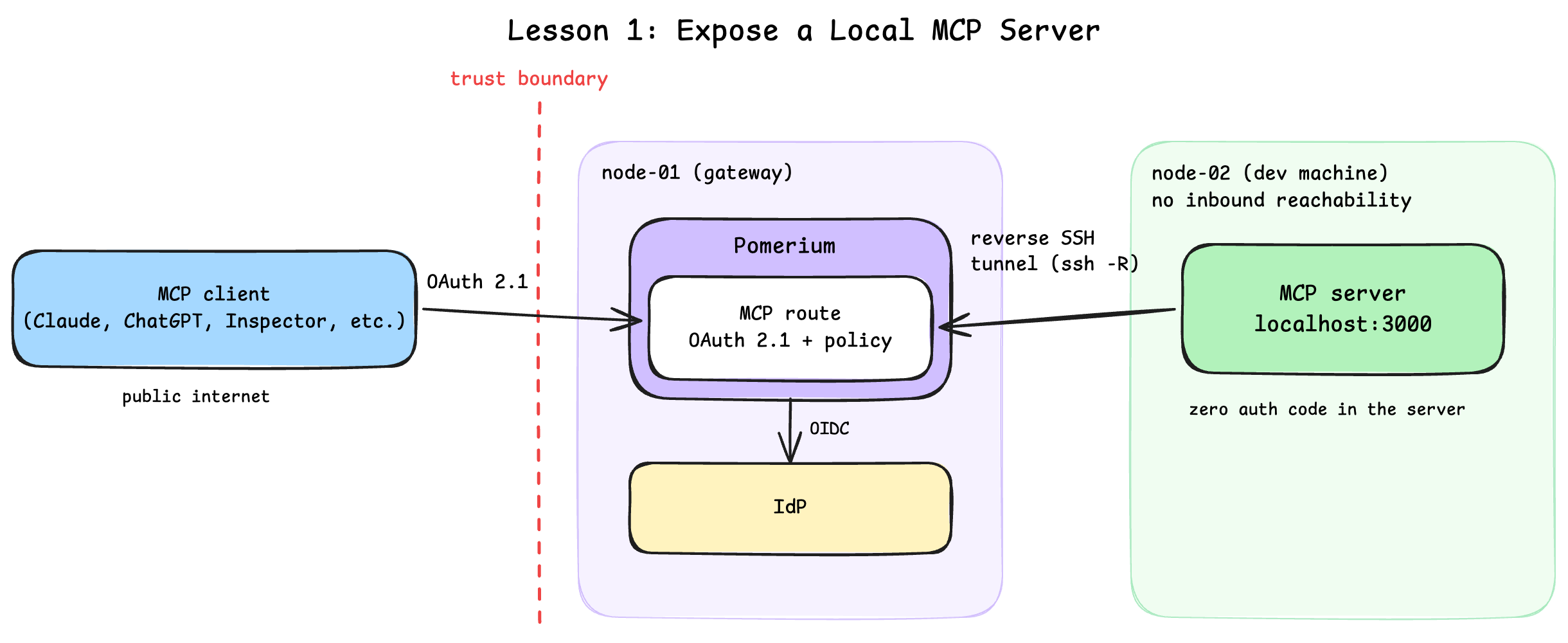
This lesson sets up a secure dev loop instead. Your MCP server runs on a dev machine with no inbound reachability. A Pomerium gateway with native MCP support publishes it through a standard reverse SSH tunnel (ssh -R), and every request to the published route is authenticated against an identity provider (IdP) and authorized by policy before it reaches your server. Because you run the Pomerium gateway, the MCP data path stays on infrastructure you control instead of passing through a third-party tunneling service. The server itself contains zero auth code.
By the end of this lesson, you'll have:
- An MCP server running on a machine with no public address, reachable from the internet through an authenticated route
- A working OAuth 2.1 sign-in in front of it, tested with MCP Inspector as a real MCP client
- An audit log on the gateway showing every tool call tied to your identity
- A dev loop proven end to end: a tool you add mid-session is callable through the secured route without touching the gateway
One thing to be clear about up front: you do not need a tunnel to build or secure an MCP server. The security in this lesson (OAuth 2.1, dynamic authorization, the audit log) lives in the Pomerium route, and a route works exactly the same with a fixed upstream address when the gateway can reach your server directly; that is the next lesson. The tunnel covers one scenario: an MCP client that is not local, like chatgpt.com or claude.ai, needs to call a server that is not in production yet, and that takes a public URL. The tunnel does not add security to anything; it attaches your dev machine to a route that already has it. So unlike an ngrok-style pipe, the URL you get is authenticated, policy-gated, and audited from the first npm run dev. (Local clients can use the URL too; this lesson tests through it with MCP Inspector.) Where the tunnel fits is a workflow choice, not a requirement: some developers tunnel from day one to build against real clients, others stay local until staging. Both are fine, and everything you learn here about routes, policies, and audit logs transfers unchanged.
Opening the tunnel is itself policy-gated: it only opens for an identity your config allows. And it lives exactly as long as your SSH session does, which is the right shape for iterating on a server from a laptop.
What you should already know
- Comfortable running commands in a terminal, including
ssh - What an MCP server is: a process exposing tools that AI agents can call
- Basic familiarity with OAuth or OIDC concepts
- An account you can sign in with on Pomerium's hosted authenticate service: a GitHub account, a Google account, or an email you're willing to register a password for. You'll use it in the next unit to secure the route.
Everything else (Node.js, the MCP server template, Pomerium) is preinstalled in the playground; there is nothing to install locally.
The tunnel plumbing in this lesson builds on Pomerium's native SSH support. If you want to understand that layer first, the Native SSH Reverse Tunneling with Pomerium tutorial covers it in depth, and Native SSH Access with Pomerium covers the underlying SSH proxy model. Both are optional; this lesson stands on its own.
The setup
The playground has two machines:
- node-02 (your "dev laptop"): runs the MCP server. It has no inbound reachability from the internet. Its three terminal tabs are named for the job each holds: server for the MCP server and its logs, tunnel for the reverse tunnel session you'll open later, and client for everything you run as a caller. The IDE tab edits files on this machine too.
- node-01 (the gateway): runs Pomerium, fully preconfigured; its terminal is the gateway tab. This lesson uses Pomerium's hosted authenticate service for quick setup and testing. In production, configure Pomerium to use your production identity provider. Here, you only supply your email and the playground URLs in the next unit.
Start the server
The MCP server is a TypeScript app built from the mcp-typescript-template, already cloned to ~/mcp-server on node-02 with dependencies installed. It speaks MCP over HTTP (Streamable HTTP transport) on port 3000 and ships with two example tools, echo and elicit_echo.
In the server terminal on node-02, start the MCP server in dev mode:
cd ~/mcp-server
npm run dev
You should see a log line ending with MCP TypeScript Template Server running on port 3000.
Switch to the client terminal and confirm the MCP endpoint answers locally. The server terminal stays dedicated to the logs; the client terminal is where you act as a caller, and this curl is its first job. (The tunnel terminal stays idle until it is time to open the tunnel.)
curl -s http://localhost:3000/health | jq
The command should output a simple health status:
{
  "status": "ok"
}
That is the whole "app side" of this lesson: a plain HTTP server on localhost, no TLS, no auth, no public address.
Right now this server is exactly the kind of thing that ends up in an exposed-server scan if you publish it directly. Next, you'll configure the route that makes publishing it safe.
Configure the Route
A Pomerium route ties three things together: from, the public endpoint a client connects to; to, where Pomerium actually proxies the request; and a policy that decides who gets through. Routes aren't limited to HTTP, Pomerium can route SSH the same way, and this gateway already has that side preconfigured: it's what accepts the reverse tunnel you'll open in the next unit. The route you're about to configure here is the HTTP one: an MCP route is just an HTTP route with an mcp: server: {} block, which tells Pomerium to also handle the OAuth 2.1 dance with connecting MCP clients on the server's behalf.
The gateway machine (node-01) already has everything generated for you in ~/pomerium-gateway: Pomerium's config, SSH host keys, a user Certificate Authority (CA) key, and a Docker Compose file. Take a quick look in the gateway terminal:
cat ~/pomerium-gateway/pomerium-config/config.yaml
Five parts matter for this lesson:
runtime_flags:mcp: trueturns on Pomerium's MCP support, andssh_upstream_tunnel: truelets Pomerium accept reverse tunnels on its SSH listener (port 2222). The third flag,mcp_dynamic_client_registration: true, accepts clients that can only register via Dynamic Client Registration (DCR). It is on here because MCP Inspector, the client you'll test with later in this lesson, does not yet support the newer Client ID Metadata Document (CIMD) mechanism described below. In production, prefer CIMD and leave DCR off; enable this flag only as a bridge for clients that have not migrated yet.- The route:
mcp: server: {}marks it as an MCP route, so Pomerium speaks OAuth 2.1 to MCP clients on your server's behalf.upstream_tunnelmeans the route's backend is whatever reverse tunnel attaches to it, rather than a fixed upstream address. - Two policies on one route: the route
policycontrols who can call the published MCP server, andupstream_tunnel.ssh_policycontrols who can open the tunnel that backs it. Both are set to a single email, the one you provide below. idp_provider: hosted: sign-in is delegated to Pomerium's hosted authenticate service. You sign in with a GitHub account, a Google account, or an email and password, with no OAuth client registration required.mcp_allowed_client_id_domains: MCP clients identify themselves with a URL as their client ID, pointing at a hosted CIMD. This list controls which client domains the gateway trusts, so even a signed-in user cannot connect with an arbitrary unknown client. The preconfigured list covers Claude, ChatGPT, VS Code, and Goose.
The config still contains REPLACE_WITH_... placeholders. Pomerium needs two public URLs and your email before it can start.
Expose the ports
First, the authenticate service URL, where OAuth callbacks land:
copy the auth URLNext, the MCP route URL, the address MCP clients will connect to:
copy the MCP URLSecure the route with your email
Now the part that makes this route yours. Enter the email you'll sign in with. Both policies check it, so only you can call the MCP server and only you can open the tunnel that backs it. Make it the email of an account you can actually sign in as on the hosted authenticate service: your GitHub or Google account's email, or the email you'll register there with a password:
If you're curious, cat the config again to see all the substitutions in place. This command (and everything else in this unit) runs in the gateway terminal, the same one you inspected the config in at the start, not on node-02. Every REPLACE_WITH_... placeholder is now a real URL or your email, including one occurrence in each of the two policies:
cat ~/pomerium-gateway/pomerium-config/config.yaml
The checks below can only verify that no placeholder is left, not that each URL landed in the right field. If a value went into the wrong input (say the auth and MCP URLs got swapped), the placeholders are already consumed, so re-submitting the input above does nothing: fix it by editing
~/pomerium-gateway/pomerium-config/config.yamldirectly before starting the stack.
Start the stack
With the placeholders filled in, bring up Pomerium, still in the gateway terminal:
cd ~/pomerium-gateway
docker compose up -d
docker compose logs -f
Wait until Pomerium logs starting SSH listener, then press Ctrl+C to stop following the logs.
If
up -dfails with a name conflict from a previous attempt, rundocker compose down -vfirst.
The gateway is live, but the MCP route has no backend yet: nothing is attached to the tunnel side. That is the point. The backend arrives in the next unit, from the dev machine, over SSH.
Open the Tunnel and Call Tools Through It
Time to connect the two halves. The MCP server listens on localhost:3000 on node-02, and the gateway has an MCP route waiting for a backend. A standard reverse SSH tunnel joins them.
Open the reverse tunnel
A reverse tunnel is usually a fire-and-forget background chore. Pomerium turns it into something worth watching: the same SSH connection that carries the tunnel also serves a live terminal UI (TUI), the gateway's view of your tunnel, right in the terminal that opened it. This lesson runs the tunnel in the foreground to keep that view. It costs a dedicated terminal (that is what the tunnel terminal is for), and the classic silent-background variant is covered at the end of this section.
In the tunnel terminal on node-02 (the one tab you haven't touched yet), first store the route hostname in a variable so the next few commands can be copied verbatim. No pasting needed this time: the MCP route URL you entered in the previous unit was saved to /tmp/mcp-lesson.route-address, and the playground makes these captured values available on every machine, including this one. Read it and strip it down to the bare hostname SSH wants (no https://, no trailing slash):
ROUTE_HOST=$(cat /tmp/mcp-lesson.route-address | tr -d '[:space:]' | sed 's|/$||')
ROUTE_HOST=${ROUTE_HOST#https://}
echo $ROUTE_HOST
The echo should print a bare hostname like 6a47167fa718f97507ff757f-ca5e03.node-eu-10a1.iximiuz.com, no https://, no slash. If it prints nothing, the MCP URL input in the previous unit was never completed; go back and paste the URL there first.
Now open the tunnel:
ssh -R "$ROUTE_HOST:443:localhost:3000" node-01 -p 2222
Reading the command:
-R $ROUTE_HOST:443:localhost:3000asks Pomerium to forward traffic for the route hostname back down this tunnel tolocalhost:3000. Pomerium reads the bindhostname:443pair as "the HTTPS side of this route" and attaches the tunnel to it; no raw port is ever opened. The443is not optional, SSH's-Rsyntax always requires a port.node-01 -p 2222is Pomerium's SSH listener on the gateway. This is Pomerium itself accepting the connection, not the machine's sshd.
On the first connection you'll see the standard SSH host-key prompt (Pomerium's host key being added to your known_hosts):
laborant@node-02:~$ ssh -R "$ROUTE_HOST:443:localhost:3000" node-01 -p 2222
The authenticity of host '[node-01]:2222 ([172.16.0.2]:2222)' can't be established.
ED25519 key fingerprint is SHA256:A+eKqyNRwksfsG3eAz4mZYAbmkM9SvbeQ9OYOeo+030.
This key is not known by any other names.
Are you sure you want to continue connecting (yes/no/[fingerprint])?
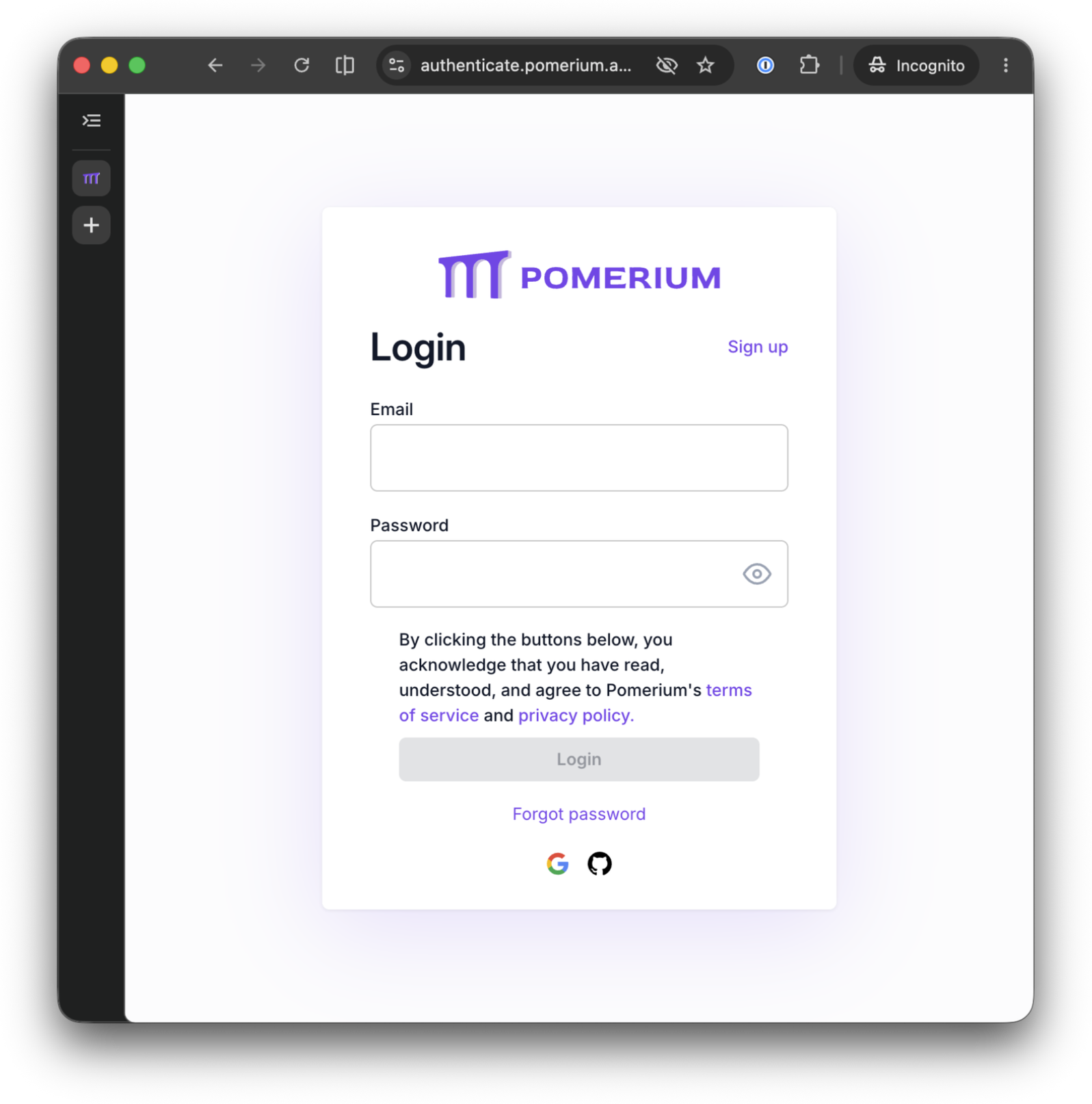
Answer yes, and Pomerium prints a sign-in URL. Open it in your browser: it lands on Pomerium's hosted authenticate sign-in page. Sign in as the account whose email you entered in the previous unit (GitHub, Google, or email and password):
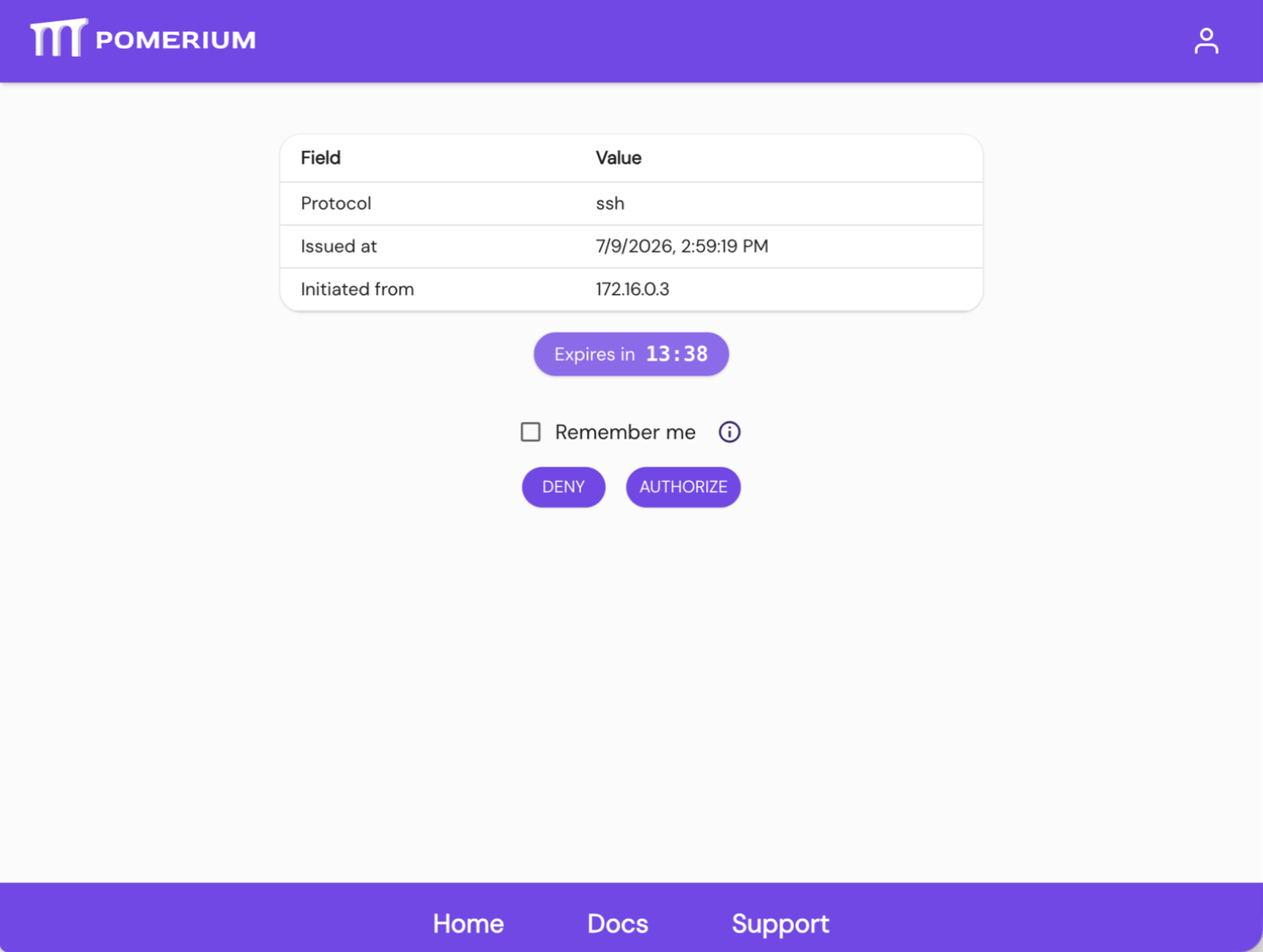
After sign-in, Pomerium shows the connection it is about to authorize: the protocol (ssh), when the request was issued, and the machine it came from. Click AUTHORIZE, and the tunnel goes live. This is the ssh_policy doing its job: the tunnel only opens because the identity you signed in with matches the policy.
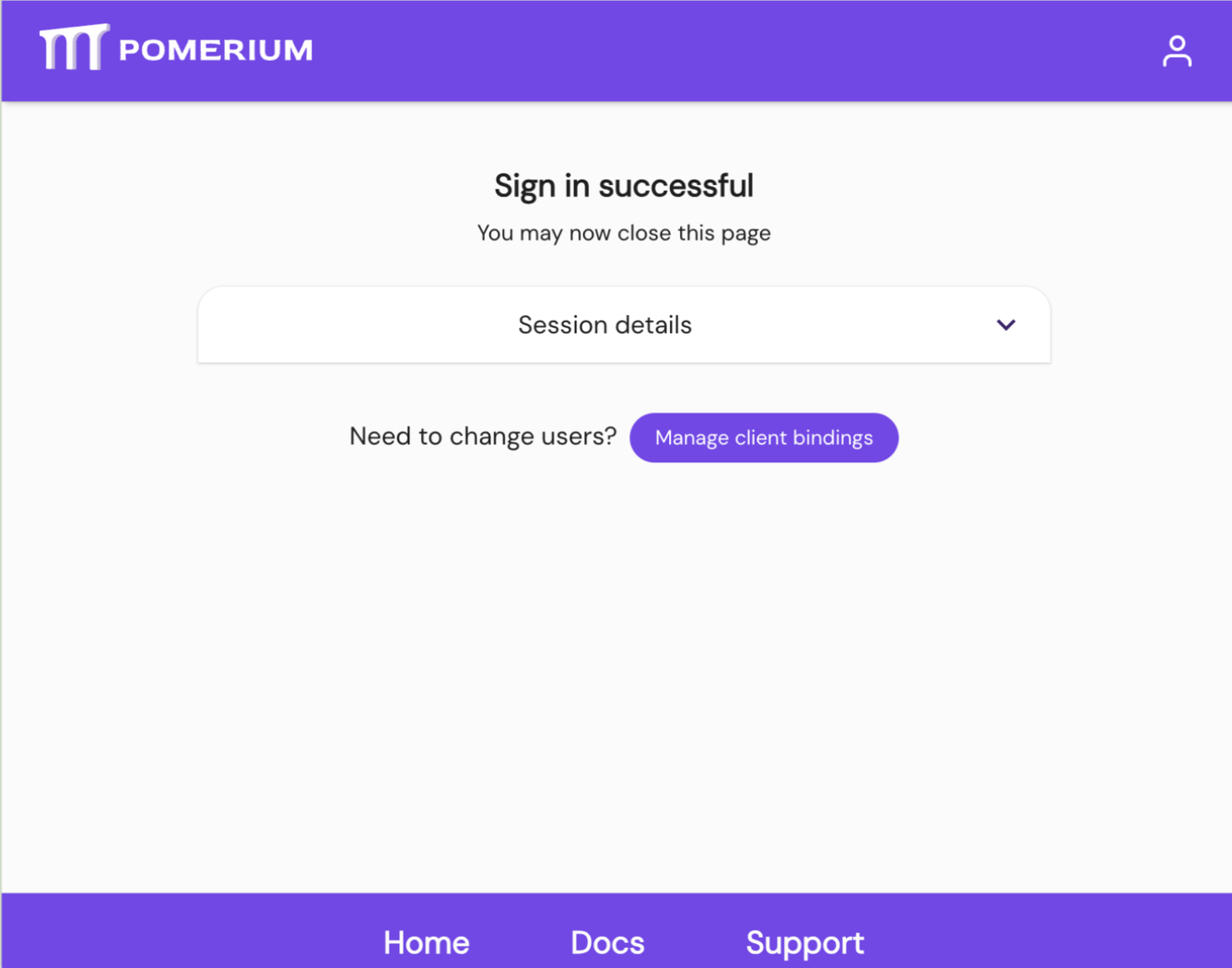
Back in the tunnel terminal, sign-in flips it into Pomerium's tunnel TUI. Port Forward Status shows your route as ACTIVE, mapping the public route hostname to localhost:3000. Active Connections sits empty for now. It only fills when an authorized request comes down the tunnel, and that emptiness is about to be the interesting part.
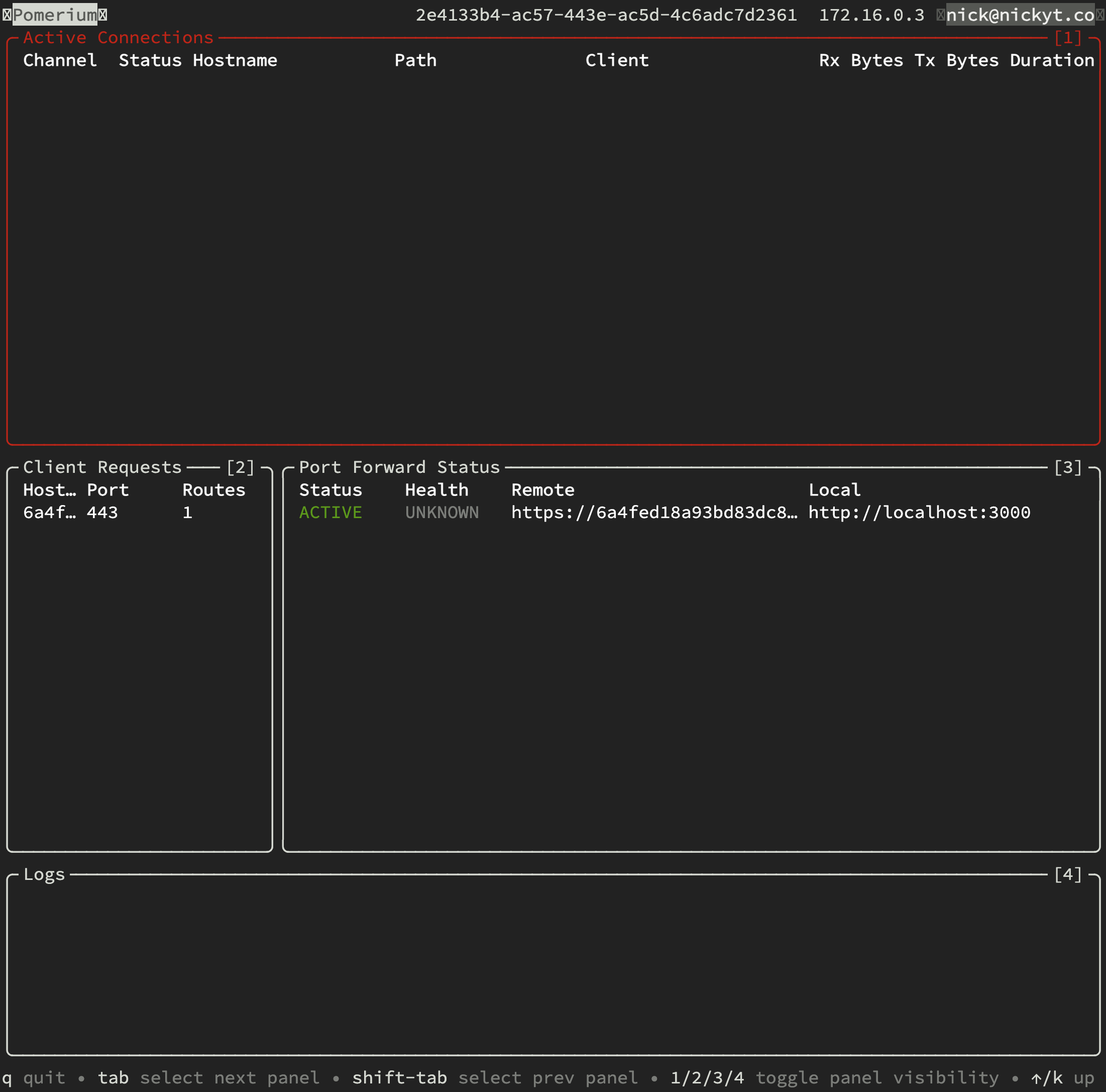
One thing to know before moving on: the TUI is the SSH connection. Press q (or close this terminal) and the tunnel closes with it. Leave it running for the rest of the lesson.
If you'd rather run the tunnel silently (in a script, or to keep your terminal), the background variant is ssh -f -R "$ROUTE_HOST:443:localhost:3000" -N node-01 -p 2222: -f backgrounds the connection once sign-in completes, and -N skips the remote session that the TUI is served over. Same tunnel, no dashboard; this lesson sticks with the TUI.
If the connection authenticates but the tunnel does not open (or
$ROUTE_HOSTwas empty when you ran the command), the bind hostname does not match the routefromin the Pomerium config. Quit the TUI withqto close the tunnel, rerun theROUTE_HOSTlines above until the echo prints the hostname, and connect again.
The tunnel lives exactly as long as the TUI does, and that is the whole teardown story: press q whenever you want it gone.
Prove the front door is locked
Before connecting a real client, check what an unauthenticated caller sees. The TUI owns the tunnel terminal now, so switch back to the client terminal (the one you curled localhost from) for the rest of the unit, and set $ROUTE_HOST there too (same two lines as before, still nothing to paste):
ROUTE_HOST=$(cat /tmp/mcp-lesson.route-address | tr -d '[:space:]' | sed 's|/$||')
ROUTE_HOST=${ROUTE_HOST#https://}
echo $ROUTE_HOST
Then knock on the front door without credentials:
curl -si "https://$ROUTE_HOST/mcp" | head -n 5
The output should look like this:
HTTP/1.1 401 Unauthorized
strict-transport-security: max-age=31536000; includeSubDomains; preload
x-frame-options: SAMEORIGIN
x-xss-protection: 1; mode=block
access-control-allow-headers: Authorization, Content-Type, Accept, MCP-Protocol-Version, MCP-Session-Id, Last-Event-ID
A 401 Unauthorized, and notice the access-control-allow-headers list: MCP-Protocol-Version, MCP-Session-Id. This is MCP-aware behavior. Instead of redirecting to a login page like a web app, Pomerium tells the MCP client how to start an OAuth 2.1 flow. Your server never saw the request, and the TUI proves it: glance at the tunnel terminal and Active Connections has not moved. The rejected request died at the gateway and was never forwarded down the tunnel, so your machine did not see it even as a log line.
Connect MCP Inspector through the route
Now connect as a real MCP client. MCP Inspector is a browser-based tool for exercising MCP servers. It runs two services on node-02: a web UI on port 6274 and a proxy on port 6277, and your browser needs to reach both through their exposed playground URLs. Although MCP Inspector's proxy runs beside the server, it will call the public Pomerium route rather than connect directly to the server.
copy the MCP Inspector UI URLDo the same for the MCP Inspector proxy:
copy the MCP Inspector proxy URLNow start MCP Inspector, still in the client terminal you ran the unauthorized curl from. Wiring MCP Inspector to the playground ingress takes a handful of environment variables that have nothing to do with Pomerium or MCP, so that plumbing lives in a helper script scaffolded at playground startup. It reads the URLs you saved (the two MCP Inspector exposures and your MCP route), generates MCP Inspector's proxy auth token, prints the exact URL to open, and starts MCP Inspector:
~/mcp-inspector.sh
The "Open this URL" line prints immediately, but MCP Inspector itself takes a moment to boot (npx unpacks the MCP Inspector release that was cached at playground startup). Wait for the Proxy server listening on 0.0.0.0:6277 and MCP Inspector is up and running lines before opening the URL, or the page will not load. The task below turns green once both of MCP Inspector's ports are actually listening:
Ignore the http://0.0.0.0:6274/... link MCP Inspector prints on startup; that one only works when MCP Inspector runs on the same machine as your browser. Open the URL echoed by the command instead, in a regular browser tab (not a playground tab; the OAuth redirects coming next work best in a plain tab).
In MCP Inspector:
- The transport (Streamable HTTP) and URL (your MCP route plus
/mcp) are already filled in from the link you opened. Confirm they look right.
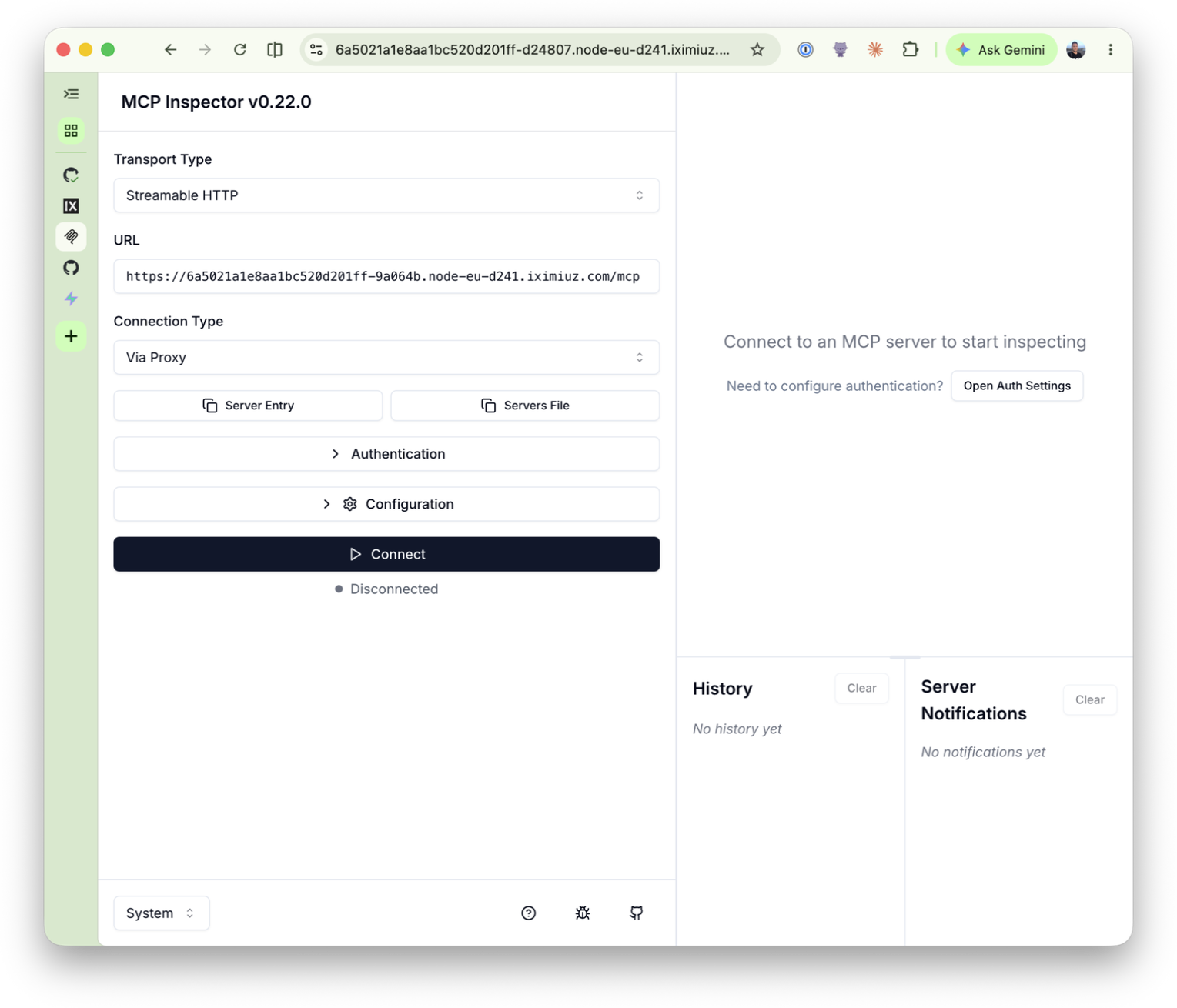
- Click Connect. MCP Inspector discovers Pomerium's OAuth metadata, registers as a client, and sends your browser through the OAuth flow. You most likely won't see a login screen: Pomerium still has the session you created when you authorized the tunnel, so the flow completes silently and lands back in MCP Inspector already connected. The whole OAuth dance still happened, you just weren't prompted because you were already signed in. (If you do get the sign-in page, e.g. in a fresh browser, sign in with the same account as before.)
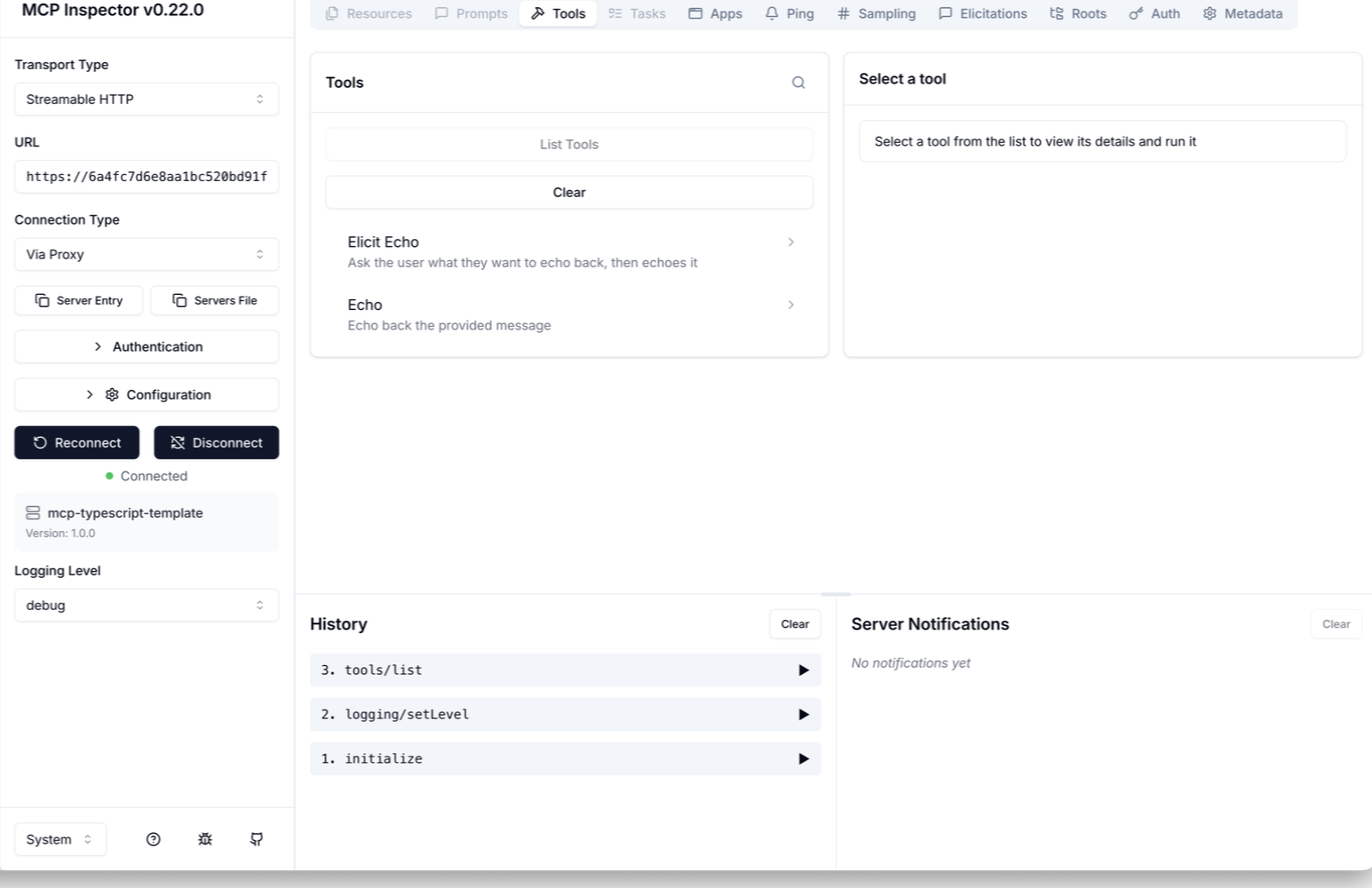
- Once connected, in the Tools tab, click List Tools. The template's two tools appear:
EchoandElicit Echo.
- Click the Echo tool. Its output schema appears, the shape of the result the tool promises to return, defined in the MCP server's code:
{
  "type": "object",
  "properties": {
    "echo": {
      "type": "string",
      "description": "The echoed message"
    }
  },
  "required": [
    "echo"
  ],
  "$schema": "http://json-schema.org/draft-07/schema#",
  "additionalProperties": false
}
- Type a message in the
messagefield (say,hello) and click Run Tool. The result comes back asTool Result: Success, with structured content matching that schema:
{
  "echo": "hello"
}
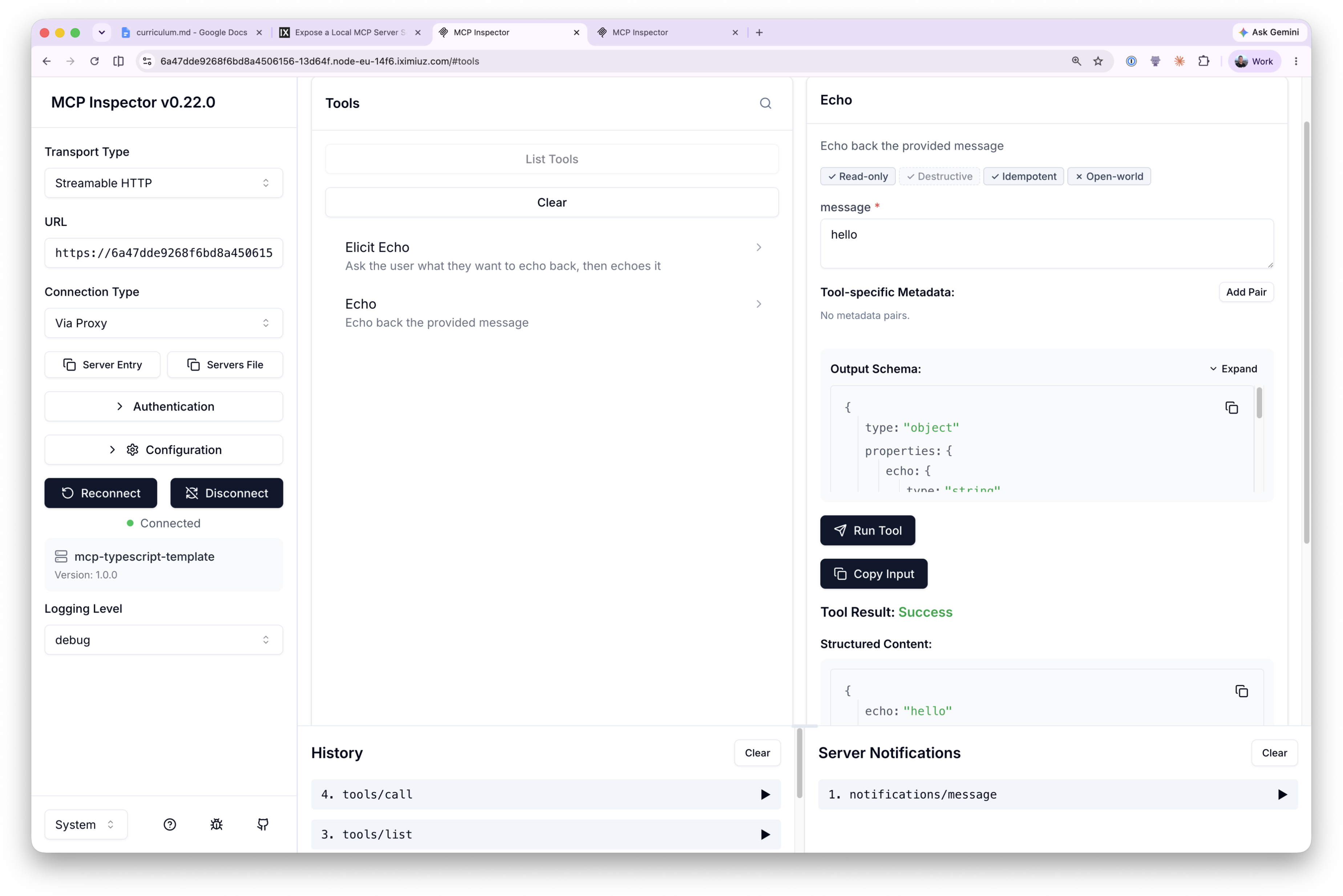
The response comes back through the whole chain: MCP Inspector to Pomerium (authenticated, authorized), Pomerium down the SSH tunnel to node-02, into the server on localhost:3000, and back.
And this time the TUI has something to show. Each call lands under Active Connections as a channel on /mcp, with request and response byte counts and the connection's age. Put it next to the silent 401 from earlier and you have the whole policy story on one screen: the gateway forwards exactly the traffic the policy allows, and nothing else ever touches your machine.
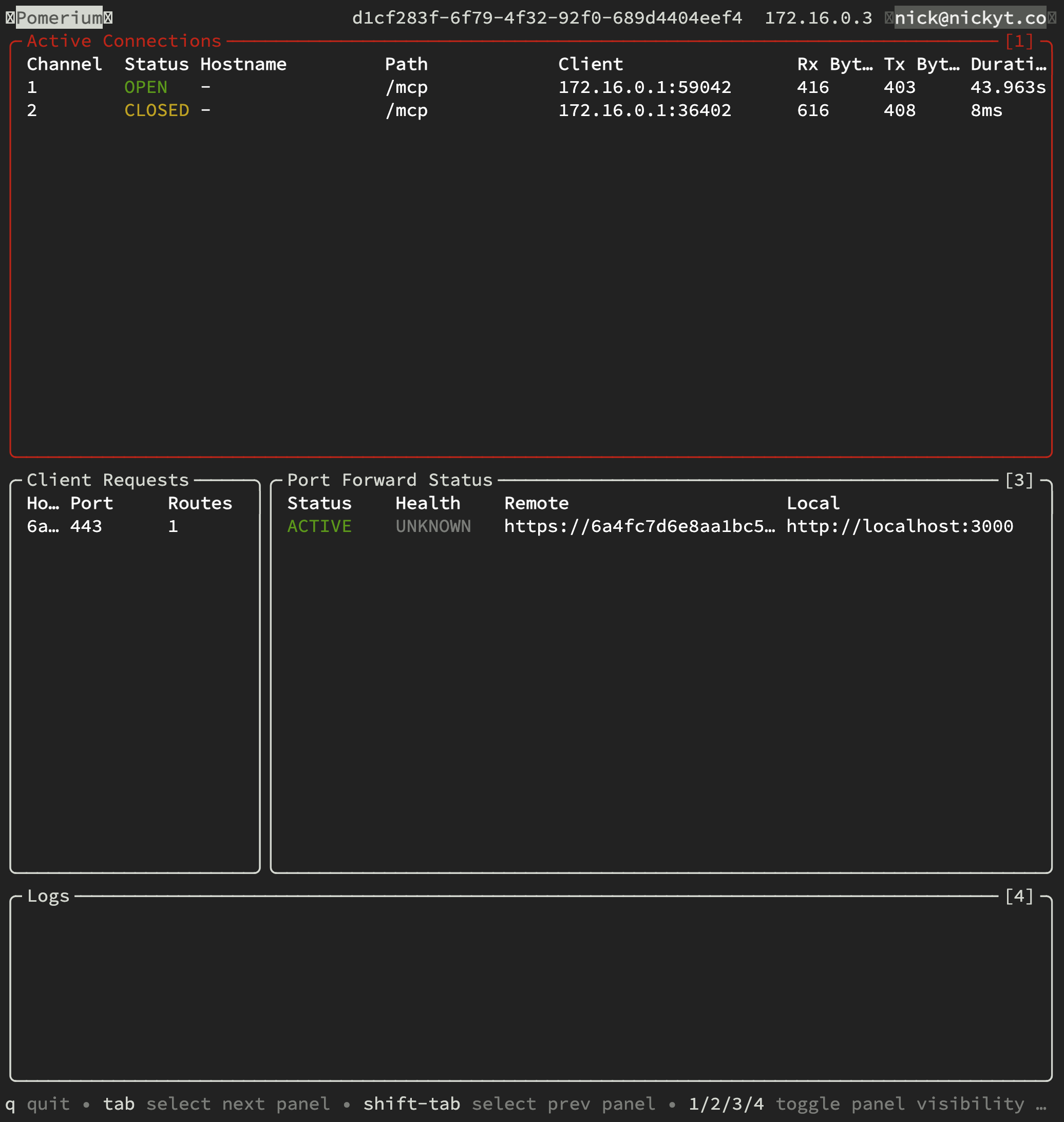
If the OAuth flow loops or fails, make sure you signed in with exactly the email you entered in the previous unit; any other identity is denied by the route policy. Hosted authenticate sessions also expire after about an hour, so if a connection that worked earlier starts failing, reconnect and sign in again.
The TUI shows your side of the tunnel. The gateway's own record is richer: every request and tool call is tied to the identity that made it. Pomerium logs each entry as a single line of JSON, so pipe the latest one through jq to make it readable. On the gateway terminal:
cd ~/pomerium-gateway
docker compose logs pomerium --no-log-prefix | grep mcp-tool | tail -n 1 | jq
{
  "level": "info",
  "server-name": "all",
  "service": "authorize",
  "request-id": "eb6f8751-9e50-496e-b60f-e66c9233f51e",
  "path": "/mcp",
  "host": "XXXX.node-eu-XXXX.iximiuz.com",
  "email": "you@example.com",
  "mcp-method": "tools/call",
  "mcp-tool": "echo",
  "mcp-tool-parameters": {
    "message": "hello"
  },
  "allow": true,
  "allow-why-true": [
    "email-ok"
  ],
  "deny": false,
  "deny-why-false": [],
  "time": "2026-07-10T15:25:50Z",
  "message": "authorize check"
}
This one entry is the whole story of your echo call: which method ran (mcp-method), which tool (mcp-tool), with what arguments (mcp-tool-parameters), who called it (email), and why the policy allowed it (allow-why-true). You did not add a single line of auth or logging code to the server, but you now have an authenticated, authorized, audited MCP endpoint.
Ship a New Tool Through the Tunnel
The whole point of a dev loop is iterating. Prove yours works end to end: add a new tool to the server and call it through the secured route, without touching the gateway or the tunnel.
Add the tool
Open the IDE and edit ~/mcp-server/src/tools.ts. Add a reverse_string tool inside registerTools(), next to the existing registerTool calls:
server.registerTool(
  "reverse_string",
  {
    title: "Reverse String",
    description: "Reverse the provided text",
    inputSchema: z.object({
      text: z.string().describe("The text to reverse"),
    }),
    outputSchema: z.object({
      reversed: z.string().describe("The reversed text"),
    }),
    annotations: {
      readOnlyHint: true,
      idempotentHint: true,
      openWorldHint: false,
    },
  },
  async (args) => {
    const data = { reversed: [...args.text].reverse().join("") };
    logger.info({ toolName: "reverse_string" }, "Tool executed");
    return createTextResult(data);
  },
);
Save the file. The dev server runs with --watch, so it restarts on its own; check the server terminal for a fresh startup line.
If the server fails to restart, check that terminal for a TypeScript error; a missing comma after the previous
registerTool(...)call is the usual suspect.
Call it through the route
Back in MCP Inspector, the server restart dropped the connection it was using, so the next action you take will probably come back with a connection error. If it does, reconnect. Then, in the Tools tab, click Clear, then List Tools again: Reverse String appears alongside the original two. Now test it: run it with any text and the structured result comes back reversed.
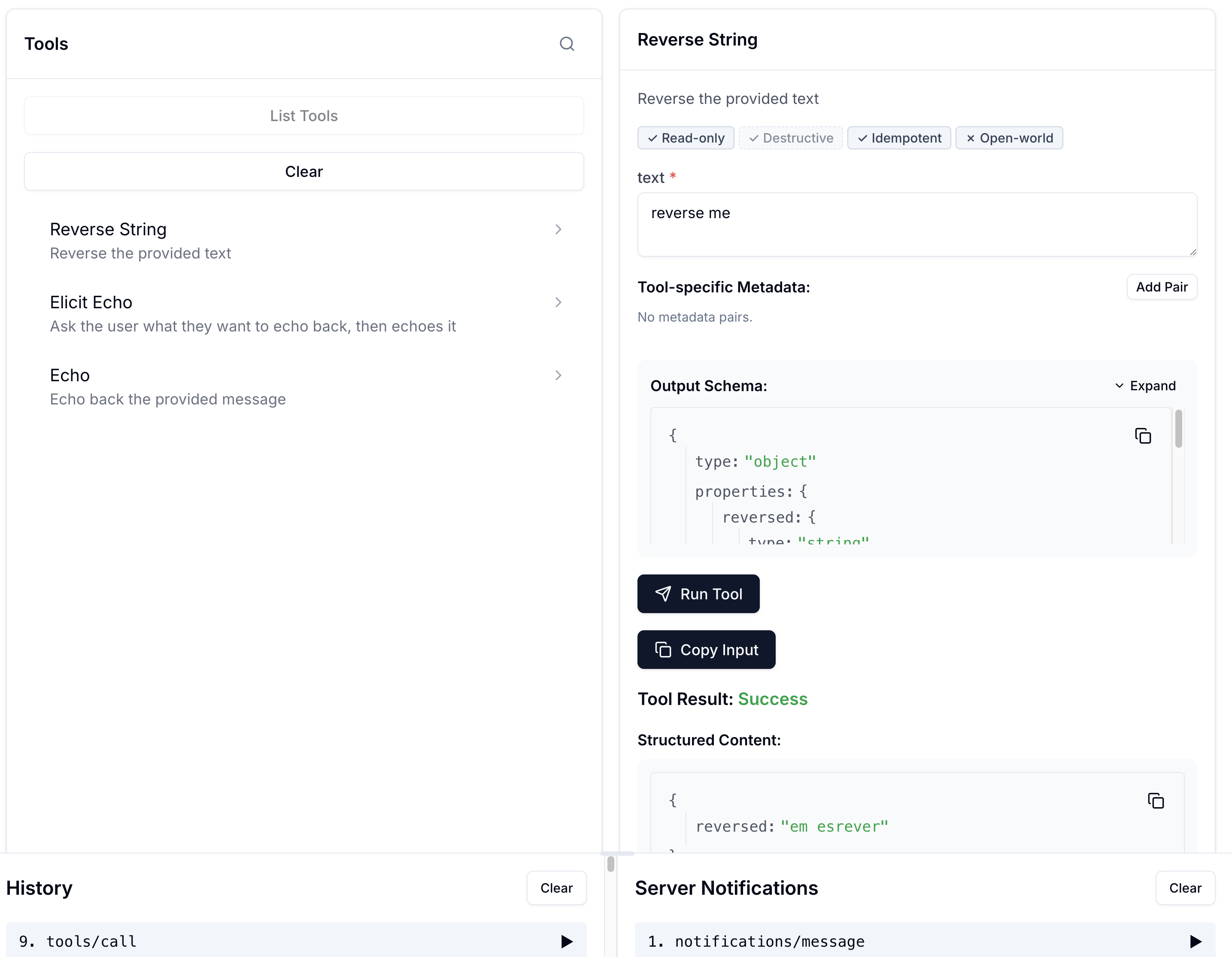
Check the gateway's view of what just happened, on the gateway terminal:
docker compose -f ~/pomerium-gateway/docker-compose.yml logs pomerium --no-log-prefix | grep reverse_string | tail -n 3 | jq
The authorize log shows the tool name and parameters, attributed to your identity. Every tool you add from now on inherits this automatically.
Optional: Connect a real MCP client
We used MCP Inspector for this lesson so you do not need a paid account with anyone. But step back and look at what you built: an MCP server running on a playground VM, published to the public internet through a reverse SSH tunnel, with OAuth in front of it, and a tool you shipped yourself along the way. Any MCP client anywhere in the world can reach it, and only you can get in.
Only you, because that is what the route's policy says: it allows exactly one email, yours. That is just the policy we wrote for this lesson, though. Pomerium policies can allow a whole team by domain, specific groups from your identity provider, or any combination of criteria, so the same gateway could serve this MCP endpoint to everyone in your org while still denying the rest of the internet. Policies can also go finer than the connection: later in the course you'll write per-tool rules that control which tools each user can call.
If you already use an MCP-capable client, try pointing it at your route URL (the same https://.../mcp address you gave MCP Inspector). To get it in copy-paste form, print it in the client terminal on node-02 (not the tunnel terminal, the TUI still owns that one); it reads the same saved route address the tunnel commands used:
ROUTE_URL=$(cat /tmp/mcp-lesson.route-address | tr -d '[:space:]' | sed 's|/$||')
echo "$ROUTE_URL/mcp"
The gateway's trusted client list already covers Claude, ChatGPT, VS Code, and Goose, and unlike MCP Inspector, these clients register with Pomerium using their hosted client metadata, no extra flags needed. You'll get the same OAuth sign-in, the same policy check, and the same audit log entries, but from a client millions of people use. This is entirely optional; nothing later in the course depends on it.
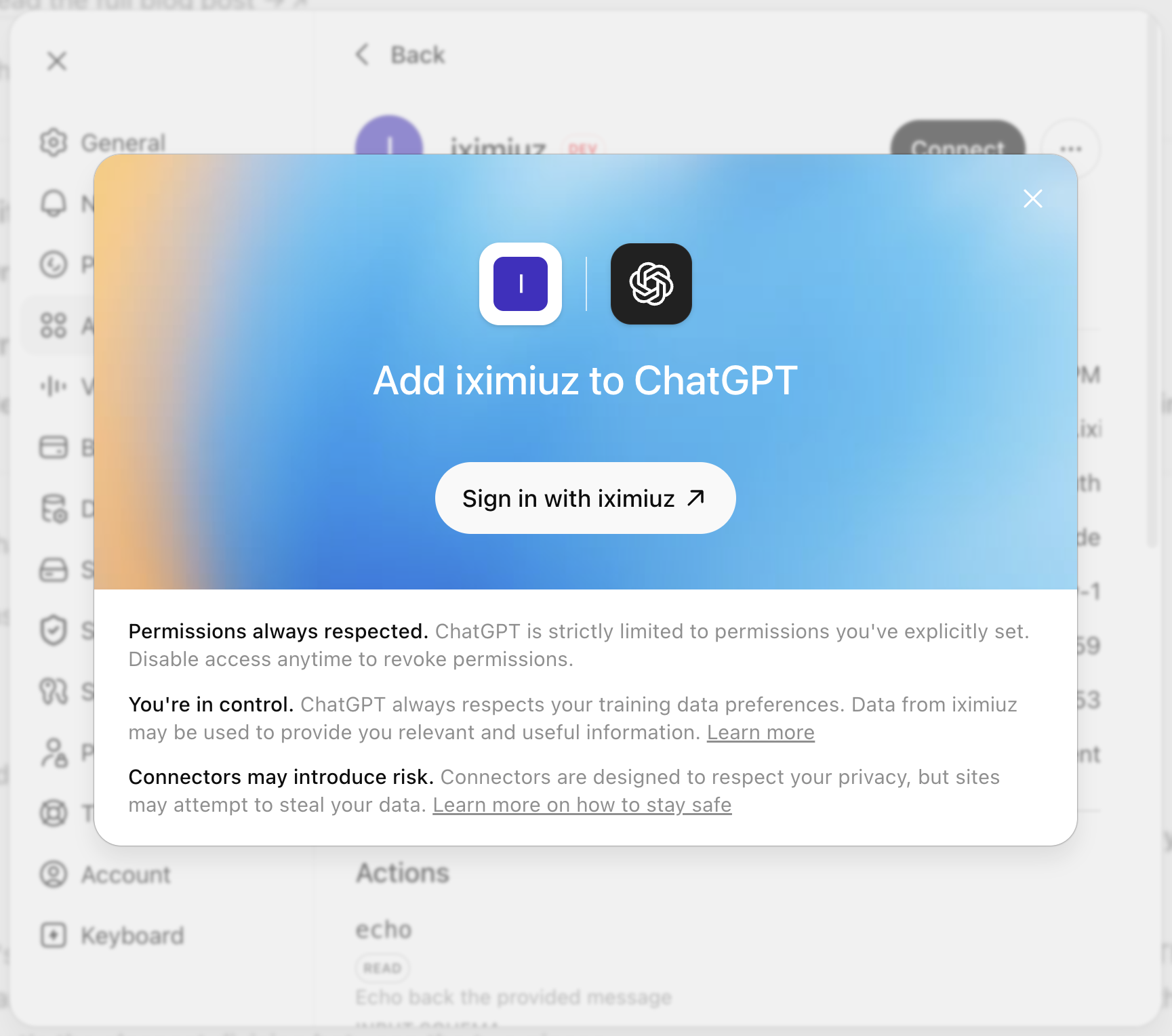
Here is what that looks like in ChatGPT, where the connector was named iximiuz for this example (the name is yours to pick). Adding it starts with ChatGPT's connect dialog, and the Sign in with iximiuz button kicks off the OAuth flow against your gateway:
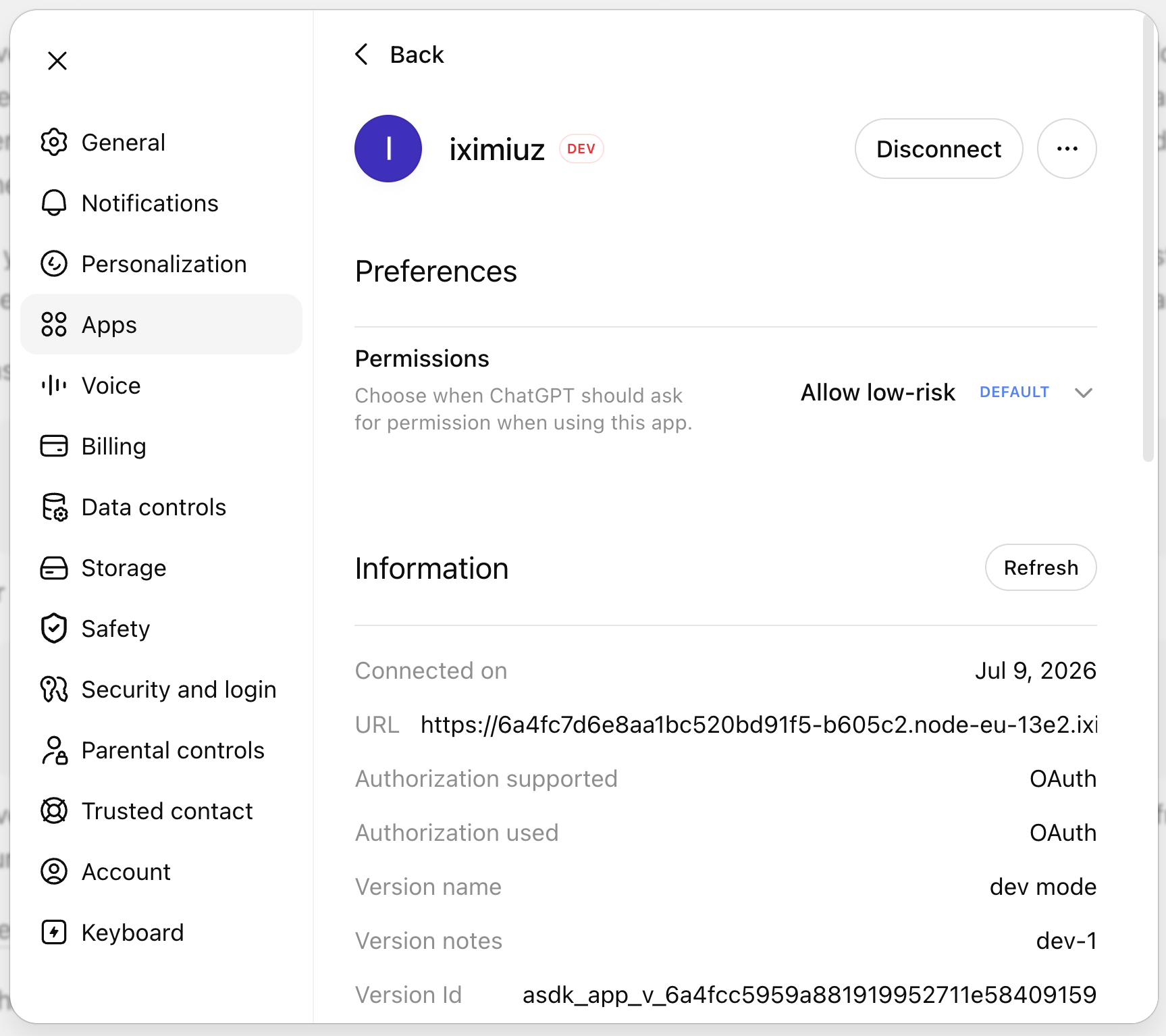
Once connected, Settings, then Apps shows the connector configured with this playground's route URL as its MCP server address, with OAuth as the authorization in use, the flow Pomerium advertised on your server's behalf:
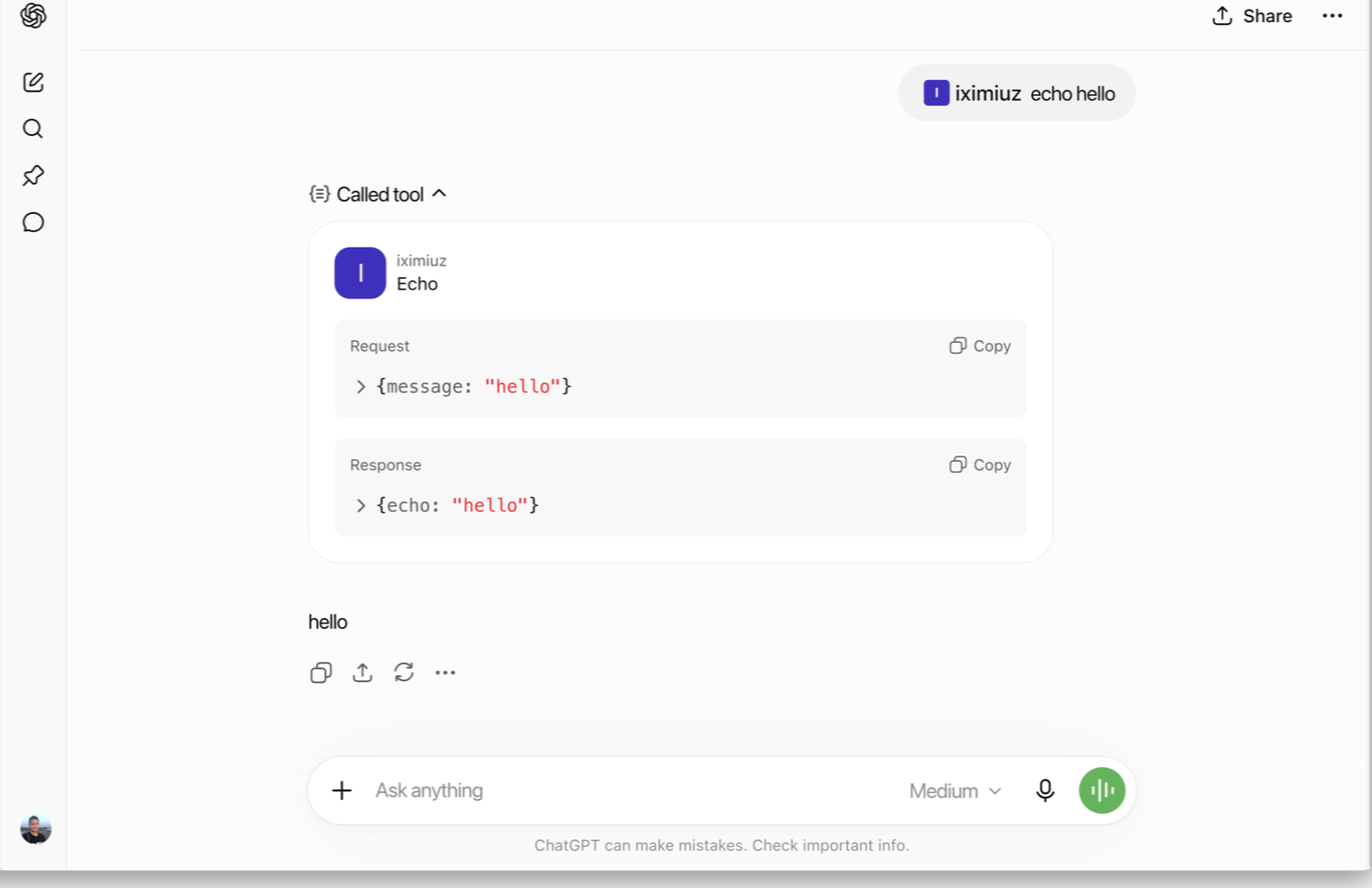
Asking it to echo hello makes ChatGPT call the Echo tool through the gateway, and the expanded tool call shows the request and the echoed response, served by the server running on node-02 behind the tunnel. The reverse_string tool you shipped earlier in this lesson is right there in the same list, ready to call the same way:
And if you want the real-client experience without a paid account, that's doable too (though out of scope for this course): Goose is open source and can run against an open weight model that supports tool calling, giving you an agent calling your tunnel-backed MCP server end to end for free. The Goose blog's Use Goose with built-in local inference walks through the local-model setup.
Before you take this to production
The pattern is production-shaped, but three playground shortcuts would change in a real deployment:
- The TLS certificate. The gateway serves the self-signed
certs/cert.pemgenerated at playground startup (the iximiuz ingress terminates the browser-facing TLS here). In production you'd give Pomerium a certificate for your real domain, from your Certificate Authority or an automated issuer like Let's Encrypt. - The identity provider. Sign-in rides on Pomerium's hosted authenticate service, which is built for quick setup and testing: sign-in options are fixed, sessions last about an hour, and it carries no uptime commitments. In production, configure Pomerium to use your production identity provider.
- The policies. Both the route
policyand the tunnelssh_policyallow exactly one email, yours. Real deployments express team access with Pomerium Policy Language criteria (domains, groups, claims) instead of enumerating individuals.
What you built
- An MCP server on a machine with no inbound reachability, published through a standard
ssh -Rtunnel - OAuth 2.1 authentication on the route, handled entirely by Pomerium; the server has zero auth code
- Two independent policies: who may call the server, and who may open the tunnel that backs it
- An audit trail of every tool call, including the one you shipped mid-session
This is the dev loop for the rest of the course: edit, save, call, observe. In the next lesson the tunnel drops out entirely: the same server, secured the same way, behind an MCP route with a fixed upstream. That is the shape most real deployments use (gateway and server on the same network, nothing to keep connected), and none of the security story changes when the tunnel goes.
- Next lesson
- Secure an MCP Server with a Pomerium HTTP Route