A Practical Guide to SSH Tunnels: Local and Remote Port Forwarding

SSH is yet another example of an ancient technology that is still in wide use today. It may very well be that learning a couple of SSH tricks is more profitable in the long run than mastering a dozen Cloud Native tools or AI agent frameworks destined to become deprecated next quarter.
One of my favorite parts of this technology is SSH Tunnels. With nothing but standard tools and often using just a single command, you can achieve the following:
- Access internal VPC endpoints through a public-facing EC2 instance.
- Open a
localhostport of a remote development VM in the local browser. - Expose any local server from a home/private network to the outside world.
- Tunnel your browser's debugging port to a remote sandboxed coding agent.
And more 😍
But despite the fact that I use SSH Tunnels daily, it always takes me a while to recall the right command. Should it be a Local or a Remote tunnel? What are the flags? Is it a local_port:remote_port or the other way around? So, I decided to finally wrap my head around it, and it resulted in a series of labs and a visual cheat sheet.
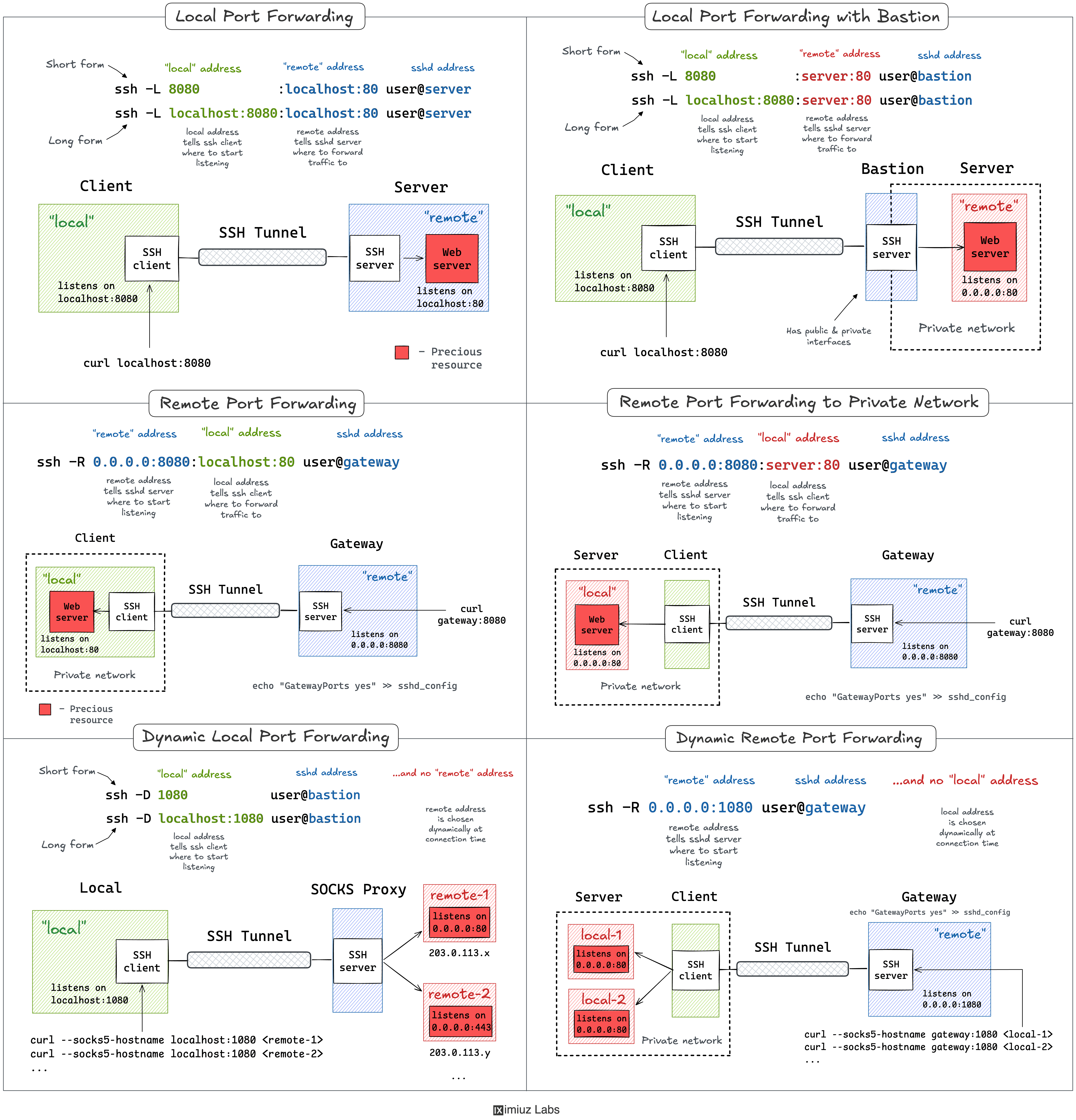

The labs in this tutorial run on an attached playground with four hosts wired into three networks:
internal- a device on the home network192.168.0.0/24(a homelab box, a NAS, a printer). Not reachable from the public network.local- your workstation. Sits on both the home192.168.0.0/24and the public203.0.113.0/24networks.remote- a public-facing bastion / gateway on the public203.0.113.0/24network, also connected to a private vpc172.16.0.0/24.private- an internal-only service (a database, an OpenSearch cluster) on the vpc172.16.0.0/24. Not reachable from the public network.
You can ssh from local to remote by hostname or IP address - the local host key is already trusted on the remote machine:
ssh remote
ssh 203.0.113.30
Local Port Forwarding
Starting from the one that I use the most.
Oftentimes, there might be a service listening on localhost or a private interface of a remote machine that I can only SSH to via its public IP.
And I desperately need to access this port from my local machine. A few typical examples:
- Accessing a private remote database (MySQL, Postgres, Redis, etc) from your laptop using your favorite UI tool.
- Using your browser to access a web application exposed only to a private network.
- Accessing a container's port from your laptop without publishing it on the server's public interface.
All of the above use cases can be solved with a single ssh command:
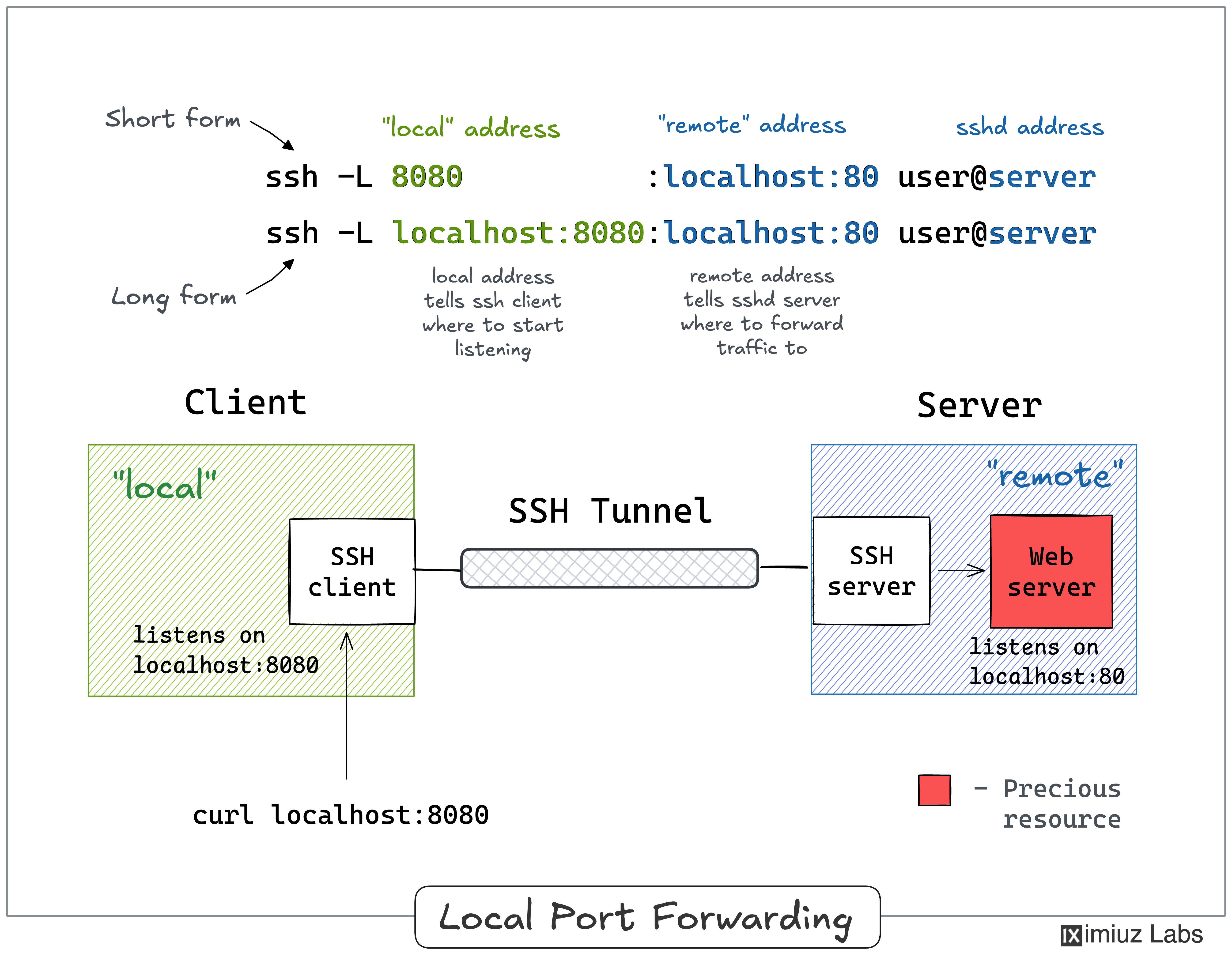
ssh -L [local_addr:]local_port:remote_addr:remote_port [user@]sshd_addr
The -L flag indicates we're starting a local port forwarding. What it actually means is:
- On your local machine, the SSH client will start listening on
local_port(likely, onlocalhost, but it depends - check theGatewayPortssetting). - Any traffic to this port will be forwarded to
remote_addr:remote_port, reached from the remote machine you SSH-ed to.
Here is what it looks like on a diagram:
Use ssh -f -N -L to run the port-forwarding session in the background.
Lab 1: Using SSH Tunnels for Local Port Forwarding 👨🔬
This lab reproduces the setup from the diagram above.
The remote host runs a web server bound to 127.0.0.1:80, and we want to reach it from the local workstation.
Because the service is bound to the loopback interface, it cannot be reached over the network.
From the local host, try to hit the remote host's public address:
curl 203.0.113.30:80 # remote.public
curl: (7) Failed to connect to 203.0.113.30 port 80 after 0 ms: Could not connect to server
But from the inside of the remote host, the very same service works just fine:
curl localhost:80
Hello from the remote host (localhost-only service).
And here is the trick: back on the local host,
bind the remote's localhost:80 to the local's localhost:8080 using local port forwarding:
ssh -f -N -L 8080:localhost:80 203.0.113.30
Now you can access the web service on a local port of your workstation:
curl localhost:8080
Hello from the remote host (localhost-only service).
A slightly more verbose (but more explicit and flexible) way to achieve the same goal:
ssh -f -N -L localhost:8080:localhost:80 203.0.113.30
#            local          remote       via
Learn by doing, not just by reading or watching
Sign up for a free account to start a VM playground right on this page, track your progress, and get notified about new learning materials.
Local Port Forwarding with a Bastion Host
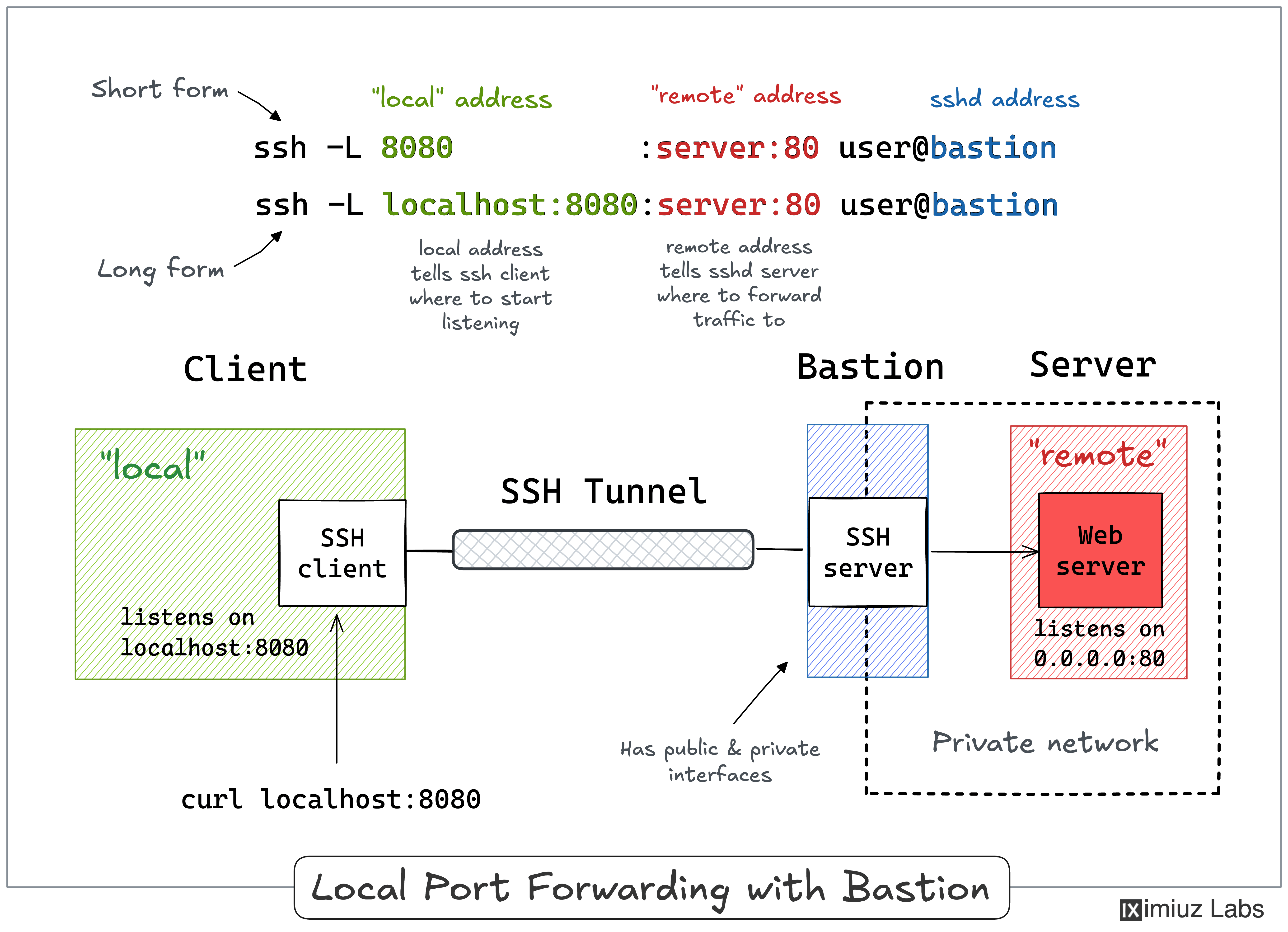
It might not be obvious at first, but the ssh -L command allows forwarding a local port to a remote port on any machine,
not only on the SSH server itself. Notice how the remote_addr and sshd_addr may or may not have the same value:
ssh -L [local_addr:]local_port:remote_addr:remote_port [user@]sshd_addr
A remote SSH server used to access private destinations is usually called a bastion or jump host. This is how I visualize this scenario in my head:
I often use the above trick to call endpoints that are accessible from the bastion host but not from my laptop (e.g., using an EC2 instance with private and public interfaces to connect to an OpenSearch cluster or any other service deployed fully within a VPC).
Lab 2: Local Port Forwarding with a Bastion Host 👨🔬
This lab reproduces the setup from the diagram above.
The remote target service runs on the private host inside an improvised VPC network (172.16.0.40:80),
and the former remote host acts as our public-facing bastion (jump host) that can reach it.
The local workstation has no route into the VPC,
so it cannot talk to the private host directly.
From the local host:
curl --connect-timeout 3 172.16.0.40:80 # private.vpc
curl: (28) Connection timed out after 3002 milliseconds
The remote bastion, on the other hand, is connected to the VPC and can reach the private host.
So, we forward a local port through the bastion straight to the private service.
From the local host:
ssh -f -N -L 8081:172.16.0.40:80 203.0.113.30
Checking that it works - still on the local host:
curl localhost:8081
Hello from the private VPC host (172.16.0.40).
Notice that the forwarding target (172.16.0.40) and the SSH server (203.0.113.30) are different machines.
The bastion accepts the connection and opens the second hop to the private host on our behalf.
A slightly more verbose (but more explicit and flexible) way to achieve the same goal:
ssh -f -N -L localhost:8081:172.16.0.40:80 203.0.113.30
#            local          remote         via
Local Port Forwarding to a Loopback Port via a Jump Host
The bastion trick from Lab 2 is handy, and its command is (relatively) easy to remember,
but it has a significant limitation.
In ssh -L local_port:remote_host:remote_port bastion_host, the SSH session terminates on the bastion,
and the bastion opens the second hop to remote_host:remote_port.
That works only as long as the private service is bound to the remote's external network interface,
(i.e., the bastion can reach it from the outside).
But services can also be bound to 127.0.0.1 -
a database admin console, a metrics or profiling endpoint, an application's debug port, etc.
A loopback-bound port answers only on the host's own loopback,
so neither the bastion nor anything else on the network can reach it.
The forward has to be resolved on the remote host itself.
The way to do that is to use the remote_host as the target address in the ssh -L command,
but when the remote is only reachable through a bastion,
you will need to use an extra flag - -J bastion_host.
Instead of terminating the SSH session on the bastion,
-J (ProxyJump) jumps through the bastion and terminates the session on the remote host.
The -L destination is then resolved from the remote's point of view, so localhost means the remote's own loopback:
ssh -J [user@]jumphost -L [local_addr:]local_port:localhost:remote_port [user@]remote_host
The bastion still only relays the bytes for the jump - your real SSH session is established between the local and the remote hosts, making it possible to access the remote's loopback.
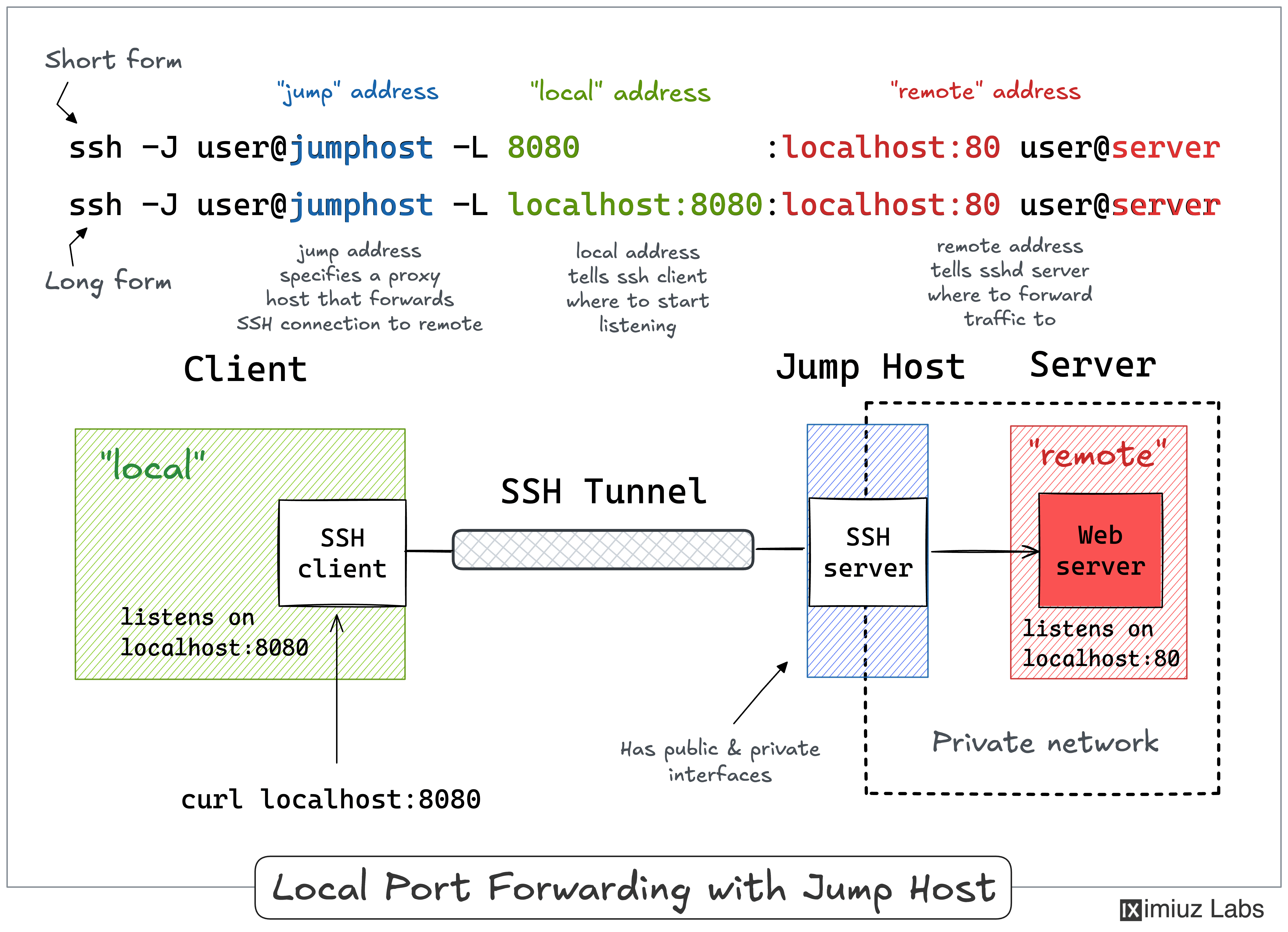
This is how I reach an local-only debug or admin port that a service binds to 127.0.0.1.
Even though the port is invisible to the whole network,
a single ssh -J ... -L from my laptop makes it
show up on a local port of my machine as if the service were running right next to me.
Lab 3: Local Port Forwarding to a Loopback Port via a Jump Host 👨🔬
This lab reuses the bastion topology from Lab 2, but this time the private host also runs a
second web server bound to its loopback at 127.0.0.1:9000 - think of an internal debug or
metrics port that must never be exposed on the network.
The Lab 2 approach forwards to the private host's external network address.
The bastion can open that hop, but there is nothing listening on 172.16.0.40:9000 -
the debug port lives on the loopback, not on the network interface.
So a -L 8082:172.16.0.40:9000 forward through the bastion would only get a connection refused.
Instead, we need to make the SSH session "jump through" the bastion (using -J bastion) and terminate on the private host,
forwarding to localhost:9000, which the private host then resolves to its own loopback.
From the local host:
ssh -f -N -J 203.0.113.30 -L 8082:localhost:9000 172.16.0.40
#            jump host            target_port    target_host
Checking that it works - still on the local host:
curl localhost:8082
Hello from the private VPC host's loopback-only debug port (127.0.0.1:9000).
Remote Port Forwarding
Another popular (but rather inverse) scenario is when you want to momentarily expose a local service to the outside world. Of course, for that, you'll need a public-facing ingress gateway server. And the good news is that any public-facing server with an SSH daemon on it can be used as such a gateway:
ssh -R [remote_addr:]remote_port:local_addr:local_port [user@]gateway_addr
The above command looks no more complicated than its ssh -L counterpart. But there is a pitfall...
By default, the above SSH tunnel will allow using only the gateway's localhost as the remote address.
In other words, your local port will become accessible only from inside the gateway server itself,
which is most likely not what you actually need.
For instance, I typically want to use the gateway's public address as the remote address to expose my local services to the public Internet.
For that, the SSH server needs to be configured with the GatewayPorts yes setting.
Here is what remote port forwarding can be used for:
- Exposing a dev service from your laptop to the public Internet for a quick demo.
- Exposing your homelab to the public Internet (for arbitrary purposes).
- Tunneling your local browser's debugging port to a remote and/or sandboxed coding agent.
Here is how the remote port forwarding can be visualized:
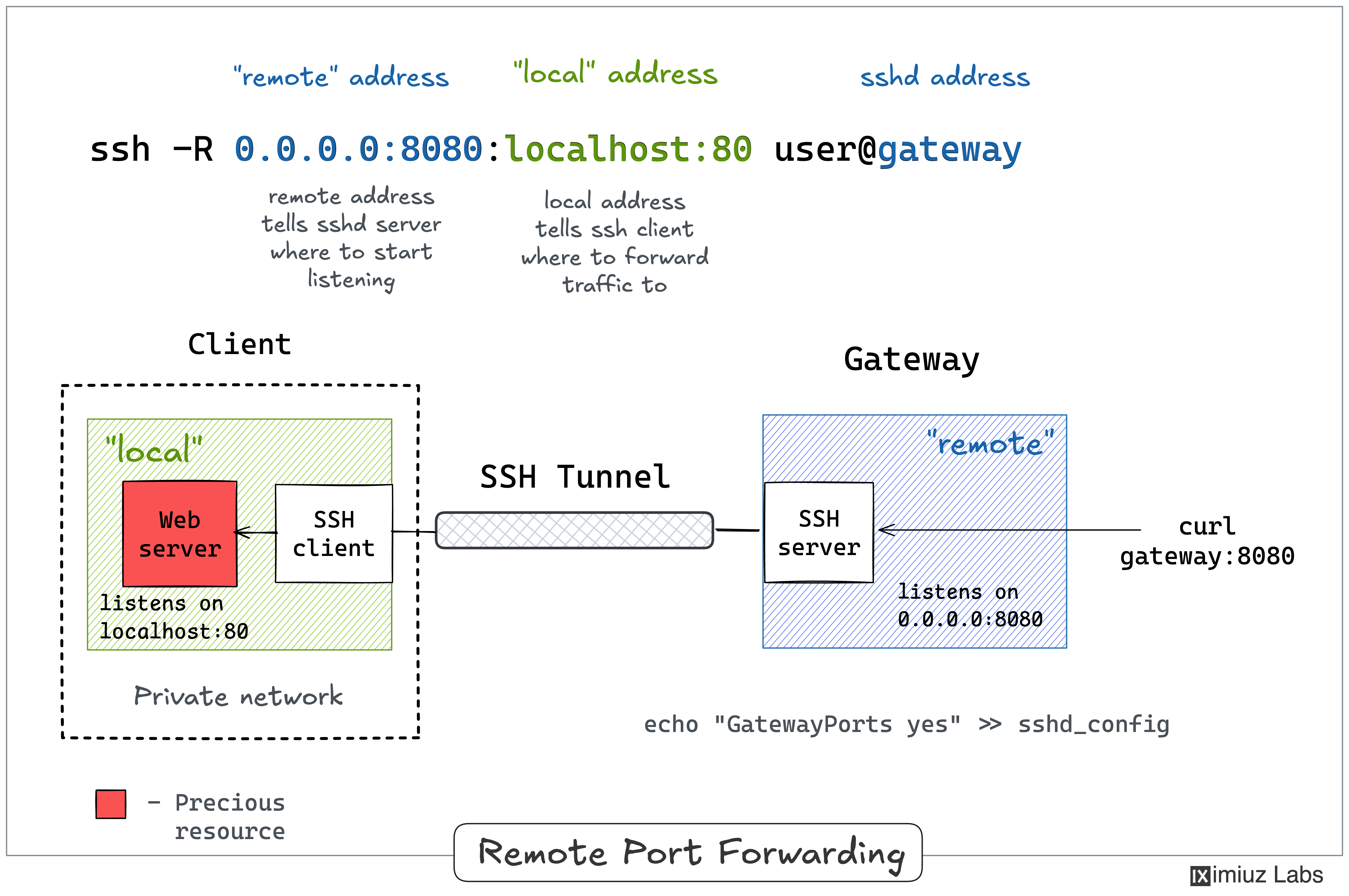
Use ssh -f -N -R to run the port-forwarding session in the background.
Lab 4: Using SSH Tunnels for Remote Port Forwarding 👨🔬
This lab reproduces the setup from the diagram above.
The local workstation runs a web server bound to 127.0.0.1:80,
and we want to expose it to the outside through the public-facing remote gateway.
The service is bound to the loopback interface, so right now nobody but the local machine itself can reach it.
Try accessing it from the remote machine:
curl --connect-timeout 3 203.0.113.20:80 # local.public
curl: (7) Failed to connect to 203.0.113.20 port 80 after 0 ms: Could not connect to server
We want to expose it through the remote gateway and consume it from the private host.
The remote gateway already has GatewayPorts yes in its sshd_config,
so we can ask it to listen on all of its interfaces (0.0.0.0) and forward the traffic back to us.
However, the local machine has to establish the tunnel first.
From the local host, start the remote port forwarding:
ssh -f -N -R 0.0.0.0:8080:localhost:80 203.0.113.30
#            remote       local        via
Now the local web service is published on the gateway's interfaces.
Let's confirm it from a third machine - the private host,
which can reach the remote gateway over the VPC:
curl 172.16.0.30:8080 # remote.vpc
Hello from your local workstation (localhost-only service).
Remote Port Forwarding to a Home or Private Network
Similar to local port forwarding, remote port forwarding has its own bastion or jump host mode. But this time, the machine with the SSH client (e.g., your dev laptop) plays the role of the jump host. In particular, it allows exposing ports of a home (or private) network reachable from your laptop to the outside world through a remote SSH server acting as an ingress gateway:
ssh -R [remote_addr:]remote_port:local_addr:local_port [user@]gateway_addr
Looks almost identical to the simple remote SSH tunnel,
but the local_addr:local_port pair becomes the address of a device in the home network.
Here is how it can be depicted on a diagram:
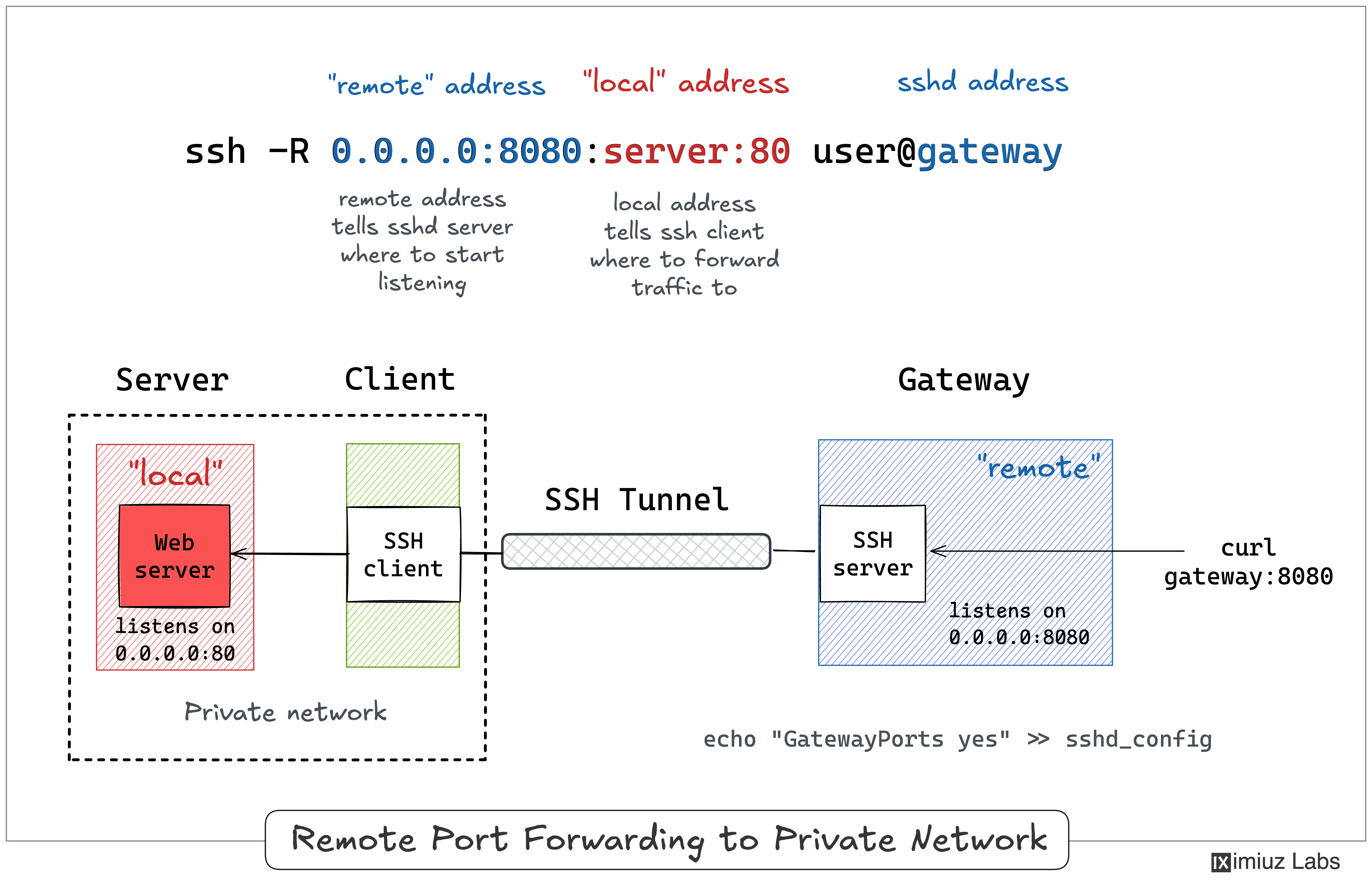
I typically use my laptop as a thin client and the actual development happens on a remote server. Sometimes, such a remote server can reside in my home network and have no or restricted Internet access (for extra isolation). This is when I may want to rely on remote port forwarding to expose a service from a home server to the public Internet, using my laptop that can access both the internal dev server and the remote SSH server (ingress gateway) as a jump host.
Lab 5: Remote Port Forwarding from a Home/Private Network 👨🔬
This lab reproduces the setup from the diagram above.
The service we want to expose runs on the internal host inside an isolated home network (192.168.0.10:80).
Our local workstation can reach the home network and also has SSH access to the public-facing remote gateway,
so it plays the role of a jump host.
The local host can reach the internal service over the home network.
From the local host:
curl 192.168.0.10:80 # internal.home
Hello from the internal home-network host (192.168.0.10).
From the outside, though, the internal device is invisible.
Try accessing it from the remote host:
curl --connect-timeout 3 192.168.0.10:80 # internal.home
curl: (28) Connection timed out after 3001 milliseconds
The remote host has no route into the home network, so the request simply times out.
Now, from the local host,
start the remote port forwarding from the remote gateway to the internal device.
The forwarding target (192.168.0.10) is resolved by the SSH client, i.e., from the local host's point of view:
ssh -f -N -R 0.0.0.0:8081:192.168.0.10:80 203.0.113.30
#            remote       local           via
Finally, validate that the home-network service became accessible on the gateway - from the private host, which reaches the gateway over the VPC:
curl 172.16.0.30:8081 # remote.vpc
Hello from the internal home-network host (192.168.0.10).
Dynamic Local Port Forwarding
This forwarding mode is less transparent for the clients,
but it is also significantly more flexible than regular local port forwarding.
Instead of wiring a local port to a single remote destination (like ssh -L does),
dynamic (local) port forwarding turns the SSH client into a local SOCKS proxy.
Any application that can speak SOCKS can then send traffic through it,
choosing the actual destination host and port per connection -
they will be sent over to the SSH server, which will resolve the destination and establish the connection:
ssh -D [local_addr:]local_port [user@]sshd_addr
When the -D flag is used, the SSH client on your machine starts a SOCKS proxy listening on local_port (on localhost by default).
Each connection made through the proxy is forwarded to whatever address the SOCKS client asks for, reached from the sshd_addr machine.
In other words, it's like ssh -L, but you don't have to specify a single remote_addr:remote_port upfront,
because the SOCKS protocol allows specifying the destination at the beginning of each connection
(via a few extra bytes sent right before the payload).
One (local) proxied port gives you access to every host and port reachable from the (remote) SSH server.
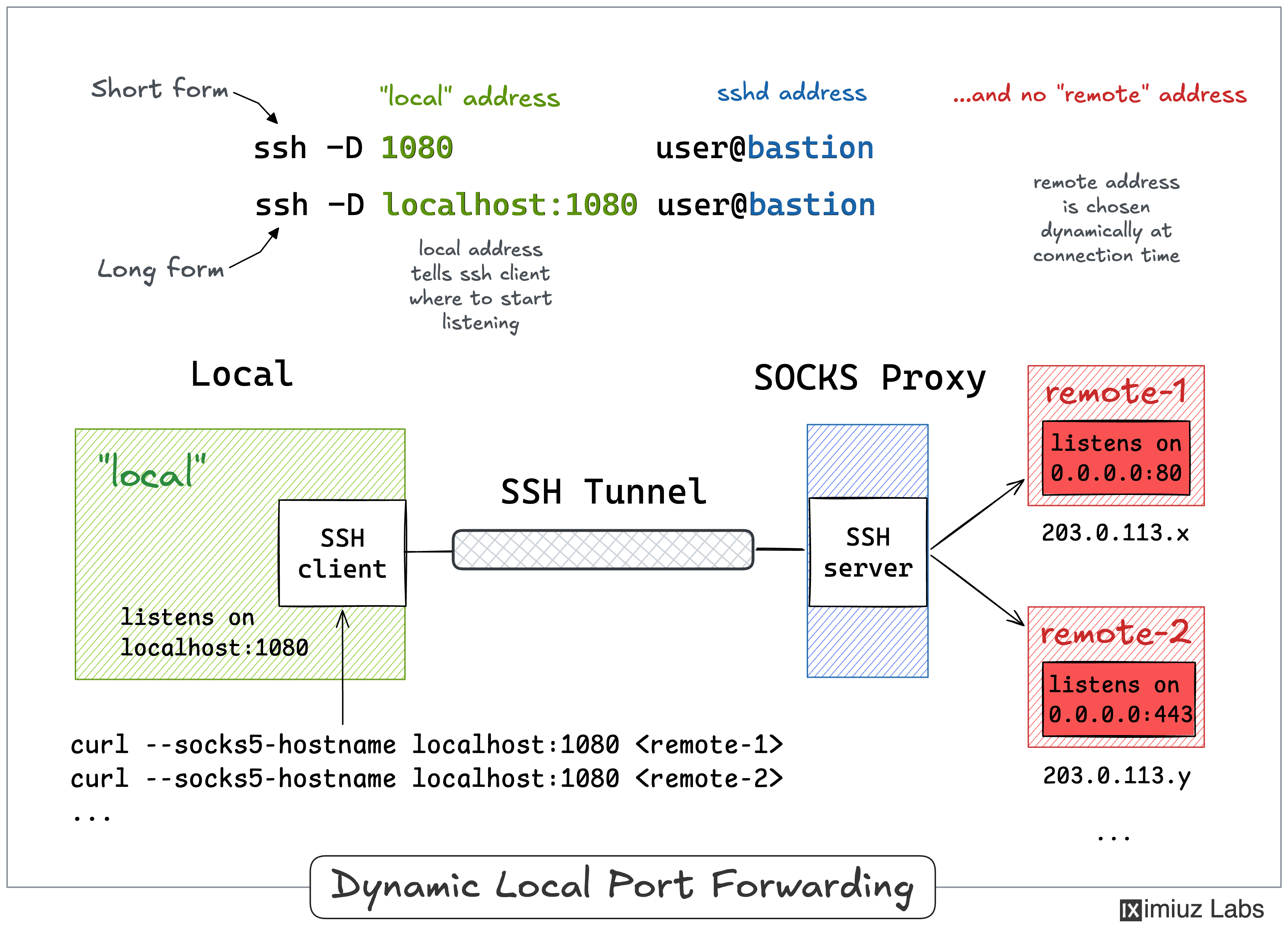
Here is what dynamic port forwarding can be used for:
- Calling APIs in a private network through a bastion, without a separate tunnel per service.
- Browsing internal web apps in a remote network via a single jump host.
- Reaching a fleet of VPC endpoints from your laptop through one EC2 instance.
Use ssh -f -N -D to run the SOCKS proxy in the background.
Lab 6: Using SSH Tunnels for Dynamic Port Forwarding 👨🔬
This is the bastion scenario from Lab 2 again, except this time we won't pin the tunnel to a single destination.
First, let's make sure we cannot reach the private destination from the local machine:
curl --connect-timeout 3 172.16.0.40:80 # private.vpc
curl: (28) Connection timed out after 3002 milliseconds
Now, on the local host, start a SOCKS proxy through the remote host:
ssh -f -N -D 1080 203.0.113.30 # remote.public
If you point curl at the proxy to reach the private VPC service, the request will come through:
curl --socks5-hostname localhost:1080 172.16.0.40:80
#                      via            private.vpc
Hello from the private VPC host (172.16.0.40).
Note that unlike with ssh -L, the client - curl in this case - must be able to speak SOCKS (see the --socks5-hostname flag).
The same SOCKS proxy reaches any host the remote machine can - including a second VPC host -
without setting up a separate tunnel, try reaching the private-2 machine:
curl --socks5-hostname localhost:1080 172.16.0.50:80
#                      via            private-2.vpc
Hello from the second private VPC host (172.16.0.50).
With ssh -L, reaching both private hosts would have meant two separate tunnels (one per remote_addr:remote_port).
A single ssh -D proxy covers the whole network behind the bastion.
Dynamic Remote Port Forwarding
Just like ssh -L has a dynamic sibling in ssh -D, the ssh -R command has its own dynamic mode.
If you drop the fixed destination from -R and pass only a port, OpenSSH turns the SSH server itself into a SOCKS proxy.
It's the exact mirror of -D: this time the proxy lives on the gateway,
and every connection made through it is tunneled back to the ssh client and resolved from its point of view:
ssh -R [bind_address:]port [user@]gateway_addr
The -R flag with no destination means:
- On the remote gateway, the SSH server starts a SOCKS proxy listening on
port(on the gateway'slocalhostby default, or on all interfaces withGatewayPorts yes). - Each connection made through the proxy is tunneled back to the
sshclient and forwarded to whatever address the SOCKS client asks for, reached from the client's side.
It's like a regular ssh -R, but you don't have to choose a single local_addr:local_port upfront.
One proxy on the gateway exposes every host and port reachable from the ssh client - for example, an entire home network.
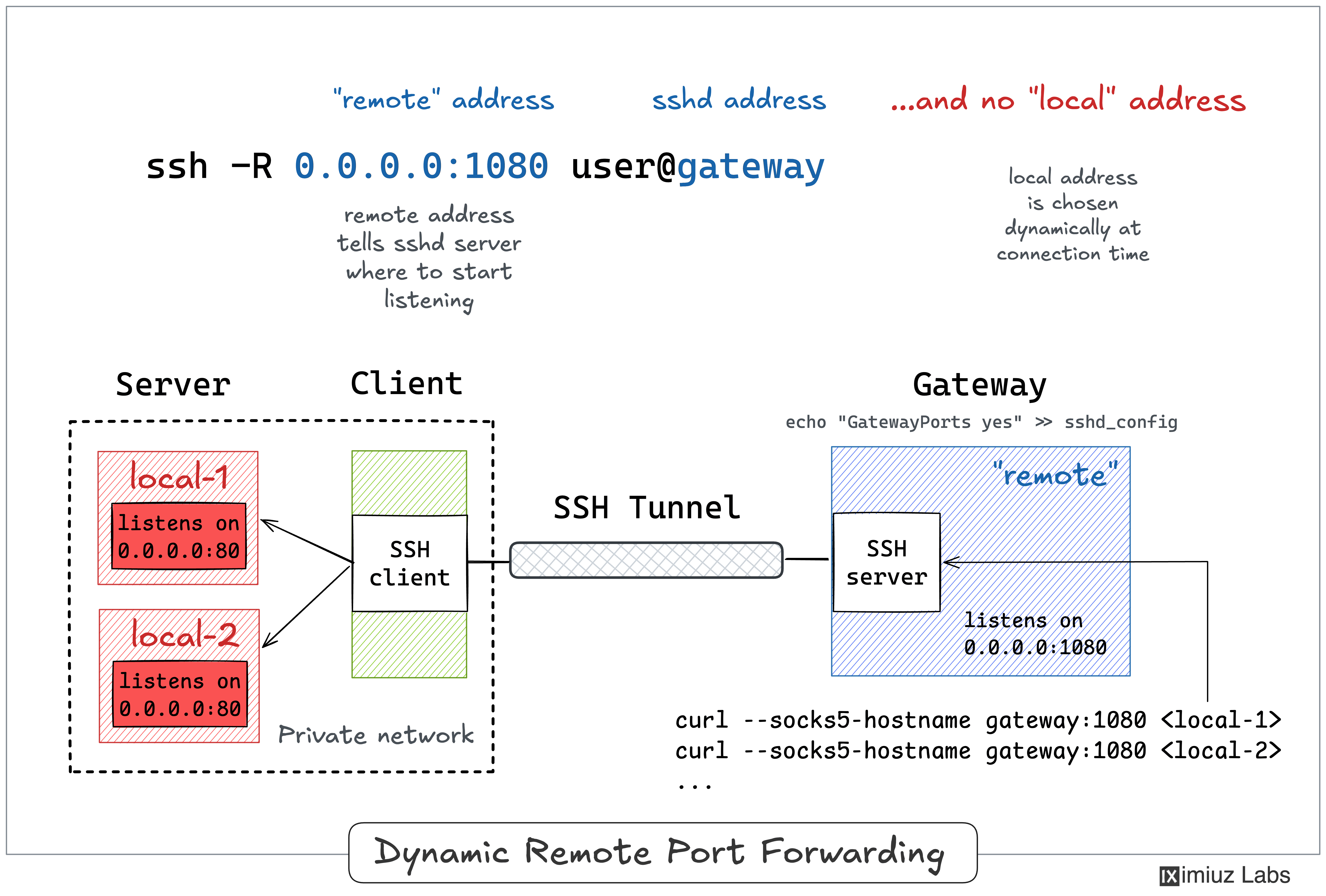
Remote dynamic forwarding requires OpenSSH 7.6 or newer on the client.
As with a regular ssh -R, binding the proxy to a non-loopback address on the gateway needs GatewayPorts yes in its sshd_config.
Use ssh -f -N -R to run the SOCKS proxy in the background.
Lab 7: Using SSH Tunnels for Remote Dynamic Port Forwarding 👨🔬
This is the home-network scenario from Lab 5 again -
we want to expose devices that only local can reach through the public-facing remote gateway -
except this time a single proxy covers all of them.
First, let's make sure we cannot reach the internal host from the private machine:
curl 192.168.0.10:80 # internal.home
curl: (7) Failed to connect to 192.168.0.10 port 80 after 0 ms: Could not connect to server
Now, from the local host, turn the remote gateway into a SOCKS proxy,
and establish a tunnel with it:
ssh -f -N -R 0.0.0.0:1080 203.0.113.30 # remote.public
To recheck the connectivity, from the private host again,
use the gateway's proxy to reach the internal home device:
curl --socks5-hostname 172.16.0.30:1080 192.168.0.10:80
#                      via              internal.home
Hello from the internal home-network host (192.168.0.10).
The same proxy reaches anything the ssh client (local) can - including its own loopback service:
curl --socks5-hostname 172.16.0.30:1080 127.0.0.1:80
#                      via              local's localhost
Hello from your local workstation (localhost-only service).
Summarizing
Here is a quick recap and a couple of mnemonics to help you memorize the SSH tunneling commands:
- Local port forwarding (
ssh -L) makes a remote service available on a local port. - Remote port forwarding (
ssh -R) makes a local service available on a remote port. - Dynamic local port forwarding (
ssh -D) turns the localsshclient into a SOCKS proxy. - Dynamic remote port forwarding (
ssh -Rwith no destination) turns thesshdserver into a SOCKS proxy. - Local port forwarding (
ssh -L) implies it's thesshclient that starts listening on a new port. - Remote port forwarding (
ssh -R) implies it's thesshdserver that starts listening on an extra port. - The word local can mean either the SSH client machine or an internal host accessible from it.
- The word remote can mean either the SSH server machine (sshd) or any host accessible from it.
- The mnemonics are ssh -L local:remote and ssh -R remote:local and it's always the left-hand side that opens a new port.
Hope the above materials helped you a bit with becoming a master of SSH Tunnels 🧙
Practice
Reinforce your learning by solving these practical challenges:
Resources
- SSH Tunneling Explained by networking gurus from Teleport.
- SSH Tunneling: Examples, Command, Server Config by SSH Academy.
About the Author

Ivan Velichko
Ivan is the creator of iximiuz Labs and a long-time tech blogger and educator with a traditional focus on server-side tech and containers.
Writes about
Frequently covers
More tutorials you might like
How Container Networking Works: Building a Bridge Network From Scratch
Begin with the basics to understand Docker and Kubernetes networking: learn how to create and interconnect Linux network namespaces using only command-line tools.
How Servers Work: A Hands-On Introduction to TCP Sockets
Learn how servers actually work by building a tiny TCP server and client from scratch. A hands-on introduction to sockets, TCP, and the network programming model every backend, DevOps, and platform engineer should go through at least once.
How Container Filesystem Works: Building a Docker-like Container From Scratch
Learn how Linux containers are built from the ground up. Starting with the mount namespace and a root filesystem, see why PID, cgroup, UTS, and network namespaces naturally follow - and how this foundation makes concepts like bind mounts, volumes, and persistence in Docker or Kubernetes much easier to grasp.

Controlling Process Resources with Linux Control Groups
Learn how to limit process resources using Linux cgroups - from the most basic and labour-intensive cgroupfs manipulation to the handiest systemd-run command.
Learn by doing, not just by reading or watching
Sign up for a free account to start a VM playground right on this page, track your progress, and get notified about new learning materials.