Combining 2FA and Public Key Authentication for a better Linux SSH security

Out of the box, SSH lets you log in with a password, which means anything that can guess or brute-force that password can log in too. In this tutorial we take the Debian box attached to this playground and harden its SSH access the way you'd do it on a real server, layering four independent measures:
- Public-key authentication instead of passwords.
- No direct root login.
- A TOTP second factor (time-based one-time passwords) enforced through PAM.
- A non-default SSH port to cut down on automated noise.
Each step is independent, so even if one layer is bypassed the others still stand. We'll configure everything on this machine and then log into it over localhost to prove the full key-plus-TOTP flow actually works, no phone required.
Why these four measures, and the reasoning behind each
- Public keys over passwords. A key pair is effectively impossible to brute-force, the private half never travels over the wire (no replay), and access is revoked by deleting one line rather than rotating a shared secret. It's also what makes non-interactive automation safe.
- No root login.
rootis the one username every attacker already knows. Forcing logins through a normal account plussudoremoves that target and gives you an audit trail of who did what. - TOTP second factor. Even if a private key leaks, the attacker still needs the rotating 6-digit code generated from a secret they don't have. Codes expire every 30s, so intercepting one buys nothing.
- Non-default port. Pure noise reduction. It won't stop a targeted attacker, but it makes your logs dramatically quieter by dodging the bots that only ever knock on port 22.
On a real server, never reconfigure sshd from your only session. Keep a second, already-authenticated terminal open until you've confirmed the new login works, otherwise a typo in sshd_config locks you out for good. Inside this playground the stakes are lower (you can always restart the lab), but the habit is worth building now.
Step 1: Set up public-key authentication
A key pair has two halves: a private key that never leaves the machine that owns it, and a public key you hand to any server you want to log into. Generate one, we'll use Ed25519, which is fast and compact:
ssh-keygen -t ed25519 -f ~/.ssh/id_playground -N ""
We pass -N "" for an empty passphrase so the in-playground test stays smooth. On a machine you actually care about, drop -N "" and set a passphrase: it encrypts the private key at rest so a stolen key file is useless on its own.
Now authorize that key for logins to this same machine by appending the public half to authorized_keys, and lock down the permissions (sshd ignores these files if they're group- or world-writable):
mkdir -p ~/.ssh && chmod 700 ~/.ssh

# managed authorized_keys ships read-only: make it writable before appending
[ -e ~/.ssh/authorized_keys ] && chmod u+w ~/.ssh/authorized_keys

{ echo; cat ~/.ssh/id_playground.pub; } >> ~/.ssh/authorized_keys
chmod 600 ~/.ssh/authorized_keys
Two playground quirks are handled above. First, the managed authorized_keys ships read-only, so we flip on the write bit before appending, otherwise the redirection fails with Permission denied. Watch out for the trap here: if you append first and chmod afterwards, the append fails but the chmod still makes the file writable, so a second run silently succeeds and it looks like the commands were fine. Second, that file has no trailing newline, so the leading echo forces our key onto its own line; a plain cat ... >> would glue it onto the previous line as a comment that sshd silently ignores.
Check it. Confirm the pair exists, your public key is registered on its own line, and the permissions are tight enough for sshd to trust the files:
ssh-keygen -lf ~/.ssh/id_playground            # shows: 256 SHA256:... (ED25519)
grep -qF "$(cut -d' ' -f2 ~/.ssh/id_playground.pub)" ~/.ssh/authorized_keys \
  && echo "OK: key authorized" || echo "MISSING: re-run the append above"
stat -c '%a %n' ~/.ssh ~/.ssh/authorized_keys  # expect: 700 .../.ssh  and  600 .../authorized_keys
Copying a key to a different server in the real world
When the server is remote, the one-liner is ssh-copy-id:
ssh-copy-id -i ~/.ssh/id_playground.pub user@remote_host
If ssh-copy-id isn't available, do it by hand: print the public key locally with cat ~/.ssh/id_playground.pub, then paste it onto a new line in ~/.ssh/authorized_keys on the server and apply the same chmod 700/600 permissions as above.
Step 2: Add a TOTP second factor
The TOTP layer comes from Google Authenticator's PAM module. Install it, plus oathtool, which we'll use later to generate codes straight from the terminal instead of a phone:
sudo apt-get update
sudo apt-get install -y libpam-google-authenticator oathtool
Now enroll the current user (run it without sudo, the secret must live in your home directory, since PAM reads it for whoever is authenticating):
google-authenticator -t -d -f -r 3 -R 30 -w 3
Those flags answer the interactive prompts non-interactively: time-based tokens, disallow code reuse, rate-limit to 3 tries per 30s, and tolerate a small clock-skew window. The command prints a QR code, a secret key, and five emergency scratch codes, and writes them all to ~/.google_authenticator.
On a normal workstation you'd scan the QR code into an authenticator app (Google Authenticator, Authy), a desktop client like KeePassXC, or a hardware token such as a YubiKey, and stash the scratch codes somewhere safe for the day you lose your phone. In this playground we'll skip the phone entirely and derive codes from the secret with oathtool.
Check it. The enrollment file should exist and its secret should yield a live 6-digit code:
test -f ~/.google_authenticator && echo "OK: enrolled" || echo "MISSING: re-run google-authenticator"
oathtool --totp -b "$(head -n1 ~/.google_authenticator)"   # prints a 6-digit code
Step 3: Harden the SSH daemon
All the server-side policy lives in /etc/ssh/sshd_config. Open it with sudo nano /etc/ssh/sshd_config and make sure the following directives are present and set as shown (edit them in place if they already exist):
# Move off the default port 22
Port 4898

# Remove the most-targeted login of all
PermitRootLogin no

# Accept keys, reject passwords
PubkeyAuthentication yes
PasswordAuthentication no

# Require BOTH a key AND the keyboard-interactive step (where TOTP lives)
AuthenticationMethods publickey,keyboard-interactive

# Hand the keyboard-interactive step to PAM, which is where Google Authenticator plugs in
UsePAM yes
KbdInteractiveAuthentication yes
The line doing the heavy lifting is AuthenticationMethods publickey,keyboard-interactive: the comma means and, so a client must satisfy the public-key check and the interactive (TOTP) prompt. Either one alone is rejected.
On older Debian releases the directive is named ChallengeResponseAuthentication instead of KbdInteractiveAuthentication. If you see the former, set it to yes; the meaning is the same.
Check it. This is the most important check in the tutorial: validate the config before you restart, so a typo can never take the daemon down. Then confirm the directives resolved to the values you intended (this also catches anything silently overridden by a drop-in under /etc/ssh/sshd_config.d/):
sudo sshd -t && echo "OK: config is valid"
sudo sshd -T | grep -Ei '^(port|permitrootlogin|passwordauthentication|pubkeyauthentication|authenticationmethods|kbdinteractiveauthentication) '
The second command should echo back, among other lines:
port 4898
permitrootlogin no
pubkeyauthentication yes
passwordauthentication no
kbdinteractiveauthentication yes
authenticationmethods publickey,keyboard-interactive
Step 4: Wire TOTP into PAM
sshd now delegates the interactive step to PAM, so we tell PAM to ask for a TOTP code. Edit the SSH PAM stack with sudo nano /etc/pam.d/sshd.
First, comment out the line that pulls in the standard Unix password stack, otherwise the interactive step would also demand your account password, which we deliberately turned off:
# @include common-auth
Then add this line at the end of the file:
# Second factor: time-based one-time password
auth required pam_google_authenticator.so nullok
nullok lets users who haven't enrolled yet (no ~/.google_authenticator) still log in with just their key. It's a safety net so you don't lock out accounts mid-rollout, but once everyone is enrolled, remove nullok to make the second factor mandatory.
Check it. PAM has no syntax validator, so grep the two lines that matter: the Unix password stack must be off, and the TOTP module must be present:
grep -qE '^[[:space:]]*@include[[:space:]]+common-auth' /etc/pam.d/sshd \
  && echo "WARNING: common-auth still active, comment it out" || echo "OK: common-auth disabled"
grep -q 'pam_google_authenticator.so' /etc/pam.d/sshd \
  && echo "OK: TOTP module wired in" || echo "MISSING: add the pam_google_authenticator line"
Apply everything by restarting the daemon (the sshd -t guard refuses to restart on a broken config):
sudo sshd -t && sudo systemctl restart ssh
Check it. Confirm the daemon came back up and is listening on the new port before you depend on it:
systemctl is-active ssh            # expect: active
sudo ss -tlnp | grep ':4898'       # expect: a LISTEN line for sshd on 4898
restart ssh vs restart sshd vs socket activation
On Debian the service unit is ssh.service (with sshd.service as an alias on some versions). Recent releases also ship socket activation via ssh.socket, which is the usual culprit if a port change doesn't seem to take effect. Restart both to be safe:
sudo systemctl restart ssh.socket ssh.service 2>/dev/null || sudo systemctl restart ssh
Step 5: Log in like a boss
Time to prove the whole chain works. Grab the current TOTP code from the secret google-authenticator just wrote, the secret is the first line of ~/.google_authenticator:
oathtool --totp -b "$(head -n1 ~/.google_authenticator)"
Now connect to this same machine over the new port, using your key. SSH will accept the key and then drop to the Verification code: prompt, paste the 6-digit code from above:
ssh -p 4898 -i ~/.ssh/id_playground \
    -o StrictHostKeyChecking=accept-new \
    "$USER@localhost"
A successful login looks like this:
(you@localhost) Verification code: 123456
Linux ... aarch64
...
you@host:~$
You were asked for a code on top of the key, that's the two factors working together. Try the same ssh command with a wrong code, or after temporarily renaming your key, and watch it bounce you. That's the point: each layer fails closed.
Stuck on Permission denied (publickey)
That error means sshd never accepted your key, so it never reached the TOTP step (public-key is the first required method). Re-run with -v and look for the Offering public key line, then confirm that exact key is present on its own line in ~/.ssh/authorized_keys:
ssh-keygen -lf ~/.ssh/id_playground            # fingerprint of the key you're offering
grep -c '^ssh-' ~/.ssh/authorized_keys         # how many keys sshd sees (one per line)
If your key is missing or two keys share a line, append it cleanly with { echo; cat ~/.ssh/id_playground.pub; } >> ~/.ssh/authorized_keys.
Codes are valid for ~30 seconds. If your paste lands just after a rotation, regenerate with oathtool and try again.
A cleaner SSH client config for real servers
Once a server is hardened, encode its quirks once in ~/.ssh/config so you can just type ssh my_server:
Host my_server
    HostName 192.168.12.34
    User my_username
    IdentityFile ~/.ssh/id_playground
    Port 4898
Recap
You took a default Debian SSH setup and stacked four independent defenses on it:
- Logins now require a private key, passwords are off entirely.
- Root can't log in directly; administration goes through a normal account.
- A TOTP second factor is enforced by PAM on every login.
- The daemon listens on a non-default port, quieting the bots.
The same recipe applies unchanged to any Debian-family server, the only differences in the wild are that you copy the key with ssh-copy-id, enroll TOTP from a real authenticator app, and keep that safety session open until the first login succeeds.
About the Author
Writes about
Frequently covers
More tutorials you might like
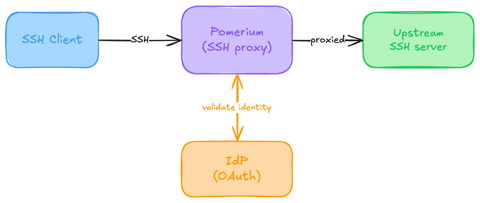
Native SSH Access with Pomerium
Pomerium can be used as a native SSH reverse proxy, adding OAuth authentication and flexible Pomerium policy enforcement to standard SSH connections, without the need for tunnels, or custom clients or servers.

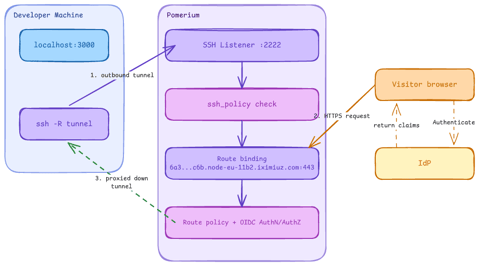
Native SSH Reverse Tunneling with Pomerium
Use Pomerium's native SSH support to publish a local service through a standard reverse SSH tunnel, with OpenID Connect (OIDC) authentication and continuous authorization on every request. Reach services behind Network Address Translation (NAT) without firewall holes or custom agents, and control both who can use the service and who can open the tunnel. Application traffic stays on infrastructure you control.
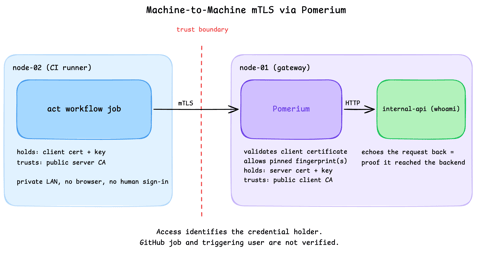
Secure Machine-to-Machine Access with mTLS and Pomerium
Run a GitHub Actions-compatible continuous integration (CI) job on a private runner and protect its internal API call with mutual TLS (mTLS) and Pomerium. Build separate server and client trust chains, authorize one machine certificate by fingerprint, then revoke, restore, and rotate its credentials through live policy changes.
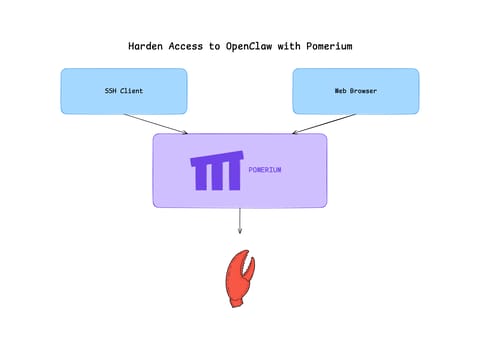
Harden Access to OpenClaw with Pomerium
Put OpenClaw, a self-hosted AI assistant with shell and file access, behind a web route and an SSH route, both gated by the same identity and Pomerium's context-aware policy. OpenClaw runs in trusted-proxy mode, trusting signed identity headers instead of its own login, while Pomerium's native SSH proxy signs short-lived certificates for shell access.
Learn by doing, not just by reading or watching
Sign up for a free account to start a VM playground right on this page, track your progress, and get notified about new learning materials.