Systemd Inside Containers Using Podman
Podman's design around Linux Namespaces and a functional symbiosis with systemd
provides a strong foundation for its usage in systems that may not allow Docker as a container engine.
In order to understand how podman leverages Linux Namespaces read the iximiuz Labs: Podman and Linux Namespaces here.
This tutorial will focus on leveraging systemd as a process management software within containers and
how podman CLI tool makes it rather trivial to build and run such containers.
This tutorial will try to go deeper into what systemd requires
a container environment to be and what tweaks are needed to run such containers successfully.
If you are looking to run Podman containers with systemd on host machines, refer to the
iximiuz Labs Tutorial: Podman Containers with systemd here.
systemd inside a Container?
As opposed to standard practice of building container images which focuses on one process per container, running containers with systemd installed in the image provides certain benefits for leveraging containerization technology to run multiple processes within it.
By leveraging systemd inside a container we get:
- Full process lifecycle management for multiple processes
- Native logging via
journald+ Log rotation - Automatic process (service) restart on-failures / bootup
- Zombie Process reaping: no lingering processes left around on cleanup
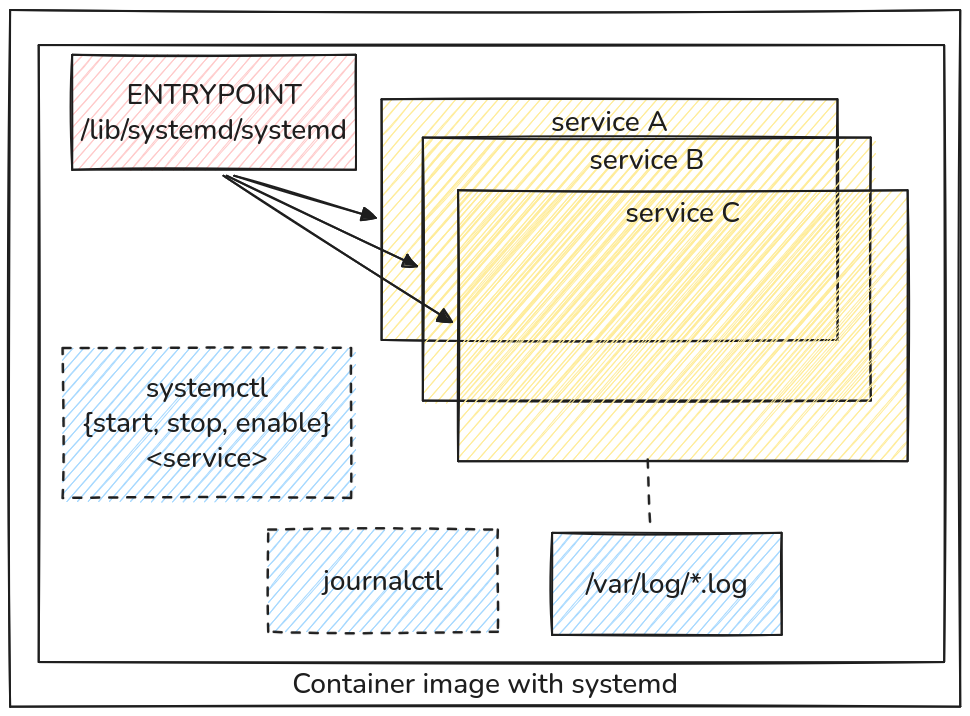
A container image with systemd in it for multi-service processes
Besides these points, there can be some scenarios where systemd enabled containers can add additional values.
Scenarios / Use-Cases
- CI / CD testing of your host-native applications
- Testing Monolithic applications
- Similar Developer Experience (DX) for native and containerized applications
CI/CD testing for your host-native applications
Imagine you work on a product that still needs to be deployed on Linux machines in a native fashion. Handling such applications via systemd is the norm, yet testing could be expensive where it might require teams to setup infrastructure like a simple vanilla Linux distribution, provisioning it, testing, tearing down.
This could be done rather quickly in CI / CD if we can create containers with systemd in them and perform the same provisioning and testing as if it were a native application. No expensive distro bootups, provisioning, or bulky OS moving parts. A straight-forward systemd based container image keeps it faster and much more efficient.
Testing Monolithic Applications
As opposed to microservice architectures if applications are bundled into one giant monolith, it would be easier to imagine a container running all the monolith applications in one-confined container but as separate processes so that they don't step on each other's resources by introducing systemd Units and running them.
Similar Developer Experience (DX)
If you had systemd Units that are controlling your applications either on a host or in a container, the observations, log collections and lifecycle steps would be no different.
The only different is the world you will execute the commands, i.e.,
In a container:
podman exec -it my-systemd-ctr systemctl status my-app.service
podman exec -it my-systemd-ctr journalctl -u my-app
On a host:
systemctl status my-app.service
journalctl -u my-app
It is also easier to pass around the same systemd service files and artifacts between native application developers, and a containerized application developer without having to go through complicated setups and teardown procedures.
systemd with docker
You would be tempted to think that just installing systemd via the base container image's package manager in
docker would do the trick - but, try this out in a Docker playground
cat > Dockerfile << _EOF
FROM debian:latest
RUN apt-get update && apt-get install -y systemd
CMD ["/lib/systemd/systemd"]
_EOF

docker build -t debian-systemd .
docker run -it --rm --name=systemd-ctr debian-systemd
You will run into the following error immediately:
Failed to mount tmpfs (type tmpfs) on /run (MS_NOSUID|MS_NODEV|MS_STRICTATIME "mode=0755,size=20%,nr_inodes=800k"): Operation not permitted
[!!!!!!] Failed to mount API filesystems.
Exiting PID 1...
Most Engineers would just skip through the actual requirements of starting a container with systemd in it
an use the --privileged flag.
Although convenient, using --privileged flag in docker drops almost all the necessary guards that a container solution
would provide in the first place. So be very careful using it, especially in environments and systems that are considered
sensitive.
Requirements of Running systemd In Containers
In order to run systemd containerized environments, systemd make some assumptions about the environment it starts in.
It the environment is not setup correctly systemd will try to correct it by trying to work with the file system in the
container and change the container capability. But since the container is unprivileged, it will fail to start up.
Some of the requirements that are needed to run unprivileged systemd containers are as follows:
Filesystem
The following filesystem directories should be mounted as tmpfs filesystem in the container:
/run/run/lock/tmp/sys/fs/cgroup/systemdfor cgroups v1/sys/fs/cgroupis mounted writable for cgroups v2/var/lib/journal/var/log/journaldis mounted writable to write logs
if these filesystem directories are not mounted as tmpfs in the container systemd inside it will try to change the container
but since a typical container does not have such privileges it will fail.
Observe the error you got from trying to run systemd container with docker, it mentions this requirement
in the error. /run is not tmpfs mounted.
Environment Variables
The following environment variables should be set so systemd uses this environment variable to change some default behavior:
containercontainer_uuid: set to the first 32 characters of the container's ID
Stop Signal
Stop Signal should be SIGRTMIN+3.
systemd ignores SIGTERM and will only clean up if it receives the SIGRTMIN+3 signal
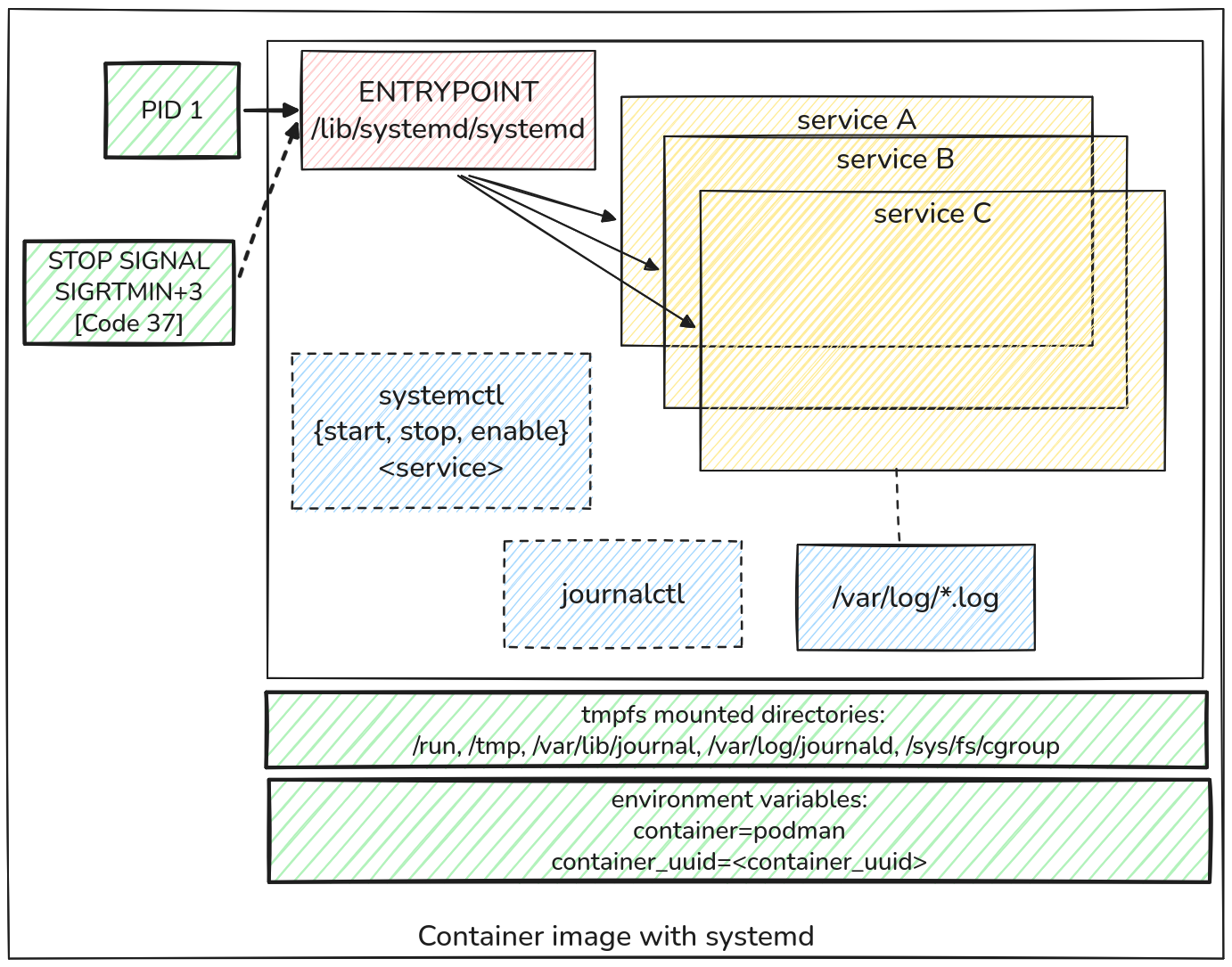
Container Image with systemd alongside the requirements to running it successful (tmpfs, env vars, Stop Signal)
systemd with podman
Podman is designed to work alongside and support systemd within the containers it manages. The same example we used in the systemd with docker section
could be run with the podman CLI and it will fulfill all the requirements of the containerized systemd applications out of the box.
Building an Image
Try them out by first building the debian-systemd image by installing systemd in it:
cat > Containerfile << _EOF
FROM debian:latest
RUN apt-get update && apt-get install -y systemd
CMD ["/lib/systemd/systemd"]
_EOF
Build the image using:
podman build -t debian-systemd .
Run the Container
podman run -it --rm --name=systemd-ctr debian-systemd
The container runs without any problems or errors unlike in Docker.
Check 1: Stop Signal
Open a new terminal:
podman inspect systemd-ctr --format '{{ .Config.StopSignal }}'
and it is set to SIGRTMIN+3.
Another check is to go the container terminal that is running and try pressing
CTRL+C (which tries sending a SIGTERM signal) which won't
work.
To stop the container, in the new terminal:
podman stop systemd-ctr # podman will send the `SIGRTMIN+3`
Check 2: environment variable container
podman inspect systemd-ctr --format '{{ .Config.Env }}'
you will observe container environment set by podman
Check 3: PID 1 is systemd
podman top --latest # or podman top systemd-ctr
You will see that PID 1 is /lib/systemd/systemd
Check 4: Mounted tmpfs
podman exec -it systemd-ctr mount | grep -e /tmp -e /run
you will observe that /run, /tmp are mounted as type tmpfs
Multi-service Container Images
You can now update the Containerfile by installing software packages like
that on a host. Let's install nginx package and enable the systemd service for it
so on container boot you will have a running nginx service.
Create a Containerfile
Create a Containerfile.nginx
cat > Containerfile.nginx << _EOF
FROM debian-systemd:latest
RUN apt-get update && apt-get install -y nginx
RUN systemctl enable nginx
_EOF
Build the Image
podman build -f Containerfile.nginx -t systemd-nginx .
Run the Container
podman run -d --rm -p 8080:80 --name=systemd-nginx-ctr systemd-nginx
Check the Running Service
podman ps && curl http://localhost:8080
Also check the service PIDs in the container now:
podman top systemd-nginx-ctr
you will see that systemd is PID 1 and spawns the nginx process under it. This
is super beneficial because systemd in the container will take care of reaping all
processes and clean them up without any complicated logic.
Logging with systemd containers
One interesting observation when running systemd containers is you will not see logs upon:
podman logs systemd-nginx-ctr
This is because systemd service won't write logs explicitly to STDOUT / STDERR of the container
but to journald inside the container. The way to see the logs is similar to that of working
on a host Linux machine:
podman exec systemd-nginx-ctr journalctl
podman exec systemd-nginx-ctr cat /var/log/nginx/access.log
or mounting the /var/log/<application> on the host for persistent log-storage.
Leveraging the power of journalctl CONTAINER_NAME
One of the coolest things about podman is that the default log driver is set to journald, which means
unlike docker's logs storage logic - every container's logs can be found int host's journald entry.
In order see if podman's log driver is set to journald:
podman info --format '{{ .Host.LogDriver }}'
which should say journald.
If it is not set you can easily configure it using:
mkdir -p ~/.config/containers/containers.conf.d
cat > ~/.config/containers/containers.conf.d/log_driver.conf << _EOF
log_driver="journald"
_EOF
No need to restart anything unlike docker daemon!
Check the actual logs of our systemd-ctr in the host's journal using:
journalctl CONTAINER_NAME=systemd-ctr
Replace the CONTAINER_NAME value with your container's name and your logs will be visible.
You can now leverage everything journalctl offers to parse and read logs from your containers.
Not to mention the added benefit of log rotation of journald.
Setting journald as log driver is valuable, because any ephemeral container's logs will still be logged on the host.
podman run --rm --name=test debian echo "ephemeral Hi!"
will still be available even though the container doesn't exist on the system anymore.
journalctl | grep "ephemeral Hi"
Sources
About the Author

Shan Desai
Software guy who loves making generic things out of specific things, loves learning new things and helping fellow engineers out.
Writes about
Frequently covers
More tutorials you might like
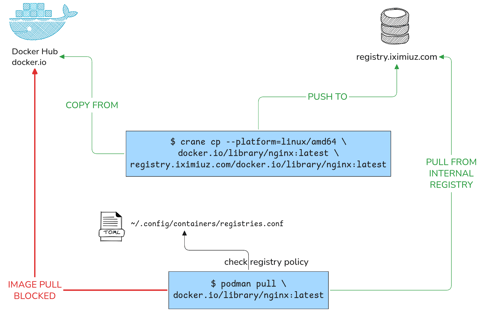
Podman Configuration: Registries, Runtimes and Containers Without a Restart
This tutorial will help you configure your rootless podman instance to pull from only from specific registries, using different OCI runtimes as well as configure all containers to have specific attributes all without any daemon restarts or sudo calls.
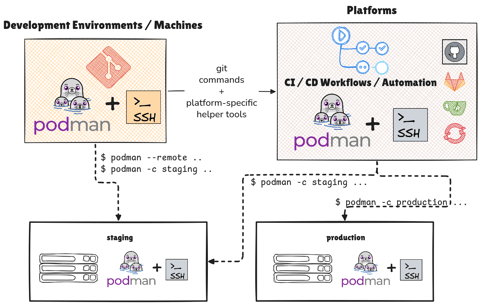
Managing Podman Instances Remotely
Learn how you can control multiple podman instances on remote machines without SSHing into them manually. Also learn to deploy your Compose application stacks without SCP / SSH with podman remote feature and Docker Compose v2
Podman with Kubernetes: Play Before You Apply
This tutorial provides an in-depth know-how of working with Pods (group of container) with Podman. It also gives insights into how the podman CLI works well with Kubernetes, albeit in limited capacity to develop better Container Workflows.
Podman Containers with systemd
Learn how to manage Podman containers using systemd on your host machine.
Learn by doing, not just by reading or watching
Sign up for a free account to start a VM playground right on this page, track your progress, and get notified about new learning materials.