Podman Configuration: Registries, Runtimes and Containers Without a Restart
Scope
This tutorial will give readers an insight on how to configure
podman CLI to their preferences.
This tutorial will help readers configure podman CLI to:
- Pull images from some specific registries (internal & external)
- Use specific OCI Runtimes
- Make each container spin up with specific attributes
Configuration Files Language & Examples
All of Podman's configuration files use the TOML language.
You can find distribution specific example TOML configuration files, under the following directory:
/usr/share/containers/
/etc/containers/
Users can use these configurations files as example reference
or template to configure podman instances.
For rootless podman we will place our configuration files under the following directory:
/home/laborant/.config/containers
Let's create the directory first:
mkdir -p ~/.config/containers
Registries Configuration
We can configure our podman CLI to pull container images
only from specific registries and block others.
A potential scenario, is to avoid any rate-limit hits from public registries and pull from an internal mirrored-cache registry.
Scenario
We need work on a system where we are allowed to pull only from:
quay.ioghcr.io
But we are not allowed to pull from:
docker.io
We can however pull Docker Hub's container images from our internal Registry:
registry.iximiuz.com
Basic Setup
Create a registries.conf TOML file in our ~/.config/containers
directory.
touch ~/.config/containers/registries.conf
Pulling Images with Short-Names
We will add the the unqualified-search-registries list to let
podman CLI search for container images without explicitly mentioned
the whole registry name
cat > ~/.config/containers/registries.conf << _EOF
unqualified-search-registries = [
  "docker.io",
  "ghcr.io",
  "quay.io",
]
_EOF
Verify using:
podman info | yq '.registries'
This makes it easy to pull images without mentioning the complete
registry name. podman will try to best match the image with a potential registry
and prompt the user the fully-qualified container image name.
Try pulling busybox:
podman pull busybox:latest # from docker.io
The prompt provides you the option of try to pulling the busybox:latest
container image either from docker.io, ghcr.io, or quay.io.
Once pulled correctly, podman CLI will remember to pull the image from
that registry and avoid unncessary prompts the next time.
The configuration can be found in:
~/.cache/containers/short-name-aliases.conf
Try pulling curl/curl:latest from quay.io:
podman pull curl/curl:latest # select quay.io in prompt
Blocking a Registry / Pull from Mirror Internal Registry
Based on the scenario, we should not be able to pull directly from docker.io,
but we will pull the same image from the internal registry (registry.iximiuz.com).
Update the registries.conf with the following TOML table called registry:
cat >> ~/.config/containers/registries.conf << _EOF
[[registry]]
location = "docker.io"
blocked = true
_EOF
Try to pull nginx:latest from docker.io now:
podman pull nginx:latest # select docker.io
And you will see that you are not allowed to pull image directly from docker.io.
Let's copy the nginx:latest to registry.iximiuz.com under the docker.io prefix using
crane tool.
crane cp \
  --platform=linux/amd64 \
  docker.io/library/nginx:latest \
  registry.iximiuz.com/docker.io/library/nginx:latest
We want the Developer Experience to be the same as if we were pull the image from Docker Hub and not explicitly mention the internal registry's name in our image.
For this to happen, we need to configure the [[registry.mirror]] property, to make sure
podman pull knows to substitute the registry name with the internal registry name a prefix.
Update the configuration as follows:
cat >> ~/.config/containers/registries.conf << _EOF
[[registry.mirror]]
location = "registry.iximiuz.com/docker.io"
_EOF
The final configuration TOML file would look like:
# registries.conf
unqualified-search-registries = [
  "docker.io",
  "ghcr.io",
  "quay.io",
]
[[registry]]
location = "docker.io"
blocked = true
[[registry.mirror]]
location = "registry.iximiuz.com/docker.io"
You can verify using:
podman info | yq '.registries'
Try pulling the image again and we will succeed this time:
podman pull nginx:latest # select docker.io
You can use podman --debug pull to verify that image was
pulled from registry.iximiuz.com and not docker.io
You can verify that the nginx image still has original registry name (docker.io/library)
and not the internal registry's name (registry.iximiuz.com):
podman images
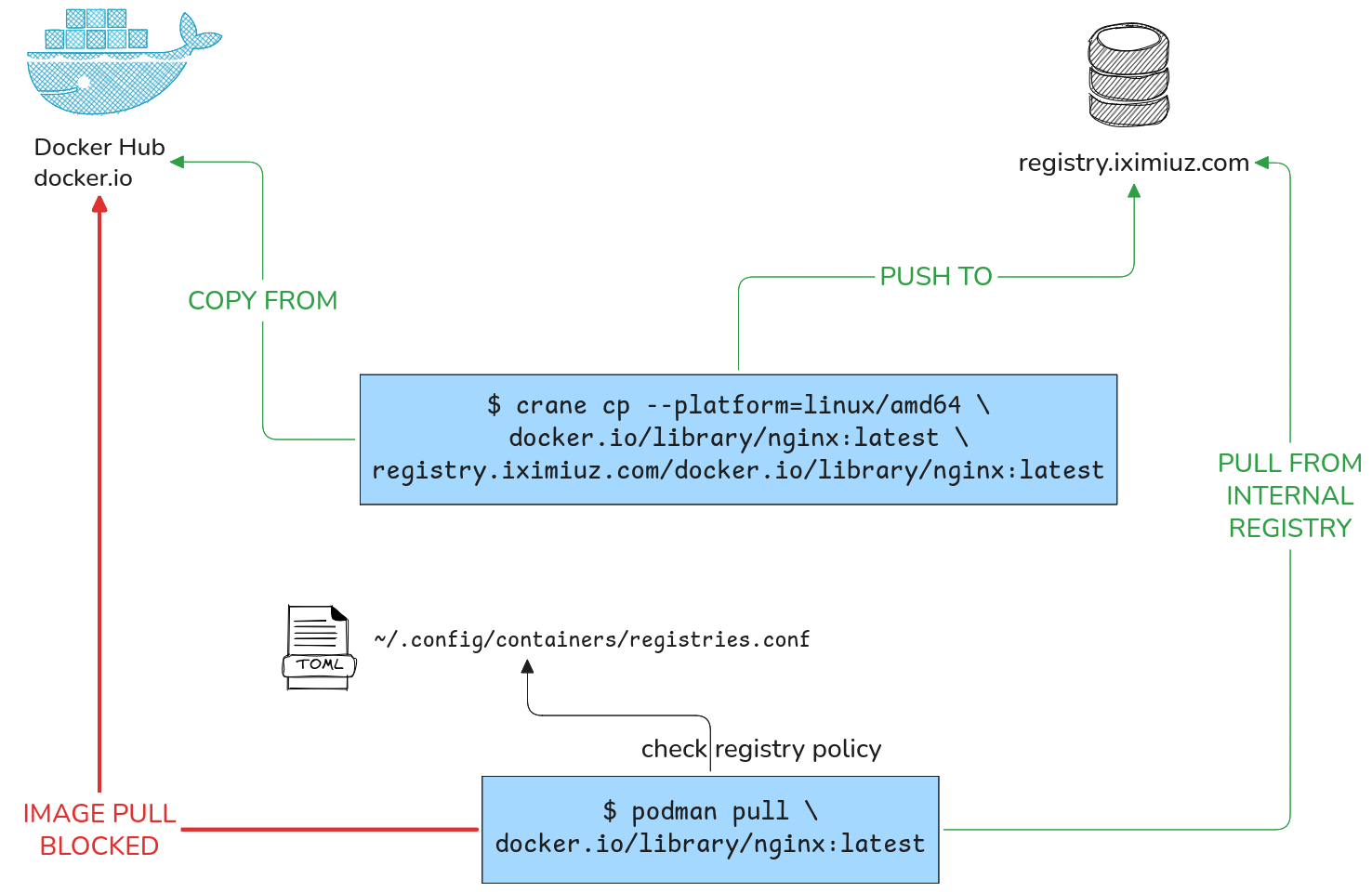
podman pull will block pulling nginx from Docker Hub, but will be pulled
from internal registry using mirroring
You can now maintain an internal registry with all required images to avoid
rate-limiting pulls or avoid pulling potentially insecure container images to your
system using crane and Podman's registry policies.
crane is not a necessity, you can use other tools like regctl, skopeo etc.
to achieve the same image copy between registries.
Various OCI Runtimes
We can spin up containers with different OCI runtimes by being explicit or configuring
a new default runtime for the podman CLI using a TOML file.
The default OCI runtime used by podman, is crun:
podman info | yq '.host.ociRuntime'
We can use the --runtime flag to explicitly use a specific OCI runtime:
podman --runtime {runc,youki,gvisor....} run -d IMAGE:Version
Currently kata-containers v2
is not supported for podman CLI.
The following GitHub Issue keeps track of the integration.
OCI Runtime: runc
We can use the runc OCI runtime to spin containers up.
Let's download it first:
wget \
  https://github.com/opencontainers/runc/releases/download/v1.5.1/runc.amd64 \
  -O runc \
  && chmod +x runc
Verify using:
./runc --help
Let podman CLI know where the runc binary path exists to explictiy
avoid mentioning the full path everytime by creating a runtimes.conf file under:
~/.config/containers/containers/containers.conf.d:
mkdir -p ~/.config/containers/containers.conf.d
Add the following content:
cat > ~/.config/containers/containers.conf.d/runtimes.conf << _EOF
[engine.runtimes]

runc = [
  "/home/laborant/runc"
]
_EOF
Spin up a nginx container using runc:
podman --runtime runc \
  run -d --rm \
  --name=runc-nginx \
  nginx:latest
Verify that the container was spun up with runc:
podman inspect runc-nginx -f '{{ .OCIRuntime }}'
OCI Runtime: youki
We can also use the Rust-written youki OCI Runtime
to spin up containers.
Download the binary:
wget \
  https://github.com/youki-dev/youki/releases/download/v0.7.0/youki-0.7.0-$(uname -m)-musl.tar.gz \
  -O youki.tgz
Extract a binary from the tarball:
tar xvf youki.tgz youki && chmod +x youki
Verify using:
./youki --help
Configure the runtime path for podman CLI to leverage:
cat >> ~/.config/containers/containers.conf.d/runtimes.conf << _EOF
youki = [
  "/home/laborant/youki"
]
_EOF
Spin up an nginx container with youki runtime:
podman --runtime youki \
  run -d --rm \
  --name=youki-nginx \
  nginx:latest
Verify that the container was spun up with youki:
podman inspect youki-nginx -f '{{ .OCIRuntime }}'
Setting a Different Default OCI Runtime
We can use a runtime.conf to set the default OCI runtime other than crun:
cat > ~/.config/containers/containers.conf.d/runtime.conf << _EOF
[engine]
runtime = "youki"
_EOF
Verify using:
podman info | yq '.host.ociRuntime'
Any subsequent container will be spun up with youki.
Container Customization
Similar to the [engine] configuration parameter,
We use the [containers] property to create containers with some sensible run-time
defaults. We will look at the following scenarios:
- Injecting custom environment variables
- Container hostname should be same as the container's name
Setting a Custom Environment Variable for All Containers
Let's assume we wish to setup the following environment variable for all containers that will be spun up from now onwards:
PLAYGROUND=iximiuz-podman
We want to AVOID running containers everytime with an explicit env var set call:
podman run -e PLAYGROUND=iximiuz-podman ...
To do this we create a env.conf with the following configuration:
cat > ~/.config/containers/containers.conf.d/env.conf << _EOF
[containers]
env = [
  "PLAYGROUND=iximiuz-podman"
]
_EOF
Spin up a container:
podman run --rm -d \
  --name=new-nginx \
  nginx:latest
Verify using:
podman exec new-nginx printenv | grep "PLAYGROUND"
Every new container spun up post configuration of the env.conf will
have PLAYGROUND=iximiuz-podman injected into it via podman.
Set Hostname as Same as Container's Name
The previously running new-nginx's hostname will be:
podman exec new-nginx hostname
<first 12 characters of the container's ID>
We can set the container's hostname to be same as its name and avoid explicitly using everytime
podman run --hostname=<container_name> --name=<container_name> ...
Create a hostnames.conf:
cat > ~/.config/containers/containers.conf.d/hostnames.conf << _EOF
[containers]
container_name_as_hostname = true
_EOF
Spin up a container:
podman run -d --name=hostname-check-nginx nginx:latest
Verify using:
podman exec hostname-check-nginx hostname
Inference
Customize your rootless podman, to your preferences and liking without having to restart any daemon or logging-off from a session using readable TOML files.
There are lot of fine-tuning configurations for the Podman Engine as well as the containers
one can setup by relying on the /usr/share/containers/containers.conf file as an example.
Your ~/.config/containers files can be part of your DOTfiles repo and you can setup your podman
CLIs in different systems and environments without breaking a sweat!
About the Author

Shan Desai
Software guy who loves making generic things out of specific things, loves learning new things and helping fellow engineers out.
Writes about
Frequently covers
More tutorials you might like
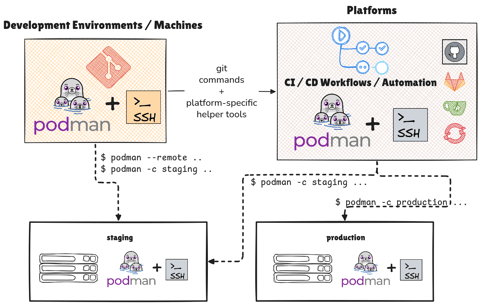
Managing Podman Instances Remotely
Learn how you can control multiple podman instances on remote machines without SSHing into them manually. Also learn to deploy your Compose application stacks without SCP / SSH with podman remote feature and Docker Compose v2
Podman with Kubernetes: Play Before You Apply
This tutorial provides an in-depth know-how of working with Pods (group of container) with Podman. It also gives insights into how the podman CLI works well with Kubernetes, albeit in limited capacity to develop better Container Workflows.
Podman Containers with systemd
Learn how to manage Podman containers using systemd on your host machine.
Systemd Inside Containers Using Podman
Learn how to use systemd inside containers and manage their lifecycle with podman.
Learn by doing, not just by reading or watching
Sign up for a free account to start a VM playground right on this page, track your progress, and get notified about new learning materials.