Control Shell Expansion and Quoting

Control Shell Expansion and Quoting
Before running any commands: click the + button in the terminal tab bar to open a new terminal tab. The playground history tracking activates in new sessions only. Commands run in the original tab will not register for task verification.
In this tutorial, we observe exactly what Bash does to a command line before it runs — expanding variables, globs, and command substitutions — and then take control of that process using single quotes, double quotes, and backslash escaping.
Understanding this is non-negotiable for the RHCSA exam. Misquoting a variable in a script or a find command is a silent, hard-to-debug error. After this tutorial, you will see what the shell sees.
What We'll Build
By the end, a single summary command will produce this output:
--- expansion demo complete ---
unquoted variable : hello world
single-quoted     : $WORD
double-quoted     : hello world
backslash-escaped : $WORD
command sub result: today is a weekday or weekend
glob unquoted     : file1.txt file2.txt file3.txt
glob single-quoted: *.txt
Every line proves a different quoting behaviour. Let's build it step by step.
Step 1 — Create a Working Directory and Practice Files
We need a controlled directory so glob patterns match only what we expect.
mkdir ~/expansion-demo
cd ~/expansion-demo
touch file1.txt file2.txt file3.txt notes.md
Confirm the files exist:
ls
Expected output:
file1.txt file2.txt file3.txt notes.md
All glob steps in this tutorial must be run from inside ~/expansion-demo. If you open a new terminal tab mid-tutorial, cd ~/expansion-demo before continuing.
Step 2 — Observe Unquoted Variable Expansion
Assign a variable whose value contains a space, then let Bash expand it unquoted.
WORD="hello world"
echo $WORD
Expected output:
hello world
Bash replaced $WORD with hello world before passing anything to echo. The substitution happened invisibly, at the shell level.
Variable assignment produced no output — is that normal?
Yes. Variable assignment (VAR=value) is silent by design. Only the subsequent echo $WORD produces output. If you see -bash: WORD=hello world: command not found, you accidentally added a space before the = sign. Run WORD="hello world" (no spaces around =).
Step 3 — Observe Word Splitting on an Unquoted Variable
Word splitting is what happens when Bash breaks an unquoted expansion on whitespace. Run this from inside ~/expansion-demo:
printf '<%s>\n' $WORD
Expected output:
<hello>
<world>
$WORD expanded to hello world, then Bash split that on the space, producing two separate arguments to printf. This is word splitting in action.
Word splitting is a common source of bugs in shell scripts. When a variable might contain spaces, always quote it unless you explicitly want splitting. On the RHCSA exam, unquoted variables in paths or filenames will silently produce wrong results.
Step 4 — Suppress All Expansion with Single Quotes
Single quotes are the bluntest quoting tool: everything between them is treated as literal text.
echo '$WORD'
Expected output:
$WORD
The dollar sign and the variable name were passed to echo unchanged. No expansion, no word splitting, no interpretation of any kind.
Can I put a single quote inside single quotes?
No — there is no escape sequence inside single quotes. The moment Bash sees the closing ', the quoted span ends. The workaround is to end the single-quoted span, escape a literal ' with a backslash, then reopen: 'it'\''s fine'. This is rarely needed in practice but good to know for scripts that build command strings.
Step 5 — Allow Variable Expansion Inside Double Quotes
Double quotes suppress word splitting and glob expansion, but they still allow variable expansion and command substitution.
echo "$WORD"
Expected output:
hello world
Now pass the double-quoted variable to printf to compare with Step 3:
printf '<%s>\n' "$WORD"
Expected output:
<hello world>
printf received the value as one argument this time. The double quotes preserved the space inside $WORD, preventing word splitting while still expanding the variable.
The rule of thumb most RHCSA candidates adopt: quote every variable with double quotes unless you have a specific reason not to. This prevents word splitting and glob expansion from producing unexpected results, while still letting variable values through.
Step 6 — Escape a Single Character with a Backslash
A backslash cancels the special meaning of the one character that immediately follows it — a surgical alternative to quoting an entire span.
echo \$WORD
Expected output:
$WORD
The backslash stripped the special meaning from $, so $WORD was passed to echo as a literal string — same result as single quotes in Step 4, but applied to a single character rather than a span.
The backslash itself disappeared from the output — why?
The backslash is a quoting character, not a printable character in this context. Bash consumes it during its quoting pass and does not pass it to the command. To print a literal backslash, escape it: echo \\.
Step 7 — Observe Command Substitution
Command substitution — $(command) — tells Bash to run a command and insert its standard output into the command line at that position.
echo "today is $(date +%A)"
Expected output (day name varies):
today is Tuesday
$(date +%A) was replaced by the output of the date command before echo received anything. Notice this happened inside double quotes — double quotes suppress word splitting and globs, but they leave $() and $ active.
Step 8 — Observe Glob Expansion Unquoted
Make sure you are still inside ~/expansion-demo:
echo *.txt
Expected output:
file1.txt file2.txt file3.txt
Bash replaced *.txt with the names of all matching files before passing them to echo. The echo command never saw the asterisk — only the expanded filenames.
If no files match an unquoted glob, Bash's default behaviour (on Rocky Linux 9) is to pass the literal pattern to the command. This can cause confusing errors. The nullglob shell option changes this behaviour — but that is beyond today's scope.
Step 9 — Suppress Glob Expansion with Single Quotes
echo '*.txt'
Expected output:
*.txt
The asterisk was passed as a literal character. Single quotes disabled glob expansion just as they disabled variable expansion in Step 4.
Step 10 — Verify the Complete Demonstration
Run this single summary command that collects all the results into one readable block. Make sure you are inside ~/expansion-demo and that $WORD is still set:
printf '%s\n' \
  "--- expansion demo complete ---" \
  "unquoted variable : $WORD" \
  'single-quoted     : $WORD' \
  "double-quoted     : $WORD" \
  "backslash-escaped : \$WORD" \
  "command sub result: today is $(date +%A | sed 's/Saturday\|Sunday/a weekend day/;t;s/.*/a weekday/')" \
  "glob unquoted     : $(echo *.txt)" \
  'glob single-quoted: *.txt'
Expected output:
--- expansion demo complete ---
unquoted variable : hello world
single-quoted     : $WORD
double-quoted     : hello world
backslash-escaped : $WORD
command sub result: today is a weekday or weekend
glob unquoted     : file1.txt file2.txt file3.txt
glob single-quoted: *.txt
The day classification in your output will reflect the actual day you ran the tutorial.
I see 'hello world' for the backslash-escaped line, not '$WORD'
Check whether you copied the command exactly. The key part is "backslash-escaped : \$WORD" — inside double quotes, \$ escapes the dollar sign, producing a literal $WORD in the output. If you used single quotes for that argument you'd get the same result, but the whole point is demonstrating the backslash inside double quotes.
$WORD is blank or missing
The variable WORD is only set for your current shell session. If you opened a new terminal tab, you must reassign it: WORD="hello world". Shell variables do not persist across sessions unless exported to the environment (with export) or set in a startup file like .bashrc.
What We Accomplished
In this tutorial, we:
- Created practice files to serve as glob expansion targets
- Assigned a variable and observed Bash expand it before command execution
- Observed word splitting break a space-containing value into separate arguments
- Suppressed all expansion using single quotes and confirmed literal output
- Used double quotes to allow variable expansion while preventing word splitting
- Escaped a single character with a backslash to suppress its special meaning
- Observed command substitution replace
$()with live command output inside double quotes - Observed glob expansion replace
*.txtwith matching filenames - Suppressed glob expansion with single quotes and confirmed literal output
- Verified all expansion behaviours in a single summary output
RHCSA exam insight: Quoting errors are among the most common causes of silent failures in shell scripts and one-liners. The exam will test you on commands where an unquoted variable or glob produces wrong results. When in doubt: double-quote variables ("$VAR"), single-quote literals ('pattern'), and backslash-escape individual special characters (\$).
Next Steps
- Apply these rules in practice — try using
find,grep, andsedwith quoted and unquoted patterns to see how quoting affects those commands on real system files - Explore
set -x— runset -xbefore a command sequence to see exactly how Bash expands each word before execution; runset +xto turn it off - Learn about
export— variables set in one shell session are lost when the session ends;export WORD="hello world"makes the variable available to child processes
About the Author

More tutorials you might like
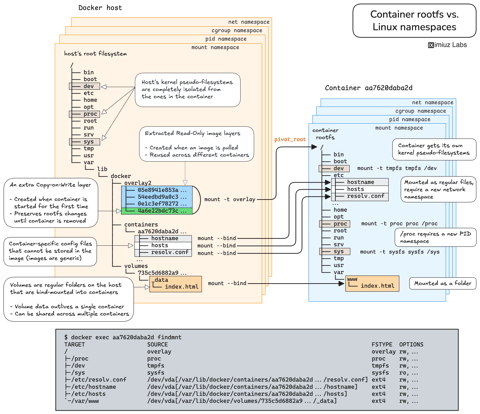
How Container Filesystem Works: Building a Docker-like Container From Scratch
Learn how Linux containers are built from the ground up. Starting with the mount namespace and a root filesystem, see why PID, cgroup, UTS, and network namespaces naturally follow - and how this foundation makes concepts like bind mounts, volumes, and persistence in Docker or Kubernetes much easier to grasp.

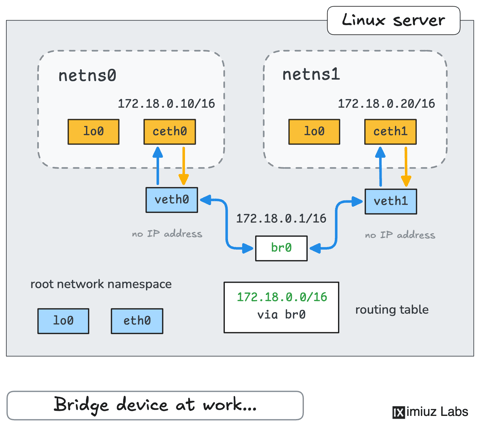
How Container Networking Works: Building a Bridge Network From Scratch
Begin with the basics to understand Docker and Kubernetes networking: learn how to create and interconnect Linux network namespaces using only command-line tools.
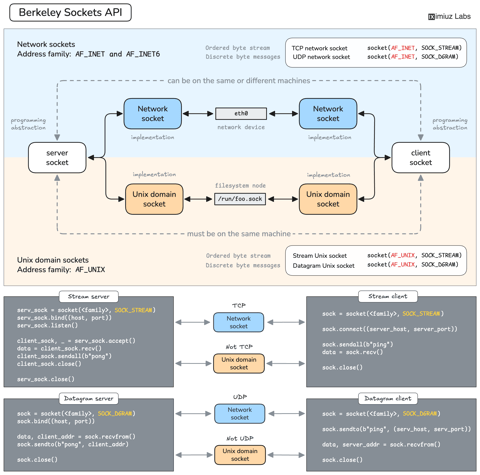
How Servers Work: A Hands-On Introduction to TCP Sockets
Learn how servers actually work by building a tiny TCP server and client from scratch. A hands-on introduction to sockets, TCP, and the network programming model every backend, DevOps, and platform engineer should go through at least once.
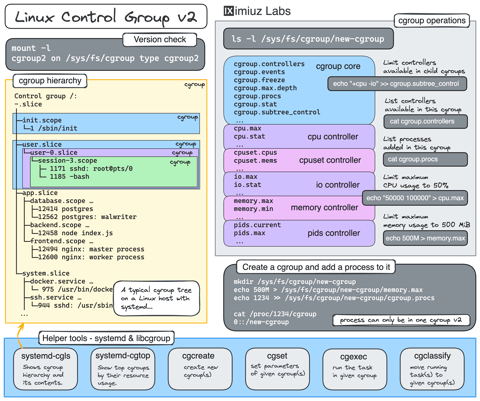
Controlling Process Resources with Linux Control Groups
Learn how to limit process resources using Linux cgroups - from the most basic and labour-intensive cgroupfs manipulation to the handiest systemd-run command.
Learn by doing, not just by reading or watching
Sign up for a free account to start a VM playground right on this page, track your progress, and get notified about new learning materials.