Read and Set Shell Variables

# Read and Set Shell Variables

In this tutorial, you will read common environment variables, define your own shell variable, export it to child processes, and verify that child processes inherit the value you set. Along the way you will work with `echo`, `env`, `export`, and `bash`.

These skills appear directly on the RHCSA EX200 exam — understanding the difference between a shell variable and an exported environment variable is tested both in isolation and as a prerequisite for configuring services and scripts.

::remark-box
---
kind: info
---
**Before running any commands:** click the **+** button in the terminal tab bar to open a new terminal tab. The playground history tracking activates in new sessions only. Commands run in the original tab will not register for task verification.
::

---

## What You Will Build

By the end of this tutorial, the terminal will be in this state:
laborant@rocky-01 ~$ echo $MYGREETING Hello RHCSA laborant@rocky-01 ~$ bash -c 'echo $MYGREETING' Hello RHCSA
Both the parent shell and a child shell return the value you defined — this is environment inheritance in action.

---

## Step 1: Read Three Built-in Environment Variables

The shell provides a set of variables automatically. Use `echo` to read three of them.

```bash
echo $USER
Expected output:
laborant
echo $SHELL
Expected output:
/bin/bash
echo $PATH
Expected output (similar to):
/home/laborant/.local/bin:/home/laborant/bin:/usr/local/bin:/usr/bin:/bin
Each variable name is prefixed with $ — that is the signal to the shell to substitute the variable's value before the command runs.
$USER, $SHELL, and $PATH are environment variables — they were exported by the login session and are visible to every command this shell launches.
Step 2: List All Environment Variables with env
Now use env to display every variable currently exported to the environment.
env
You will see many lines. Look for the variables you just read:
SHELL=/bin/bash
HOME=/home/laborant
USER=laborant
PATH=/home/laborant/.local/bin:/home/laborant/bin:/usr/local/bin:/usr/bin:/bin
LANG=en_US.UTF-8
Everything shown here is inherited by any command this shell launches.
I see too many lines — how do I find a specific variable?
Pipe env through grep:
env | grep PATH
This filters the output to lines that contain PATH.
Step 3: Create a Shell Variable
Define your own variable.
MYGREETING="Hello RHCSA"
No output is produced — the shell accepts the assignment silently. Confirm the value is set:
echo $MYGREETING
Expected output:
Hello RHCSA
MYGREETING is now a shell variable — it lives only in this shell session. It has not been exported, so a child process cannot see it yet.
Step 4: Confirm the Variable Is Not Yet Inherited
Check what a child shell sees before you export MYGREETING.
bash -c 'echo $MYGREETING'
Expected output:
The output is an empty line. The child shell has no knowledge of MYGREETING because it has not been exported yet.
Why does the child shell print nothing?
When bash starts a child process, it only passes exported variables into that child's environment. A plain assignment like MYGREETING="Hello RHCSA" marks the variable as local to the current shell. The child shell receives no value for MYGREETING, so $MYGREETING expands to an empty string.
Step 5: Export the Variable
Mark MYGREETING for inclusion in the environment of every child process this shell launches.
export MYGREETING
Again, no output — the shell accepts the export silently.
You can combine assignment and export in a single step: export MYGREETING="Hello RHCSA". Both forms are valid and appear on the exam.
Step 6: Verify Inheritance in a Child Process
Now that MYGREETING is exported, confirm that a child shell inherits it.
bash -c 'echo $MYGREETING'
Expected output:
Hello RHCSA
The same value you set in the parent shell is now visible inside the child shell — this is environment inheritance.
Step 7: Confirm the Complete Final State
Verify both the parent shell and a child shell return the expected value.
echo $MYGREETING
Expected output:
Hello RHCSA
bash -c 'echo $MYGREETING'
Expected output:
Hello RHCSA
Both commands return Hello RHCSA — the system is in the state described at the top of this tutorial.
Exam tip: The export does not propagate upward. If you start a child shell, set a variable there, and export it, the parent shell will never see it. Variables flow down to children, never up to parents.
What You Accomplished
In this tutorial, you:
- Read the values of built-in environment variables
$USER,$SHELL, and$PATHusingecho - Listed all exported environment variables using
env - Defined a new shell variable
MYGREETINGwith an assigned value - Confirmed that an unexported variable is invisible to child processes
- Exported
MYGREETINGusingexport - Verified that a child process launched with
bash -cinherits the exported variable
Why does export work this way?
Unix processes are created with fork() — the child receives a copy of the parent's environment at the moment of creation. The operating system copies only the exported variables table into the new process image. Changes made in the child after fork do not affect the parent, and variables that were never exported are never included in the copy.
This is why login shell configuration files (~/.bash_profile, /etc/profile) use export — any variable they want subshells and programs to see must be explicitly placed in the environment.
Next Steps
- Persist variables across sessions — write
export MYGREETING="Hello RHCSA"into~/.bash_profileand verify it survives logout - Unset a variable — try
unset MYGREETINGand confirmecho $MYGREETINGreturns an empty line - Inspect a variable's export status — run
declare -p MYGREETINGbefore and afterexportand compare the flags shown
About the Author

More tutorials you might like
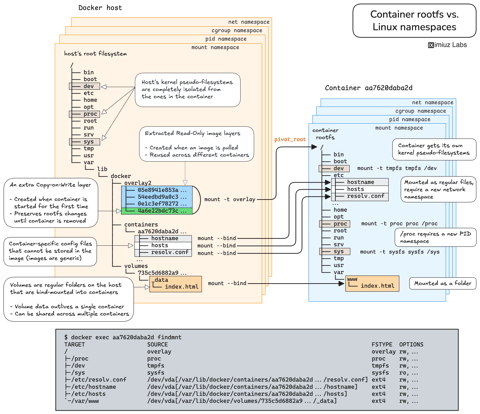
How Container Filesystem Works: Building a Docker-like Container From Scratch
Learn how Linux containers are built from the ground up. Starting with the mount namespace and a root filesystem, see why PID, cgroup, UTS, and network namespaces naturally follow - and how this foundation makes concepts like bind mounts, volumes, and persistence in Docker or Kubernetes much easier to grasp.

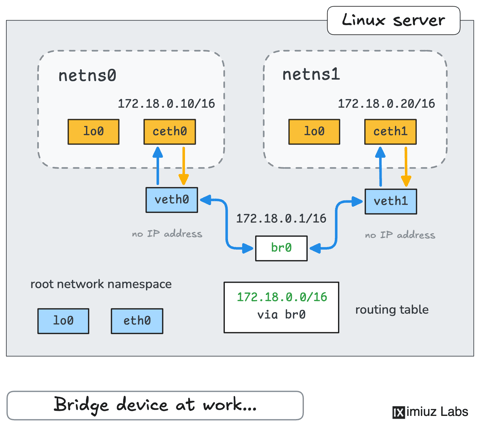
How Container Networking Works: Building a Bridge Network From Scratch
Begin with the basics to understand Docker and Kubernetes networking: learn how to create and interconnect Linux network namespaces using only command-line tools.
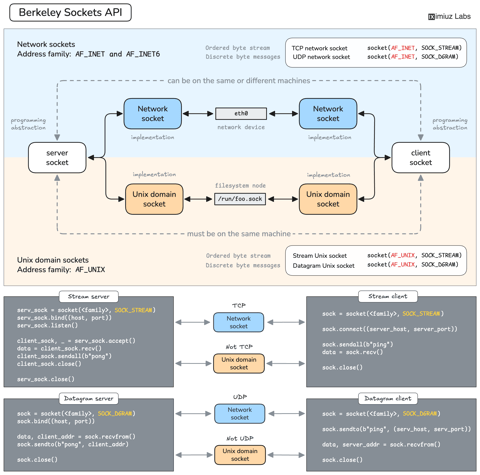
How Servers Work: A Hands-On Introduction to TCP Sockets
Learn how servers actually work by building a tiny TCP server and client from scratch. A hands-on introduction to sockets, TCP, and the network programming model every backend, DevOps, and platform engineer should go through at least once.
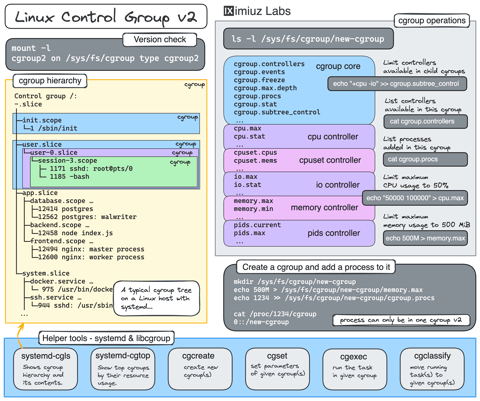
Controlling Process Resources with Linux Control Groups
Learn how to limit process resources using Linux cgroups - from the most basic and labour-intensive cgroupfs manipulation to the handiest systemd-run command.
Learn by doing, not just by reading or watching
Sign up for a free account to start a VM playground right on this page, track your progress, and get notified about new learning materials.