Trace How the Shell Finds Commands

Trace How the Shell Finds Commands
In this tutorial, you will trace exactly how Bash resolves a command name into something it can execute. Along the way, you will read and interpret $PATH, use type and which to locate commands, and distinguish shell builtins from external executables.
Before running any commands: click the + button in the terminal tab bar to open a new terminal tab. The playground history tracking activates in new sessions only. Commands run in the original tab will not register for task verification.
Prerequisites
Before starting, ensure you have:
- A working Bash shell prompt (you are logged in as
laborantonrocky-01) - Ability to type commands and read their output
What You Will Build
By the end of this tutorial, you will have traced the full resolution path for four commands — one builtin, one external, one alias, and one that does not exist. The terminal will show this verified state:
[laborant@rocky-01 ~]$ type cd
cd is a shell builtin
[laborant@rocky-01 ~]$ type ls
ls is aliased to `ls --color=auto'
[laborant@rocky-01 ~]$ type cat
cat is /usr/bin/cat
[laborant@rocky-01 ~]$ type foobar
bash: type: foobar: not found
[laborant@rocky-01 ~]$ echo $PATH
/home/laborant/.local/bin:/home/laborant/bin:/usr/local/bin:/usr/bin:/usr/local/sbin:/usr/sbin
[laborant@rocky-01 ~]$ which cat
/usr/bin/cat
Step 1 — Display the Current $PATH
First, display the $PATH variable to see where the shell looks for commands.
echo $PATH
You should see something like:
/home/laborant/.local/bin:/home/laborant/bin:/usr/local/bin:/usr/bin:/usr/local/sbin:/usr/sbin
Each directory is separated by a colon. When you type a command name, the shell searches these directories from left to right, stopping as soon as it finds a match.
$PATH is an environment variable — the dollar sign tells Bash to substitute its value. Without the $, you would literally print the string PATH.
Step 2 — Read $PATH as a List
Now make the raw value readable by replacing each colon with a newline.
echo $PATH | tr ':' '\n'
You should see each directory on its own line:
/home/laborant/.local/bin
/home/laborant/bin
/usr/local/bin
/usr/bin
/usr/local/sbin
/usr/sbin
Notice that /usr/bin appears early in the list — this is where most standard commands such as cat, ls, and grep live on Rocky Linux (and RHEL).
tr is the translate command. Here it reads from standard input (the output of echo $PATH) and replaces every : character with a newline character \n, printing each directory on a separate line.
Step 3 — Identify a Shell Builtin
Now that you understand what $PATH contains, check whether cd is found there.
type cd
You should see:
cd is a shell builtin
The shell did not search $PATH at all — cd is implemented inside Bash itself. The shell reports this immediately, before any directory lookup occurs.
Exam relevance: cd cannot exist as an external program. Changing the current directory must happen inside the shell process itself — an external program would run in a child process and its directory change would not affect the parent shell. Knowing this distinction can appear in RHCSA questions about shell behaviour.
Step 4 — Identify an External Executable
Next, check a command that does live on the filesystem.
type cat
You should see:
cat is /usr/bin/cat
The shell reports the full path to the executable. This tells you exactly which file ran when you typed cat — the shell found it in /usr/bin, one of the directories in your $PATH list.
Step 5 — Identify an Alias
Now check ls, which behaves differently from a plain executable on Rocky Linux.
type ls
You should see:
ls is aliased to `ls --color=auto'
The shell resolved ls to an alias before checking $PATH. When you type ls, Bash expands it to ls --color=auto first, then locates the ls executable. This is why directory names appear in colour by default.
Resolution order: Bash resolves command names in this order: aliases → functions → builtins → $PATH directories. The type command shows you at which stage the match was found.
Step 6 — Confirm a Command's Location with which
Now that type has shown the resolved path for cat, use which to confirm that location independently.
which cat
You should see:
/usr/bin/cat
which searches only $PATH directories and reports only the file path — it does not tell you whether a command is a builtin or an alias. That is why you use type for full resolution and which when you need the filesystem path specifically.
`which` returns nothing or an unexpected path
If which cat returns nothing, your $PATH may be minimal (e.g., in a restricted shell). Try type cat first — if it shows the path, your PATH is fine. If which still fails, install the which package: sudo dnf install -y which.
Step 7 — Observe a Command That Cannot Be Found
Finally, ask the shell to resolve a name that does not exist anywhere in its resolution sequence.
type foobar
You should see:
bash: type: foobar: not found
The shell reports not found rather than a file path. The shell checked builtins, aliases, and every directory in $PATH in order — and found nothing. This is the same error mechanism behind the familiar command not found messages.
The exit code of type foobar is non-zero (1). Scripts and conditions can use this: if type somecmd &>/dev/null; then ... is a portable way to test whether a command is available before using it.
Step 8 — Verify the Complete State
Run all checks together to confirm everything matches the goal state established at the start.
type cd
type ls
type cat
type foobar
echo $PATH
which cat
Expected output:
cd is a shell builtin
ls is aliased to `ls --color=auto'
cat is /usr/bin/cat
bash: type: foobar: not found
/home/laborant/.local/bin:/home/laborant/bin:/usr/local/bin:/usr/bin:/usr/local/sbin:/usr/sbin
/usr/bin/cat
All seven results confirm the complete resolution chain: alias → builtin → external executable → not found.
What You Accomplished
In this tutorial, you:
- Displayed and read
$PATHto see the ordered list of directories the shell searches - Used
trto split$PATHinto a readable per-line list - Used
typeto classifycdas a shell builtin,lsas an alias, andcatas an external executable - Used
whichto confirm the filesystem location of an external command - Observed the shell's
not foundresponse when no match exists at any stage of resolution
RHCSA exam tip: On the exam, type <command> is the fastest way to diagnose why a command behaves unexpectedly — it tells you immediately whether you are running an alias, a function, a builtin, or an external binary. which is useful when you need to verify the exact file that will execute.
Next Steps
Now that you have traced how the shell resolves commands, you might want to explore:
- Modify
$PATHto add a custom command directory — apply this knowledge to make your own tools available as simple commands - Understanding shell builtins vs. external commands — understand why builtins must live inside the shell and cannot be external programs
- Bash command resolution order in detail — see the complete resolution order including shell functions and keyword handling
About the Author

More tutorials you might like
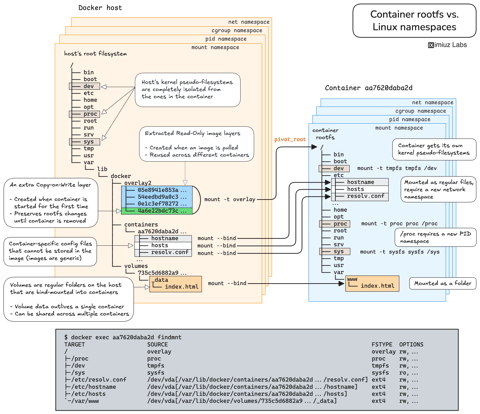
How Container Filesystem Works: Building a Docker-like Container From Scratch
Learn how Linux containers are built from the ground up. Starting with the mount namespace and a root filesystem, see why PID, cgroup, UTS, and network namespaces naturally follow - and how this foundation makes concepts like bind mounts, volumes, and persistence in Docker or Kubernetes much easier to grasp.

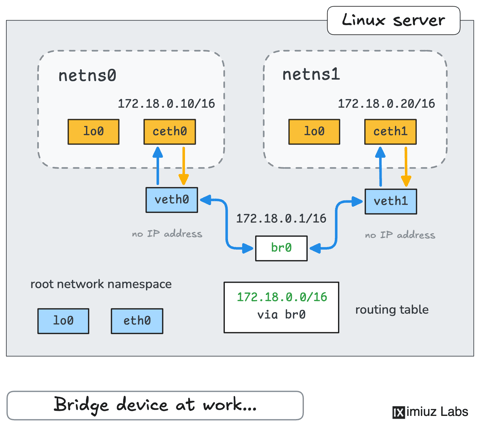
How Container Networking Works: Building a Bridge Network From Scratch
Begin with the basics to understand Docker and Kubernetes networking: learn how to create and interconnect Linux network namespaces using only command-line tools.
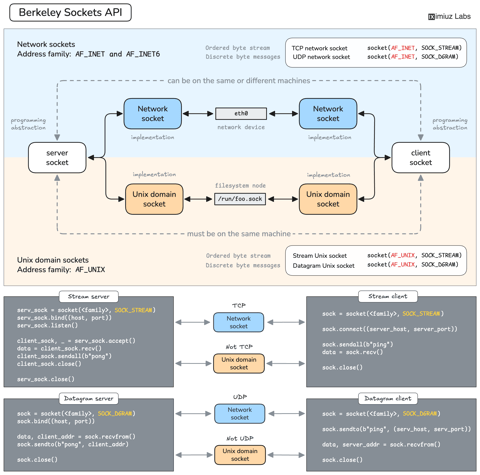
How Servers Work: A Hands-On Introduction to TCP Sockets
Learn how servers actually work by building a tiny TCP server and client from scratch. A hands-on introduction to sockets, TCP, and the network programming model every backend, DevOps, and platform engineer should go through at least once.
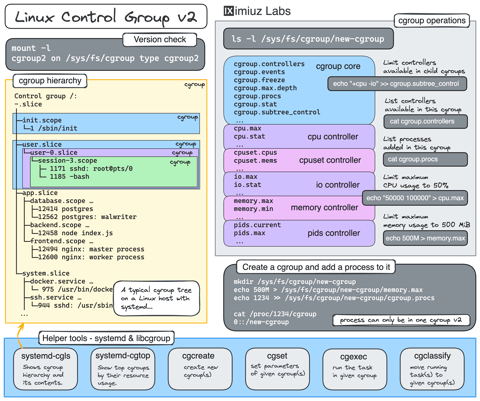
Controlling Process Resources with Linux Control Groups
Learn how to limit process resources using Linux cgroups - from the most basic and labour-intensive cgroupfs manipulation to the handiest systemd-run command.
Learn by doing, not just by reading or watching
Sign up for a free account to start a VM playground right on this page, track your progress, and get notified about new learning materials.