Issue Commands with Correct Syntax

Issue Commands with Correct Syntax
Every command you type at a Linux shell follows the same three-part pattern: command name, options, and arguments. Get this pattern right and every tool in the system becomes approachable. Get it wrong and the shell rejects you before you even start.
In this tutorial you will build that pattern step by step — bare command, short
option, combined short options, long option, long option with a value, and finally
a command that uses both an option and an argument. The tools are uname, date,
and ls: simple, always present, and between them they cover every syntax form
tested on the RHCSA EX200 exam.
Before running any commands: click the + button in the terminal tab bar to open a new terminal tab. The playground history tracking activates in new sessions only. Commands run in the original tab will not register for task verification.
What We'll Build
By the end of this tutorial your terminal will have produced this output:
Sat May 7 14:32:00 UTC 2026
That is date --utc — a long option, no argument, the command complete and
well-formed. Every step before it is a building block toward that final
command structure.
Step 1: Run a Command with No Options or Arguments
A bare command name is a complete, valid command. Run uname with nothing else:
uname
Expected output:
Linux
The shell located the uname executable, ran it, and printed its one-word
answer. Nothing more was needed.
uname stands for Unix name. With no options it reports the kernel type.
On every RHEL system that will always be Linux.
Step 2: Add a Short Option
Short options are a single letter preceded by one hyphen. Add -r to ask
uname for the kernel release:
uname -r
Expected output (exact version will differ on your system):
5.14.0-503.35.1.el9_5.x86_64
The space between uname and -r separates the command name from its option.
That space is required — uname-r is not a command.
I see "invalid option" or nothing useful
Make sure there is a hyphen before r, not a dash character copied from
a document. Type -r directly. The hyphen is ASCII 45 (-), not an
en-dash (–) or em-dash (—).
Step 3: Combine Short Options
Most commands accept two or more short options written together after a single
hyphen. Combine -s (system name) and -r (kernel release):
uname -sr
Expected output:
Linux 5.14.0-503.35.1.el9_5.x86_64
uname receives -sr as one token and unpacks it internally into -s and
-r. Both values appear in the output, separated by a space.
Exam tip: Combined short options are common in exam tasks. ls -la, ps -aux,
tar -czf — all use this form. Recognising that -la means -l -a is essential.
Step 4: Write the Same Options Separately
The combined form and the separated form produce identical results. Confirm this by writing the same two options as distinct tokens:
uname -s -r
Expected output:
Linux 5.14.0-503.35.1.el9_5.x86_64
The output is identical to Step 3. The shell passes each hyphenated token to
uname as a separate argument; the program treats them the same way either way.
Step 5: Use a Long Option
Long options begin with two hyphens followed by a descriptive word. Use
the long form of -r:
uname --kernel-release
Expected output:
5.14.0-503.35.1.el9_5.x86_64
--kernel-release and -r produce the same result. Long options are wordier
but self-documenting — useful when you are writing a script that others will read.
I typed --kernel-release but got an error
Double-check that you used two hyphens (--), not one. A single hyphen
gives you -k -e -r -n -e -l ... which uname will reject or misinterpret.
Step 6: Use a Long Option That Requires a Value
Some long options expect a value supplied with =. The date command accepts
--date= to interpret an arbitrary date string:
date --date="next Monday"
Expected output (date will vary):
Mon May 12 00:00:00 UTC 2026
The = sign connects the option name to its value. The quotes are required
here because the value next Monday contains a space — without them the shell
would split it into two separate arguments and date would error.
Always quote option values that contain spaces. The shell splits on whitespace before the command ever sees your input. Missing quotes is one of the most common causes of unexpected errors on the exam.
date says "invalid date"
Ensure the value is quoted: --date="next Monday". If you used single quotes
that is fine too: --date='next Monday'. What you must not do is write
--date=next Monday without any quotes.
Step 7: Use a Command with Both an Option and an Argument
An argument names the target the command acts on. It is separate from
options, which modify how the command behaves. Use ls with the -l option
and /etc as the argument:
ls -l /etc
Expected output (first few lines):
total 1084
drwxr-xr-x.  3 root root     97 Apr 22 10:01 alternatives
drwxr-xr-x.  4 root root     78 Apr 22 10:02 audit
...
-l is the option (long listing format). /etc is the argument (the directory
to list). Each part — command name, option, argument — is separated by a space.
Exam tip: ls -l is one of the first commands many examiners expect you
to be comfortable with. The long listing shows permissions, ownership, size, and
timestamps — all information you will need during the exam.
I see "No such file or directory"
Make sure you typed /etc with a leading forward slash. etc without the slash
refers to a directory called etc in your current working directory, which
almost certainly does not exist.
Step 8: Verify the Full Syntax Pattern with date --utc
Complete the tutorial by running the command shown in What We'll Build:
date --utc
Expected output:
Sat May 7 14:32:00 UTC 2026
A long option (--utc), no argument — the command is complete and well-formed.
This is the same pattern you have practised across every step: command name,
then options, then arguments (when needed).
What We Accomplished
In this tutorial you:
- Ran a bare command (
uname) and observed its output - Added a single short option (
uname -r) - Combined two short options into one token (
uname -sr) - Wrote the same options separately and confirmed identical output (
uname -s -r) - Substituted a long option for its short equivalent (
uname --kernel-release) - Supplied a value to a long option using
--option=value(date --date="next Monday") - Issued a command with both an option and an argument (
ls -l /etc) - Verified the complete pattern with a final
date --utc
Every Linux command you will encounter on the RHCSA exam follows this same structure. Recognising and constructing each part confidently is the foundation for everything that follows.
Next Steps
- How to get help for any command — use
--helpandmanto discover options for unfamiliar commands without leaving the terminal - Understanding the Linux shell and command syntax — learn why the shell parses commands the way it does and what happens before your program even starts
- Bash command syntax and options reference — the complete specification of command structure and option conventions
About the Author

More tutorials you might like
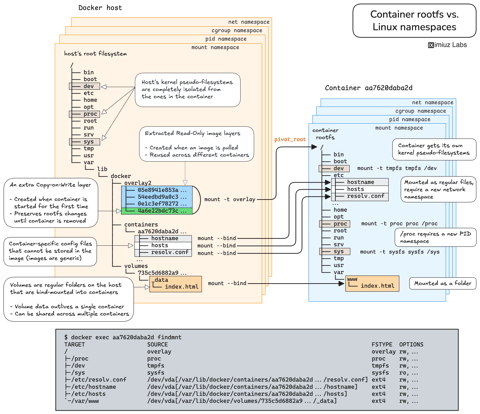
How Container Filesystem Works: Building a Docker-like Container From Scratch
Learn how Linux containers are built from the ground up. Starting with the mount namespace and a root filesystem, see why PID, cgroup, UTS, and network namespaces naturally follow - and how this foundation makes concepts like bind mounts, volumes, and persistence in Docker or Kubernetes much easier to grasp.

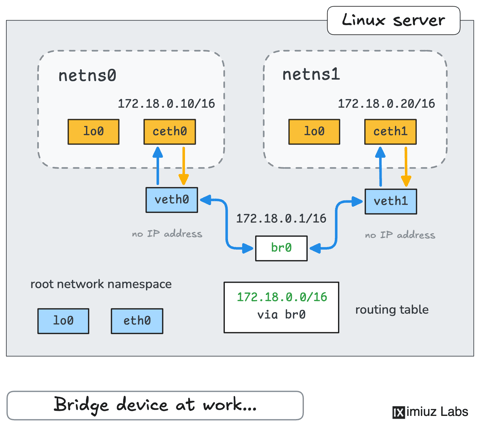
How Container Networking Works: Building a Bridge Network From Scratch
Begin with the basics to understand Docker and Kubernetes networking: learn how to create and interconnect Linux network namespaces using only command-line tools.
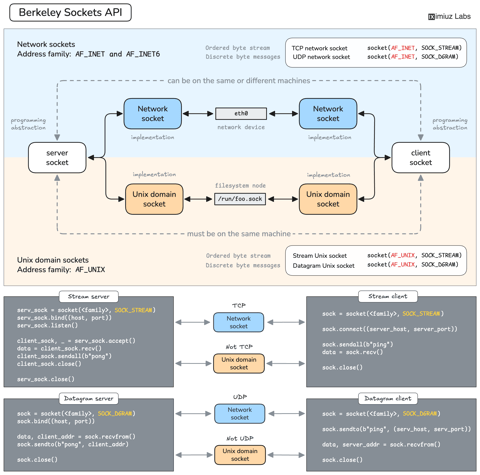
How Servers Work: A Hands-On Introduction to TCP Sockets
Learn how servers actually work by building a tiny TCP server and client from scratch. A hands-on introduction to sockets, TCP, and the network programming model every backend, DevOps, and platform engineer should go through at least once.
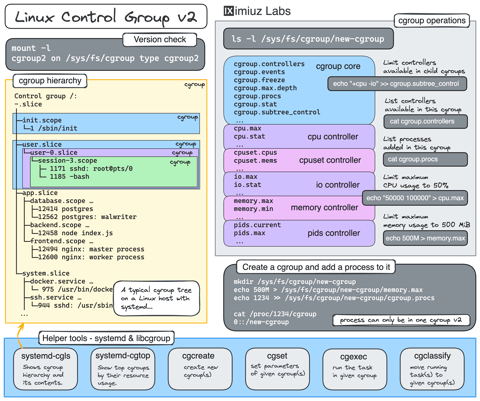
Controlling Process Resources with Linux Control Groups
Learn how to limit process resources using Linux cgroups - from the most basic and labour-intensive cgroupfs manipulation to the handiest systemd-run command.
Learn by doing, not just by reading or watching
Sign up for a free account to start a VM playground right on this page, track your progress, and get notified about new learning materials.