Quoting and Escaping: Handle Filenames and Arguments with Special Characters

Before running any commands: click the + button in the terminal tab bar to open a new terminal tab. The playground history tracking activates in new sessions only. Commands run in the original tab will not register for task verification.
Quoting and Escaping: Handle Filenames and Arguments with Special Characters
Bash hands your command to the kernel only after it has finished processing the command line. That processing — word splitting, glob expansion, variable expansion — happens silently and can completely change what you typed. Learning to control it is not optional for an RHCSA candidate: exam tasks regularly involve paths and values that contain spaces, $, [, ], or other special characters.
This lab walks you through every quoting and escaping form Bash provides, using real files with genuinely problematic names so you can see the effects directly.
What You Will Practice
- Creating files whose names contain spaces, glob metacharacters, and dollar signs
- Referencing those files safely with single quotes, double quotes, and backslash escaping
- Preventing glob and variable expansion where they would cause errors
- Expanding variables inside filenames using double quotes
- Using ANSI-C quoting (
$'...') for newlines, tabs, and other control characters - Embedding a literal single quote inside a single-quoted string
Step 1 — Create Test Files with Problematic Names
Change to your home directory and create the quote-test working directory, then create four files whose names each contain a different kind of special character.
mkdir ~/quote-test && cd ~/quote-test
touch 'report 2024.txt' 'report 2025.txt' 'costs [final].csv' 'price$list.txt'
Confirm all four files exist:
ls -1
Expected output:
costs [final].csv
price$list.txt
report 2024.txt
report 2025.txt
If you run touch report 2024.txt without quotes, the shell sees two arguments — report and 2024.txt — and creates two separate files. Quoting is what makes the space part of the filename.
Step 2 — Reference Files with Spaces Using Quotes or Backslash Escaping
A filename containing a space must be passed to a command as a single argument. Without quoting, Bash splits on the space and sends two separate arguments.
Three equivalent forms all produce identical results:
Single quotes — simplest form when no expansion is needed:
ls -l 'report 2024.txt'
Double quotes — use when you also need variable expansion (covered in Step 5):
ls -l "report 2024.txt"
Backslash escaping — escape the space character directly:
ls -l report\ 2024.txt
Which form to use?
- Single quotes — use when the filename must reach the command exactly as written (no expansion at all).
- Double quotes — use when the filename contains a
$VARIABLEyou want the shell to expand first. - Backslash — use when you are building a complex expression where wrapping the whole token in quotes would break surrounding syntax.
Step 3 — Prevent Glob Expansion on Bracket Characters
The filename costs [final].csv contains [ and ]. Bash treats these as glob metacharacters that define a character class. Without quoting, the shell tries to match [final] against files in the current directory.
Try the unquoted form to see the failure:
ls -l costs [final].csv
You will likely see an error or unexpected matches because [final] is interpreted as "any one of the characters f, i, n, a, l".
Suppress glob expansion with single quotes:
ls -l 'costs [final].csv'
Or escape each metacharacter individually with backslashes:
ls -l costs\ \[final\].csv
Both forms pass the literal string costs [final].csv to ls.
Why did ls -l costs [final].csv match something unexpected?
The shell expanded [final] as a glob pattern before ls ever ran. If any file in the directory has a name whose first character is one of f, i, n, a, or l, that filename was silently substituted. This is a classic quoting trap: the command ran, but on the wrong file.
Step 4 — Prevent Dollar Sign Expansion with Single Quotes
The filename price$list.txt contains $. Bash treats $ as the start of a variable reference.
Watch what double quotes do — they suppress word splitting and globbing but not variable expansion:
ls -l "price$list.txt"
The shell expands $list (which is almost certainly an empty variable), leaving ls -l price.txt — a file that does not exist. You get a "No such file or directory" error.
Single quotes suppress all expansion, including $:
ls -l 'price$list.txt'
This passes the literal string price$list.txt to ls and finds the file.
Double quotes protect against word splitting and glob expansion but do not protect against $variable expansion or $(command) substitution. When a literal $ must reach the command unchanged, always use single quotes.
Step 5 — Expand Variables Inside Filenames Using Double Quotes
Sometimes you genuinely need the shell to expand a variable that is part of a filename, while still treating the spaces in that filename as part of the name rather than argument separators. Double quotes give you exactly this combination.
YEAR=2024
ls -l "report ${YEAR}.txt"
The shell expands ${YEAR} to 2024 but keeps the surrounding space as part of the filename. The result is equivalent to ls -l 'report 2024.txt'.
Use ${VAR} brace syntax — rather than $VAR — when the variable name is immediately followed by other word characters inside a double-quoted string. For example, "${YEAR}report" unambiguously expands YEAR; "$YEARreport" tries to expand the variable named YEARreport, which is probably empty.
Step 6 — Embed Literal Newlines and Escape Sequences Using ANSI-C Quoting
Single and double quotes cannot represent a literal newline or tab character in a readable way. ANSI-C quoting — the $'...' syntax — solves this. Inside $'...', Bash interprets C-style escape sequences:
| Sequence | Meaning |
|---|---|
\n | newline |
\t | tab |
\\ | literal backslash |
\' | literal single quote |
Create a file whose name contains a literal newline:
touch $'line1\nline2'
Verify it was created and reference it:
ls -1 $'line1\nline2'
Use ANSI-C quoting to pass a tab character to printf:
printf '%s\t%s\n' $'col1' $'col2'
$'...' produced literal text instead of a newline — what went wrong?
ANSI-C quoting is a Bash extension. It is not available in POSIX sh. Confirm your shell is Bash by running echo $SHELL — the output should be /bin/bash. If you are in a script that starts with #!/bin/sh, switch the shebang to #!/bin/bash.
Step 7 — Verify Expansion Before Execution Using echo and printf %q
Before running a destructive or complex command, check that Bash is constructing arguments exactly as you intend. Two tools help here.
echo previews what arguments will be passed:
YEAR=2024
echo ls -l 'report 2024.txt' "report ${YEAR}.txt" 'costs [final].csv'
Expected output — each filename appears as a single token, even though they contain spaces:
ls -l report 2024.txt report 2024.txt costs [final].csv
printf '%q ' shows the shell-safe representation of each argument, which reveals any unintended expansion:
printf '%q ' 'report 2024.txt' "price$list.txt" $'line1\nline2'
printf '\n'
Expected output:
report\ 2024.txt price.txt line1$'\n'line2
Notice that "price$list.txt" appears as price.txt — the $list expansion stripped it. The printf '%q' output makes that invisible expansion visible, so you can fix it before the real command runs.
printf '%q' is one of the best debugging tools for quoting issues. Make it a habit on the exam: when a command with special-character arguments behaves oddly, prefix it with printf '%q ' to see exactly what the shell is handing to the program.
Step 8 — Embed a Literal Single Quote Inside a Single-Quoted String
Single quotes suppress everything — there is no way to backslash-escape a single quote inside a single-quoted string. Two workarounds exist.
Method 1: Close the single-quoted string, insert a backslash-escaped single quote, then reopen the string:
echo 'it'\''s a test'
Breaking it down:
'it'— single-quotedit\'— escaped single quote outside any quotes's a test'— single-quoted remainder
Method 2: Use ANSI-C quoting, which recognises \':
echo $'it\'s a test'
Both produce:
it's a test
Final Verification
Run a loop over all four test files using correct quoting to confirm everything is in order:
cd ~/quote-test
for f in 'report 2024.txt' 'report 2025.txt' 'costs [final].csv' 'price$list.txt'; do
  ls -1 "$f"
done
All four filenames should appear on separate lines with no errors. Any "No such file" error points to a quoting mistake — recheck the form used for that specific filename.
Troubleshooting Reference
| Symptom | Cause | Fix |
|---|---|---|
ls: cannot access 'price.txt': No such file | $list expanded inside double quotes, leaving empty string | Use single quotes: 'price$list.txt' |
touch report 2024.txt creates two files | Unquoted space treated as argument separator | Quote the argument: touch 'report 2024.txt' |
ls -l costs [final].csv matches wrong files or errors | [final] interpreted as glob character class | Single-quote: 'costs [final].csv' or escape: costs\ \[final\].csv |
$'...' produces literal \n text instead of newline | Shell is not Bash — ANSI-C quoting is a Bash extension | Confirm echo $SHELL returns /bin/bash |
| Variable inside single quotes not expanded | Single quotes suppress all expansion by design | Switch to double quotes; verify the variable value with echo first |
echo $'it\'s' fails with syntax error | $'...' nested inside another quoting context | Use $'...' standalone, not wrapped in other quote characters |
Summary
| Goal | Form | Example |
|---|---|---|
| Literal argument, no expansion | Single quotes | 'price$list.txt' |
Expand $VAR but protect spaces | Double quotes | "report ${YEAR}.txt" |
| Escape one special character | Backslash | report\ 2024.txt |
| Embed newline or tab literally | ANSI-C quoting | $'line1\nline2' |
Literal ' in a quoted string | Close+escape+reopen | 'it'\''s a test' |
| Debug unexpected expansion | printf '%q' | printf '%q ' "$arg" |
The exam will present paths and values containing spaces and special characters without warning. Quoting correctly — on the first attempt, without trial and error — is what separates a passing candidate from one who wastes time on fixable errors.
About the Author

More tutorials you might like
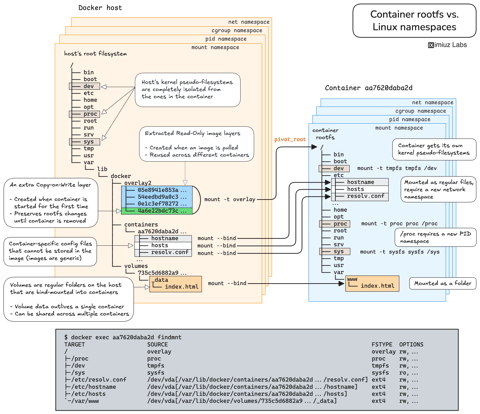
How Container Filesystem Works: Building a Docker-like Container From Scratch
Learn how Linux containers are built from the ground up. Starting with the mount namespace and a root filesystem, see why PID, cgroup, UTS, and network namespaces naturally follow - and how this foundation makes concepts like bind mounts, volumes, and persistence in Docker or Kubernetes much easier to grasp.

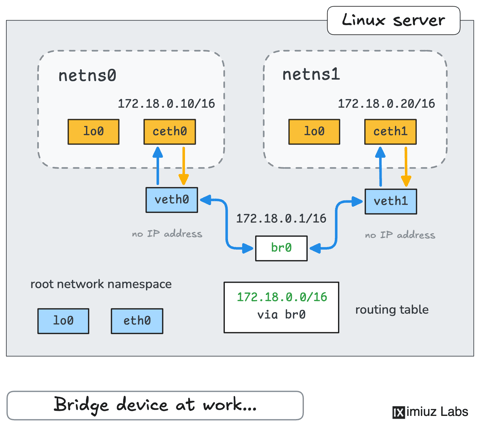
How Container Networking Works: Building a Bridge Network From Scratch
Begin with the basics to understand Docker and Kubernetes networking: learn how to create and interconnect Linux network namespaces using only command-line tools.
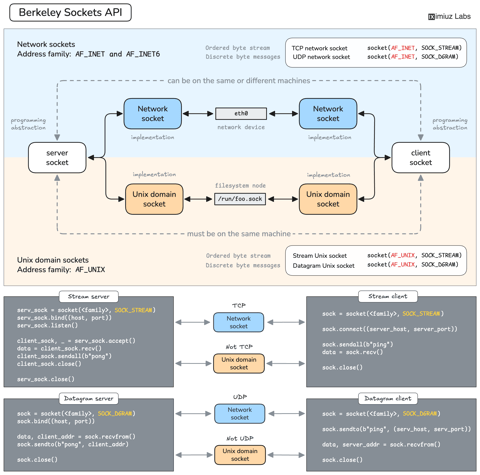
How Servers Work: A Hands-On Introduction to TCP Sockets
Learn how servers actually work by building a tiny TCP server and client from scratch. A hands-on introduction to sockets, TCP, and the network programming model every backend, DevOps, and platform engineer should go through at least once.
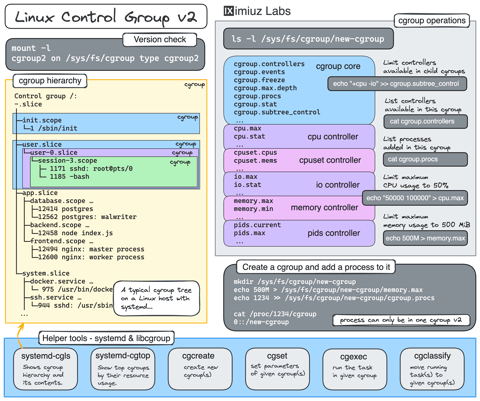
Controlling Process Resources with Linux Control Groups
Learn how to limit process resources using Linux cgroups - from the most basic and labour-intensive cgroupfs manipulation to the handiest systemd-run command.
Learn by doing, not just by reading or watching
Sign up for a free account to start a VM playground right on this page, track your progress, and get notified about new learning materials.