How to Identify and Modify $PATH for Command Availability

How to Identify and Modify $PATH for Command Availability
Before running any commands: click the + button in the terminal tab bar to open a new terminal tab. The playground history tracking activates in new sessions only. Commands run in the original tab will not register for task verification.
This tutorial walks you through inspecting $PATH, adding a directory for the current shell session, and persisting that change so it survives a new login shell. On the RHCSA EX200 exam you may need to make a custom command findable without knowing its full path — this is how.
The playground has already created /opt/myapp/bin/mycommand for you to work with.
Step 1 — Inspect the Current $PATH
The shell resolves command names by searching each directory listed in $PATH from left to right, stopping at the first match. Knowing what is already there — and in what order — is the starting point before making any change.
Display the current search path:
echo $PATH
The output is a colon-separated string that is hard to read at a glance. Pipe it through tr to see one directory per line:
echo $PATH | tr ':' '\n'
Order matters. A directory at position 1 is searched before position 8. If two directories contain a binary with the same name, the one found first wins.
Step 2 — Check Whether Your Directory Is Already in $PATH
Before modifying anything, confirm the directory is actually missing:
echo $PATH | tr ':' '\n' | grep '/opt/myapp/bin'
If the command returns no output, /opt/myapp/bin is not in $PATH. That is the expected result here — proceed to Step 3.
Step 3 — Add the Directory for the Current Session
You have two options depending on the priority you need.
Prepend (new directory searched first — takes priority over any existing command of the same name):
export PATH=/opt/myapp/bin:$PATH
Append (new directory searched last — existing system commands take priority):
export PATH=$PATH:/opt/myapp/bin
For this exercise use the prepend form so /opt/myapp/bin appears at the front of the list.
This change applies to the current shell session and any child processes it spawns. It is lost when the terminal closes. Step 4 makes it permanent.
After running the export, confirm the directory is now present:
echo $PATH | tr ':' '\n'
The command is still not found after the export
Check for a typo in the path. Run echo $PATH | tr ':' '\n' and look for /opt/myapp/bin in the output. If the line is missing, re-run the export command exactly as shown. A common mistake is writing export PATH=/opt/myapp/bin (without :\$PATH), which discards the entire original PATH and leaves you with only that one directory.
Step 4 — Persist the Change in ~/.bash_profile
Session exports disappear when the terminal closes. To make the change survive a new login shell, add the export line to ~/.bash_profile:
echo 'export PATH=/opt/myapp/bin:$PATH' >> ~/.bash_profile
Use single quotes around the export line. Single quotes prevent the shell from expanding $PATH right now — you want the literal string written to the file so the shell expands it at login time against the then-current PATH value. Double quotes would expand $PATH immediately, hard-coding your current session's PATH into the file.
Confirm the line was written correctly:
grep 'opt/myapp/bin' ~/.bash_profile
I accidentally added it to ~/.bashrc instead of ~/.bash_profile
On Rocky Linux 9, a graphical or non-login interactive shell reads ~/.bashrc, while a login shell reads ~/.bash_profile. For the RHCSA exam, the expected location for PATH persistence is ~/.bash_profile. You can add the line to both files to cover all shell types, but always ensure ~/.bash_profile has it. Check with: grep opt/myapp/bin ~/.bashrc ~/.bash_profile
Step 5 — Verify the Change Survives a New Login Shell
Force Bash to re-read the login profile without fully logging out:
bash --login -c 'echo $PATH | tr ":" "\n"'
Look for /opt/myapp/bin in the output. This simulates exactly what happens when a new login session starts.
The login shell output does not show /opt/myapp/bin
Run bash -n ~/.bash_profile to check for syntax errors in the file. If the command reports an error, open the file and fix the offending line. If there are no syntax errors but the directory is still missing, verify the exact content of the file with cat ~/.bash_profile and confirm the export line reads exactly: export PATH=/opt/myapp/bin:$PATH
Final Verification
Confirm the directory is present and in the expected position:
echo $PATH | tr ':' '\n' | grep -n '/opt/myapp/bin'
A low line number (e.g., 1) means the directory was prepended and will be searched first. A high line number means it was appended.
Confirm the command in the added directory is now found by the shell:
type mycommand
Expected output:
mycommand is /opt/myapp/bin/mycommand
Troubleshooting Reference
| Problem | Cause | Solution |
|---|---|---|
| Command still not found after adding directory | Typo in path or export not saved | Run echo $PATH | tr ':' '\n' and confirm the exact path appears |
| Change lost after opening a new terminal | Export in ~/.bashrc instead of ~/.bash_profile, or terminal opens a non-login shell | Verify the export line is in ~/.bash_profile; for non-login interactive shells, also add it to ~/.bashrc |
| New login shell does not pick up the change | ~/.bash_profile not saved, or syntax error aborted loading | Run bash -n ~/.bash_profile to check for syntax errors |
Prepended directory is still searched after /usr/bin | $PATH was omitted from the export, discarding the old value | Use export PATH=/opt/myapp/bin:$PATH, not export PATH=/opt/myapp/bin |
| Permission denied running a command in the added directory | Binary is not executable | Run chmod +x /opt/myapp/bin/mycommand |
What You Did
- Inspected
$PATHand read its directories one per line withtr - Checked whether a target directory was already present before modifying anything
- Added a directory for the current session with
export PATH=... - Persisted the change in
~/.bash_profileusing single-quotedechoredirection - Verified the change loads in a new login shell with
bash --login -c '...'
These five steps are exactly what the RHCSA exam expects when you are asked to make a custom binary available by name without specifying its full path.
Exam tip: On the RHCSA, ~/.bash_profile is the correct file for login-shell PATH changes. If you are unsure whether the exam shell is a login shell or a non-login interactive shell, add the export line to both ~/.bash_profile and ~/.bashrc to be safe.
About the Author

More tutorials you might like
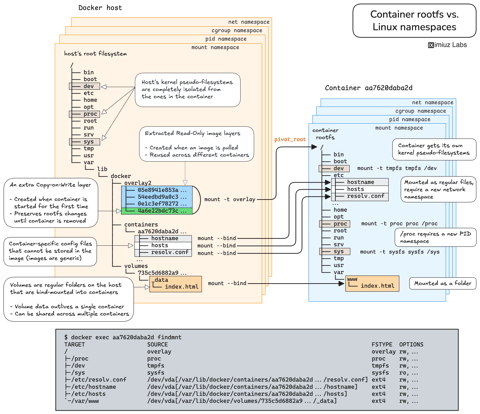
How Container Filesystem Works: Building a Docker-like Container From Scratch
Learn how Linux containers are built from the ground up. Starting with the mount namespace and a root filesystem, see why PID, cgroup, UTS, and network namespaces naturally follow - and how this foundation makes concepts like bind mounts, volumes, and persistence in Docker or Kubernetes much easier to grasp.

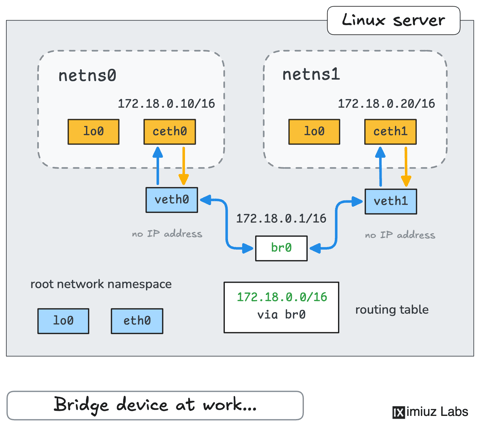
How Container Networking Works: Building a Bridge Network From Scratch
Begin with the basics to understand Docker and Kubernetes networking: learn how to create and interconnect Linux network namespaces using only command-line tools.
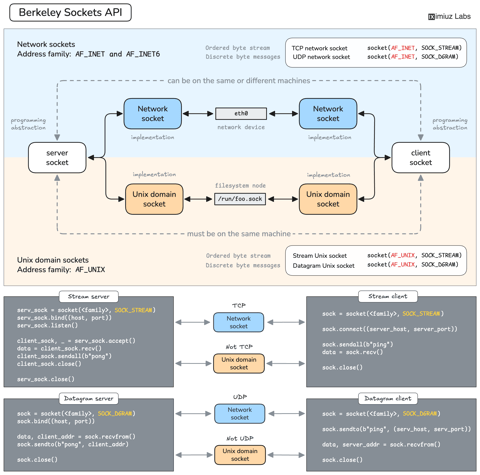
How Servers Work: A Hands-On Introduction to TCP Sockets
Learn how servers actually work by building a tiny TCP server and client from scratch. A hands-on introduction to sockets, TCP, and the network programming model every backend, DevOps, and platform engineer should go through at least once.
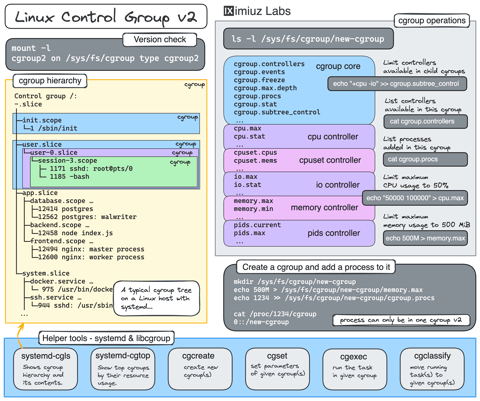
Controlling Process Resources with Linux Control Groups
Learn how to limit process resources using Linux cgroups - from the most basic and labour-intensive cgroupfs manipulation to the handiest systemd-run command.
Learn by doing, not just by reading or watching
Sign up for a free account to start a VM playground right on this page, track your progress, and get notified about new learning materials.