Diagnose and Fix a 'command not found' Error

Diagnose and Fix a 'command not found' Error
Before running any commands: click the + button in the terminal tab bar to open a new terminal tab. The playground history tracking activates in new sessions only. Commands run in the original tab will not register for task verification.
Every Linux admin eventually sees this:
bash: git: command not found
The message is the same regardless of cause — but the fix is different every time. This lab walks you through a systematic diagnostic sequence that works for every variant of this error. Master this flow and you will never stare at command not found and wonder where to start.
On the RHCSA exam you may encounter broken environments or need to install missing tools. This exact sequence applies.
What you'll practise
- Using
typeto detect typos and classify commands - Inspecting and repairing
$PATH - Using
whichto locate executables on disk - Using
dnf providesto find and install missing packages - Checking and fixing missing execute permissions
Step 1 — Check for a Typo Using type
Before assuming anything is broken, rule out a simple spelling mistake.
The type built-in asks Bash: "How would you run this word?" It searches aliases, functions, builtins, and then $PATH — in that order. If none of them match, Bash tells you immediately.
Run type against a deliberately misspelled command:
type tpye
You should see:
bash: type: tpye: not found
Bash found nothing matching tpye. Compare against the intended spelling, correct it, and retry.
type is a Bash built-in — it does not spawn a subprocess and it cannot be silenced by a broken $PATH. That makes it the safest first diagnostic tool.
Step 2 — Confirm What type Reports for a Valid Command
Now run type against a command you know works, so you recognise each possible output:
type ls
| Output | Meaning |
|---|---|
ls is aliased to 'ls --color=auto' | Alias — defined in your shell config; will work |
ls is /usr/bin/ls | External executable found in $PATH; will work |
ls is a shell builtin | Built into Bash; always works regardless of $PATH |
bash: type: ls: not found | Nothing found — continue to Step 3 |
Step 3 — Inspect $PATH for Missing Directories
If type returns not found for a command you believe is installed, the most common cause is a corrupted or overwritten $PATH.
Print it now:
echo $PATH
A healthy Rocky Linux 9 user $PATH looks like:
/home/laborant/.local/bin:/home/laborant/bin:/usr/local/bin:/usr/bin:/usr/local/sbin:/usr/sbin
The critical directories are /usr/bin and /usr/sbin. If either is absent, commands like ls, cat, and grep will silently disappear.
Repair a broken $PATH
If /usr/bin is missing from your output, restore the default for this session:
export PATH=/usr/local/bin:/usr/bin:/usr/local/sbin:/usr/sbin:$HOME/.local/bin:$HOME/bin
This export fixes $PATH for the current session only. On the RHCSA exam, if a question broke your PATH in a startup file (such as .bashrc), you must also fix the file — otherwise the next login will break it again.
Why does $PATH break?
The most common causes during an exam or on a misconfigured system:
- Someone ran
PATH=somedirinstead ofPATH=somedir:$PATH, wiping all previous entries - A
.bashrcor/etc/profile.d/script overwritesPATHunconditionally - The shell was started with
env -i(empty environment)
If echo $PATH shows an empty string or only one directory, a script is almost certainly overwriting it.
Step 4 — Use which to Locate the Executable on Disk
If $PATH looks correct but the command is still missing, use which to search each $PATH directory explicitly:
which git
Two possible outcomes:
/usr/bin/git— the file exists on disk. The problem is likely a permissions issue. Jump to Step 6.- No output /
no git in (...)— the file is not present anywhere in$PATH. Proceed to Step 5 to install it.
which returns nothing but I'm sure git is installed
Check whether git is installed somewhere outside your $PATH:
find /usr /opt /home -name git -type f 2>/dev/null
If it appears in a directory like /usr/local/bin that is absent from your $PATH, fix your PATH (Step 3) rather than reinstalling the package.
Step 5 — Check Whether the Package Is Installed
When the executable is nowhere on disk, you need to find and install the package that provides it.
dnf provides git
This queries the RPM database and available repositories for any package that owns a file or capability named git. Typical output:
git-2.43.0-1.el9.x86_64 : Fast Version Control System
Repo        : appstream
Matched from:
Provide    : git = 2.43.0-1.el9
Install the package:
sudo dnf install -y git
dnf provides also accepts full paths. If you know the binary path but not the package, run dnf provides /usr/bin/git. This is useful when a man page or script references an exact path and you need to know which package to install.
dnf provides returns no match
The command name and the package name often differ. Try a broader search:
dnf search git
This searches package names and descriptions. The correct package may be git-core, perl-Git, or something else entirely.
Step 6 — Check Executable Permission on the File
This step covers a subtle failure: which finds the file, the package is installed, but running the command still fails.
The playground pre-created a script at /usr/local/bin/greet with the execute bit deliberately removed. Inspect it:
ls -l /usr/local/bin/greet
You should see something like:
-rw-r--r--. 1 root root 42 Jan 15 12:00 /usr/local/bin/greet
The permission string -rw-r--r-- has no x anywhere. Bash cannot execute this file even though it exists and is in your $PATH.
Restore the execute bit:
sudo chmod +x /usr/local/bin/greet
chmod +x adds the execute bit for owner, group, and other simultaneously. On the RHCSA exam you may need finer control — for example chmod u+x adds it for the owner only. Know the difference.
Verification — Confirm the Command Resolves
After working through whichever steps applied to your situation, always end with type to confirm resolution:
type greet
Expected output:
greet is /usr/local/bin/greet
Bash now classifies greet as an external executable at a known path. Run it to confirm end-to-end:
greet
Expected:
Hello from greet!
Troubleshooting Reference
| Symptom | Most Likely Cause | Fix |
|---|---|---|
type returns not found even after correcting spelling | Command not installed, not on $PATH | dnf provides <command> then install |
/usr/bin absent from echo $PATH output | $PATH overwritten in current session | export PATH=/usr/local/bin:/usr/bin:/usr/local/sbin:/usr/sbin:$HOME/.local/bin:$HOME/bin |
which finds the file but shell returns Permission denied | Execute bit missing | sudo chmod +x <full-path> |
Command works as root but not as a regular user | /usr/sbin not in user's $PATH | Run with sudo, or add /usr/sbin to user's $PATH |
dnf provides returns no match | Package name differs from command name | dnf search <keyword> |
Diagnostic Flow Summary
command not found
       │
       ▼
type <command>  ──── typo? ──────────────────► fix spelling, retry
       │
       │ not found
       ▼
echo $PATH ──── /usr/bin missing? ──────────► export PATH=..., retry
       │
       │ PATH looks correct
       ▼
which <command> ──── no path returned? ─────► dnf provides, install
       │
       │ path returned
       ▼
ls -l <path> ──── no execute bit? ──────────► chmod +x, retry
       │
       │ bit present
       ▼
type <command>  (should now resolve)
What to Remember for the Exam
typefirst, always. It is a builtin, immune to a broken$PATH, and tells you exactly how Bash resolves a name.echo $PATHis your second move whentypesays not found. A wiped PATH silences almost every command at once.dnf providestraces any missing file back to its RPM package. Works with command names and full paths.chmod +xis the fix when the file exists but cannot be executed. The RHCSA exam occasionally presents scripts that need this step before they can run.
About the Author

More tutorials you might like
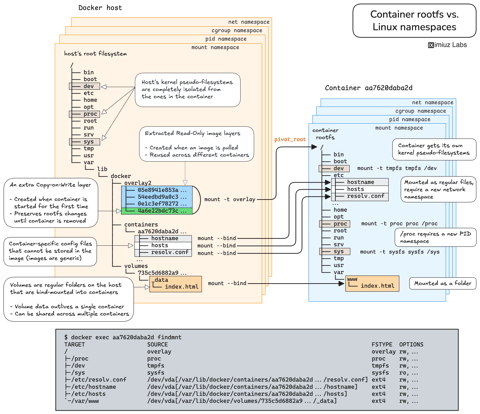
How Container Filesystem Works: Building a Docker-like Container From Scratch
Learn how Linux containers are built from the ground up. Starting with the mount namespace and a root filesystem, see why PID, cgroup, UTS, and network namespaces naturally follow - and how this foundation makes concepts like bind mounts, volumes, and persistence in Docker or Kubernetes much easier to grasp.

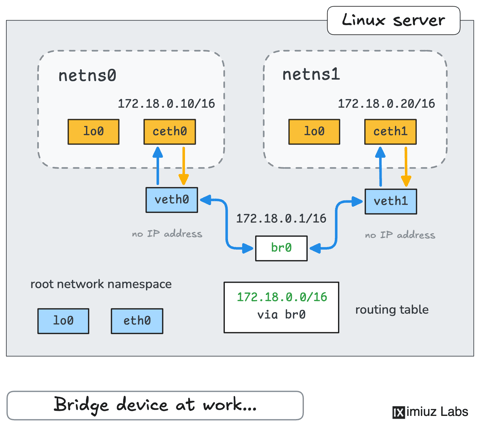
How Container Networking Works: Building a Bridge Network From Scratch
Begin with the basics to understand Docker and Kubernetes networking: learn how to create and interconnect Linux network namespaces using only command-line tools.
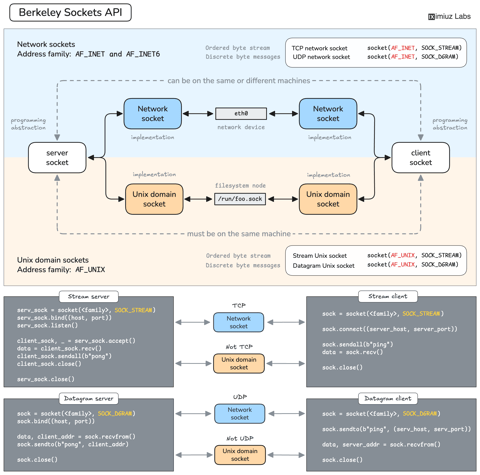
How Servers Work: A Hands-On Introduction to TCP Sockets
Learn how servers actually work by building a tiny TCP server and client from scratch. A hands-on introduction to sockets, TCP, and the network programming model every backend, DevOps, and platform engineer should go through at least once.
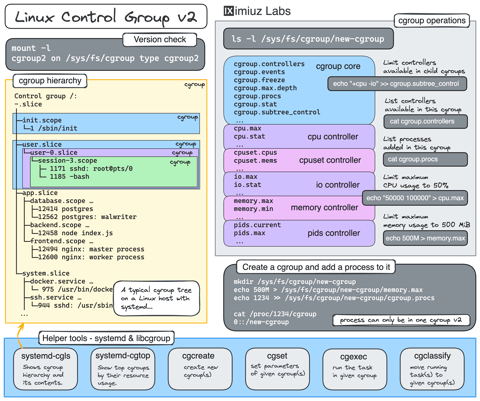
Controlling Process Resources with Linux Control Groups
Learn how to limit process resources using Linux cgroups - from the most basic and labour-intensive cgroupfs manipulation to the handiest systemd-run command.
Learn by doing, not just by reading or watching
Sign up for a free account to start a VM playground right on this page, track your progress, and get notified about new learning materials.