How to Get Help for Any Command at the Shell Prompt

How to Get Help for Any Command at the Shell Prompt
Before running any commands: click the + button in the terminal tab bar to open a new terminal tab. The playground history tracking activates in new sessions only. Commands run in the original tab will not register for task verification.
On the RHCSA EX200 exam, the internet is not available. Every syntax question you face must be answered with the tools already on the system. This lab drills every built-in help mechanism so that looking up a flag or option becomes second nature under exam pressure.
By the end you will be able to:
- Display compact usage summaries with
--help - Open, navigate, and read
manpages - Decode the SYNOPSIS section of any man page
- Get one-line descriptions with
whatisandman -f - Confirm whether a command is a builtin, alias, or external binary with
type - Find the disk location of an external command with
which - Search all man page descriptions by topic with
apropos - Read extended GNU documentation with
info
Step 1 — Display a Command's Built-in Usage Summary
The fastest help available for any command is its --help flag. It prints a compact list of options and exits immediately — no pager, no waiting.
ls --help
Scroll through the output. You will see every option ls accepts, its short and long forms, and a one-line description of each.
A small number of commands use -h instead of --help. Shell builtins (like cd) do not support either flag — use help cd for builtins. If --help prints an error, that is your cue to try a different approach.
Output scrolled off the screen too fast?
Pipe the output through less to read at your own pace:
ls --help | less
Press q to quit less.
Step 2 — Open the Full Manual Page for a Command
man pages are the authoritative reference for every command on a RHEL system. They include all options, argument types, exit codes, environment variables, and often worked examples.
man ls
Navigate the manual page with these keys:
| Key | Action |
|---|---|
Space or f | Scroll forward one full page |
b | Scroll back one full page |
/pattern | Search forward for text |
n | Jump to the next search match |
N | Jump to the previous search match |
q | Quit and return to the shell |
Exam technique: Once inside a man page, type /EXAMPLE and press Enter to jump straight to the examples section — most man pages have one. This saves time when you need to see real usage rather than reading option lists from the top.
man says "No manual entry for ls"?
The man-pages or man-db packages may be missing. Fix it with:
sudo dnf install -y man-pages man-db
On this playground both packages are pre-installed, so this should not occur.
Step 3 — Read the SYNOPSIS Section of a Man Page
Every man page opens with a SYNOPSIS section immediately below the NAME section. Learning to decode it unlocks every other man page you will ever read.
Open man ls again and find the SYNOPSIS near the top:
ls [OPTION]... [FILE]...
Decode each element:
| Notation | Meaning |
|---|---|
| Bold text | Type exactly as shown |
| Underlined / italic text | Replace with your own value |
[item] | Optional — omit if not needed |
item... | Repeatable — provide one or more |
{a|b} | Choose one from the group |
Applying this to ls [OPTION]... [FILE]...:
ls— type exactly as shown[OPTION]...— zero or more options, all optional[FILE]...— zero or more file paths, all optional
So ls, ls -l, ls -lh /etc, and ls /var/log /tmp are all valid invocations.
You do not need to verify a command at this step — just read the SYNOPSIS inside man ls. This skill is tested implicitly every time you construct a correct command from documentation on the exam.
Step 4 — Get a One-Line Description with whatis
whatis prints the NAME section of a man page — a single line identifying what a command does. Use it when you know the name of a command but want a quick sanity-check before diving into its man page.
whatis ls
Expected output:
ls (1) - list directory contents
The number in parentheses is the manual section:
| Section | Contents |
|---|---|
| 1 | User commands |
| 5 | File formats and configuration files |
| 8 | System administration commands |
whatis returns "nothing appropriate"?
The man page database has not been built yet. Rebuild it with:
sudo mandb
This takes about 30 seconds. Then retry whatis ls.
Step 5 — Determine How the Shell Resolves a Command
Before reading help for a command, confirm what it actually is. The shell can resolve a name as:
- A shell builtin (implemented inside bash itself — has no disk location)
- An alias (a shorthand for another command or with default options)
- An external executable (a binary file somewhere in
$PATH)
type ls
type cd
type cat
Typical output:
ls is aliased to 'ls --color=auto'
cd is a shell builtin
cat is /usr/bin/cat
This matters because:
- Builtins (
cd,echo,read,export) → usehelp commandname, notman commandname - Aliases →
typeshows what the alias expands to before you read options - External commands →
man commandnameworks normally
For external commands, confirm the full path on disk:
which cat
Expected output:
/usr/bin/cat
type and which answer different questions. type tells you how the shell resolves a name (including aliases and builtins). which only searches $PATH for external executables and ignores aliases and builtins entirely.
Step 6 — Search Man Pages by Topic with apropos
When you know what you want to do but not which command to use, apropos searches all man page NAME and DESCRIPTION lines for a keyword.
apropos "list directory"
You will see every command whose man page mentions "list directory" — including ls and related utilities.
Try a broader search:
apropos password
This returns commands related to password management: passwd, chpasswd, pwconv, and others.
apropos returns "nothing appropriate"?
The man page database needs to be (re)built. Run:
sudo mandb
Then retry. If a keyword still returns nothing, broaden it — for example search for "list" instead of "list directory".
Exam technique: If you forget the name of a command during the exam, apropos is your first move. For example, if you need to change file permissions but cannot remember chmod, try apropos permission or apropos "change mode".
Step 7 — Read Extended Documentation with info
GNU tools such as ls, grep, tar, and awk often have extended documentation in the info system that goes beyond what their man pages cover — including tutorials, conceptual explanations, and more worked examples.
info ls
Navigate with these keys:
| Key | Action |
|---|---|
n | Next node (section) |
p | Previous node |
u | Up one level in the node tree |
q | Quit and return to the shell |
Tab | Jump to next hyperlink |
Enter | Follow a hyperlink |
If a topic has no dedicated info page, info automatically falls back to displaying the man page. So info commandname is always safe to try — you will get something useful either way.
Step 8 — Verify All Help Tools Are Working
Run this final check to confirm every help tool is operational. This is the pattern you should run at the start of an RHCSA exam to ensure the documentation system is healthy.
man -f ls
man -f is identical to whatis — it looks up the NAME section of a man page. If it returns output, the man page database is current.
man -f ls and whatis ls produce identical output. The -f flag is the POSIX-specified form; whatis is the GNU convenience wrapper. Both appear on exams — know them as synonyms.
Troubleshooting Reference
| Symptom | Most Likely Cause | Fix |
|---|---|---|
whatis ls → nothing appropriate | Man page database not built or outdated | sudo mandb |
command --help → error or no output | Command is a shell builtin | Use help commandname instead |
man ls → No manual entry for ls | man-pages or man-db not installed | sudo dnf install -y man-pages man-db |
apropos keyword → nothing | Database not indexed, or keyword too specific | sudo mandb, then broaden the keyword |
info command shows generic reader | No standalone info page exists | Fall back to man commandname |
What You Practiced
| Tool | When to Use It |
|---|---|
command --help | Quick option list — fastest lookup |
man command | Full authoritative reference |
whatis command / man -f command | One-line identity check |
type command | Resolve builtin vs alias vs external |
which command | Find disk path of external binary |
apropos keyword | Find the right command when you forget the name |
info command | Extended GNU documentation |
help builtin | Documentation for bash builtins |
RHCSA exam reality check: You will face commands you have never seen before. The exam allows man, info, --help, whatis, and apropos — and you are expected to use them. A candidate who knows how to find answers in the documentation is more exam-ready than one who relies solely on memorization.
About the Author

More tutorials you might like
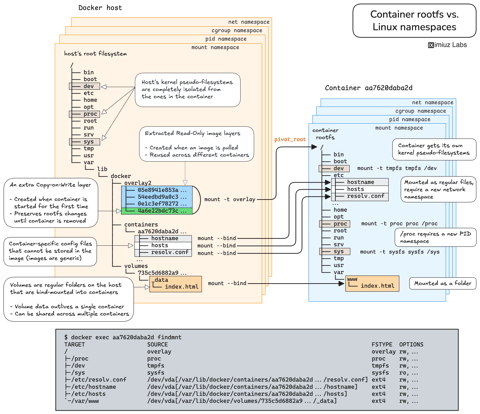
How Container Filesystem Works: Building a Docker-like Container From Scratch
Learn how Linux containers are built from the ground up. Starting with the mount namespace and a root filesystem, see why PID, cgroup, UTS, and network namespaces naturally follow - and how this foundation makes concepts like bind mounts, volumes, and persistence in Docker or Kubernetes much easier to grasp.

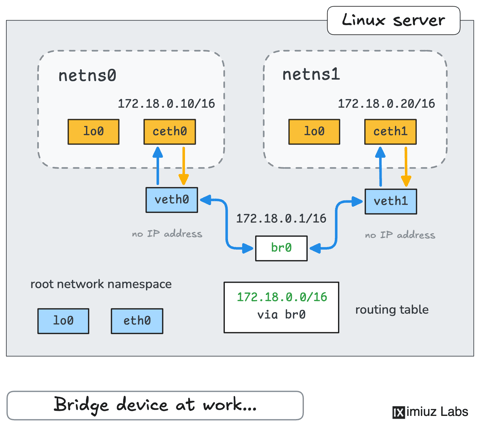
How Container Networking Works: Building a Bridge Network From Scratch
Begin with the basics to understand Docker and Kubernetes networking: learn how to create and interconnect Linux network namespaces using only command-line tools.
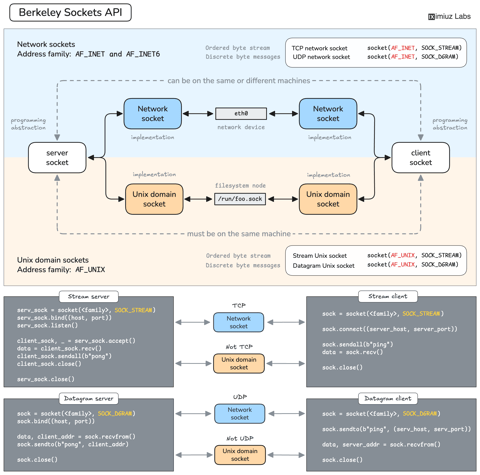
How Servers Work: A Hands-On Introduction to TCP Sockets
Learn how servers actually work by building a tiny TCP server and client from scratch. A hands-on introduction to sockets, TCP, and the network programming model every backend, DevOps, and platform engineer should go through at least once.
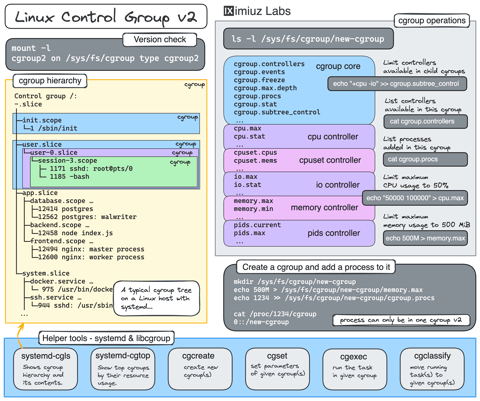
Controlling Process Resources with Linux Control Groups
Learn how to limit process resources using Linux cgroups - from the most basic and labour-intensive cgroupfs manipulation to the handiest systemd-run command.
Learn by doing, not just by reading or watching
Sign up for a free account to start a VM playground right on this page, track your progress, and get notified about new learning materials.