Find Your Way Around the Linux Filesystem

If you have never used a Linux terminal before, this is the right place to start.
A terminal gives you no icons, no folders to double click, and no window telling you where you are. That sounds unfriendly at first, but it becomes comfortable very quickly once you can answer three questions:
- Where am I?
- What is here?
- How do I get somewhere else?
This tutorial teaches you exactly those three things, using four commands:
pwd, ls, ls -al, and cd. You will try each one in a real Linux machine
running in your browser, and there are small tasks and questions along the way so
you can check that it actually clicked.
Nothing here assumes you know anything at all. Let's begin.
Part 1: Where am I?
The filesystem is one big tree
On Linux, every file and every folder lives in a single tree structure. A folder is called a directory, and that is the word we will use from here on.
The tree starts at a directory called the root, written as a single forward
slash: /. Everything else hangs off it:
/                      <- the root, the top of everything
├── etc                <- system configuration files
├── home               <- where users' personal directories live
│   └── laborant       <- your personal directory on this machine
├── usr                <- installed programs
└── var                <- logs and changing data
The written address of any place in this tree is called a path, and you build
it by walking down from the root, separating each step with a /:
/home/laborant
That reads as: start at the root, go into home, then go into laborant.
You are always standing somewhere
Here is the key idea. At any moment, your terminal is "standing" inside exactly one directory. It is called your current directory or working directory.
This matters because most commands act on your current directory by default. If you ask to create a file without saying where, it gets created right where you are standing. So knowing where you are is not trivia, it is the thing that stops you putting files in the wrong place.
pwd tells you where you are
The command is pwd, which stands for print working directory.
Click the terminal on the right, type pwd, and press Enter. You will see:
$ pwd
/home/laborant
That is your answer. You are standing in /home/laborant.
Your home directory
Every user on a Linux system gets their own personal directory, called their home directory. When you open a terminal, you always start there.
The user on this machine is named laborant, so their home directory is
/home/laborant. The pattern is almost always /home/<username>.
You will also see the tilde character used as a shortcut for your home directory. On this machine, these two commands do exactly the same thing:
cd ~
cd /home/laborant
The tilde is a convenience offered by the shell, not the actual name of the place. That distinction matters for the question below.
Let's check that this landed.
Part 2: How do I get somewhere else?
cd moves you
The command to move is cd, short for change directory.
You give it the path of where you want to go:
$ pwd
/home/laborant

$ cd /home/laborant/workspace

$ pwd
/home/laborant/workspace
Notice that cd itself prints nothing at all when it works. Silence means success.
This surprises beginners, who expect some confirmation. On Linux, most commands say
nothing when they succeed and only speak up when something goes wrong.
That is exactly why pwd is useful. Run it after moving to confirm you landed
where you intended.
Absolute paths
The path we just used started with a /:
/home/laborant/workspace
A path that starts at the root like this is called an absolute path. It means the same place no matter where you are standing when you type it, because it spells out the whole route from the top of the tree.
Absolute paths are the safe choice when you are learning. They are longer to type, but they are never ambiguous.
A directory has been prepared for you
For the rest of this tutorial you will work inside a small directory tree that has already been created on this machine:
/home/laborant/workspace
├── notes.txt
├── readme.txt
└── projects
    ├── alpha
    │   └── main.py
    └── beta
        └── main.py
Creating an empty file with touch
One more small command before the first task. touch creates an empty file, and
you use it like this:
touch <filename>
So touch arrived.txt would create an empty file named arrived.txt.
Note there is no path in that command, just a name. The file is created in whatever directory you are currently standing in, which is precisely why knowing where you are matters so much. Create a file while standing in the wrong place and it quietly lands in the wrong place.
We will use touch to prove you reached the right directory. You will learn it
properly in the next tutorial.
💡 Do not run touch yet. Use it in the task just below, where it belongs, so you
do not leave stray files lying around that make the later examples confusing.
Your turn
Move into the directory /home/laborant/workspace/projects/alpha, then create an
empty file there called arrived.txt.
Show me the steps
Two commands, in this order:
cd /home/laborant/workspace/projects/alpha
touch arrived.txt
Run pwd between them if you want to confirm you arrived before creating the file.
Part 3: What is actually here?
ls lists what is around you
ls is short for list. It shows you the contents of a directory:
$ cd /home/laborant/workspace
$ ls
notes.txt  projects  readme.txt
Four items, shown across the line. Simple enough.
The surprise: ls does not show you everything
Now try the same thing in your home directory:
$ cd /home/laborant
$ ls
workspace
One single item: the workspace directory you have been working in. Your home
directory looks almost bare.
It is not. There are more than a dozen other things sitting in there that ls
deliberately did not show you. Add the -a option and they all appear:
$ ls -a
.             .bashrc  .fzf        .gitconfig  .profile  .ssh                       .vim    workspace
..            .cache   .fzf.bash   .local      .rootfs   .sudo_as_admin_successful  .vimrc
.bash_logout  .config
From one visible item to sixteen. Same directory, same command, one extra option.
Your exact list may differ by an entry or two depending on the machine, and the columns will be arranged to fit your terminal width. That is normal. What matters is the jump from "almost empty" to "actually quite full".
Why things are hidden
Look at those names. Every single one begins with a dot.
That is the whole rule, and it is simpler than you might expect:
If a name begins with a dot, ls leaves it out of the listing by default.
Linux has no special "hidden" flag or attribute the way some other systems do. A file is hidden purely because somebody named it starting with a dot.
The reason is practical. Files like .bashrc and directories like .ssh hold your
personal configuration. You need them, but you do not want to wade through them
every time you list a directory you are actually working in. So the convention
keeps them out of the way until you ask for them.
Two of those entries are special and appear in every directory on the system:
.refers to the current directory itself..refers to the parent directory, one level up
Keep those two in mind. We come back to them in Part 4.
The two options you will actually use
-ameans all. It stopslsfrom hiding the dot names.-lmeans long. It prints one item per line with extra detail.
Combined as ls -al, you get everything, in detail:
$ ls -al
total 68
drwxr-x---  9 laborant laborant 4096 Sep 21 15:57 .
drwxr-xr-x  4 root     root     4096 Aug 29 18:08 ..
-rw-r--r--  1 laborant laborant  220 Aug 29 18:08 .bash_logout
-rw-r--r--  1 laborant laborant 4609 Aug 29 18:08 .bashrc
drwxr-xr-x  2 laborant laborant 4096 Sep 21 15:57 .cache
drwxr-xr-x  3 laborant laborant 4096 Aug 29 18:08 .config
-rw-r--r--  1 laborant laborant  807 Aug 29 18:08 .profile
drwx------  2 laborant laborant 4096 Sep 21 15:57 .ssh
-rw-r--r--  1 laborant laborant 1128 Aug 29 18:08 .vimrc
drwxrwxr-x  4 laborant laborant 4096 Sep 21 15:57 workspace
(A few rows are left out above to keep it readable, and your dates and sizes will differ. Your own output will have every entry in it.)
That looks dense, but for now you only need one column. Look at the very first character of each line:
dmeans this entry is a directory-means this entry is a regular file
So workspace and .ssh are directories, while .bashrc is a file. The rest of
the columns cover permissions, owner, size, and modification date. Those are
topics for later tutorials, so ignore them for now.
💡 ls -al is the single most typed command in most people's terminal history.
Get comfortable with it now and it will serve you for years.
Your turn
There is one hidden directory inside /home/laborant/workspace.
A plain ls will not reveal it.
Find it, move into it, and create an empty file there called found.txt.
Show me the steps
cd /home/laborant/workspace
ls -al
Look for the entry that starts with a dot and has a d at the very start of its
line, meaning it is a directory. Then cd into it and run touch found.txt.
Now tell us what it was called.
Part 4: Shortcuts for moving around
Typing full paths gets old fast
So far you have moved using absolute paths, typing the whole route from the root every time. That works, but real paths on real servers get long, and typing forty characters to move up one level is tedious.
This is where the two special entries from Part 3 earn their keep:
.is the directory you are in right now..is the directory one level above you
Moving up with ..
Give .. to cd and you move up one level:
$ pwd
/home/laborant/workspace/projects/alpha

$ cd ..

$ pwd
/home/laborant/workspace/projects
You went from alpha up into projects. The last part of the path simply fell off.
You can chain them with a slash to go up more than one level at a time:
$ cd ../..
That moves you up two levels in a single command.
Relative paths
A path like .. or ../.. does not start with a /. Paths like this are
called relative paths, because they are interpreted starting from wherever you
currently are, rather than from the root.
The difference in one line:
- Absolute path, starts with
/, always means the same place - Relative path, no leading
/, means something different depending on where you stand
Both are correct. Use absolute when you know exactly where you are going, and relative when you just need to step around near where you already are.
Your turn
Starting from /home/laborant/workspace/projects/alpha, move two levels up to
/home/laborant/workspace, then create an empty file there called back.txt.
Do it using the .. shortcut rather than typing the full path.
Show me the steps
cd /home/laborant/workspace/projects/alpha
cd ../..
pwd
touch back.txt
The pwd is not required, but checking where you landed before creating a file is
a habit worth building early.
One last question, to check you can read a relative path without running it.
Hint
Take the current path and remove the last part of it. Whatever remains is the parent.
What you learned
You can now answer all three questions we started with.
| Question | Command | What it does |
|---|---|---|
| Where am I? | pwd | Prints your current directory |
| What is here? | ls | Lists the contents |
| What is really here? | ls -al | Lists everything, hidden entries included, with detail |
| How do I move? | cd <path> | Changes your current directory |
And the four ideas underneath them:
- The filesystem is one tree starting at
/, and a path is an address in that tree - An absolute path starts with
/and always means the same place - A relative path does not, and is read from wherever you are standing, using
.for here and..for one level up - A name beginning with a dot is hidden from
lsby default, and that is the entire mechanism
These four commands sit underneath almost everything else you will do in a terminal. Being quick and confident with them is worth more than memorizing any clever command you might meet later.
Next up: creating, moving, and deleting files and directories with mkdir,
touch, mv, and rm.
About the Author
More tutorials you might like
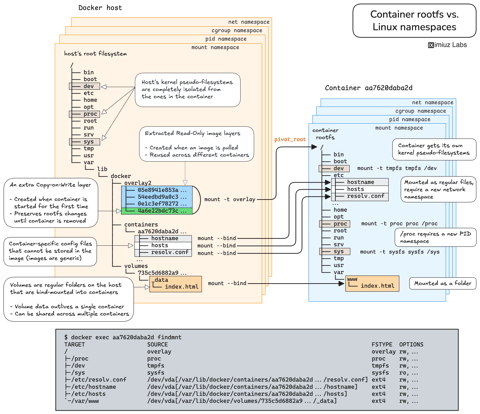
How Container Filesystem Works: Building a Docker-like Container From Scratch
Learn how Linux containers are built from the ground up. Starting with the mount namespace and a root filesystem, see why PID, cgroup, UTS, and network namespaces naturally follow - and how this foundation makes concepts like bind mounts, volumes, and persistence in Docker or Kubernetes much easier to grasp.

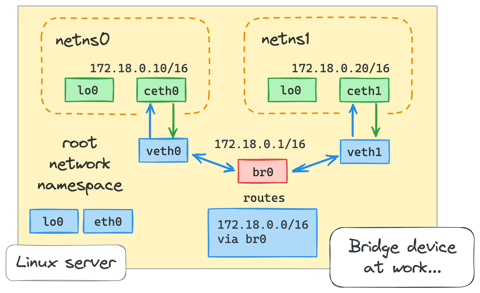
How Container Networking Works: Building a Bridge Network From Scratch
Begin with the basics to understand Docker and Kubernetes networking: learn how to create and interconnect Linux network namespaces using only command-line tools.
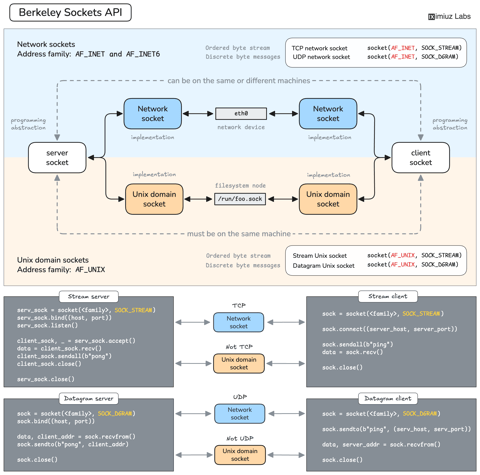
How Servers Work: A Hands-On Introduction to TCP Sockets
Learn how servers actually work by building a tiny TCP server and client from scratch. A hands-on introduction to sockets, TCP, and the network programming model every backend, DevOps, and platform engineer should go through at least once.
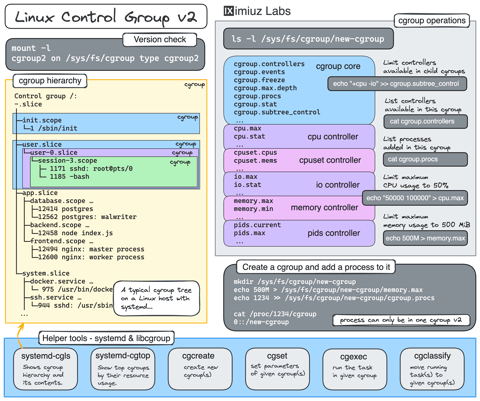
Controlling Process Resources with Linux Control Groups
Learn how to limit process resources using Linux cgroups - from the most basic and labour-intensive cgroupfs manipulation to the handiest systemd-run command.
Learn by doing, not just by reading or watching
Sign up for a free account to start a VM playground right on this page, track your progress, and get notified about new learning materials.