Create, Move, and Delete Files and Directories

In the previous tutorial you learned to move around the filesystem and see what is in it. Now you will change it.
Four commands do almost all of this work:
| Command | What it does |
|---|---|
mkdir | Makes a directory |
touch | Makes an empty file |
mv | Moves something, and renames it |
rm | Deletes something |
Two of them behave in ways that catch out nearly every beginner, and this tutorial makes a point of showing you both before they bite you.
A directory has been prepared for you at /home/laborant/inbox:
/home/laborant/inbox
├── report.txt
├── draft.txt
├── notes.txt
└── archive
    ├── old-1.txt
    └── old-2.txt
Part 1: Making directories
mkdir makes one directory
mkdir is short for make directory. Give it a name and it creates it:
$ cd /home/laborant
$ mkdir photos
$ ls
inbox  photos
Like most commands that succeed, it says nothing. The new directory simply appears.
The limit you will hit immediately
Now try to create a directory several levels deep, where the levels in between do not exist yet:
$ mkdir photos/2026/january
mkdir: cannot create directory ‘photos/2026/january’: No such file or directory
That error confuses people, because photos clearly does exist. The problem is
2026, the level in the middle. mkdir creates one directory, and it expects
the parent to already be there.
You could fix this by running three separate commands, one level at a time. Nobody does that, because there is an option for it.
The -p option
-p tells mkdir to create any missing parent directories along the way:
$ mkdir -p photos/2026/january
$ ls photos
2026
No error, and the whole chain now exists. -p has a second useful habit: it does
not complain if the directory is already there, which matters a lot once you start
writing scripts.
Part 2: Making empty files
touch creates a file with nothing in it
You met touch briefly in the last tutorial. It creates an empty file:
$ cd /home/laborant/photos
$ touch caption.txt
$ ls -l
total 4
drwxrwxr-x 3 laborant laborant 4096 Sep 21 16:20 2026
-rw-rw-r-- 1 laborant laborant    0 Sep 21 16:20 caption.txt
Look at the size column. caption.txt is 0 bytes. The file exists, it has a
name, and it contains absolutely nothing. That is often exactly what you want, for
example when a program expects a file to be present before it will start.
Remember the rule from the last tutorial: a bare filename with no path means the
file is created in your current directory. Check with pwd if you are unsure.
Your turn
Create the directory /home/laborant/projects/website, then create an empty file
called index.html inside it.
Note that neither projects nor website exists yet, so this is a job for the
option you just learned.
Show me the steps
mkdir -p /home/laborant/projects/website
cd /home/laborant/projects/website
touch index.html
You could also skip the cd by giving touch the full path:
touch /home/laborant/projects/website/index.html
Part 3: Moving and renaming
mv moves things
mv is short for move. It takes two things: what you want to move, and
where you want it to go.
$ cd /home/laborant
$ mv photos/caption.txt inbox/
$ ls inbox
archive  caption.txt  draft.txt  notes.txt  report.txt
caption.txt is now in inbox and no longer in photos. It was moved, not copied.
The surprise: mv also renames
Here is the behaviour that catches people out. If the destination you give is not
an existing directory, mv treats it as a new name:
$ cd /home/laborant/inbox
$ ls
archive  caption.txt  draft.txt  notes.txt  report.txt

$ mv caption.txt title.txt

$ ls
archive  draft.txt  notes.txt  report.txt  title.txt
There is no separate rename command in Linux. Renaming is moving, from one name
to another inside the same directory. Once that clicks, mv stops feeling strange.
It also means you can move and rename in a single step, by giving a destination path that ends in the new name:
$ mv title.txt /home/laborant/projects/website/heading.txt
That moves the file and renames it at the same time.
⚠️ mv will overwrite an existing file at the destination without asking you first.
Nothing warns you and nothing is recoverable. Add the -i option if you want it to
ask before replacing anything.
Your turn
Move report.txt out of /home/laborant/inbox and into the website directory you
made earlier, renaming it to README.txt in the process.
Do it in a single command.
Show me the steps
mv /home/laborant/inbox/report.txt /home/laborant/projects/website/README.txt
The destination is a full path ending in the new filename, so mv does both jobs
at once.
Now a question to check the idea really landed.
Part 4: Deleting
rm deletes a file
rm is short for remove:
Back in the website directory, you still have the heading.txt file left over from
the mv examples earlier. Let us get rid of it:
$ cd /home/laborant/projects/website
$ ls
README.txt  heading.txt  index.html

$ rm heading.txt

$ ls
README.txt  index.html
Gone, with no confirmation prompt and no message.
The surprise: there is no undo
This is the single most important sentence in this tutorial.
❌ Deleted files do not go to a recycle bin. There is no undo.
When you rm something, it is gone. Professionals lose work to this regularly, so
build the habit now: run ls first to check you are deleting what you think you
are deleting.
rm refuses directories by default
Try removing a directory the same way and it stops you. The photos directory from
Part 1 is still lying around, so use that:
$ cd /home/laborant
$ ls photos
2026

$ rm photos
rm: cannot remove 'photos': Is a directory
This is a safety feature. A file is one thing, but a directory might contain
hundreds of files you have forgotten about, so rm makes you be explicit.
The -r option means recursive, which tells rm to go into the directory and
delete everything inside it as well:
$ rm -r photos
$ ls
inbox  projects
Note what just happened. photos contained 2026, which contained january. One
command removed the whole chain without a single question.
⚠️ You will see rm -rf in scripts and blog posts. The extra -f means force, and
it suppresses the warnings that would otherwise stop you. It is a genuinely
dangerous combination, especially typed in the wrong directory. Do not reach for it
out of habit, and never paste it from the internet without reading it first.
Your turn
In /home/laborant/inbox, delete two things:
- the file
draft.txt - the entire
archivedirectory, including the files inside it
Leave notes.txt alone. It should still be there when you are finished.
Show me the steps
cd /home/laborant/inbox
ls
rm draft.txt
rm -r archive
ls
The ls before and after is not required, but checking what is there before you
delete is exactly the habit worth building.
What you learned
| Command | Does | Watch out for |
|---|---|---|
mkdir name | Makes a directory | Fails if the parent is missing, so use -p |
mkdir -p a/b/c | Makes the whole chain | Also silent if it already exists |
touch name | Makes an empty file | Created in your current directory |
mv old new | Moves and renames | Overwrites the destination without asking |
rm file | Deletes a file | No undo, no recycle bin |
rm -r dir | Deletes a directory and contents | Be certain before you press Enter |
The two ideas worth carrying forward:
- Renaming is just moving. There is no separate rename command, because moving a file to a new name in the same directory is the same operation.
- Deleting is permanent. Run
lsbefore you runrm, every time, until it is automatic.
Next up: reading and editing the contents of files, with nano and vim.
About the Author
More tutorials you might like
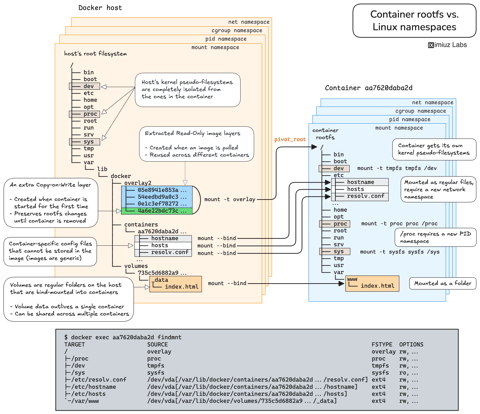
How Container Filesystem Works: Building a Docker-like Container From Scratch
Learn how Linux containers are built from the ground up. Starting with the mount namespace and a root filesystem, see why PID, cgroup, UTS, and network namespaces naturally follow - and how this foundation makes concepts like bind mounts, volumes, and persistence in Docker or Kubernetes much easier to grasp.

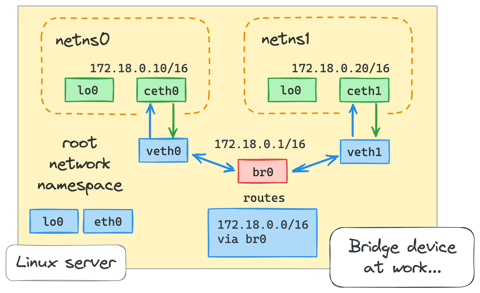
How Container Networking Works: Building a Bridge Network From Scratch
Begin with the basics to understand Docker and Kubernetes networking: learn how to create and interconnect Linux network namespaces using only command-line tools.
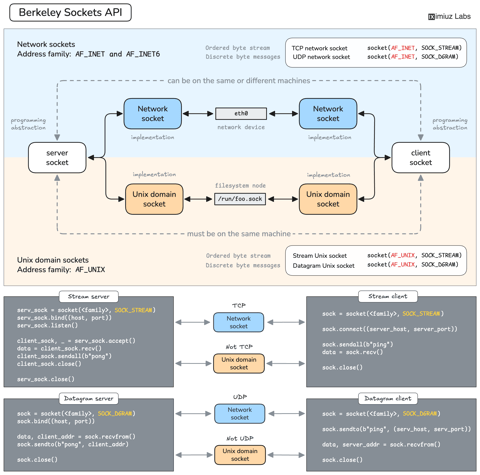
How Servers Work: A Hands-On Introduction to TCP Sockets
Learn how servers actually work by building a tiny TCP server and client from scratch. A hands-on introduction to sockets, TCP, and the network programming model every backend, DevOps, and platform engineer should go through at least once.
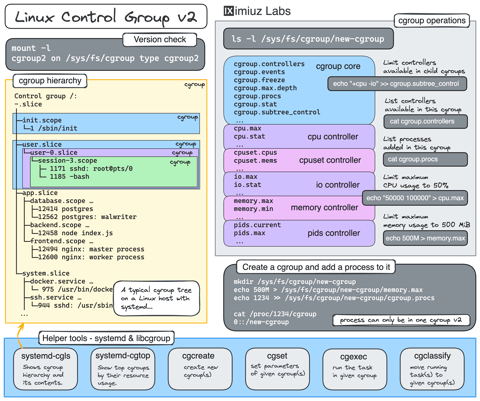
Controlling Process Resources with Linux Control Groups
Learn how to limit process resources using Linux cgroups - from the most basic and labour-intensive cgroupfs manipulation to the handiest systemd-run command.
Learn by doing, not just by reading or watching
Sign up for a free account to start a VM playground right on this page, track your progress, and get notified about new learning materials.