
Introduction
Troubleshooting a running Kubernetes Pod isn't always as simple as kubectl exec.
Many production containers have no shell, lack common debugging tools, or run as a non-root user with limited permissions.
Ephemeral containers offer a way around these limitations: using kubectl debug, you can add a container with its own tools to a running Pod without restarting the application.
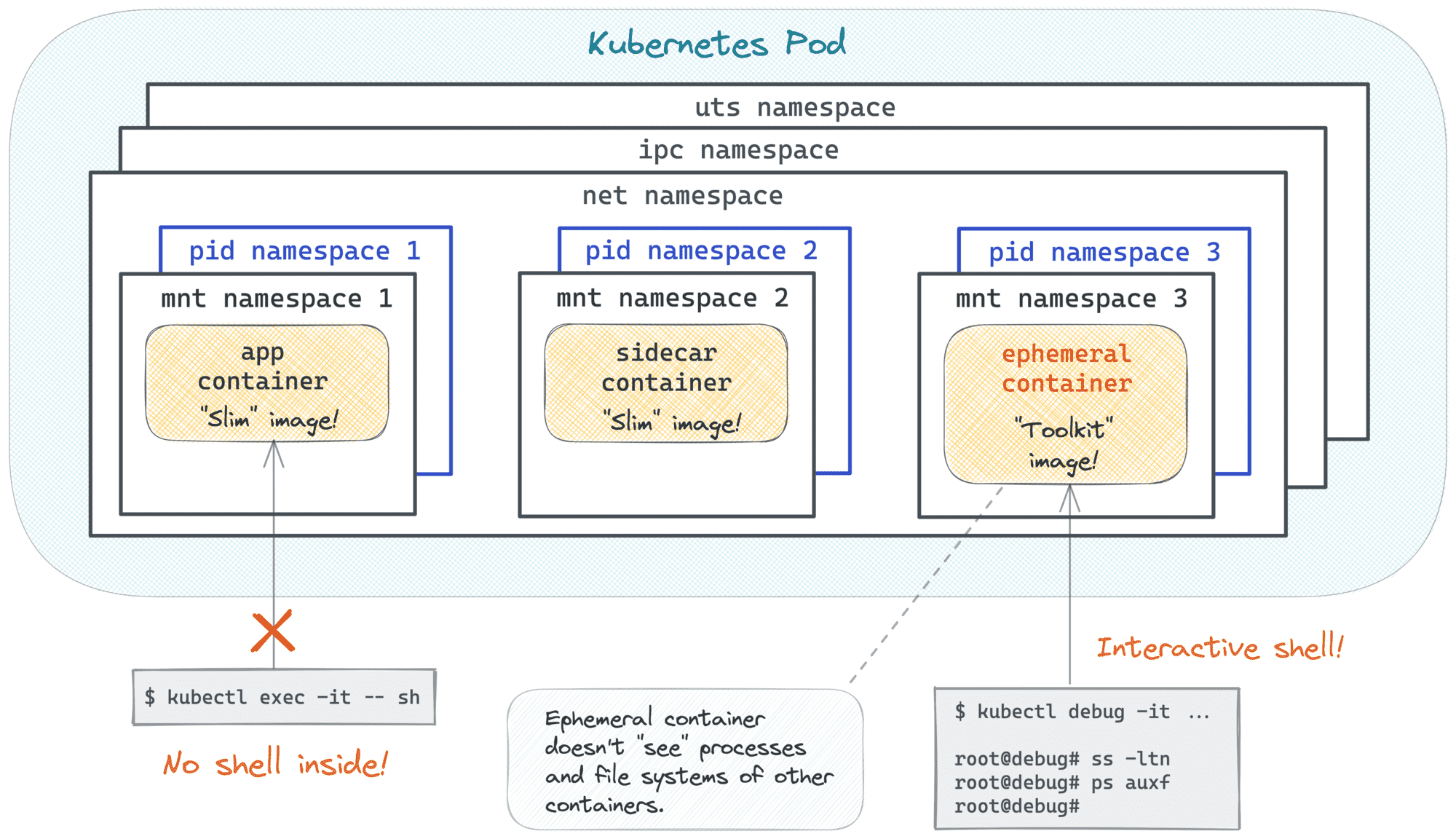
However, adding an ephemeral container doesn't automatically give you access to the processes and files of other containers in the Pod. Kubernetes security policies may also restrict what the debug container can do or prevent it from starting altogether. To work around these limitations, you need to understand a few things about Linux namespaces, capabilities, and filesystem permissions.
This skill path teaches you to troubleshoot Kubernetes Pods with ephemeral containers through a series of hands-on challenges. You'll start with simple tasks, such as finding an open port or signaling a process in a shell-less container, then move on to editing protected files, working around Pod Security restrictions, and transferring files to and from distroless containers.
Along the way, you'll learn how the --target, --profile, and --custom flags of the kubectl debug command work, which namespaces ephemeral containers share with the target Pod, and how to add a debug container directly through the Kubernetes API.
The challenges are independent and can be solved in any order, but the suggested sequence progresses from simpler scenarios to more advanced ones.
Prerequisites
- Basic
kubectlskills (get,describe,logs,exec, andport-forward). - Familiarity with Linux namespaces and how they relate to Kubernetes Pods.
- Some experience troubleshooting Pods with
kubectl exec. If needed, warm up with the signal and edit a file challenges.
Further Reading
- Kubernetes Ephemeral Containers and kubectl debug Command
- Ephemeral Containers in the Kubernetes documentation
Find the Port of an App in a Container Without a Shell
The first challenge covers the most common reason to reach for kubectl debug.
The lonely Pod runs an HTTP server that picks a random port each time it starts.
Its container has no shell, and you can't SSH into the cluster nodes,
so there is no obvious place to run ss or netstat.
Your task is to find the port and send an HTTP request to the server.
Send a Signal to an App in a Container Without a Shell
The app container of the slim Pod has nothing but the app binary inside,
so there is no kill command to run in it.
SSH access to the cluster nodes is off limits, too.
Your task is to send the SIGUSR1 signal to the app without modifying or redeploying the Pod.
The debug container from the previous challenge works here as well,
but this time a different namespace matters.
Check which processes the debug container can see and why.
Send a Signal to an App Running as a Non-Root User
This challenge repeats the task from the previous one with a stricter Pod.
The app image is built FROM scratch, and the Pod's security context does not allow containers to run as root.
This rule applies to ephemeral containers, too, so the debug container from the previous challenge doesn't start here.
Your task is to send the SIGUSR1 signal to the app without modifying or redeploying the Pod.
You'll practice setting the security context of a debug container
and learn why the user of the debug process matters when it sends a signal to another process.
Edit a File the Container's User Cannot Write
The web-server Pod serves static files from the /var/www/html directory.
Its container runs as a non-root user, and the files belong to root.
The kubectl exec and kubectl cp commands always run as the container's user,
so they can read the files but cannot change them.
Your task is to edit the index.html file without restarting the app container or recreating the Pod.
A debug container has its own image and its own user, but it also has its own mount namespace,
so the app's files are not in its filesystem.
You'll find another way to reach them through the process namespace
and learn which Linux capability grants this access.
Edit a File in a Distroless Container Under Pod Security Rules
This challenge makes the previous one harder in two ways.
The same web server runs from a distroless image without a shell or tar,
and the default namespace enforces the baseline Pod Security Standard.
The server runs as a non-root user that owns the files.
Your task is the same: edit the index.html file without restarting the app container or recreating the Pod.
The baseline level forbids the extra capability that helped in the previous challenge.
To get past it, you'll learn the rules the kernel uses to decide who can access the files of another process,
and you'll adjust the debug container to meet them.
Copy Files To and From a Distroless Pod
The final challenge combines the tricks from the previous ones.
The web Pod runs a Chainguard Nginx image without a shell or tar,
and the kubectl cp command needs tar in the container.
Your task is to copy a missing nginx.conf file into the running container, make Nginx reload it,
and then copy the nginx binary out of the container for analysis.