
Introduction
Running a container is only the first step: you still need to make it reachable. A web app needs to accept requests, connect to its database, and perhaps call a service running on the Docker host. How do you make these connections work while keeping the container network sufficiently isolated?
This skill path teaches you how to set up these connections with Docker's built-in networking features, one practical problem at a time. You'll learn how to:
- Find a container's IP address and connect to it from the Docker host
- Publish container ports on all host addresses, only on localhost, only on a private address, or on randomly assigned host ports
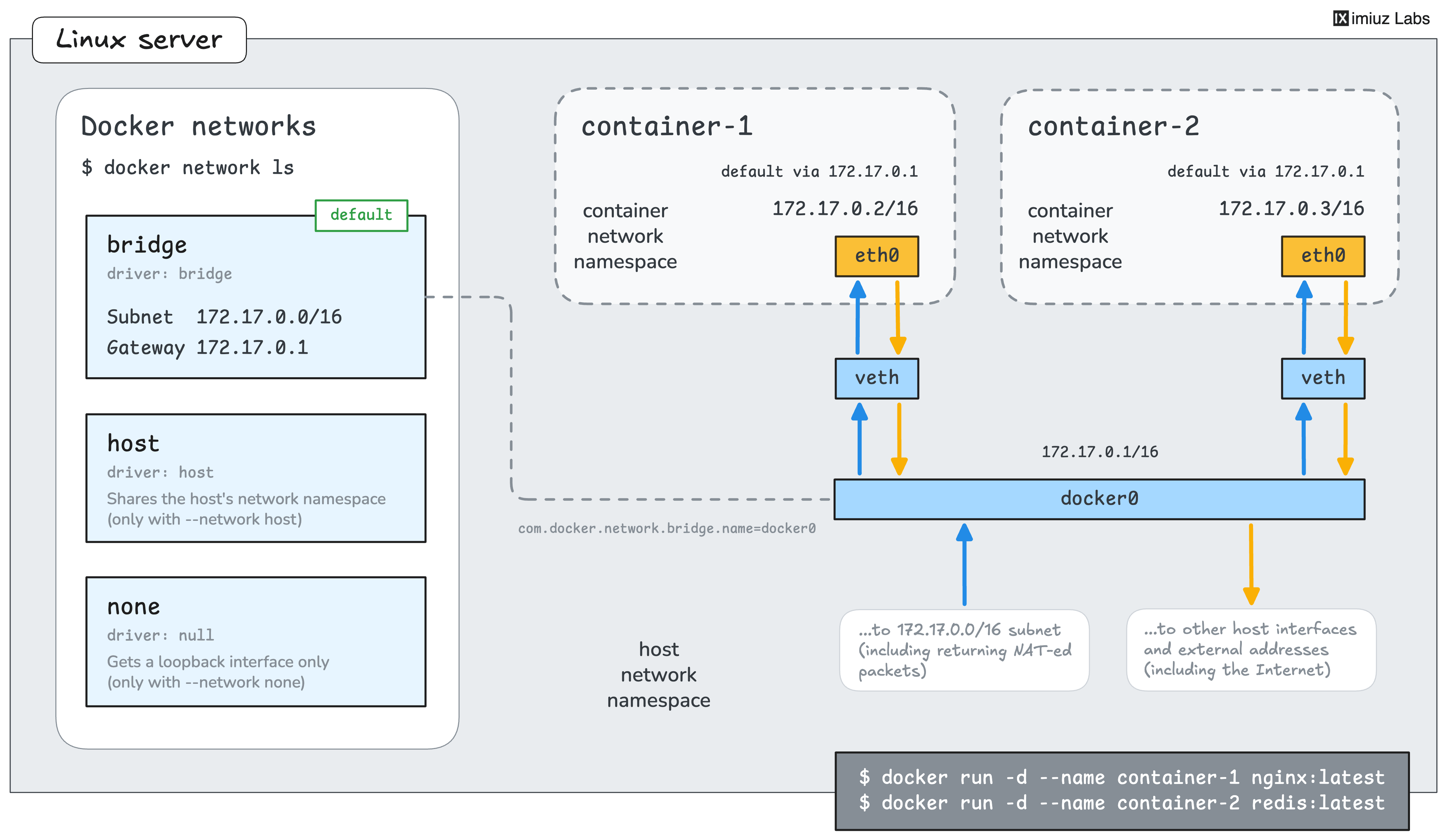
- Inspect the default bridge network and its underlying Linux interface
- Override hostname resolution inside a container and connect to services running on the Docker host
- Connect application containers by name using user-defined bridge networks
- Isolate groups of containers and application tiers using separate networks
- Block outbound connections using an internal network
- Connect a running container to an additional network
In the capstone challenge, you'll bring these skills together to move a multi-container application off the host network, keeping the application working while giving each container only the access it needs.
Prerequisites
- Basic Linux command-line skills
- Experience running containers (see Docker 101: Run and Manage Containers)
- Familiarity with network interfaces and routes, listening ports, and hostname resolution
Some knowledge of IP networking will also help (see Computer Networking Fundamentals).
Reach a Container by Its IP Address
Docker gives every container on the default bridge network an IP address of its own. On a Linux Docker host, the host itself can connect to these addresses directly, which is handy for a quick check of a containerized service.
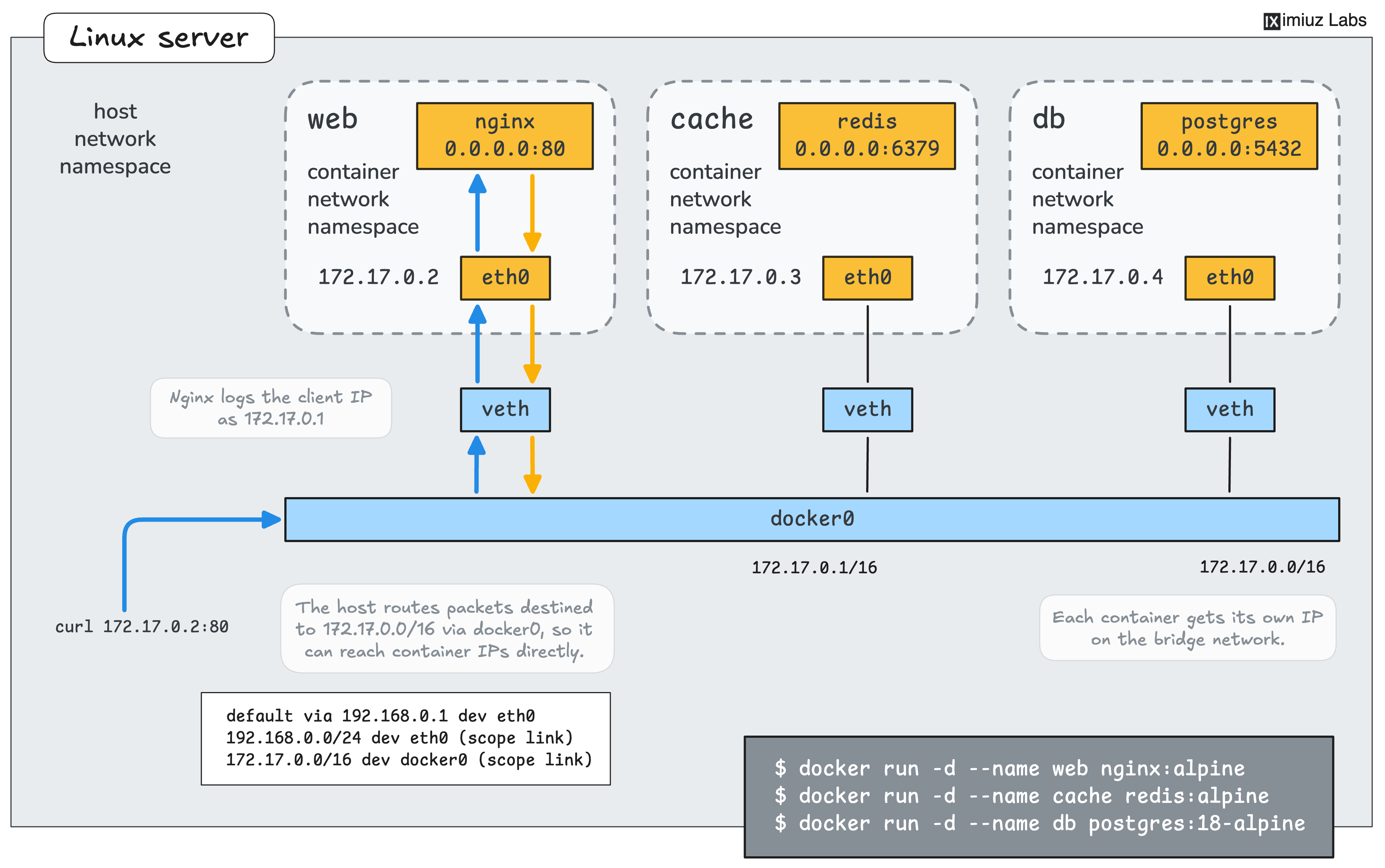
In this challenge, you'll find the IP addresses of a few containers and access their services from the Docker host:
Publish a Container Port
A container's IP address is reachable only from the Docker host. To make a containerized app available to other machines, you need to publish its port, so that Docker forwards the connections from a host port to the container.
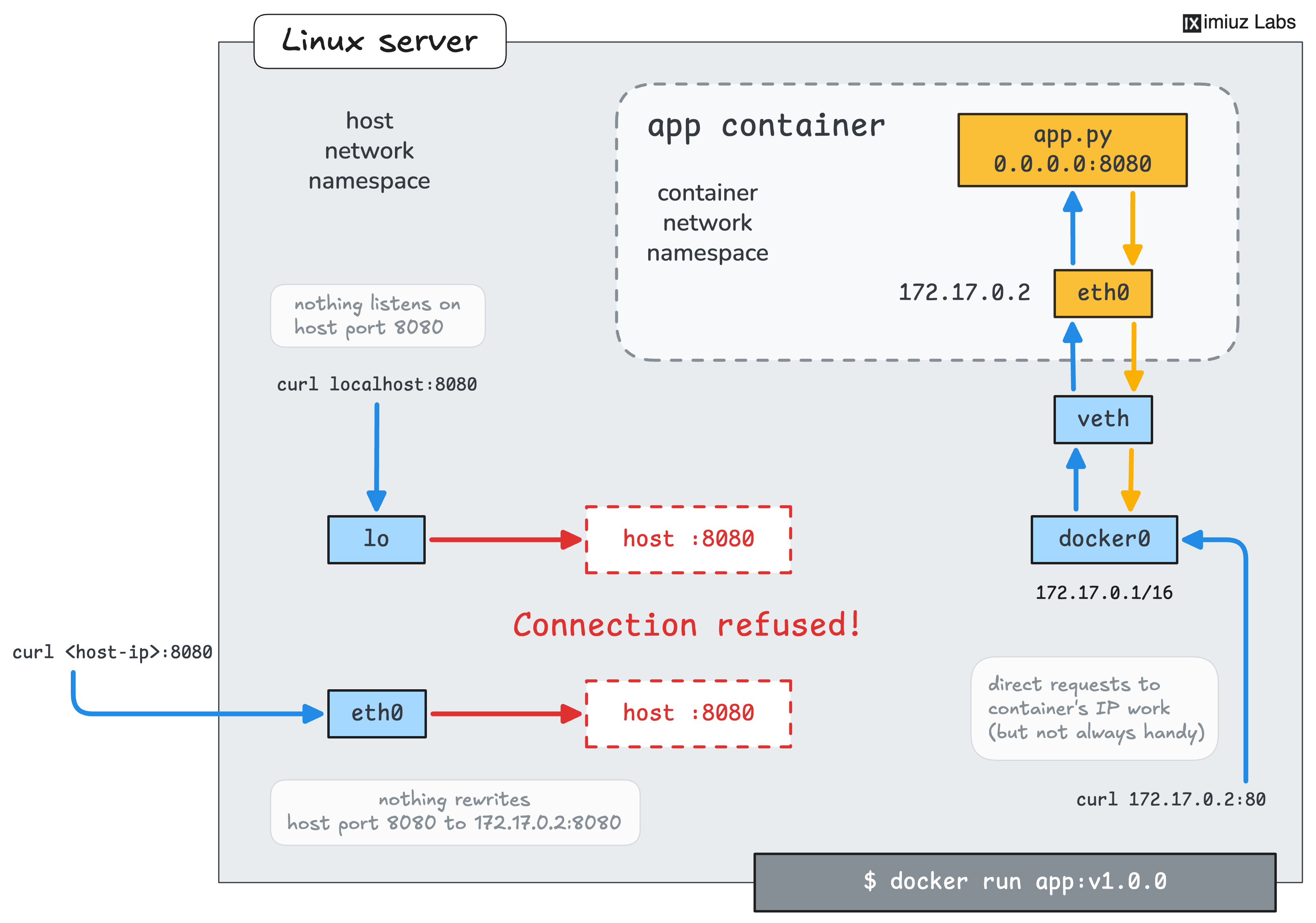
In this challenge, you'll recreate a container so that its web app is available on port 80 of the Docker host:
How Servers Accept Connections
Loading tutorial...
Whether a published port is reachable through a given address depends on the address that the listening socket is bound to. This tutorial builds a tiny TCP server and client from scratch and explains sockets, bind addresses, and connections.
Publish a Port on Localhost Only
By default, Docker publishes a port on every address of the host. For a database that only the local tools should use, this means that any machine on the network can connect to it too.
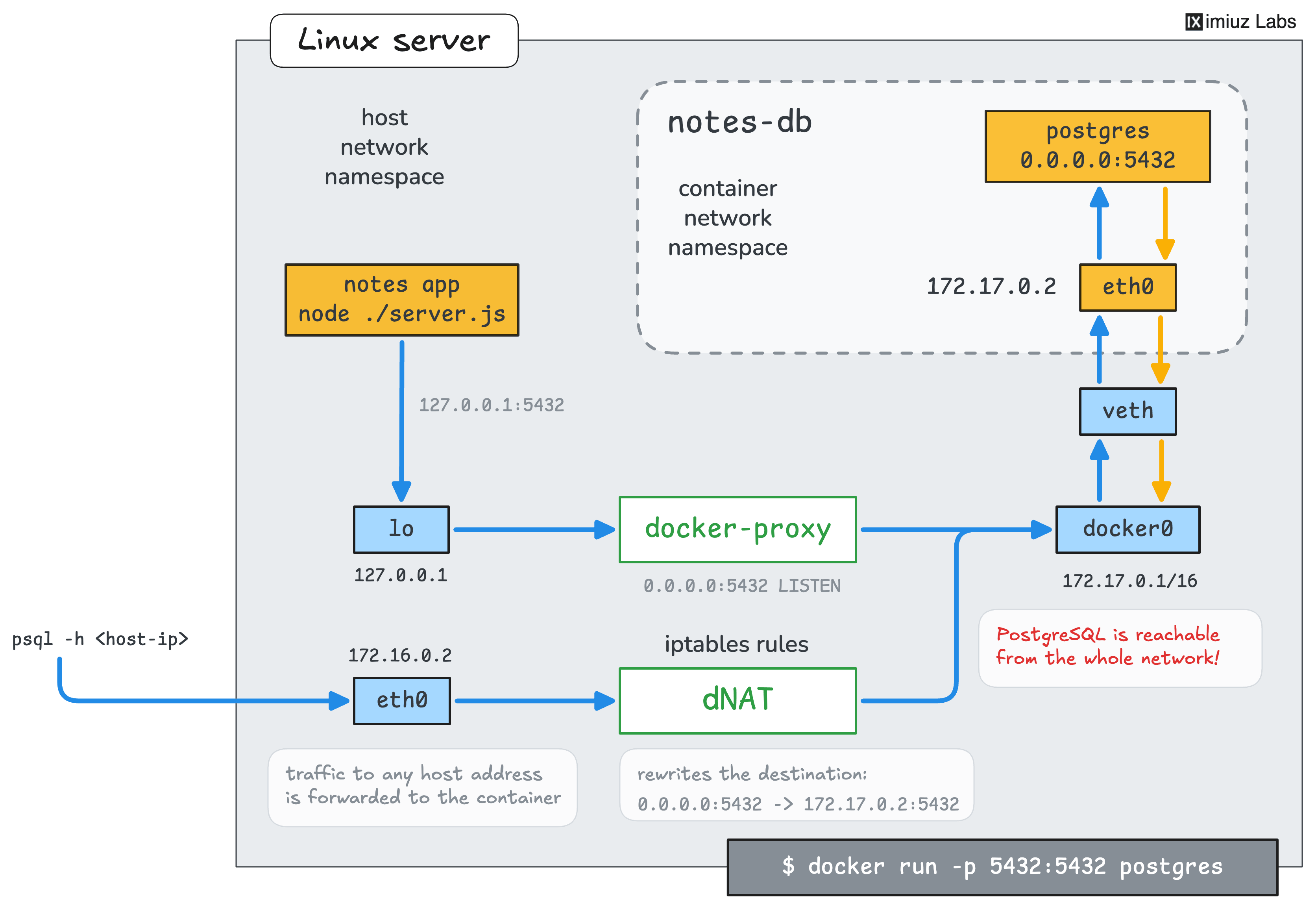
In this challenge, you'll publish a PostgreSQL port on the loopback address only:
Publish a Port on a Private Network
Servers often have a public and a private network interface. A service that only other servers use belongs on the private network, but a port published on all addresses is open to the internet as well.
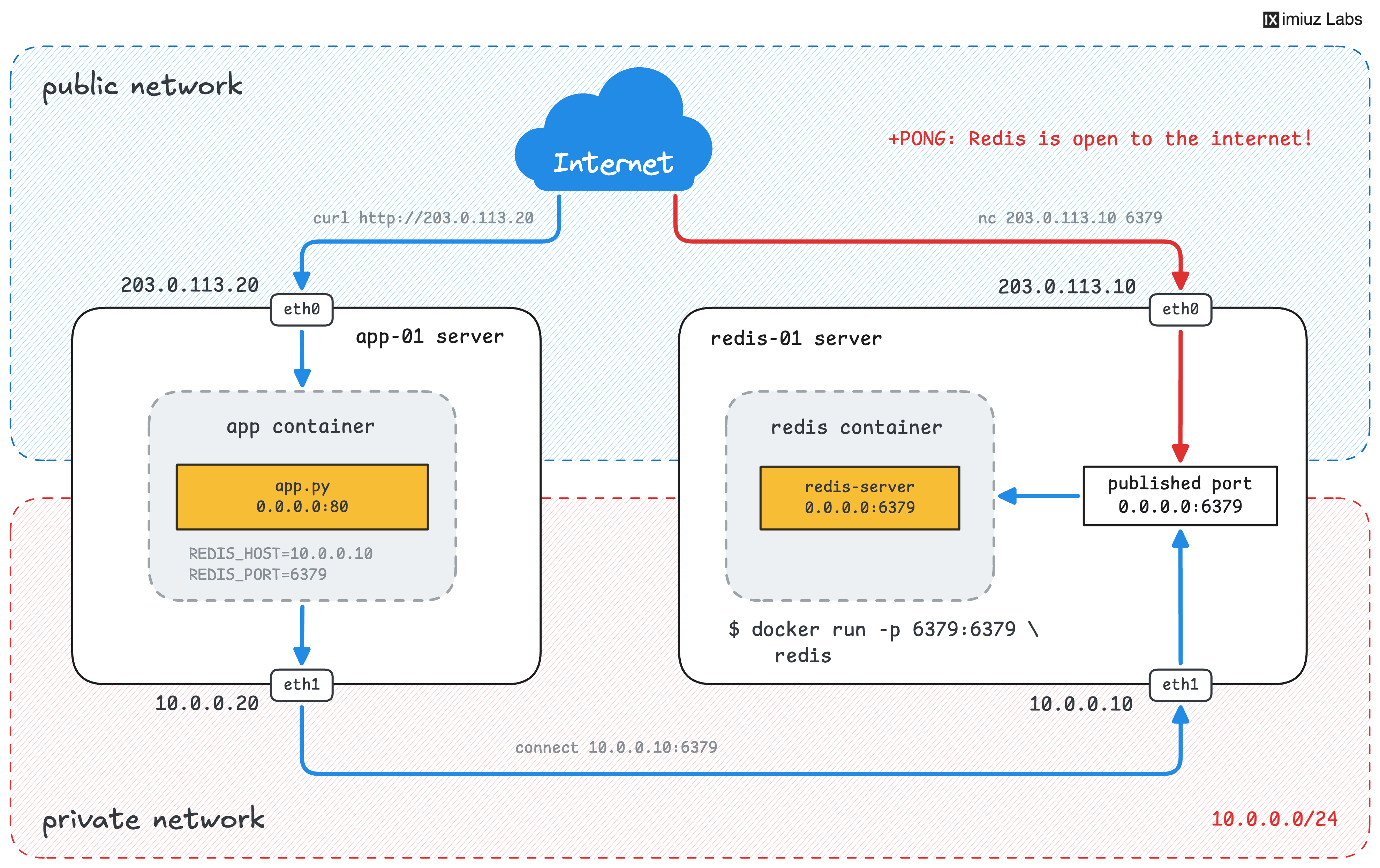
In this challenge, you'll publish a Redis port so that an app on another server can reach it over the private network only:
Publish Ports on Random Host Ports
A host port can be taken by only one container at a time. When containers are started by scripts and tools, picking free ports by hand quickly becomes a problem, so Docker can pick a random free host port for every port that the image exposes.
In this challenge, you'll run several copies of the same web app side by side and find out where each of them is published:
Explore the Default Bridge Network
Container IP addresses come from the subnet of a Docker network.
A fresh Docker installation creates three networks,
and the default bridge network is backed by the docker0 interface on the host.
In this challenge, you'll list the Docker networks, inspect the default bridge, and find the Linux interface behind it:
Override Hostname Resolution in a Container
Docker generates a separate /etc/hosts file for every container, and you can add your own entries to it.
This way, you can send an app's requests to a different backend
without changing its configuration or rebuilding its image.
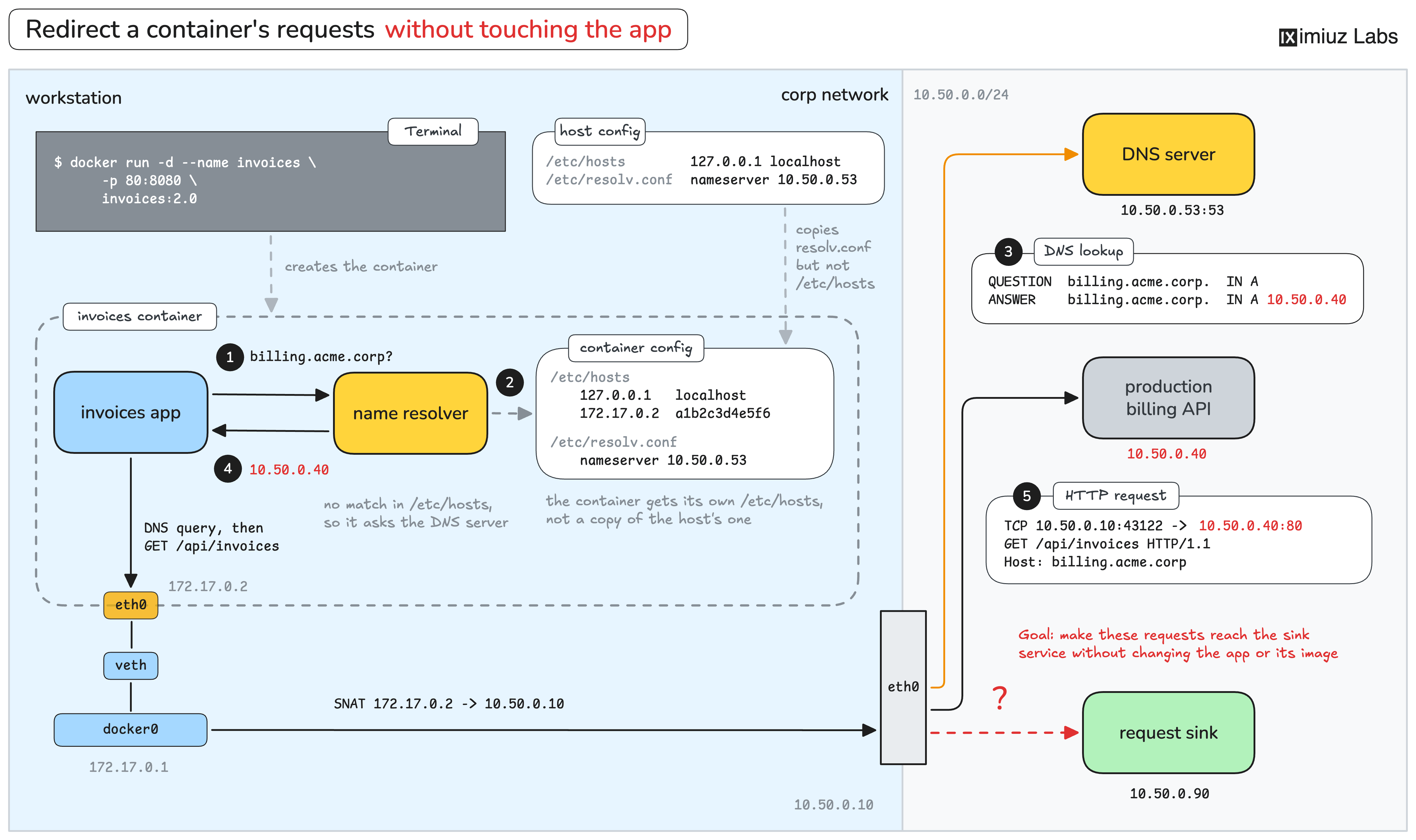
In this challenge, you'll redirect the requests of an app with a hard-coded backend address to a request sink:
Reach a Service on the Docker Host
Inside a container, localhost points to the container itself.
A containerized app can still reach the services of the Docker host through the host's addresses,
but these addresses differ from host to host.
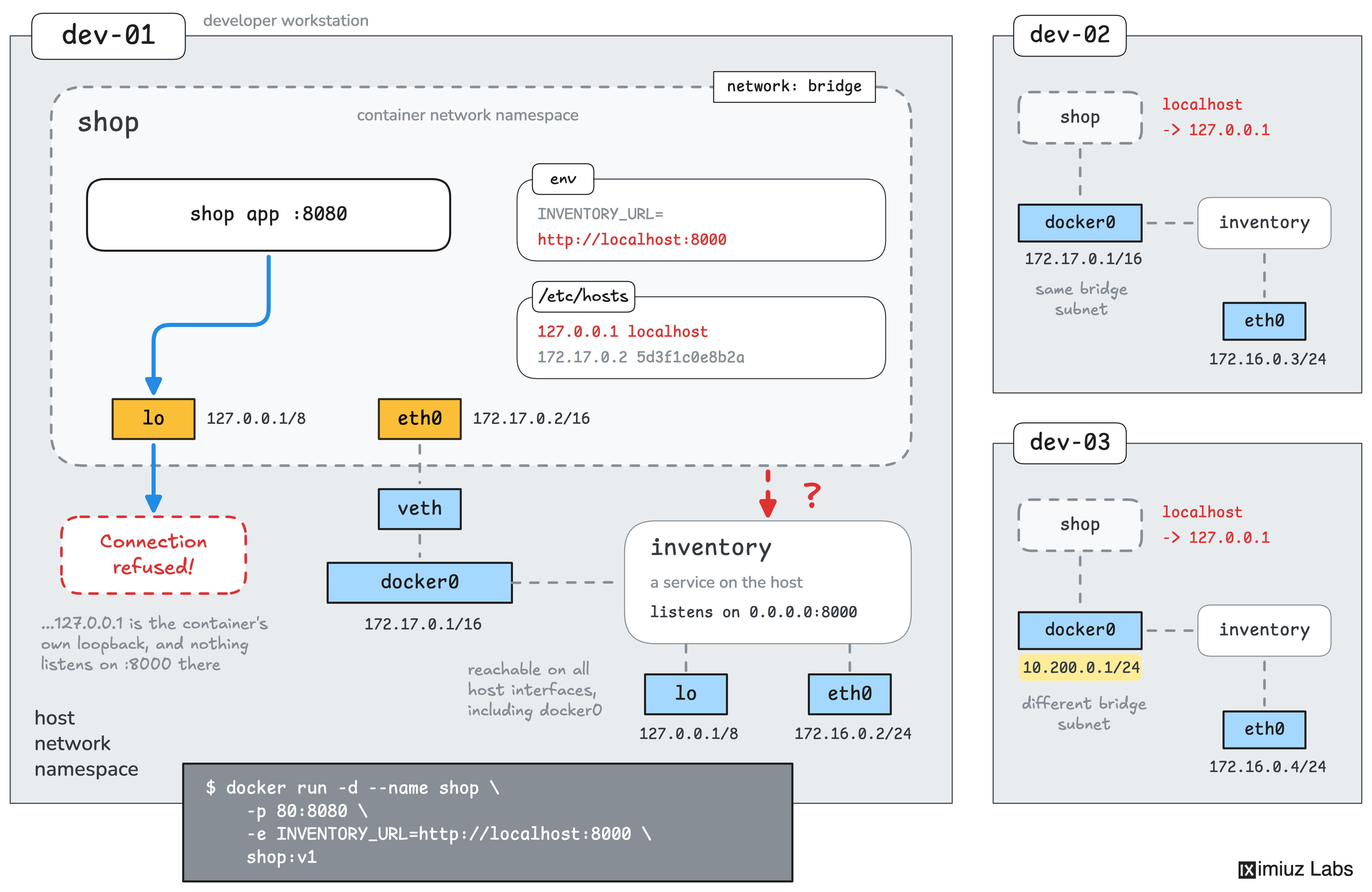
In this challenge, you'll connect a containerized app to an API running on the Docker host without hard-coding the host's IP address:
Connect the Containers of an Application
Most applications consist of several containers that talk to each other. Docker offers a few ways to connect them, and their trade-offs become clear as soon as one of the containers gets replaced.
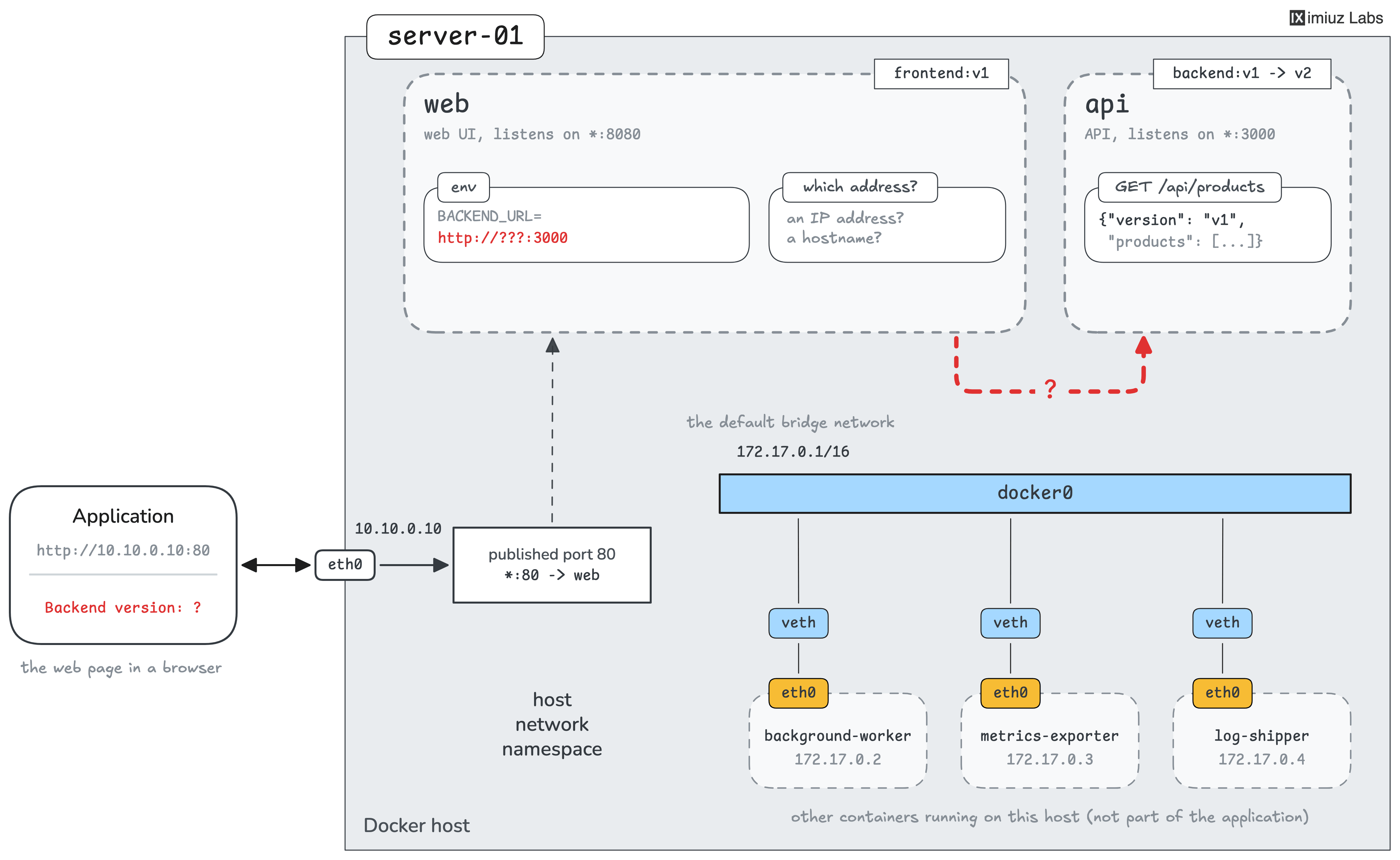
In this challenge, you'll launch a two-container web application and then upgrade its backend:
Connect Containers by Name
Containers on the default bridge network can reach each other only by IP address. On a user-defined bridge network, Docker's embedded DNS server resolves container names, which makes such networks the recommended way to connect containers.
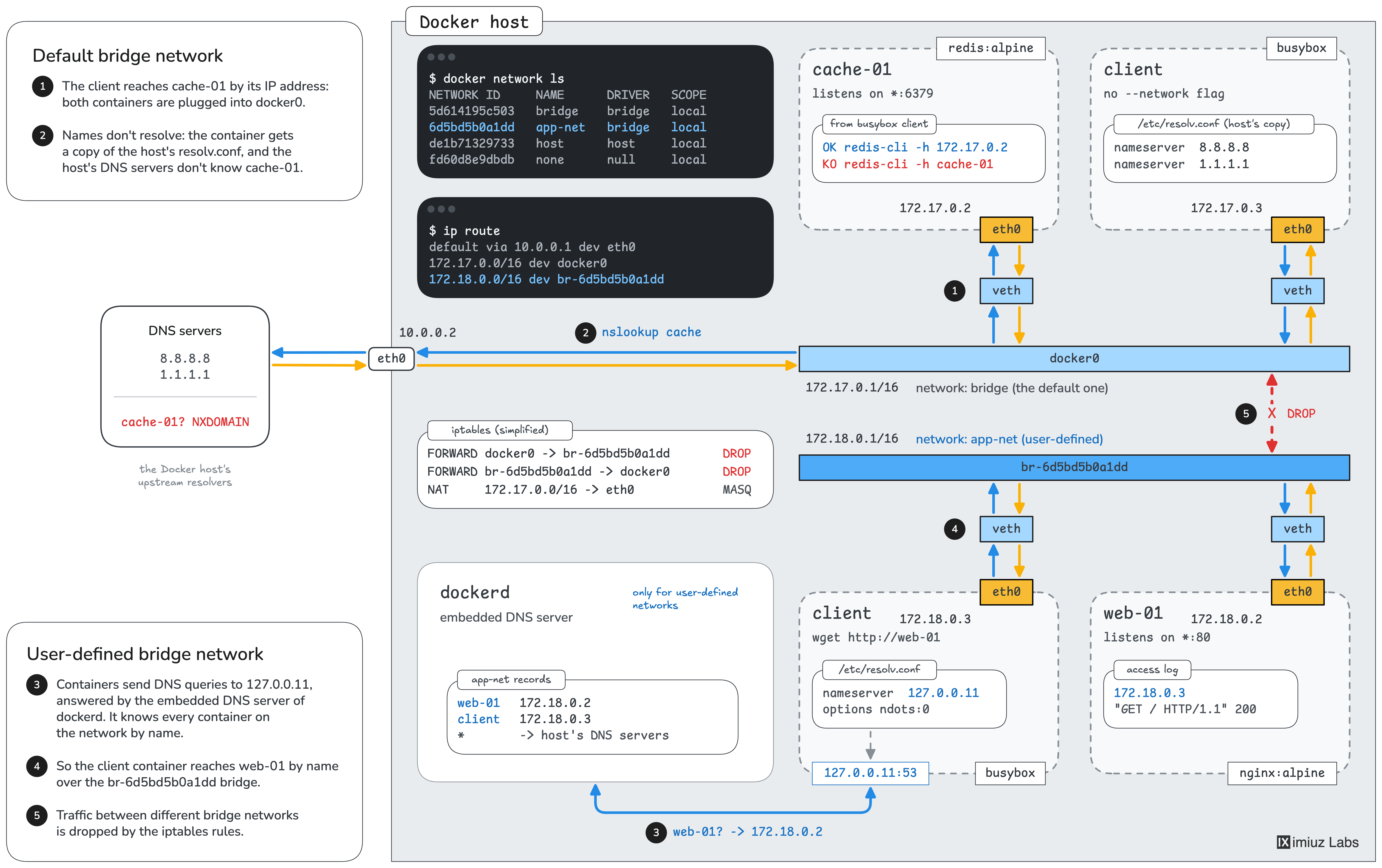
In this challenge, you'll create a user-defined bridge network, connect containers by name, and compare it with the default bridge:
Isolate Groups of Containers
Containers that share a network can reach each other, whether they need to or not. When two deployments of the same app run on one host, each of them can connect to the other one's database.
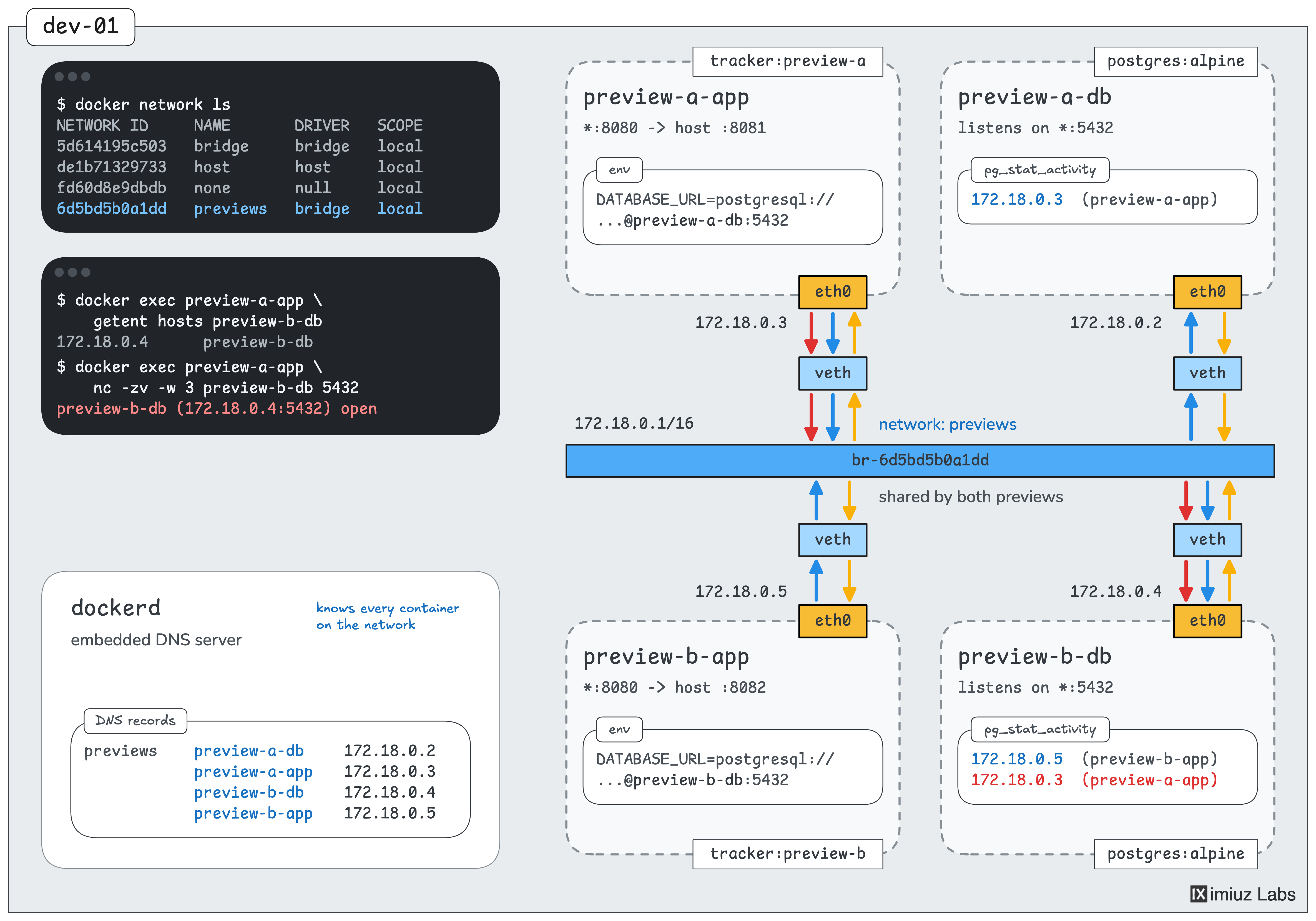
In this challenge, you'll isolate two preview deployments while keeping their configuration identical:
Isolate Application Tiers
A reverse proxy has no reason to talk to the database behind the app. But when all three containers share one network, nothing stops it, and a compromised proxy gives an attacker a direct path to the data.
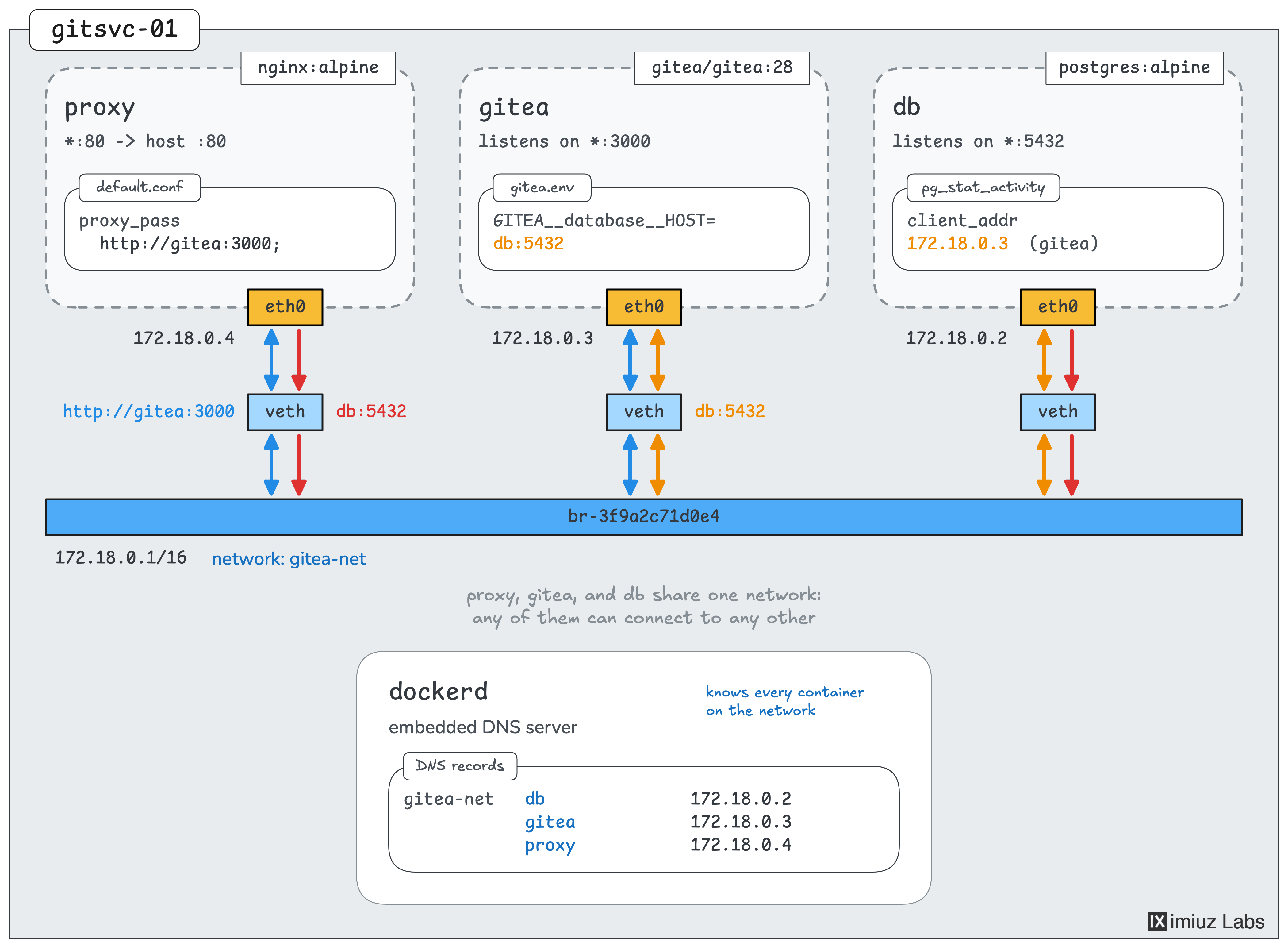
In this challenge, you'll split a three-tier application across two networks, so that the proxy can reach only the app:
Block Outbound Access with an Internal Network
A database rarely needs to reach the internet, but a container on a regular bridge network can connect to any server that the host can reach.
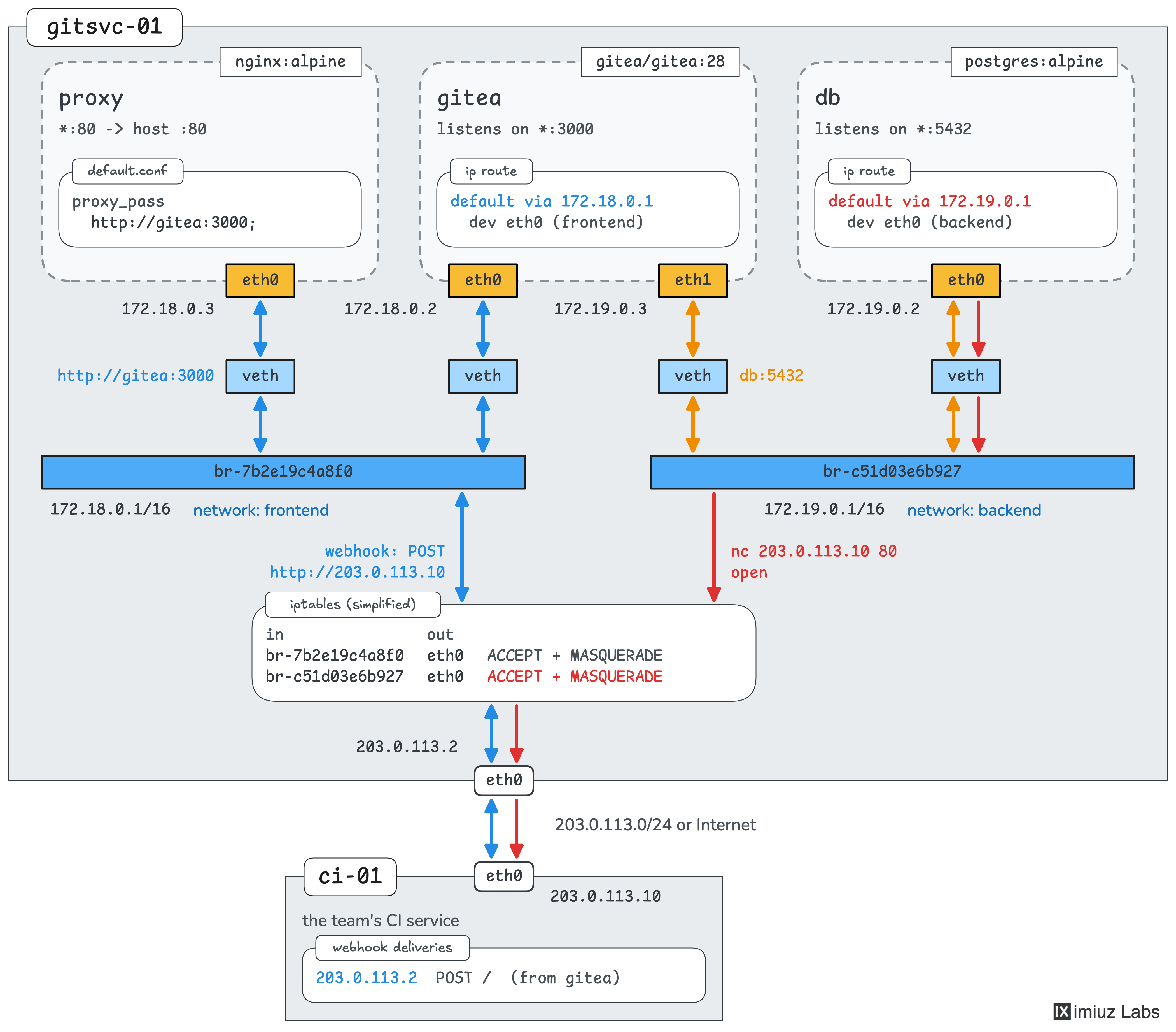
In this challenge, you'll cut the database off from the outside world while keeping the app's access to external services:
Attach a Running Container to Another Network
The kind tool runs local Kubernetes clusters in Docker containers, on a network of its own. A local registry next to the cluster usually runs on another network, so the cluster's nodes cannot pull images from it.
In this challenge, you'll connect a local container registry to a kind cluster without recreating any of the containers:
Move an Application Off the Host Network
Time to put it all together. Starting containers on the host network is a quick way to move an application to Docker, but it leaves every port of the app open and every container unrestricted.
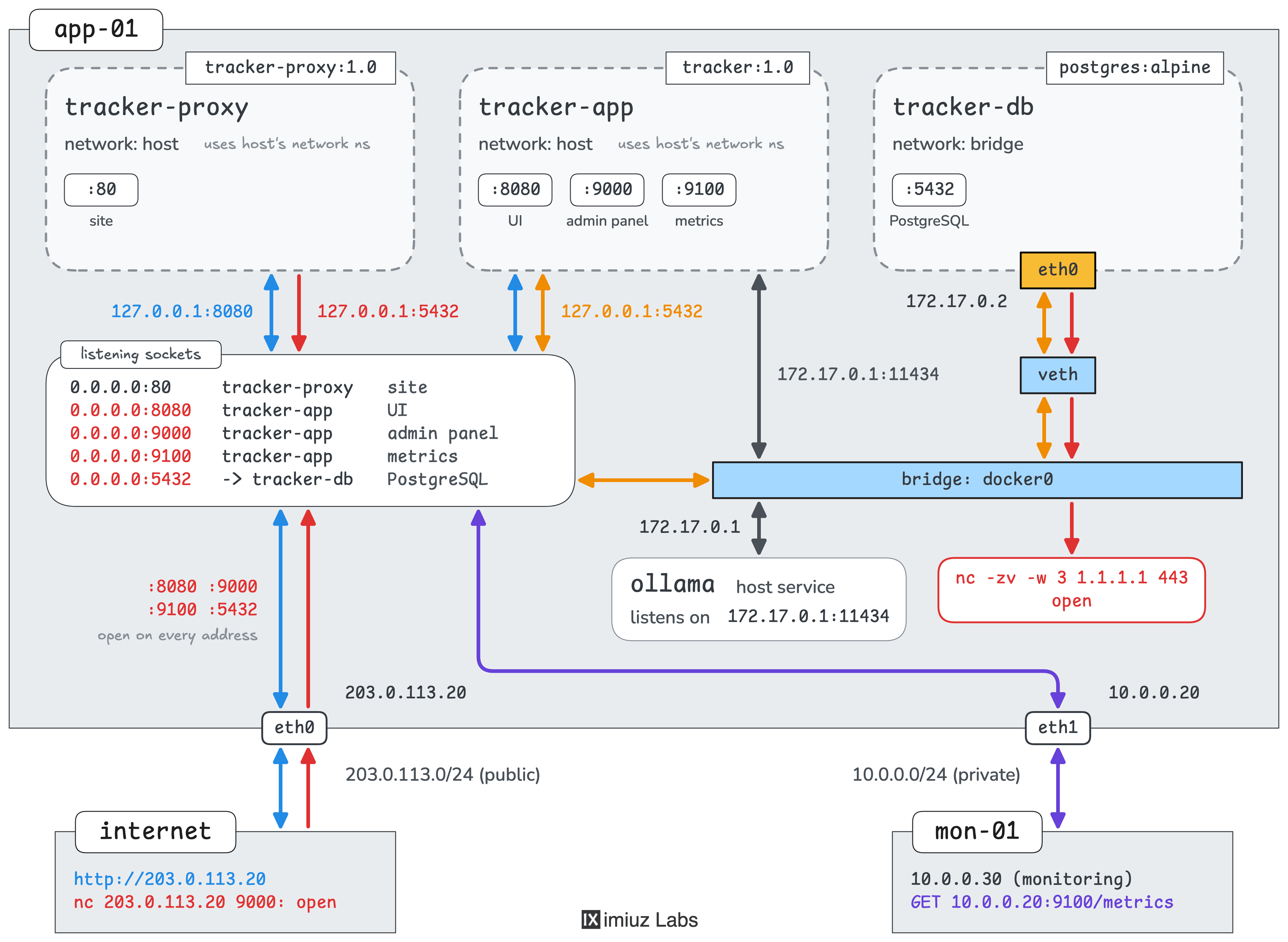
In the capstone challenge of this skill path, you'll recreate a multi-container application with published ports, user-defined and internal networks, and name resolution, so that every container gets only the access it needs: