Inspect a Container Image Without Pulling It

Premium Challenge
Upgrade your membership to unlock this and all other premium materials.
Sometimes you need to inspect a container image without actually pulling it:
- To check which platforms it supports
- To quickly look up its ImageID, config, or labels
- To resolve a digest in CI before deciding what to do next
- To save bandwidth in a constrained network where pulling the full image may take too long.
Luckily, the registry API lets you fetch the small JSON documents that describe an image, without downloading its bulky filesystem layers.
In this challenge, you'll inspect the multi-platform image hosted at registry.iximiuz.com/app:v1 and answer a few questions about it - without pulling it to the local Docker daemon.
Part 1: How many platforms?
The reference registry.iximiuz.com/app:v1 points to an
OCI Image Index - a JSON document
listing OCI Image Manifests for each supported platform.
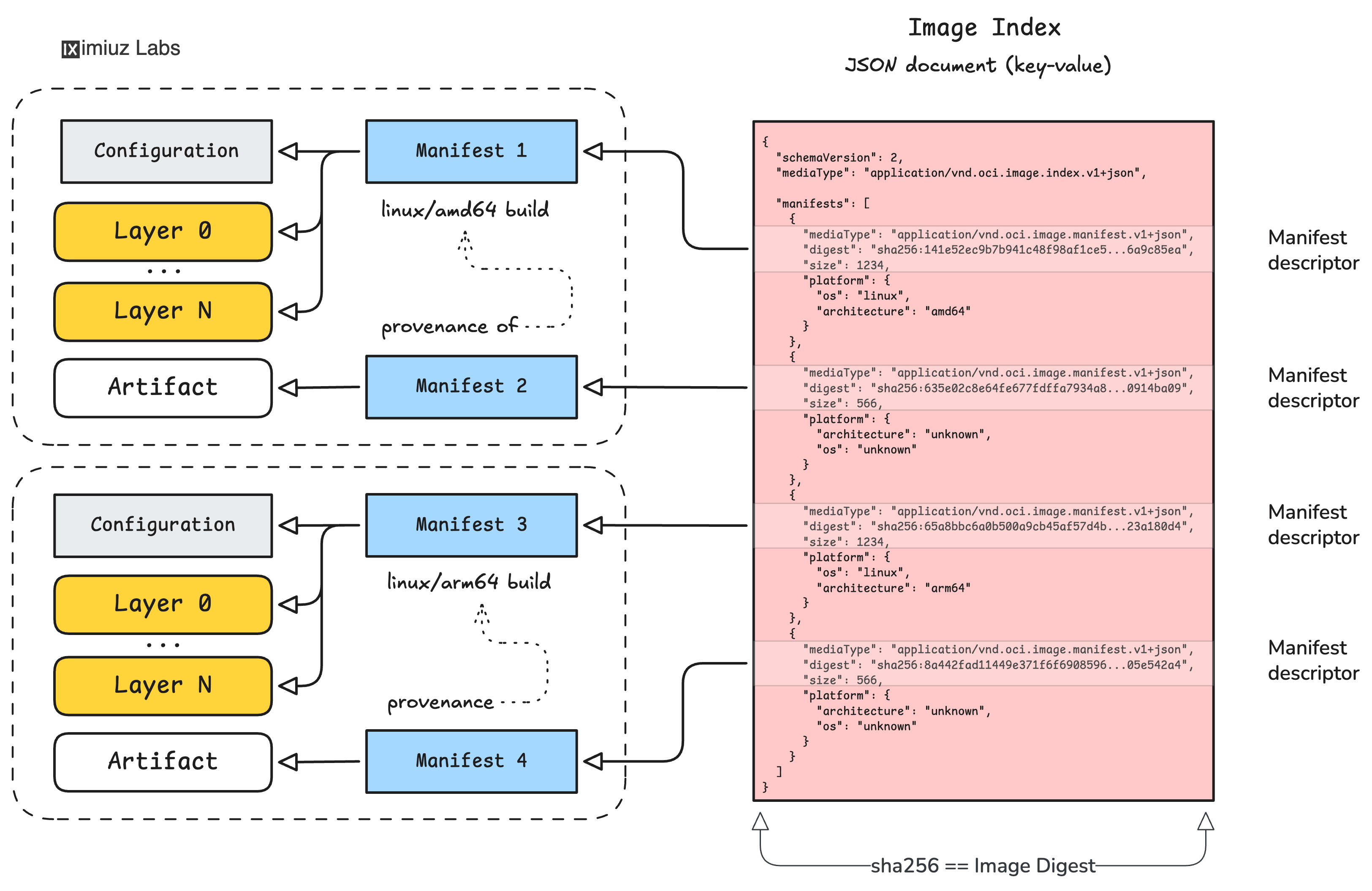
Fetch the index and count how many "real" platform variants it lists (i.e., entries whose .platform.architecture and .platform.os are not unknown):
Hint 1: Tools for the job
There are several ways to inspect an image without pulling it to the local Docker daemon:
docker buildx imagetools inspect- returns the raw manifest or index JSON for the given image reference.crane manifest/crane blob- fetches the manifest or index by the image reference and reads arbitrary blobs from the registry by their digest.- Direct API call with
curl- the registry API is actually relatively easy to work with.
Any of these tools will do for solving the challenge.
Hint 2: Exclude attestation manifests
Modern images often include extra .manifests[] entries for attestations, SBOMs, and other artifacts.
Those entries have .platform.architecture == "unknown" and should not be counted as platforms.
Part 2: The linux/amd64 manifest digest
Each entry in the index you just fetched is a manifest descriptor - a small object with mediaType, digest, size, and platform fields.
The digest field points to the actual OCI Image Manifest blob for that platform.
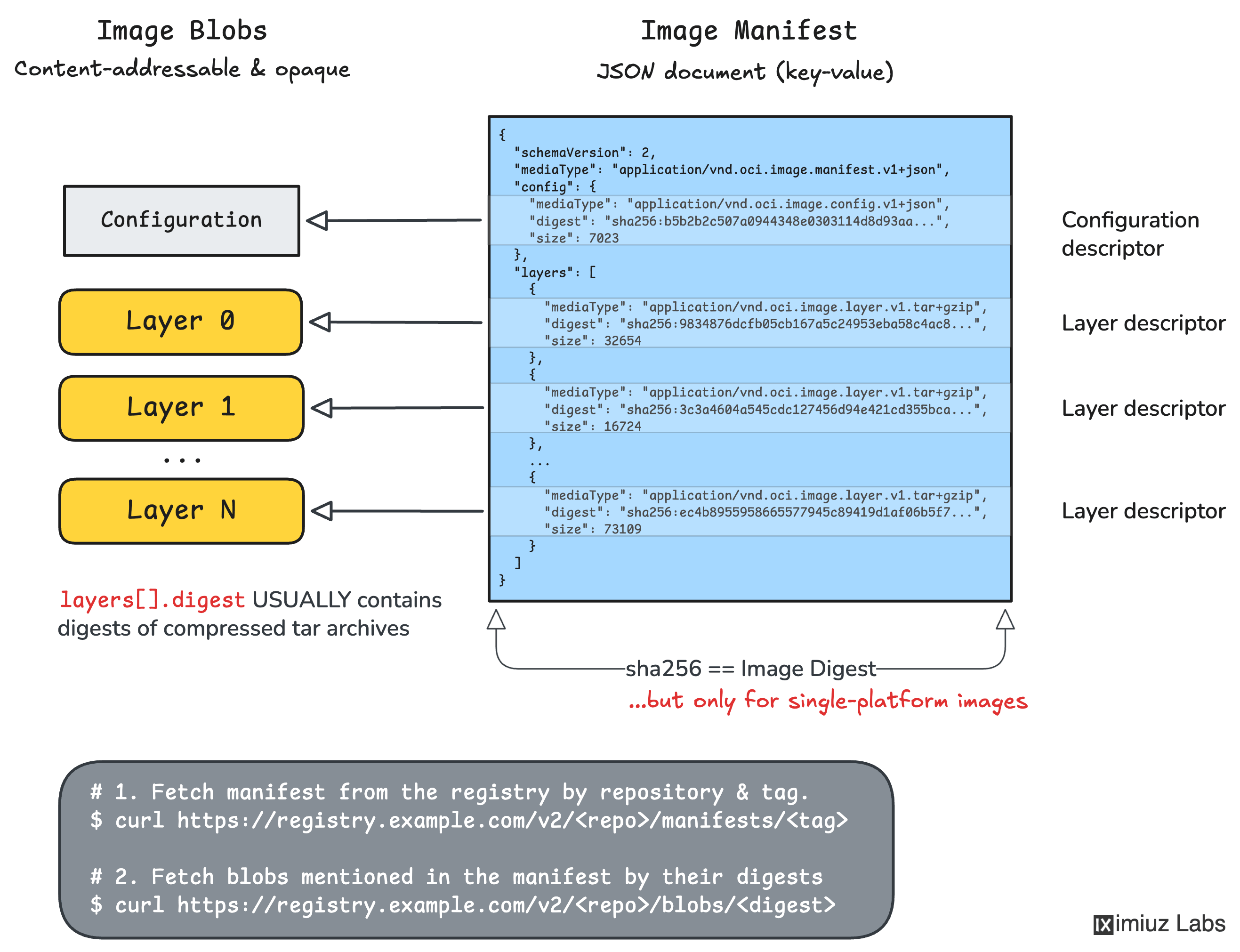
Find the descriptor for the linux/amd64 variant in the index and report its digest:
Hint 3: Picking the right manifest
In the raw index JSON, look for the entry in .manifests[] whose
.platform.os is "linux" and .platform.architecture is "amd64".
The sibling .digest field is your answer.
Part 3: The linux/amd64 config blob digest
Now fetch the linux/amd64 manifest you just identified using its digest.
The top-level .config.digest field of the manifest points to the
OCI Image Configuration blob for the linux/amd64 platform.
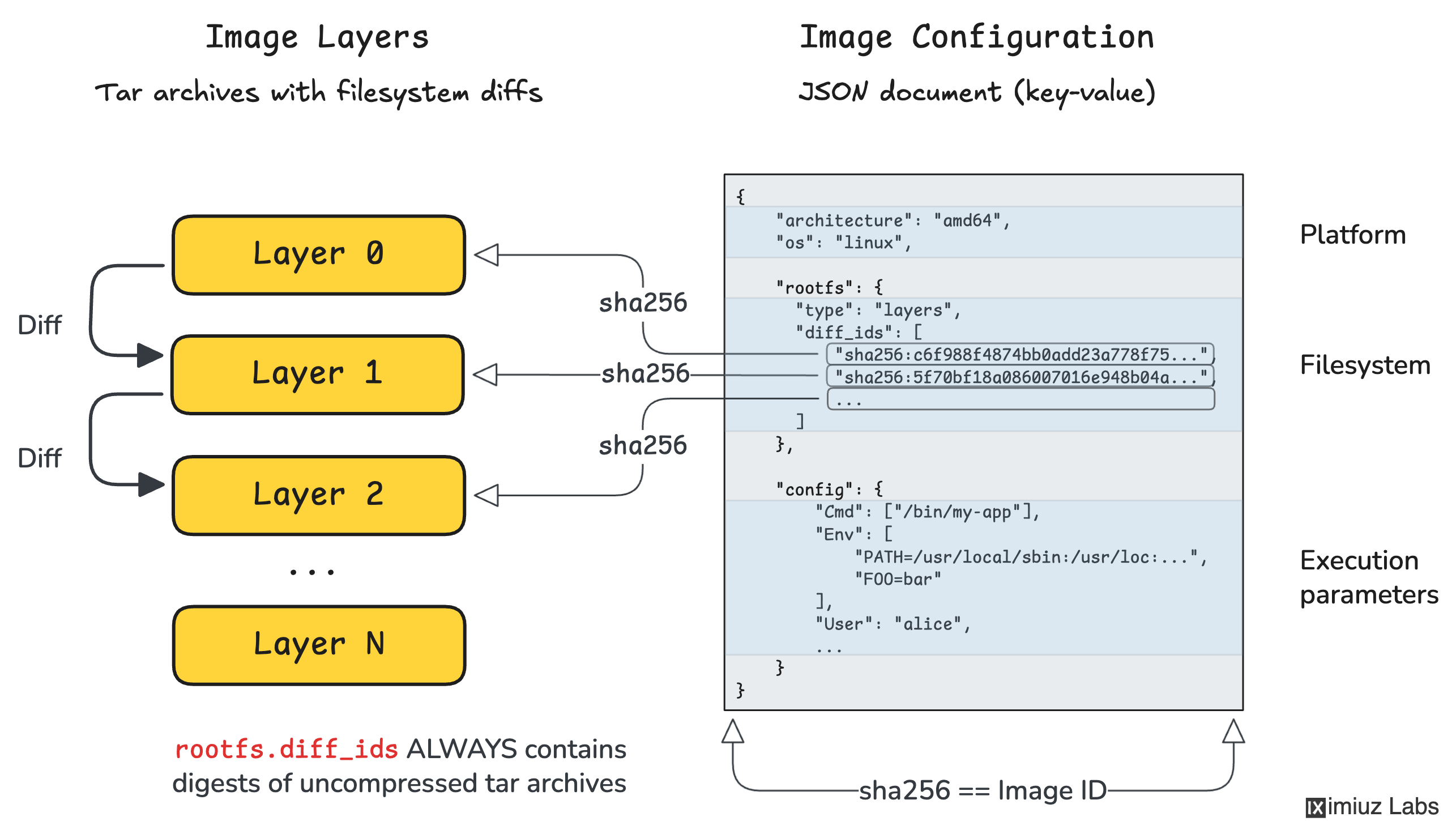
The digest of that config blob is, by the OCI spec, the ImageID of the linux/amd64 image. Report it:
Hint 4: Fetching the platform manifest
You can request a specific manifest by its digest:
- With
crane:crane manifest <ref>@<manifest-digest> - With
buildx:docker buildx imagetools inspect --raw <ref>@<manifest-digest>
The response is the linux/amd64 manifest JSON. Its .config.digest field is the answer.
Part 4: Save the config blob locally
Finally, download the config blob itself (as-is, byte-for-byte) and save it to ~/amd64-config.json:
Hint 5: Fetching a config blob
Similar to manifests and indexes, a config blob can be fetched using its digest:
crane blob <ref>@<config-digest>curlagainst the registry's/v2/<repo>/blobs/<digest>endpoint
Redirect stdout to ~/amd64-config.json in either case.
Note that docker buildx imagetools inspect is a manifest inspection tool - it asks the registry's
/v2/<repo>/manifests/<digest> endpoint, which is not where config blobs are served from.