Restrict SSH Bastion Access by User Role

Premium Challenge
Upgrade your membership to unlock this and all other premium materials.
You're a platform engineer at Acme. A public-facing SSH bastion (203.0.113.20)
is the only way into the company's private VPC (172.16.0.0/24).
Right now its sshd is wide open:
every known account can open an interactive shell and tunnel to any host and port inside the VPC.
The security team wants three distinct access tiers instead.
Two services run inside the VPC:
- An OpenSearch cluster (
172.16.0.40) - its REST API on:9200, plus an internal node-to-node transport channel on:9600. - A Vault secrets server (
172.16.0.50) - its API on:8200.
Three accounts exist on the bastion,
and from the workstation you can already SSH into the bastion as each of them
(the matching keys are installed under /home/<user>/.ssh):
sudo -u admin ssh admin@bastion
sudo -u ops ssh ops@bastion
sudo -u dev ssh dev@bastion
The policy you must enforce on the bastion is:
| Account | Interactive shell | Port forwarding |
|---|---|---|
admin (sysadmin) | allowed | to any VPC endpoint |
ops (operator) | denied | to any VPC endpoint |
dev (developer) | denied | to the search API only (172.16.0.40:9200) |
In other words, the admin should keeps full access,
while the ops and dev users should become forwarding-only
accounts that can open tunnels but never get an interactive shell (or run any commands) on the bastion.
Additionally, the dev account should be restricted to the single search-API endpoint -
forwarding ports of the Vault server and even the internal transport port 9600 of the Search service must be refused for dev.
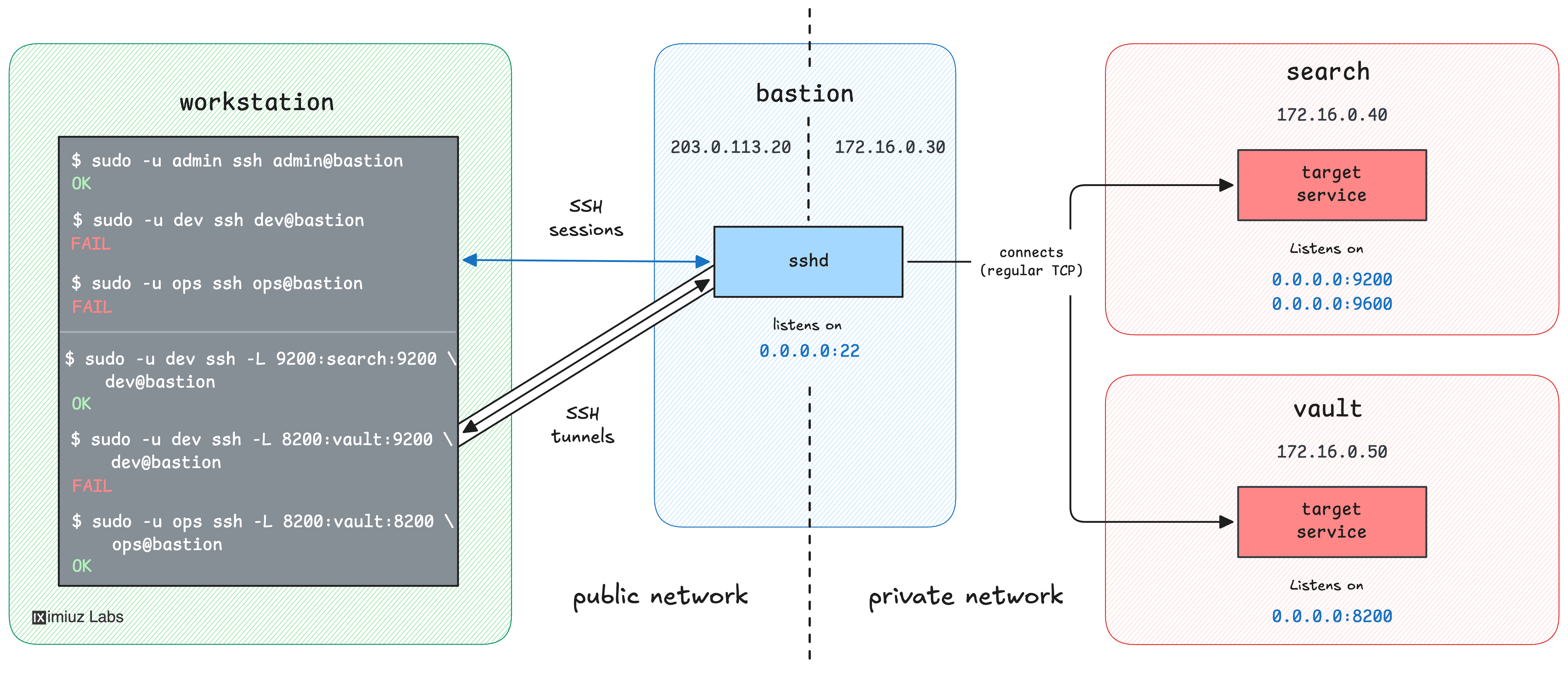
Your task is to change the bastion's sshd configuration to enforce the above rules, then reload sshd so it takes effect.
Administer the bastion through the (sudoer) admin account.
Don't lock yourself out. Your only way onto the bastion is the admin SSH session,
so if you mess up the sshd configuration or revoke access for admin,
you will have to restart the challenge from scratch.
Hint: What is even a bastion?
If you are not familiar with the concept, try solving this Bastion 101 challenge first: Reach a Private VPC Service Through an SSH Bastion.
Hint: Apply and inspect sshd changes
Log into the bastion as admin (sudo -u admin ssh bastion), then use sudo for the privileged steps.
Put your rules in a drop-in file under /etc/ssh/sshd_config.d/ (the main sshd_config already Includes it),
then check the syntax:
sudo sshd -t
...and if everything looks good, reload:
sudo systemctl reload ssh
The reload action keeps your current session alive while applying the new policy to new connections -
it is usually safer than restart since it gives some extra room for error.
If the consequent connections started failing, you can revert your changes using the current active session.
Hint: Apply sshd settings per user
Any settings at the top level of the sshd_config file apply to everyone.
To give each account its own rules, scope them with a Match block:
Match User <some-user>
    SomeSetting <value>
    AnotherSetting <value>
Everything from the Match line until the next Match (or end of file) applies only to connections from that user.
You can inspect the policy sshd resolves for any user (on the bastion, as admin):
sudo sshd -T -C user=dev
sudo sshd -T -C user=ops
Hint: A forwarding-only account (no shell)
You want ops and dev to open tunnels but never get a shell on the bastion (or execute an arbitrary command).
Luckily, port forwarding (ssh -L ...) does not need a shell,
and you can "neutralize" the default shell and/or any command that the user may pass with
a ForceCommand setting:
Match User <some-user>
    ForceCommand echo "This is a forwarding-only account."
An interactive login then just runs that command and exits, while ssh -L ... forwarding keeps working.
Hint: Restrict where a user may forward
The AllowTcpForwarding setting is all-or-nothing, so you won't be able to rely on it to restrict the dev's access.
To allow forwarding only to specific destinations,
you'll need to use the PermitOpen setting.
It takes one or more host:port pairs and refuses any forwarded channel whose destination is not on the list:
Match User <some-user>
    PermitOpen <host:port>
With no PermitOpen set, the default is any - which is what admin and ops should keep.