Uncloud: How to Deploy a Django Web Application

In this hands-on tutorial, you'll learn how to deploy a Django web application quickly and easily from source code to a remote Linux server using Uncloud.
TL;DR: Go to your application directory (~/app) with the prepared Dockerfile and compose.yaml files, and run uc deploy. Voilà!
💡 What is Uncloud? Uncloud is a lightweight clustering and container orchestration tool that lets you deploy and manage web applications across cloud VMs and bare metal servers. It creates a secure WireGuard mesh network between Docker hosts and provides automatic service discovery, load balancing, and HTTPS ingress - all without the complexity of Kubernetes.
Imagine you have developed a web application that works well in your local development environment. It is time now to deploy it somewhere for the rest of the world to use and enjoy. How do we do this without fighting our way through a dozen different tools and cloud services? Uncloud to the rescue!
Prerequisites
Before starting this tutorial, you should have:
- A basic understanding of Docker and containers. There are great tutorials and courses available on iximiuz Labs (the very same platform you're using now), for example check out the Docker skill path if you want to brush up on fundamentals.
- Some familiarity with Python and the Django web framework.
- A basic understanding of Uncloud and how an Uncloud cluster functions. If you haven't completed the initial Uncloud tutorial (How to Create an Uncloud Cluster), we recommend starting there.
What You'll Learn
By the end of this tutorial, you'll be able to:
- Dockerize a Django application using a Dockerfile
- Create a Compose file for deployment configuration
- Build and deploy your application using Uncloud
- Access your deployed application through the web browser
- Check the application logs
- Execute commands inside the running container for maintenance and troubleshooting
Let's get started!
Tutorial Environment
We highly encourage you to take advantage of the interactive features of the iximiuz Labs platform and follow the tutorial by executing the commands in the interactive environment.
To get started, click the "Start Tutorial" button located under the table of contents on the left side of the screen (go ahead, do it now!). After a few seconds, you'll see a terminal on the right side of your screen.
In this tutorial, you have access to the following machines:
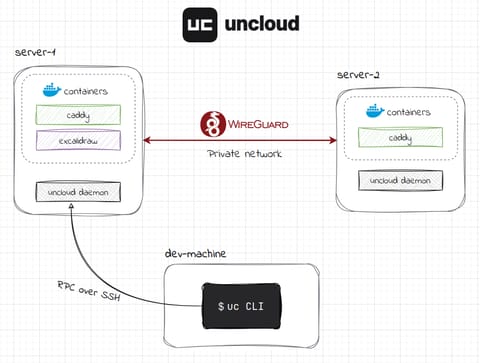
- dev-machine - the control-only environment where you'll prepare the application and run Uncloud CLI commands. Think of it as your developer machine that you'll use to control the cluster remotely. The Uncloud cluster is already initialized and can be managed by the
uccommand. - server-1 - an Ubuntu machine that is already part of an initialized Uncloud cluster where your application will be deployed.
Preparing Your Django Application
The Django application source code is already available on dev-machine in the ~/app directory. It is a sample issue tracking application built with Django that we'll be using as an example.
💡 The original source code of the application can be found here on GitHub.
Understanding the Application Structure
Let's take a look at the application structure:
cd ~/app
tree -L 2
You should see a typical Django project structure:
.
├── Dockerfile          # Container image definition
├── README.md           # Project documentation
├── compose.yaml        # Uncloud/Compose deployment configuration
├── issues              # Application directory with models, views, and templates
│   ├── __init__.py     # Package marker
│   ├── admin.py        # Django admin panel registration
│   ├── apps.py         # Application configuration
│   ├── forms.py        # Form definitions
│   ├── migrations      # Database migration history
│   ├── models.py       # Database models
│   ├── static          # Static files (CSS, JS, images)
│   ├── templates       # HTML templates
│   ├── tests.py        # Automated tests
│   ├── urls.py         # Application URL routing
│   └── views.py        # View functions and classes
├── issuetracker        # Main project directory with core settings and routing configuration
│   ├── __init__.py     # Package marker
│   ├── asgi.py         # ASGI entry point for async servers
│   ├── settings.py     # Project settings
│   ├── urls.py         # Root URL routing configuration
│   └── wsgi.py         # WSGI entry point for production servers
├── manage.py           # Django management script
└── requirements.txt    # File listing Python dependencies
Check the Django documentation if you want to dig deeper on the format and purpose of each component.
Data Management
A traditionally interesting question for every application that maintains some kind of state would be: how and where are we storing the data? In the initial implementation we'll be using a SQLite database as the main data storage. An SQLite database is in essence a single file and doesn't require a running process; our Django application will be working with that file directly since Django has built-in support for SQLite database files. We'll also make sure that the database file is stored on a persistent volume so that data survives container restarts.
Dockerizing the Application
To deploy this application with Uncloud, we need to containerize it first. There is already a Dockerfile at ~/app/Dockerfile that defines how to build a container image for our application, let's have a look at it:
# Use Python 3.14 as the base image
FROM python:3.14-slim

# Set up the working directory
WORKDIR /app

# Install helper system utilities
RUN apt-get update && apt-get install -y --no-install-recommends \
    sqlite3 \
    procps \
    && rm -rf /var/lib/apt/lists/*

# Install Python dependencies
COPY requirements.txt .
RUN pip install --no-cache-dir -r requirements.txt

# Create a non-root user
RUN useradd --create-home --shell /bin/bash appuser

# Create data directory for database and set ownership
RUN mkdir -p /data && chown appuser:appuser /data

# Set environment variable for database path
ENV DATABASE_PATH=/data/db.sqlite3

# Copy application code
COPY --chown=appuser:appuser . .

# Collect static files
RUN python manage.py collectstatic --noinput

# Switch to non-root user
USER appuser

# Expose application port
EXPOSE 8000

# Declare volume for database persistence
VOLUME ["/data"]

# Start Gunicorn application server (database migrations run as a pre-deploy hook, see compose.yaml)
CMD ["gunicorn", "--bind", "0.0.0.0:8000", "--workers", "2", "issuetracker.wsgi:application"]
📝 Dependency management: We're using plain pip and requirements.txt file to manage Python dependencies in this tutorial, mainly to keep the focus on Uncloud-related concepts. For modern alternatives, we recommend looking at uv as a universal Python package and environment manager.
If you want to check that your Dockerfile is functional, you can run a traditional docker build -t issue-tracker .. Spoiler alert: with Uncloud you won't need to run this command manually ;)
Deploying to an Uncloud Cluster
Now that we've confirmed the image builds successfully, we have everything we need to deploy the application using Uncloud.
Using a Compose File
Uncloud uses the Compose Specification to define deployment configurations. Let's have a look at the compose.yaml file in the application directory:
services:
  issue-tracker:
    # Build the image from the current directory
    build: .

    # Expose the application on a public URL
    x-ports:
      - issue-tracker.internal:8000/http

    # Run database migrations once before rolling out new containers
    x-pre_deploy:
      command: python manage.py migrate

    # Mount a named volume for the database data
    volumes:
      - db_data:/data

# Define a named volume for the database data
volumes:
  db_data:
Let's break down what this configuration does:
build: .- Tells Uncloud to build a container image from the Dockerfile in the current directoryx-ports- Uncloud-specific extension that configures ingress routing. This makes your application reachable via the specified domain (issue-tracker.internal);:8000indicates that inside the container the Django application listens on port 8000.x-pre_deploy- Uncloud-specific extension that runs a one-off command in a temporary container before the new service containers are started. We use it here to apply Django database migrations.volumes- Defines a named volumedb_datathat is mounted to the/datadirectory inside the container. This allows the SQLite database file to persist across container restarts and deployments.
About the domain configuration: In a real-world scenario, you would replace issue-tracker.internal with your actual domain name. For this tutorial environment in iximiuz Labs, we'll use issue-tracker.internal as it's also configured in the playground settings, which will make the app accessible via the Application tab.
Running Migrations with a Pre-Deploy Hook
Notice that our Dockerfile's CMD only starts Gunicorn - it doesn't run python manage.py migrate anymore. If we baked the migration command into CMD, it would re-run every time a container starts, restarts, or gets scaled to multiple replicas, which is wasteful at best and risky at worst if migrations aren't safe to run concurrently.
Instead, we use Uncloud's pre-deploy hooks via the x-pre_deploy extension. A pre-deploy hook runs your command exactly once per deployment, in a temporary container built from the same image, environment, and volumes as the service, before any new service containers are created. A few things worth knowing:
- If the hook command exits with a non-zero code or times out (5 minutes by default, configurable with a
timeoutfield), the deployment stops immediately - no service containers are created or replaced. - The hook container is temporary: only changes persisted to a mounted volume (like our
db_datavolume, which is where the SQLite database lives) survive after it exits. - Since a hook may be re-run if a later deployment step fails, make sure your command is idempotent - which
python manage.py migratealready is by design.
With this in place, migrations are applied safely once per deployment, and the application containers only need to worry about serving traffic.
Building and Deploying with uc deploy
Now for the exciting part - deploying your application! Navigate to your application directory and run:
cd ~/app
uc deploy
You'll see output similar to:
[+] Building 1/1
 ✔ app/issue-tracker:2026-03-17-205422  Built

[+] Pushing image app/issue-tracker:2026-03-17-205422 to cluster

Deployment plan

+ create volume db_data on server-1

+ create service issue-tracker
  │   image: app/issue-tracker:2026-03-17-205422
  │
  ├── ▶   run pre-deploy hook issue-tracker [python manage.py migrate] on server-1 (timeout 5m0s)
  ╰── +   run container issue-tracker on server-1

Do you want to continue?

Choose [y/N]: y
Chose: Yes!

[+] Deploying 3/3
 ✔ Volume db_data on server-1                Created
 ✔ Pre-deploy hook issue-tracker on server-1
 ✔ Container issue-tracker-hhk5 on server-1  Running
Congratulations, your Django application is now running on the Uncloud cluster 🎉
💡 uc deploy is a powerful command that handles the entire deployment workflow. Check out the CLI reference for all available options and flags.
Understanding the Deployment Process
What happened under the hood when you ran uc deploy? That single command did the following:
- Built and tagged the image: Your local Docker daemon built the image from the Dockerfile and tagged it with a unique timestamp-based tag. Note that Uncloud will take care of building the image for you, so you don't need to worry about manually building or tagging it before deployment every time.
- Pushed the image to the cluster: Uncloud transferred the image directly to your cluster machines using the unregistry helper, without needing an external registry like Docker Hub. Only the layers that don't already exist on the target machines are transferred, making subsequent deployments much faster.
- Prepared a new deployment: Uncloud printed the list of changes and asked for your confirmation.
- Ran the pre-deploy hook: Uncloud started a temporary container from the new image and ran
python manage.py migratein it, applying any pending database migrations before touching the running application. - Started a new container: Uncloud created and started the application container.
- Configured ingress: Uncloud automatically set up the routing so that your application is accessible via the specified domain.
Verifying the Deployment
Check that your service is running:
uc ls
You should see output similar to:
NAME            MODE         REPLICAS   IMAGE                                 ENDPOINTS
caddy           global       1          caddy:2.10.2
issue-tracker   replicated   1          app/issue-tracker:2026-03-17-205422   http://issue-tracker.internal → :8000
💡 uc ls is a shortcut for the uc service ls command. Check all uc service commands for available service operations.
For more detailed information about the service:
uc inspect issue-tracker
The output will show you the container details:
Service ID: 3f11c85f774a9d07e16e90d209c1ddf0
Name:       issue-tracker
Mode:       replicated

CONTAINER ID   IMAGE                                 CREATED         STATUS                     HOOK         IP ADDRESS   MACHINE
6b32aa328c13   app/issue-tracker:2026-03-17-205422   5 minutes ago   Up 5 minutes                            10.210.0.3   server-1
9f8e2d1a4b56   app/issue-tracker:2026-03-17-205422   5 minutes ago   Exited (0) 5 minutes ago   pre-deploy                server-1
💡 Notice the second row: it's the pre-deploy hook container that ran python manage.py migrate and exited with code 0 (success). Uncloud keeps the most recent hook container around for inspection, and replaces it the next time you deploy.
Accessing Your Application
In the iximiuz Labs Environment
In this tutorial environment, you can access your deployed application using the built-in browser. Click on the Application tab at the top of your screen.
You should see the Django issue tracker homepage with a couple pre-created issues. Try creating a new issue to verify everything is working correctly.

You can also reach the service from the dev-machine terminal using tools like curl. In that case, make sure to specify the correct "Host" header:
# You can target ANY server of the cluster if there are multiple
curl --header 'Host: issue-tracker.internal' server-1
In a Real-World Deployment
In a production environment with Uncloud:
- Domain Configuration: You would configure your domain's DNS to point to your Uncloud cluster
- Automatic TLS certificates and HTTPS: Uncloud automatically provisions TLS certificates using Let's Encrypt and makes your application immediately accessible via HTTPS at the domain you specified in the
x-portsconfiguration - Ingress Management: Uncloud handles all the ingress routing, TLS termination, and load balancing for you
📚 Learn More: For detailed information about publishing services to the internet with custom domains and automatic TLS, check out the Publishing Services documentation.
Checking Application Logs
Great, now your application is running on the remote machine. At some point you'll want to peek at what the application is writing to its output - whether that's verifying a successful startup, investigating an error, or just checking request activity. To check the output of the deployed application, you can use the uc logs command:
uc logs issue-tracker
You will get the output produced by the app - notice the [pre-deploy] tagged lines from the migration hook container, followed by the application container's own logs:
Feb 22 21:51:58.921 server-1 issue-tracker/a1c3f [pre-deploy] Operations to perform:
Feb 22 21:51:58.921 server-1 issue-tracker/a1c3f [pre-deploy]   Apply all migrations: admin, auth, contenttypes, issues, sessions
Feb 22 21:51:58.921 server-1 issue-tracker/a1c3f [pre-deploy] Running migrations:
Feb 22 21:51:58.925 server-1 issue-tracker/a1c3f [pre-deploy]   Applying contenttypes.0001_initial... OK
Feb 22 21:51:58.938 server-1 issue-tracker/a1c3f [pre-deploy]   Applying auth.0001_initial... OK
Feb 22 21:51:58.946 server-1 issue-tracker/a1c3f [pre-deploy]   Applying admin.0001_initial... OK
Feb 22 21:51:58.956 server-1 issue-tracker/a1c3f [pre-deploy]   Applying admin.0002_logentry_remove_auto_add... OK
...
Feb 22 21:51:59.116 server-1 issue-tracker/a1c3f [pre-deploy]   Applying sessions.0001_initial... OK
Feb 22 21:51:59.821 server-1 issue-tracker/6b32a [2026-02-22 21:51:59 +0000] [8] [INFO] Starting gunicorn 23.0.0
Feb 22 21:51:59.821 server-1 issue-tracker/6b32a [2026-02-22 21:51:59 +0000] [8] [INFO] Listening at: http://0.0.0.0:8000 (8)
Feb 22 21:51:59.821 server-1 issue-tracker/6b32a [2026-02-22 21:51:59 +0000] [8] [INFO] Using worker: sync
Feb 22 21:51:59.823 server-1 issue-tracker/6b32a [2026-02-22 21:51:59 +0000] [9] [INFO] Booting worker with pid: 9
Feb 22 21:51:59.840 server-1 issue-tracker/6b32a [2026-02-22 21:51:59 +0000] [10] [INFO] Booting worker with pid: 10
💡 issue-tracker/a1c3f and issue-tracker/6b32a are two different containers - the first is the temporary pre-deploy hook container that ran the migration and exited, the second is the actual application container serving traffic.
uc logs is a powerful command that can accept a handful of arguments to control the filtering and time limits, for example:
# Show the last 3 hours of logs for service "caddy" from machine "server-1" and continually stream the new logs
uc logs --machine server-1 --since 3h --follow caddy
Creating an Admin User with uc exec
Our application is working, but we cannot log in to the Django admin panel yet because we haven't created an admin user. To create one, we need to run the createsuperuser management command inside the running container. This is where uc exec comes to the rescue: it allows you to execute any command inside the running container on the remote machine, just like docker exec or kubectl exec, but for your Uncloud cluster.
Let's create a superuser with username "admin":
laborant@dev-machine:~$ uc exec issue-tracker ./manage.py createsuperuser
Username (leave blank to use 'appuser'): admin
Email address: admin@example.com
Password:
Password (again):
Superuser created successfully.
You can now log in to the Django admin panel: just click on the "Admin" button in the top right corner of the application page and use the credentials you just created.
Next Steps
Congratulations! You've successfully deployed a Django application to Uncloud, made it accessible to the outside world, checked the logs, and even executed management commands inside the running container. You've got a solid foundation to build upon.
Here are some things you can explore next:
- Add a database service: Extend your
compose.yamlto include a PostgreSQL database service instead of SQLite - Multiple Services: Deploy additional services like Redis for caching or Celery for background tasks
- Scale Your Service: Try scaling your service to multiple replicas with
uc scale:uc scale issue-tracker 2 - Move the service to another machine: add
server-2to the cluster and try to schedule your service on that specific machine.
Additional Resources
- Uncloud Documentation - Complete guide to all Uncloud features
- Compose Support Matrix - Supported Compose features in Uncloud
- Deploy to Specific Machines - Control where services are deployed
Happy deploying! 🚀
Questions or Feedback?
Run into any issues or have ideas to improve this tutorial? Open an issue or contribute a fix on GitHub: https://github.com/unlabs-dev/uncloud-labs/
About the Authors
Writes about
Frequently covers
Writes about
Frequently covers
More tutorials you might like
Uncloud: How to Set Up a New Cluster
Learn how to create and manage a multi-machine Uncloud cluster from scratch. This hands-on tutorial walks you through initializing a cluster, adding machines, managing contexts, and deploying your first containerized service.


How Container Filesystem Works: Building a Docker-like Container From Scratch
Learn how Linux containers are built from the ground up. Starting with the mount namespace and a root filesystem, see why PID, cgroup, UTS, and network namespaces naturally follow - and how this foundation makes concepts like bind mounts, volumes, and persistence in Docker or Kubernetes much easier to grasp.

How Container Networking Works: Building a Bridge Network From Scratch
Begin with the basics to understand Docker and Kubernetes networking: learn how to create and interconnect Linux network namespaces using only command-line tools.
How Kubernetes Reinvented Virtual Machines - In a Good Sense
How Virtual Machines were used to deploy services. What old problems containers solve and what new problems create. How Kubernetes used containers to recreate Virtual Machines in a better way?
Learn by doing, not just by reading or watching
Sign up for a free account to start a VM playground right on this page, track your progress, and get notified about new learning materials.