Docker Container Commands Explained: Understand, Don't Memorize

When you are new to Docker (or Podman, or nerdctl), the number of commands you need to learn can be truly overwhelming.
Docker tries to control the complexity of its CLI by employing a neat grouping technique.
Right after a short list of Common Commands, docker help prints a list of so-called Management Commands -
umbrella entry points gathering the actual commands by their area of responsibility. But even this list is not short, and it's actually a list of lists!
Management Commands:
  builder     Manage builds
  buildx*     Docker Buildx
  compose*    Docker Compose
  container   Manage containers
  context     Manage contexts
  image       Manage images
  manifest    Manage Docker image manifests and manifest lists
  network     Manage networks
  plugin      Manage plugins
  system      Manage Docker
  volume      Manage volumes
Also, historically, many commands are known through their shorter but vaguer aliases -
for instance, you'd rather run into docker ps than docker container list in the wild. So, the struggle is real 🤪
However, there might be a way to internalize (at least some of) the most important Docker commands without the brute-force memorization!
The goal of this article is to show how a tiny bit of understanding of the containers' nature can help you master Docker's CLI, starting from the most foundational group of commands - commands to manage containers.
Process-File Duality
You've probably already seen or even used many of the Docker container management commands (likely in their shorter form):
docker create   # docker container create
docker rename   # docker container rename
docker update   # docker container update
docker start    # docker container start
docker restart  # docker container restart
docker wait     # docker container wait
docker stop     # docker container stop
docker kill     # docker container kill
docker run      # docker container run
docker exec     # docker container exec
docker attach   # docker container attach
docker ps       # docker container ls
docker rm       # docker container rm
docker logs     # docker container logs
docker cp       # docker container cp
docker diff     # docker container diff
docker commit   # docker container commit
docker export   # docker container export
But have you ever wondered why some of the commands resemble typical process management operations while others look more like file management commands?
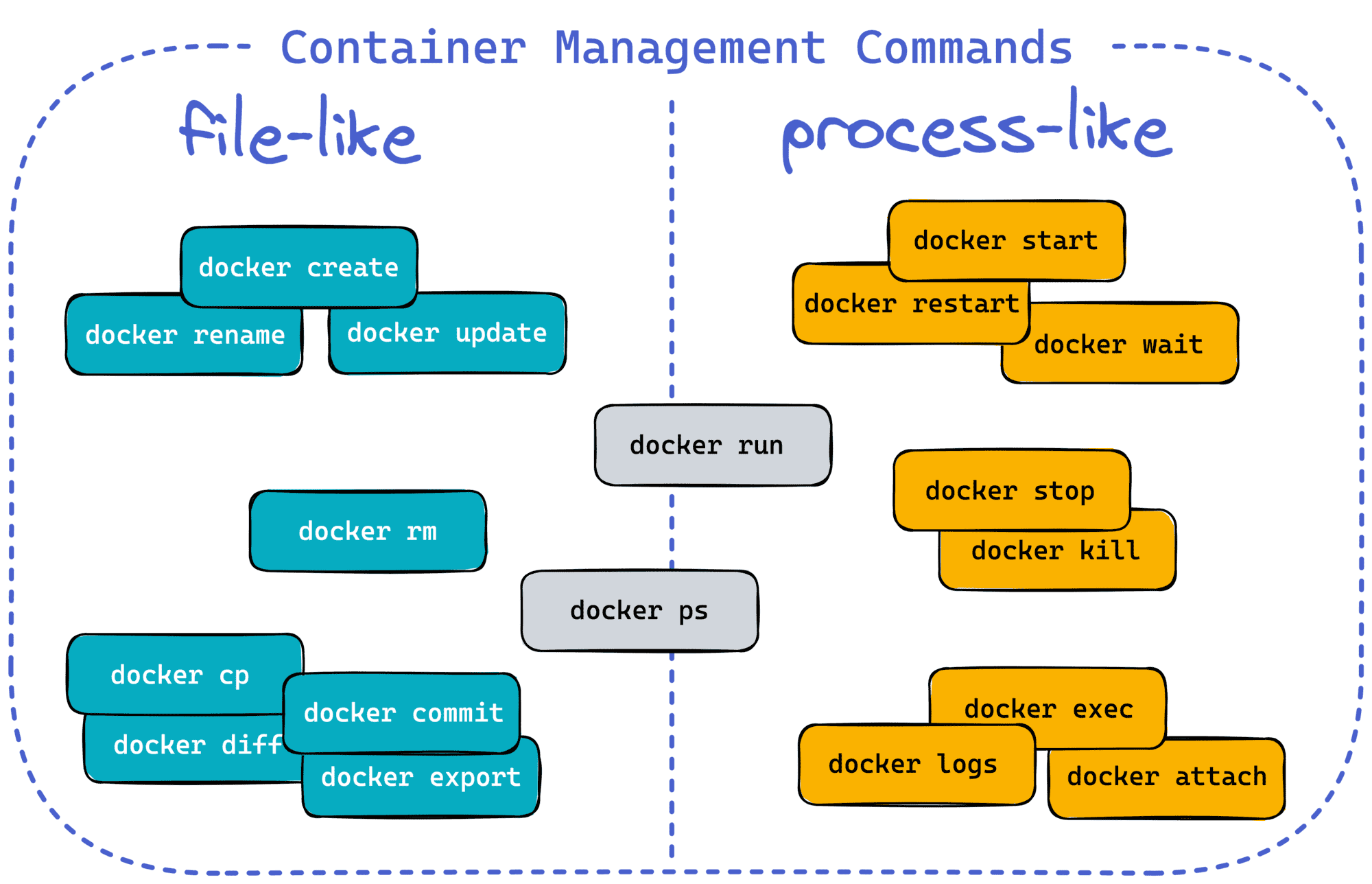
This process-file duality might not make much sense for the followers of the "containers are just Linux processes" mantra. And that is yet another reason why I prefer a different analogy - in my opinion, the abstraction becomes less leaky when you start thinking of containers as of isolated and restricted execution environments for processes:
- Isolation - Linux namespaces and other OS-level virtualization means.
- Restriction - Linux capabilities, cgroups, seccomp and AppArmor profiles, etc.
- State - running processes, root filesystem, temporary files, logs, etc.
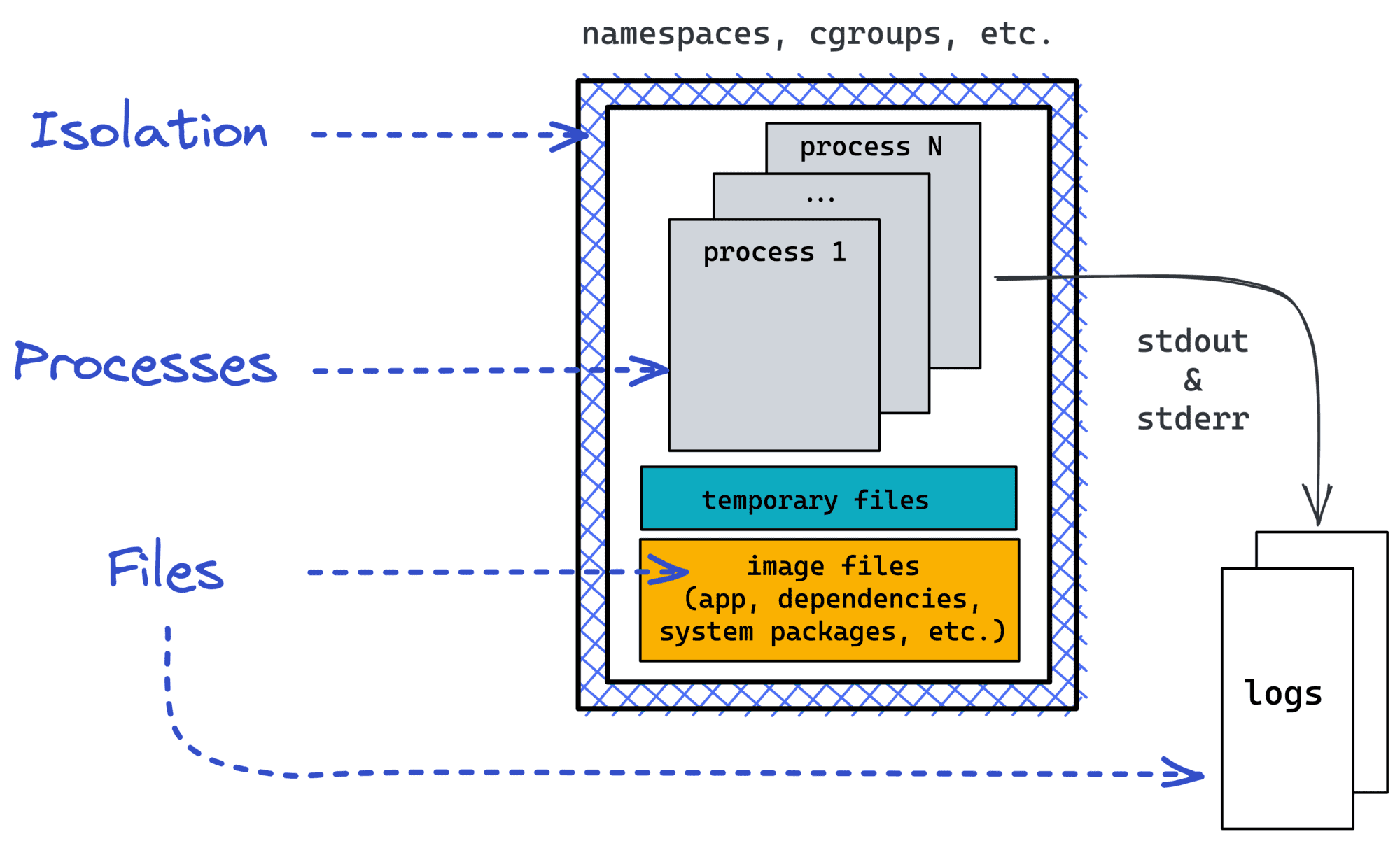
So, when it comes to managing such environments, you need to have commands to deal with all the parts and not just the processes.
Don't get fooled by Docker trying hard to make containers look like processes by promoting its deceptive docker run UX 😉
The sections below go through the commands one by one.
Follow along in the playground's terminal.
All the examples manage the same container that runs the nginx:alpine image.
The docker container create command
...a.k.a docker create
To get a container running, you need to have its files around first.
Typically, containers live on disk at /var/lib/docker/containers/<CONTAINER-ID>.
The docker create <IMAGE> [COMMAND] [ARG...] command creates a dedicated container subfolder at the said location with the supplied
(or default, or defined by the image) container configs.
It may also pull the specified image, but it'll not start any processes, so it'll return the control as soon as all the preparations are done.
Comparing to docker run, this command is much better scoped!
Create a container from the nginx:alpine image and save its ID in a variable:
CONT_ID=$(docker create nginx:alpine)
The command pulls the image and prints the ID of the new container, which ends up in the CONT_ID variable.
No process is running yet.
The docker container rename and update commands
Well, probably if you changed your mind after creating a container, you can update its configs on disk without re-creating the container. Haven't seen these commands used in the wild...
The container from the previous section has no name of its own, so Docker gave it a random one.
Rename it to web:
docker rename $CONT_ID web
Now limit the web container to half of a CPU:
docker update --cpus 0.5 web
The docker container start command
...a.k.a. docker start
The counterpart of the docker create command is the docker start <CONTAINER> command -
it starts only created earlier containers (by their names or IDs).
This command creates an OCI runtime bundle
(using the files prepared by the docker create step) and the isolation borders (using the configs from the docker create step)
and then launches the containerized process in this new environment.
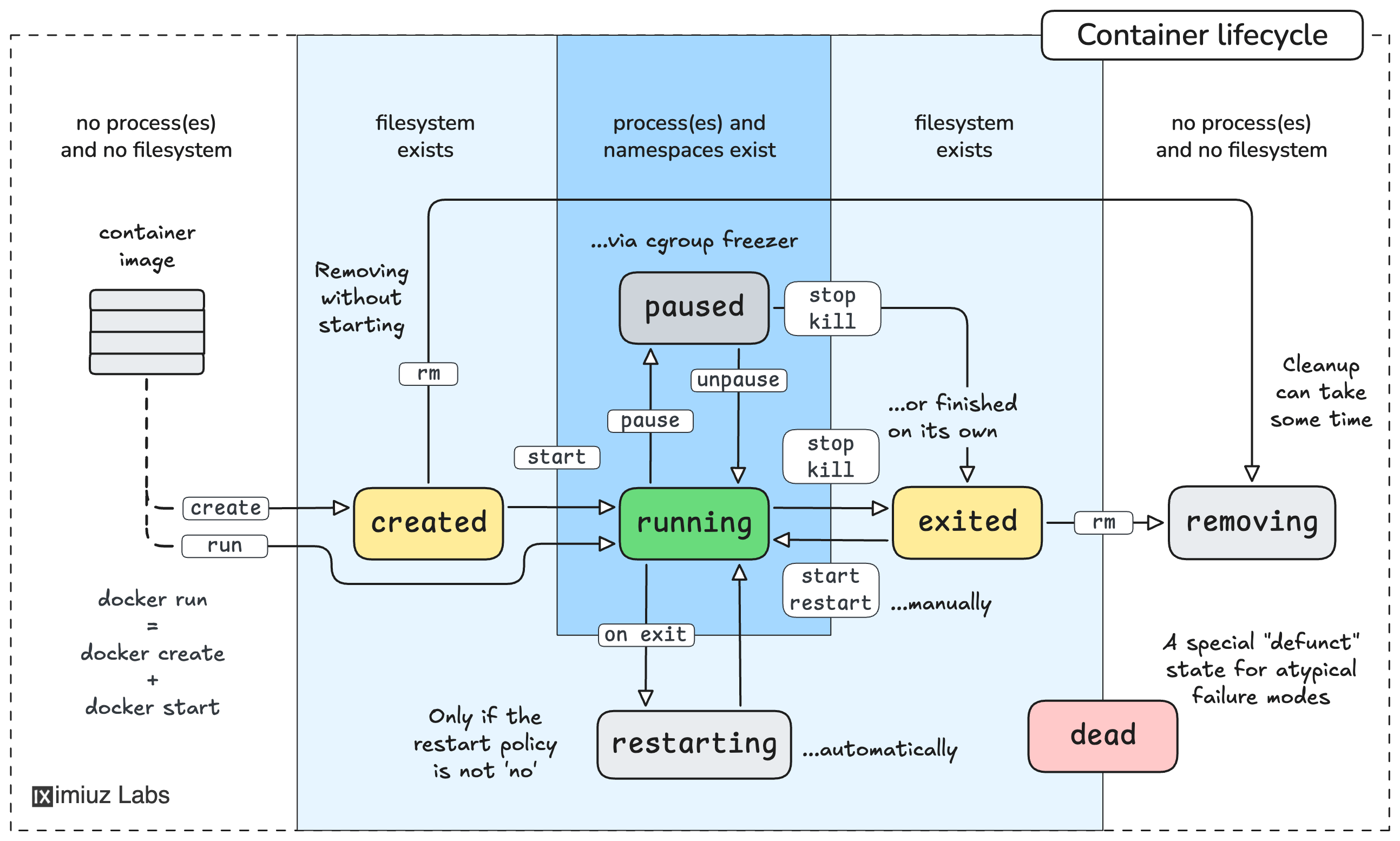
Since you potentially may want to interact with the containerized process,
the docker start command offers two interesting flags: -a, --attach and -i, --interactive.
The first flag is about the container's STDOUT/STDERR streams.
If you provide it, the command will block your terminal and wire it with the corresponding container's standard streams.
The second flag does a similar thing but to the container's STDIN stream.
And if none of the flags are provided, the command will exit immediately,
letting the containerized process run in the background.
Start the web container:
docker start web
The command prints the container name and returns right away, while Nginx keeps running in the background.
The docker container wait command
...a.k.a. docker wait
If the container(ized process) is running in the background, you may want to know when it exits.
For that, there is the docker wait <CONTAINER> command.
It'll block your terminal until the container(ized process) terminates and then print out its exit code.
In a way, it's similar to man 2 wait.
If you run this command for a stopped (or not started yet) container, it'll exit immediately, reporting the saved container exit code (or 0).
The web container is running in the background now.
Wait for it to exit:
docker wait web
Nginx doesn't exit on its own, so the command keeps blocking the terminal. Leave it there and go on to the next section.
The docker container stop and kill commands
Two very similar commands - they both send signals to the containerized process,
potentially with an intention to terminate it.
Notice how the separation of processes from execution environments allows a container to outlive its process(es).
In particular, because container configs, rootfs, and logs are kept on disk.
So, you can always restart a stopped (or killed, or unexpectedly exited container).
Well, unless you used the --rm flag on the docker create step 😉
From another terminal, stop the web container:
docker stop web
The docker stop command sends Nginx a signal that asks it to shut down gracefully (SIGQUIT for the nginx images and SIGTERM by default).
If the process is still running 10 seconds later, Docker kills it.
Nginx shuts down right away, and the docker wait command in the first terminal prints its exit code 0.
The Nginx process is gone, but the container is still there, so you can start it again:
docker start web
This time, kill it:
docker kill web
The docker kill command sends SIGKILL by default, and a process can't handle or ignore this signal.
The container exits with the code 137, which is 128 plus 9 (the number of SIGKILL).
Bonus: the docker restart command is simply docker stop followed by docker start.
The docker container ls command
...a.k.a docker ps
Another deceptive one!
The shortcut form of this command (docker ps) and its default behavior (listing only running containers) reinforces the belief that containers are just processes.
However, if you run it with the -a flag, it'll list all (including created and not started or stopped and not removed yet) containers.
So, it's a fancy way to list all subfolders of /var/lib/docker/containers, showing only the ones corresponding to running containers by default.
The web container isn't running now, so docker ps doesn't list it:
docker ps
With the -a flag, it shows up with the Exited (137) status:
docker ps -a
CONTAINER ID   IMAGE          COMMAND                  CREATED              STATUS                       PORTS     NAMES
f2ab8c8a69cb   nginx:alpine   "/docker-entrypoint.…"   About a minute ago   Exited (137) 3 seconds ago             web
The docker container rm command
...a.k.a. docker rm
If docker ps is a way to list subfolders of /var/lib/docker/containers, the docker rm <CONTAINER> command is a way to remove them.
Remove the web container:
docker rm web
The docker container run command
...a.k.a. docker run
I hope by now, the distinction between containers from processes is already apparent.
So, it's time to tackle the docker run command.
If we can create, start, wait, and stop containers using the above commands,
what the docker run <IMAGE> [COMMAND] [ARG...] command is for?
Well, it's just another shortcut!
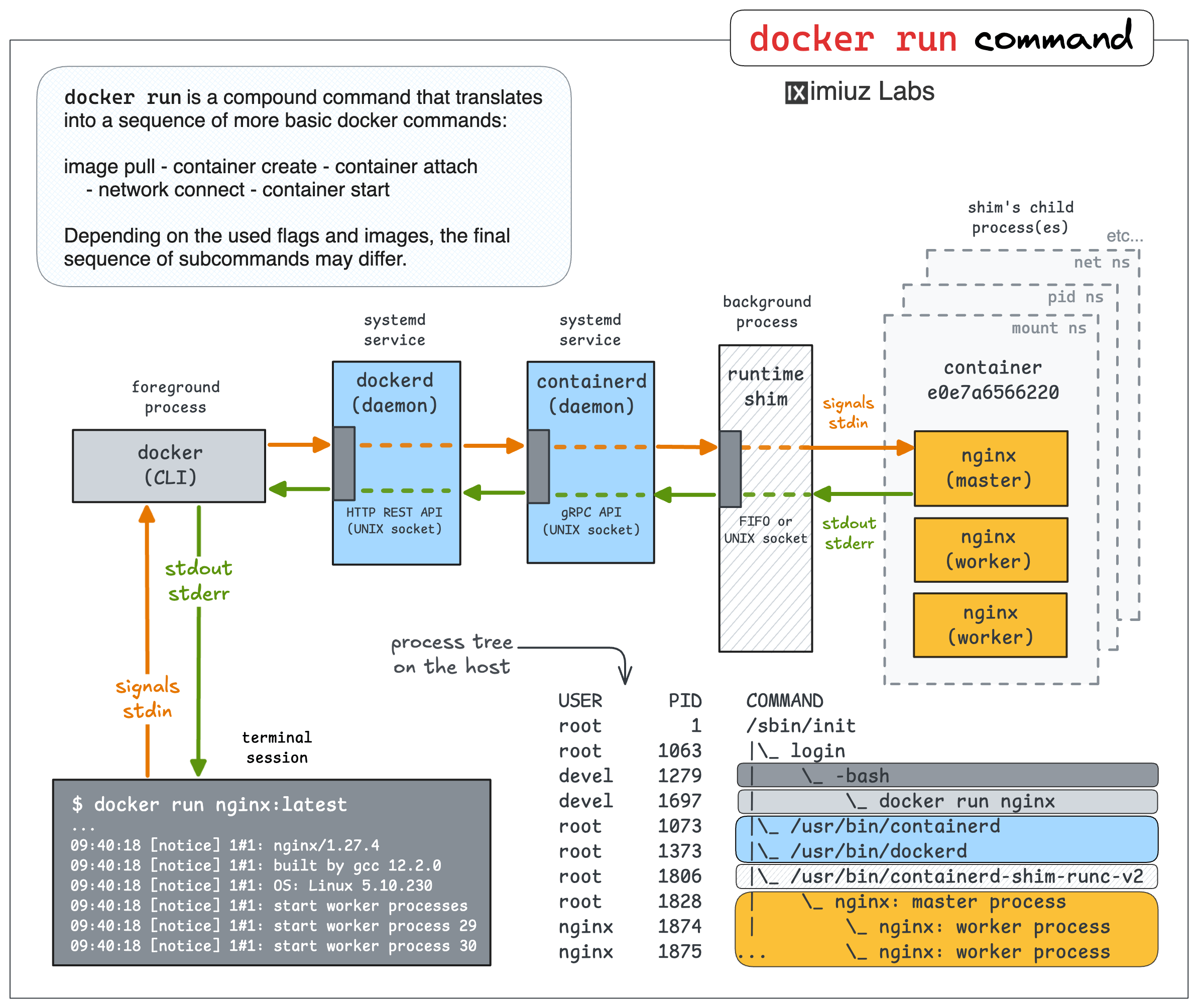
You can think of docker run as of a combination of docker create and docker start.
It's a handy way to run a command, always in a new container.
Learn by doing, not just by reading or watching
Sign up for a free account to start a VM playground right on this page, track your progress, and get notified about new learning materials.
Bring the web container back with a single command.
This time, also publish the container's port 80 on port 8080 of the host:
docker run -d --name web -p 8080:80 nginx:alpine
The -d flag makes docker run return right away instead of attaching your terminal to the container's output.
Check that Nginx serves its default page:
curl localhost:8080
The docker container exec command
...a.k.a. docker exec
What if you need to run a command in an existing (and already running) container?
This slightly more advanced use case is solved by the docker exec command.
And since the UX of docker exec is very similar to docker run, these two commands are often confused:
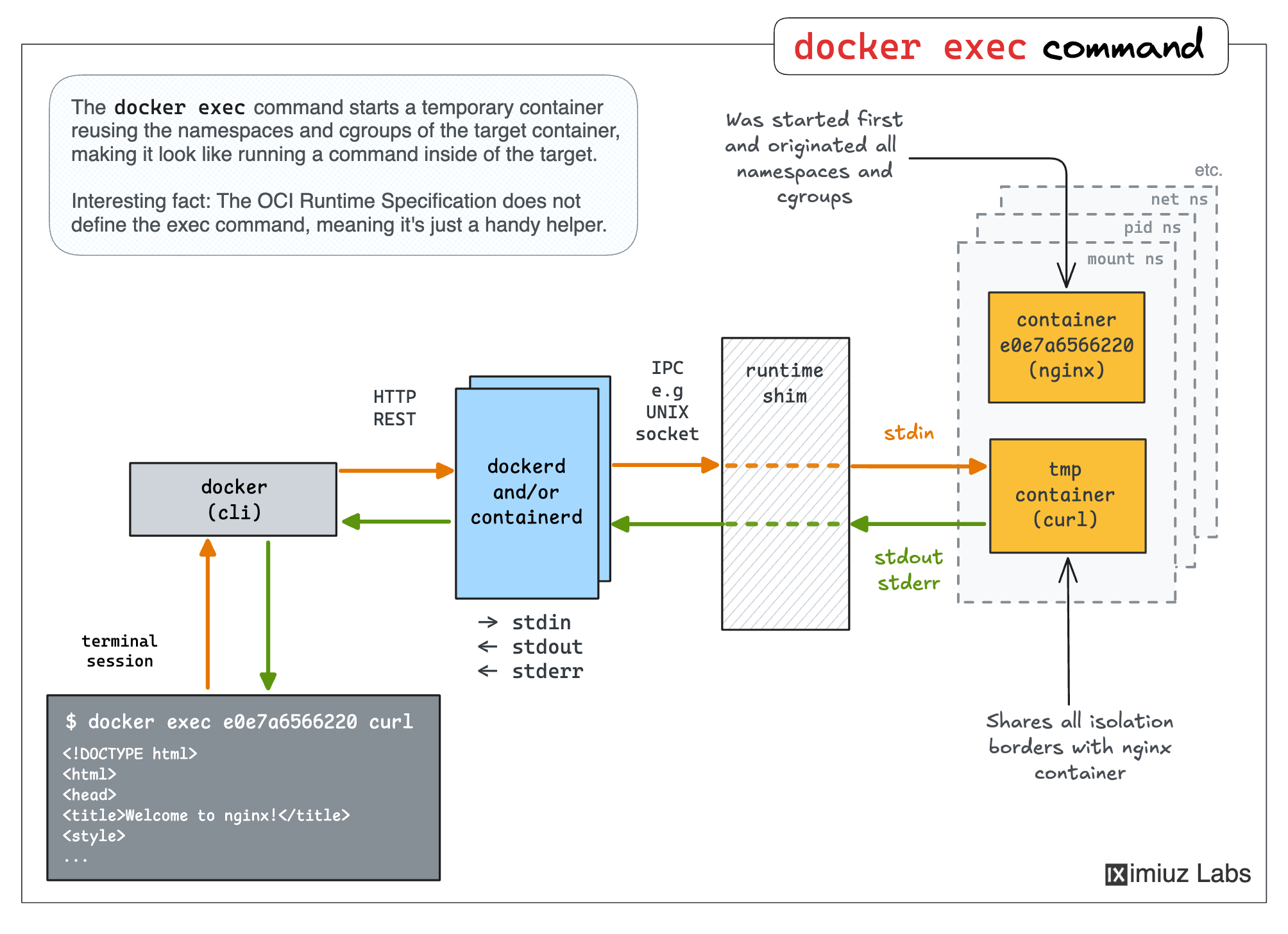
Start a shell in the running web container:
docker exec -it web sh
List the processes that the shell can see:
ps
PID   USER     TIME  COMMAND
    1 root      0:00 nginx: master process nginx -g daemon off;
   30 nginx     0:00 nginx: worker process
   31 nginx     0:00 nginx: worker process
   32 nginx     0:00 nginx: worker process
   33 nginx     0:00 nginx: worker process
   34 root      0:00 sh
   40 root      0:00 ps
The Nginx processes that docker run started are there, and so are the sh and ps processes that came with docker exec.
Now replace the default Nginx page:
echo 'Hello from docker exec!' > /usr/share/nginx/html/index.html
Leave the shell with exit and request the page from the host:
curl localhost:8080
The docker container attach command
...a.k.a. docker attach
Another command that is often confused with docker exec is docker attach,
but despite the similar implementation, it solves a quite different use case.
Remember the -a, --attach and -i, --interactive flags of the docker start command
(by the way, docker run inherits these flags too)?
The docker attach command makes these flags redundant.
Instead of running docker start -a <CONTAINER>, you could simply use docker start <CONTAINER> followed by docker attach <CONTAINER>:
Further reading: Docker Run, Attach, and Exec: How They Work Under the Hood (and Why It Matters).
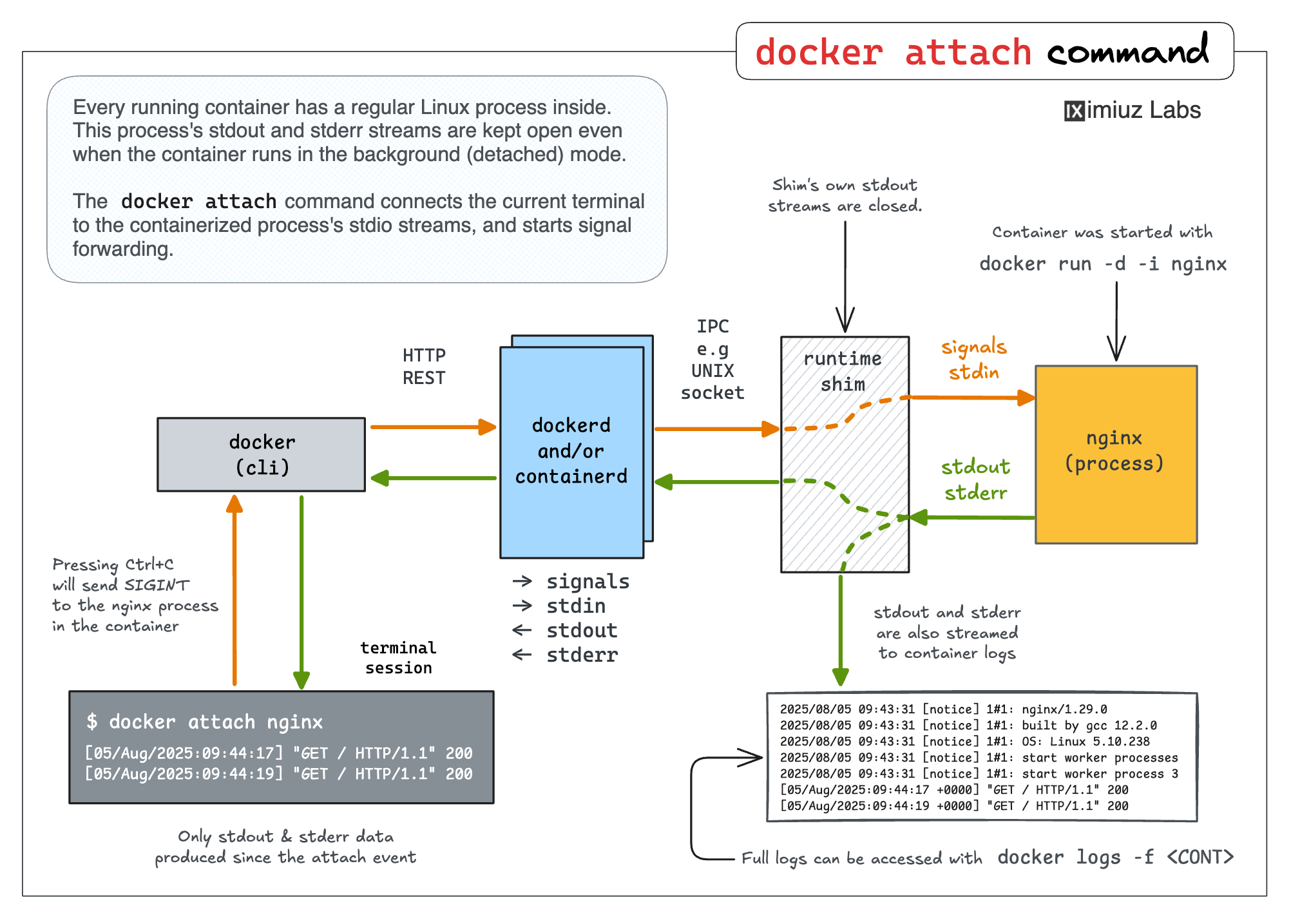
The web container was started with the -d flag, so nothing is attached to its output.
Attach your terminal to it:
docker attach web
The command blocks and waits for Nginx to print something. From another terminal, send a request:
curl localhost:8080
Nginx writes an access log line to its STDOUT, and the line shows up in the attached terminal.
Go back to the attached terminal and press Ctrl+C.
The docker attach command forwards the SIGINT signal to Nginx, so Nginx exits and the container stops.
Start the container again:
docker start web
The page you replaced is still in place because the container's root filesystem stays on disk between the runs:
curl localhost:8080
The docker container cp|diff|commit|export commands
The last group of commands we will touch upon here is a bit different but still falls under the container management section.
The docker cp, docker diff, docker commit, and docker export commands are concerned solely with the running container root filesystem and not with the container's files on the host system.
Every running container has its own rootfs based on the Copy-on-Write snapshot of its image.
A container(ized) process can make changes to the rootfs (using standard file manipulations),
and with docker diff <CONTAINER> you can quickly compare the current state of this filesystem with the container's original image.
If, for some reason, you want to persist the current state of the container's rootfs as another image,
you can use the docker commit <CONTAINER> <IMAGE> command.
If you feel like you need a copy of a file from inside of a container on your host system,
you can use docker cp <CONTAINER>:<SRC_PATH> <DEST_PATH>.
This command also works in the inverse direction using the docker cp <SRC_PATH> <CONTAINER>:<DST_PATH> syntax.
See what has changed in the root filesystem of the web container:
docker diff web
C /etc
C /etc/nginx
C /etc/nginx/conf.d
C /etc/nginx/conf.d/default.conf
C /root
A /root/.ash_history
C /usr
C /usr/share
C /usr/share/nginx
C /usr/share/nginx/html
C /usr/share/nginx/html/index.html
C /run
A /run/nginx.pid
C /var
C /var/cache
C /var/cache/nginx
A /var/cache/nginx/uwsgi_temp
A /var/cache/nginx/client_temp
A /var/cache/nginx/fastcgi_temp
A /var/cache/nginx/proxy_temp
A /var/cache/nginx/scgi_temp
In the output, C marks a changed path and A marks an added one.
Besides the page you replaced, the list has the files that Nginx and its startup scripts changed or created,
and the history file of the shell from the docker exec step.
Save the current state of the container's root filesystem as a new image:
docker commit web my-nginx
The my-nginx image is nginx:alpine with one more layer on top, and the replaced page is in that layer:
docker run --rm my-nginx cat /usr/share/nginx/html/index.html
Copy the replaced page from the container to your home directory:
docker cp web:/usr/share/nginx/html/index.html ~/index.html
cat ~/index.html
An interesting experiment: Run a vanilla base container (e.g., docker run -it debian),
install something in there with apt-get install ...,
and create an image layer using the docker commit command.
Then copy your application (and dependencies) into the running container using docker cp,
and commit it again.
Sounds familiar? Right, that's how docker build could be emulated!
Intrigued? Then check out the podman and buildah projects 😉
Last but not least, you can always export the current state of the container's rootfs as a tar archive using the docker export <CONTAINER> command.
docker export web -o ~/web.tar
The archive holds a single flat filesystem tree without the image layers and configs. The replaced page is in it too:
tar -xOf ~/web.tar usr/share/nginx/html/index.html
Instead of Conclusion
Seek to understand things and not just memorize. Memorization can be more efficient in the short run, but in the long run, understanding is superior because it allows you to draw the dots between different ideas and extrapolate the knowledge.
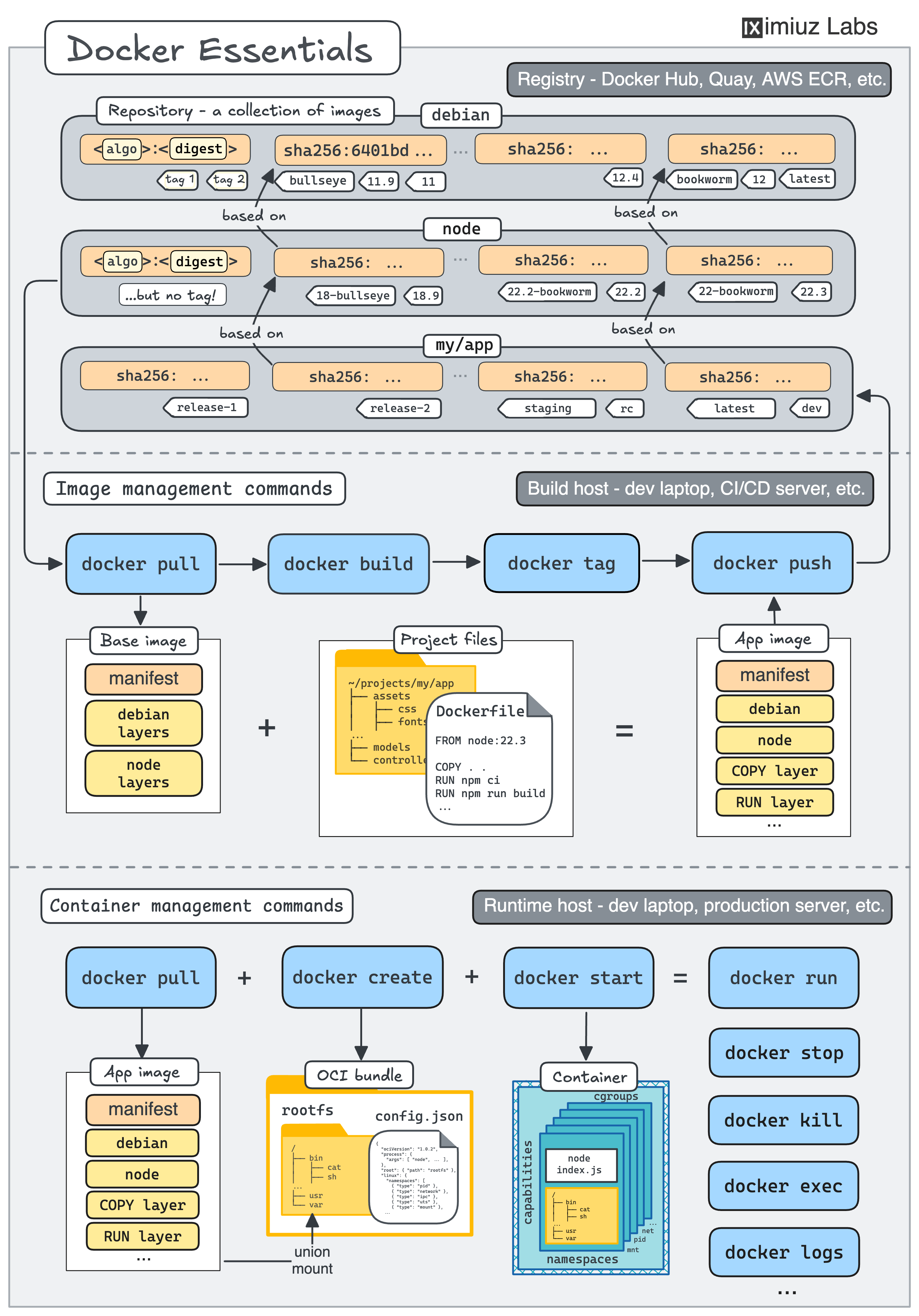
Bonus: The most common Docker commands visualized
Practice
Each challenge below focuses on one or two of the commands from this tutorial.
Learn by doing, not just by reading or watching
Sign up for a free account to start a VM playground right on this page, track your progress, and get notified about new learning materials.

Ivan Velichko
Ivan is the creator of iximiuz Labs and a long-time tech blogger and educator with a traditional focus on server-side tech and containers.
Writes about
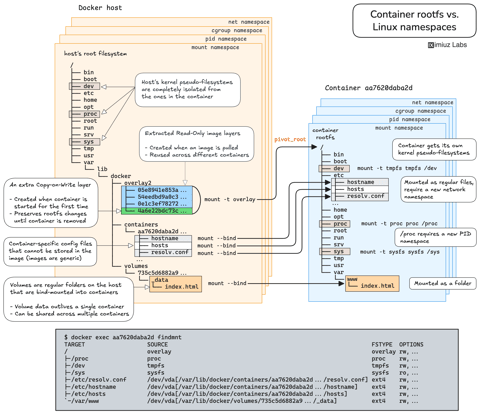
How Container Filesystem Works: Building a Docker-like Container From Scratch
Learn how Linux containers are built from the ground up. Starting with the mount namespace and a root filesystem, see why PID, cgroup, UTS, and network namespaces naturally follow - and how this foundation makes concepts like bind mounts, volumes, and persistence in Docker or Kubernetes much easier to grasp.
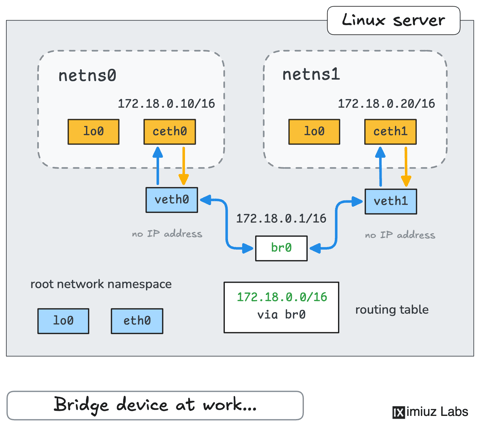
How Container Networking Works: Building a Bridge Network From Scratch
Begin with the basics to understand Docker and Kubernetes networking: learn how to create and interconnect Linux network namespaces using only command-line tools.
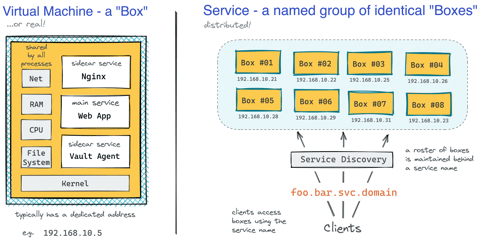
How Kubernetes Reinvented Virtual Machines - In a Good Sense
How Virtual Machines were used to deploy services. What old problems containers solve and what new problems create. How Kubernetes used containers to recreate Virtual Machines in a better way?
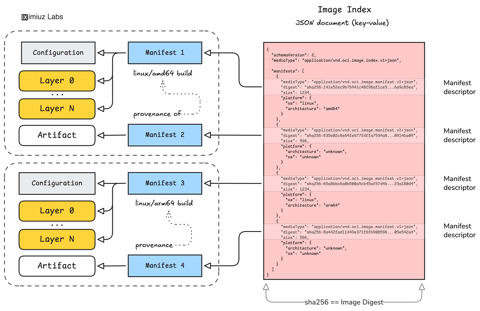
How Container Images Actually Work: Layers, Configs, Manifests, Indexes, and More
A practical deep dive into container image internals that will help you build a clear mental model of how images are composed, identified, stored, and distributed across registries.