Linux Storage 101: Drives, Partitions, and Mounts

Introduction
Linux storage is a vast topic: block devices, partition tables, filesystems, logical volumes, software RAID, network storage, and more. This skill path doesn't try to cover it all. Instead, it helps you get started by practicing the operations a Linux user or administrator needs most often: finding an attached drive, partitioning it, formatting the partitions, and mounting them - both temporarily and persistently.
The path consists of seven hands-on challenges, each running in a real Linux VM:
- Mount a drive with existing data and read its contents.
- Create an ext4 filesystem on an unformatted drive.
- Create a GUID Partition Table (GPT) on a blank drive.
- Split a drive into multiple partitions and format them as ext4 and btrfs.
- Mount an existing directory at a new location (bind mount).
- Make a filesystem mount survive a reboot.
- Automate a storage provisioning workflow with a non-interactive script.
Every change you make is verified automatically, so you'll know right away whether your solution works.
By the end of this skill path, you'll be comfortable with lsblk, parted, mkfs, and mount -
the everyday tools of Linux storage administration -
and you'll have a solid base for exploring more advanced storage topics on your own.
Mount a Drive with Existing Data and Read Its Contents
A drive attached to a Linux machine is not automatically accessible: until its filesystem is mounted somewhere on the directory tree, the data on it remains out of reach. Discovering attached block devices and mounting them is one of the most basic storage skills, and it's exactly what you'll practice first.
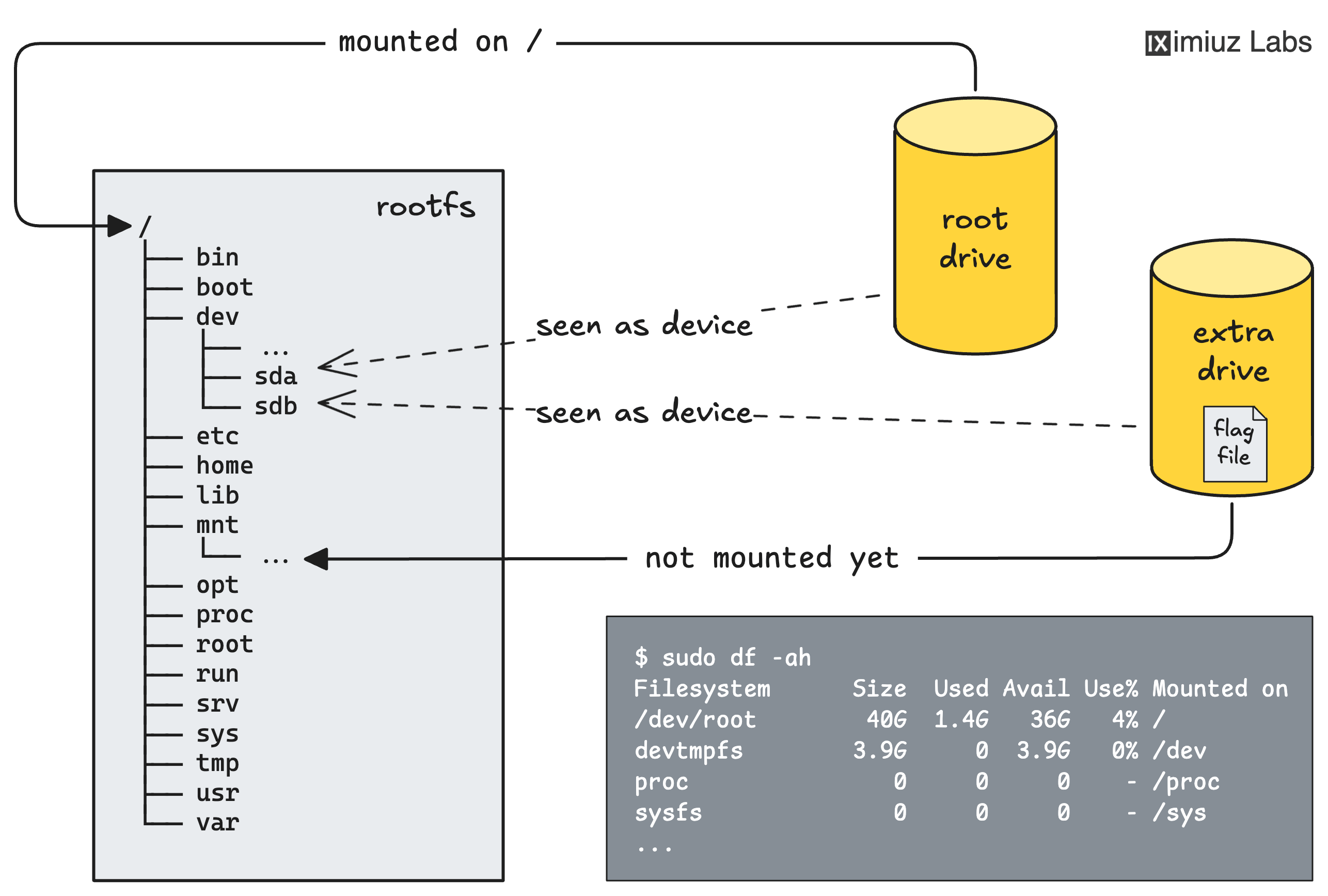
This is a CTF-style challenge: the server has an extra drive with a flag file on it, and your mission is to find the drive, mount it, and read the flag.
Create an Ext4 Filesystem on an Unformatted Drive
In the previous challenge, the drive already had a filesystem with data on it. But a brand-new drive arrives completely empty: before it can store any files, it needs to be formatted with a filesystem.
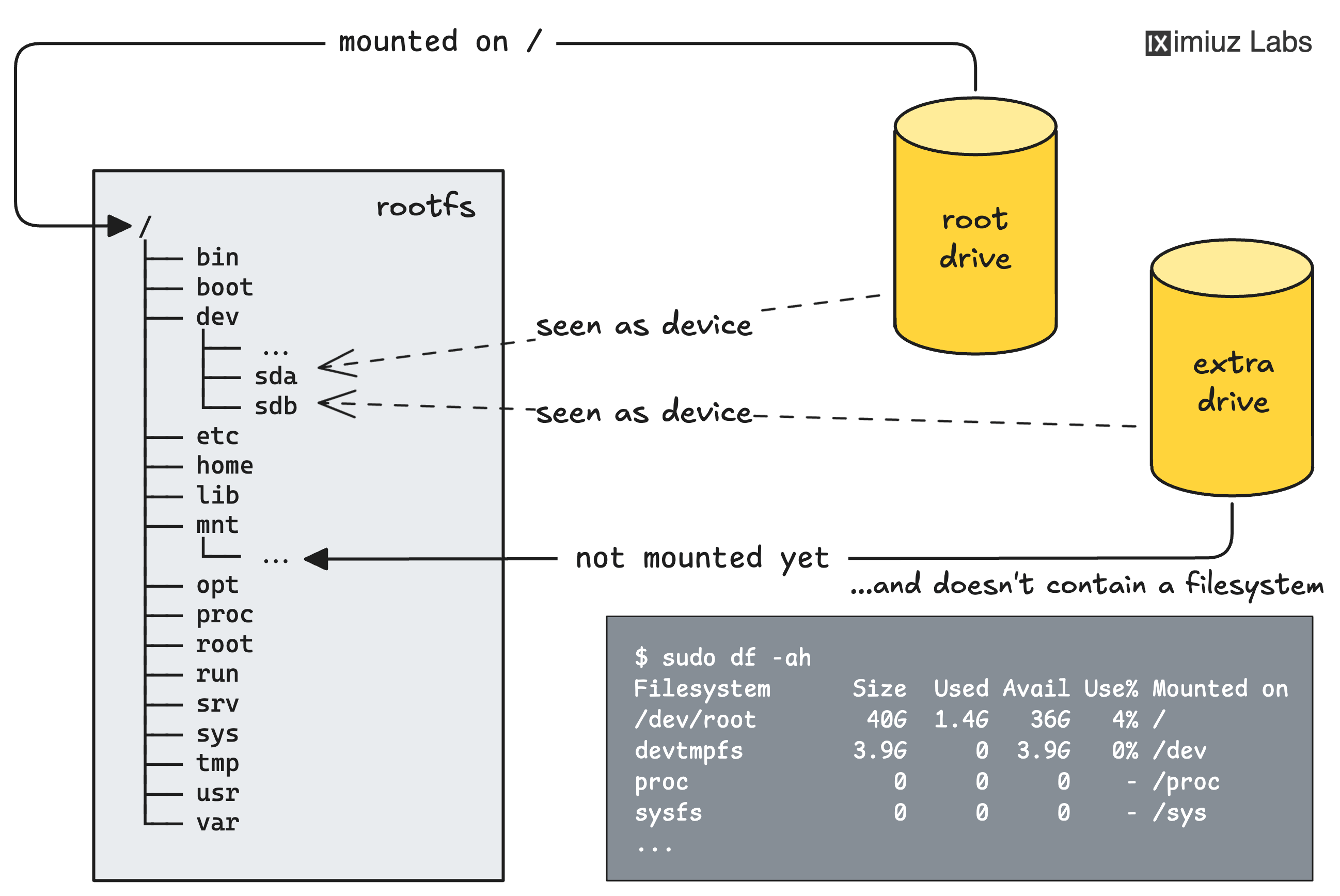
In this challenge, you'll identify the unformatted drive, create an ext4 filesystem on it, mount it, and write a test file to prove the new storage works.
Create a GUID Partition Table (GPT) on a Blank Drive
In the previous challenge, you formatted a whole drive as ext4 without creating a partition table first. That shortcut is fine for disposable scratch volumes, but the standard practice is to partition the drive before formatting it. The de facto standard partitioning scheme today is the GUID Partition Table (GPT), and it's preferred even for single-partition disks: it records useful metadata about the partitions and makes it easy to carve out more of them later.
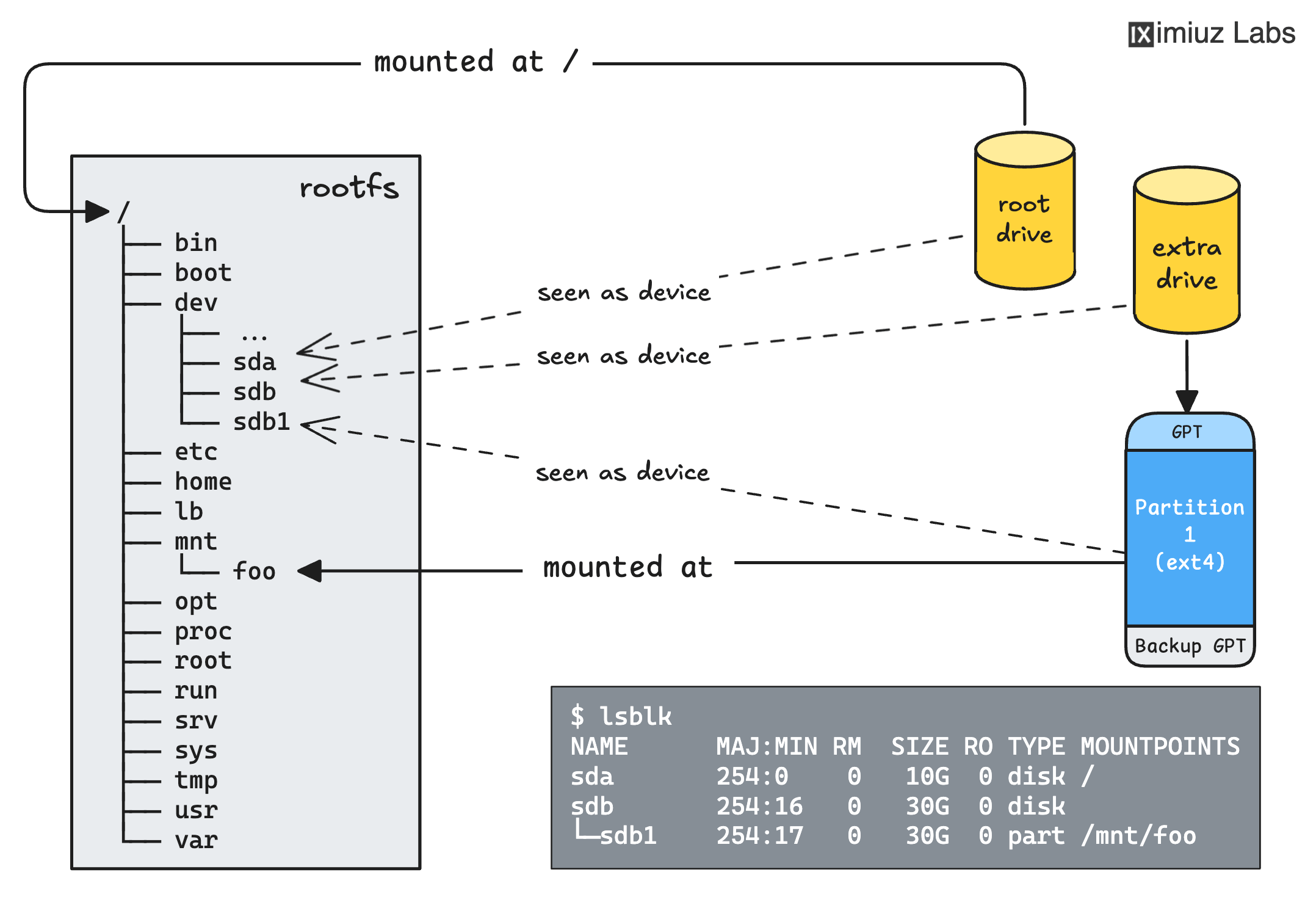
In this challenge, you'll take a blank drive through the full preparation cycle: create a GPT, add a partition spanning the whole disk, format it as ext4, and mount it to verify that the new storage is usable.
Split a Drive into Multiple Partitions and Format Them as Ext4 and Btrfs
Real-world servers often need their storage divided for different purposes: a fast, journaled filesystem like ext4 for logs and system data, and a more advanced filesystem like btrfs for application data that benefits from snapshots, compression, and copy-on-write semantics.
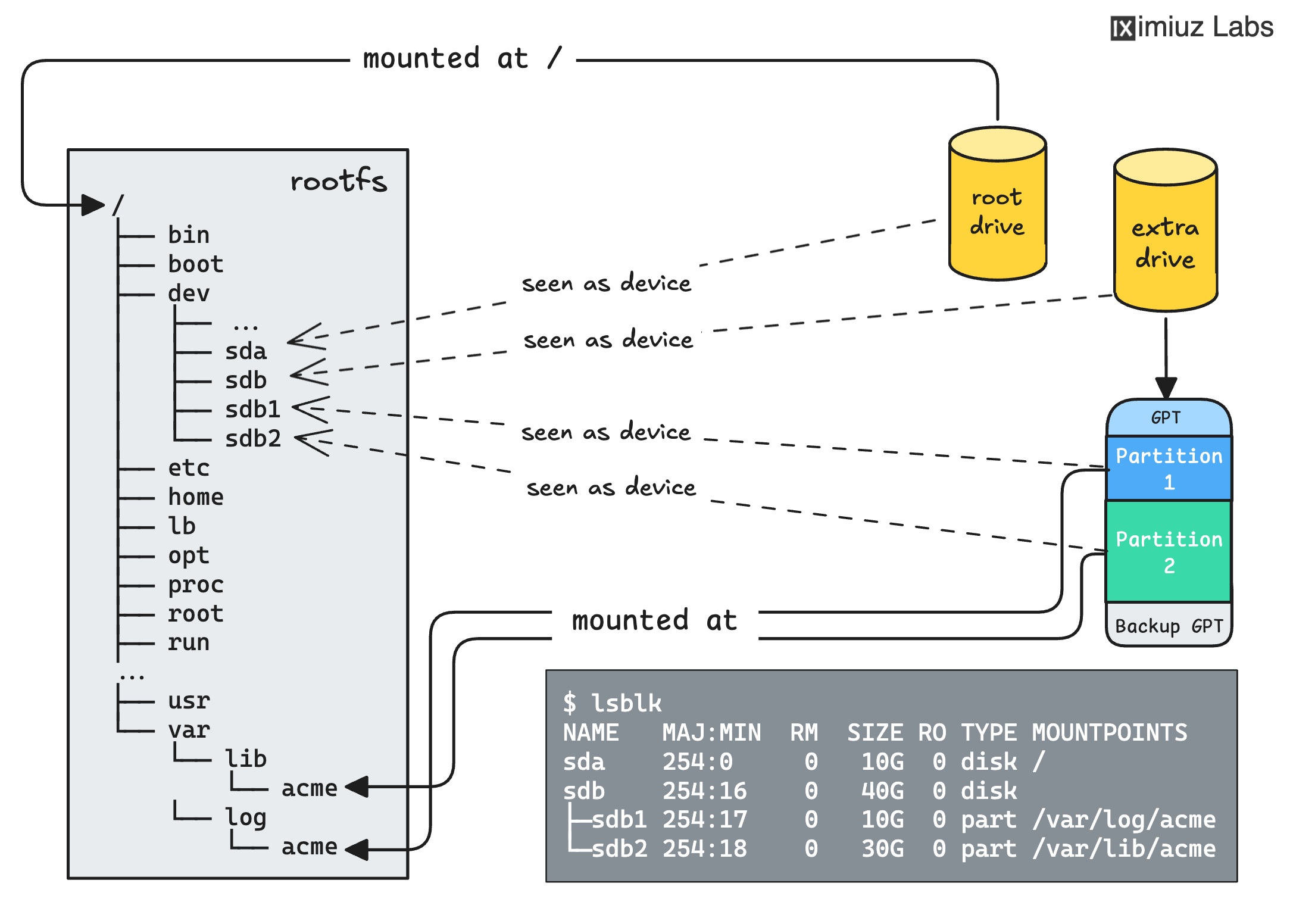
This challenge builds on the previous one: instead of a single partition spanning the whole disk, you'll split a blank 40 GiB drive into two partitions of specific sizes, format them with different filesystems, and mount each at its designated location.
Mount an Existing Directory at a New Location (Bind Mount)
Not every mount involves a drive. Linux can also map an existing part of the directory tree to another path - an operation known as a bind mount. Bind mounts are the core technology behind container volumes: when you mount a host folder into a Docker container or a Kubernetes Pod, a bind mount is what does the job.
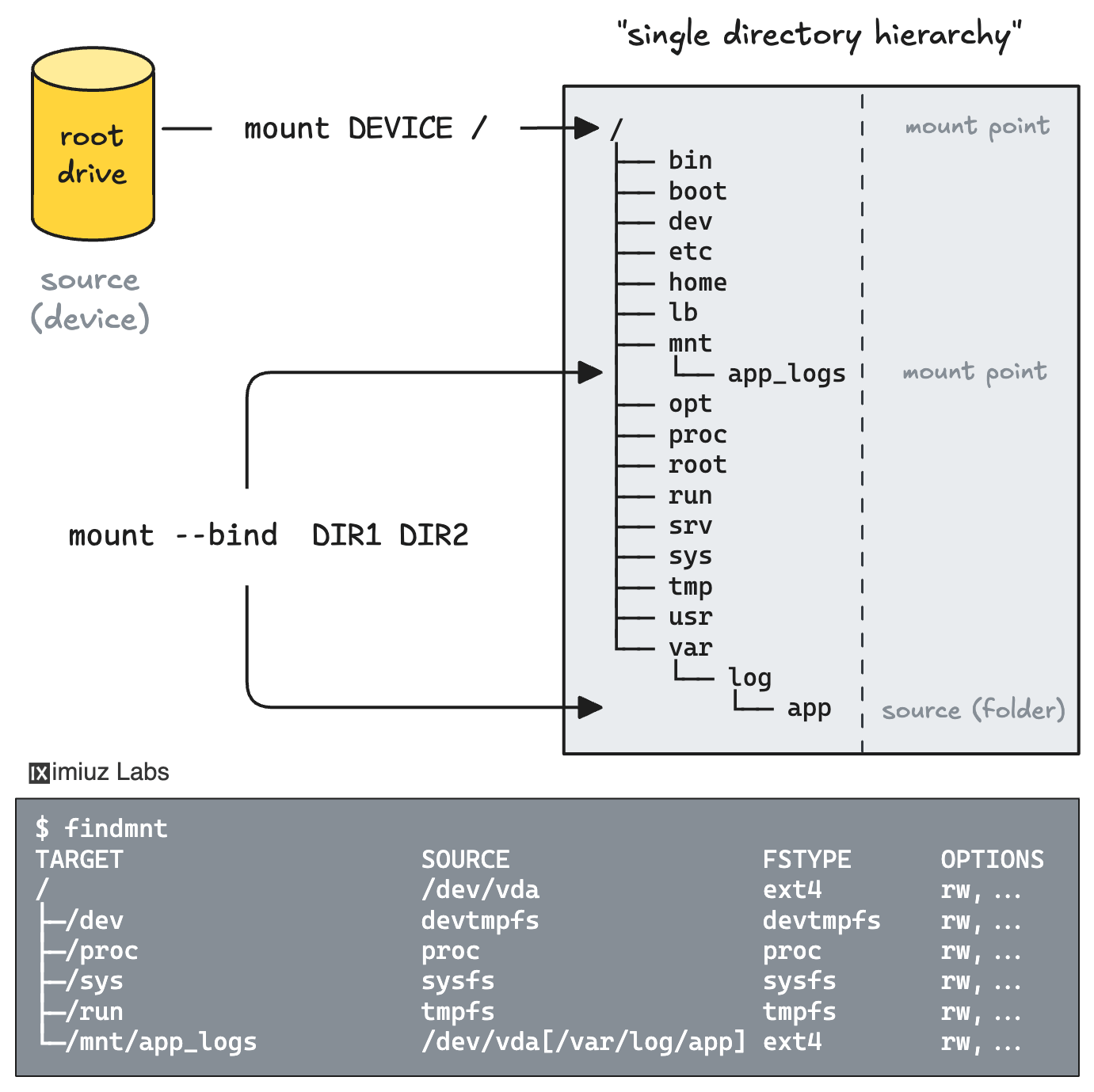
In this challenge, you'll practice creating bind mounts: first a simple one, and then a recursive one that brings over a whole mount tree, including its sub-mounts.
Make a Filesystem Mount Survive a Reboot
The final challenge demonstrates a common pitfall:
a plain mount command creates a temporary mount that lives only in the kernel's in-memory mount table.
When the machine reboots, the kernel starts fresh, and all runtime mounts are gone.
On a real server, this means a data drive you mounted by hand will silently disappear after the next maintenance reboot.
Your mission is to mount a data drive, configure the system so that the mount is recreated automatically on every boot, and then prove it works by actually rebooting the machine.
Automate Drive Provisioning With a Shell Script
By now, you have performed every core storage operation by hand: partitioned a drive, formatted it, mounted the filesystem, and made the mount persistent. The closing challenge asks you to combine these steps into a single shell script that provisions a blank drive end to end - non-interactively and idempotently, the way cloud-init, configuration management tools, and first-boot hooks do it on real fleets.