Build a Container Image for Another Platform Using QEMU Emulation

Premium Challenge
Upgrade your membership to unlock this and all other premium materials.
In this challenge, you will build a container image for the arm64 architecture on an amd64 host machine using QEMU user-space emulation.
Explore the application
The ~/app/ directory contains a simple Node.js web application
and a pre-written Dockerfile.
Take a moment to explore the code and the Dockerfile before you begin:
ls ~/app/
cat ~/app/Dockerfile
If you use the standard docker build command with the provided Dockerfile,
it will produce an image for the host's native architecture (amd64):
docker build -t test-native ~/app/
The below command should print x64, confirming the image is built for the host's architecture:
docker run --rm test-native node -e "console.log(process.arch)"
The task
Your goal is to build the same application as an arm64 image instead:
- Enable QEMU user-space emulation for the
arm64architecture on this machine. - Build the Docker image for the
linux/arm64platform, tagging it asmy-app:v1.0.0. - Make sure the containerized application starts and responds correctly on port
3000.
You can verify the image architecture at any point:
docker image inspect my-app:v1.0.0 | jq '.[0].Architecture'

docker run --rm test-native node -e "console.log(process.arch)"
Hint 1
Docker can't natively execute binaries compiled for a different CPU architecture. To cross-build, you need to register QEMU user-space emulators with the kernel using the binfmt_misc mechanism.
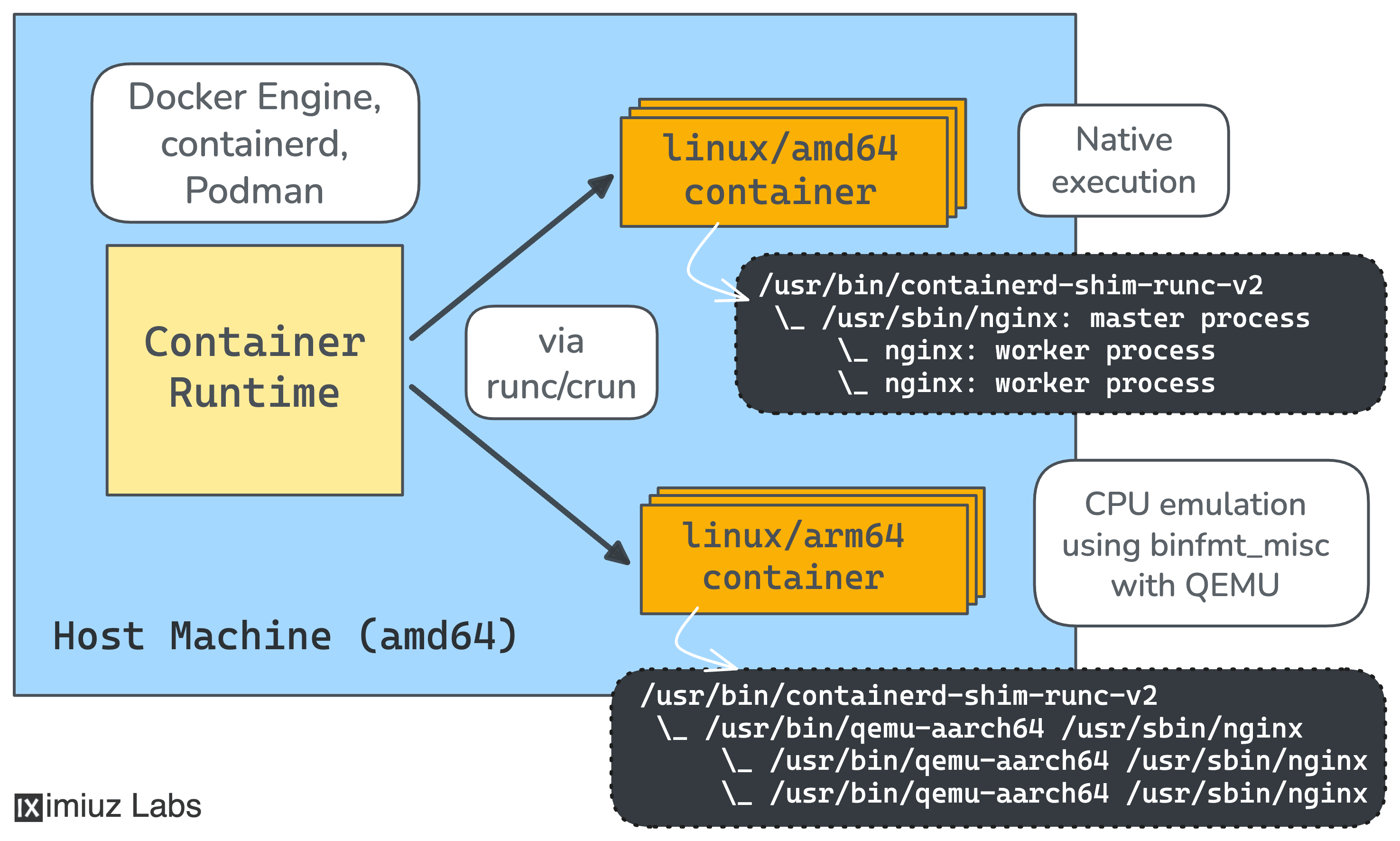
A popular way to do this in a Docker environment is by running a special privileged container. Check out the official Docker documentation and the tonistiigi/binfmt project for more details.
Hint 3
If the container fails to start or the application doesn't respond, run the container in the foreground to see the error:
docker run -p 3000:3000 my-app:v1.0.0
Note that arm64 containers running under QEMU emulation on an amd64 host are noticeably slower than native containers. You may need to give the application a bit more time to start.