Build and Inspect a Container Image With Docker

Premium Challenge
Upgrade your membership to unlock this and all other premium materials.
In this challenge, you will build a container image from a provided Dockerfile and inspect the image to answer a few questions about its size and structure.
The project is located in the ~/app/ directory.
It's a simple Express.js web server that has already been containerized.
Take a moment to explore the code and the Dockerfile before you begin:
cat ~/app/Dockerfile
Your goal is to:
- Build the application image using the existing Dockerfile.
- Inspect the image and answer a few questions about its size and structure.
Build the image
Build a container image named my-app:v1.0.0 from the Dockerfile in ~/app/:
Hint 1
For a refresher on how to build a Docker image, check out this challenge:
Detect the image size
Now, let's look at the image size. What is the total size of the my-app:v1.0.0 image, in bytes?
Hint 2
The docker images command shows human-readable sizes (e.g., "278MB"),
but for this task you need the exact number of bytes.
Check the output of the docker image inspect command to see if it includes a more accurate size value.
Explore the image structure
Docker images are made of layers.
Each Dockerfile instruction that modifies the filesystem (e.g., COPY, RUN, ADD)
creates a new layer, and the final image is a stack of all these layers.
How many layers does the my-app:v1.0.0 image have in total, including the base image layers?
Hint 3
Counting the Dockerfile instructions that modify the filesystem won't always give you the correct answer,
because the initial FROM instruction may bring in an arbitrary number of layers from the base image.
Instead, look at the RootFS section of the docker image inspect output -
it lists all rootfs layers of the image. Notice how the base image (node:24-slim)
contributed several layers of its own, making the total number of layers higher
than the number of layer-producing instructions in the application's Dockerfile.
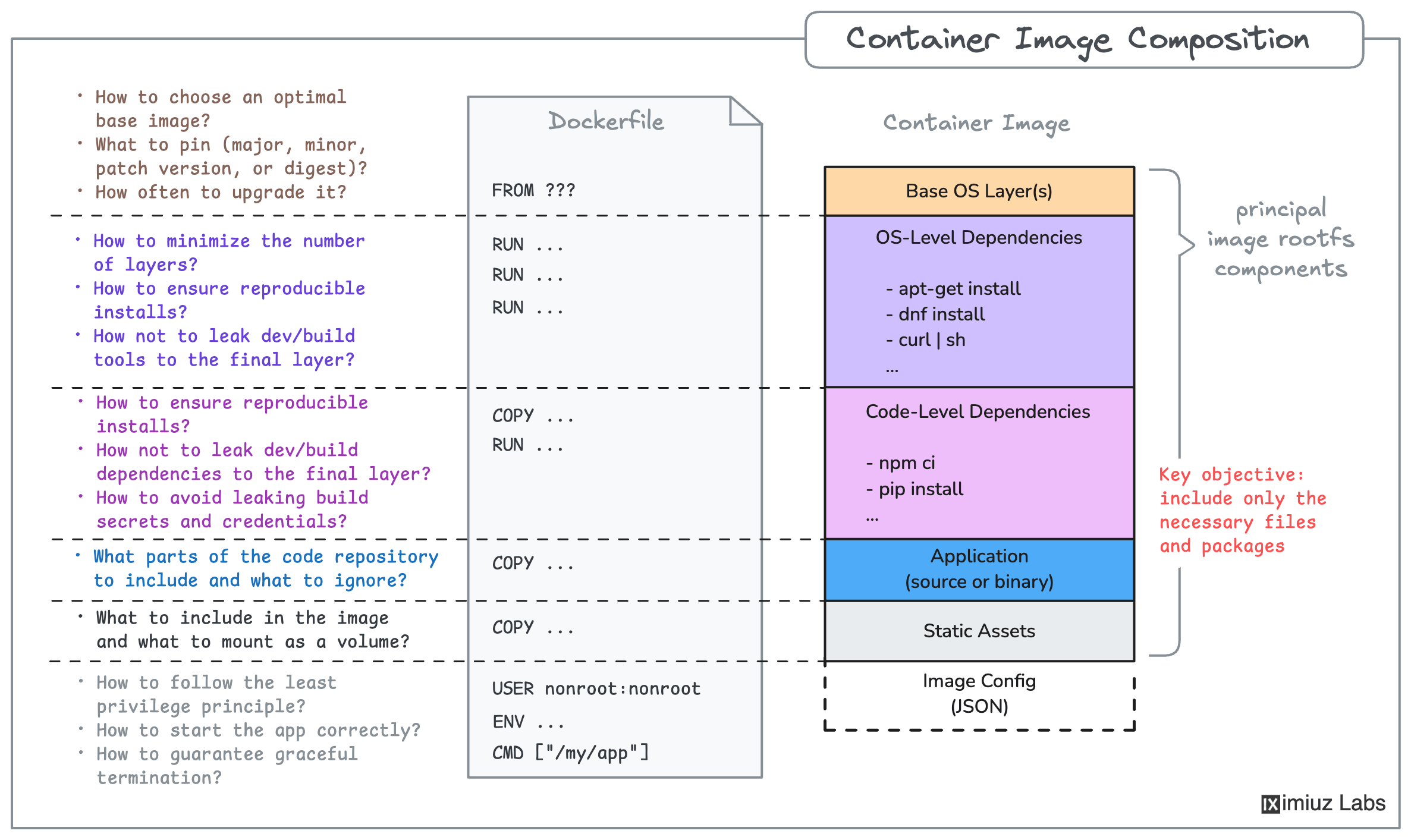
Now, how many of those layers were added by the application's Dockerfile (i.e., excluding the base image layers)?
Hint 4
You already know the total number of layers. Now figure out how many of
those come from the base image. The base image is specified in the FROM
instruction of the Dockerfile. Try inspecting the base image the same way
you inspected the application image to count its layers.
Identify the largest layers
Not all layers are equal - some can be much larger than others. And large layers often contain unnecessary dependencies and unwanted files, so it's a good idea to understand the main sources of bloat in your application.
Each layer in RootFS.Layers has a sha256:... digest (also known as a diff ID)
that uniquely identifies it.
What is the sha256:... digest of the largest layer in the my-app:v1.0.0 image
(considering all layers, including the base image)?
Hint 5
The docker image inspect command shows the RootFS.Layers section listing
the sha256:... digest of each layer. But you also need to figure out which
layer is the largest. Luckily, there are tools that can help you with this.
docker save- a Docker command to export the image as a tar archive (tutorial)dive- a 3rd-party CLI for inspecting container images with a neat TUI (preinstalled in the playground)
Pick one of the tools and use it to find the largest layer.
Now, what is the sha256:... digest of the largest layer
added by the application's Dockerfile (i.e., excluding the base image layers)?
Hint 6
You already know how many base image layers there are. The application's
layers are the ones that come after the base layers in the RootFS.Layers
list. Focus only on those when looking for the largest one.