Docker Fundamentals: From Pull to Logs

Docker Fundamentals: From Pull to Logs
Welcome! This challenge will guide you through the essential Docker commands and concepts, from obtaining container images to running and interacting with containers. Docker has revolutionized how applications are built, shipped, and run, making it a cornerstone of modern software development and DevOps.
What is Docker? And Why Containers?
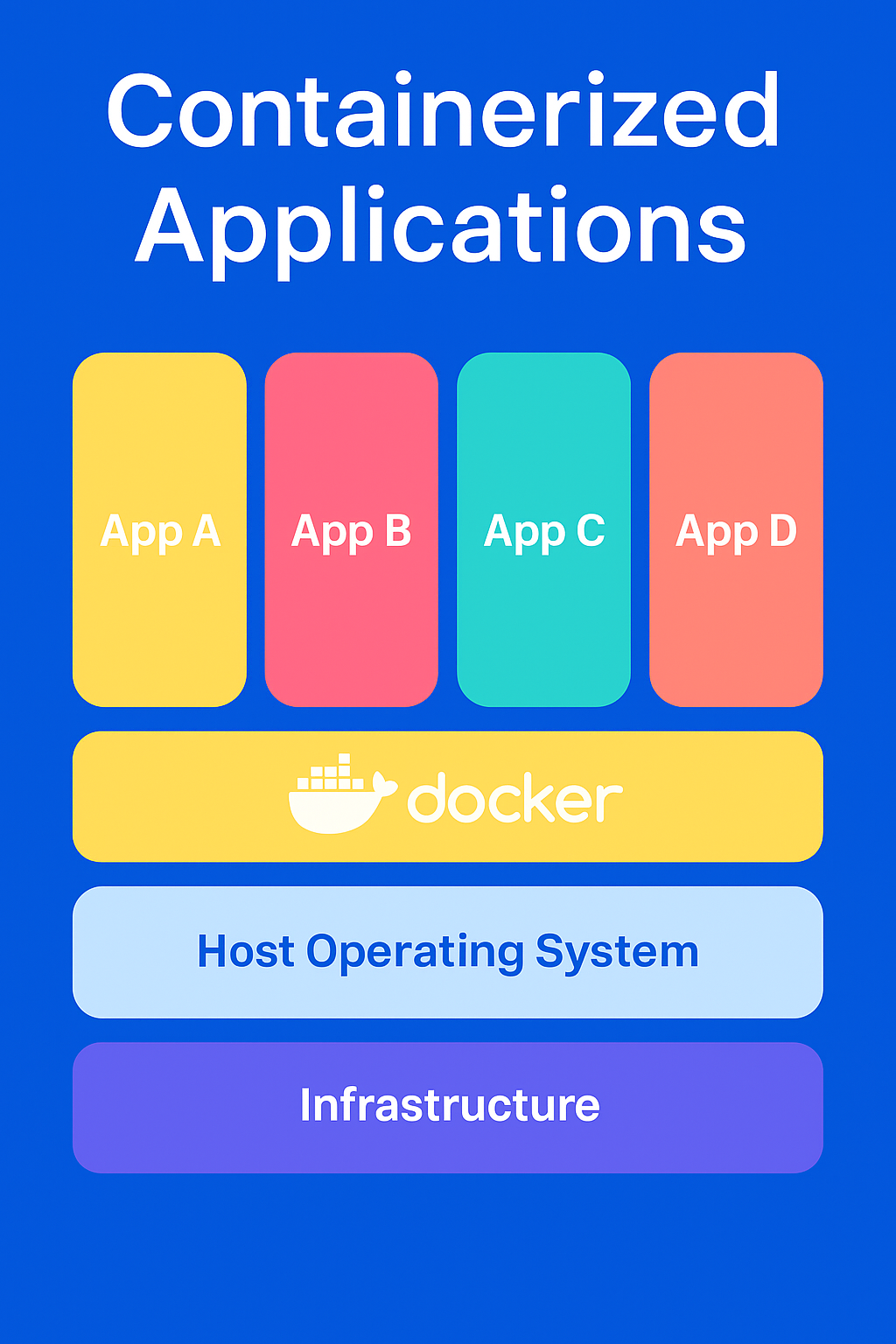
At its core, Docker allows you to package an application and its dependencies into a standardized unit called a container. Think of a container as a lightweight, standalone, executable package that includes everything needed to run a piece of software: code, runtime, system tools, system libraries, and settings.
Key Benefits:
- Consistency: "Works on my machine" is no longer an issue. If it runs in a Docker container, it will run consistently anywhere Docker is installed.
- Isolation: Containers isolate applications from each other and from the underlying system, improving security and stability.
- Portability: Easily move applications between development, testing, and production environments, or across different cloud providers and on-premises servers.
- Efficiency: Containers are much more lightweight than traditional Virtual Machines (VMs) because they share the host OS kernel, leading to faster startup times and better resource utilization.
Core Docker Components:
- Docker Engine: The runtime that builds and runs Docker containers.
- Images: Read-only templates used to create containers. Images are built from a set of instructions in a
Dockerfileor pulled from a registry. - Containers: Runnable instances of images. You can create, start, stop, move, or delete containers.
- Docker Hub (and other Registries): A cloud-based registry service where you can find and share container images (like GitHub for code).
Let's get started with the basics!
The first step in using Docker is usually to get a container image. Images are like blueprints for your containers.
Hint 1.1
Which docker subcommand is used to download images from a container registry like Docker Hub?
Hint 1.2
When pulling an image, you typically specify the image name followed by a colon and then the tag (e.g., imagename:tag).
Hint 1.3
After attempting to pull the image, how can you verify that it's now present on your local system? There's a command to list all local images.
Now that you have the nginx:alpine image, let's run it as a container. We want to start a web server that runs in the background and is accessible from our host machine.
Hint 2.1
Which docker command is used to create and start containers. What option makes a container run in the background (detached)?
Hint 2.2
How do you assign a specific name to a container when you run it? There's an option for that. Also, which option is used to map a host port to a container port?
Hint 2.3
After running the container, you can use docker ps to see running containers and verify its name and port mappings. To check if it's working, try running http://localhost:8080 with curl.
Your web-server container is running. Sometimes, you need to run commands inside a container to inspect its state, debug issues, or retrieve dynamic information without stopping it.
Hint 3.1
Which docker subcommand is used to run a command within an already running container?
Hint 3.2
Once you execute the command inside the container, its output will be printed to your terminal. How can you redirect this output from your terminal to a file on your host system using standard shell features?
Sometimes you need to retrieve files, like configurations or generated data, from a running or stopped container onto your host system.
Hint 4.1
Docker provides a specific command for copying files and folders between a container's filesystem and the host's local filesystem. What is this command?
Hint 4.2
The copy command requires you to specify the source and destination. Remember to prefix the container path with the container name (or ID) and a colon, like container_name:/path/in/container.
Docker allows you to share directories or files between your host machine and containers. This is called a "bind mount" and is useful for providing custom configurations, application code, or, as in this task, custom web content.
A directory /home/laborant/my-html has been created on your host, containing an index.html file with the content: <h1>Hello from My Custom Page!</h1>.
Hint 5.1
The docker run command is used. Which option allows you to mount a directory from your host into a container's filesystem?.
Hint 5.2
Remember to also include the options for detached mode (-d), naming (--name), and port mapping (-p) in your docker run command, in addition to the bind mount option.
Hint 5.3
After running the container, verify by accessing http://localhost:8081 with curl or a browser. You should see "Hello from My Custom Page!". You can also use docker inspect custom-web-server to check the Mounts section.
Containers produce logs that are essential for monitoring and debugging. Docker provides a command to access these logs.
Hint 6.1
Which docker subcommand is used to display the logs generated by a container?
Hint 6.2
The output of the Docker logs command can be redirected to a file on your host system using standard shell redirection operators.
Environment variables are a common way to pass configuration settings to applications running inside containers at startup.
Hint 7.1
With docker run command which option or flag allows you to set environment variables for the container?
Hint 7.2
Environment variables are typically specified in a KEY=VALUE format when using the Docker run command.
Hint 7.3
After running the container, how can you inspect its configuration to verify that the environment variable was correctly set? The docker inspect command is very useful for this.
This completes the Docker Fundamentals challenge! You've now practiced many core Docker operations.